Knowledge base
1000 FAQs, 500 tutorials and instructional videos. Here, there are only solutions!
Customize URLs and the interface with Custom Brand
This guide details the customization options available for your Infomaniak organization, including custom URLs (Custom Brand addresses) for the Manager and kSuite tools such as kDrive or Euria.
Custom Brand is a service already included with kSuite Enterprise.
Creating custom URLs
To get a Custom Brand:
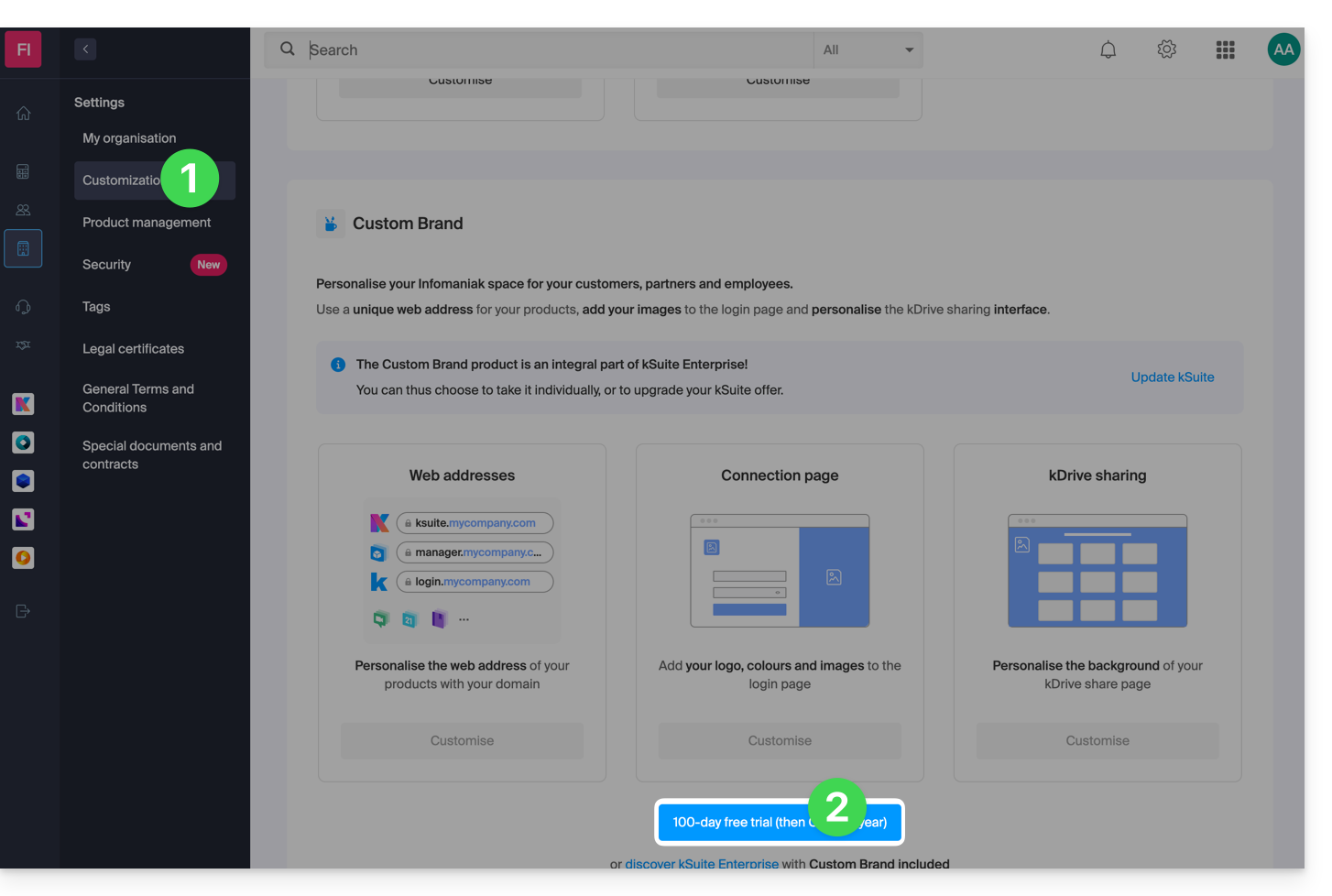
- Click here to access Custom Brand in the Infomaniak Manager (need help?).
- Click the blue Try for Free button (in the Custom Brand section).
- Enter the domain name to use in your custom web address:
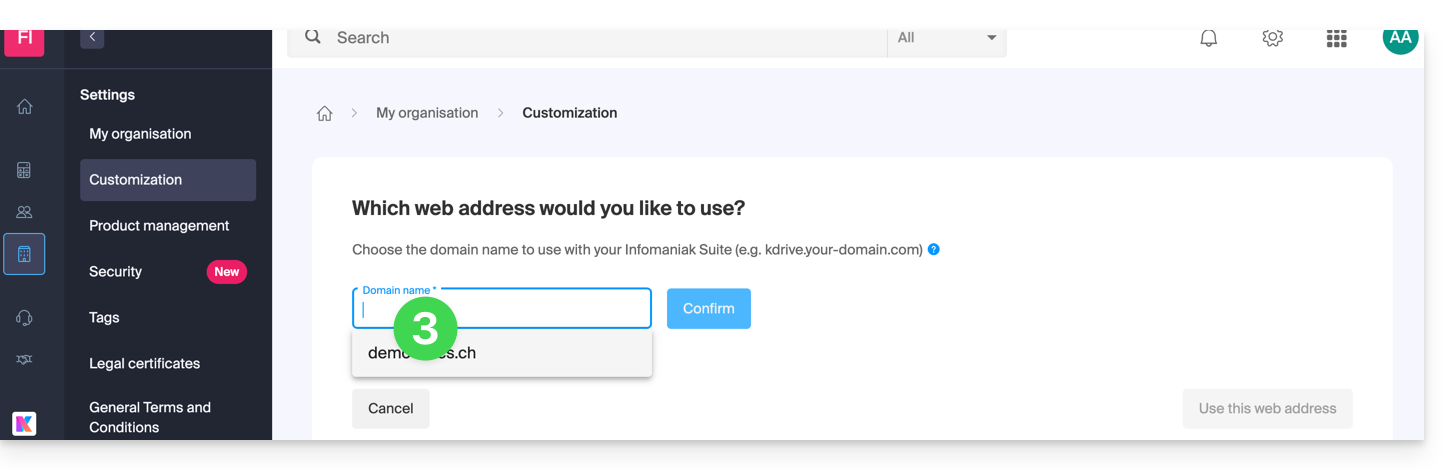
- If you do not yet have a domain name, you will be able to order one at this stage.
- If your domain name is already used for another service, you will be able to choose another one, or use a subdomain (example:
my.domain.xyz).
- When choosing the domain name, the interface will present you with examples of custom web addresses (example: manager.domain.xyz).
- Click on the blue “This web address suits me” button or select another domain name or subdomain until you find a custom web address that suits you.
- Preparing custom web addresses may take a few minutes; an email confirming the creation will be sent to the email address of the account owner.
To disable access via custom URLs:
- Click the blue Disable button in the top right corner of the Custom Brand section:
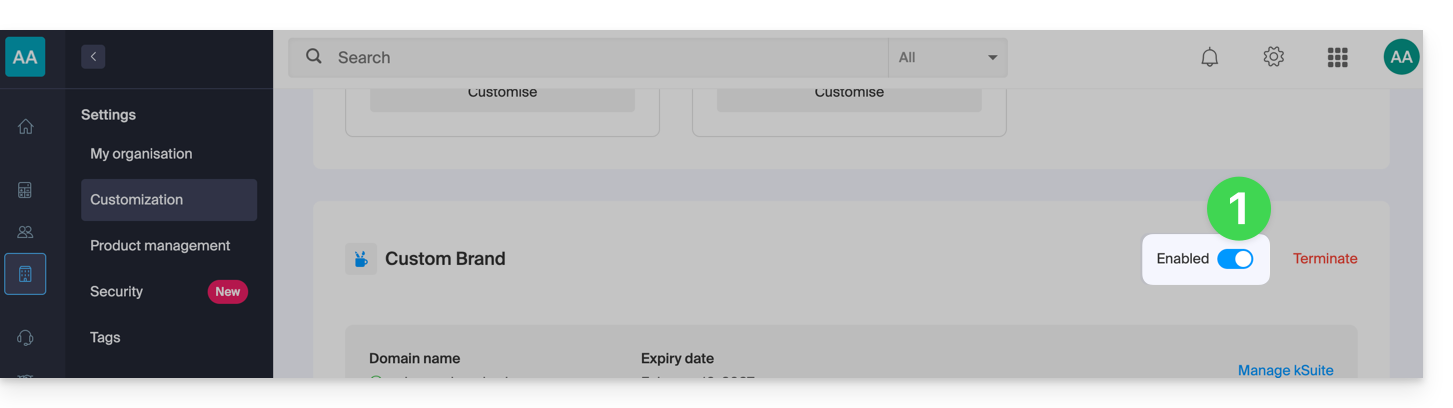
- You can reactivate the addresses later using the same button.
- You can also completely remove this service.
Interface Customization
In addition to customizing the web addresses of your Infomaniak products, you can also add a logo. You can also customize your login page using a slideshow of 3 images:
- Click here to access Custom Brand in the Infomaniak Manager (need help?).
- Click on the blue Customize button (in the Custom Brand section):
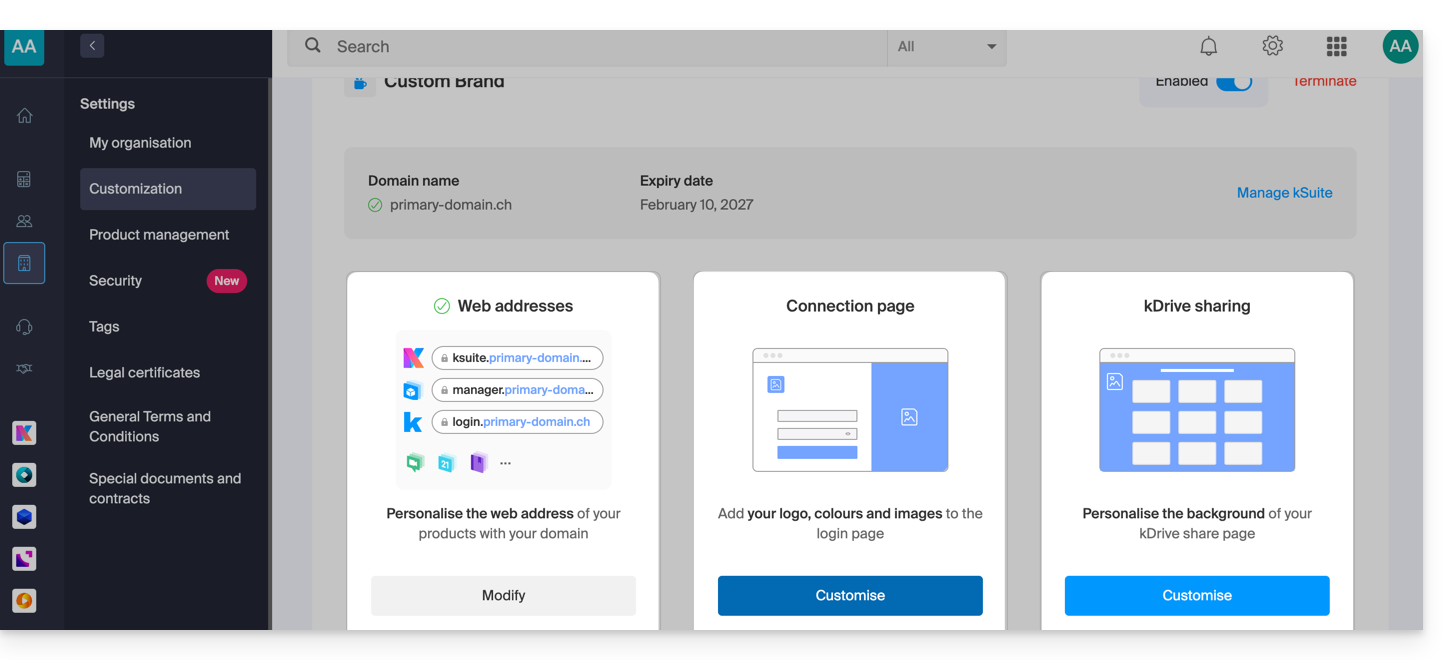
- Upload an image or click Select an image to add it as a logo.
- Resize the image using the tool if it exceeds the maximum size of 270 x 70 pixels.
- This tool allows you to preview how your logo will look on a dark or light theme.
- Click Validate.
- To customize your login page, click the blue Next button on the far right.
- Using the two color selection fields, choose the color for the text and login buttons.
- Upload or click Select an image to create a slideshow of 3 images to the right of the login page (the images must be at least 865 x 1200 pixels).
- Click Add and then Finish to save the changes.
Link to this FAQ: https://faq.infomaniak.com/2467
Has this FAQ been helpful?