Knowledge base
1000 FAQs, 500 tutorials and instructional videos. Here, there are only solutions!
Using DynDNS Infomaniak with Sunrise Internet Box
Update 10/05/2026
This guide explains how to access a Sunrise Internet Box connected to the internet with a dynamic IP address via a domain name.
Prerequisites
- Have a device that allows you to configure a custom dynamic DNS provider.
- A dynamic DNS must have been created for the domain in question via the Infomaniak Manager (❓: help).
Linking a Sunrise Internet Box to a domain name
There are different models of Sunrise Internet Box (❓: help). Here is an example:
- Log in to the Sunrise Box administration interface (e.g.,
http://192.168.1.1). - Enable expert mode (button in the top right corner).
- Go to DynDNS (top left):

- Click on the DynDNS tab.
- Enable the Dynamic DNS client.
- Choose the “Custom” provider:

- Fill in the following fields:
- Below, fill in the following fields:

- Server:
infomaniak.com - Port:
443 - Request (copy and paste as is):
https://infomaniak.com/nic/update?hostname=[DOMAIN]&myip=[IP]&username=[USERNAME]&password=[PASSWORD] - Update interval (seconds):
300 - Retry interval (seconds):
30 - Max. attempts:
3
- Server:
The interface may be presented in this form, but the principle remains the same: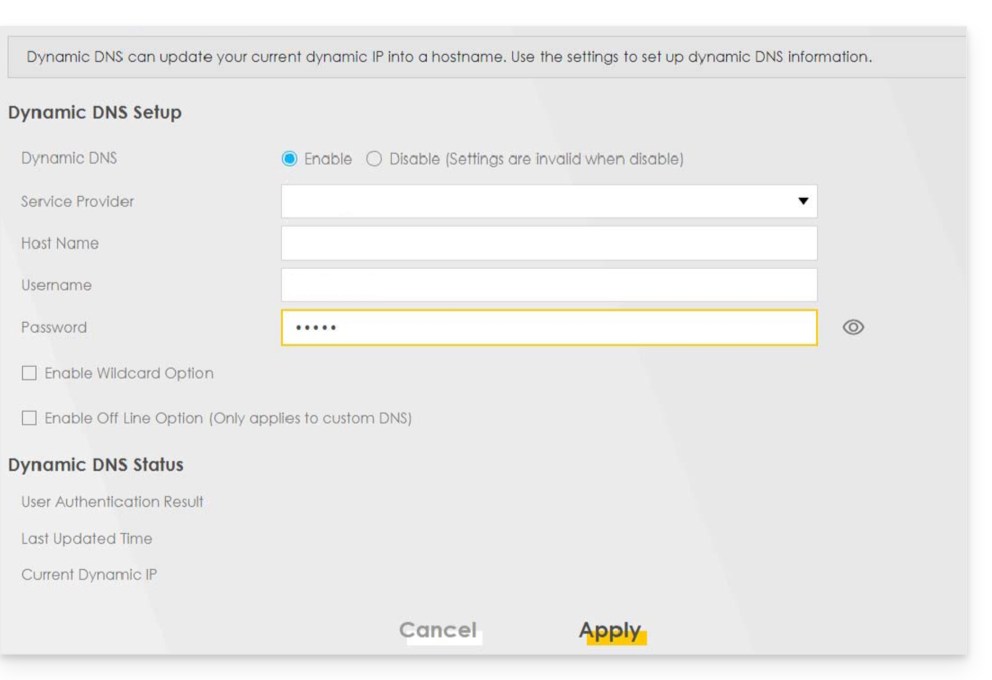
Other routers
The same principle applies to a Omada SDN solution from TP-Link; the Update-URL is https://infomaniak.com/nic/update?hostname=[DOMAIN]&myip=[IP]&username=[USERNAME]&password=[PASSWORD]:
And for other models (such as Zyxel USG Flex or ax7501-B1, for example), fill in the fields using the data below:
- Enable DDNS Profile: activate
- DDNS Type:
User custom - HTTPS: enable
- Domain name:
the URLconfigured in the Manager when adding the Dynamic DNS (❓: help). - Username:
the identifierdefined in the Manager when adding the Dynamic DNS (❓: help). - Password:
the passworddefined in the Manager when adding the Dynamic DNS (❓: help). - Primary Binding Address > Interface : any
- Backup Binding Address > Interface : none
- DYNDNS Server: infomaniak.com
- URL (copy and paste as is): /nic/update?password=password (point 5 above) &username=username (point 4 above) &hostname=DomainName
- example
/nic/update?password=abcd1234&username=admin&hostname=abc.domain.xyz
- example
Link to this FAQ: https://faq.infomaniak.com/2378
Has this FAQ been helpful?