Knowledge base
1000 FAQs, 500 tutorials and instructional videos. Here, there are only solutions!
Manage a dynamic IP with Infomaniak DynDNS
Update 10/05/2026
This guide explains how to configure a dynamic DNS record (Dynamic DNS, DDNS) for a domain name whose DNS zone is managed by Infomaniak. This free alternative to Dyn and DynHost is very useful if you want to access devices connected to the Internet from outside, devices that have a dynamic IP address (e.g., a NAS, a surveillance camera, a router/Internet box/home automation system, etc.).
Prerequisites
- The DNS zone for the domain name must be managed with Infomaniak.
- If necessary, transfer your domains to Infomaniak. (❓: help).
- Your device or application must support dynamic DNS records.
Specific guides
The following guides explain how to link a domain name with:
- … a Synology NAS
- … a Qnap NAS
- … Zyxel / Sunrise Internet Box / TP-Link solutions
- … a UniFI device
- … Swisscom Internet Box
- … Fritzbox
- … Jeedom
- … Linux via ddclient
- … potentially everything thanks to the API
Add a dynamic DNS
To create a dynamic DNS for your domain:
- Click here to access the domain management section in your Infomaniak Manager (❓: help).
- Click on the name of the domain in question.
- Click on Dynamic DNS in the left-hand menu.
- Click on the blue Add a Dynamic DNS button.
- Enter the required information:
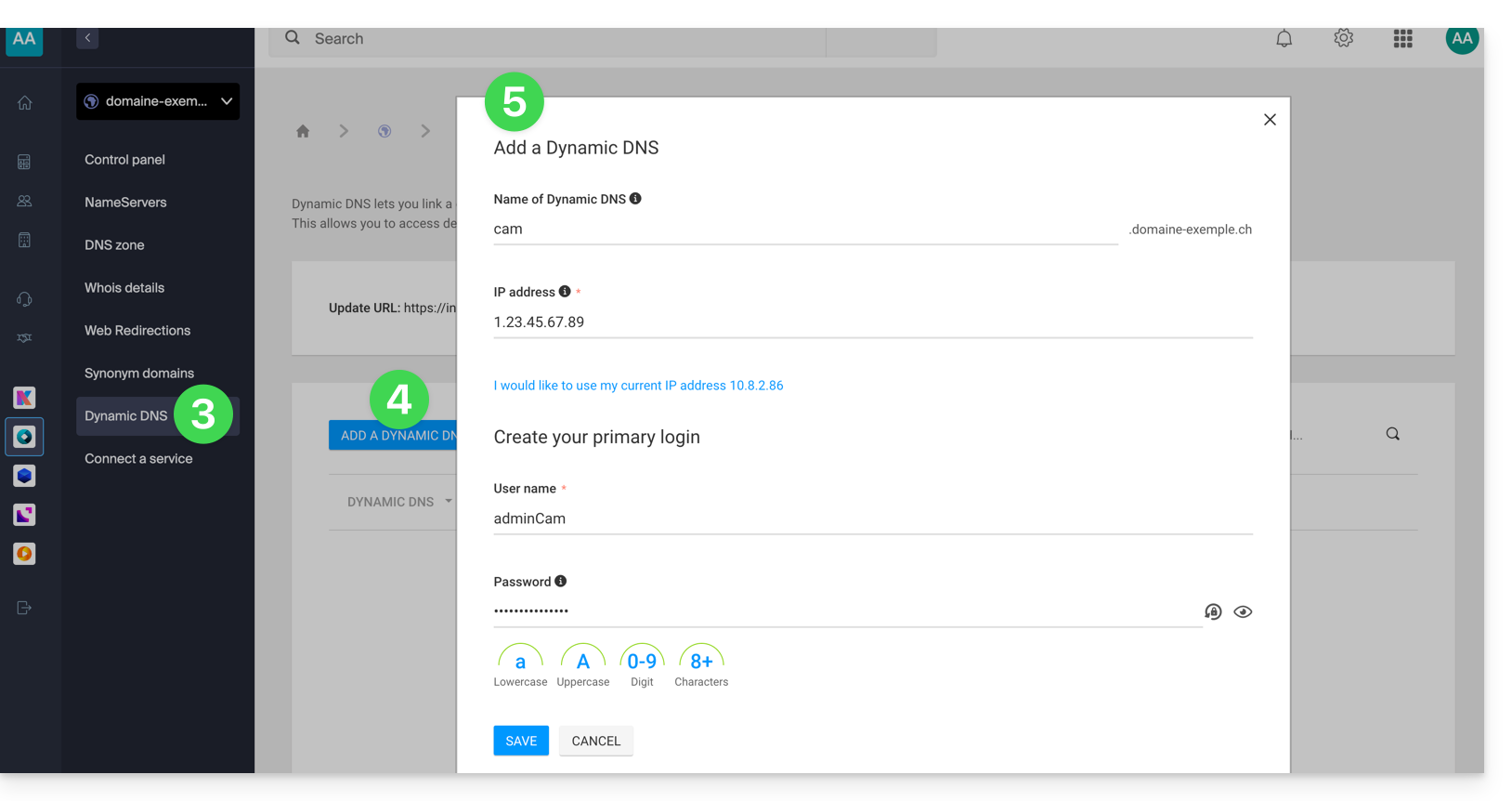
- Choose the desired subdomain or leave the Dynamic DNS Name field blank to use the main domain.
- Enter an IP address; this will then be dynamically updated by your device / app.
- Define an ID / password pair (uppercase, lowercase + numbers, no special characters); the latter must be entered in the configuration of your device / app.
Link to this FAQ: https://faq.infomaniak.com/2357
Has this FAQ been helpful?