Knowledge base
1000 FAQs, 500 tutorials and instructional videos. Here, there are only solutions!
Associate a domain name with a dynamic IP address using DynDNS
Update 11/02/2026
This guide explains how to configure a dynamic DNS record (Dynamic DNS, DDNS) for a domain name whose DNS zone is managed by Infomaniak. This free alternative to Dyn and DynHost is very useful if you want to access devices connected to the Internet with a dynamic IP address from outside your network (e.g., a NAS, a surveillance camera, an Internet/home automation router/box, etc.).
Prerequisites
- The DNS zone for the domain name must be managed with Infomaniak.
- If necessary, transfer your domains to Infomaniak. (❓: help).
- Your device or application must support dynamic DNS records.
Specific guides
The following guides explain how to link a domain name with:
- … a Synology NAS
- … a Qnap NAS
- … Zyxel / Sunrise Internet Box / TP-Link solutions
- … a UniFI device
- … Swisscom Internet Box
- … Fritzbox
- … Home Assistant
- … Jeedom
- … Linux via ddclient
- … potentially everything via the API
Add a Dynamic DNS
To create a dynamic DNS for your domain:
- Click here to access the domain management section in your Infomaniak Manager (❓: help).
- Click on the name of the domain in question.
- Click on Dynamic DNS in the left-hand menu.
- Click on the blue Add a Dynamic DNS button.
- Enter the required information:
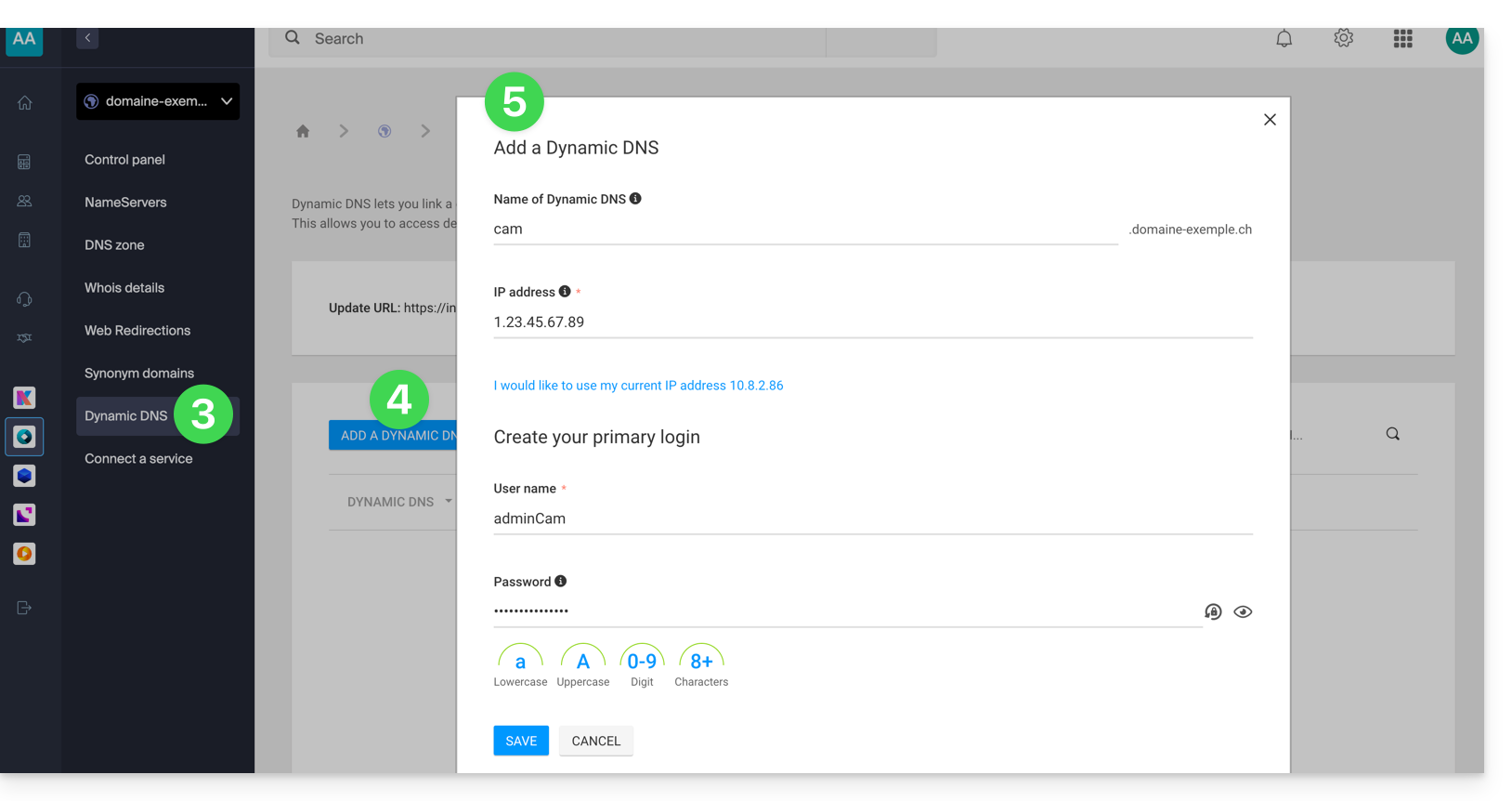
- Choose the desired subdomain or leave the Dynamic DNS Name field blank to use the main domain.
- Enter an IP address; this will then be dynamically updated by your device/app.
- Define an ID / password pair (uppercase, lowercase + numbers, no special characters); the latter must be entered in the configuration of your device/app.
Link to this FAQ: https://faq.infomaniak.com/2357
Has this FAQ been helpful?