Knowledge base
1000 FAQs, 500 tutorials and instructional videos. Here, there are only solutions!
Restore a snapshot on a Cloud VPS
This guide explains how to restore a snapshot of an Infomaniak Cloud VPS.
Please note: depending on the operating system installed, the system volume may be named /dev/sda, /dev/sda1, or /dev/vda; the same applies to the data volume /dev/sdb, /dev/sdb2, or /dev/vdb. Therefore, you should replace these indications with those that correspond to your situation.
Restore a snapshot
To do this:
- Click here to access the management interface for your product in the Infomaniak Manager (need help?).
- Click directly on the name assigned to the product in question.
- Click on Snapshot in the left-hand menu.
- Click on the action menu ⋮ to the right of the relevant item in the table that appears.
- Click on Restore:
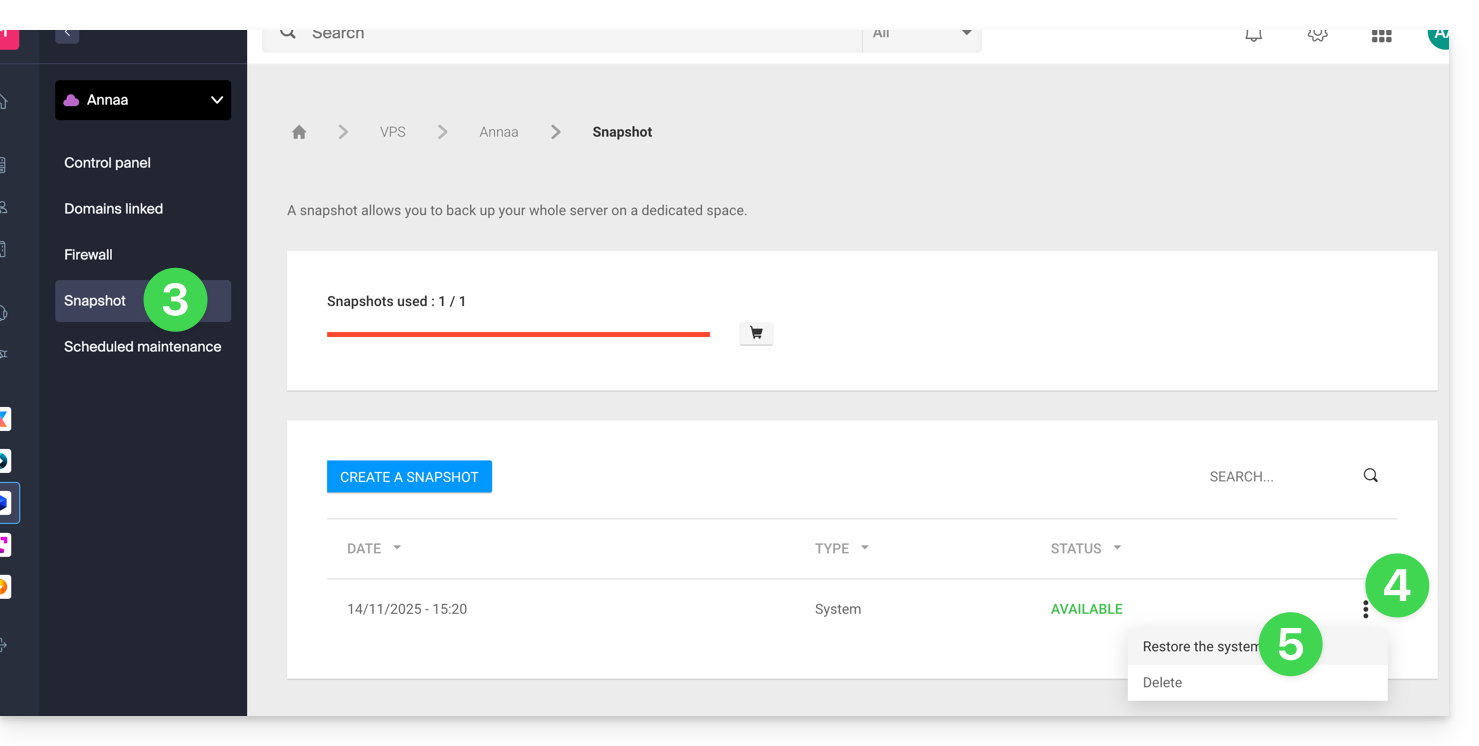
- Click the blue button to start restoring the snapshot.
- An email is sent when the snapshot is restored.
Restore the operating system disk
Restoring the system volume as in the example above is an irreversible operation. The operating system disk will be replaced by the snapshot, and the server will revert to the exact state it was in on the backup date.
The data stored on the data volume (vdb) is not affected by this operation.
Restore the data disk (vdb)
Two data restoration modes are available:
1. Read-only mode
If the snapshot size differs from the volume size, only this read-only mode is available.
This option allows you to mount the data snapshot image, which provides read-only access to the backup data.
For your information, here are some useful commands for managing your backup:
- To access the main data volume:
mount /dev/vdb /mnt/. - To mount the data volume in a specific "backup" folder:
mount -o nouuid -o ro,norecovery /dev/vdc /backup.
To determine which letter to use (/dev/vd?), use the lsblk command:

2. “Recovery” Mode
Restoring the data volume is an irreversible operation. The data disk (vdb) will be replaced by the snapshot. At the end of the restoration, it will be necessary to remount the data volume so that your operating system refreshes the content.
The procedure and the following commands are provided for informational purposes only:
- Make sure your data volume is not mounted:
* umount /mnt(/mnt or the location you chose to access your data). - Mount the data volume again:
* mount /dev/(vdb) /mnt
To find out the name of the data volume attached to your server, use the lsblk command (see above).
Link to this FAQ: https://faq.infomaniak.com/2297
Has this FAQ been helpful?