Knowledge base
1000 FAQs, 500 tutorials and instructional videos. Here, there are only solutions!
Overlay an image on a live video stream
This guide explains how to insert an image, logo, or watermark into your video streams to strengthen your brand image and protect your content from copying or potential misuse.
Add the image to the stream
You can add an image that will appear on your video stream:
- either from the settings of a Player (free)…
- The logo is overlaid on the video and will not be visible if the stream is embedded outside of the Player.
- either by embedding the logo via transcoding (paid option)…
- The logo is embedded in the video and will be visible in all cases; this requires the complete re-encoding of the stream(s) by a transcoding server, which explains the cost of this method.
In both cases, it is possible to customize the following parameters:
- Position of the logo (in one of the four corners of the player, spacing from the edge, etc.).
- Size of the logo (for example, a logo at 50% will be twice as small):
- It is recommended to use the native size to optimize loading and rendering quality.
- In the case of video transcoding, the logo size is calculated in relation to the source video (or maximum quality); the logo will be resized automatically if lower qualities are present in order to maintain the same ratio.
- Opacity of the logo.
1. Overlay a logo using the Player (free).
- Click here to access the management interface for your product in the Infomaniak Manager (need help?).
- Click directly on the name assigned to the product in question.
- Click on Integration in the left-hand menu.
- Click on Players in the left-hand menu.
- Click on the name of the Player you want to customize.
- Click on the Appearance tab (or drop-down menu).
- Add the desired logo in
png,jpg, orgif(non-animated) format and save it to the bottom of the page: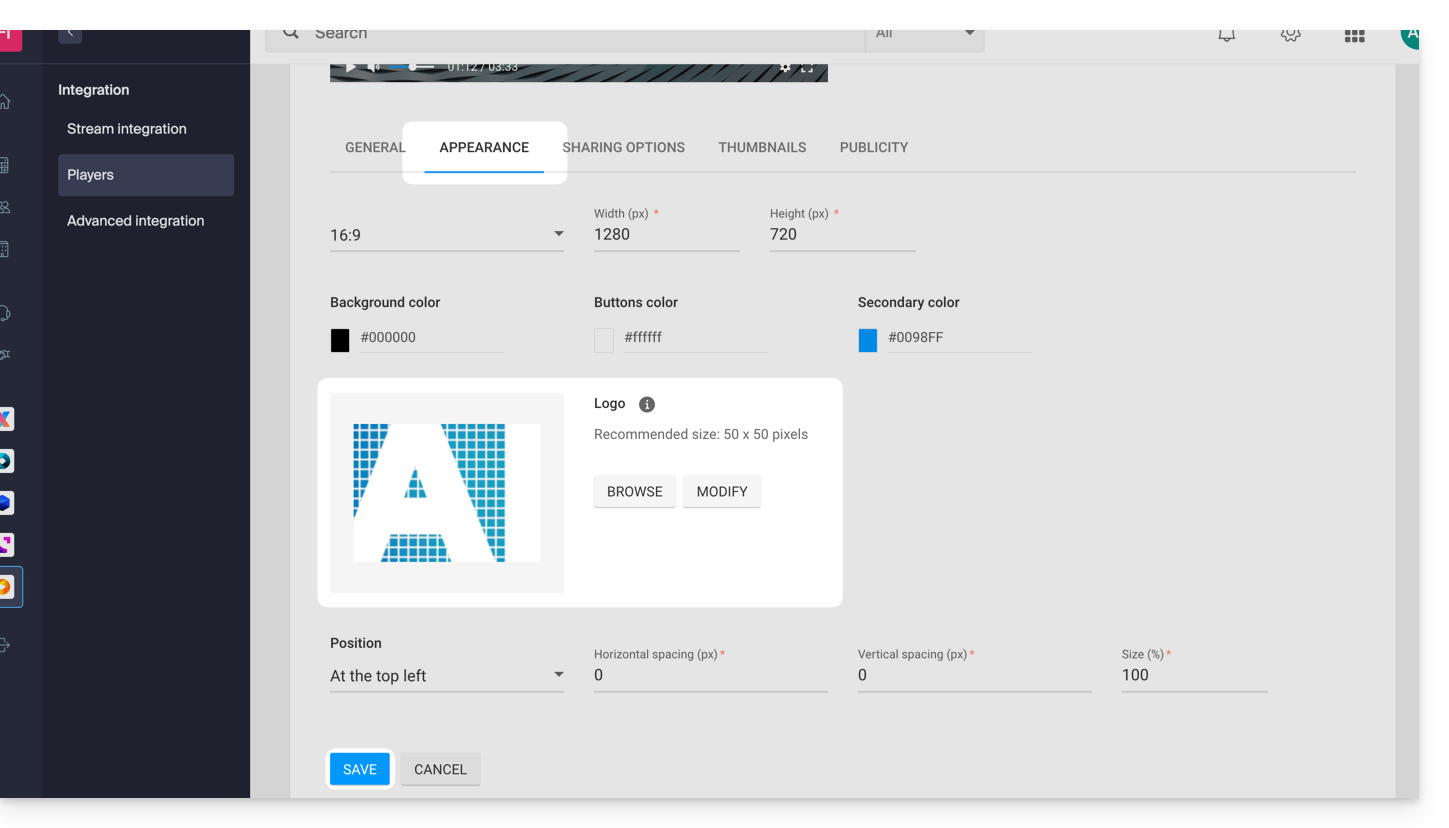
2. Enable the watermark option (paid feature)
- Click here to access the management interface for your product in the Infomaniak Manager (need help?).
- Click directly on the name assigned to the product in question.
- Click on Settings in the left-hand menu.
- Click on Options from the left-hand menu.
- Enable the Watermark option:
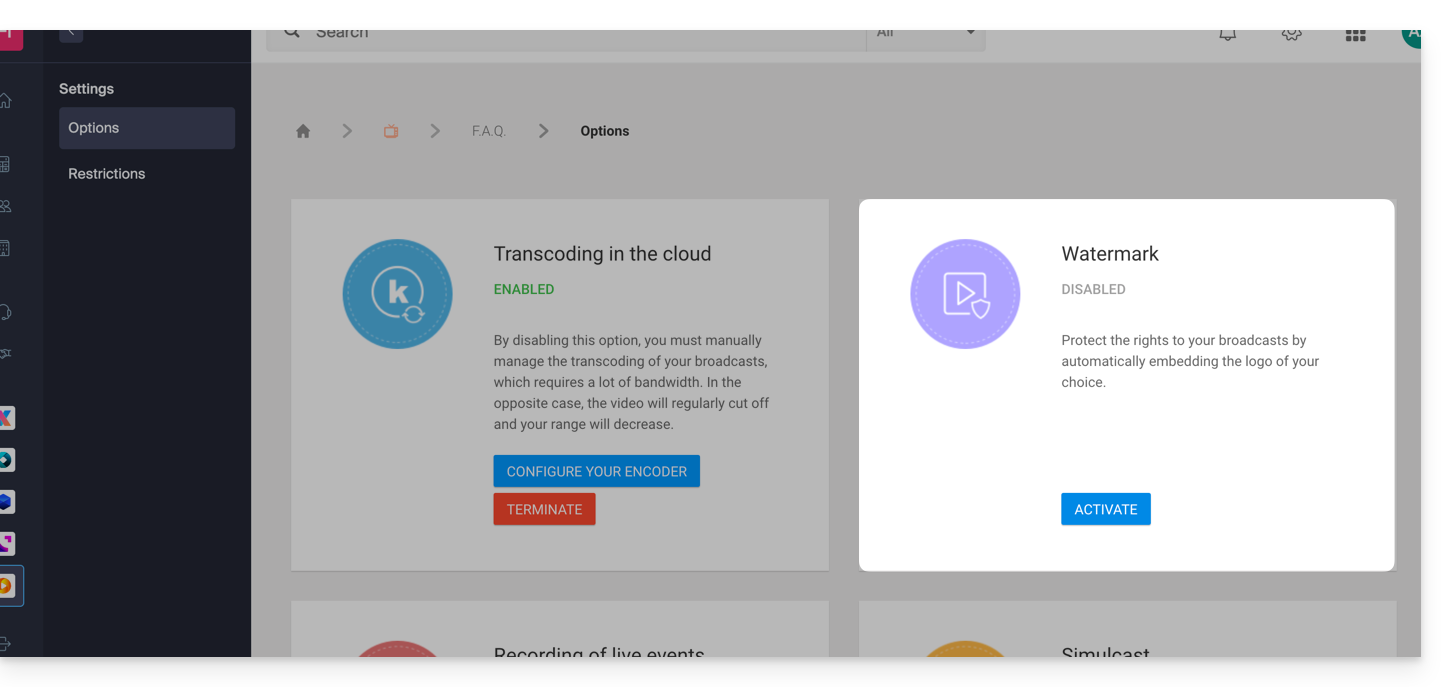
- Add the desired logo in
png,jpg, orgif(non-animated) format.
Link to this FAQ: https://faq.infomaniak.com/2268
Has this FAQ been helpful?