Knowledge base
1000 FAQs, 500 tutorials and instructional videos. Here, there are only solutions!
Transfer a Web Hosting from one Cloud Server to another
This guide explains how to move a Web Hosting (and all the sites it contains) from a Cloud Server to another managed Cloud Server.
If you wish to update the current Cloud Server to a next-generation server, refer to this other guide.
Preamble
- FTP & MySQL
- When moving a hosting from one Cloud Server to another:
- FTP access and databases do not change.
- Only the supported versions of PHP and MariaDB, as well as the server's IPv4 and IPv6 addresses, change at the hosting level.
- Hostnames do not change and are automatically updated to point to the new IP addresses.
- When moving a hosting from one Cloud Server to another:
- Temporary interruption:
- The sites in the hosting will be unavailable during the data migration.
- This process can take several minutes depending on the number of files to transfer to the new Cloud Server.
- Possible switch to HTTP/2:
- HTTP/2 is active on the new servers.
- Some directives that may be present in your server's .htaccess file could require adaptation.
- Traffic redirection:
- A proxy is set up for 7 days to redirect traffic from the old server to the new one.
- It is therefore advisable to consider this during this period, especially for crons (see below).
- Crons not migrated:
- SSH crons are not migrated.
- Files and crons are generally not deleted immediately, which can result in duplicates.
- Managing crons is your responsibility; depending on the progress of your migration, you need to:
- deactivate and activate crons via SSH if you have them, to avoid any execution conflicts,
- check your crons,
- ensure they are properly configured on your new Cloud Server.
Move hosting
Prerequisites
- Both servers must be in the same Organization and accessible to the user performing the operation.
Once the second Cloud Server is in service:
- Click here to access hosting management on the Infomaniak Manager (need help?).
- Click directly on the name assigned to the hosting concerned.
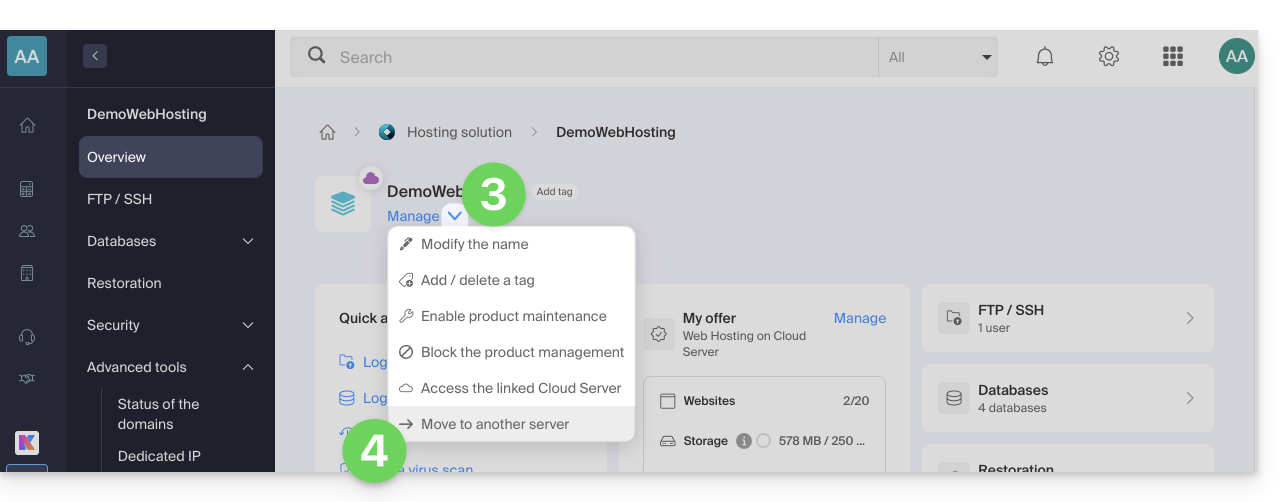
- Click on the Manage button.
- Click on Move to another server in the menu that appears:
- Choose the desired destination server.
- Click on Confirm.
Adjust the DNS zone and finish
If your domain names are not managed by Infomaniak or in the same Organization as the Cloud Server:
- Adjust the A record of the domains concerned.
- Any DNS addition/modification can take up to 48 hours to propagate.
- It is therefore recommended not to cancel the old Cloud Server before this period.
- Cancel the old Cloud Server if necessary.
Link to this FAQ: https://faq.infomaniak.com/2194
Has this FAQ been helpful?