Knowledge base
1000 FAQs, 500 tutorials and instructional videos. Here, there are only solutions!
Use kChat slash commands
This guide concerns messages that begin with / on kChat, which are interpreted as slash commands.
Executing a slash command on kChat
To access slash commands in kChat:
- Click in the text input field within a channel.
- Enter a
/(slash or forward slash) followed by the command. - Confirm to send the command.
If you type only the / symbol, a modal window will appear displaying the commands that can be executed, such as going offline, for example.
Here is a table of the main commands:
| command | description |
|---|---|
| /away | sets your status to "away" |
| /offline | sets your status to "offline" |
| /online | sets your status to "online" |
| /dnd | sets your status to "do not disturb" |
| /code | used to format text as code |
| /collapse | hides the element's content in the message |
| /expand | expands the content of the element in the message |
| /echo | repeats the text that follows the command |
| /header | displays a header in a message |
| /purpose | defines or displays the channel description |
| /rename | renames the current channel |
| /leave | leaves the current channel |
| /mute | mutes the current channel |
| /reminders | manages reminders |
| /search | search for messages and other content |
| /settings | opens the settings |
| /shortcuts | displays keyboard shortcuts |
Create a custom slash command
Prerequisites
- Do not be an external user (they will not see the Integrations menu).
To create a custom slash command:
- Click here to access the Web kChat app (online service ksuite.infomaniak.com/kchat) or open the desktop kChat app (desktop application on macOS / Windows / Linux).
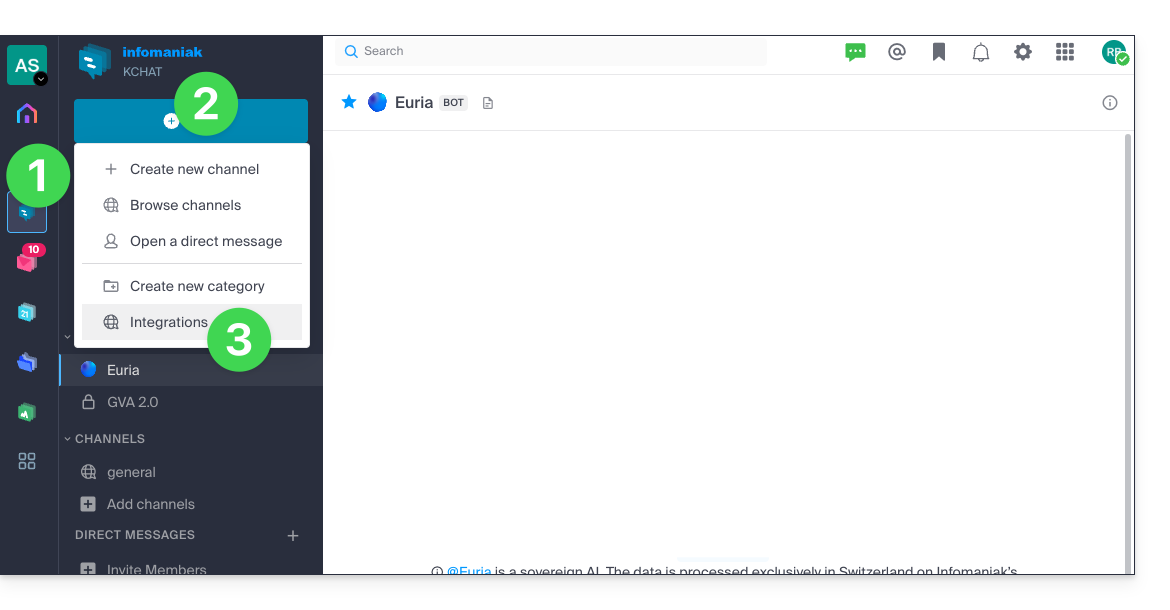
- Click on the New icon next to your kChat organization's name.
- Click on Integrations:
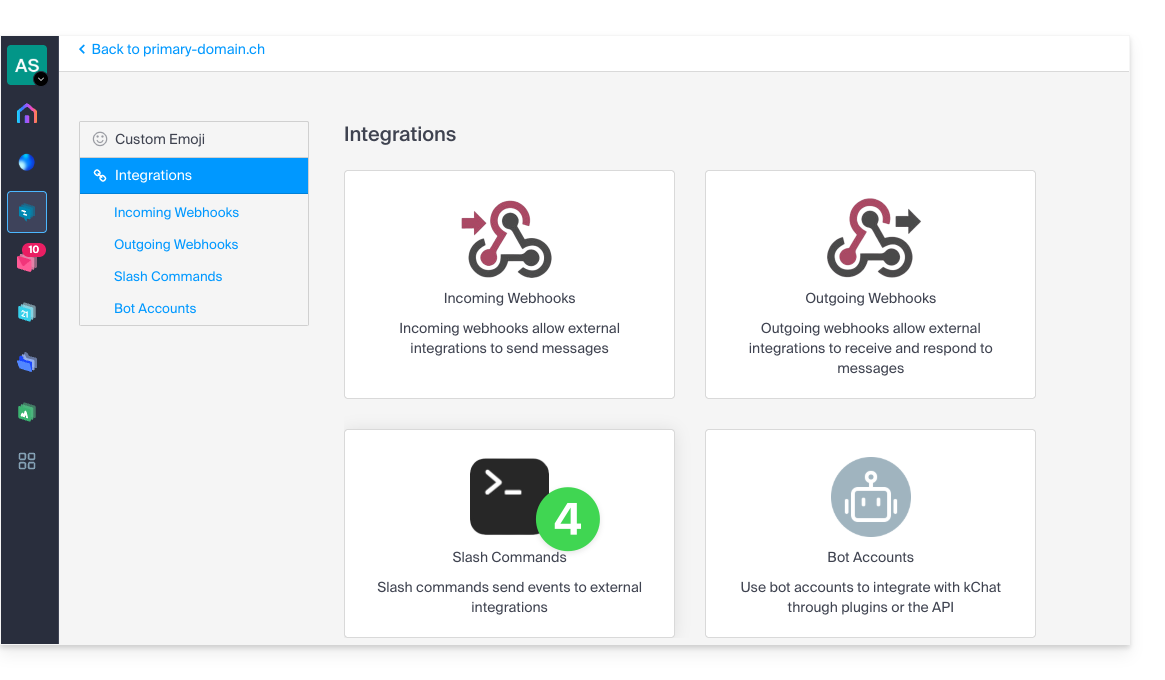
- Click on Slash commands:
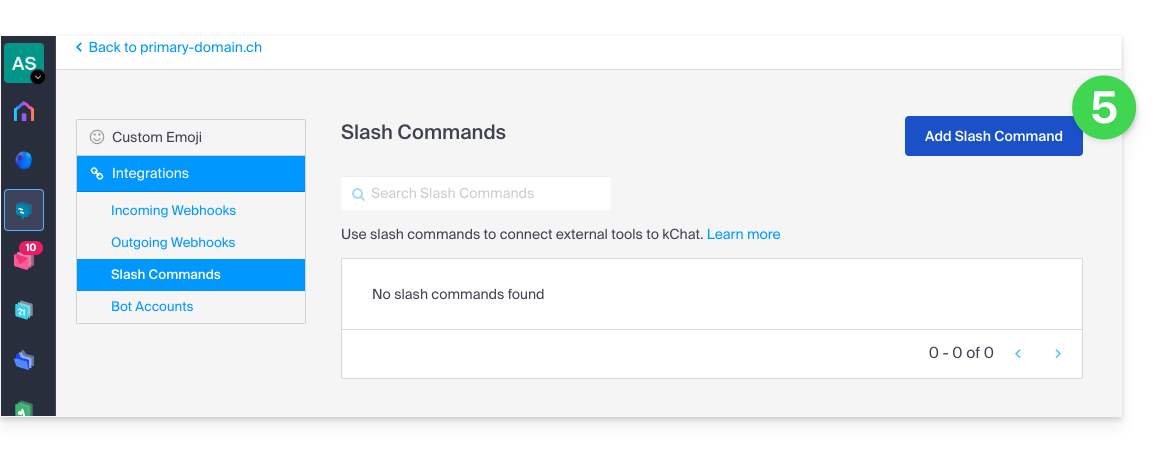
- Click on the blue button to Add a command:
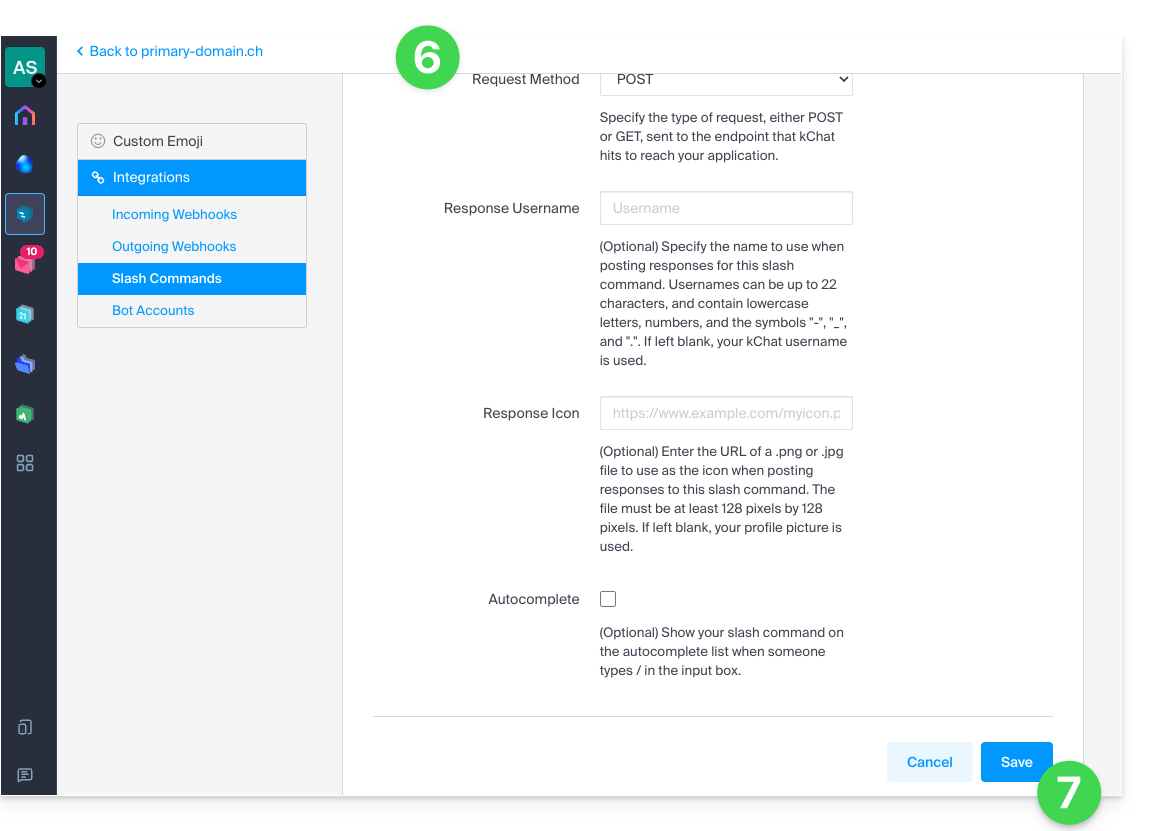
- Configure the slash command (name, trigger (without the
/), expected content type, action to be executed*, etc., including whether the command should be displayed in the help modal).- * This may include calling an external API, executing a script, displaying a specific response, etc. For this, you will generally need an external script or application that will respond to the commands. You can also define additional parameters for the command, such as drop-down options, check boxes, etc., depending on your needs.
- Save the command:
- Make sure to test the command to ensure it works as expected.
Keep in mind that creating custom slash commands may require additional programming skills, especially if you need to integrate custom features or interactions with external systems. Also, be sure to follow security best practices when creating these commands to avoid potential security vulnerabilities.
Link to this FAQ: https://faq.infomaniak.com/2134
Has this FAQ been helpful?