Knowledge base
1000 FAQs, 500 tutorials and instructional videos. Here, there are only solutions!
Manage the firewall for Web Hosting & Cloud Server
This guide explains how to allow certain incoming and/or outgoing ports in the firewall(firewall) for a web hosting or a Cloud Server.
Introduction
- On a shared web hosting plan, it is only possible to open outgoing ports.
- On a Cloud Server, it is possible to open incoming and outgoing ports.
- Opening ports ensures the proper functioning of certain applications but may reduce the security of your hosting.
Access the tool and add a rule
To manage port openings from the Manager:
- Click here to access the management of your hosting on the Infomaniak Manager (need help?).
- Click directly on the name assigned to the hosting in question.
- Click on Security in the left-hand menu.
- Click on Port Forwarding in the left-hand menu.
- Click on the Open a Port button:
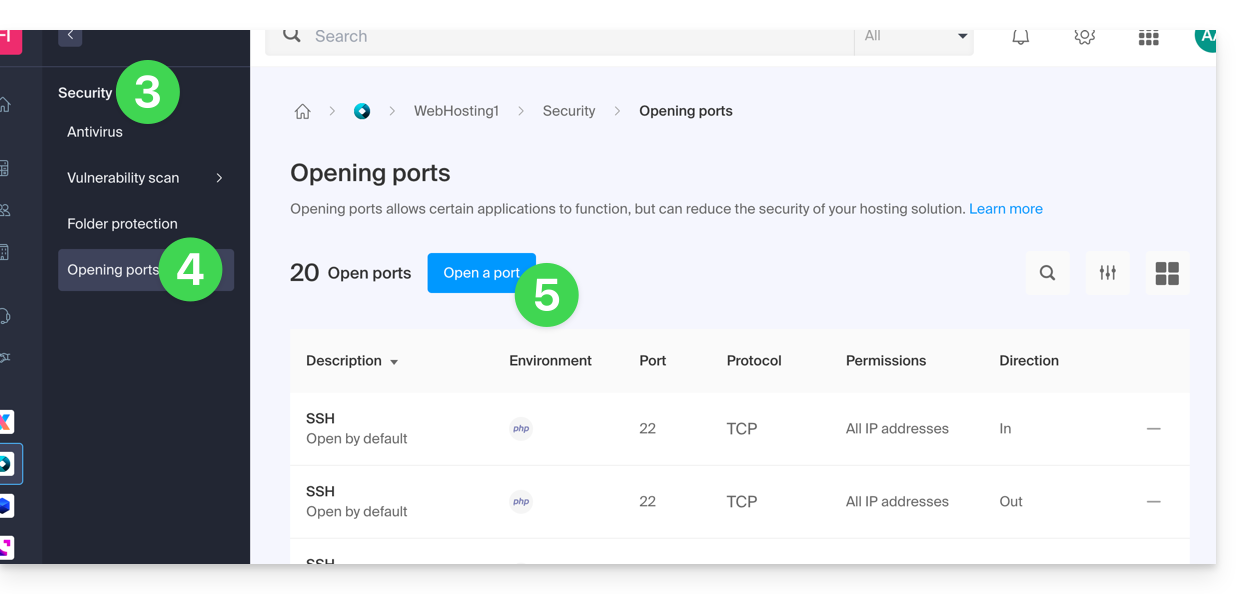
Open a port
You can only specify one port per rule, and only one IP/host per field: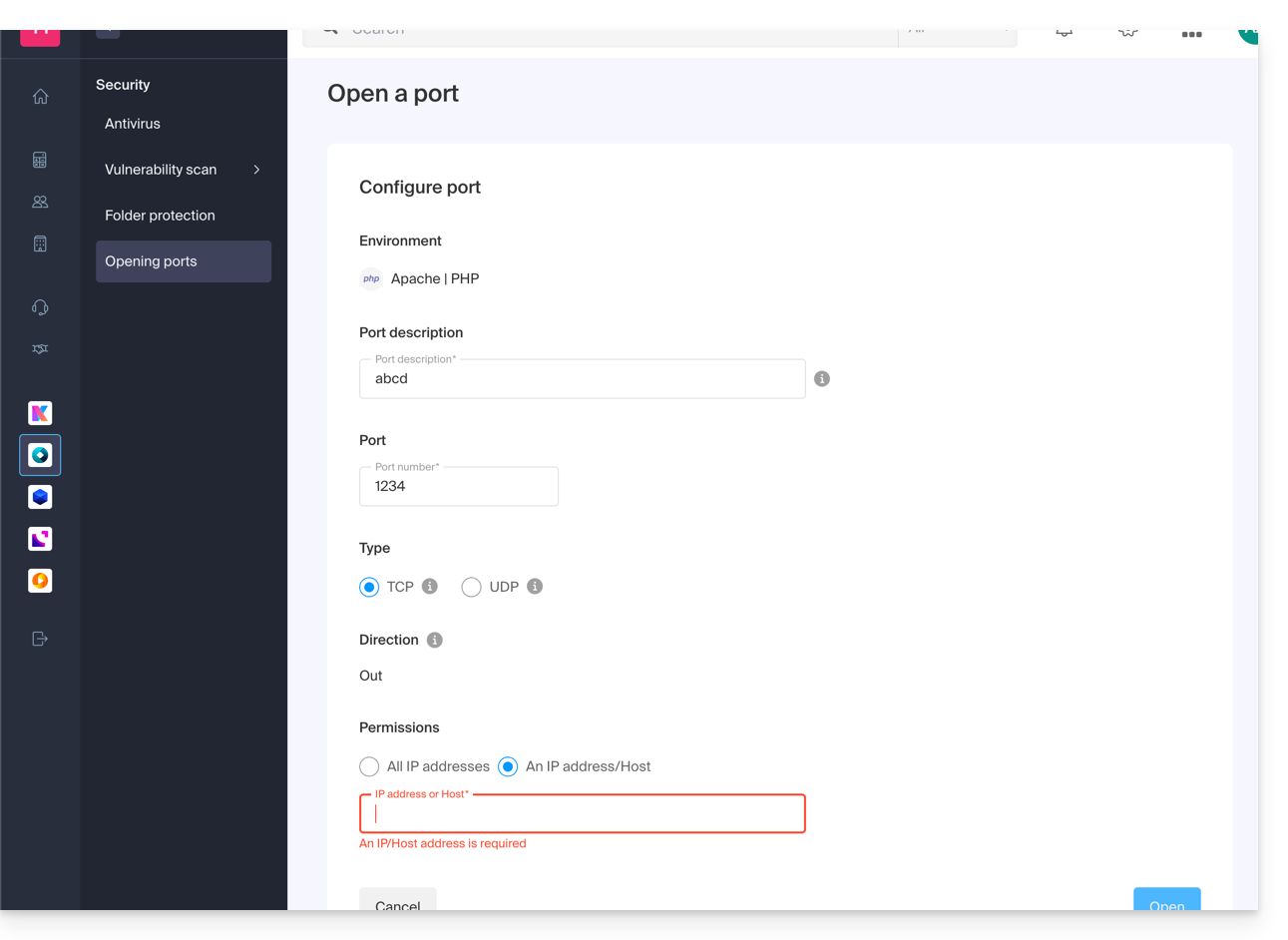
By specifying an IP address or host, the connection will only be allowed in the following cases:
Incoming rule: if the connection comes from this IP address or the specified hostOutgoing rule: if the connection is made to this IP address or host
The same applies to the connection "Type": if the protocol used for the connection is not the one specified in the rule, the connection is not allowed.
Globally open outgoing port 25
You can open outgoing port 25 from the manager if a destination host is specified.
With a Cloud Server, to open this port to the entire world, contact Infomaniak support and justify your request.
Ports opened by default
Once you access the port opening tool, you will find the list of ports that are open by default on the page.
With a Cloud Server, to exceptionally close some of the listed ports, contact Infomaniak support and justify your request.
The display may sometimes be spread across multiple pages: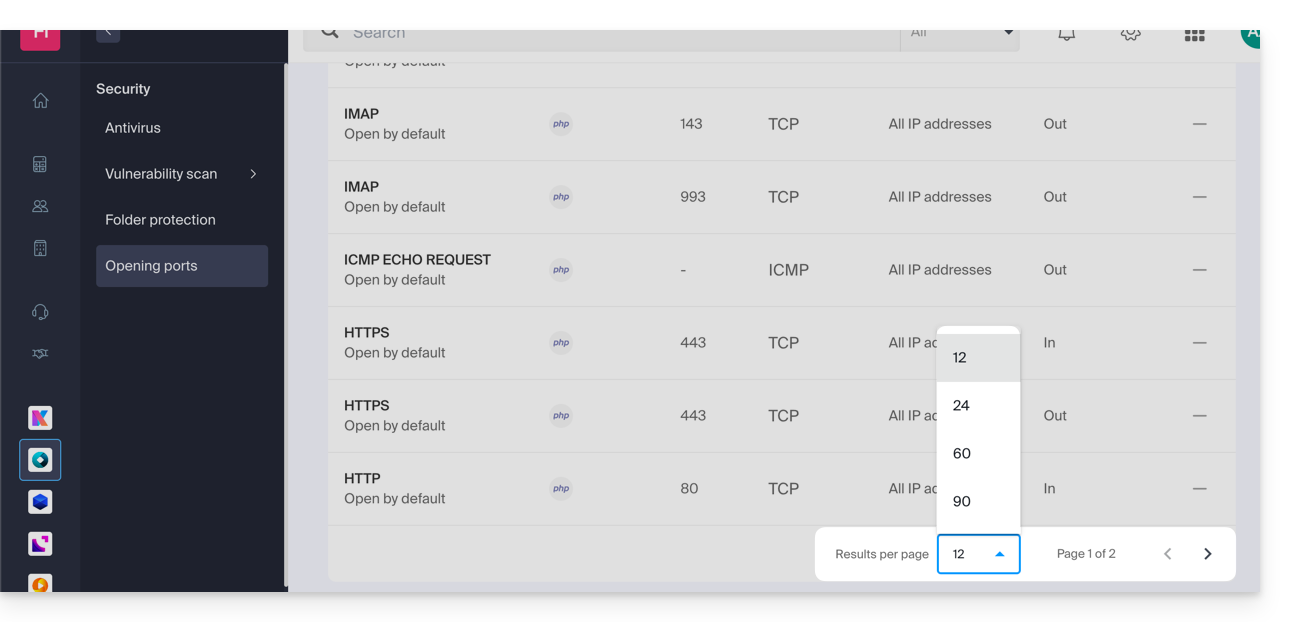
MySQL Ports
Regarding database ports, please refer to these guides:
Check the activity of a port (Cloud Server)
On Cloud Server, to check if an application is listening on a specific port (1234 in the example below) and to find out the name of the application in question, run the following command via SSH:
netstat -anpe | grep "1234" | grep "LISTEN"Link to this FAQ: https://faq.infomaniak.com/2126
Has this FAQ been helpful?