Knowledge base
1000 FAQs, 500 tutorials and instructional videos. Here, there are only solutions!
Summarize a kMeet meeting with Euria
Update 10/13/2026
This guide explains how to generate a summary of an online meeting organized with kMeet, Infomaniak's ethical and free video conferencing solution.
Get a kMeet meeting report
Prerequisites
- You must have a paid kDrive account (standalone or as part of a kSuite, my kSuite+, etc. plan).
- Do not create a video conference encrypted with a custom key.
To enable the meeting minutes feature for your video conferences:
- Start kMeet via kmeet.infomaniak.com or from one of the apps for desktop and mobile devices.
- Click on the ◉ Start recording icon (refer to this other guide for more information).
- Enable the summary.
- Log in to your Infomaniak account:
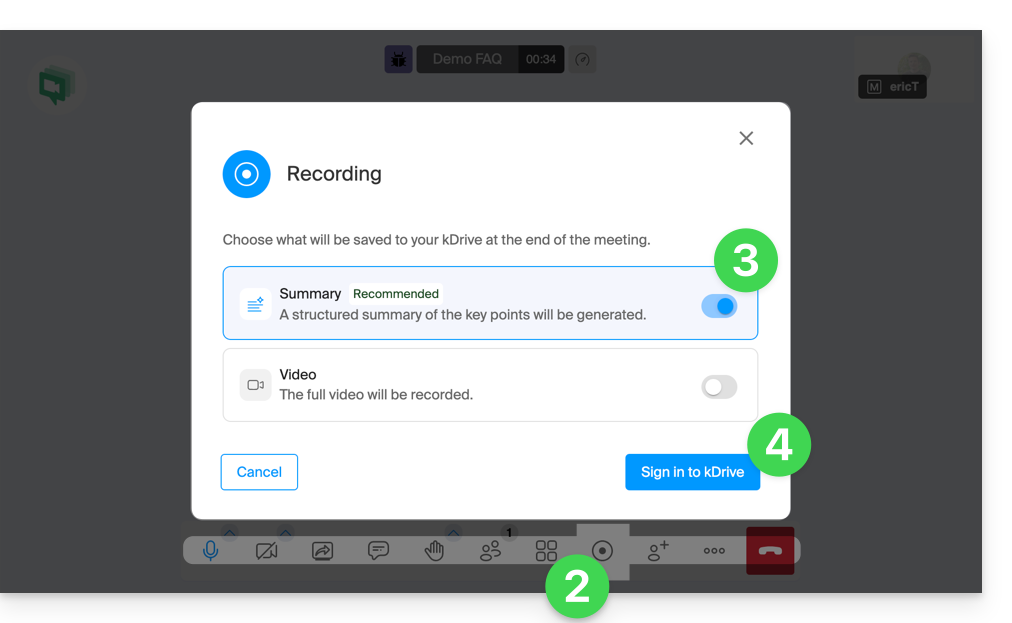
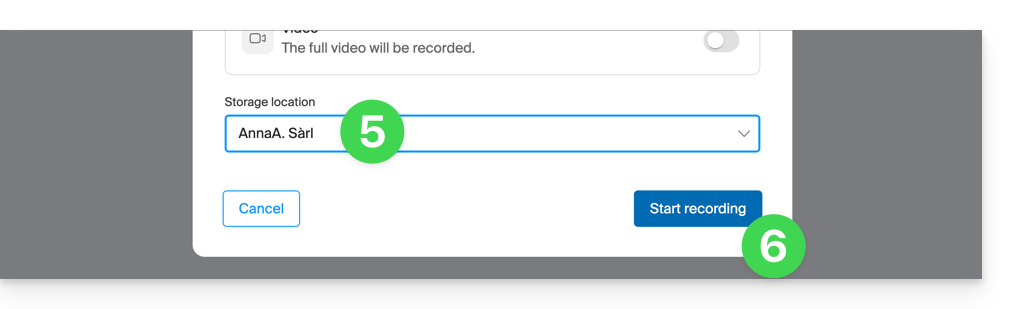
- Select a kDrive to save the video conference to.
- Then, click the button to start the recording:
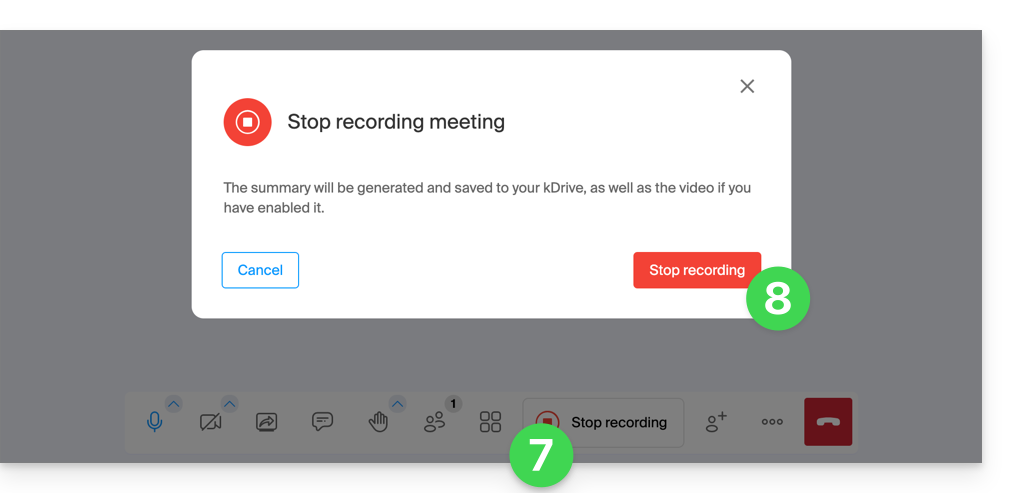
- To stop the video recording, click Stop recording.
- Confirm:
- Choose whether you want to go to the location of the record on kDrive:
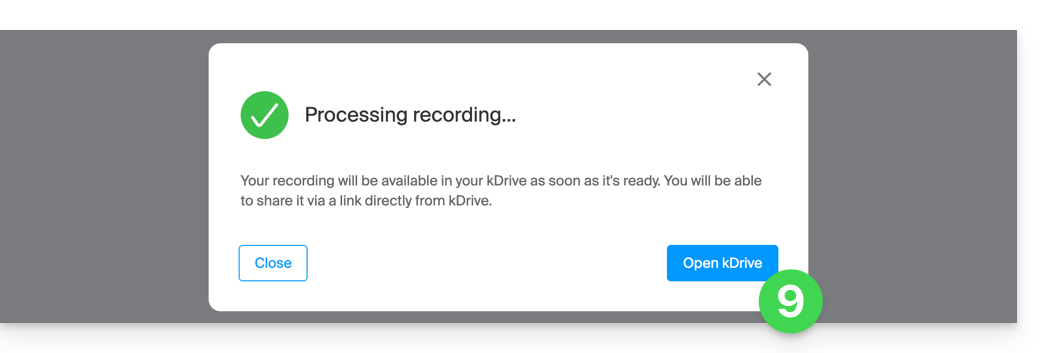
- The report is available at the root of the chosen kDrive, in text format
.md; you can view it directly on kDrive.
This summary of your conversation will be written in the language that was most frequently used during the recorded discussion.
Link to this FAQ: https://faq.infomaniak.com/2035
Has this FAQ been helpful?