Knowledge base
1000 FAQs, 500 tutorials and instructional videos. Here, there are only solutions!
Manage Newsletter Credits
This guide explains how the Infomaniak Newsletter sending management system works.
Sending volumes available for your newsletters
Generally speaking, the rule is simple: 1 send = 1 newsletter sent to 1 subscriber.
There are two types of send volumes:
- The emails included with your Infomaniak products (not carried over from month to month if not used).
- The emails purchased via packages (unlimited validity).
1. Obtain and use free email sends
Each Infomaniak product you own entitles you to a quota of free monthly email sends. For example, owning at least one Infomaniak Ticketing (even if no event is created or active) allows you to benefit from 2,500 free email sends each month. This volume is fixed, regardless of whether you have one or more ticketing systems on the same account. The same principle applies to kSuite (the Enterprise version gives you 5000 free emails).
Regarding usage, your free emails are used first. Your paid emails will only start being deducted when there is no longer a sufficient balance of free emails.
Example of how it works:
A customer benefits from 2000 monthly sends included.
- If, at the end of the month, they still have 1500 free emails left, the system automatically tops up their balance to bring it back to 2000 free emails at the beginning of the following month.
- If they have purchased a pack of 10,000 emails, these will not be used until they have used up all their free emails. They will only start to be deducted once the monthly quota of free emails has been fully used. The monthly renewal of 2000 free emails will therefore continue to apply independently of the balance of paid emails.
2. View and order additional sending volumes
To access the management of your free and paid sending volumes:
- Click here to access your product management interface on the Infomaniak Manager (need help?).
- Click on the domain name assigned to your Newsletter.
- Click on Outbound (or the balance management menu) in the left-hand menu.
- You can view the details of your usage and get more outbound credits by clicking on the Get outbound credits button:
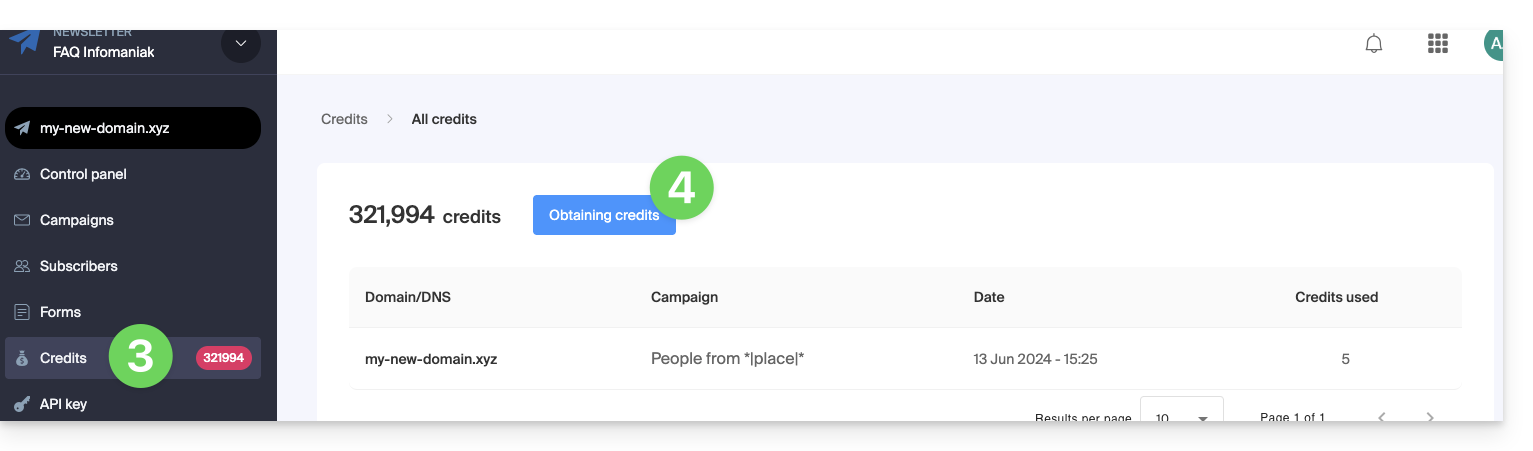
- To increase your allowance, click on Order more sends.
- Click on Details to view the credits earned through your other products,
- Click on the blue button to see the credits you earn from your other products:

Set a monthly usage limit
If you want to control your usage, you can set a limit on the number of emails sent per month:
- Click here to access your Newsletter interface.
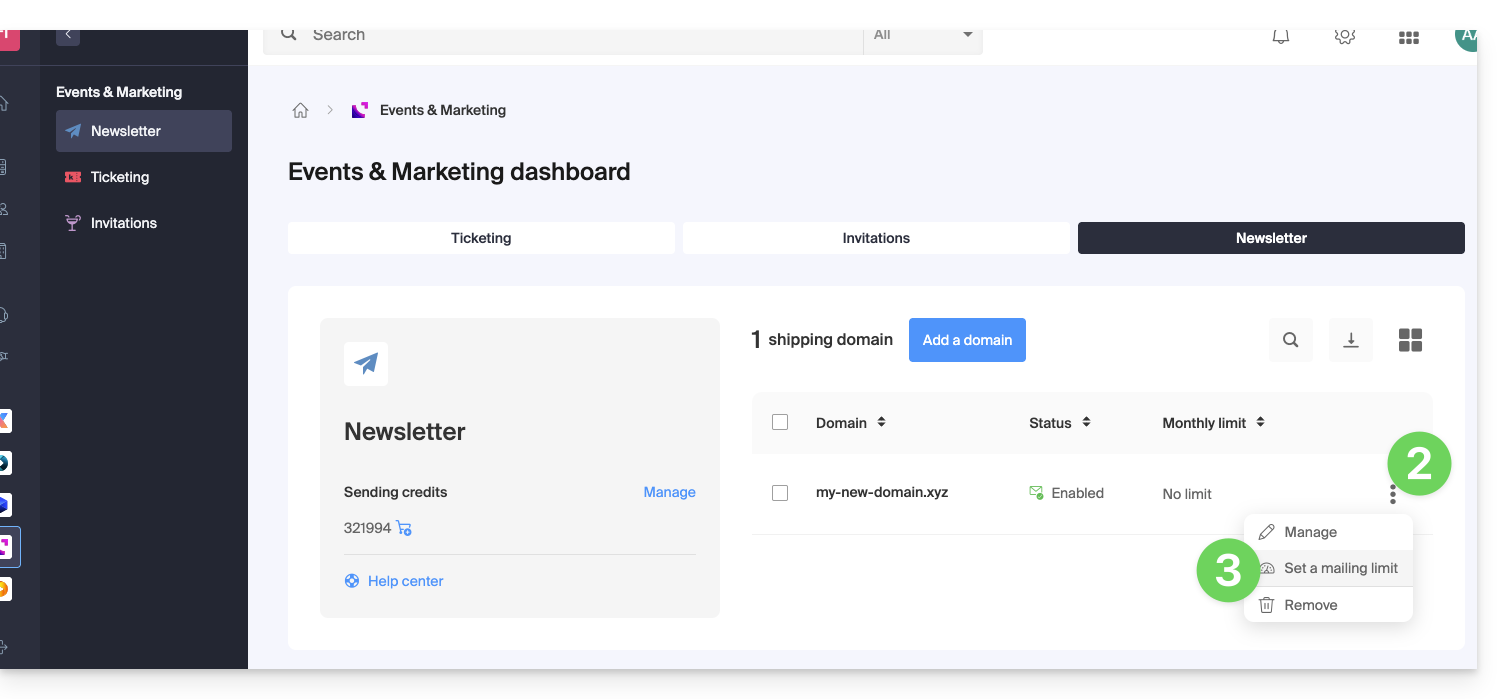
- Click on the action menu ⋮ to the right of the domain in question.
- Select Set a sending limit:
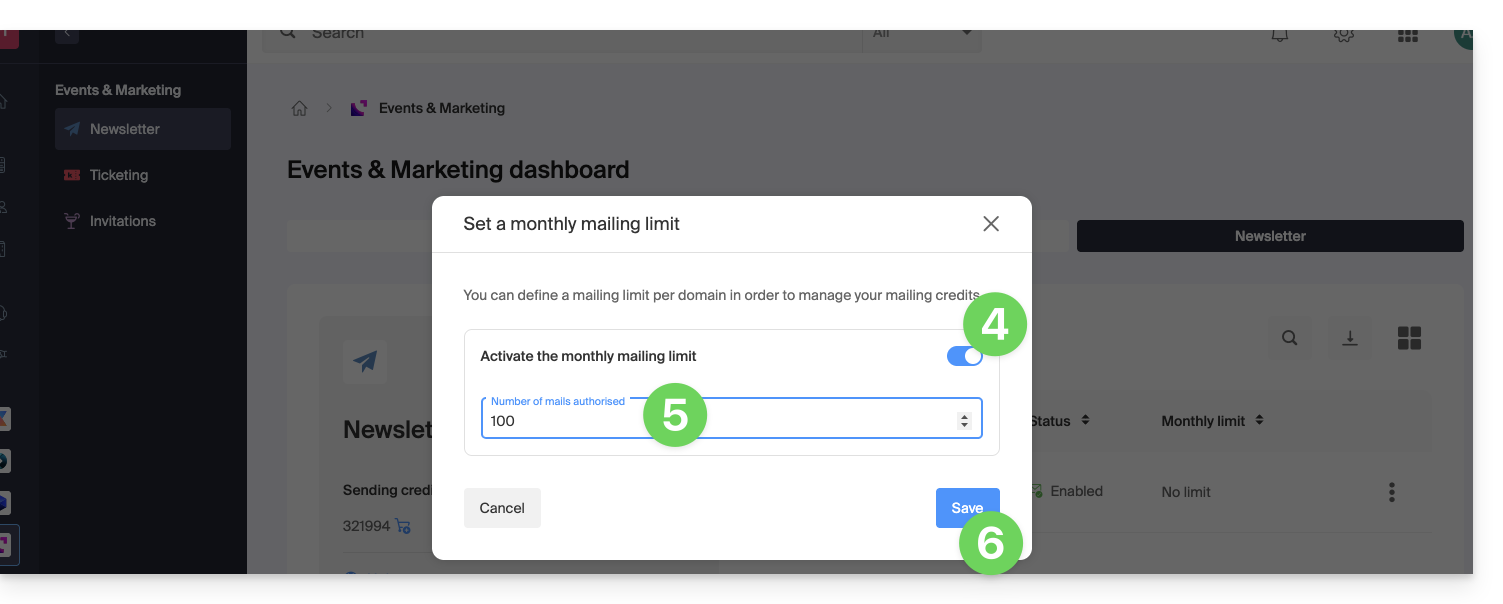
- Activate the toggle to configure your limit.
- Enter the maximum number of emails allowed per month.
- Click on Save:
Link to this FAQ: https://faq.infomaniak.com/2031
Has this FAQ been helpful?