Knowledge base
1000 FAQs, 500 tutorials and instructional videos. Here, there are only solutions!
Modify Cloud Server Configuration
This guide explains how to modify your current Cloud Server plan.
Modifying resources and configuration
The basic Cloud Server plan includes 5 hosting accounts and 20 websites. To add an additional hosting account or modify the server configuration to increase CPU/RAM :
- Click here to access your product management in the Infomaniak Manager (need help?).
- Click on the action menu ⋮ located to the right of the item in question.
- Click on Modify offer:
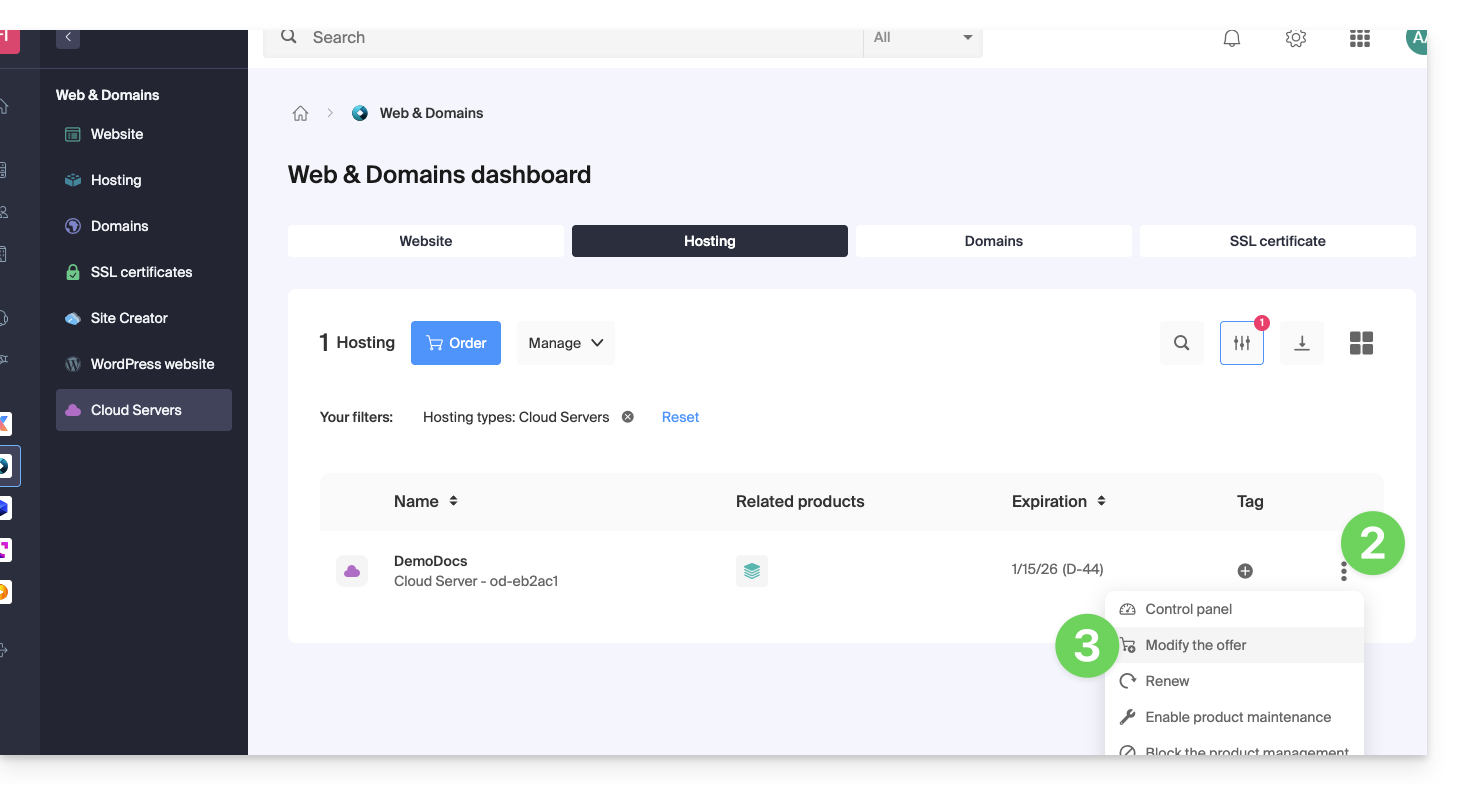
- Make the desired adjustments and complete the process.
To reduce the size of the entire Cloud Server's disk space:
- Order a new server with the desired new storage (contact support to order the new server free of charge while you complete the steps below).
- Move the hosting from the old server to the new one.
- Terminate the old server.
Refer to this other guide to modify the disk space of a hosting plan.
Increase the process limit
Under Linux, the number of processes that a user or system can create simultaneously is limited. These limits prevent processes from consuming excessive resources and affecting the overall stability of the system. Process limits are managed by the Linux kernel and can be viewed and modified using specific commands and configuration files. You can request an increase in the limits by contacting support.
Link to this FAQ: https://faq.infomaniak.com/2022
Has this FAQ been helpful?