Knowledge base
1000 FAQs, 500 tutorials and instructional videos. Here, there are only solutions!
Modify a DNS zone (simple mode) for a domain managed by Infomaniak
This guide explains how to add, modify, or delete specific entries, records of type A & AAAA, MX, TXT, etc., within the DNS zone of a domain name registered with Infomaniak.
Prerequisites
- Own a domain name with Infomaniak or at least have a DNS zone.
- Understand:
Add a record (simple mode)
To configure the services associated with the domain and enable the correct resolution of domain names to the corresponding resources (such as external websites, third-party email servers, etc.):
- Click here to access the domain management section in your Infomaniak Manager (❓: help).
- Click on the name of the domain in question.
- Click on DNS Zone in the left-hand menu.
- The currently configured entries are listed in the Simple Mode table.
- Click on the blue Add entry button:
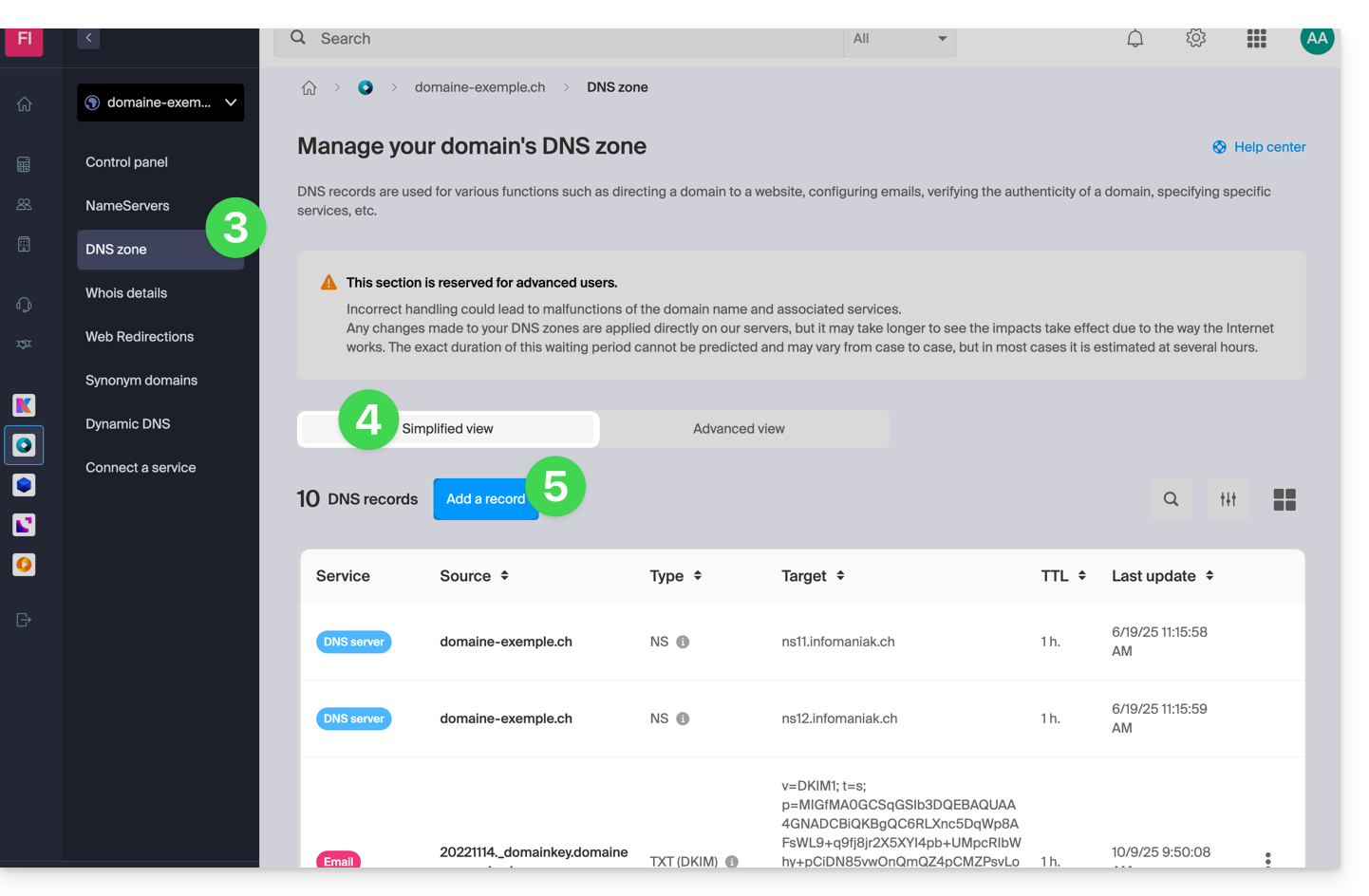
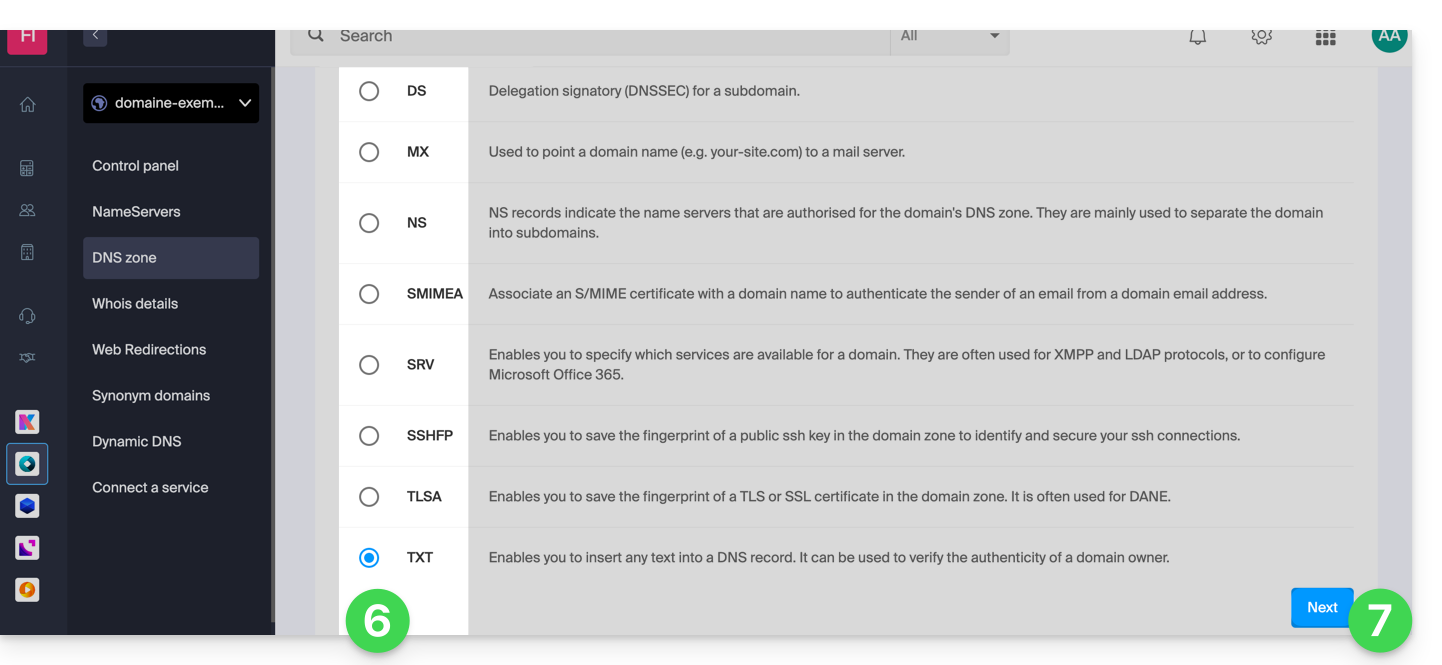
- Choose the type of record, for example A & AAAA (❓: help), MX (❓: help), TXT (❓: help), etc.
- Click on Next:
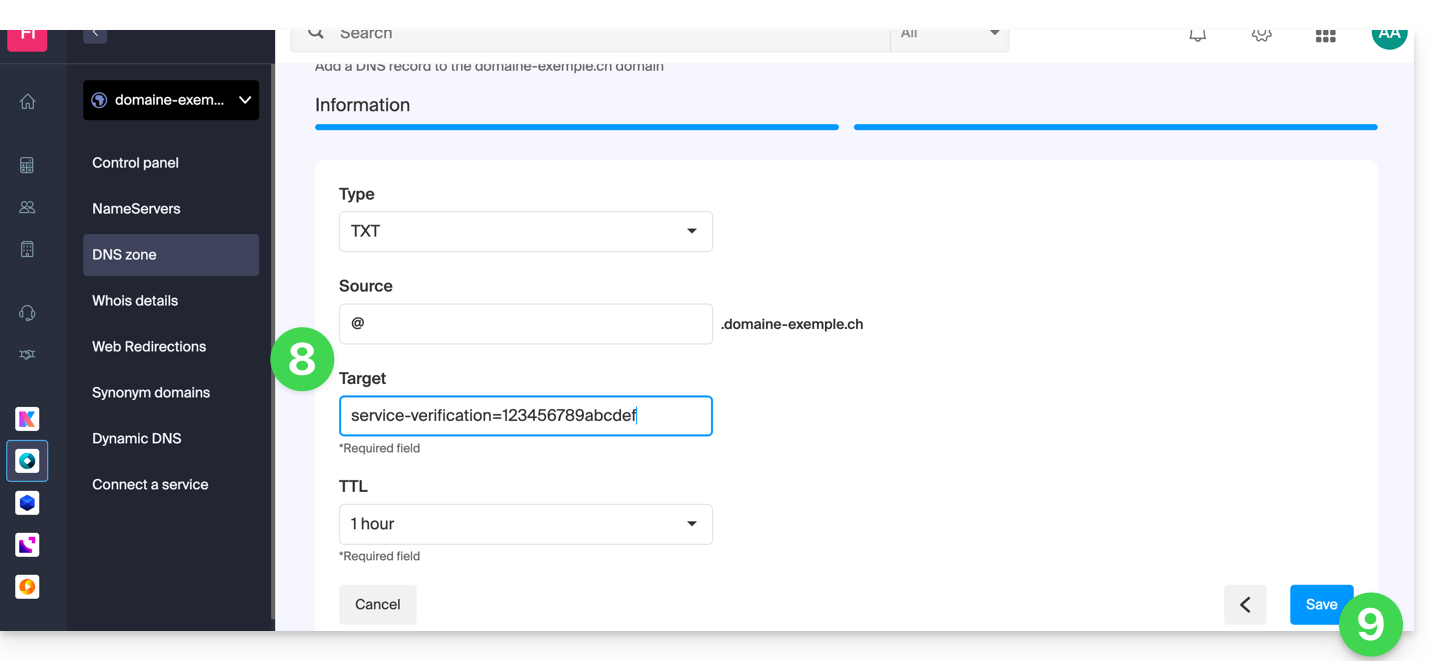
- Fill in the various fields according to your information:
- Under Source, leave it blank or enter the relevant subdomain, if applicable.
- Under Target, enter the information obtained from your external provider or any other useful information.
- Leave the TTL as indicated.
- Save the changes you made:
Edit an existing record
To modify an existing DNS record:
- Follow steps 1 to 4 above.
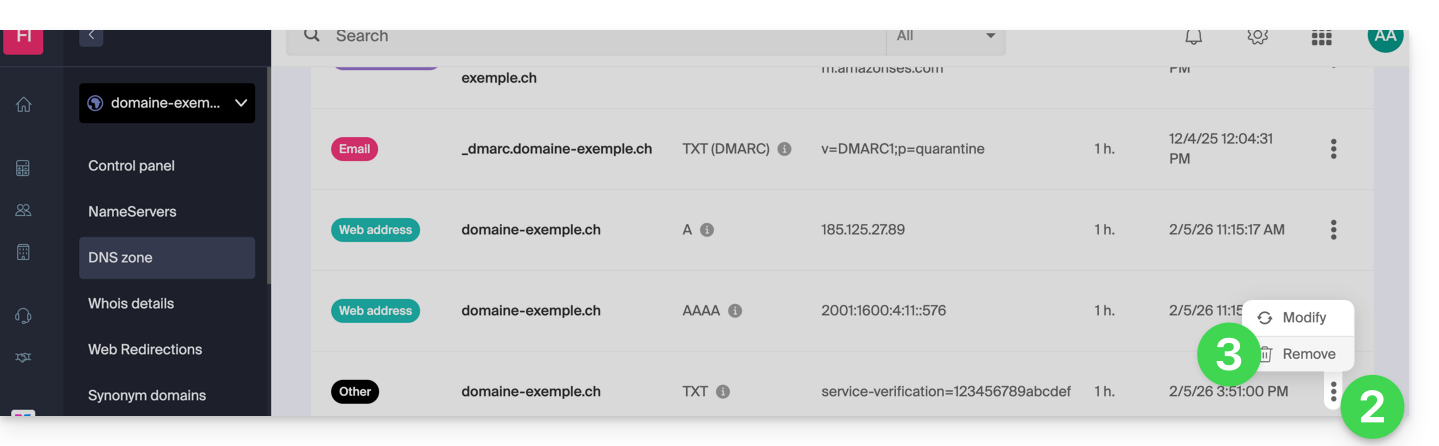
- Click on the action menu ⋮ to the right of the entry you want to modify.
- Click on Edit to access the editing page:
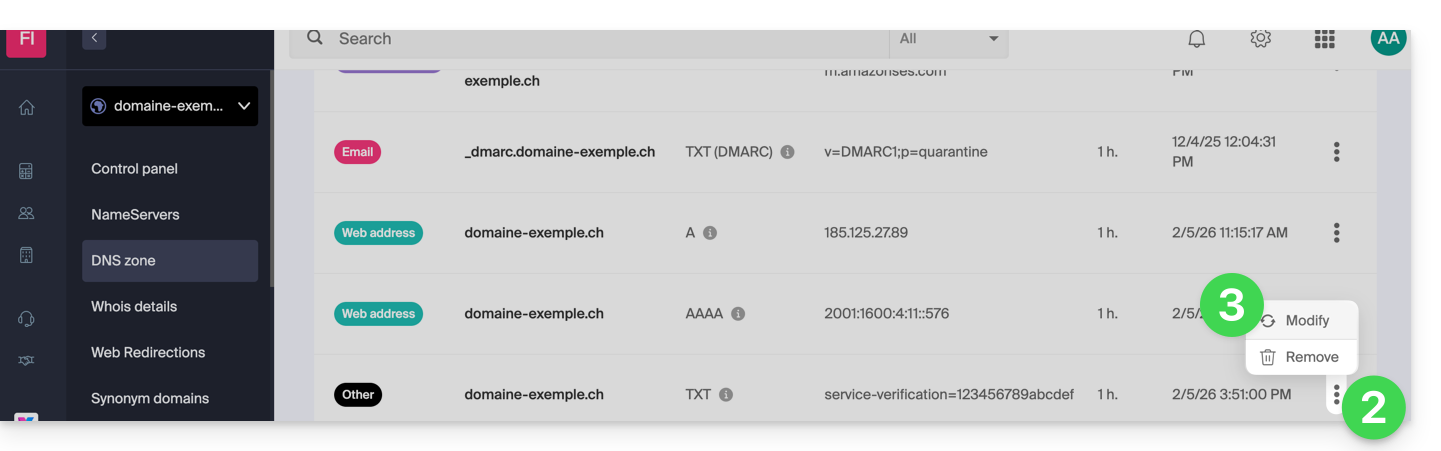
- Edit the desired information and then save your changes.
Delete an existing record
To delete an existing DNS record:
- Follow steps 1 to 4 above.
- Click on the action menu ⋮ to the right of the entry you want to modify.
- Click on Delete and confirm the deletion:
DNS Diagnostic
A tool available in your Manager (❓: help) allows you to easily correct certain problematic records. You can also use an external and free service, such as the one mentioned at the bottom of this other guide.
Expert mode
To edit the DNS zone in advanced (expert) mode, which allows you to restore a previous version of the various records, please refer to this other guide.
Link to this FAQ: https://faq.infomaniak.com/2000
Has this FAQ been helpful?