Knowledge base
1000 FAQs, 500 tutorials and instructional videos. Here, there are only solutions!
Manage kChat members
This guide details how to manage the members of your kChat chat service.
Refer to this other guide if you want to manage the channels to which new members will automatically belong.
Prerequisites
- You must be a kChat administrator:
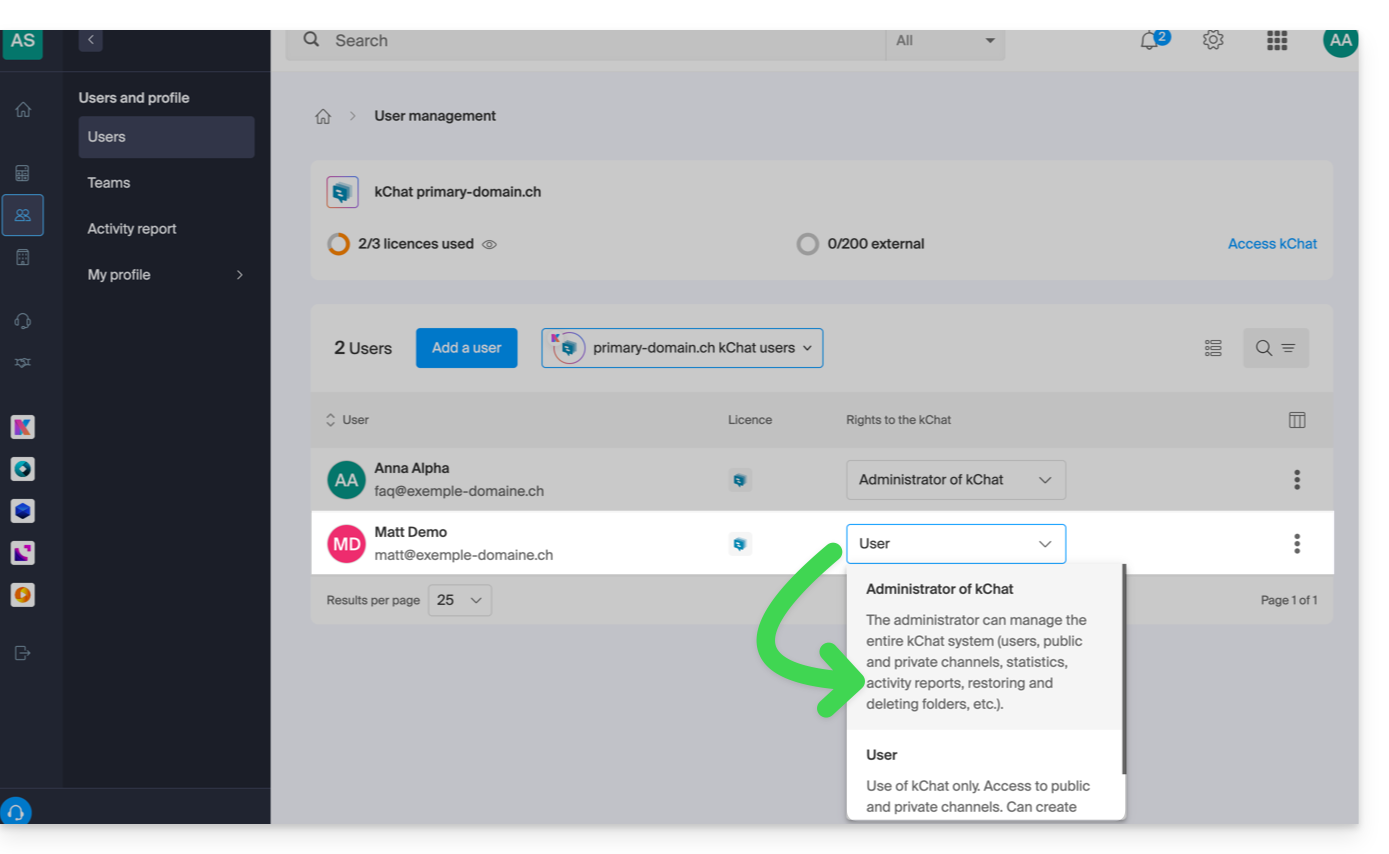
- The role within the Organization is irrelevant; being an Organization administrator in the Organization where kSuite (and therefore kChat) is located is not required, and is not sufficient in any case:
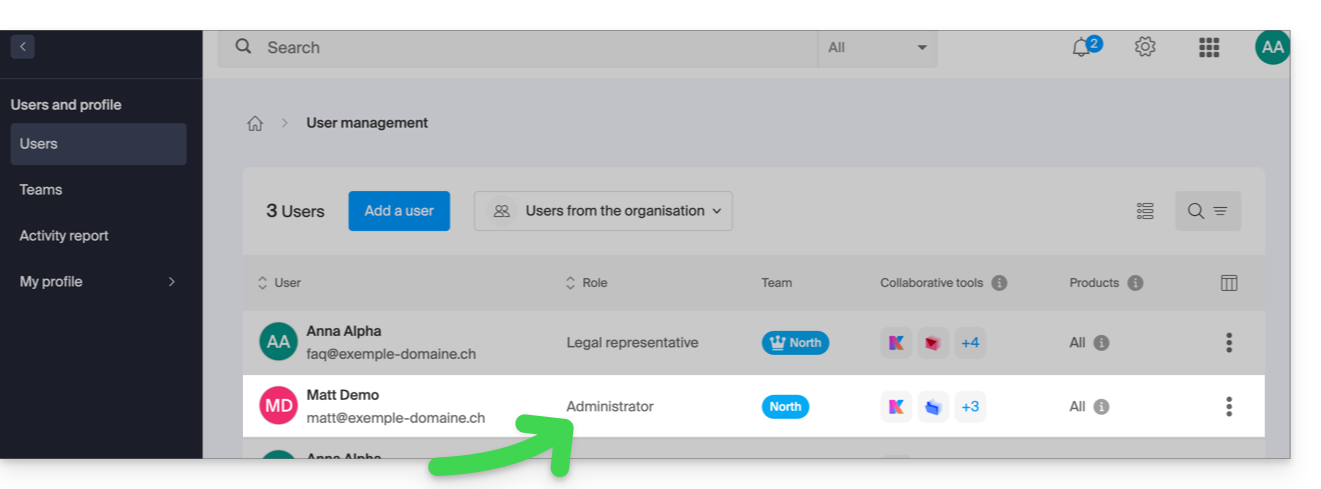
- The role within the Organization is irrelevant; being an Organization administrator in the Organization where kSuite (and therefore kChat) is located is not required, and is not sufficient in any case:
- Invite a user to join kChat.
View the members of a channel
To view the users who have access to the selected channel:
- Click here to access the kChat web app (online service ksuite.infomaniak.com/kchat) or open the kChat desktop app (desktop application on macOS / Windows / Linux).
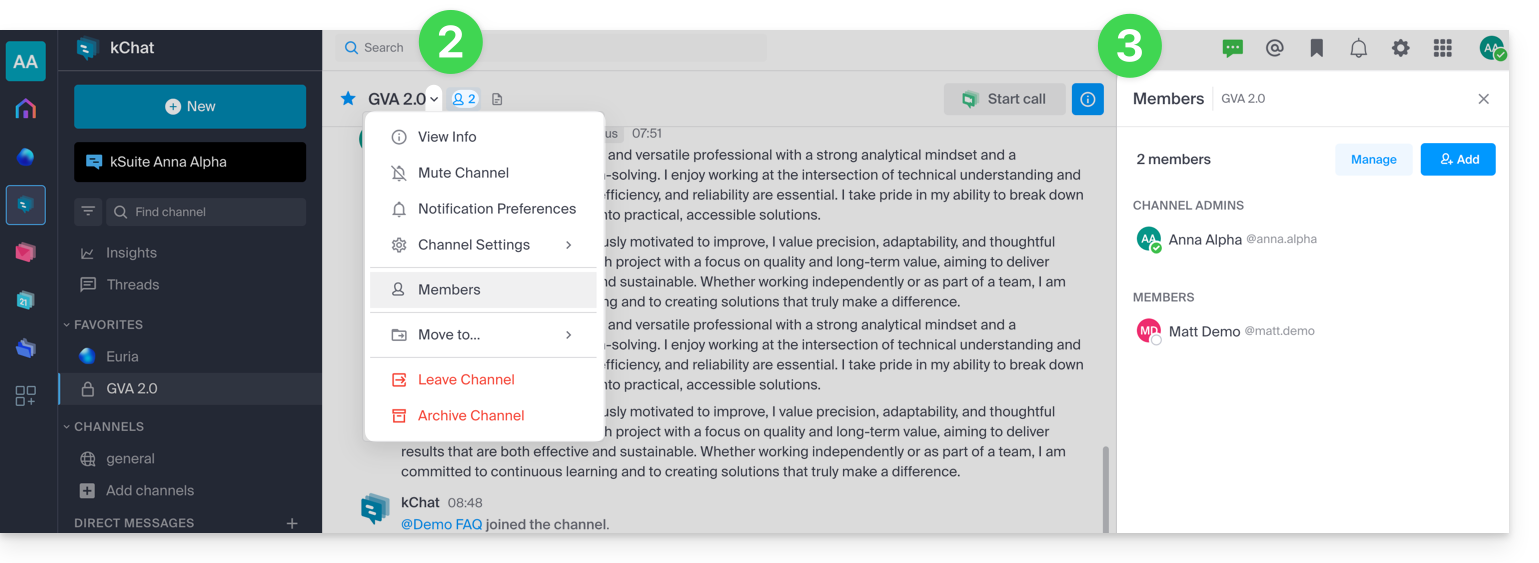
- Click on the profile icon to the right of the channel title or go through the Members menu.
- Participants are displayed on the right side of kChat:
Invite or remove a member from a private channel
When you have opened the members panel of a channel:
- The current participants are displayed on the right side of kChat.
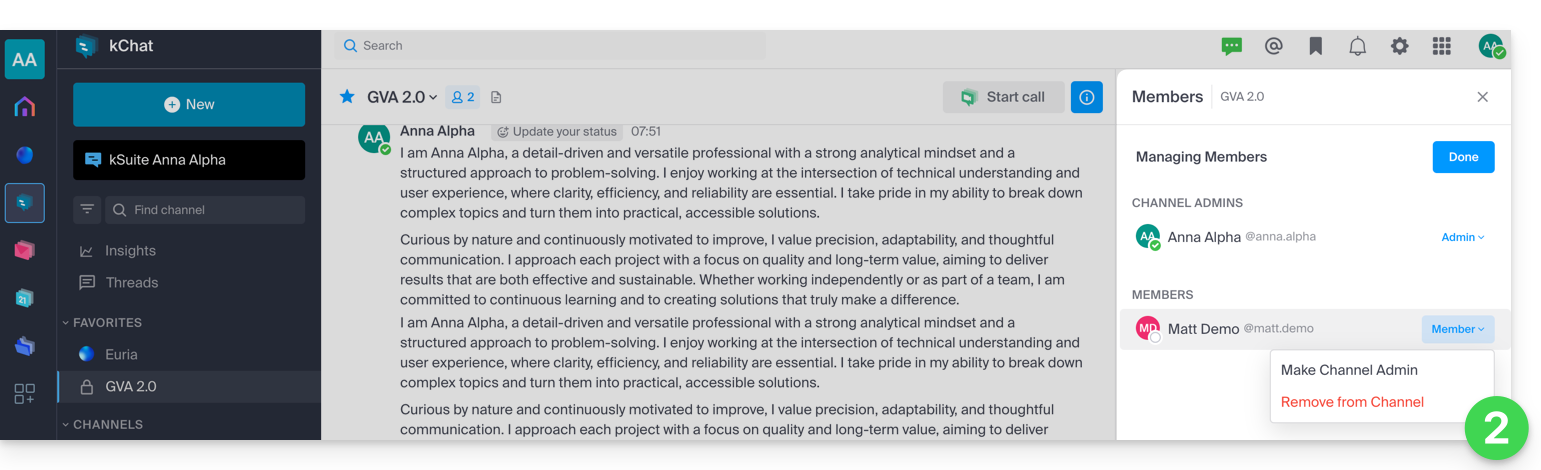
- The Manage button allows you to remove a member from this channel or designate them as the channel Administrator, so that they can, in turn, manage the members:
- The blue Add button allows you to invite a kChat user or an entire Group that does not yet have access to this channel:
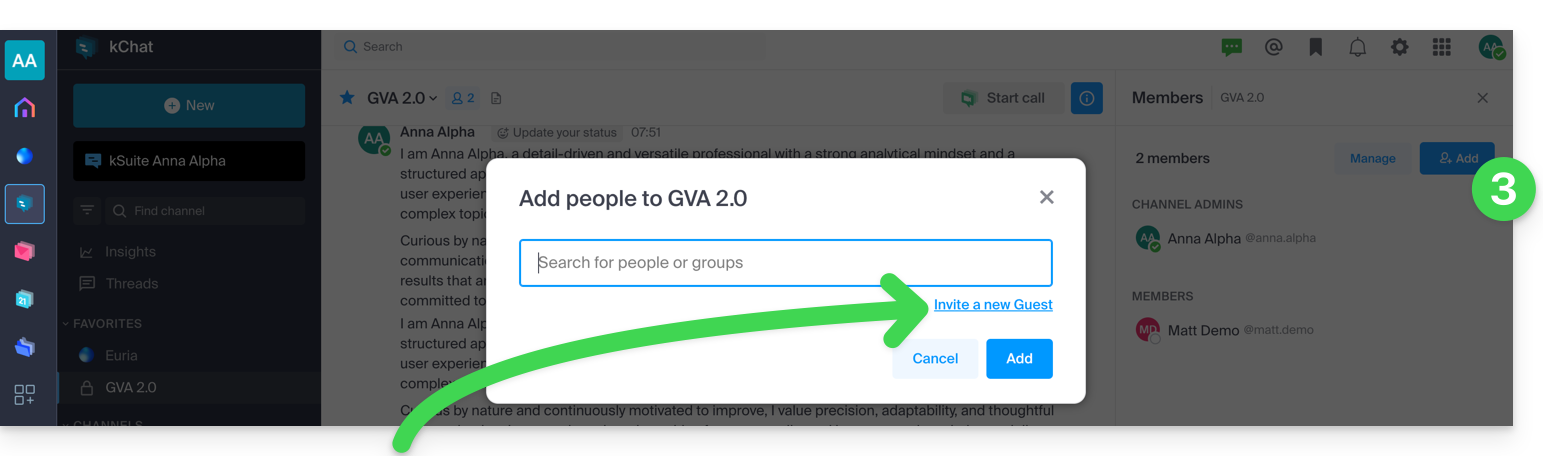
- Refer to this other guide regarding guest additions, i.e., members who will not use a kSuite license to chat with you on kChat.
Link to this FAQ: https://faq.infomaniak.com/1886
Has this FAQ been helpful?