Knowledge base
1000 FAQs, 500 tutorials and instructional videos. Here, there are only solutions!
Edit the contact information associated with the domain name (WHOIS)
Update 10/19/2026
This guide explains how to modify the contact details associated with a domain name registered with Infomaniak (WHOIS information for the owner, administrator, technical contact, or billing contact).
Introduction
- WHOIS contact details are specific to each domain name and are independent of the Infomaniak account that manages the product; they can be viewed online on public services such as whois.infomaniak.com or whois.nic.swiss.
- These contact details are authoritative in the event of a dispute regarding ownership; it is essential to keep them up to date, even if you activate Domain Privacy (❓: help): an invalid WHOIS email address, for example, may block the annual ICANN accuracy check.
- A contact record can be linked to multiple domains; modifying a record automatically applies to all associated domains (❓: help).
- Depending on the domain extension (e.g.,
.es,.se, or.de), specific registry procedures or fees may apply.
Accessing a domain name's contacts
To access the different types of contacts (Owner, Administrator, Technical, Billing):
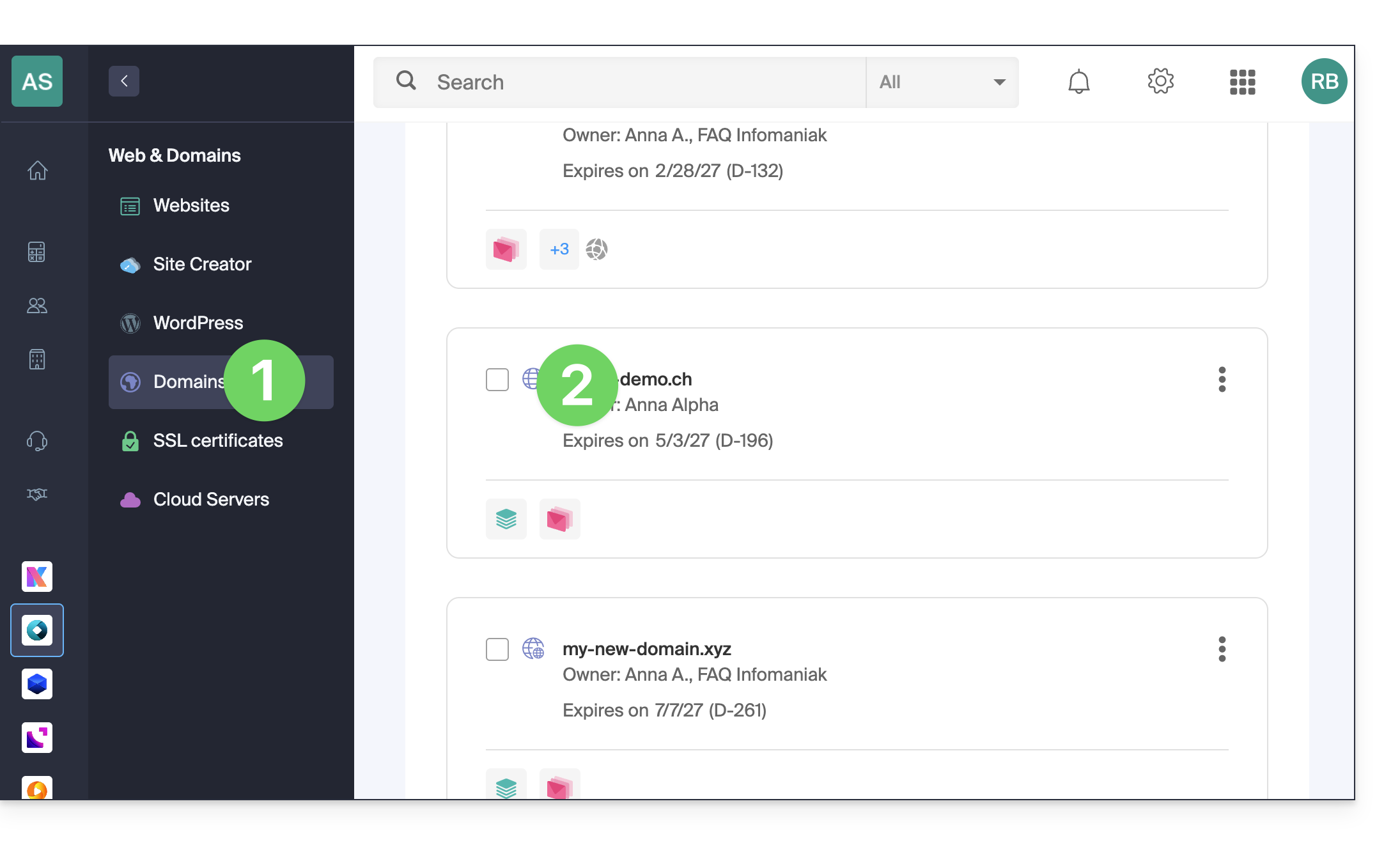
- Click here to access the domain management section in your Infomaniak Manager (❓: help).
- Click on the domain name in question:
- Click on WHOIS Information in the left-hand menu:
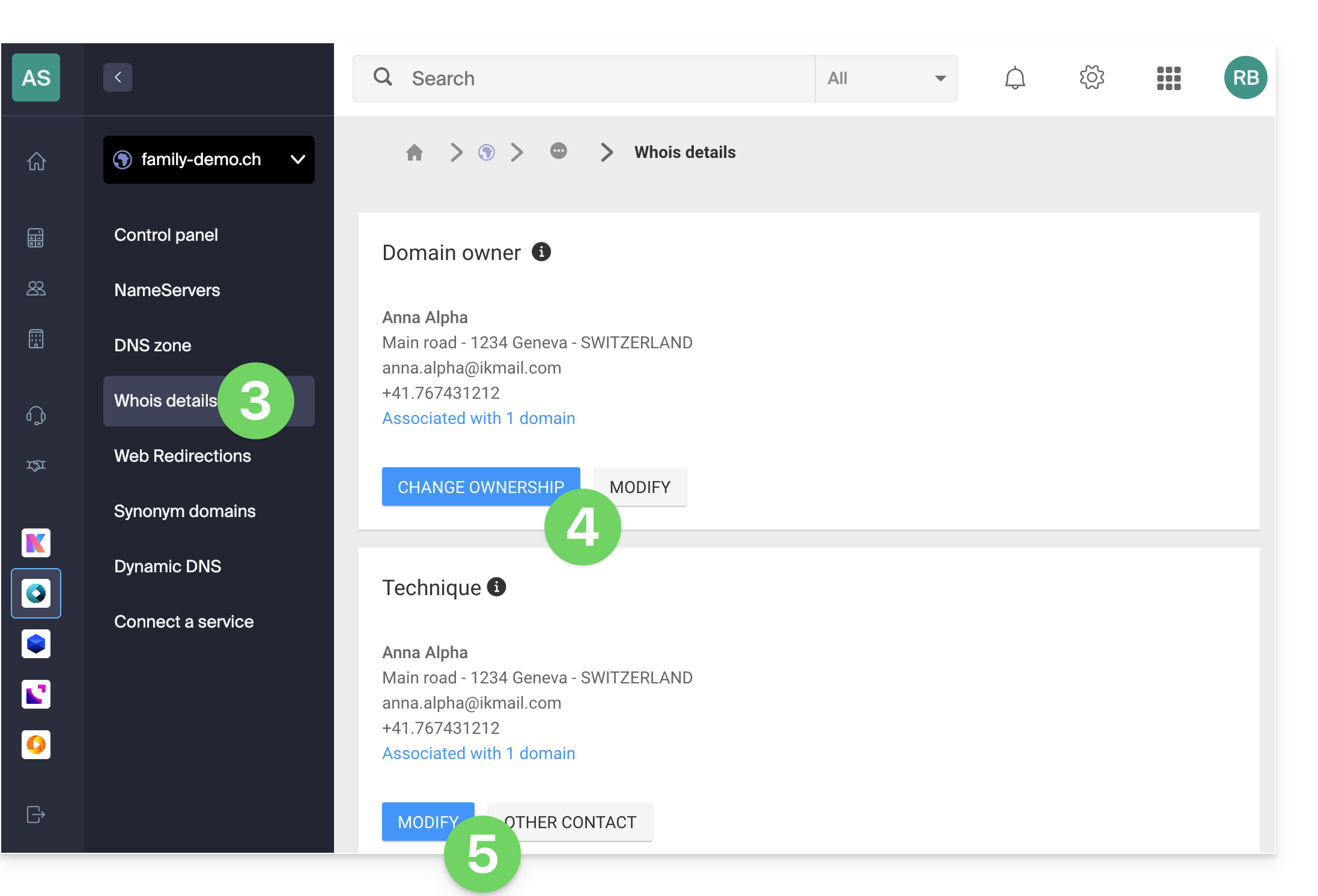
- For the Owner contact, you have the following options:
- Change contact: click on Change owner to create a new contact entry or select another one (requires the agreement of both parties).
- Modify an existing contact: allows you to update the postal address, phone number, or language for notifications (❓: help).
- For each other role (Administrator, Technical, or Billing), you have the following options:
- Edit an existing contact: click the Edit button to update the mailing address, phone number, or language for communications (❓: help).
- Change contact: click Other Contact to create or select a different contact record.
WHOIS modification validation
Any changes to the WHOIS contact information must be validated by the current contact:
- The current contact will receive an Email with a validation link valid for two days.
- The email also indicates the domain names and the types of contacts concerned by the operation.
- While awaiting validation, a warning message is displayed on the domain management page.
- The change will not be applied if all validation steps are not fully completed before the deadline expires.
Unable to access the verification email address?
If the current contact address is inactive, outdated, or inaccessible for confirming the change, please refer to this other guide.
Link to this FAQ: https://faq.infomaniak.com/1853
Has this FAQ been helpful?