Knowledge base
1000 FAQs, 500 tutorials and instructional videos. Here, there are only solutions!
Edit the contact information associated with the domain name
This guide explains how to modify the contact information associated with a domain name, i.e., the “WHOIS” contact information of the owner/holder/administrator.
Introduction
- Domain names have the particularity that they all have an owner whose contact details are specific to the domain itself, independent of the Infomaniak account that manages the product.
- These contact details, known as WHOIS, include information such as first name, last name, postal address, email address, etc., and can be viewed online using WHOIS services such as whois.infomaniak.com or whois.nic.swiss.
- Additional private contact details often exist outside the public WHOIS and are never visible and/or disclosed by Infomaniakwithout prior authentication!
- These details will always be considered definitive in the event of a dispute regarding the ownership of a domain name.it is therefore important to keep this information up to dateeven if you activate Domain Privacy to hide information.
Accessing the different types of contacts associated with domain names
To access this domain manager contact information:
- Click here to access the management interface for your product in the Infomaniak Manager (need help?).
- Click directly on the name assigned to the product in question:
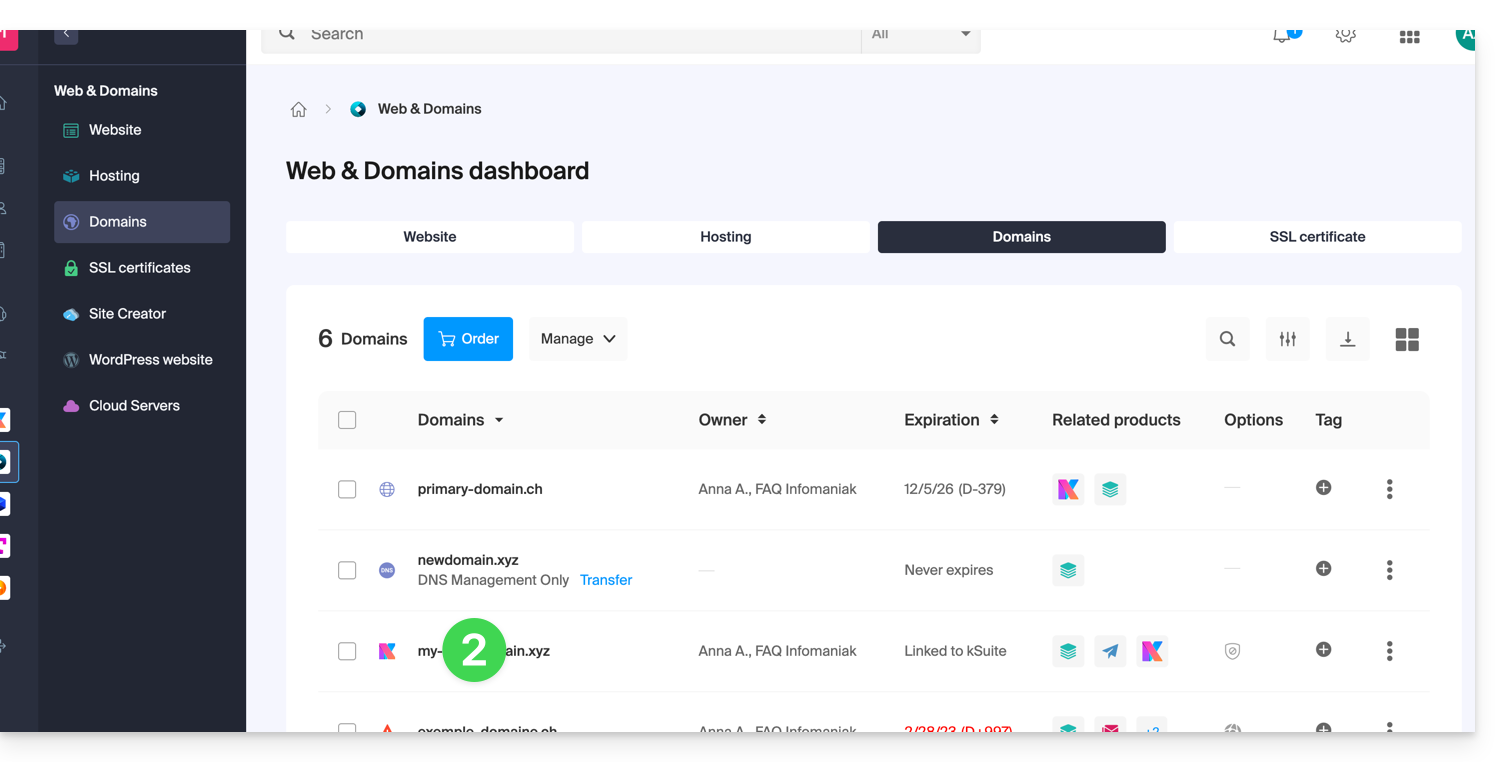
- Click on WHOIS Information in the left-hand menu:
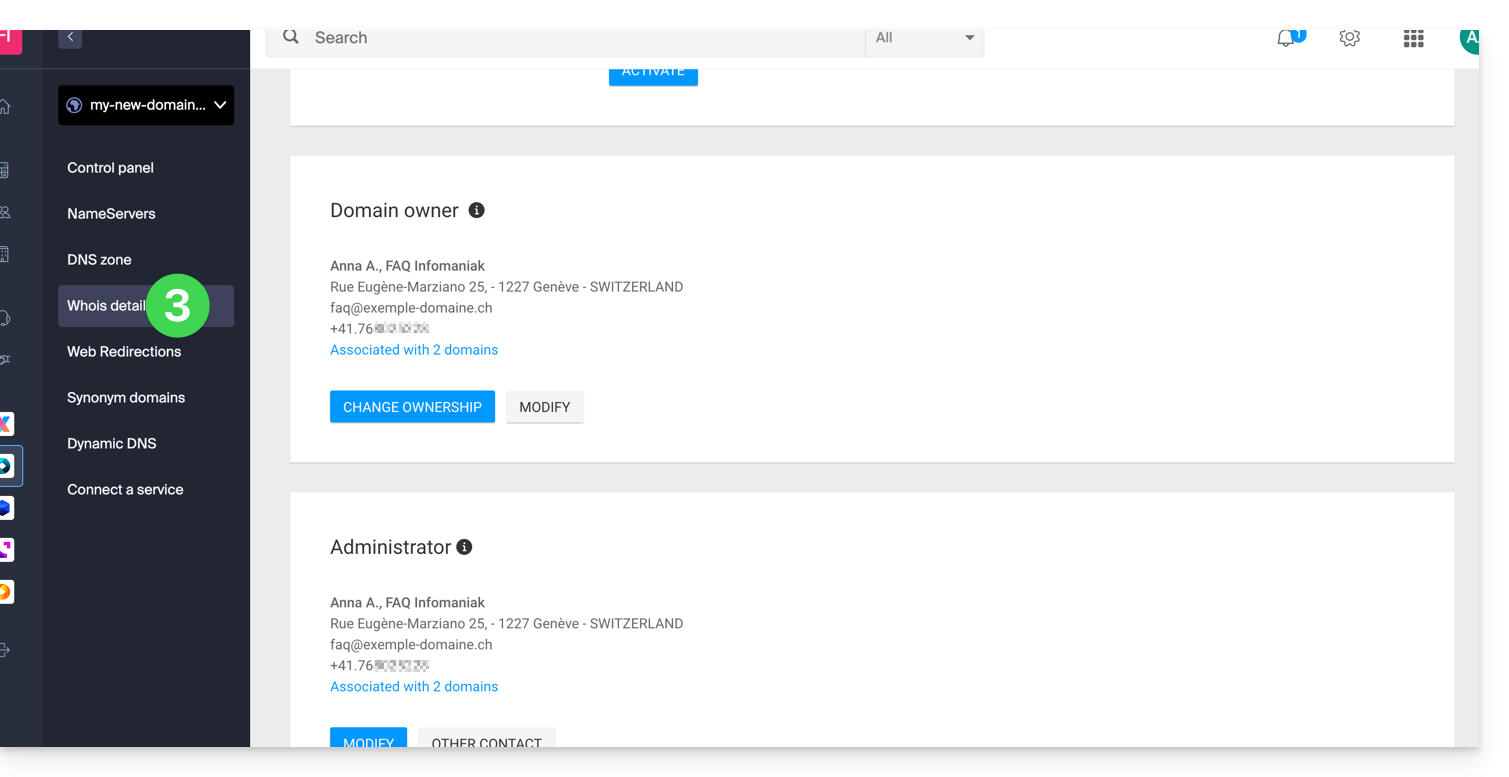
Contact the Owner
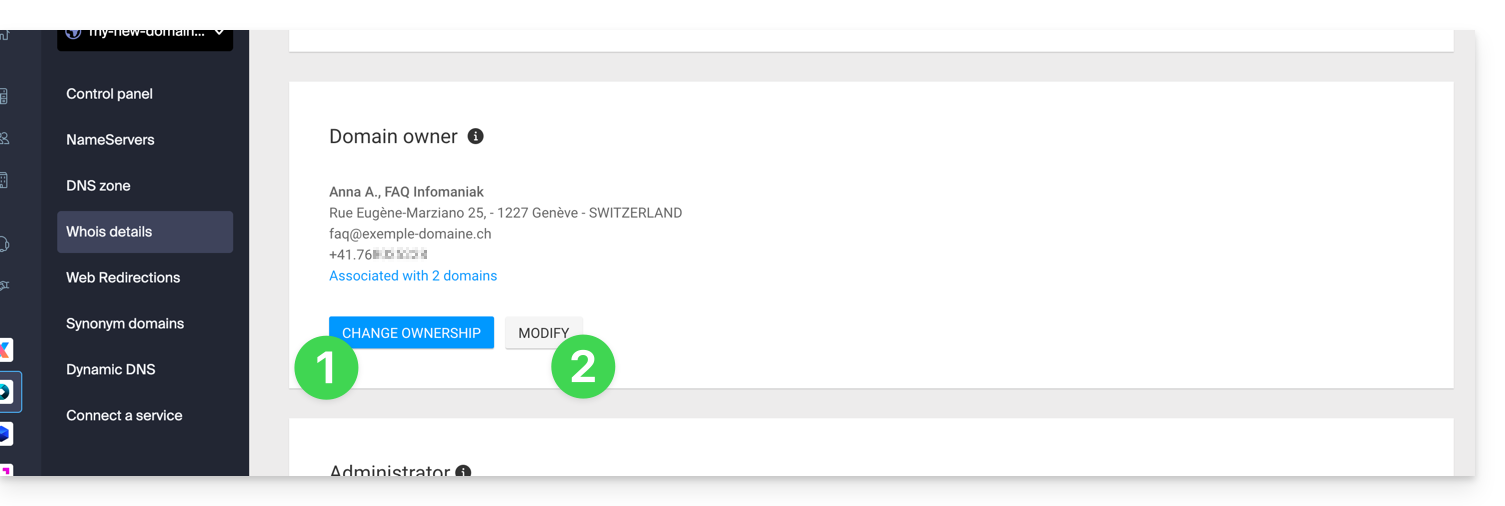
- Click the Change owner button to create a new contact entry, or select one that was previously used for one of the Organization's other domain names. Both parties must agree before the changes are applied.
- Click the Edit button to modify the language (for certain emails) as well as the postal and telephone contact details (an email is sent to the specified email address to request confirmation of the changes).
More details can be found below in this guide.
Contact Administrator
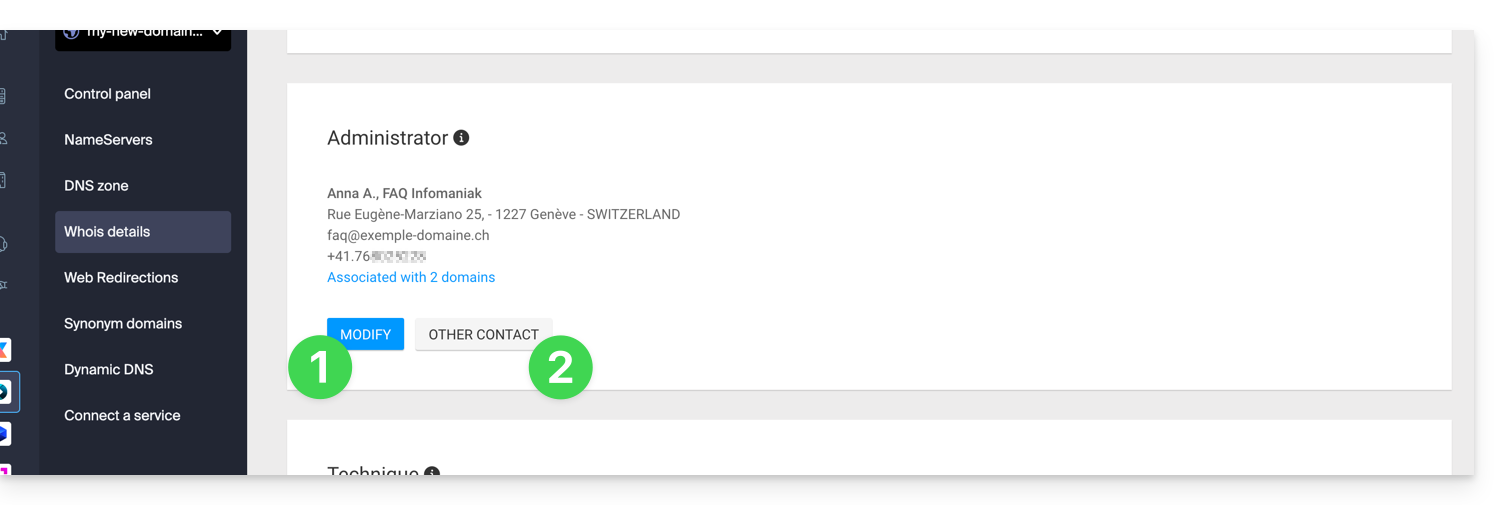
- Click on the Edit button to modify the language (for certain emails) as well as the postal and telephone contact details (an email will be sent to the email address provided to request confirmation of the changes).
- Click on Other Contact to create a new contact entry, or choose one previously used for one of the Organization's other domain names, with the need to obtain the agreement of both parties before applying the changes.
More details can be found below in this guide.
Technical Contact
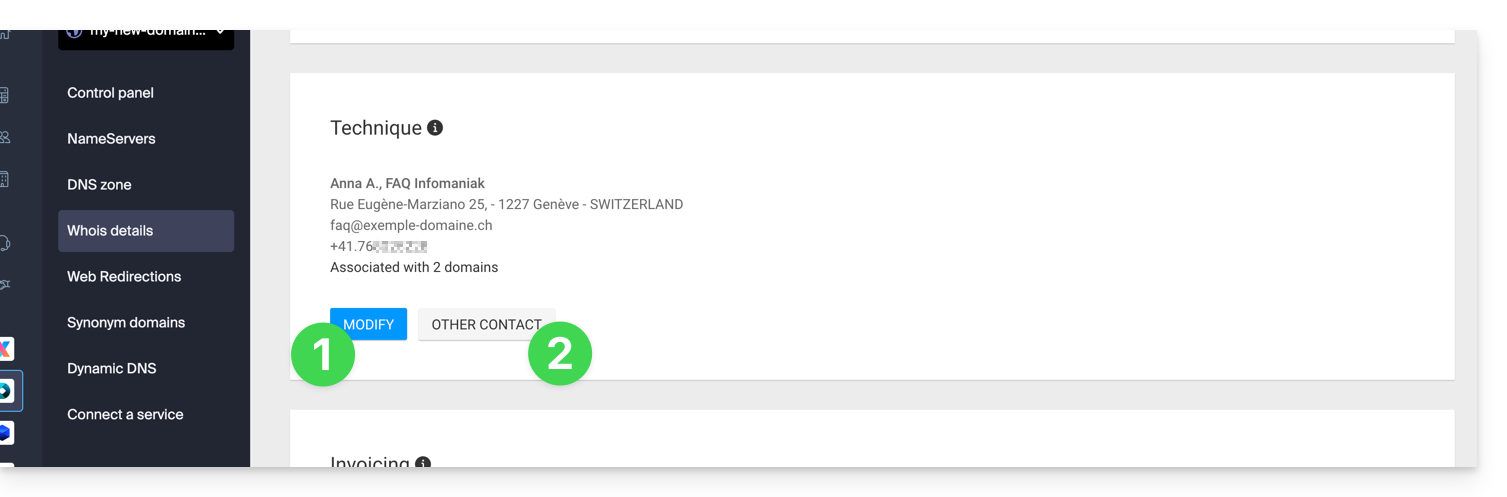
- Click on the Edit button to modify the language (for certain emails) as well as the postal and telephone contact details (an email is sent to the email address provided to request confirmation of the changes).
- Click on Other Contact to create a new contact entry, or choose one previously used for one of the other domains in the Organization, with the need to obtain the agreement of both parties before application.
More details can be found below in this guide.
Billing Contact
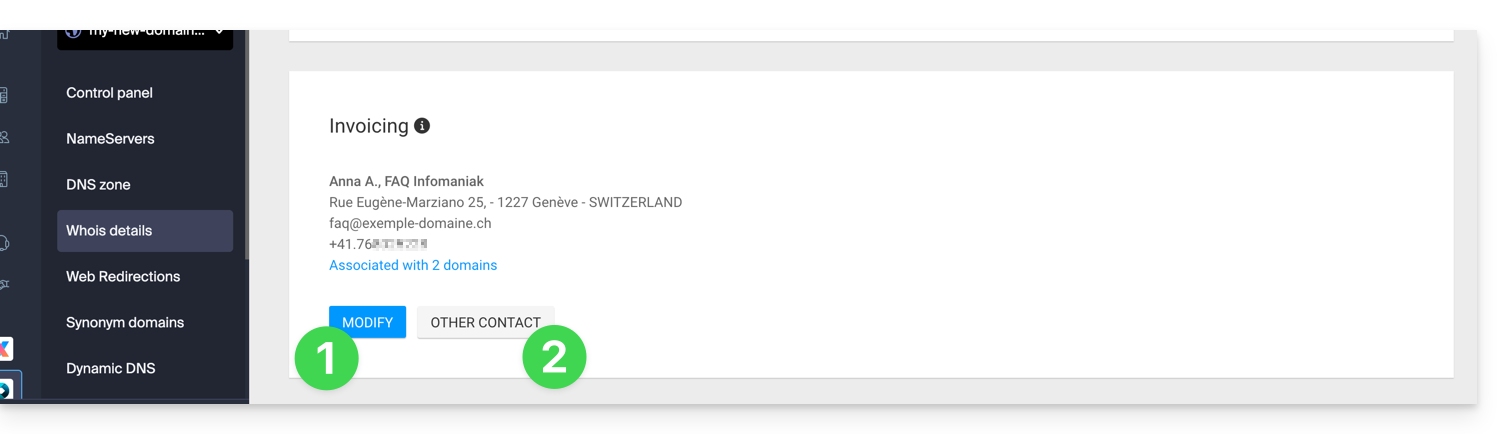
- Click on the Edit button to modify the language (for certain emails) as well as the postal and telephone contact details (an email is sent to the email address provided to request confirmation of the changes).
- Click on Other Contact to create a new contact entry, or choose one previously used for one of the other domains in the Organization, with the need to obtain the agreement of both parties before application.
More details can be found below in this guide.
Modify WHOIS contact information
Without creating a new contact entry, you can modify:
- the postal address (street, postal code, country, etc.)
- the phone number
- the language (for certain emails)
When creating a new contact, you can specify:
- Contact type (Company, Individual, Association, other)
- First name / Last name
- Email address
- the postal address (street, postal code, country, etc.)
- the telephone number
- the language (of certain emails)
Any changes to WHOIS contact information must be validated by the current contact. The latter will receive a Email with a validation link valid for two daysto validate the changes: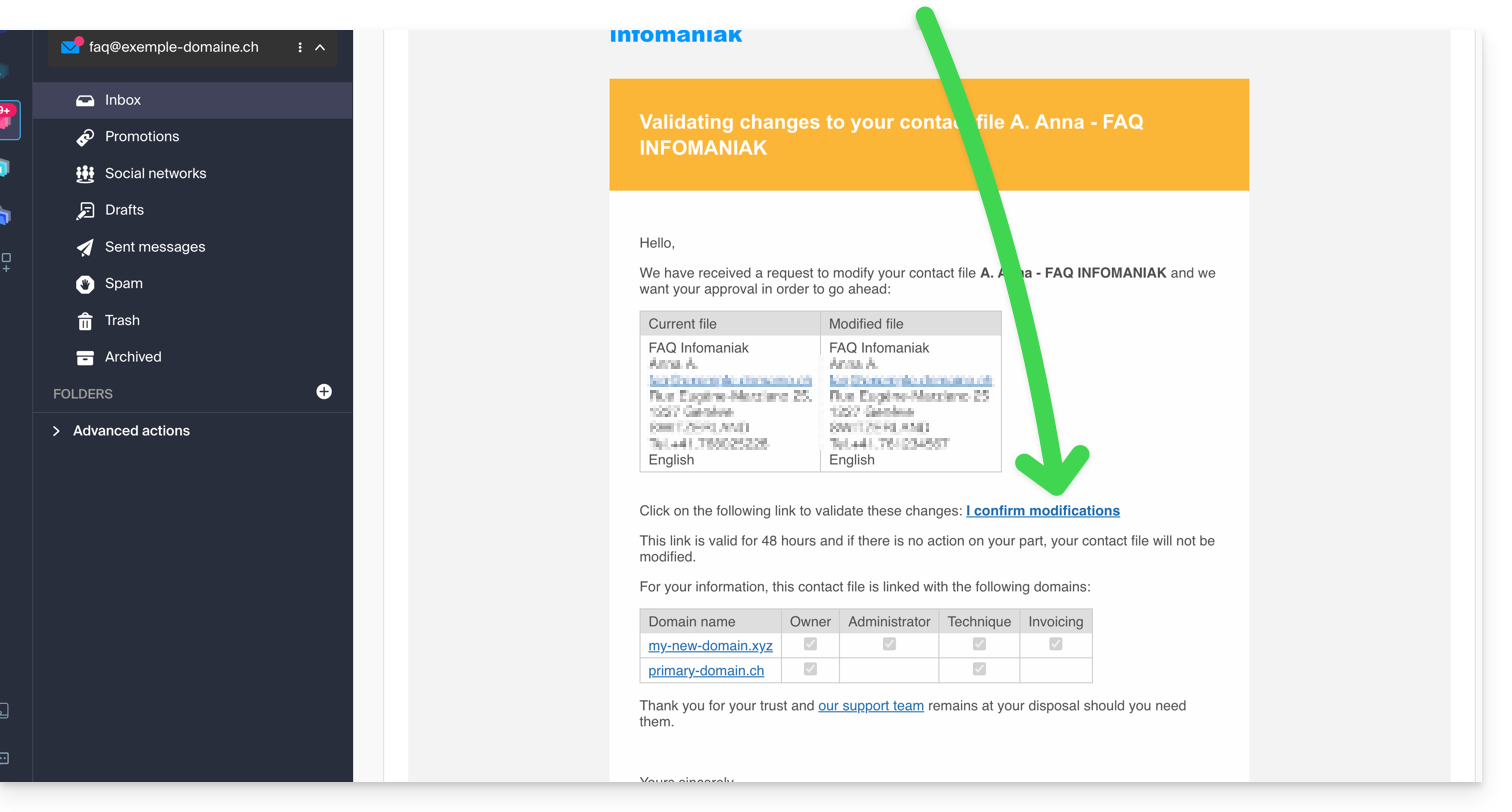
The email also indicates the other domain names affected by the operation (and which types of contacts are affected by the change).
While awaiting validation, a message is displayed on the domain management page: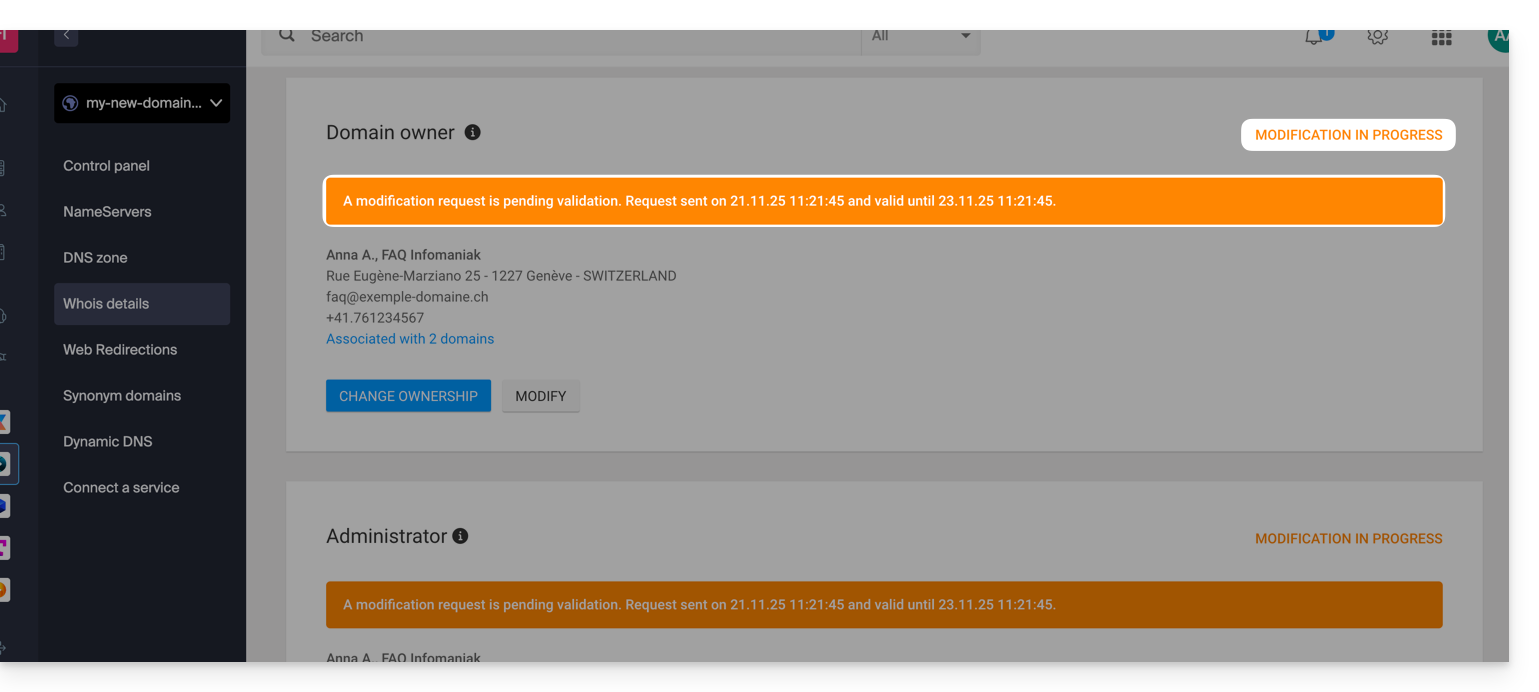
The change will not be applied if all actions are not completed fully and before the deadline expires!
Learn more
Depending on the extension of the domain in question, these operations may incur charges.
You can also do this on multiple domains at once: a contact record can be linked to multiple domains; modifying a record will therefore automatically affect all domains with the same WHOIS contact.
You can also consult the guides for specific extensions such as .es or .se…
Link to this FAQ: https://faq.infomaniak.com/1853
Has this FAQ been helpful?