Knowledge base
1000 FAQs, 500 tutorials and instructional videos. Here, there are only solutions!
Manage VOD media chapters
This guide covers creating chapters in a video from the VOD service and customizing the menu display (thumbnail, title, description, etc.).
Introduction
- The video file must be encoded in
MP4to access the chapter editing features (creation + modification). - Chapter editing will not be possible on an FLV video, but the chapters will still be displayed on the Player if the video has also been encoded in MP4.
- If the MP4 video is deleted, the chapters will remain in the FLV file, but without the possibility of editing them.
- This tool cannot be used with audio-only media.
Creating the chapter list
To access a media file in the VOD space:
- Click here to access the management of your VOD/AOD in the Infomaniak Manager (need help?).
- Click directly on the name assigned to the product in question:
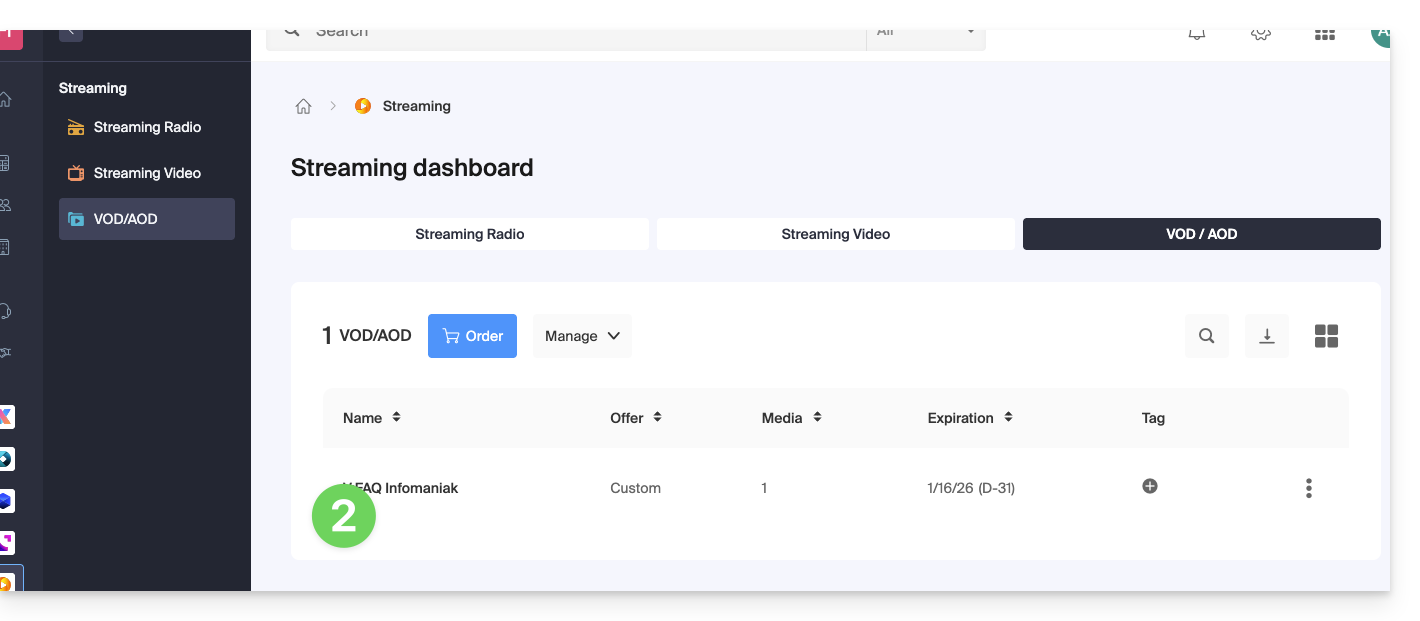
- Click on Media in the left-hand menu.
- Click on Media Management in the left-hand menu.
- Click on the relevant media:
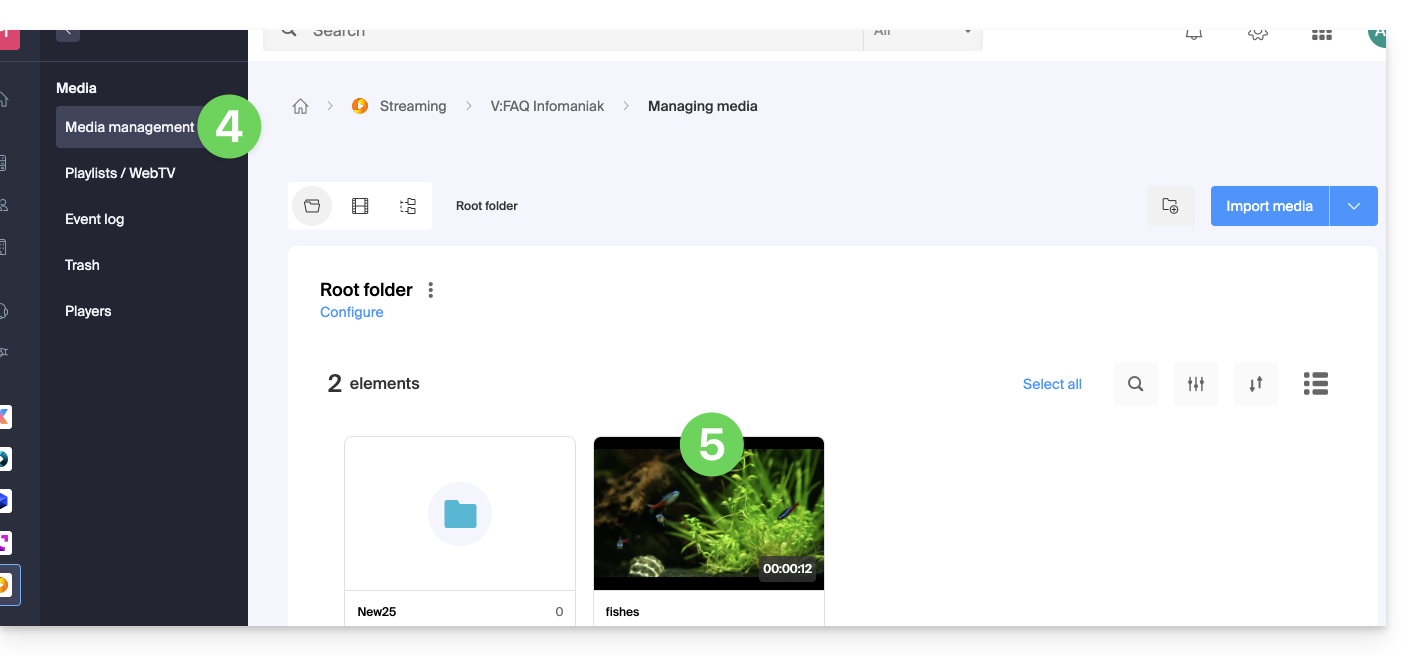
- Click on the Edit button:
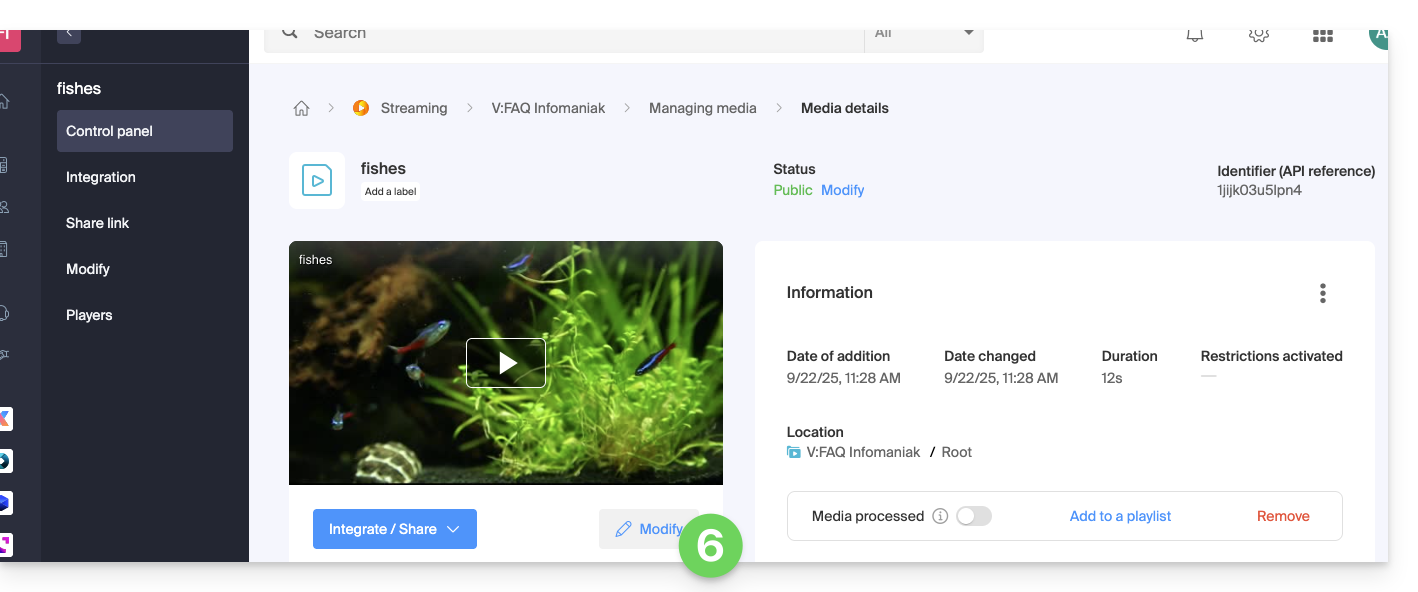
- Click on the Chaptering tab.
- Choose the position of the first chapter.
- Click on the blue button to create and configure the first chapter:
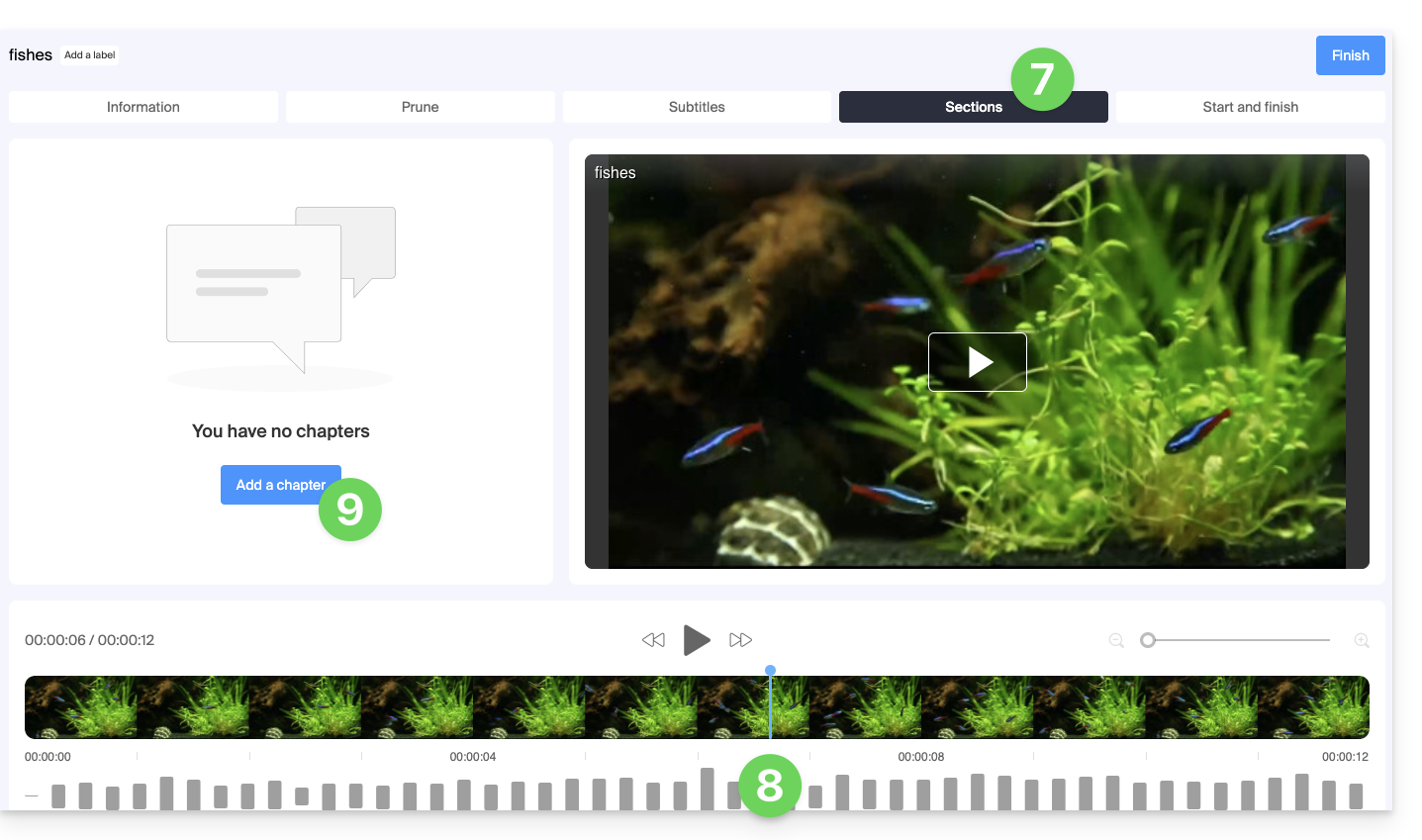
- Edit the first chapter (information, thumbnail) and save using the button to Add the chapter:
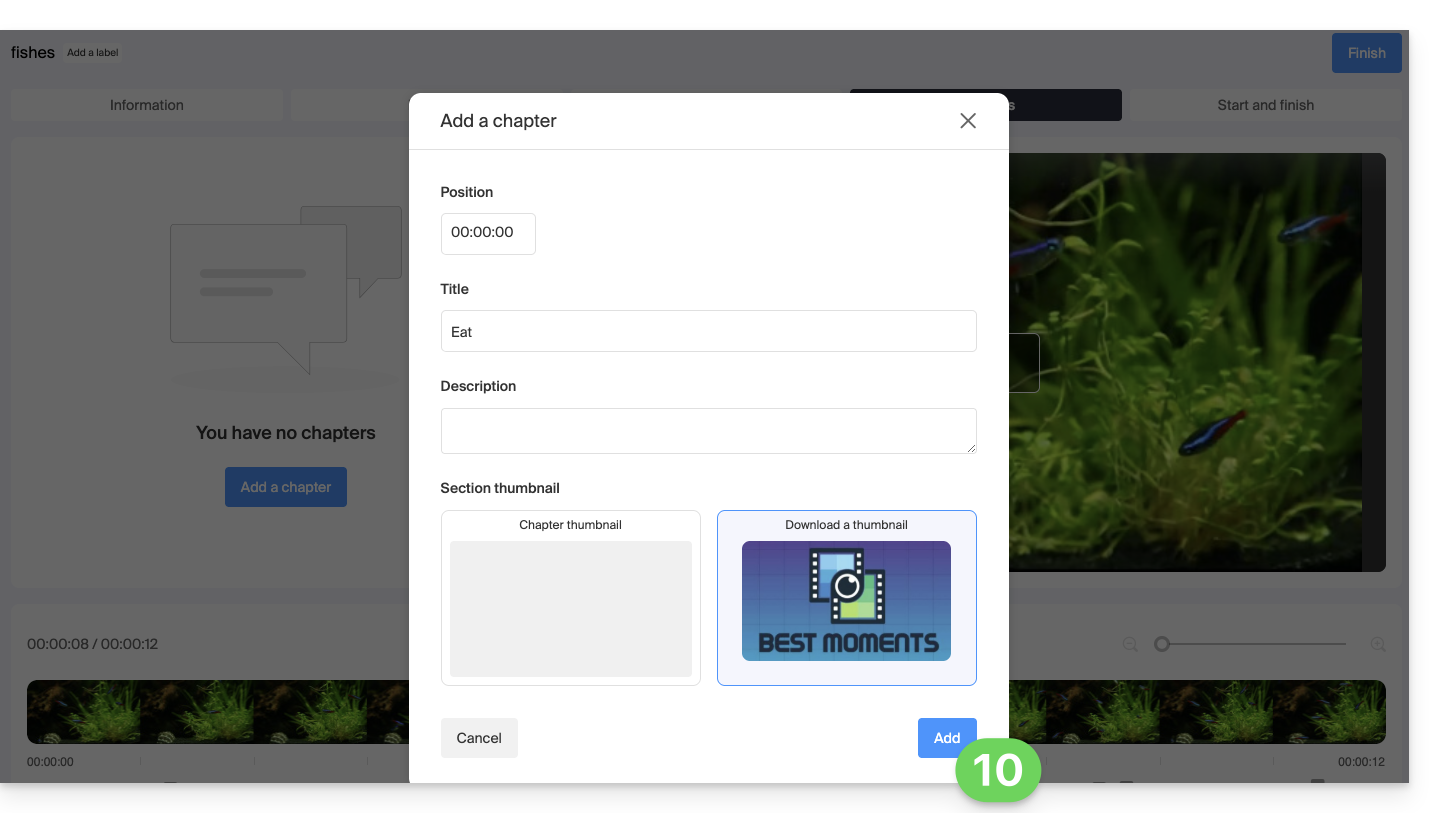
- Repeat for the following chapters.
- You can change the position of your chapters by clicking directly on the timeline:
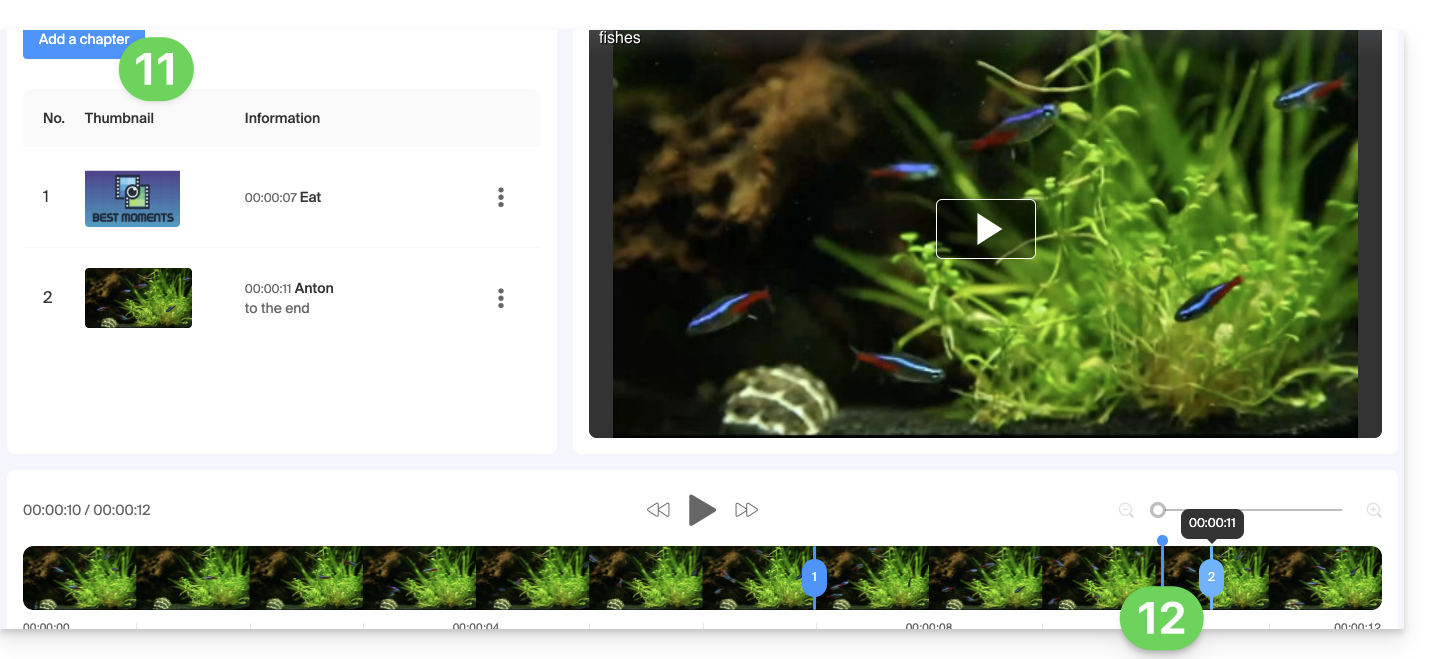
- Finish editing the chapters using the button in the top right corner.
Link to this FAQ: https://faq.infomaniak.com/1769
Has this FAQ been helpful?