Knowledge base
1000 FAQs, 500 tutorials and instructional videos. Here, there are only solutions!
Manage kChat conversations
This guide details the principle of kChat conversations, organized within private and public chat channels, and direct discussions between users.
Starting a conversation
To send a message to a user in your Organization, click on their name in the list of members on the left side of your kChat interface: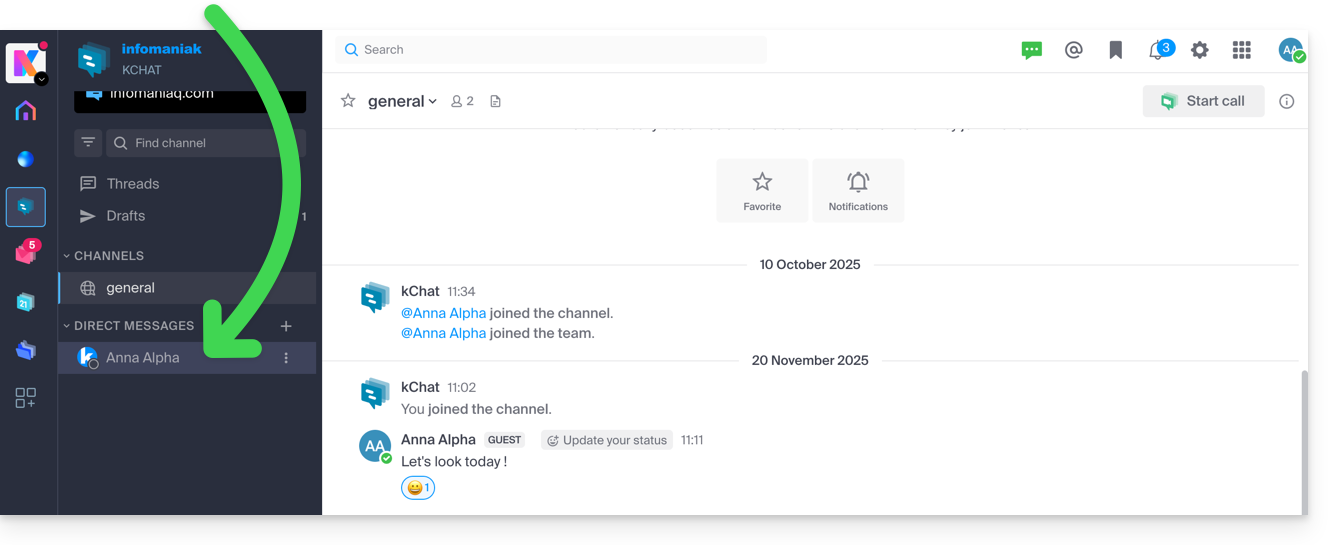
You can also click on the + to the right of Private Messages to select up to 7 members and create a group conversation: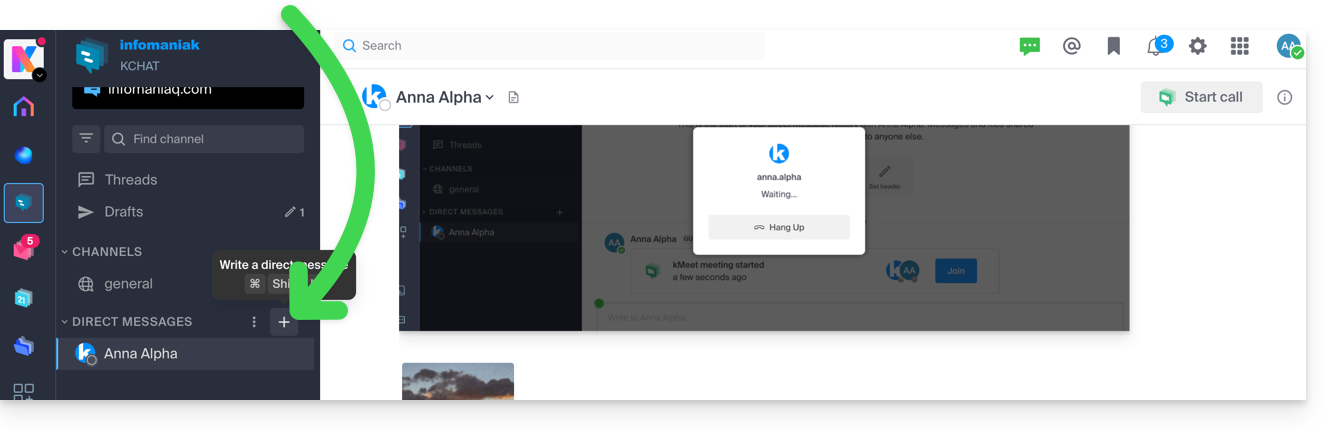
Compose and send your message by clicking the send button: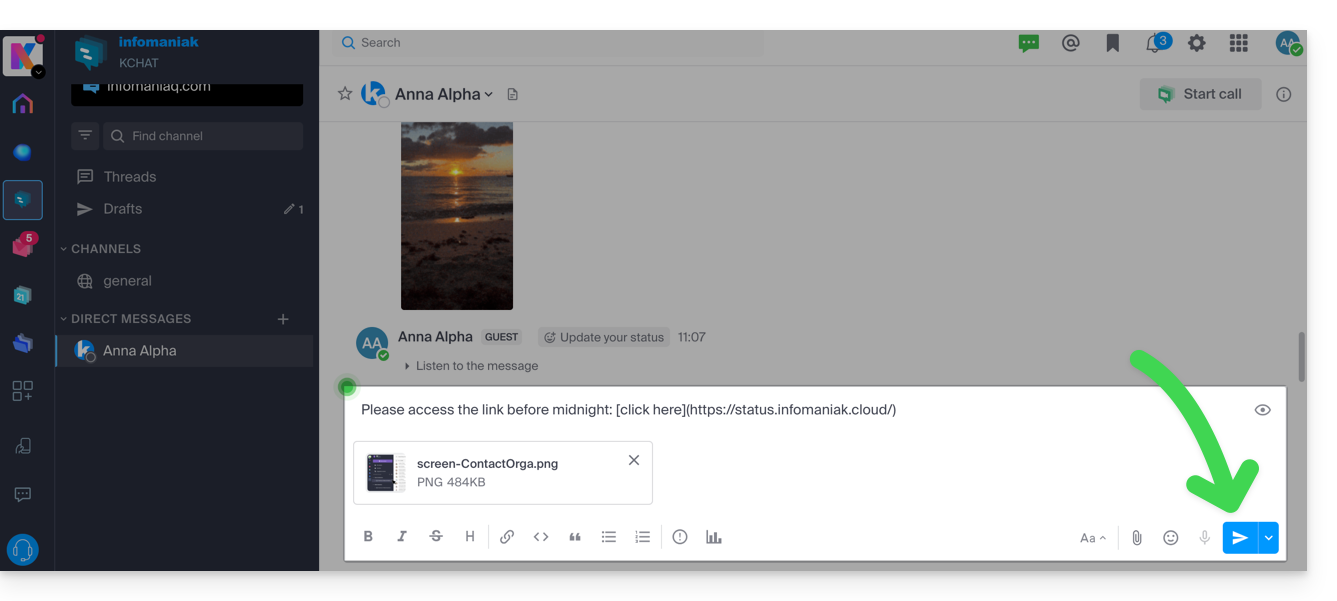
If needed, you can attach files up to 100 MB. You can also use “reactions”.
Scheduled sending: plan a message
✘ NOT AVAILABLE with
my kSuite / my kSuite+ (ik.me, etik.com, ikmail.com)
kSuite Free does not allow you to customize the schedule when planning an email.
To schedule an email to be sent at a later date/time, simply click the chevron to the right of the send button and then choose the time the message should be sent: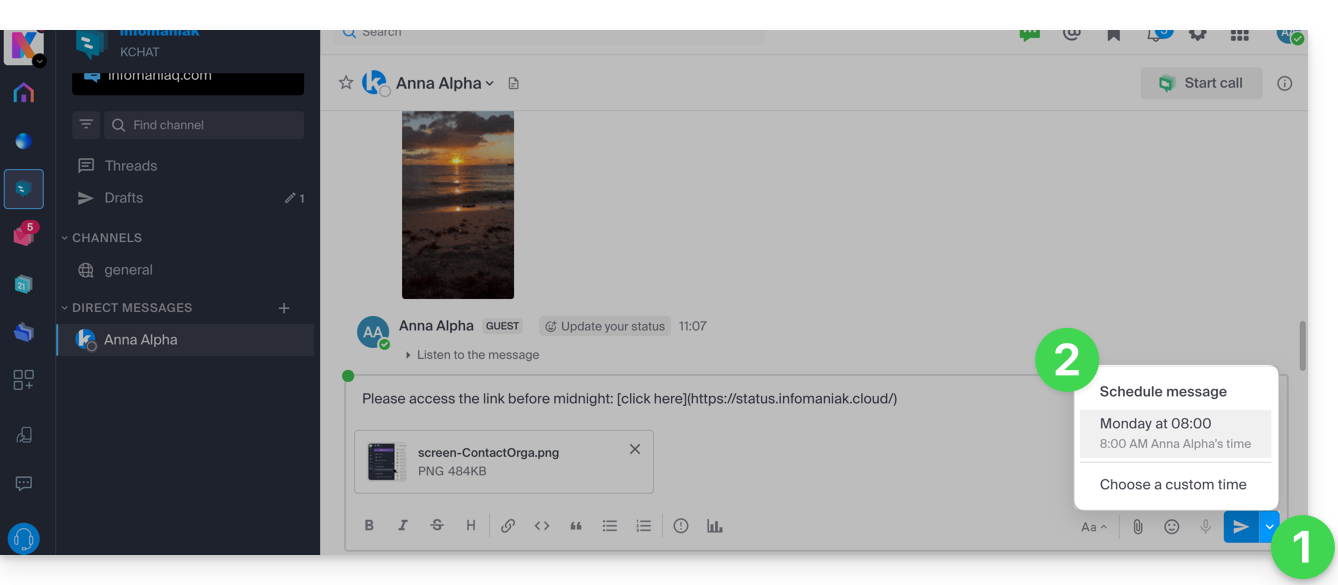
In the kChat mobile app (application for iOS/Android smartphones or tablets), press and hold the send button for a few seconds, and a menu will appear to schedule the message.
Mention another user
To contact one of the members of the Organization (or an entire Group) via a message, type the at symbol @ to display the people or channels to mention:

Please note that, depending on the type of channel, mentioning a user will display a message allowing you to add them to the discussion (or notify them); otherwise, they will not see the mention.
Request a read receipt
To allow users to acknowledge receipt of your message and indicate that they have read it, enable a read receipt before sending the message in the channel by clicking on the (!) icon and then activating the toggle switch: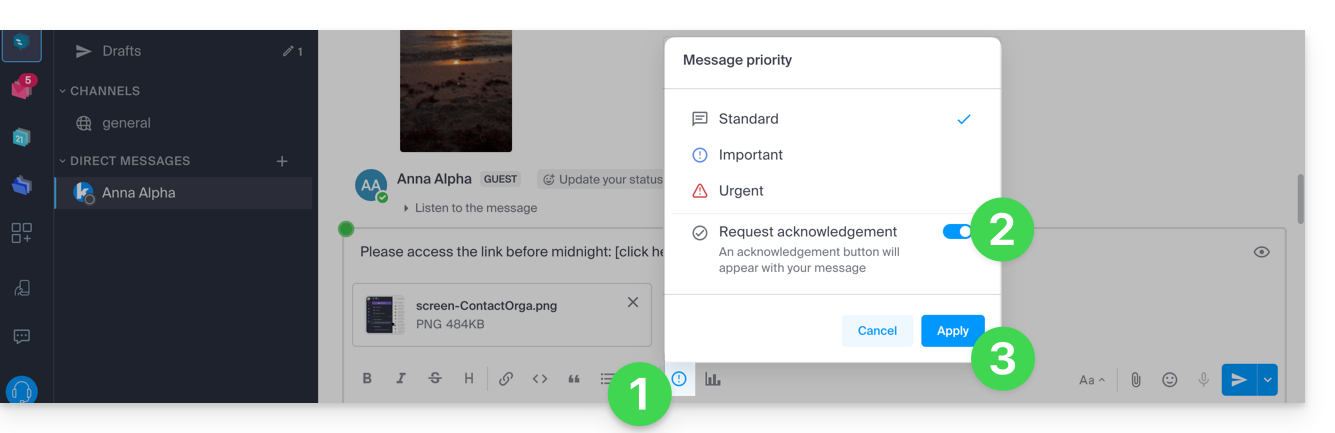
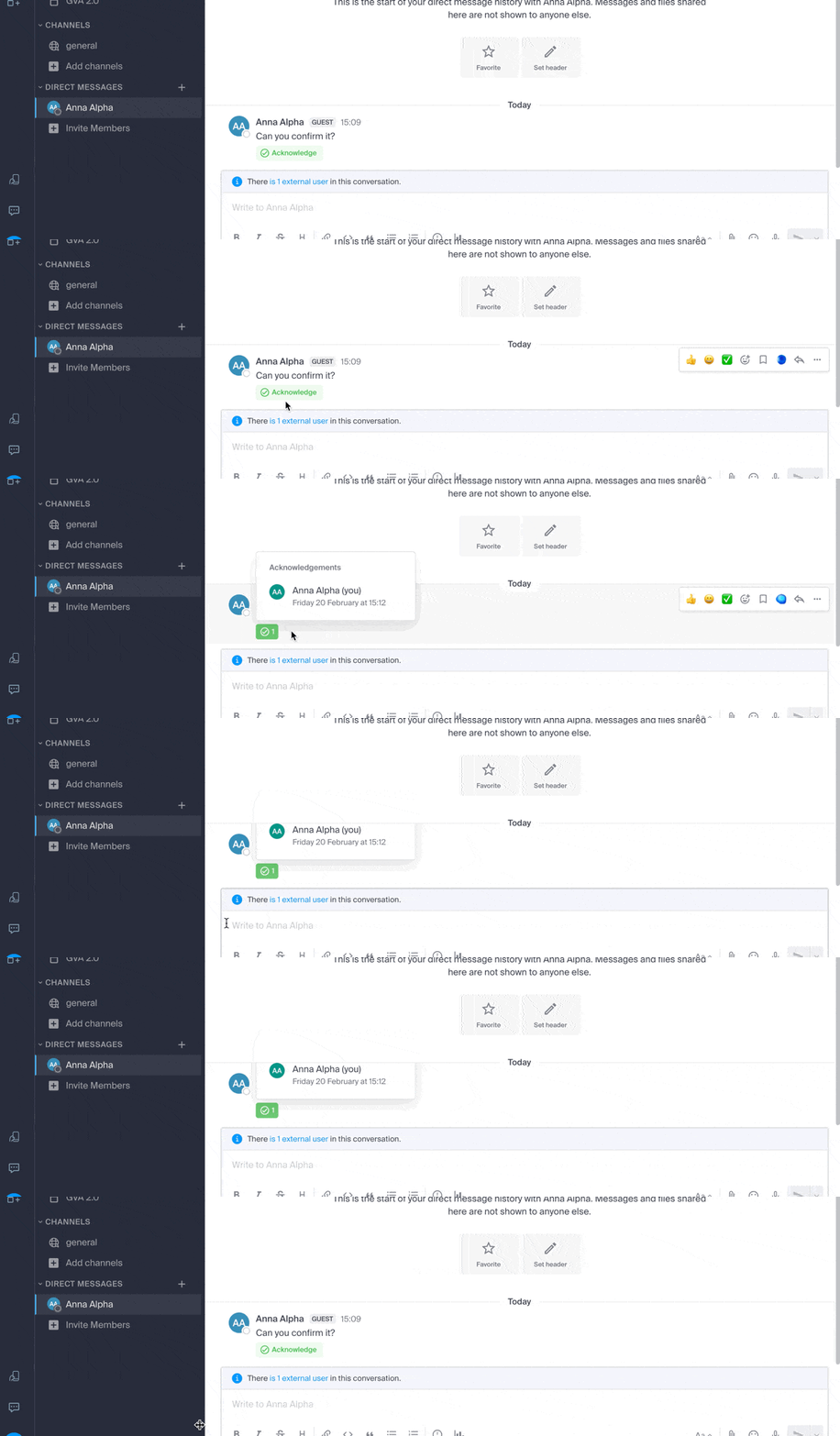
Once the message has been sent, the result will be as follows:
Edit / delete a message, or pin it
To edit a message (which will then display an "edited message" notification), click on the action menu to the right of the message you want to edit. In the same location, you can also delete your message, which will then disappear from the discussion for all users:
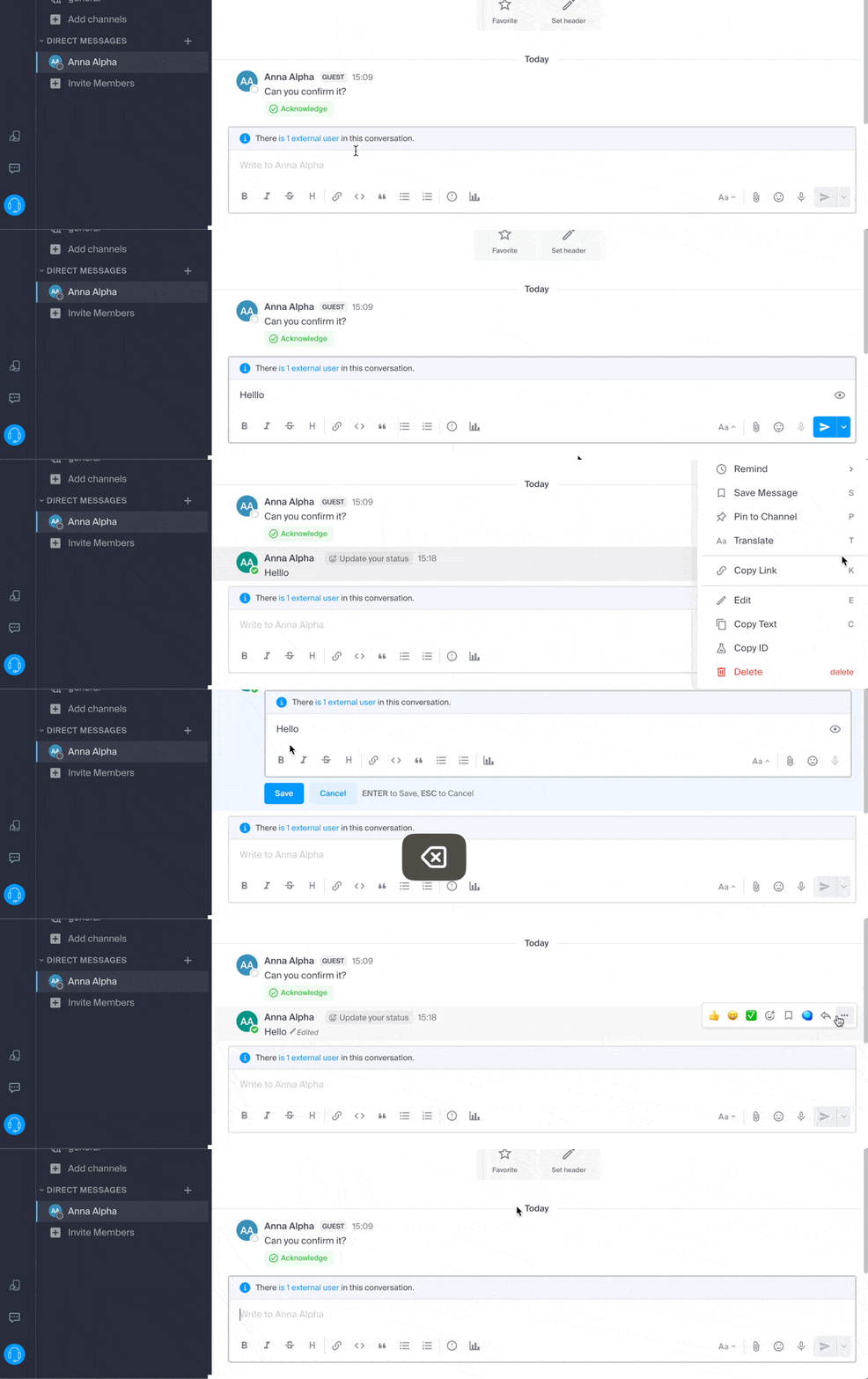
A notification regarding the deletion will appear for all other users in the channel, in the original location of the message.
In the same place, you can pin a message:
- Pinned messages are visible to all members of the channel, whether it is public or private.
- Messages pinned in a private channel are only accessible to members of that channel.
- You can view the list of all pinned messages via the "Pinned Messages" option in the channel.
- To remove a pinned message, hover over it again and select “Unpin”.
Organize conversations in kChat
The sorting method for the items you manage on the left side of the screen is very important.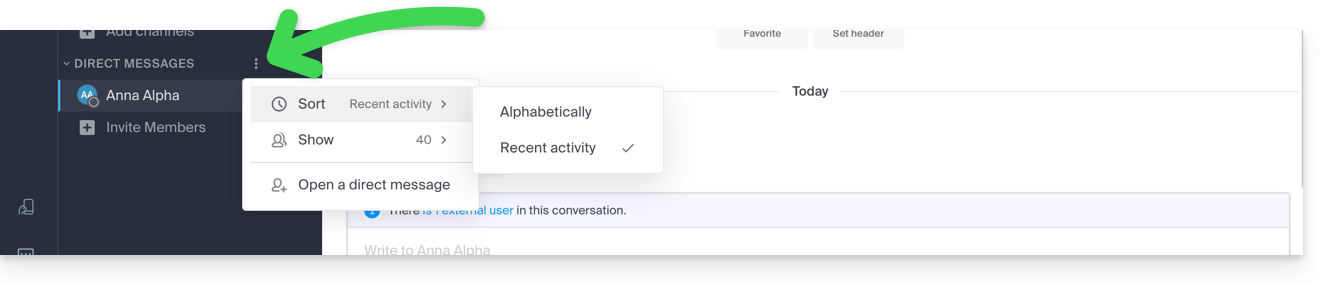
Imagine opening kChat after several days of absence; the unread conversations will be displayed one after the other. After reading them, you may want to find information from a previously read conversation. In this case, sorting by recent activity (see below for other options) will allow you to find the latest conversations that are relevant to you.
This choice of sorting method is available for all items: discussion channels, categories, direct messages, etc. 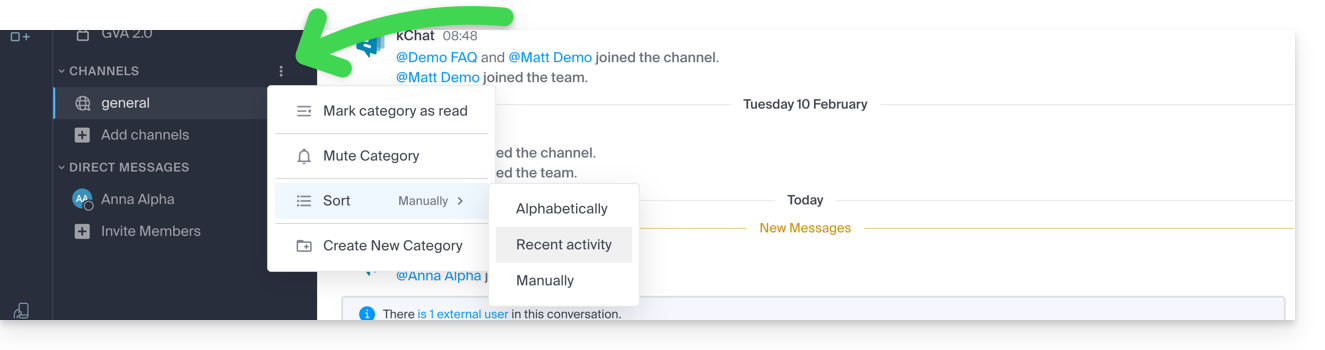
Search for a conversation
The search function for items (word, participant, file) is located at the top of the window. Once results are found, they appear on the right side of the window: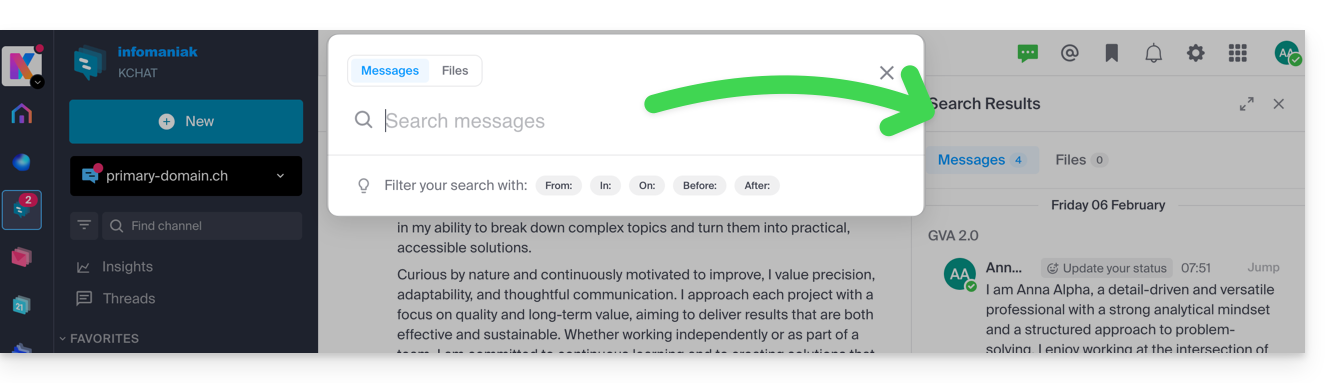
Thread
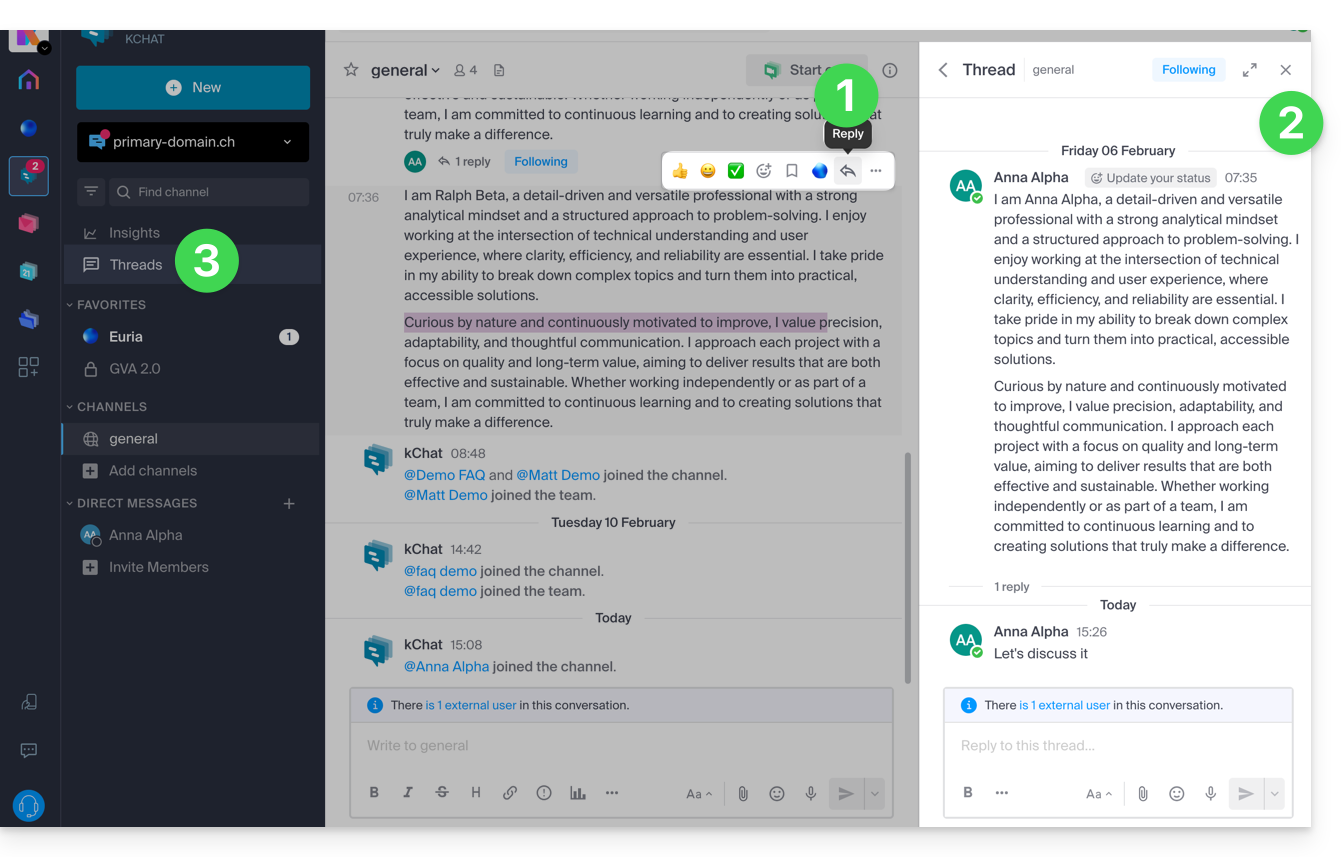
- Regardless of the channel or private chat with another user, you can start a thread from another one simply by choosing Reply on the desired message.
- A discussion thread will open in a side panel on the right, allowing each user in the channel to contribute to this specific thread without disrupting any new topics in the current channel (this thread can then be followed or ignored to stop receiving notifications for new messages – following is managed at the top of the side panel).
- These discussion threads are then centralized for reading and rereading in the Discussion threads section of the left sidebar.
Link to this FAQ: https://faq.infomaniak.com/1758
Has this FAQ been helpful?