Knowledge base
1000 FAQs, 500 tutorials and instructional videos. Here, there are only solutions!
Manage Newsletter Subscriber Groups
This guide explains how to create groups to distribute your Newsletter subscribers.
Introduction
- You must create at least one group to store your future contacts/subscribers.
- This will be useful, in particular, for creating a subscription form for your newsletter.
- Without a group, it is impossible to create the form; the button will remain disabled:
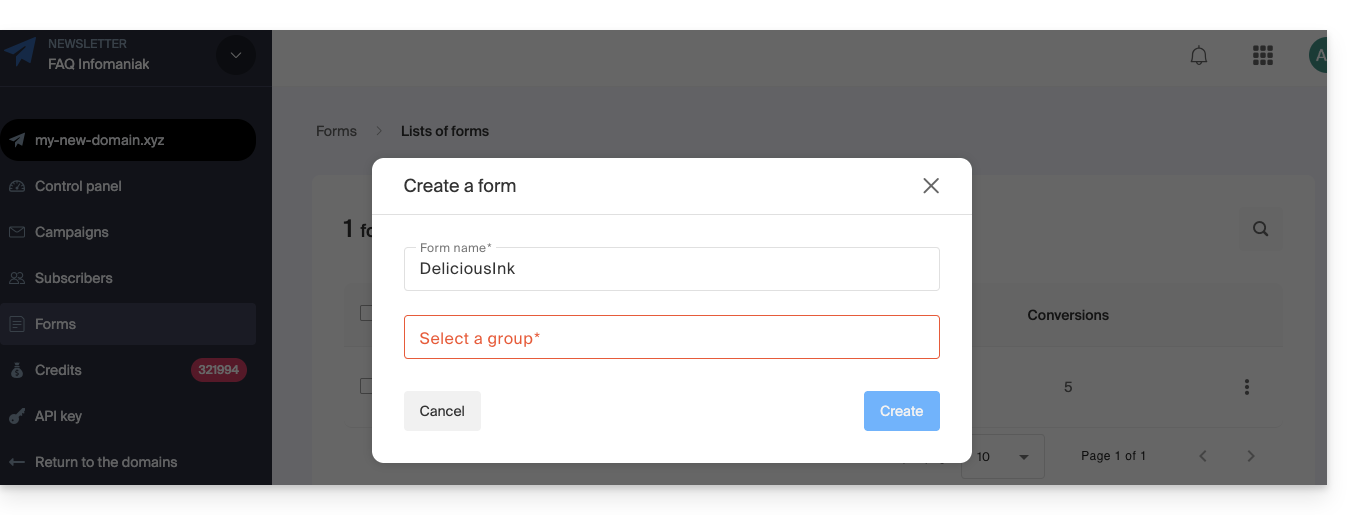
- Without a group, it is impossible to create the form; the button will remain disabled:
Create a subscriber group
To access the newsletter group management:
- Click here to access the management interface for your product in the Infomaniak Manager (need help?).
- Click directly on the domain name assigned to the product in question.
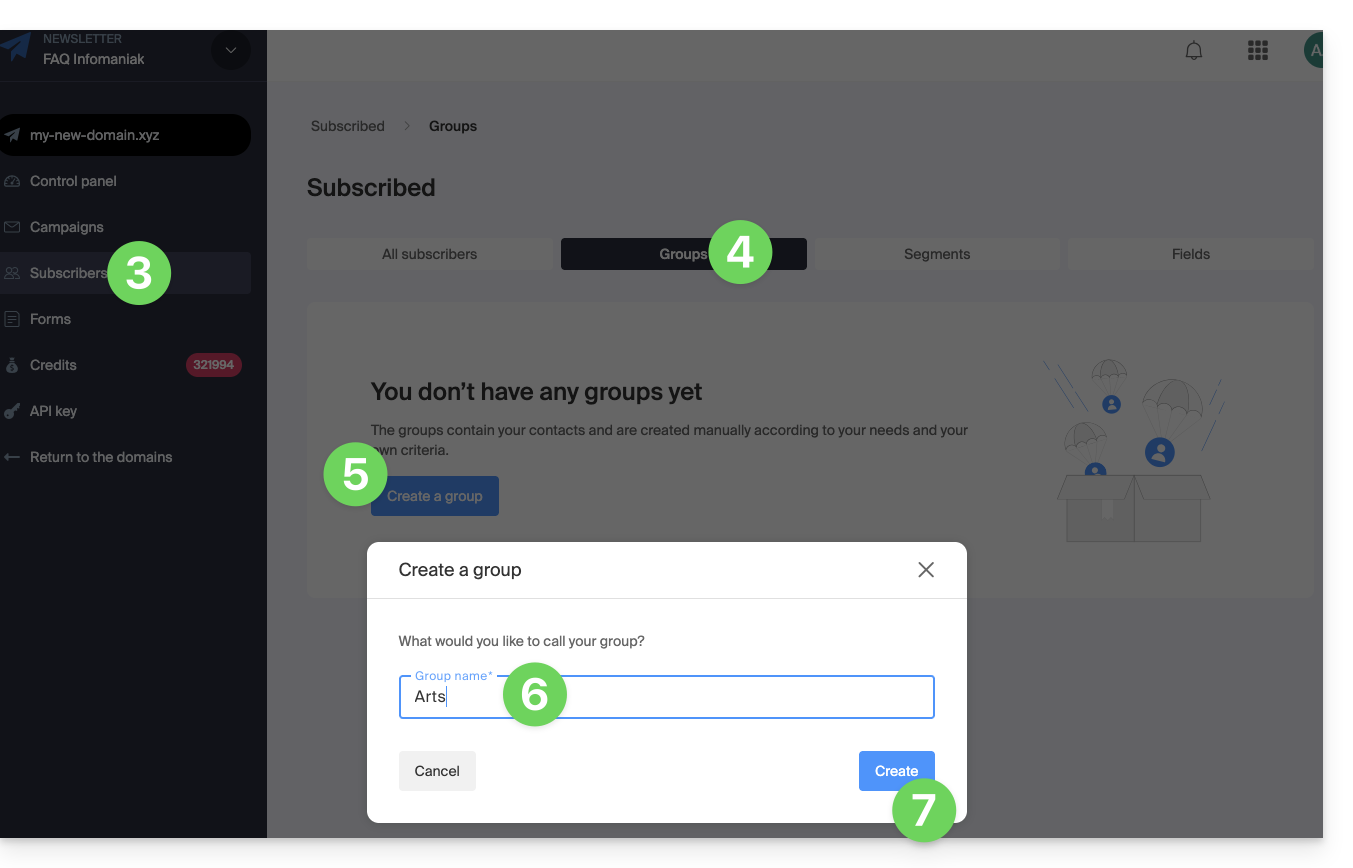
- Click on Subscribers in the left-hand menu.
- Click on the Groups tab.
- Click the button to Create a group.
- Enter a name for your group.
- Click on the Create button:
Once the group is created, you can now easily add a new subscription form and specify which group should be used to store future subscribers: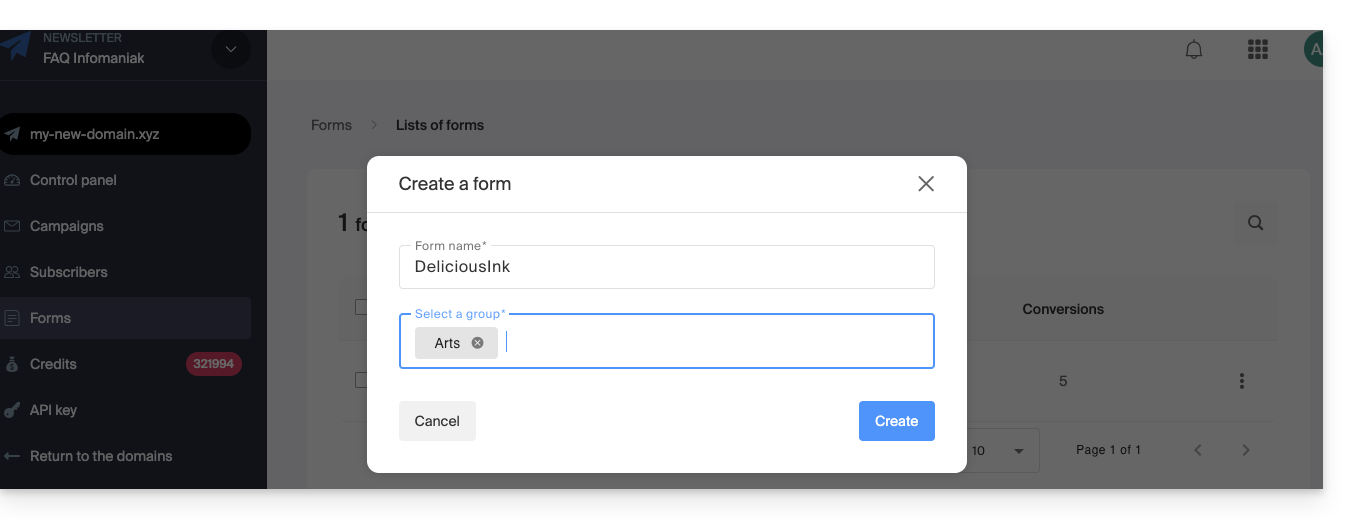
Creating multiple groups allows you, for example, to send Newsletters to only one of them and not to the others. It also allows you to have a registration form in a location corresponding to populating a specific contact list, and then another form elsewhere corresponding to a different list, so that you can subsequently send an even more personalized Newsletter.
Add subscribers to the group
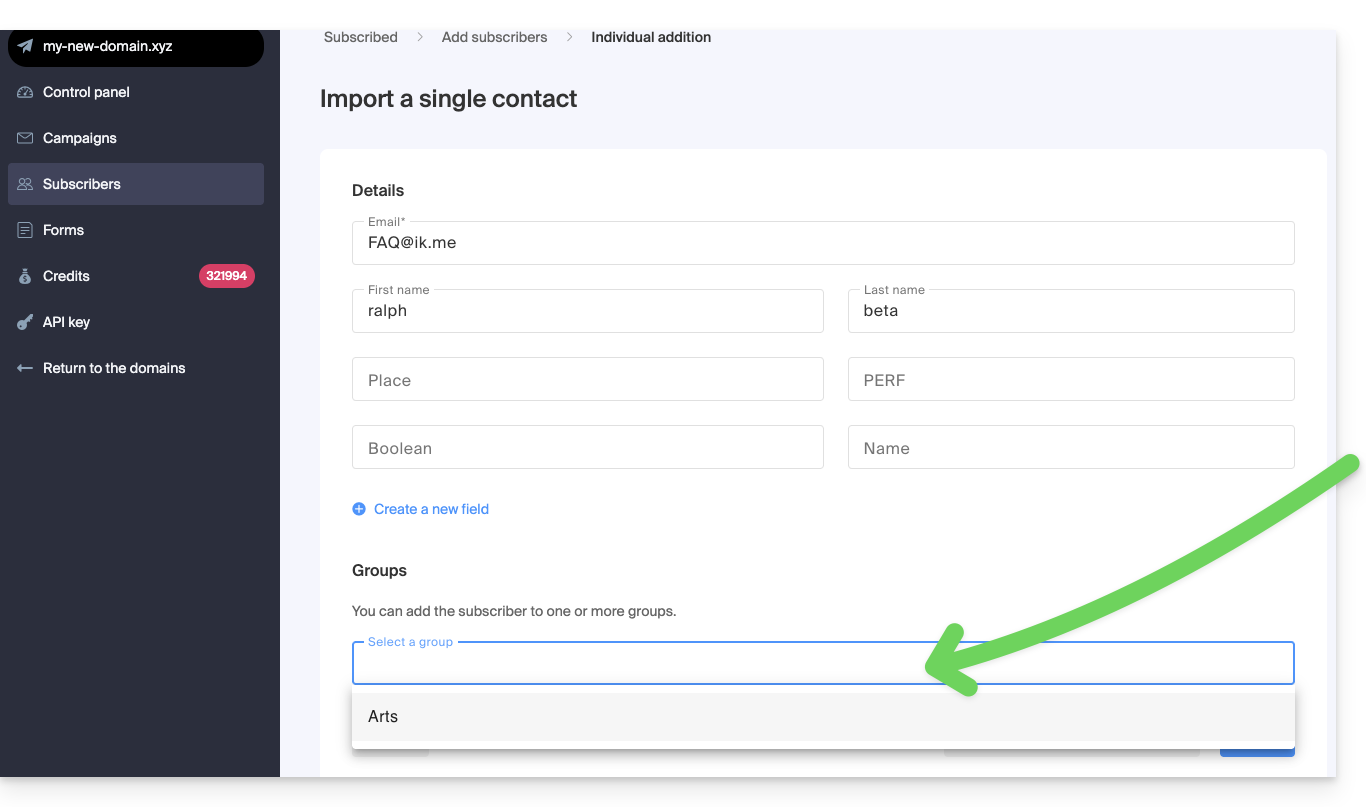
You can select the group created when creating/importing a new contact:
- Click here to access your product management interface on the Infomaniak Manager (need help?).
- Click directly on the domain name assigned to the product in question.
- Click on Subscribers in the left-hand menu.
- Click on Add a subscriber.
- Click, for example, on the box for individual addition.
- Select the appropriate group at the bottom of the form:
To add existing subscribers to the created group:
- Click here to access the management of your product in the Infomaniak Manager (need help?).
- Click directly on the domain name assigned to the product in question.
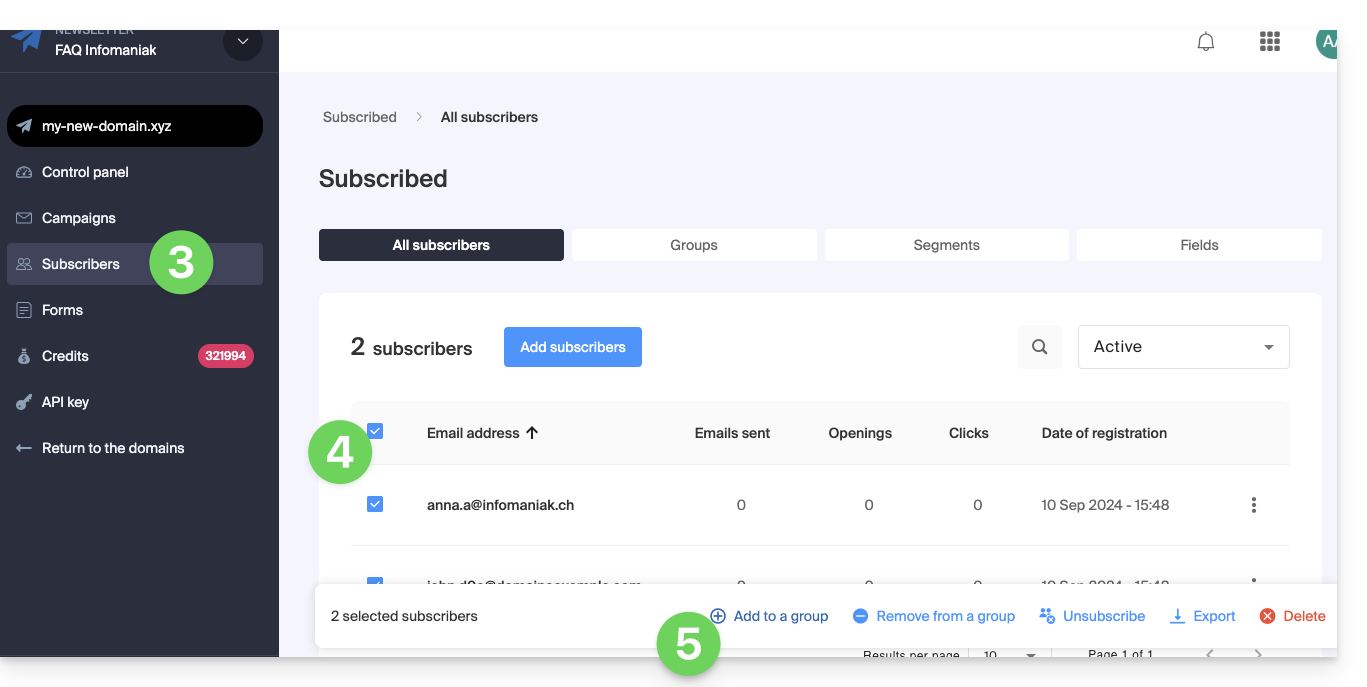
- Click on Subscribers in the left-hand menu.
- Select the subscribers to group.
- Click on Add to a group from the action menu that appears at the bottom of the screen:
- Enter the name(s) of the existing group(s).
- Click on the Add button:
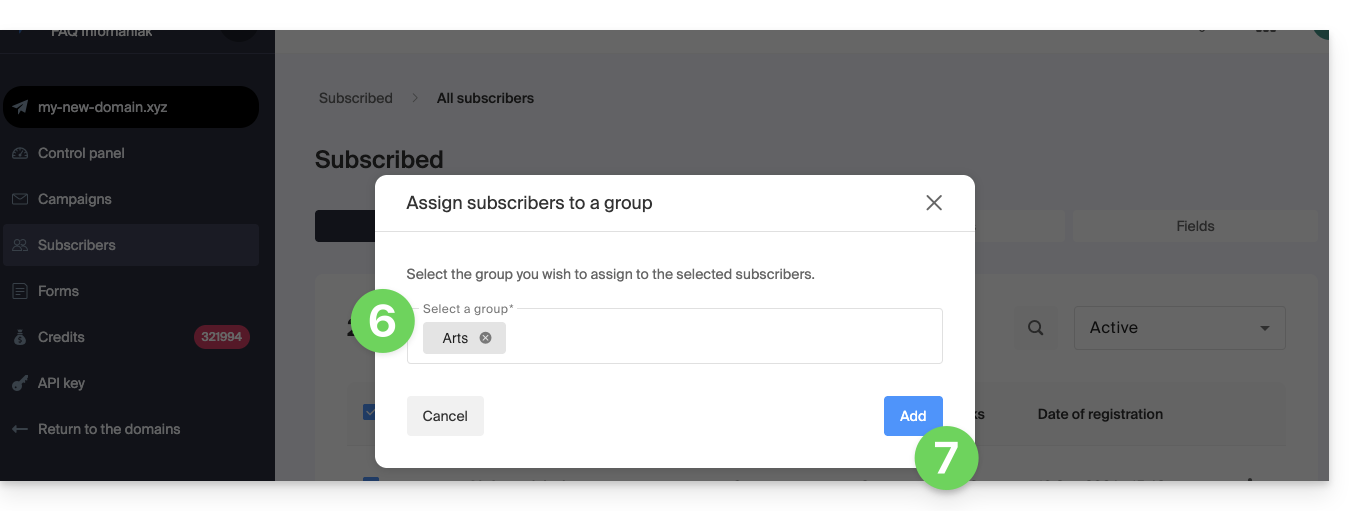
To remove subscribers from certain groups, choose Remove from a group in step 5 above.
Link to this FAQ: https://faq.infomaniak.com/1525
Has this FAQ been helpful?