Knowledge base
1000 FAQs, 500 tutorials and instructional videos. Here, there are only solutions!
Manage kChat notifications
This guide details the important elements to ensure you don't miss any of the kChat discussions that are relevant to you.
Introduction
- If notifications are correctly configured to work on the kChat mobile app, they will also work on smartwatches such as Garmin or Apple Watch.
Manage chat and event notifications
To manage kChat notifications, and thus be notified, for example, when a new message is sent directly to you or when you follow a specific message, including based on certain keywords:
- Click here to access the kChat web app (online service ksuite.infomaniak.com/kchat), or open the kChat mobile app (application for iOS/Android smartphones or tablets), or the kChat desktop app (desktop application on macOS/Windows/Linux).
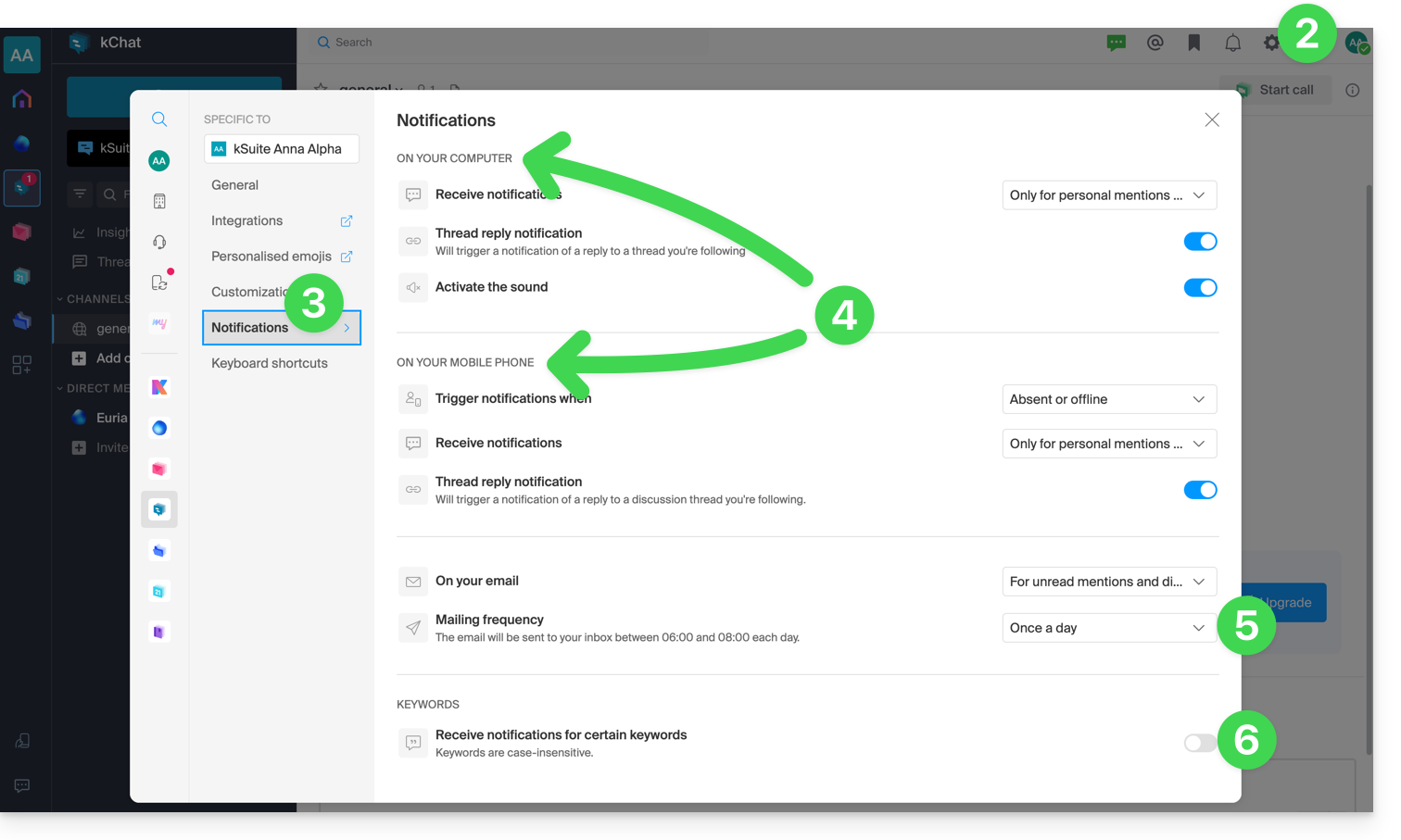
- Click on Settings in the top right corner.
- Click on Notifications.
- Define how you want to be notified (computer/mobile, present/absent, etc.) and under what circumstances (all messages or only messages with mentions, followed messages, etc.).
- Choose to receive regular notifications by email:
- This email is sent either every day or once a week, between 6 and 8 a.m., and informs the user about the messages they have not read.
- The user receives an email per kChat product they have access to.
- Define a keyword for which you want to be notified when a new message is posted:
If necessary, allow browser notifications:
on Safari (❓: help)
- Open Safari.
- Click on Settings (or Preferences), select Websites, then Notifications.
- Find the infomaniak.kchat.infomaniak.com website and select Allow.
on Firefox (❓: help)
- Open Firefox.
- Go to the main menu and click on Settings (or Preferences).
- Go to Privacy & Security in the left-hand panel.
- Scroll down to the Permissions section and locate the Notifications line.
- Click the Settings… button to the right of Notifications.
- Search for the site https://infomaniak.kchat.infomaniak.com and select Allow.
- Click Save changes.
on Google Chrome (❓: help)
- Open Google Chrome.
- Click on the More ⋮ menu in the top right corner, then click Settings.
- Go to Privacy and security, then click Site settings.
- Click on Notifications and choose to allow the site:
- Next to the Allow option, click on Add. Enter the URL:
https://infomaniak.kchat.infomaniak.com, then click on Add.
- Next to the Allow option, click on Add. Enter the URL:
on Microsoft Edge
- Open Microsoft Edge.
- Click on the … menu in the top right corner, then click on Settings.
- Go to the Cookies and site permissions menu.
- Click on Notifications:
- Next to the Allow option, click on Add. Enter the URL:
https://infomaniak.kchat.infomaniak.com, then click on Add.
- Next to the Allow option, click on Add. Enter the URL:
Manage desktop app icon notifications
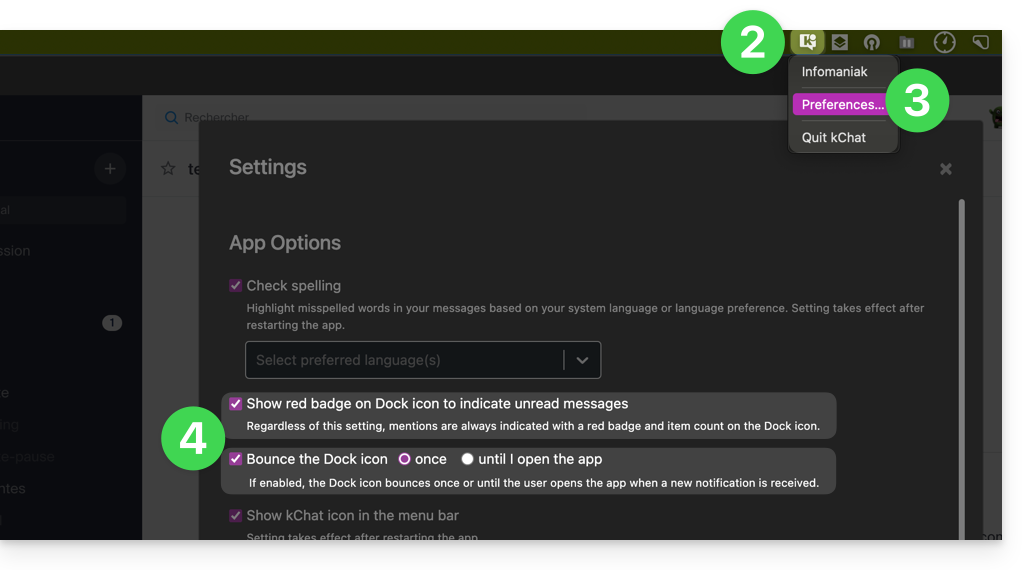
For example, you can choose to animate the desktop app icon when a new message arrives:
- Open the kChat desktop app (desktop application on macOS / Windows / Linux).
- Left-click on the desktop app icon in your computer's notification area (top right on macOS, bottom right on Windows, and double-left-click in the taskbar on Linux).
- Click on Preferences...
- Under Application Options, adjust the operating system's notification preferences:
Manage notifications for a specific channel
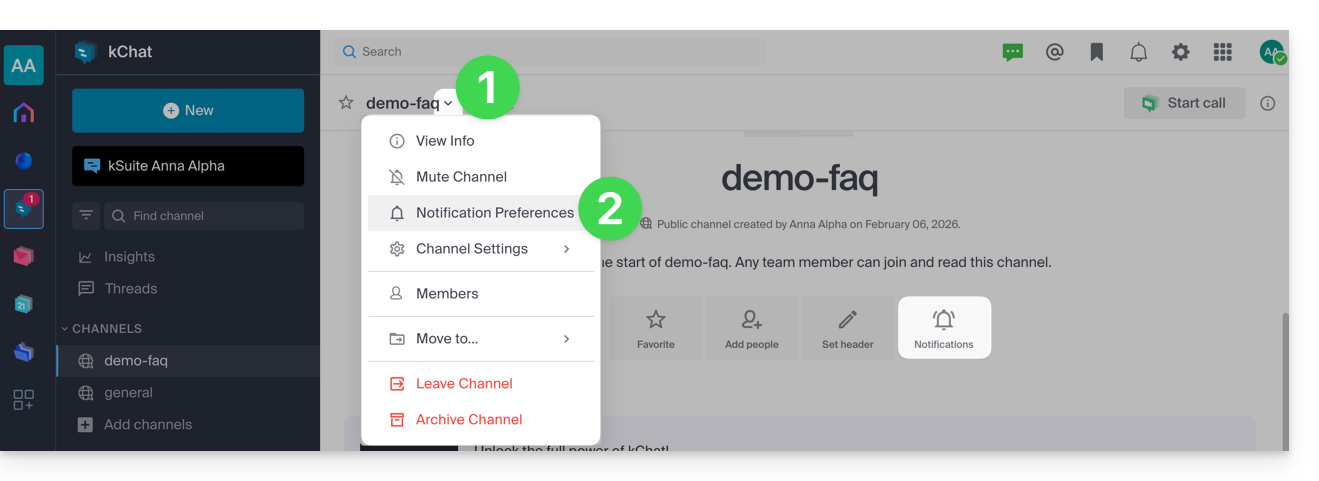
In the relevant chat channel:
- Click on the chevron to the right of the channel name.
- Click on Notification Preferences (or directly on the dedicated icon at the top of the channel):
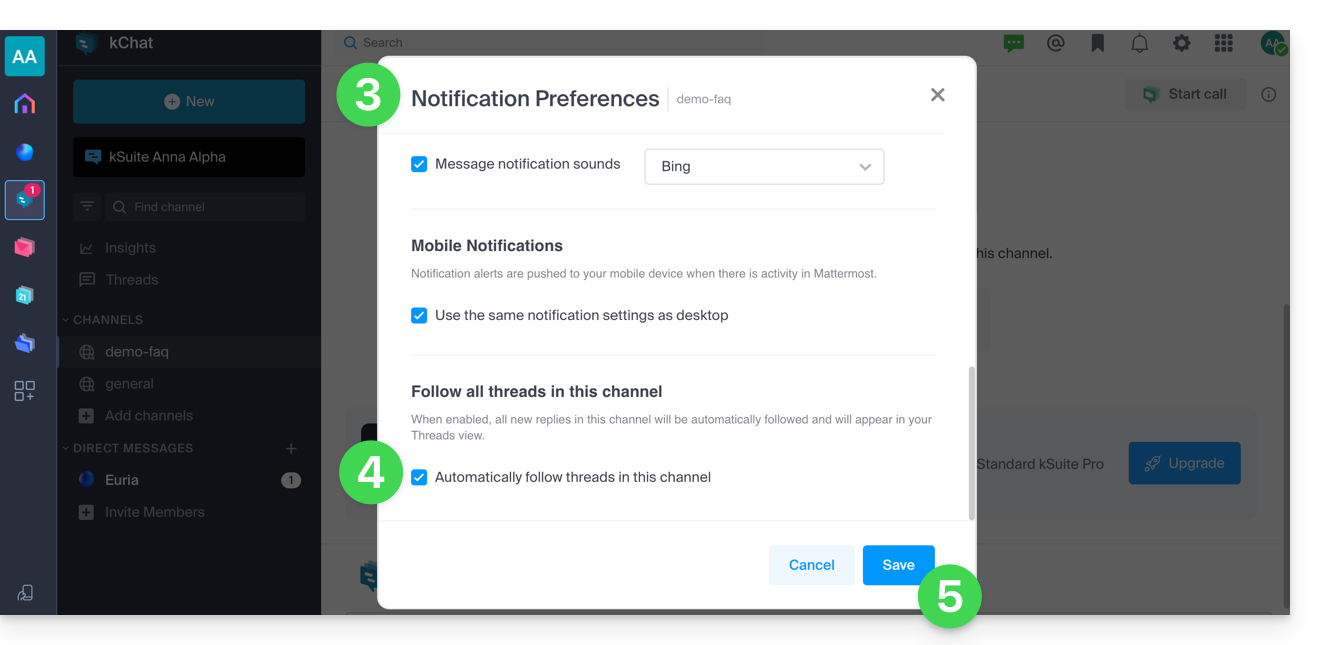
- Browse and enable the desired notifications.
- One of the options allows you to be automatically notified as soon as a discussion thread (thread) is initiated following a message posted in the relevant channel.
- Save your choices by clicking the button at the bottom:
Manage notifications for a specific discussion
To be notified of a new message in a specific discussion thread, even if you are not a direct participant, you need to activate Follow:
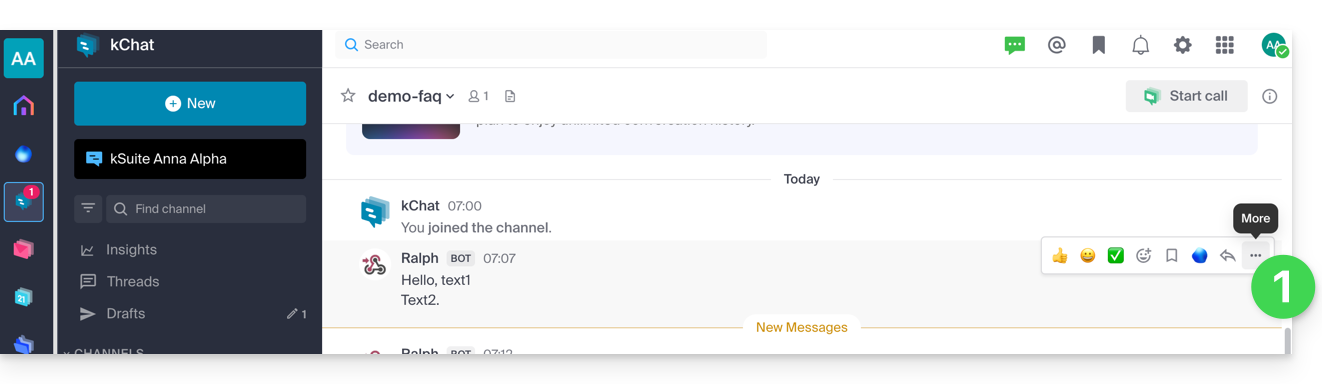
- either by hovering over the action menu ••• to the right of a user in a discussion:
- and clicking on More…:
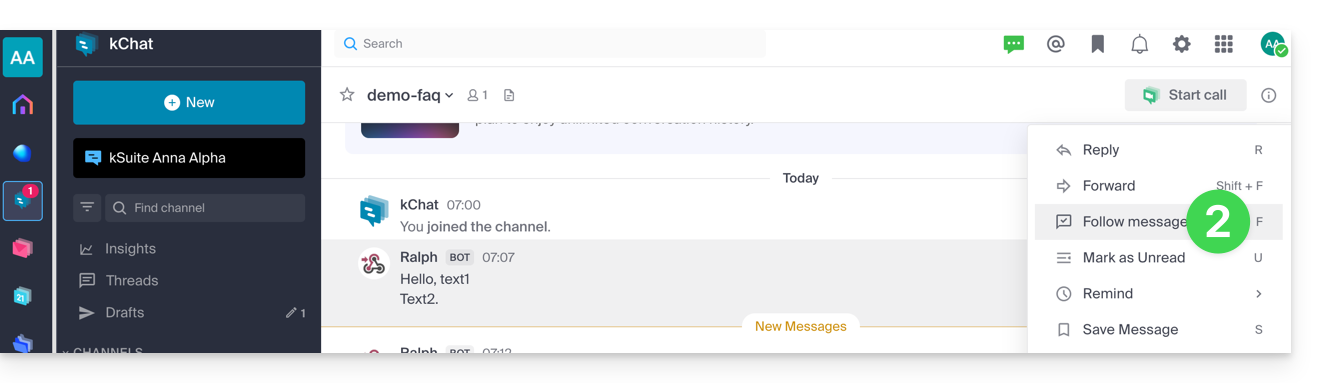
- then Follow message:
- and clicking on More…:
- within a discussion thread (reply to a message):
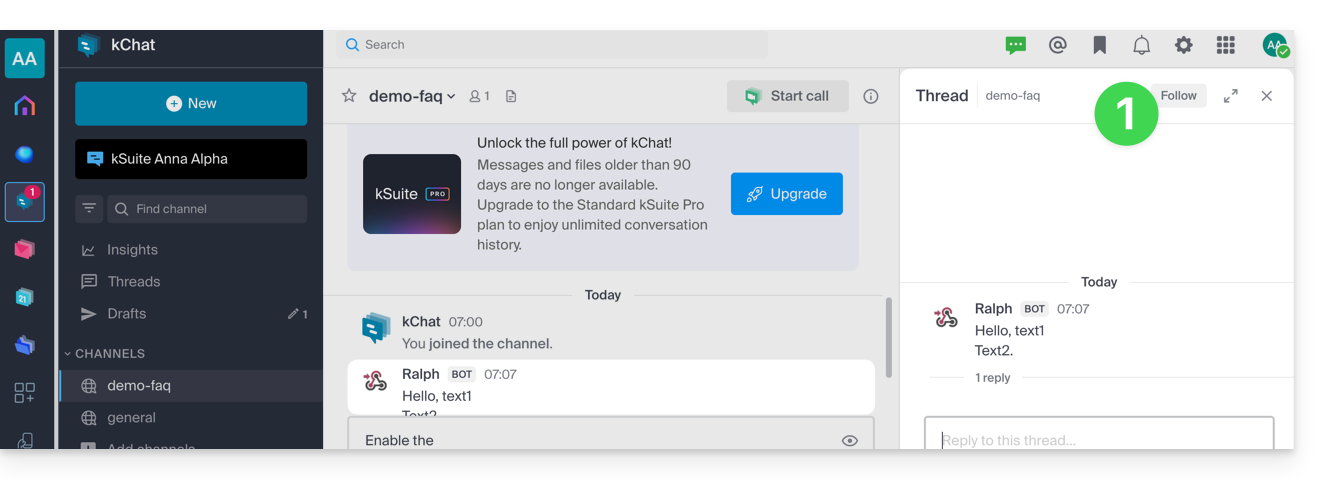
- click on Follow at the top of the discussion (you automatically follow the discussion from the moment you post a message, and you can then Stop following the exchanges in this discussion thread):
- click on Follow at the top of the discussion (you automatically follow the discussion from the moment you post a message, and you can then Stop following the exchanges in this discussion thread):
Link to this FAQ: https://faq.infomaniak.com/1460
Has this FAQ been helpful?