Knowledge base
1000 FAQs, 500 tutorials and instructional videos. Here, there are only solutions!
Invite a user to use kChat
This guide explains how to invite a user who is not yet part of your Organization to kChat, and who will be registered as a kSuite user.
Introduction
- Refer to this other guide to grant access to one or more kChat channels to an external user, who will then be able to interact with your team without being counted as a kSuite userand without having any specific rights within the Organization (of which he will not be a part).
- You can also invite an entire Group from kChat.
- Refer to this other guide if you wish to manage the channels to which new members will automatically belong.
Invite users to use kSuite
Prerequisites
- You must be a kChat administrator:
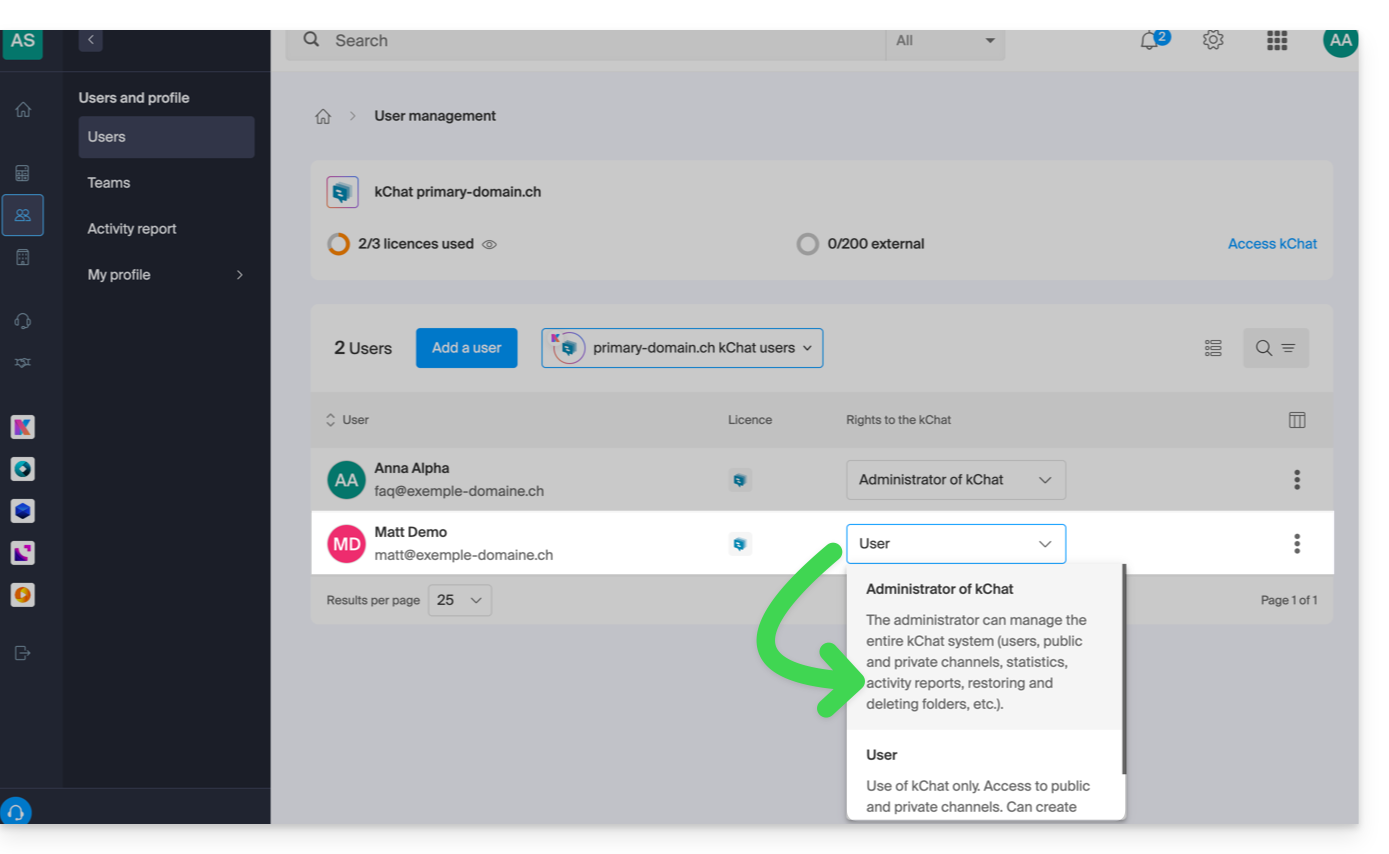
- The role within the Organization is irrelevant; being an Organization administrator in the Organization that contains the kSuite (and therefore kChat) is not required, and is not sufficient in any case:
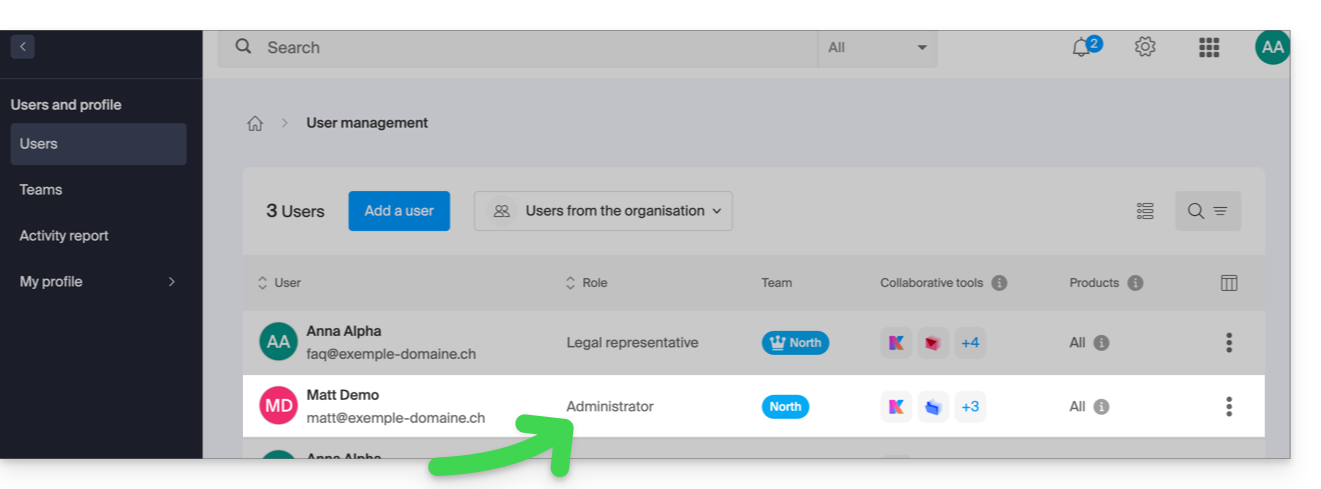
- The role within the Organization is irrelevant; being an Organization administrator in the Organization that contains the kSuite (and therefore kChat) is not required, and is not sufficient in any case:
Next, invite the user following the procedure below. Once invited, the user will be able to confirm their membership and access kChat with the limited permissions you have granted them:
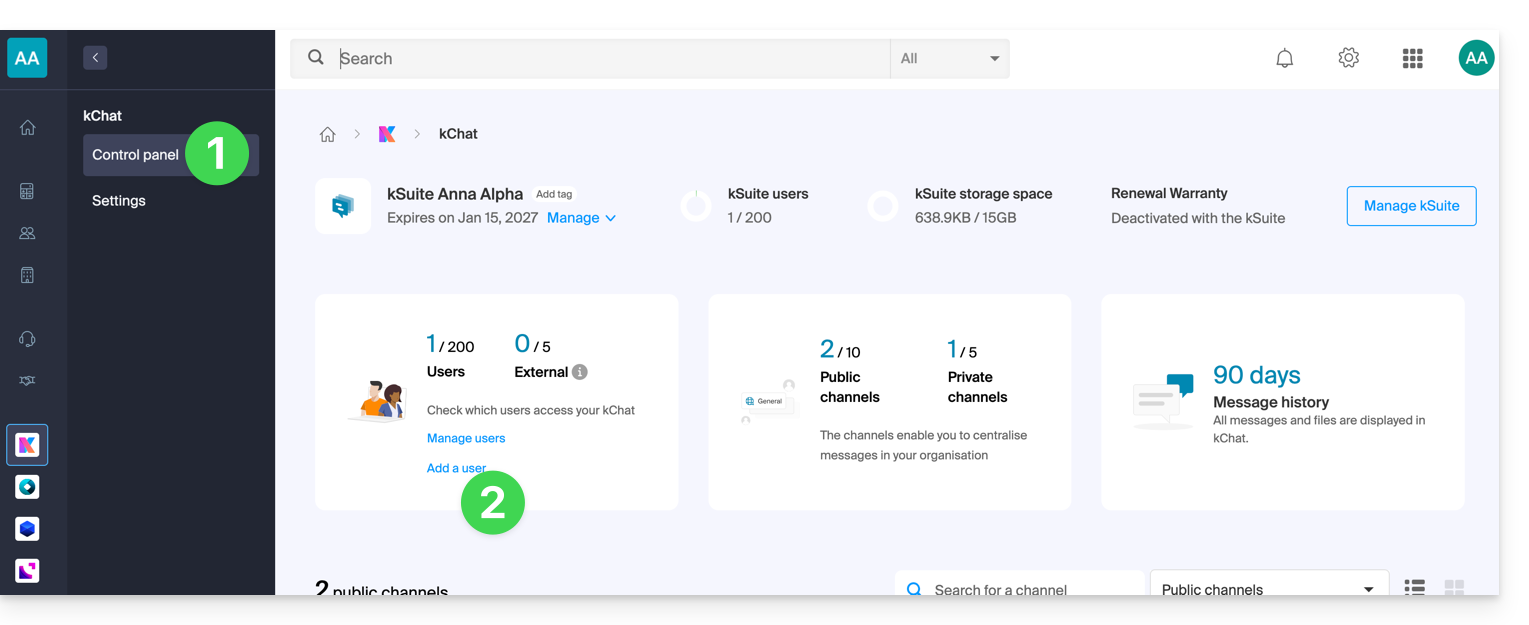
- Click here to access the kChat management interface in the Infomaniak Manager (need help?).
- Click on Add a user:
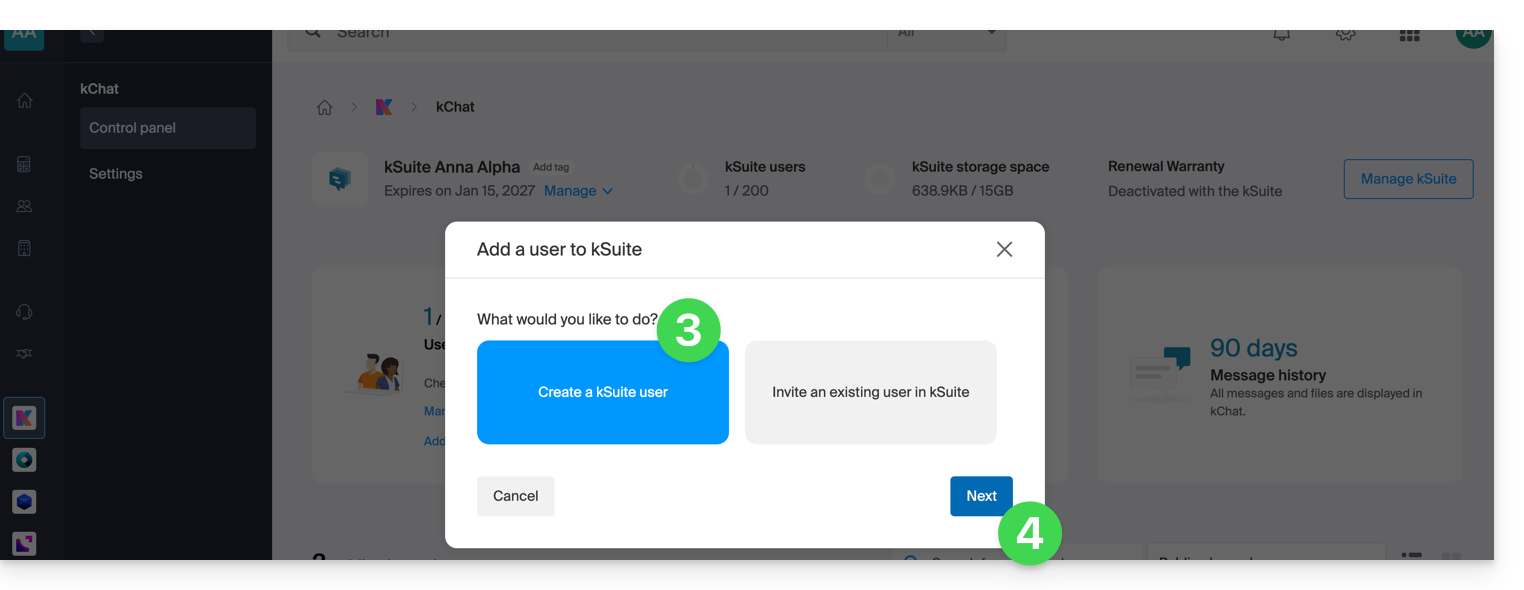
- Click on Create a kSuite user.
- Click on Next:
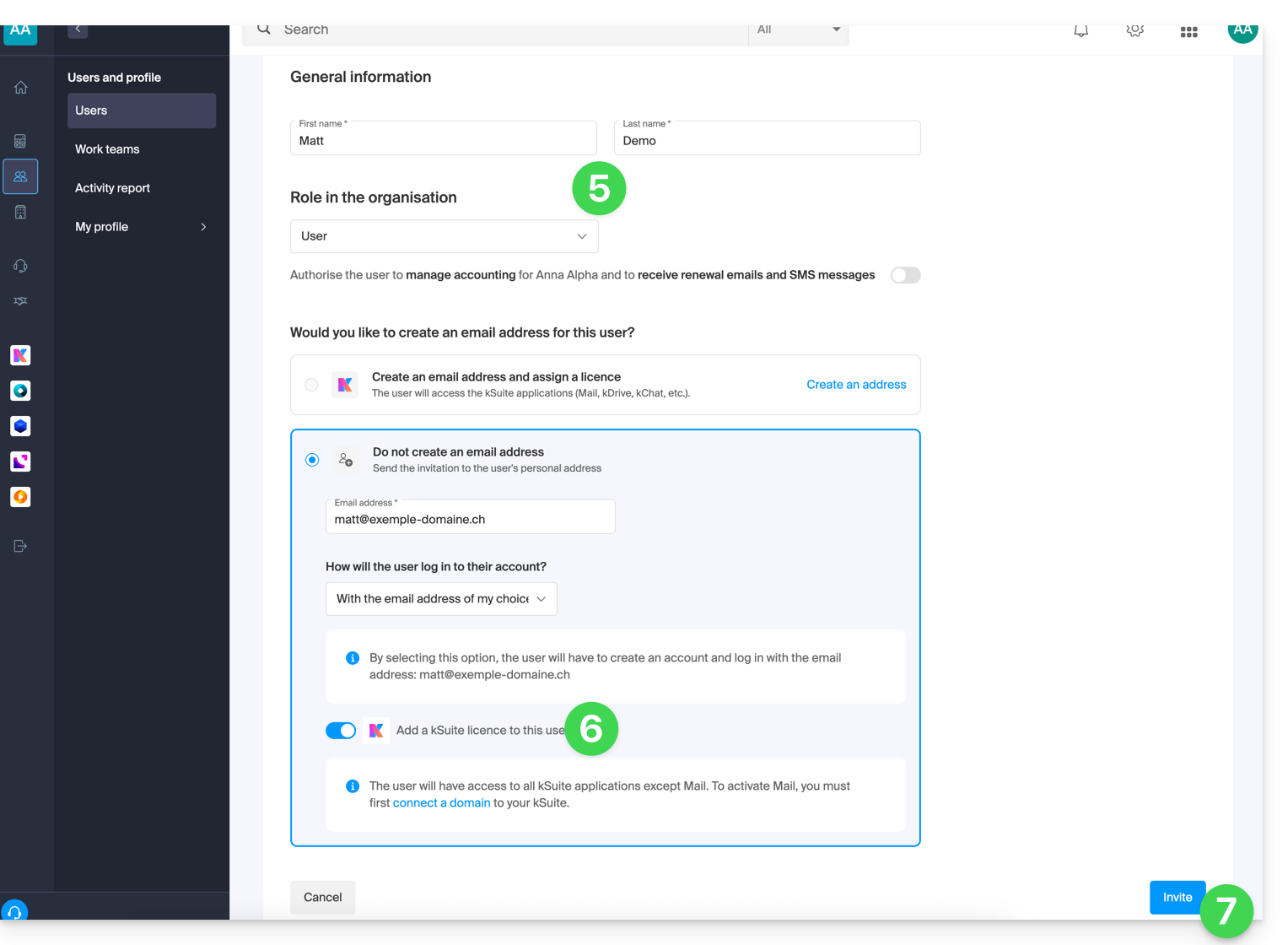
- Enter the user's first name and last name, and define their role as a standard user:
- Legal representative
- Legal responsibility for the organization
- Can manage all products and users
- Can manage accounting and orders for new products
- Administrator
- Can manage all products and users
- Can manage accounting and orders for new products
- User
- Can manage the products you authorize
- Can manage accounting if you authorize it
- Legal representative
- Do not create a new email address for the user; instead, specify their existing email address to which the invitation should be sent:
- You can require this future user to log in with this email address, or allow them to specify a different email address (this is particularly useful if they already have a user account with Infomaniak using a different login ID).
- Add the user to your kSuite using the toggle switch.
- Click the Invite button:
- The invitation is pending until the invited user registers. The user dashboard for the Organization displays this status:
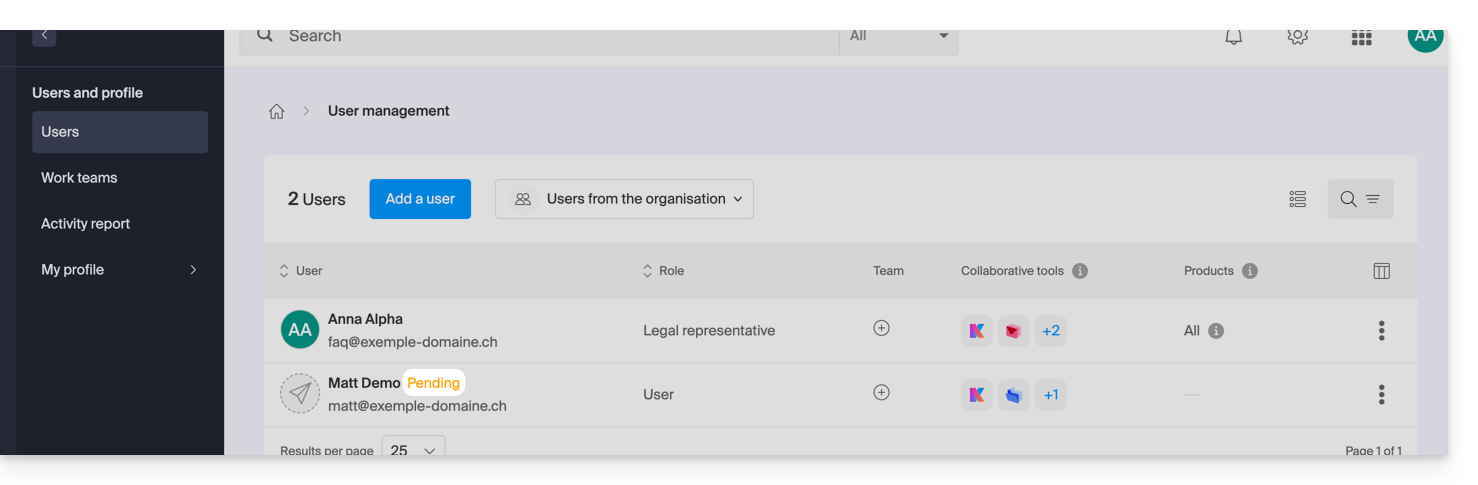
- The invitation is pending until the invited user registers. The user dashboard for the Organization displays this status:
Accept the invitation
To access the Organization that owns kChat:
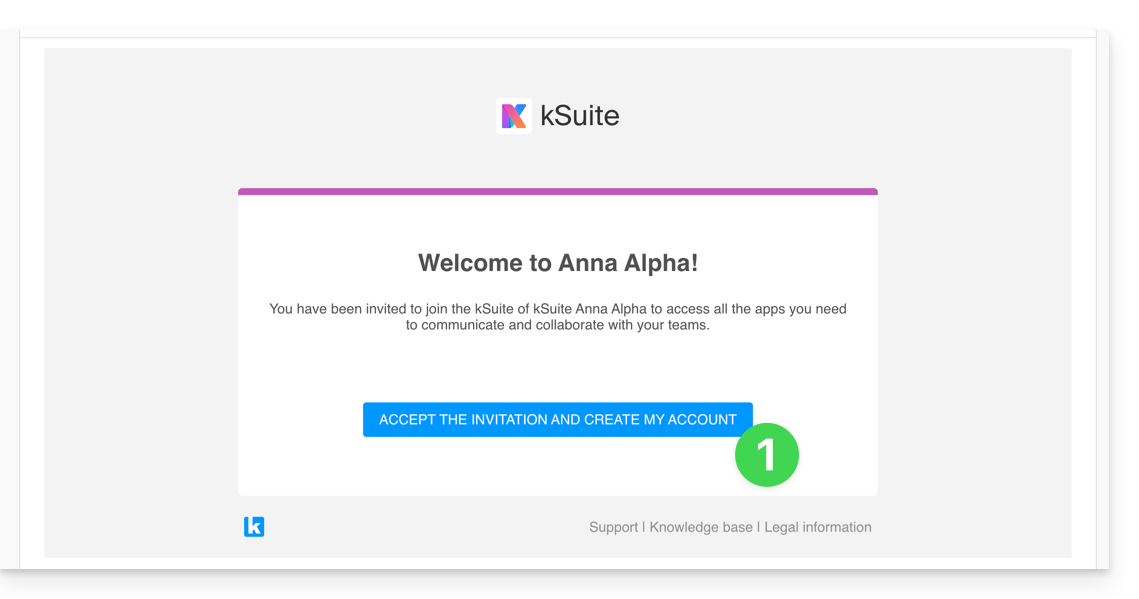
- The invited user receives the invitation at their email address and clicks on the Accept invitation button:
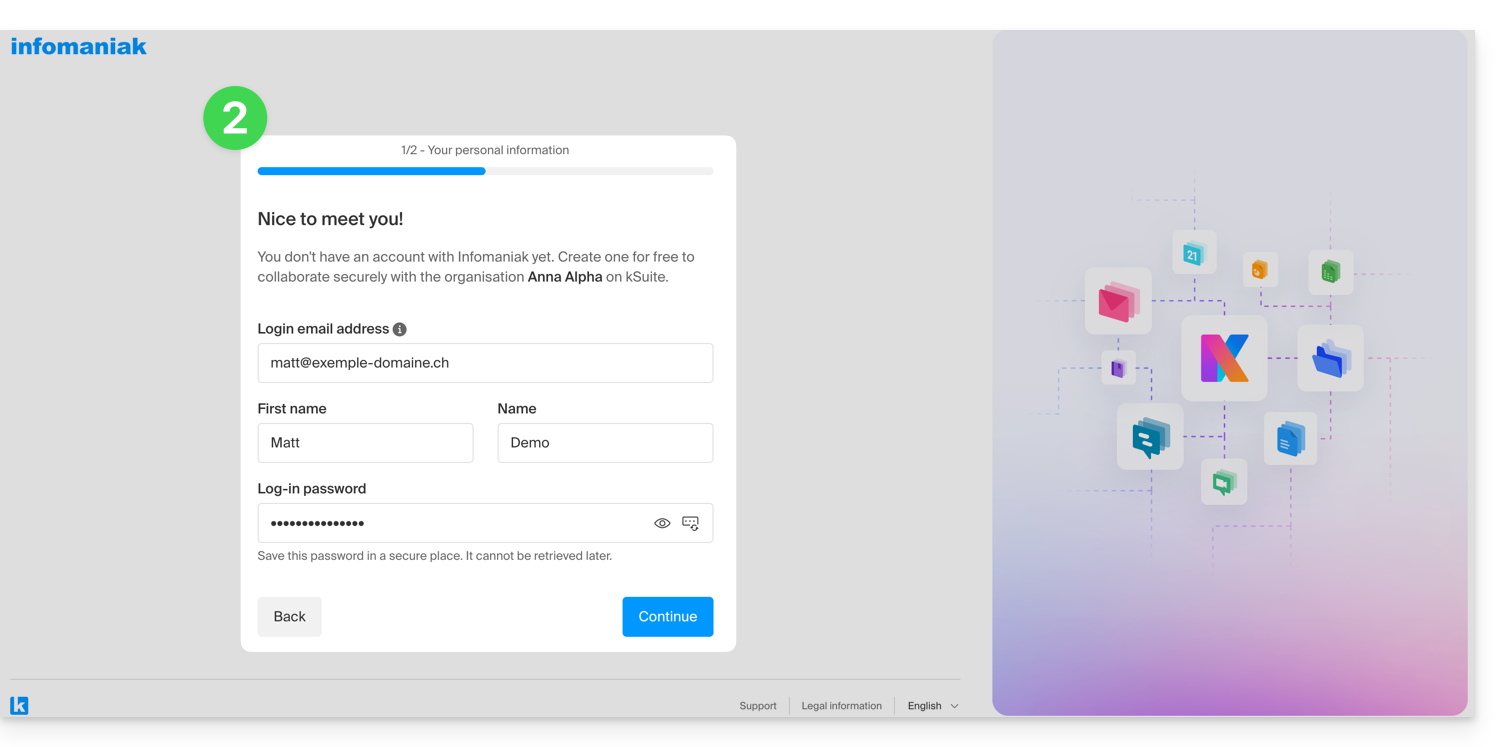
- They specify their contact details as well as the email address/password they wish to use and complete the registration:
- Once registration is complete, the newly registered user can log in to their Manager and access the kChat to which they were invited.
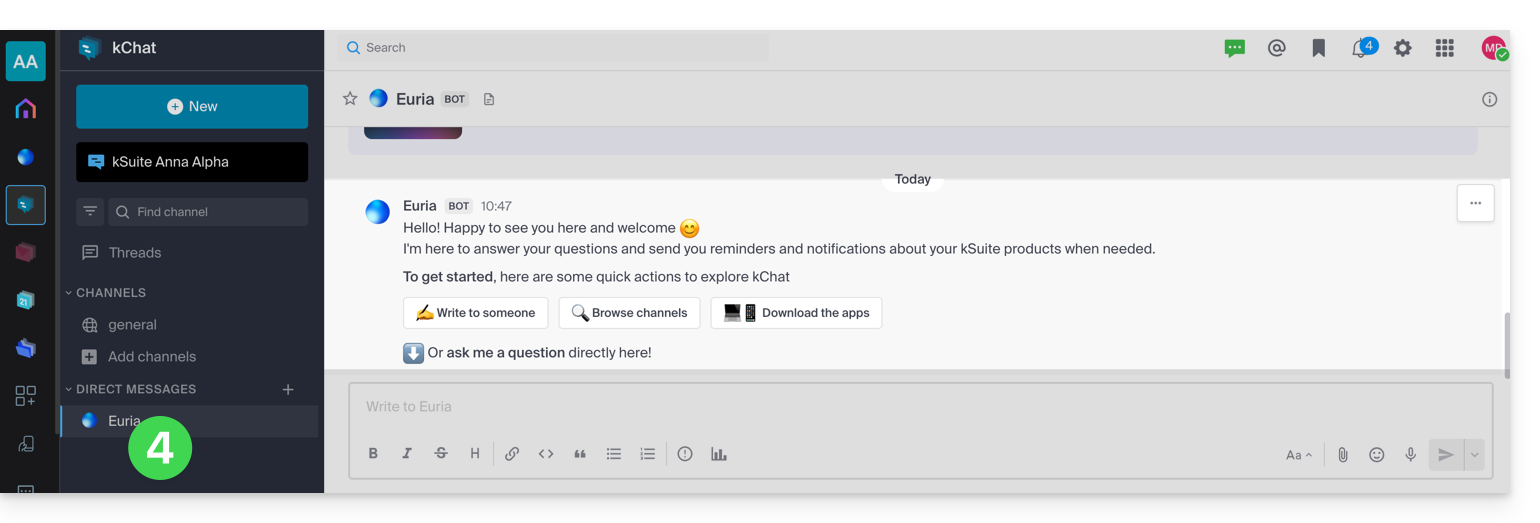
- Existing users are automatically notified of the new participant's arrival and can now chat with them; as soon as they are added, the new user receives a welcome message from Euria (Infomaniak's AI Bot):
Access to kSuite, and not access to the management of kSuite!
It is important to differentiate between using the kChat app (within kSuite) and managing kSuite itself.
In the invitation example above, the new user has been invited to join kChat, and is therefore now counted as a kSuite user when an administrator accesses the kChat user management section: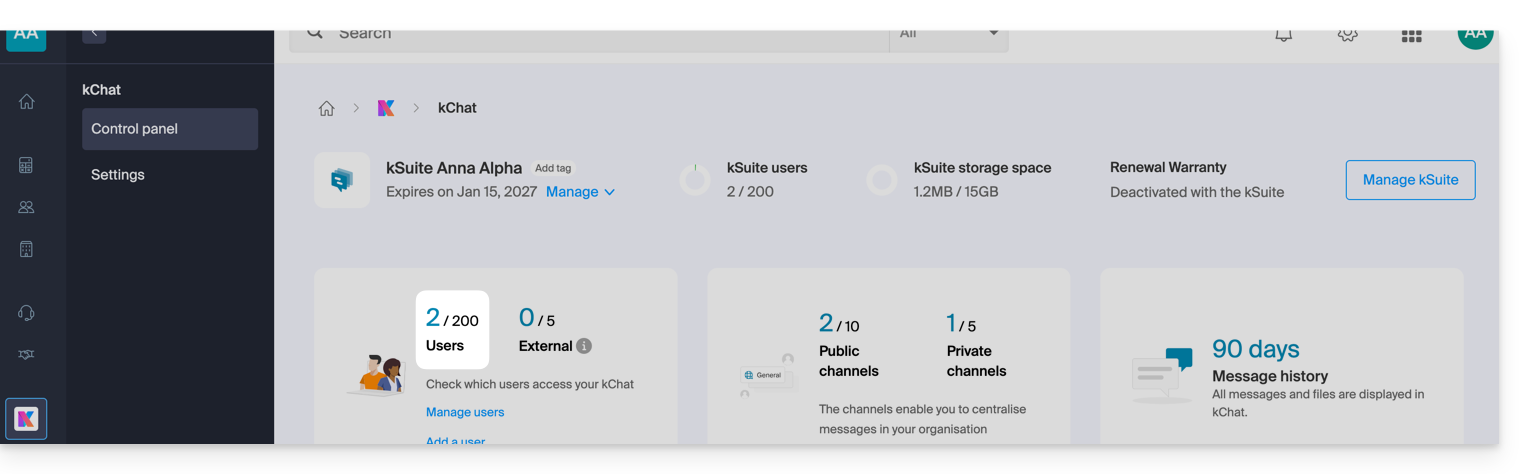
The same applies, of course, to kSuite user management: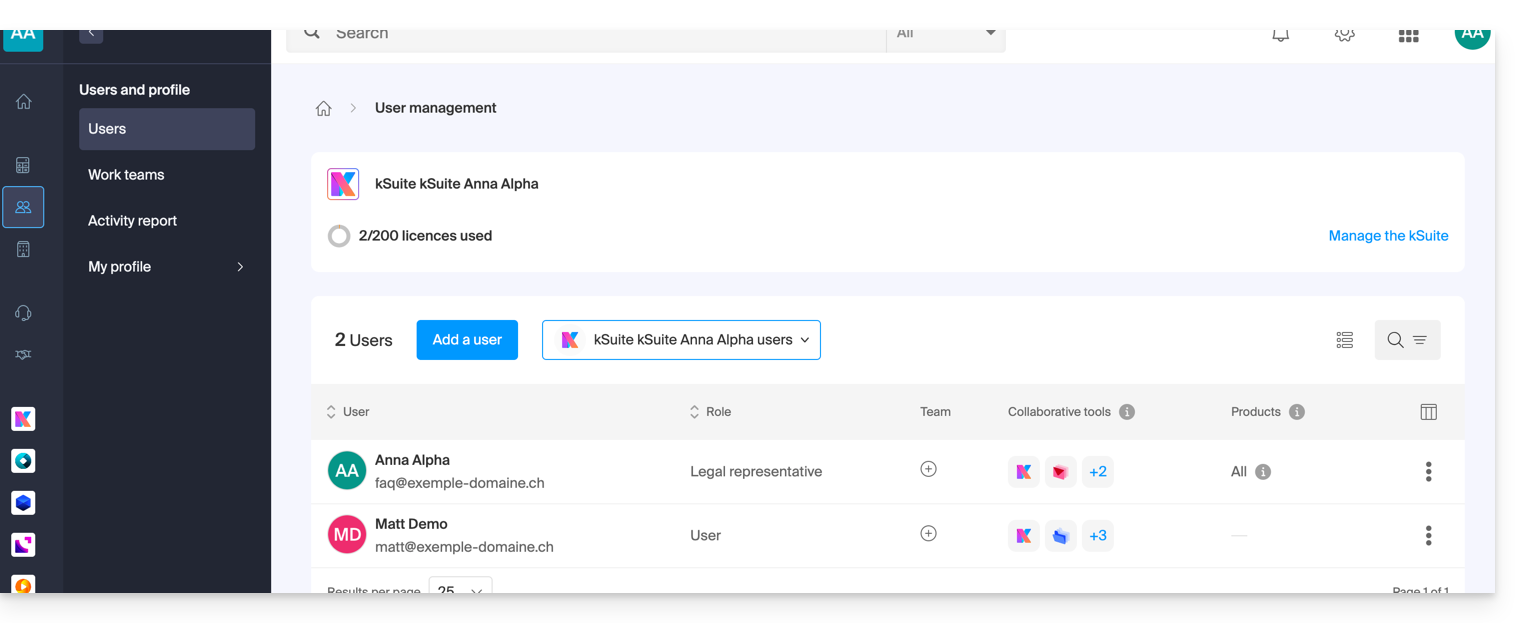
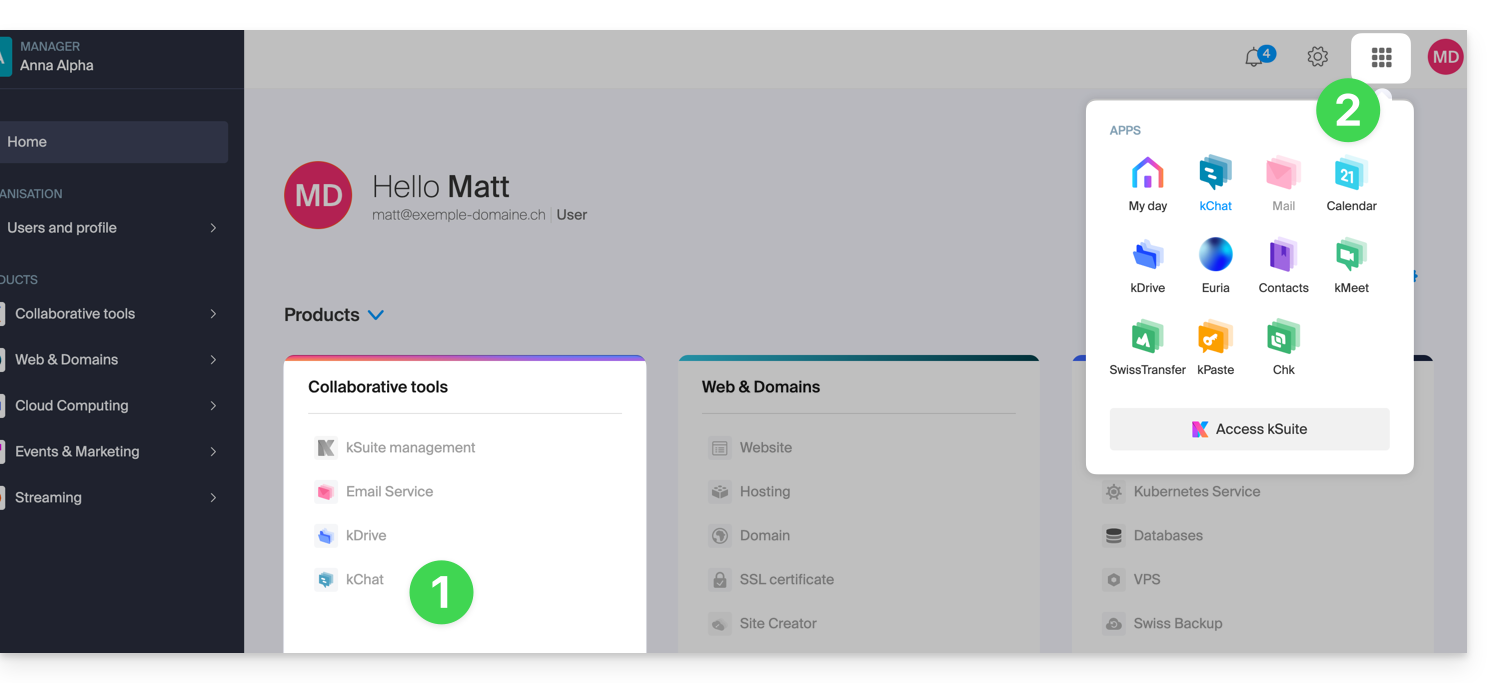
However, this new user will not be able to directly manage the kSuite to which they have been invited, since their role (defined in point 5 above) does not authorize them to do so: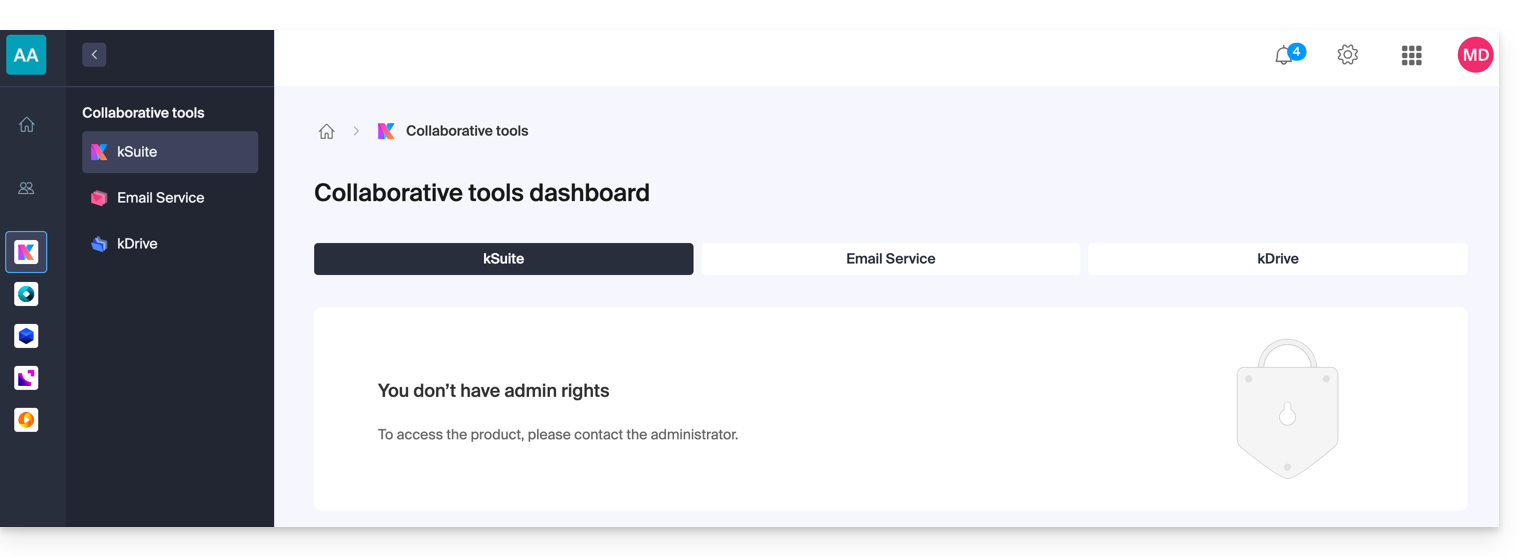
- This is why this user will not see any active links in the Collaborative Tools → kSuite section of their Infomaniak Manager.
- He will need to switch to the Infomaniak applications using the menu in the top right corner:
Note that, if he wishes, this user can order his own kSuite, independent of the kSuite to which he was invited.
Link to this FAQ: https://faq.infomaniak.com/1455
Has this FAQ been helpful?