Knowledge base
1000 FAQs, 500 tutorials and instructional videos. Here, there are only solutions!
Secure videos with a unique key
This guide explains how to protect videos hosted on an Infomaniak VOD service using a unique key (token).
Introduction
- Important: this protection only applies to standard integrations using an
iframeand the Infomaniak Player (❓: help). - Other restriction methods are also available: by password (❓: help) or by geoblocking (GeoIP). (❓: help).
- You can customize the preview images displayed when access is denied (❓: help).
How the single-key protection works
Unique key restriction allows you to secure access to a folder's media by requiring a temporary token specific to each visitor.
This token is generated exclusively by you (on the server-side) and must be transmitted as a parameter when the media is accessed. This mechanism is ideal for use cases such as Pay-Per-View or restricted access broadcasting.
Note: The integration and dynamic generation of tokens must be developed on your own web application. If the provided key is invalid or expired, the Player returns an error 403 Forbidden.
Enable restriction on a VOD folder
When a restriction is configured on a folder, it automatically applies to all media contained within it or imported subsequently.
- Access the Manager: click here to access the management interface for your VOD/AOD product (❓: help).
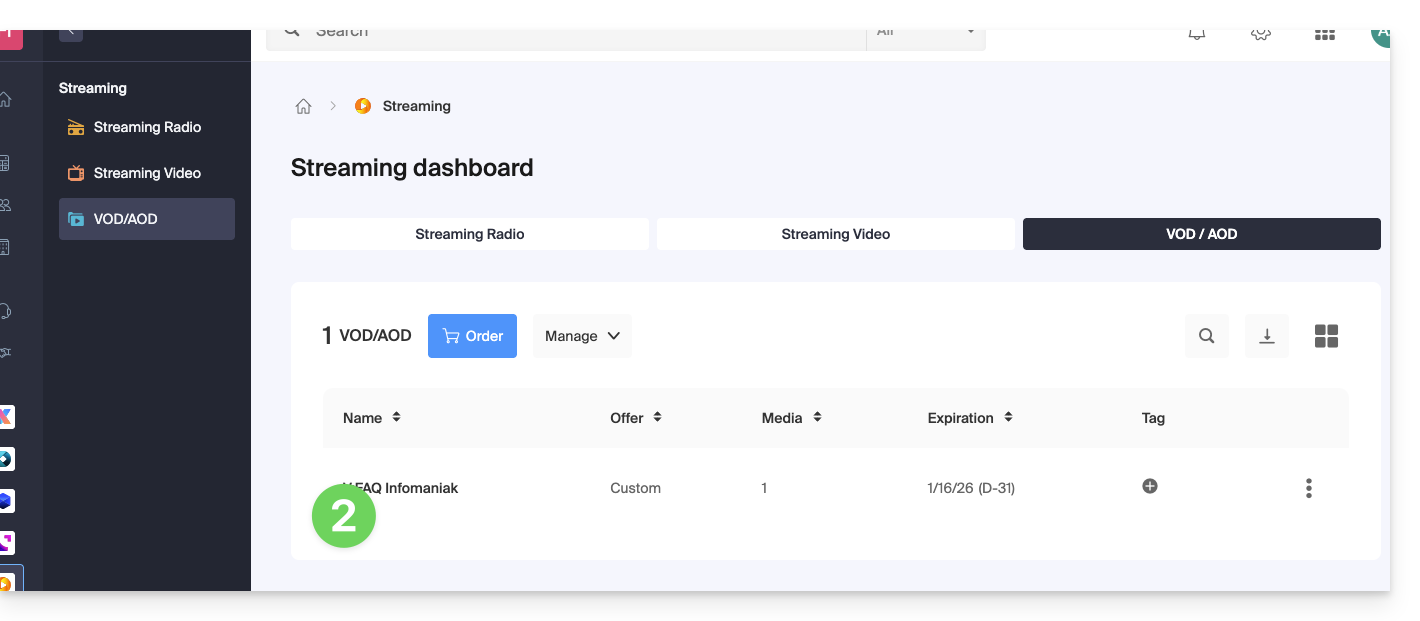
- Select the product: click on the name assigned to your VOD service:
- In the left-hand menu, go to Media then Media Management.
- Create or configure a folder: click on the New folder creation icon:
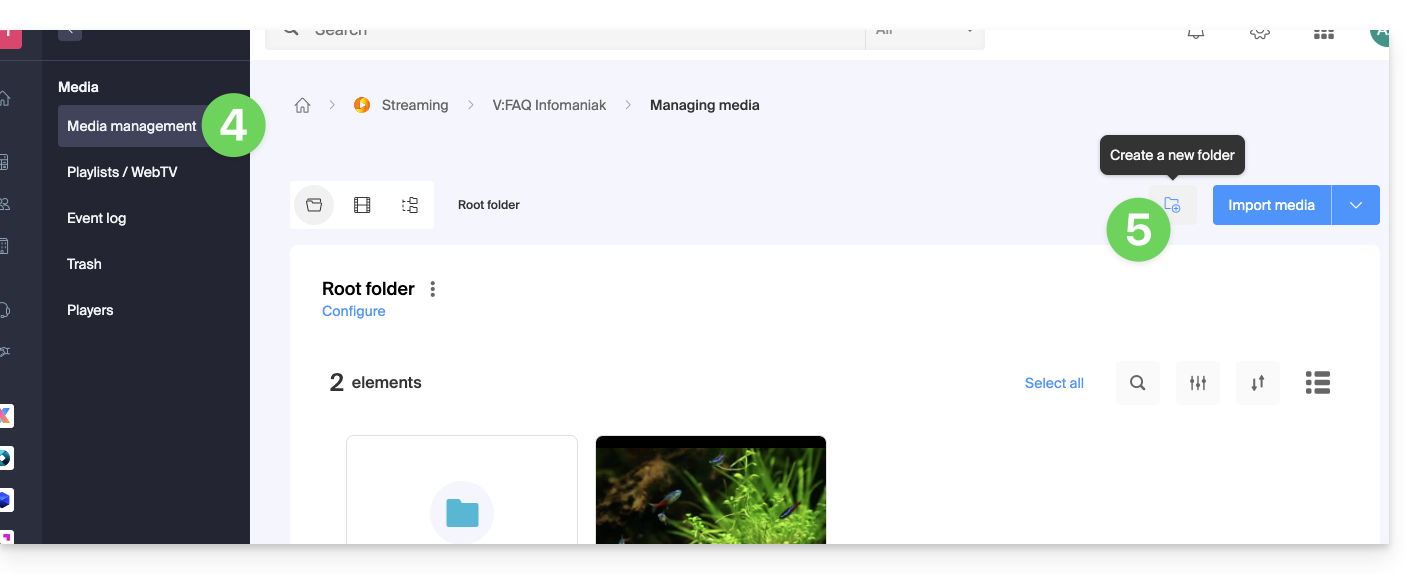
- Enter the folder name and then click Create folder.
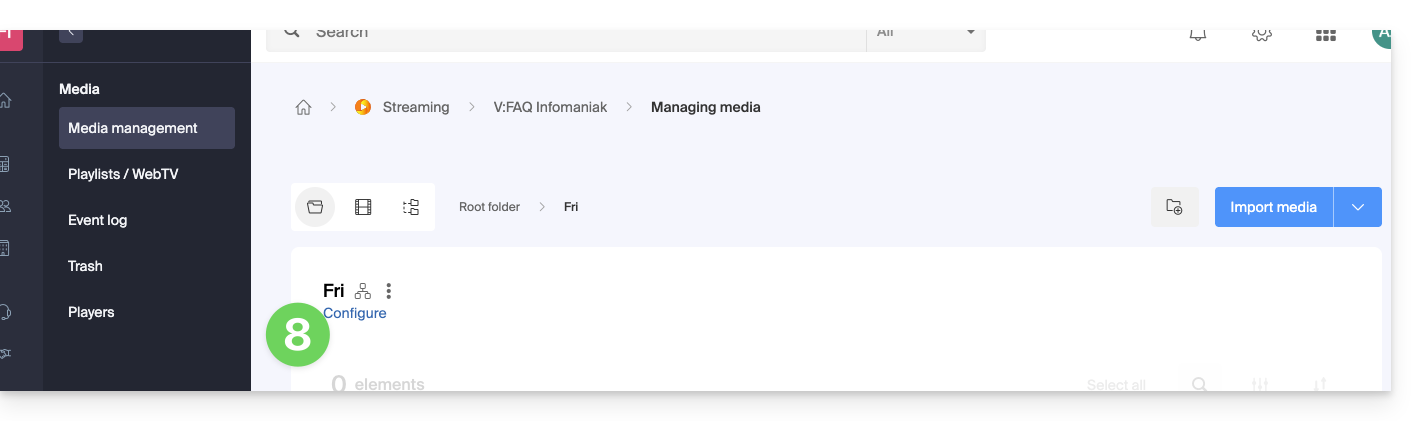
- Access the folder settings by clicking Settings:
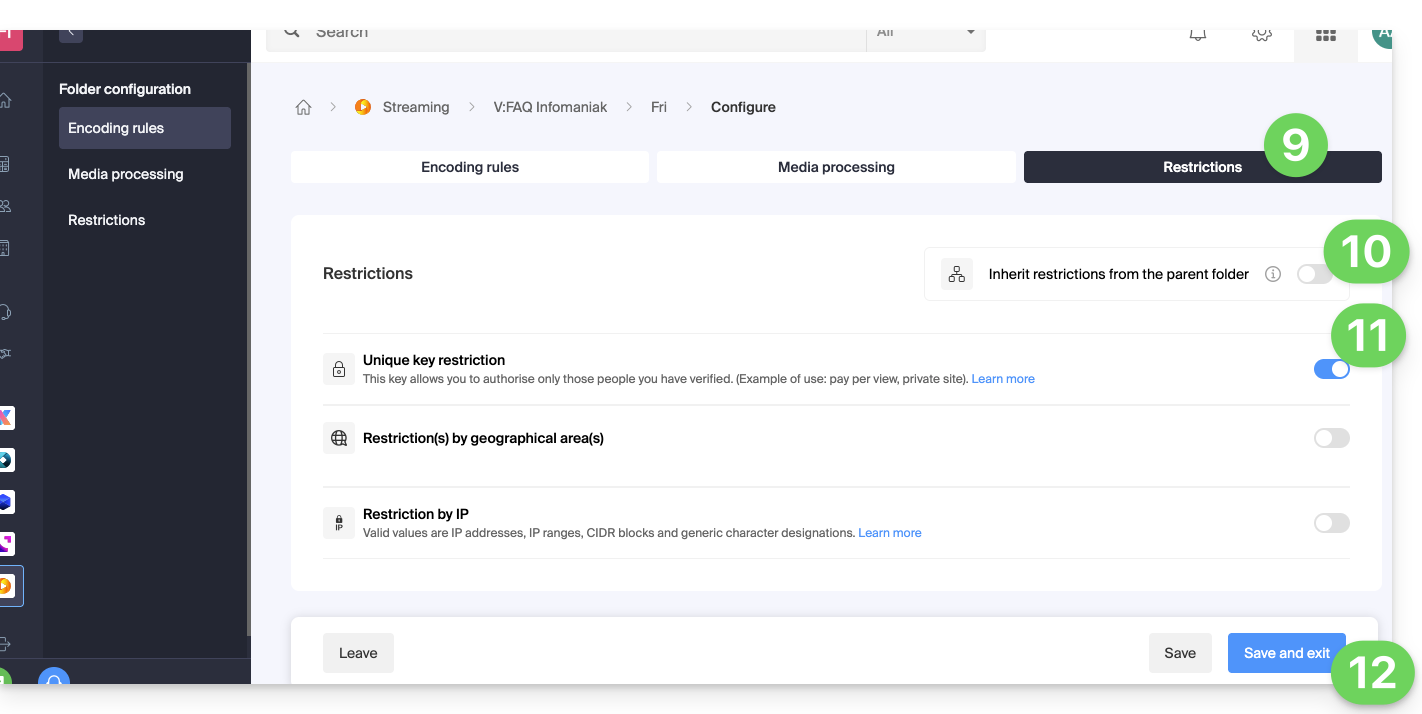
- Open the Restrictions tab.
- If necessary, disable the toggle button to break the inheritance from the parent folder in order to apply specific rules.
- Enable the restriction option using a Unique Key.
- Click Save to validate:
Technical Integration Procedure
1. Create an API Access Token
To interact with the VOD API, first generate a global API key from your account (❓: help).
2. Generate the Playback Token
On the server side, your application must execute a POST request for each unique user before displaying the player.
Important: The page that generates this token must not be cached to ensure the uniqueness of the key.
API request (❓: help):
POST https://api.vod2.infomaniak.com/api/pub/v1/channel/channel_id/share/share_id/token
• channel_id: ID of your VOD channel (e.g. 1227)
• share_id: unique ID of the media (e.g. excerpt from the embed URL: https://api.vod2.infomaniak.com/res/embed/1jhvl2uqa5rdf.html)
3. Integrate the token into the Iframe code
3. Intégrer le jeton dans le code Iframe
Pass the token obtained in the previous step as a URL parameter (?token=...) in the iframe integration code:
<iframe frameborder="0" width="720" height="360" src="https://api.vod2.infomaniak.com/res/embed/1jhvl2uqa5rdf.html?token=st=1637143497~exp=1637143797~acl=/hls/1jhvl2uq4dnra/1jhvl2uq4dnmd/*~hmac=914aa838bdba141ec85db74266b54278572a1353a49e8851e4fd096dc6372127" allowfullscreen></iframe>
Link to this FAQ: https://faq.infomaniak.com/1366
Has this FAQ been helpful?