Knowledge base
1000 FAQs, 500 tutorials and instructional videos. Here, there are only solutions!
Migrate an instance to another physical machine
This guide explains how to transfer an instance to another physical machine within Infomaniak's Public Cloud.
Introduction
- This operation can be performed at any time and offers several advantages:
- anticipate or avoid planned maintenance;
- distribute the load across multiple hosts;
- improve the stability or performance of an instance.
Migrate the instance to another physical machine…
… since Horizon
- Click here to access the management of your product in the Infomaniak Manager (need help?).
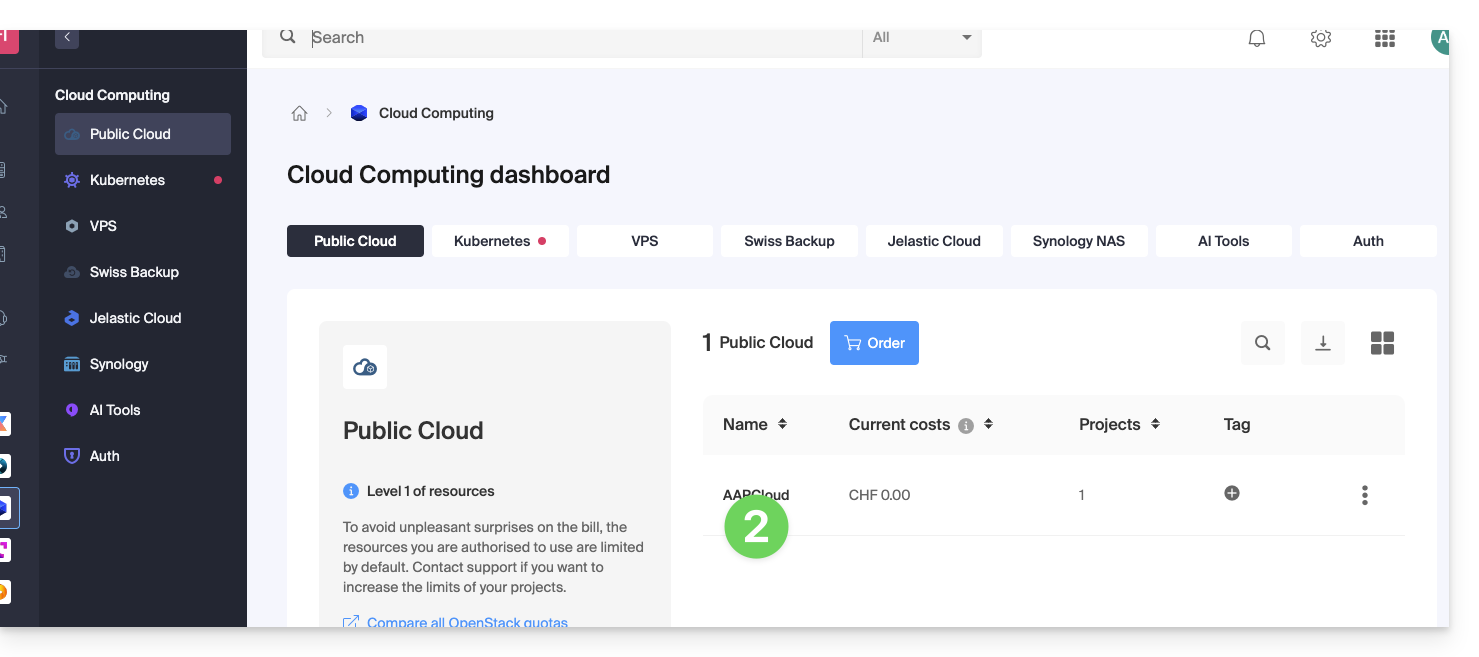
- Click directly on the name assigned to the product in question:
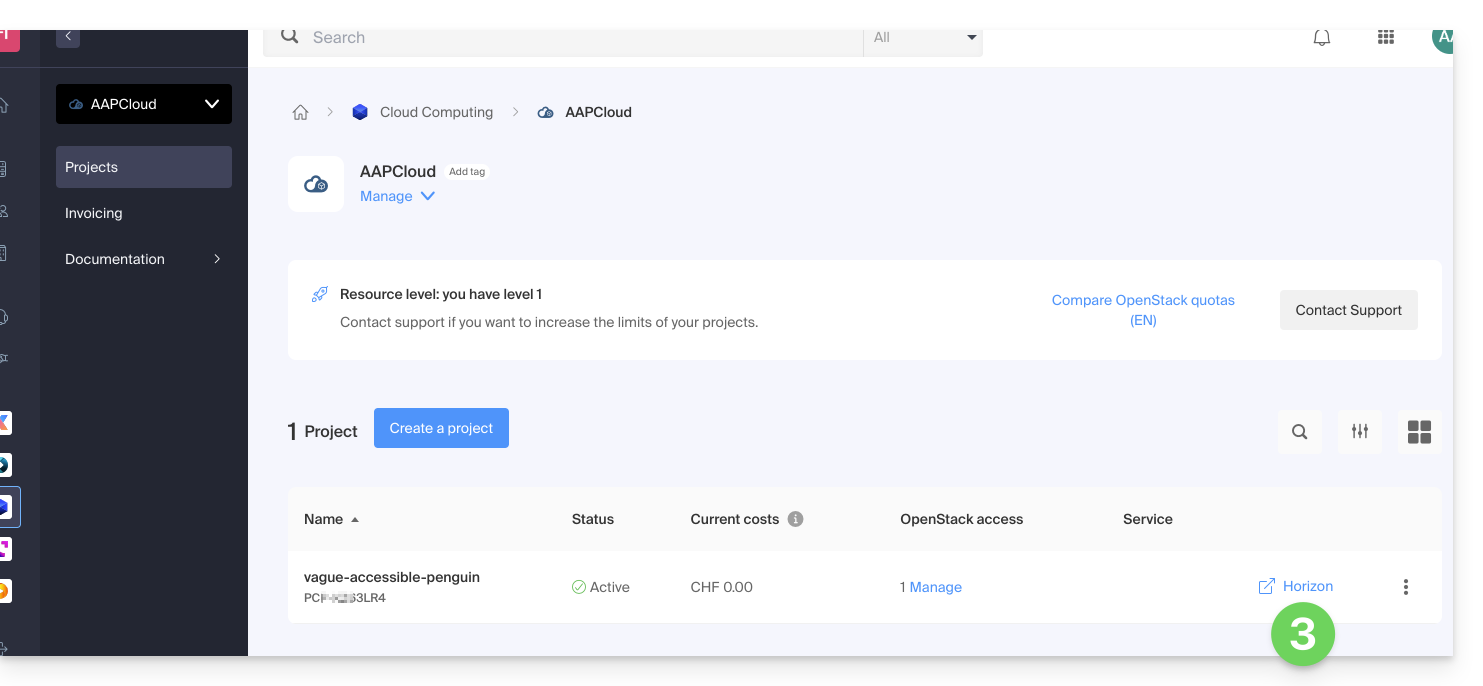
- Click on the Horizon shortcut to connect to it:
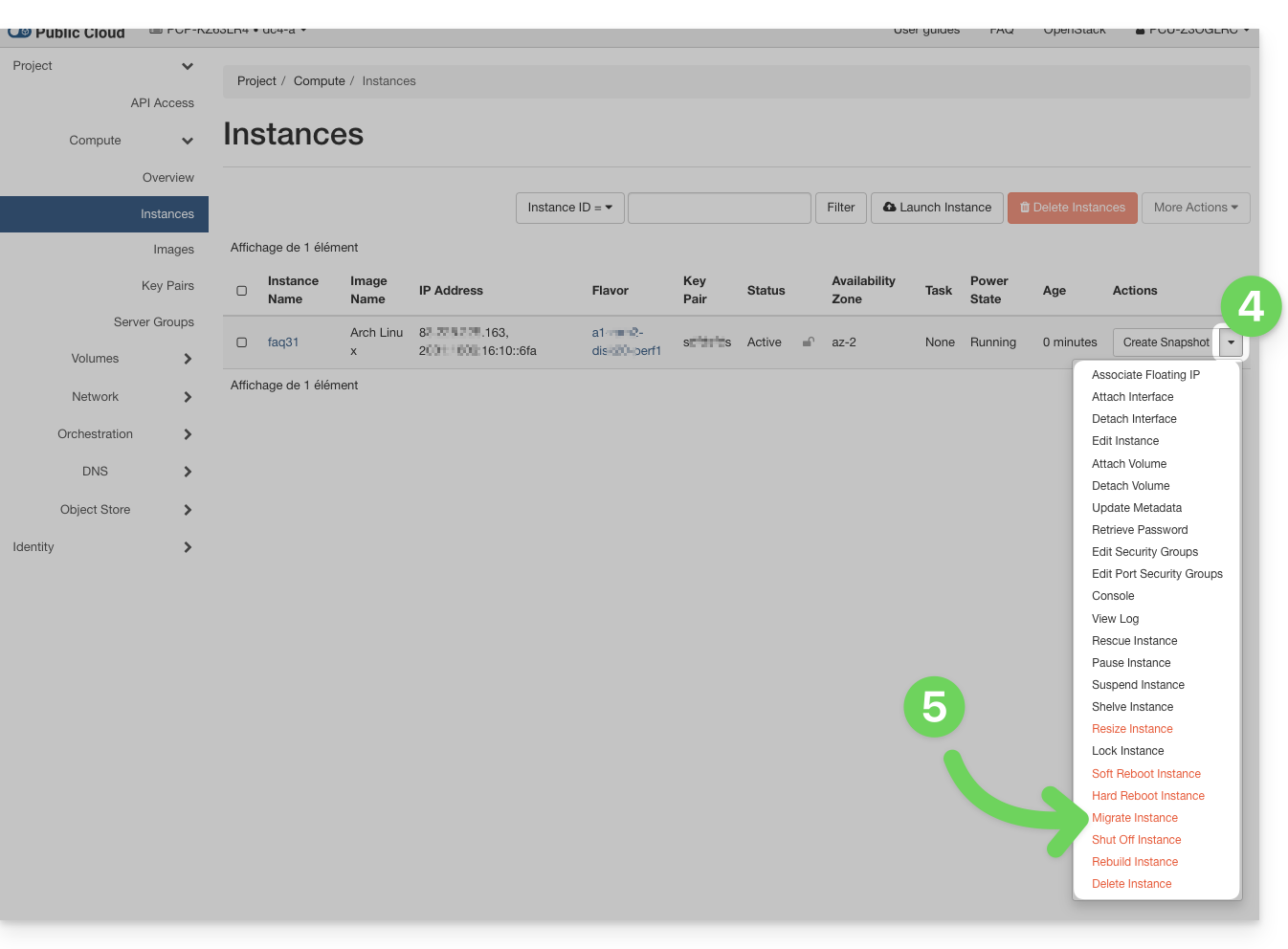
- In the Instances menu, click on the action menu ⋮ located to the right of the instance to be transferred.
- Click on Transfer an instance (Migrate):
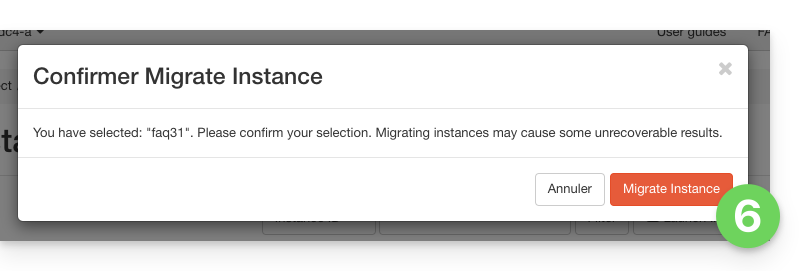
- Confirm the transfer:
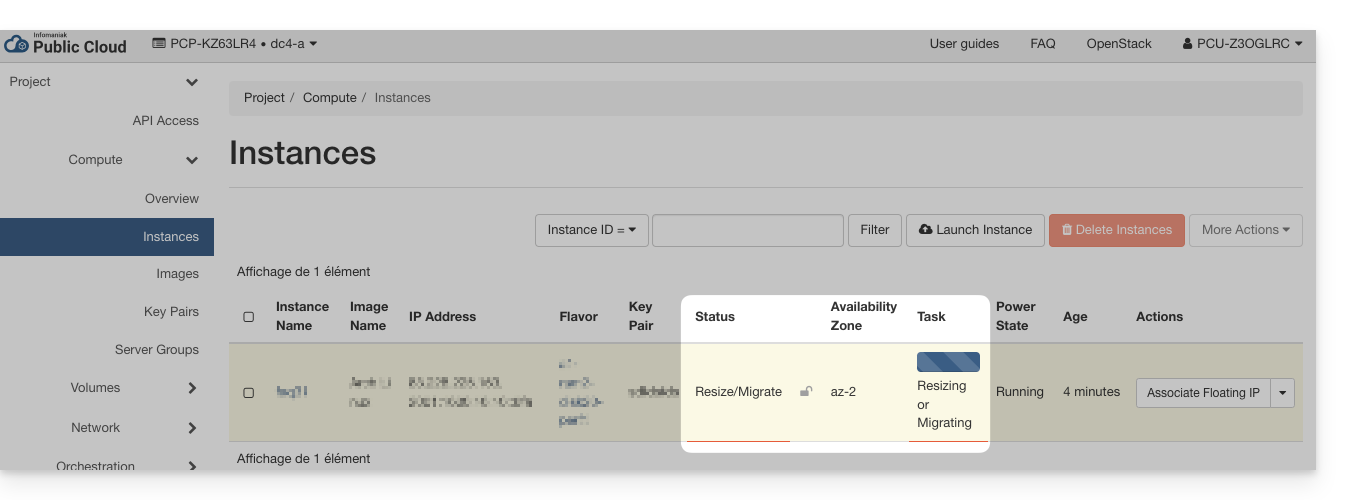
- Check the current status and wait a few minutes:
- Confirm the migration:
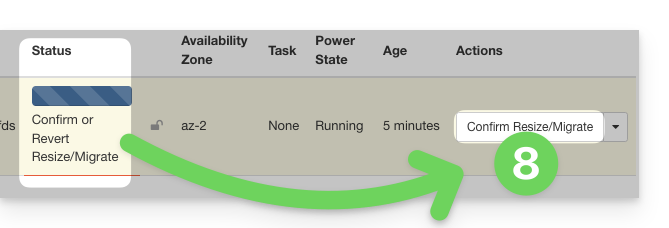
- Wait for the operation to complete before restarting or modifying the instance.
… via the command line (CLI)
- List your available instances:
openstack server list - Identify the ID of the instance to be transferred (
IDcolumn). - Start the migration to another physical host:
openstack server migrate <instance_ID>
This command triggers the movement of the instance to a new host within the cluster. - Check the migration status:
openstack server show <instance_ID>
The instance will then enter theRESIZEDstate when the migration is complete but not yet confirmed. - Once the migration is complete and validated, confirm the transfer:
openstack server resize --confirm <instance_ID>
or, depending on the OpenStack client version:openstack server migration confirm <instance_ID>
- If the
server migration confirmcommand displays a warning indicating that it is deprecated, the process will still run in the background and the confirmation will be taken into account. - If you get an error like:
Cannot 'confirmResize' instance ... while it is in vm_state active (HTTP 409)
this means that the migration has already been confirmed (manually or automatically).
- If the
- You can also cancel the migration if a problem is detected before confirmation:
openstack server resize --revert <instance_ID>
or:openstack server migration revert <instance_ID> - If no manual action is performed, the migration is automatically confirmed after 24 hours. The instance status then reverts to
ACTIVE.
The transfer is transparent to the operating system and the instance's data. A brief interruption may occur during the migration.
Link to this FAQ: https://faq.infomaniak.com/1327
Has this FAQ been helpful?