Knowledge base
1000 FAQs, 500 tutorials and instructional videos. Here, there are only solutions!
Manage emojis and GIFs on kChat
This guide details how to use smileys and other emojis to react to and interact with the discussions in the kChat service.
Introduction
- Refer to this other guide to add an emoticon to your username on kChat.
- Maximum number of custom emoticons:
- kSuite Free = 5
- kSuite Standard = 100
- kSuite Business = 500
- kSuite Enterprise = unlimited
Add a reaction to a message
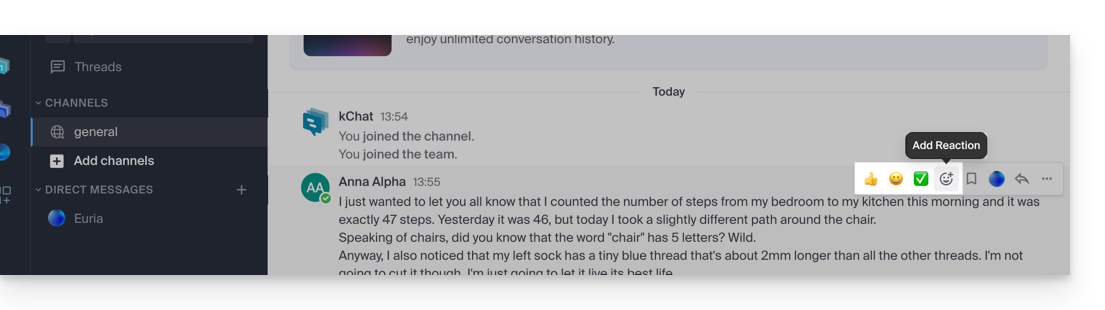
To react to any message you have access to in kChat, simply hover over the message and select…
- either the emoticon from the selection
- or on the smiley with the small +:
- If there are already reactions (displayed below the messages), you can add one in the same place:
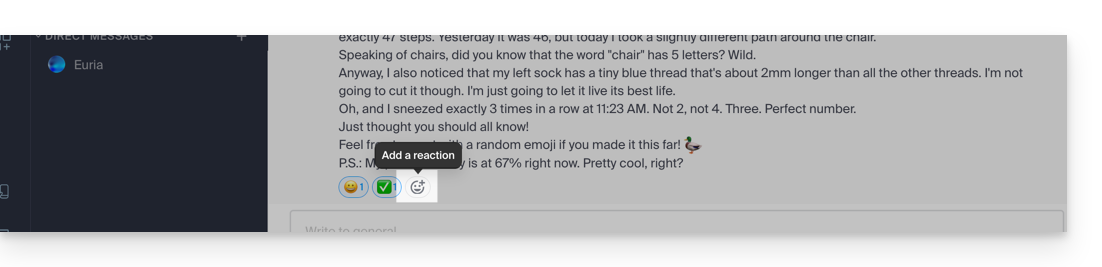
This will open the panel with hundreds of emoticons available (and even custom emojis - see below).
Express yourself with an emoticon or a GIF
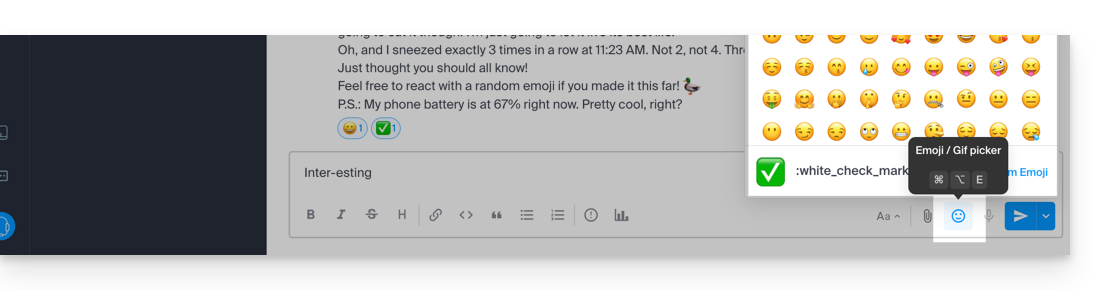
Adding an emoji within the message you are writing is very simple:
- Simply click on the smiling face icon in the formatting bar of your message:
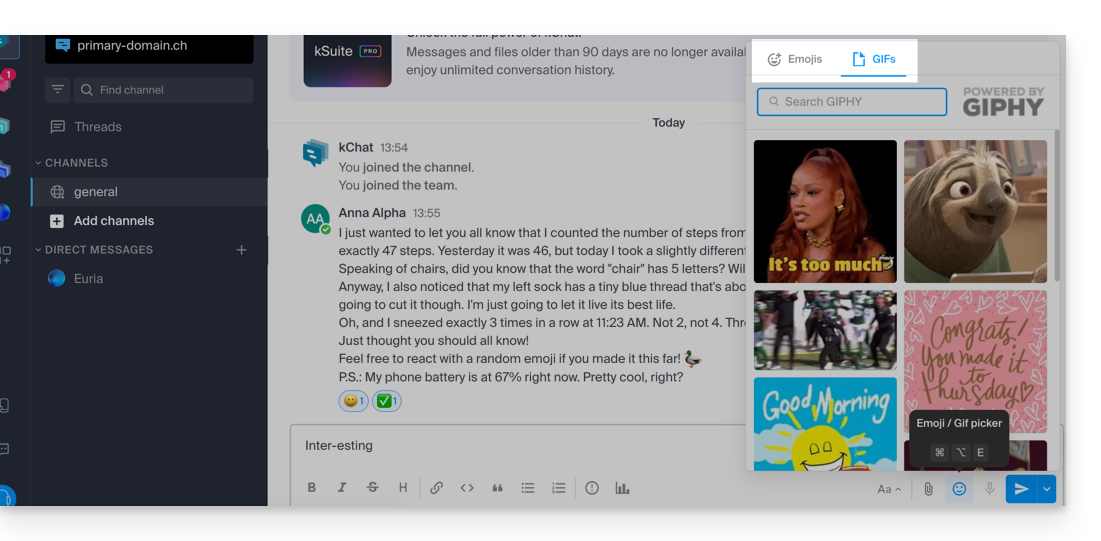
- You can then choose an emoji or insert short animated GIFs instead of an emoticon using the tab at the top of the panel that appears when you click on the smiling face:
- If you know the name of the symbol you want to insert, you can also type
:(colon) followed by at least the first two characters: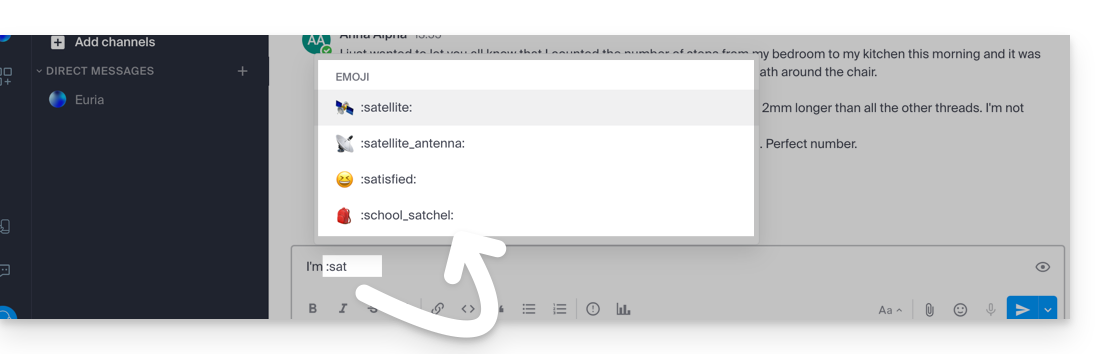
Tip: if you add #, ##, or ### as the first character of a new line containing an emoticon, you can use a larger emoticon. To try it, send a message like '# :smile:' (note that your custom settings may "disable" this display feature in your interface).
To define the default skin tone for human emojis, click on this symbol in the emoji panel: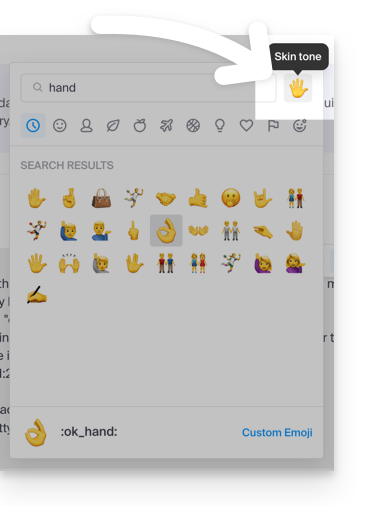
Custom Emojis
To manage additional emoticons, click this button in the emoji panel: 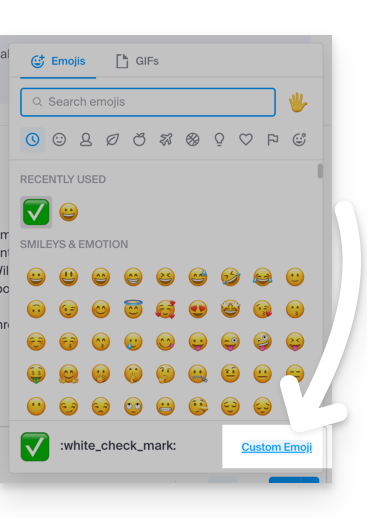
Specify a name up to 64 characters long. It can contain lowercase letters, numbers, and the characters “-”, “+”, and “_”.
Specify a .gif, .png, or .jpg file for your emoticon. The file can be up to 1 MB in size. The size is automatically resized to 128x128 pixels, while maintaining the aspect ratio.
The emoticon can then be used by all kChat users in your Organization using the unique name you assigned to it: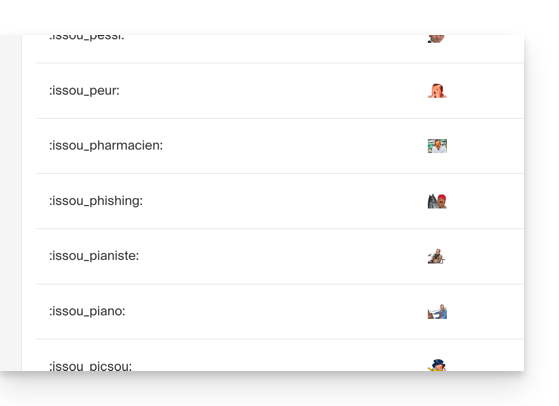
Link to this FAQ: https://faq.infomaniak.com/1190
Has this FAQ been helpful?