Knowledge base
1000 FAQs, 500 tutorials and instructional videos. Here, there are only solutions!
Manage newsletter tracking (open rate statistics, etc.)
This guide explains how to enable or disable tracking in your next Infomaniak Newsletter.
Introduction
- A tracker is a small element (a 1-pixel image or a special link) inserted into the Newsletter.
- When the recipient opens the email, the image is downloaded from the sender's server, which records the opening.
- Not all email/client software automatically loads images, and some users choose to disable them; this means that a person who has read the email may be counted as not having opened it.
- Links in the newsletter are converted into redirection links via the tracking server, thereby recording clicks.
- Some email tools, such as Outlook, automatically explore the links contained in the email, thereby recording an open even if the user has never viewed it.
- Trackers are used to collect various data useful for marketers, such as:
- Open rate to see how many people opened the newsletter
- Open time to determine when the newsletter was opened
- Geographic location based on the recipient's IP address
- Device and software type to know which device (computer, smartphone, tablet) and software (browser, email software/client) was used to read the newsletter
- Click-through rate to measure how many people click on the links in the newsletter
- Conversions to track whether recipients perform specific actions after opening the newsletter (purchases, registrations, etc.)
Enable statistics collection
Enable this option during the very first step of creating your Newsletter:
- Click here to access the management interface for your product on the Infomaniak Manager (need help?).
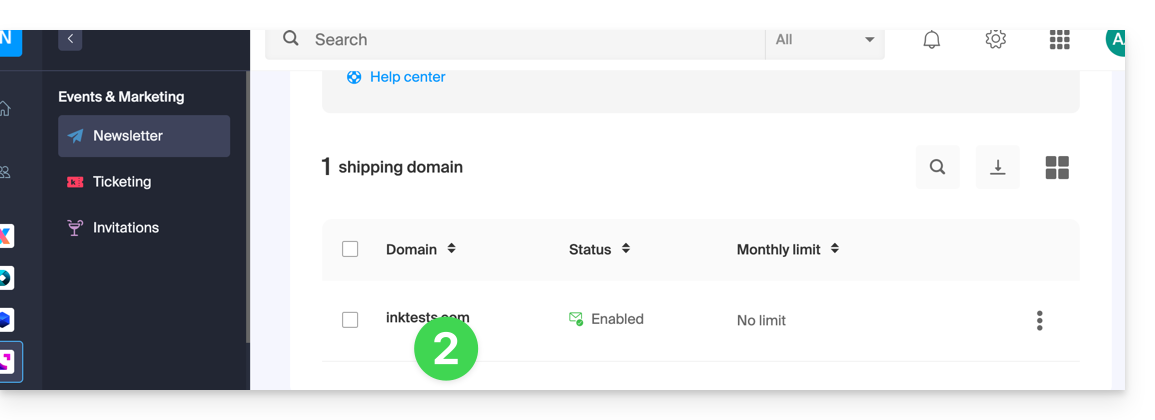
- Click on the domain name in question in the table that appears:
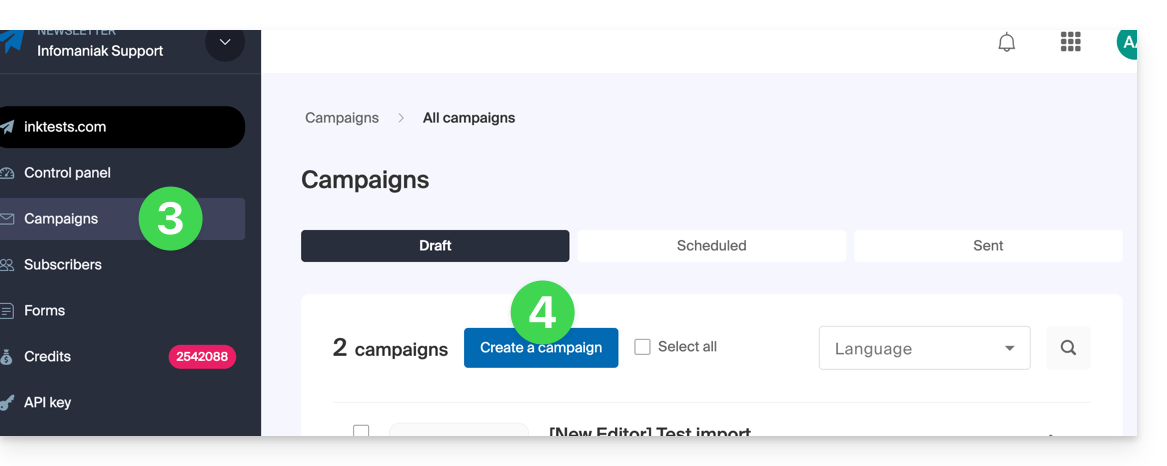
- Click on Campaigns in the left-hand menu.
- Click on Create a campaign:
- Enable the statistics settings using the toggle switches:
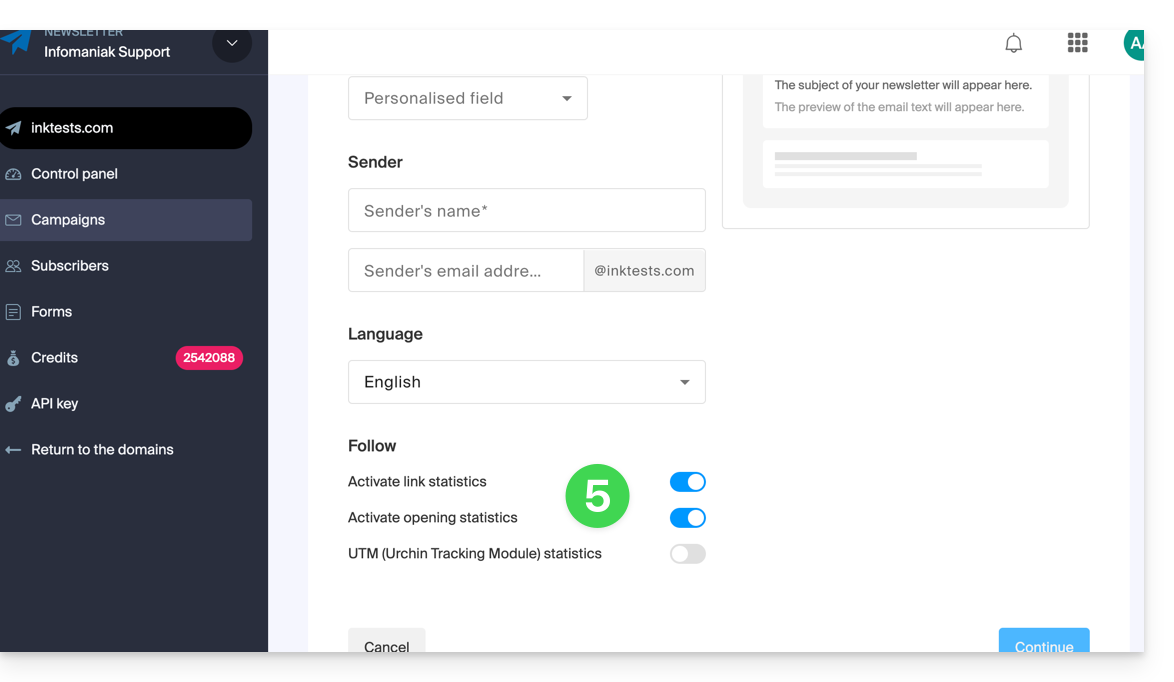
By disabling statistics, the URLs of the links you insert in the body of your newsletter will no longer be modified, and you will not receive statistical feedback on how your recipients use your newsletter.
Learn more in this other guide about the last option on the page.
Link to this FAQ: https://faq.infomaniak.com/1079
Has this FAQ been helpful?