Base de conhecimento
1000 perguntas frequentes, 500 tutoriais e vídeos explicativos. Aqui, você encontra apenas soluções!
Este guia fornece instruções sobre como visualizar e interpretar corretamente as estatísticas de VOD/AOD.
Introdução
- Pode haver uma diferença entre o número de vídeos visualizados e o número de visitantes únicos:
- Os utilizadores que visualizam um fluxo com uma ligação à Internet instável (Wi-Fi, 3G, etc.) podem gerar um grande número de desconexões e reconexões.
- Nesse caso, cada reconexão é contabilizada como uma nova visita, o que pode explicar essa diferença.
Aceder às estatísticas de VOD/AOD
Para consultar as estatísticas dos seus conteúdos multimídia:
- Clique aqui para aceder à gestão do seu produto no Manager Infomaniak (precisa de ajuda?).
- Clique diretamente no nome atribuído ao produto em questão:
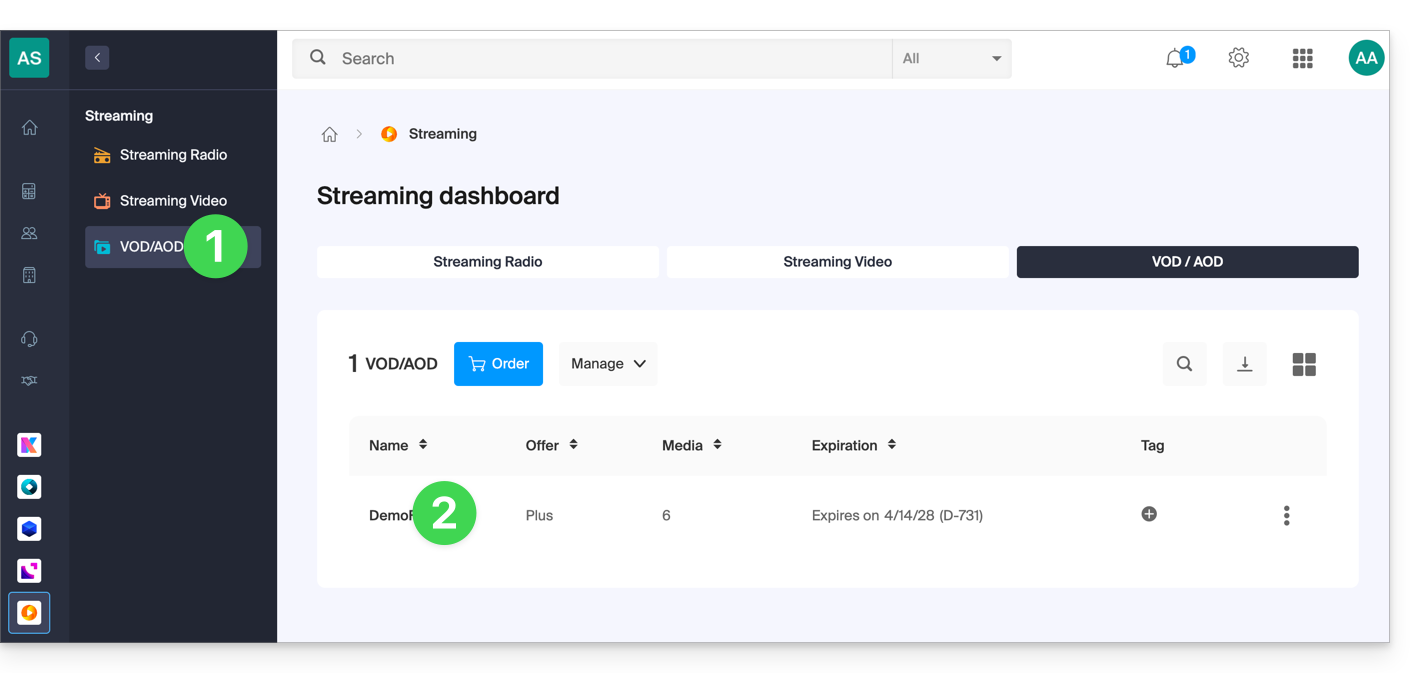
- Clique em Estatísticas no menu lateral esquerdo.
- Clique nos elementos desejados no menu lateral secundário para obter uma visão geral ou estatísticas detalhadas sobre os espectadores, o tempo de visualização, o consumo, os conteúdos, as áreas geográficas e as tecnologias:
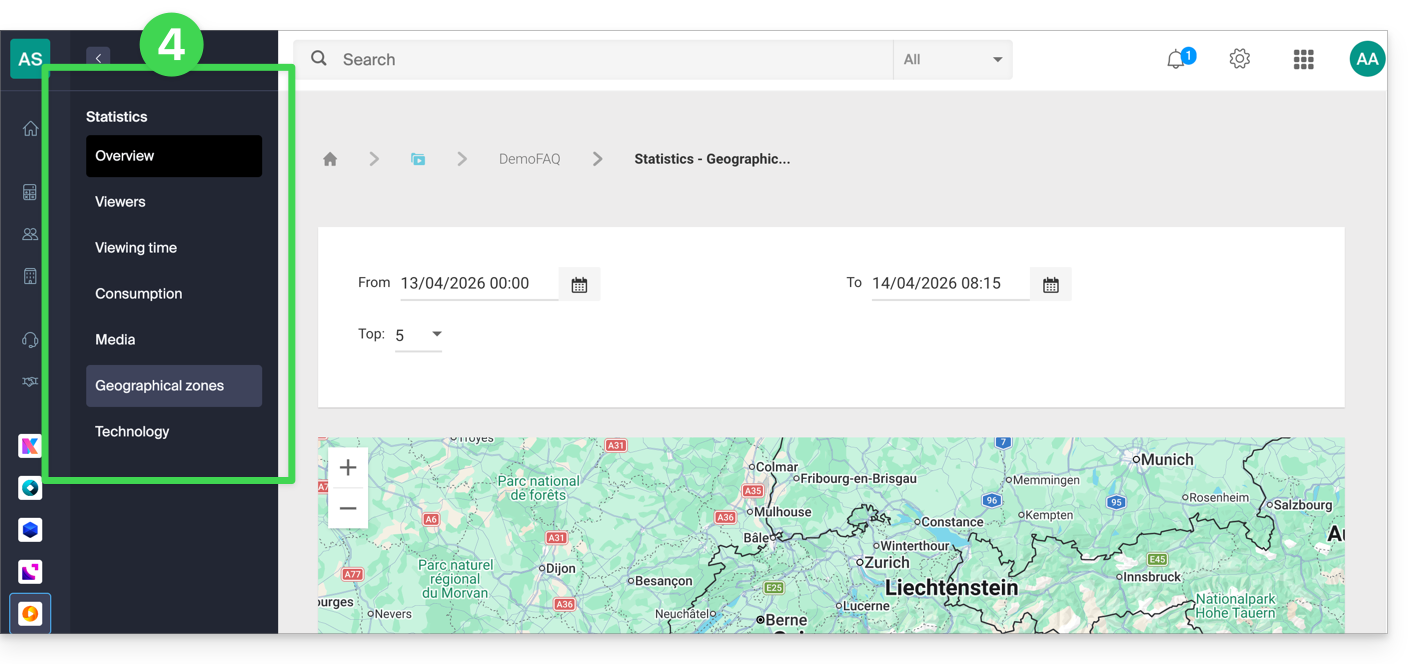
Definições dos rótulos
- Visualizações de mídia: número total de visualizações de todos os conteúdos
- Visitantes únicos: número de visitantes com endereços IP distintos
Exemplo: se dois colaboradores da mesma empresa assistirem ao mesmo vídeo, isso será contabilizado como 1 visitante único e 2 visualizações.
Link para esta FAQ: https://faq.infomaniak.com/2132
Esta seção de perguntas frequentes foi útil?
Este guia explica como substituir um arquivo já importado em um espaço VOD/AOD Infomaniak e, assim, preservar o histórico das estatísticas.
Adicionar um novo arquivo para substituir outro
Para acessar um arquivo na área VOD:
- Clique aqui para acessar o gerenciamento do seu VOD/AOD no Manager Infomaniak (precisa de ajuda?).
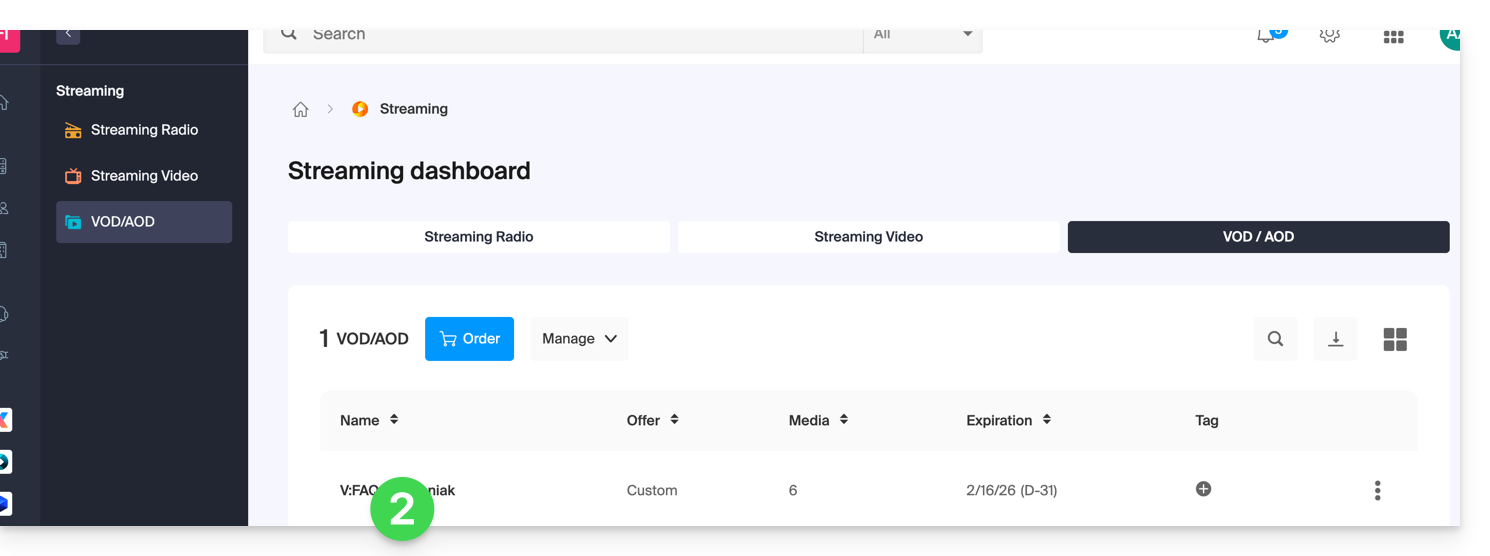
- Clique diretamente no nome atribuído ao produto em questão:
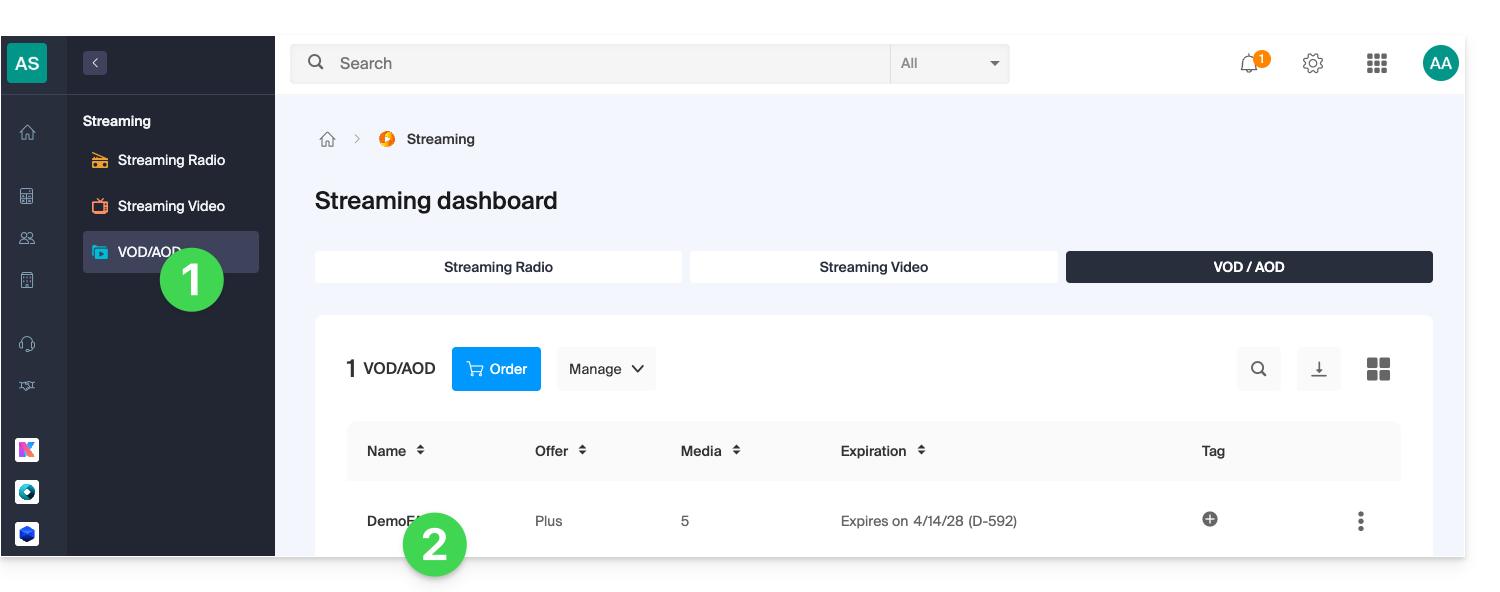
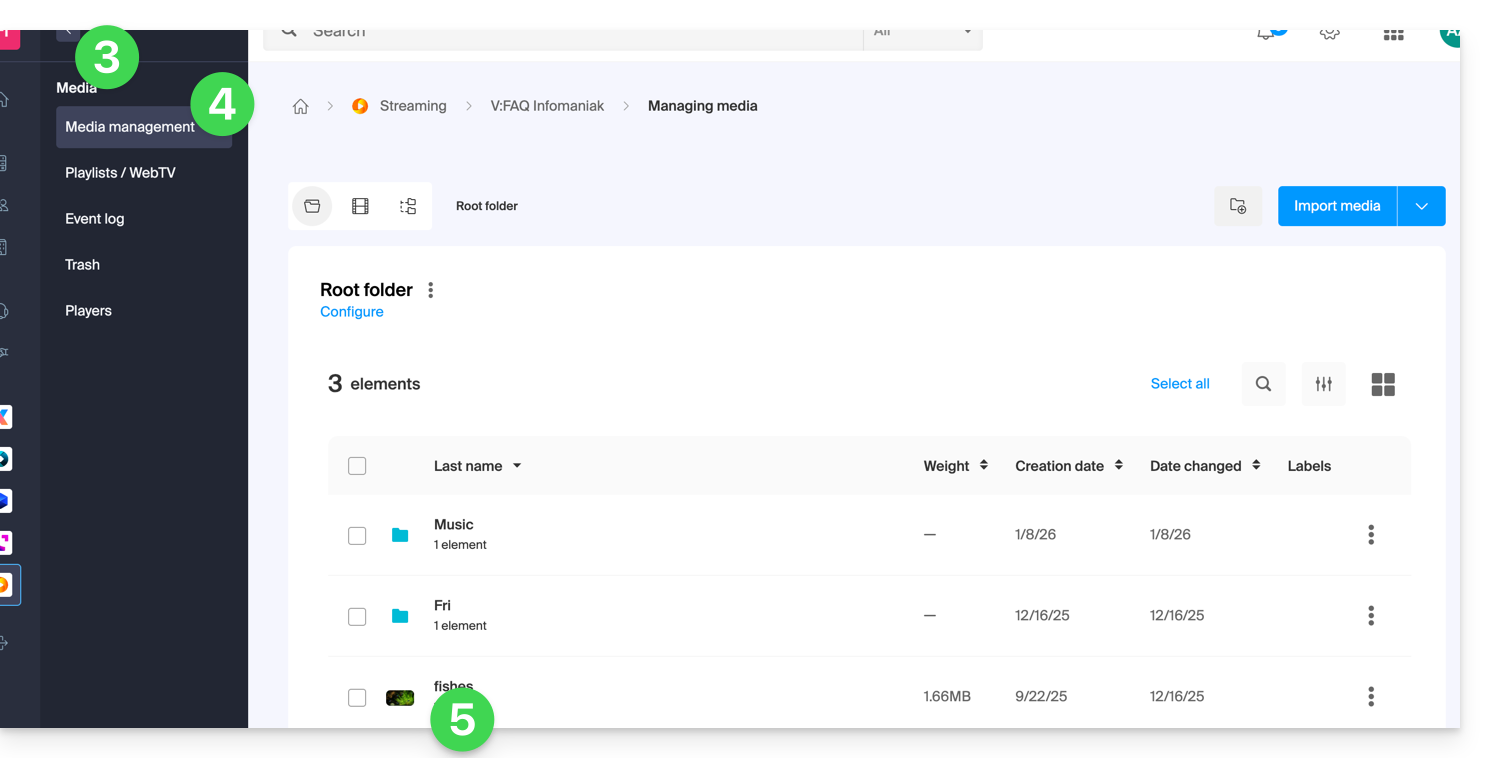
- Clique em Mídia no menu lateral esquerdo.
- Clique em Gerenciar mídia no menu lateral esquerdo.
- Clique na mídia desejada:
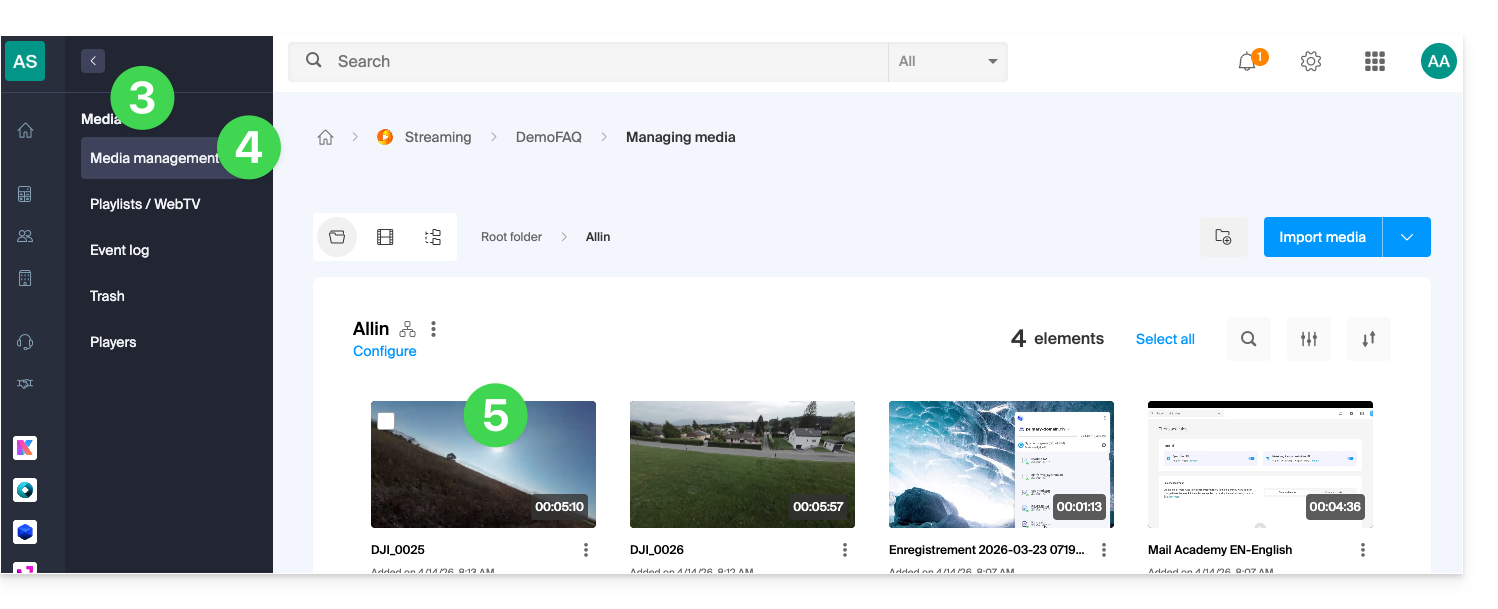
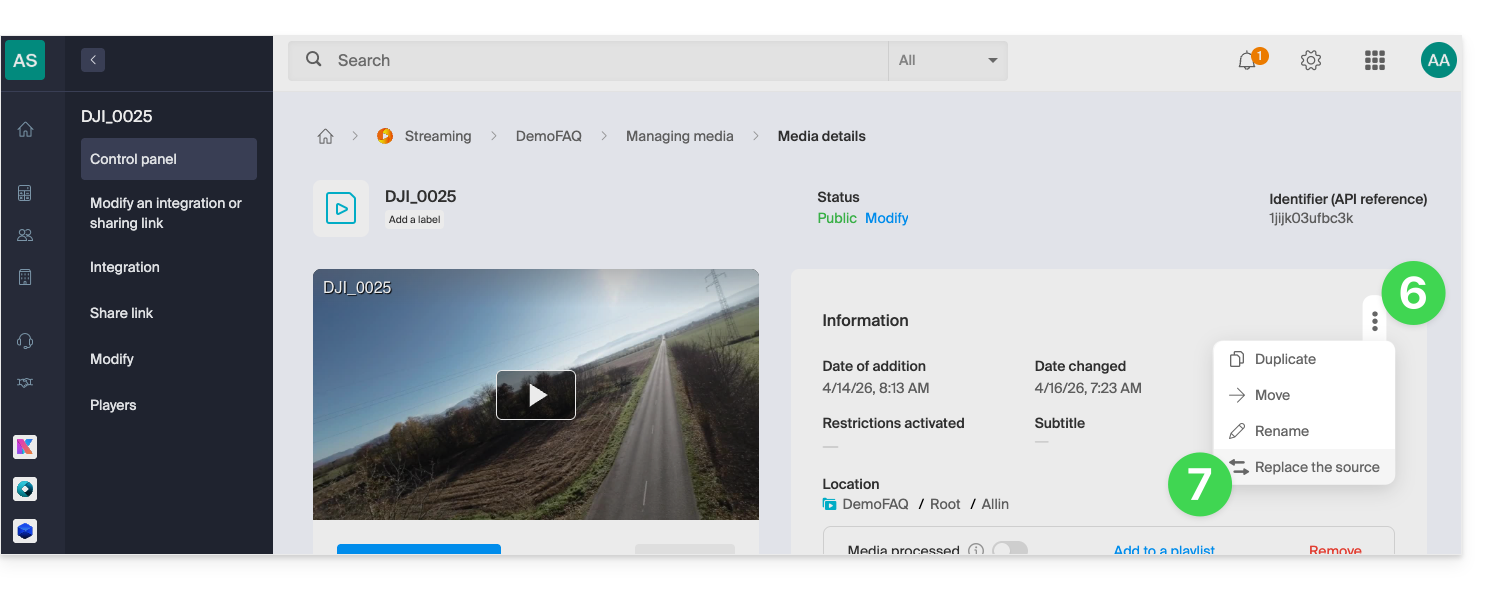
- Clique em o menu de ações ⋮, localizado à direita, abaixo de Informações.
- Clique em Substituir fonte:
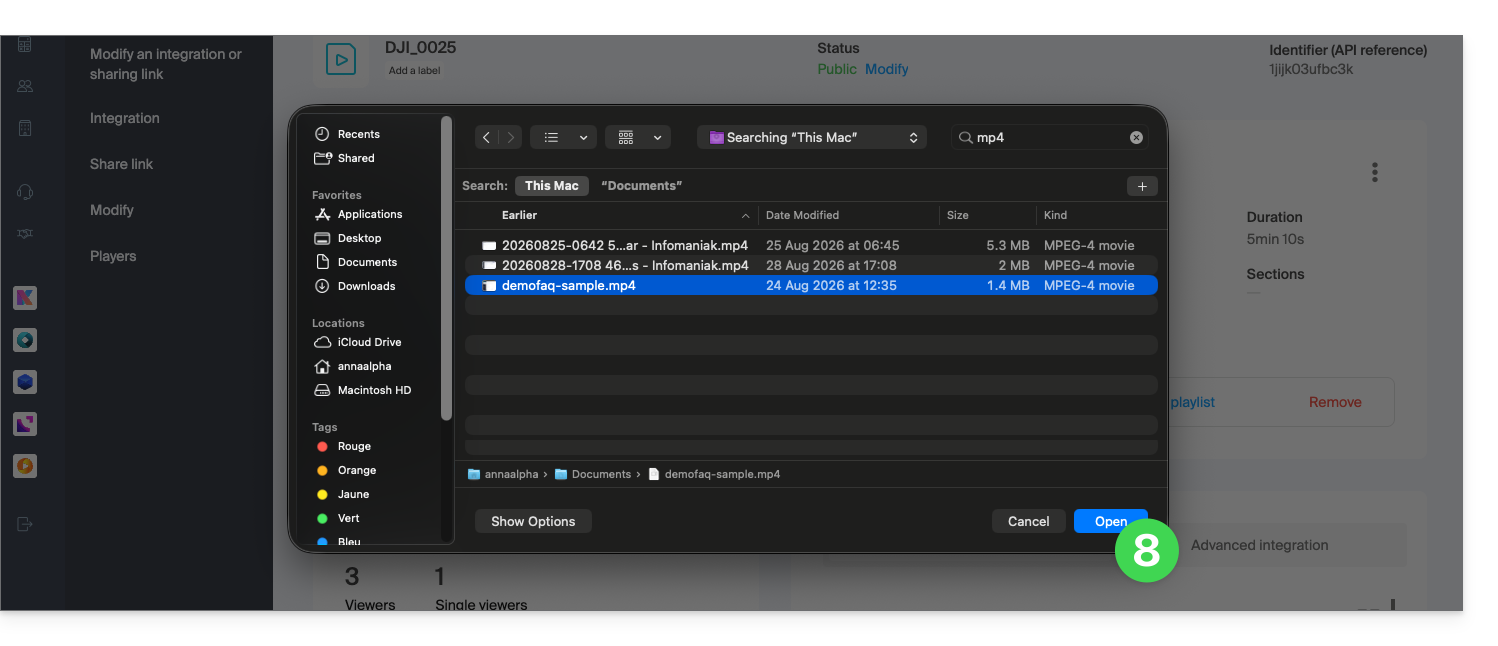
- Selecione o arquivo no disco rígido do dispositivo (ou em uma mídia removível) e faça o upload:
- Aguarde o tempo de codificação para que o arquivo substitua o anterior.
A substituição de um arquivo também pode ser feita enviando-o via FTP, utilizando o mesmo nome de arquivo que o já existente.
Link para esta FAQ: https://faq.infomaniak.com/2511
Esta seção de perguntas frequentes foi útil?
Este guia explica como integrar em páginas web arquivos de vídeo/áudio importados para um serviço VOD/AOD Infomaniak.
Introdução
- Este código de incorporação VOD/AOD é único e corresponde às configurações que você está especificando na página.
- Ele permite incorporar o mesmo vídeo com diferentes configurações de exibição, de acordo com suas necessidades.
- Posteriormente, poderá modificar as configurações desta integração ajustando-as na página do histórico de integrações no Manager Infomaniak.
- Paralelamente, pode partilhar um ficheiro multimédia de diferentes formas.
Gerar e copiar o código de incorporação
O código de incorporação pode ser encontrado na sua interface VOD; aqui está um exemplo com um reprodutor padrão:
- Clique aqui para acessar o gerenciamento do seu produto no painel de controle Infomaniak (precisa de ajuda?).
- Clique diretamente no nome atribuído ao produto em questão:
- Clique em Mídia no menu lateral esquerdo.
- Clique em Gerenciamento de mídia no menu lateral esquerdo.
- Clique no arquivo correspondente na tabela que aparece:
- Clique no botão azul Incorporar.
- Clique em Criar uma integração:
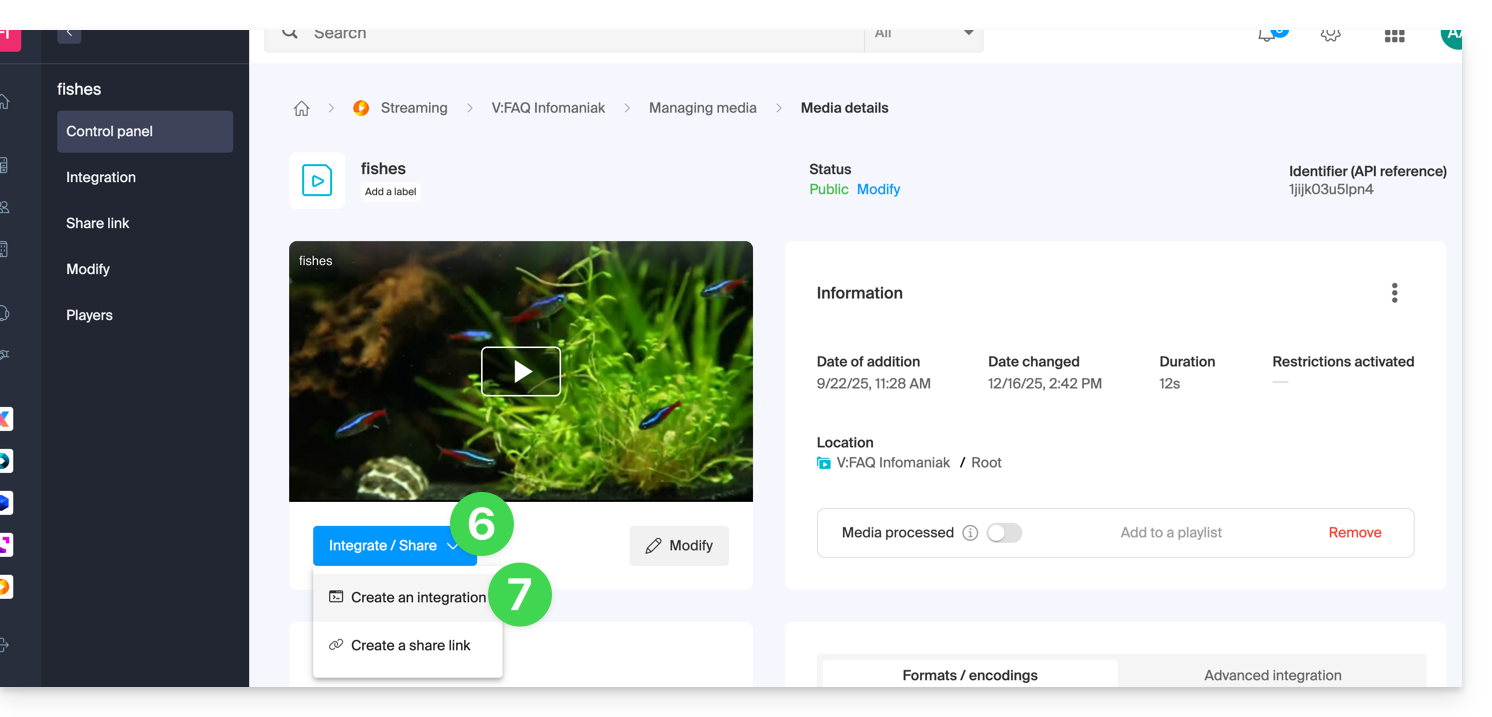
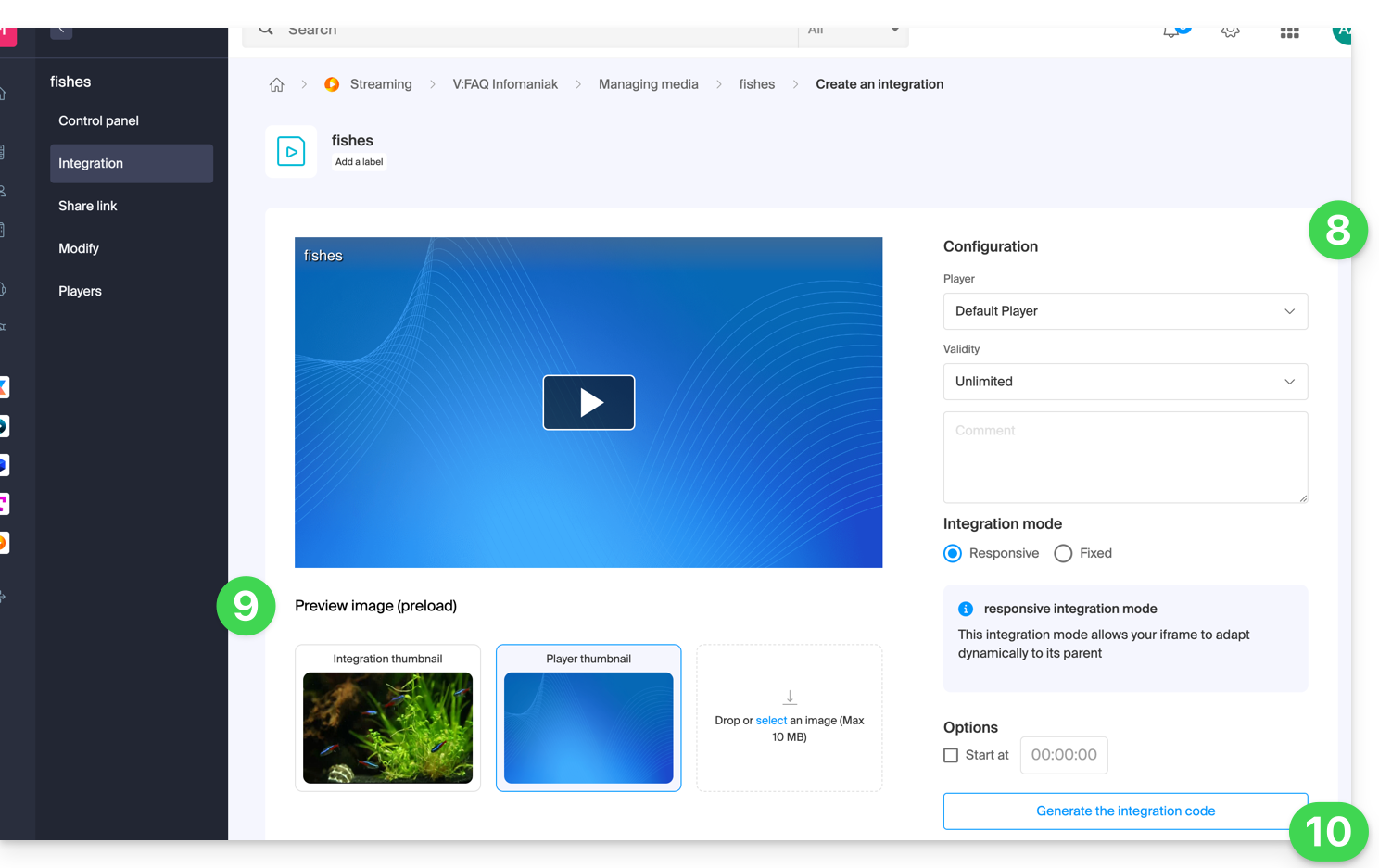
- Personalize a integração do conteúdo multimídia (reprodutor a ser usado, carimbo de data/hora, reprodução em loop, reprodução automática, …).
- Escolha a miniatura a ser exibida quando o conteúdo multimídia estiver pausado.
- Clique no botão para Gerar o código de incorporação:
- Copie o código para o integrar no local desejado:
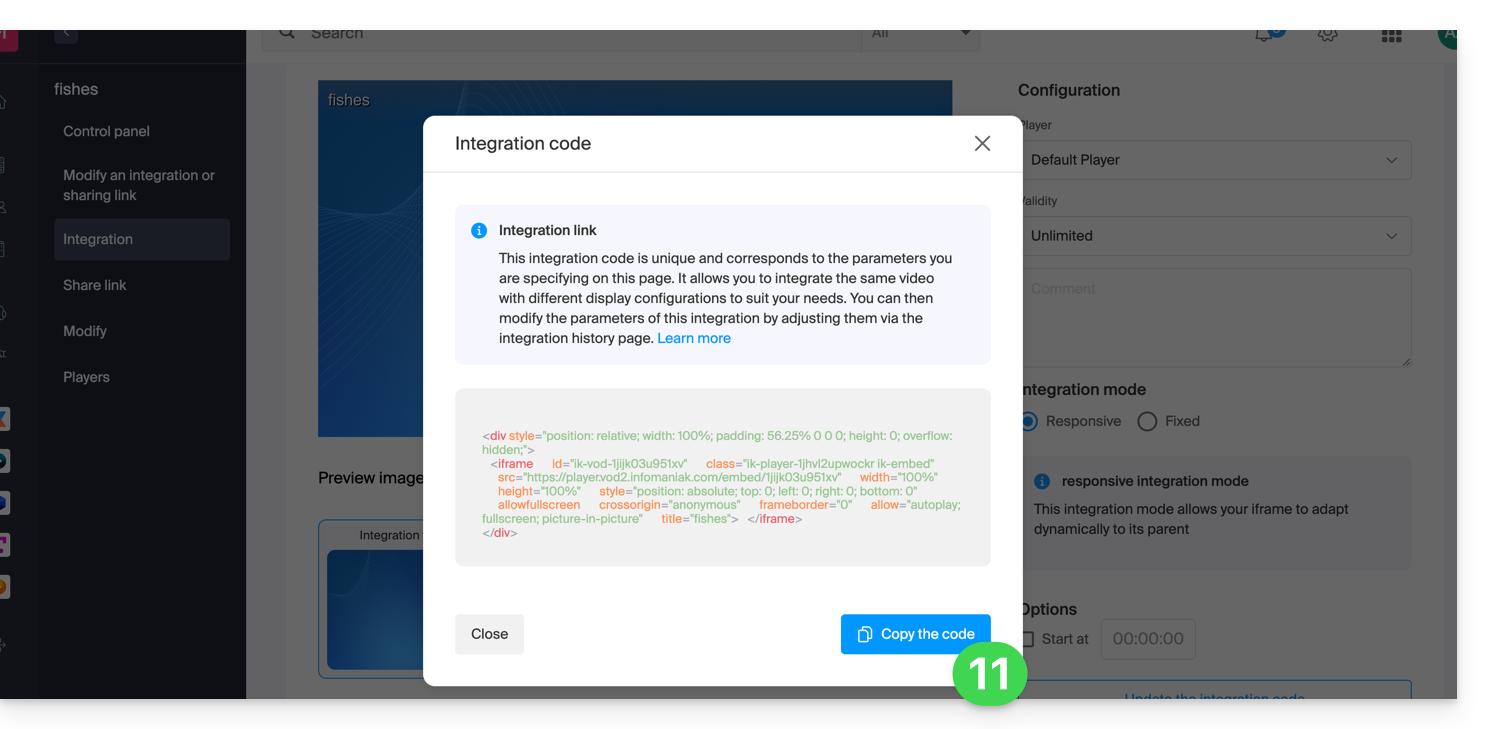
Nesse caso, o conteúdo multimídia será inserido com o reprodutor padrão, mas você tem a opção de escolher, entre os reprodutores que criou, qual deve ser proposto durante a integração.
Modificar uma integração anterior
Para personalizar novamente a integração já efetuada do seu meio de comunicação e, com o objetivo de conservar o código correspondente sem ter de o inserir novamente:
- Clique aqui para acessar o gerenciamento do seu produto no painel de controle Infomaniak (precisa de ajuda?).
- Clique diretamente no nome atribuído ao produto em questão.
- Clique em Mídia no menu lateral esquerdo.
- Clique em Gerenciamento de mídia no menu lateral esquerdo.
- Clique no arquivo correspondente na tabela que aparece.
- Clique no botão azul Incorporar.
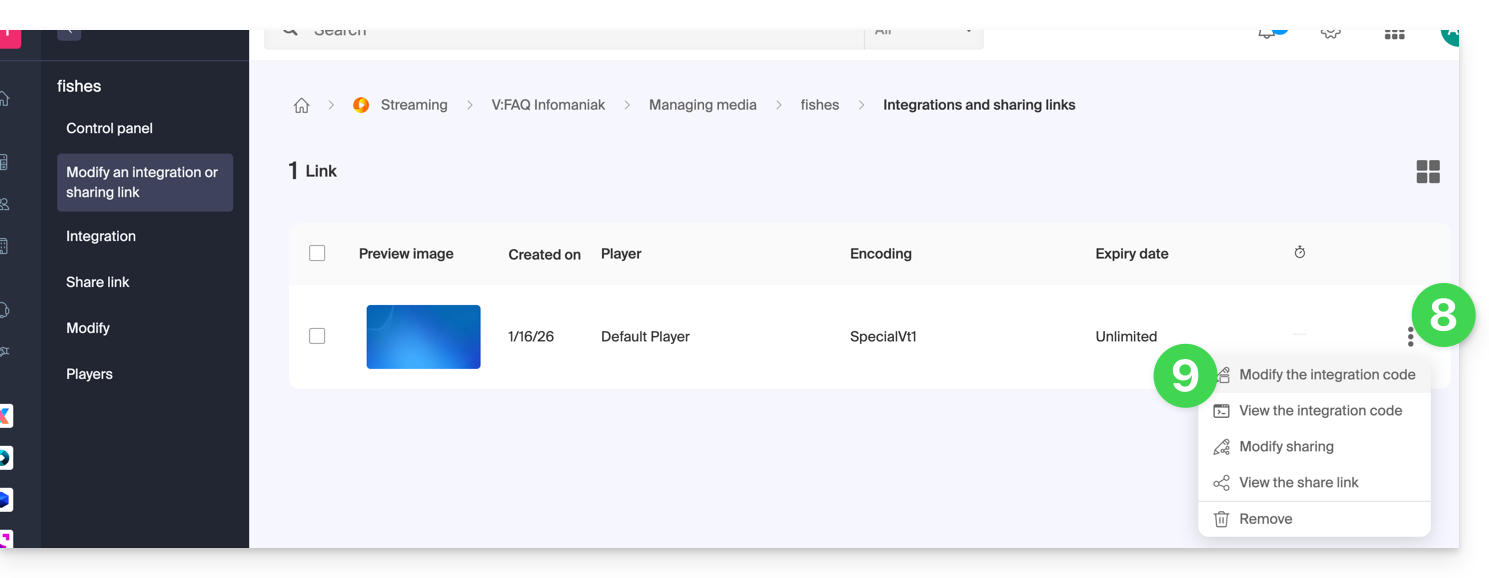
- Clique em Editar uma integração:
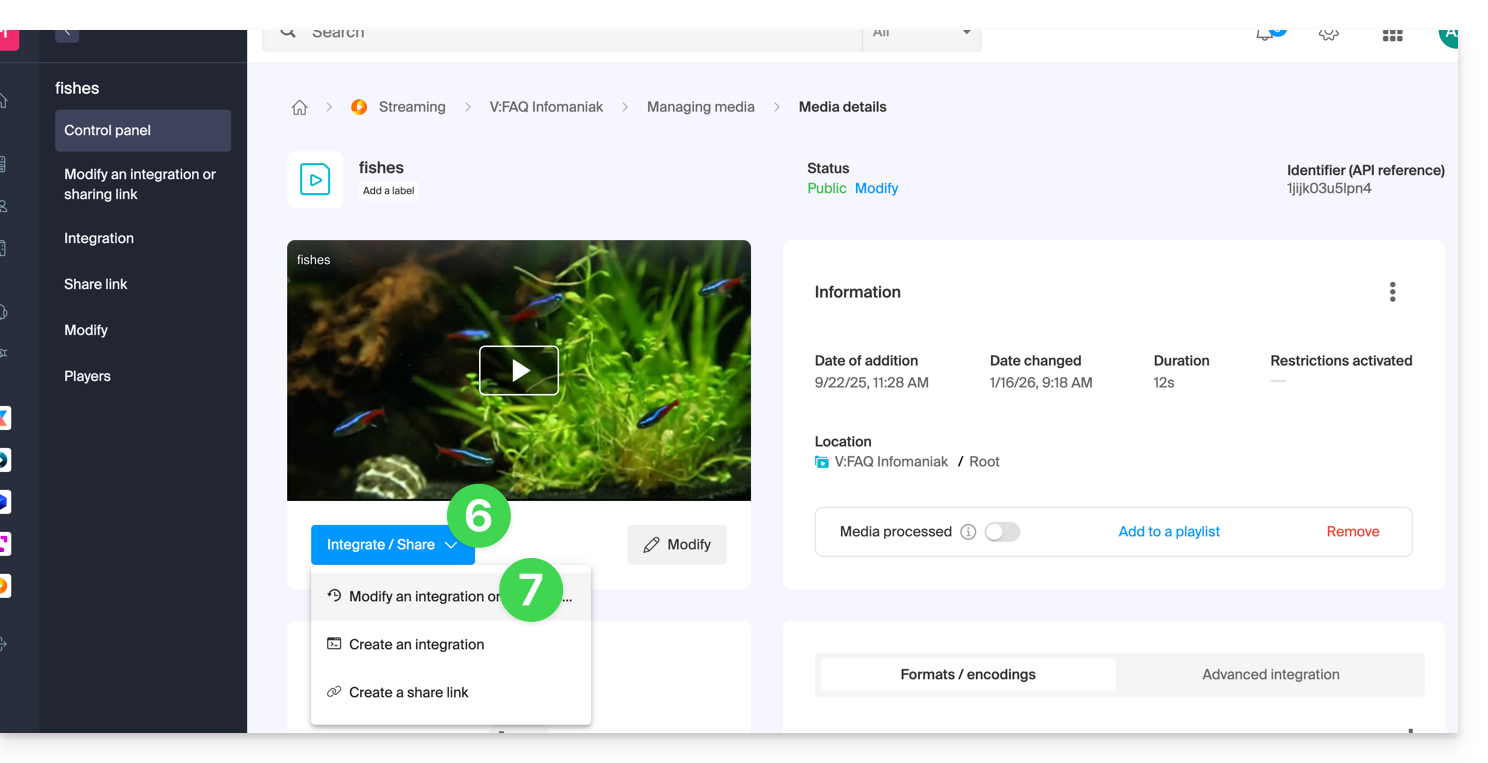
- Clique no menu de ação ⋮ à direita do item correspondente na tabela que é exibida.
- Clique no elemento desejado para obter/modificar os códigos de incorporação:
Cole o código de incorporação…
Na página web de sua escolha, cole o código HTML no local desejado: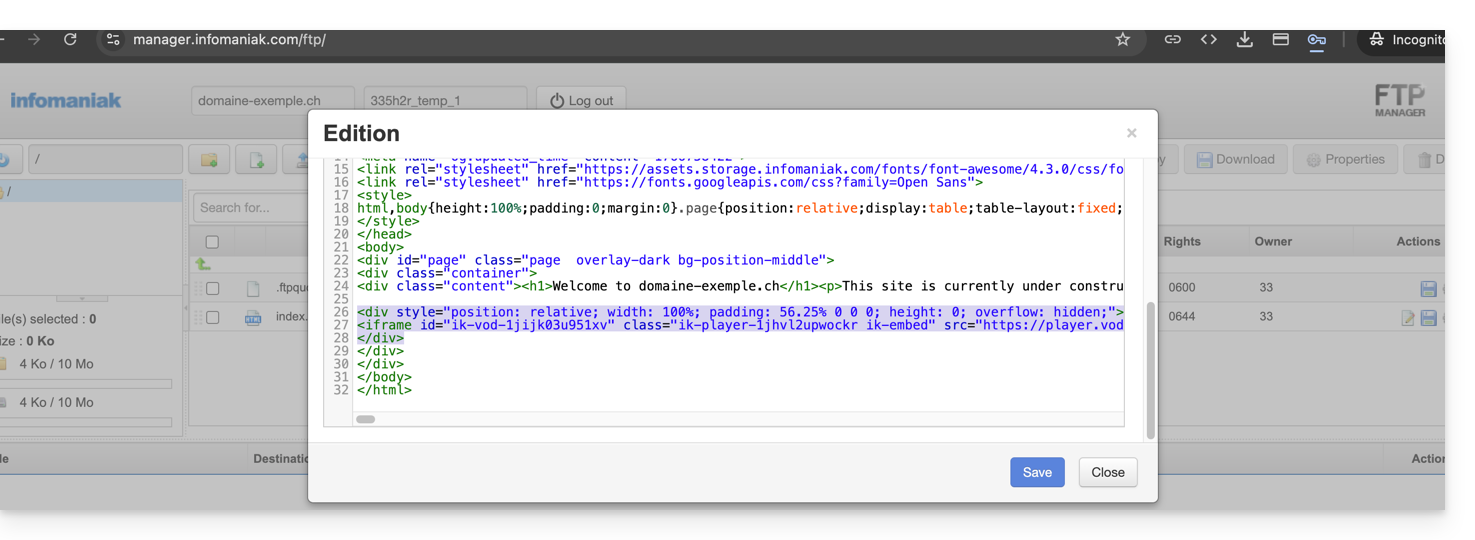
… no Site Creator Infomaniak
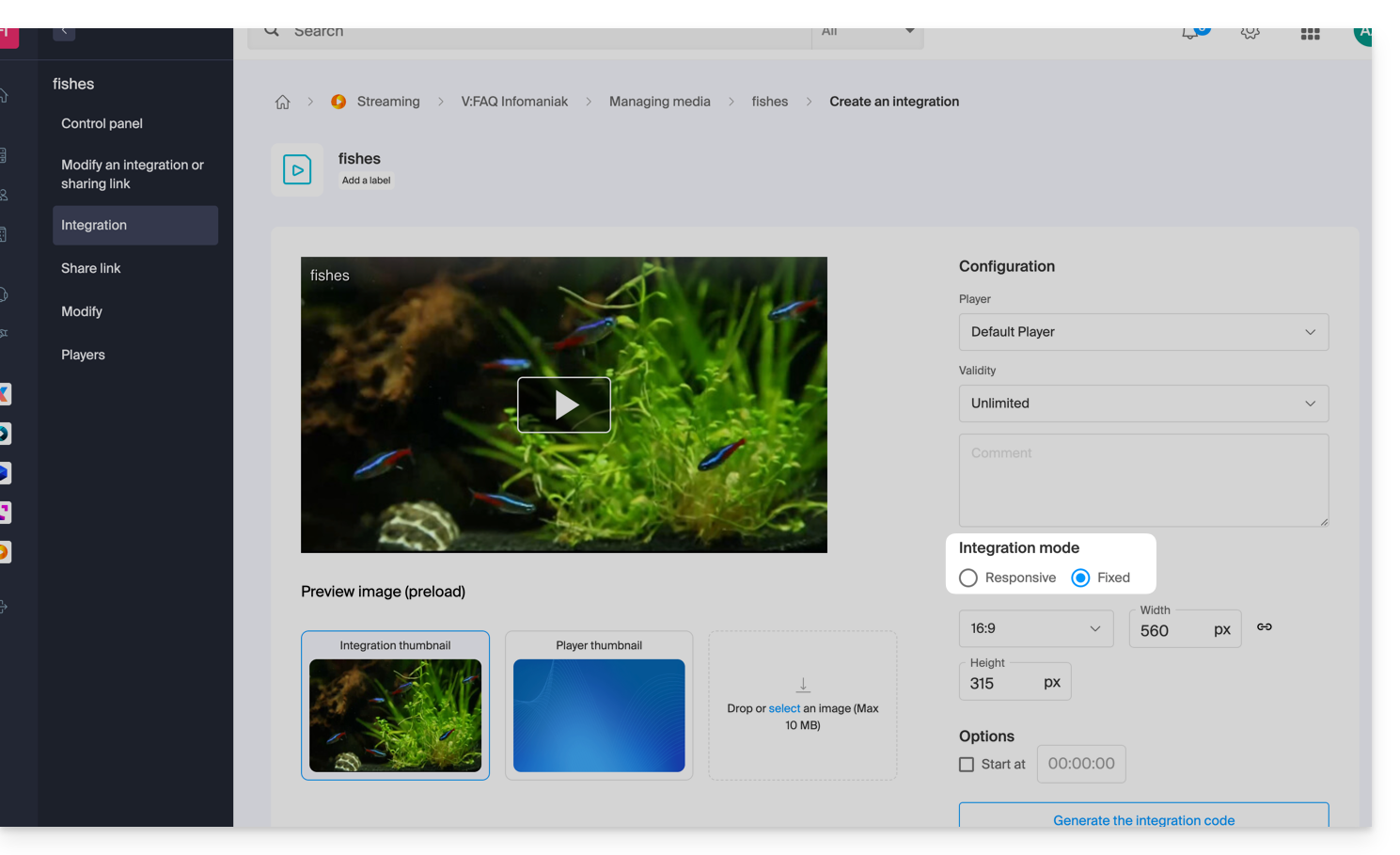
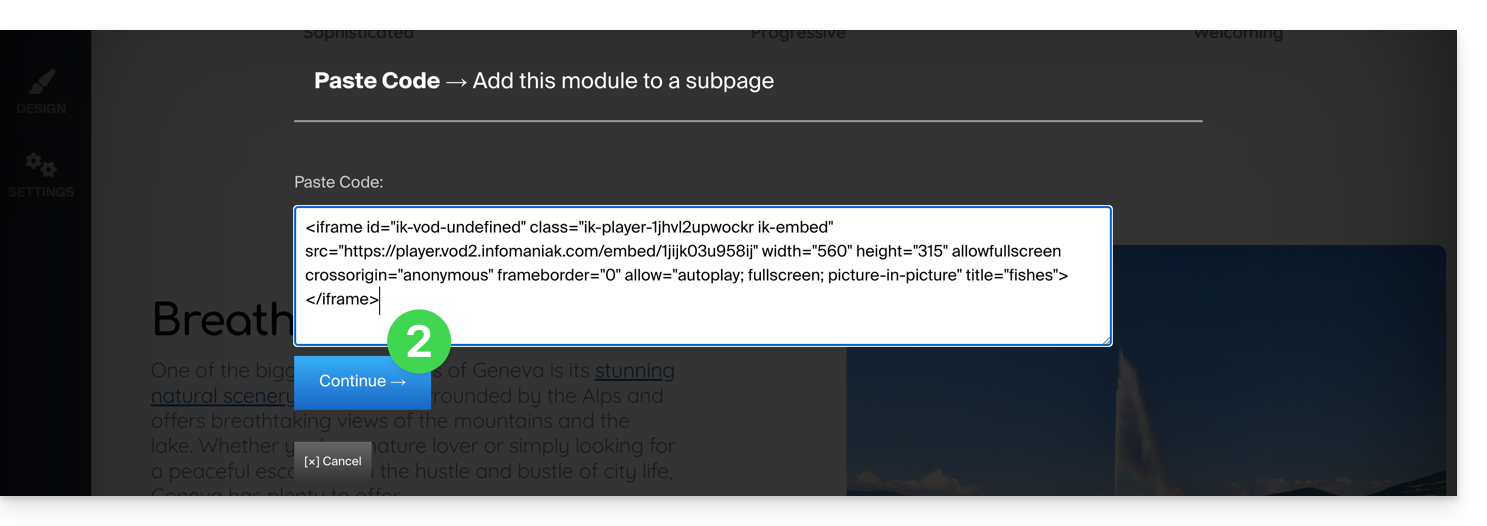
- Para o Site Creator, é necessário gerar um código de incorporação “Fixo” (e não “Responsivo”):
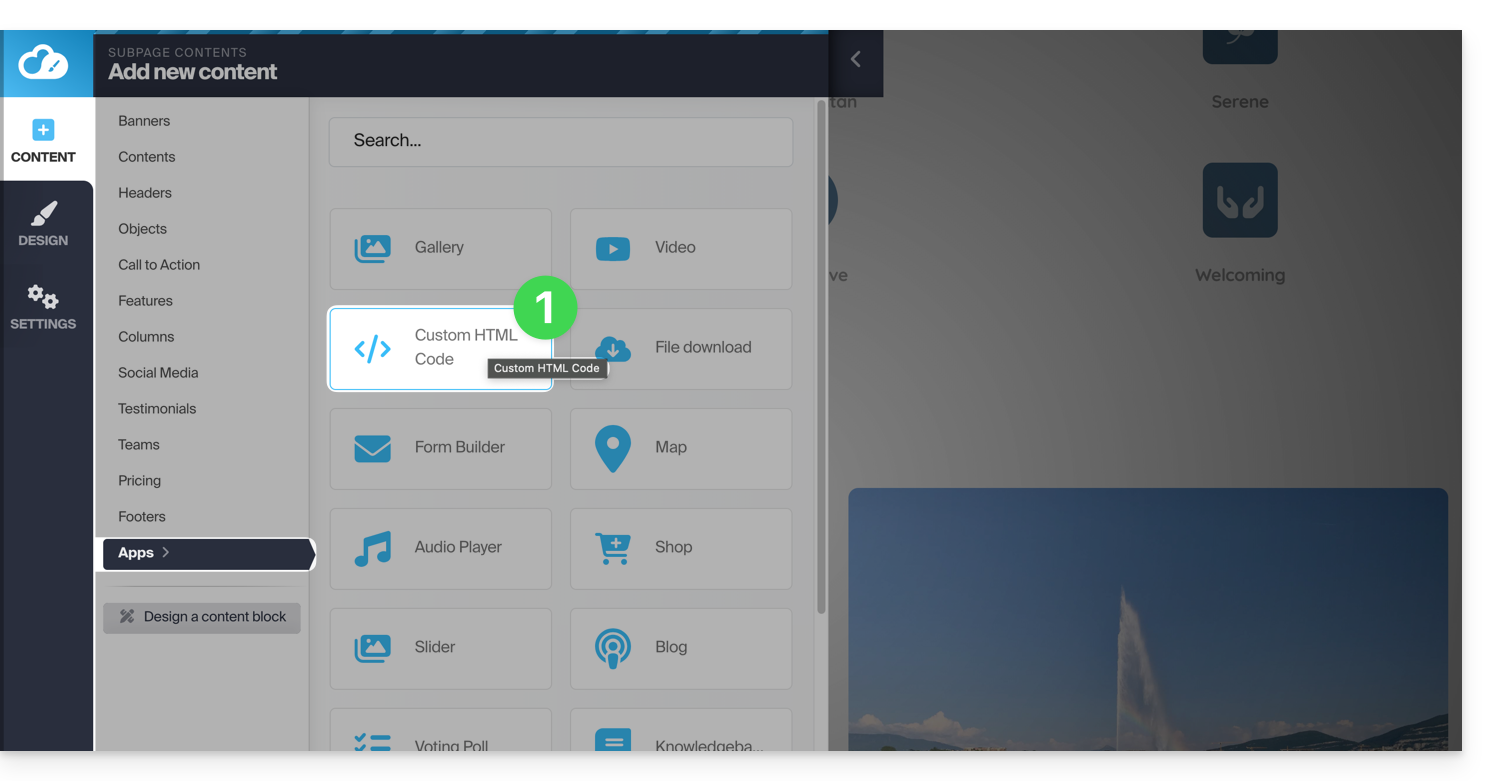
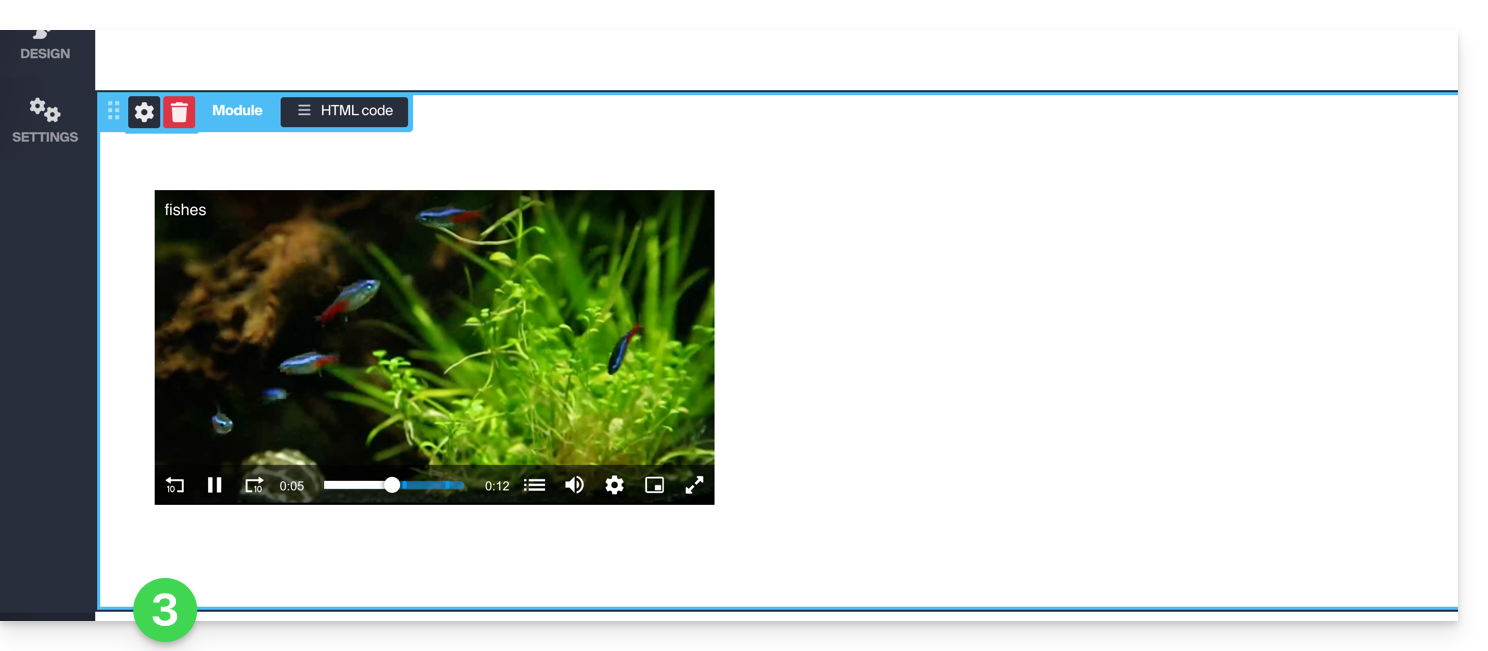
- Em seguida, cole este código no Site Creator, dentro de um bloco “Código HTML personalizado”:
Link para esta FAQ: https://faq.infomaniak.com/2525
Esta seção de perguntas frequentes foi útil?
Este guia explica como integrar anúncios durante a reprodução de mídia pelo seu reprodutor VOD Infomaniak.
Introdução
- Você pode inserir vários vídeos como publicidade e a origem deles pode ser:
- seus próprios vídeos já importados,
- URLs, caso você tenha uma plataforma de publicidade (Google Marketing Platform, Openx, Oath, Tremor Video DSP, etc.).
- A publicidade pode ser do tipo Pre roll, Mid roll e Post roll, ou seja, exibida no início, no meio ou no final do seu vídeo.
- Você pode oferecer ao espectador a opção de pular o anúncio (após o número de segundos desejado).
Configurar o anúncio do reprodutor VOD
Pré-requisitos
- Criar um reprodutor na sua área VOD/AOD.
Após acessar a configuração do seu Player: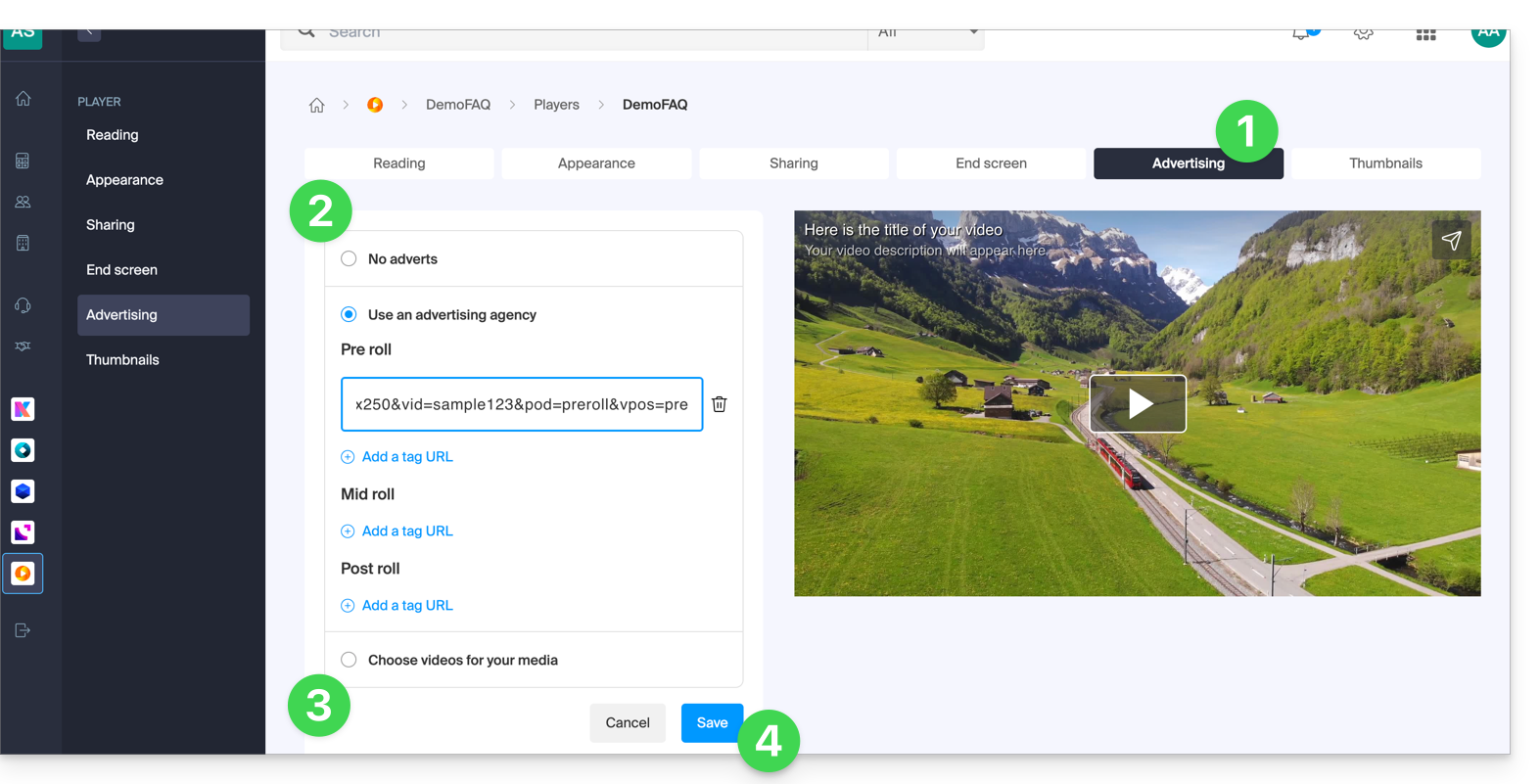
- Clique na aba Publicidade.
- Escolha entre:
- sem publicidade,
- links fornecidos pela sua agência de publicidade,
- vídeo(s) da sua biblioteca.
- Atenção: não pode combinar os dois tipos de publicidade; perderá as informações já inseridas se alterar o tipo de publicidade.
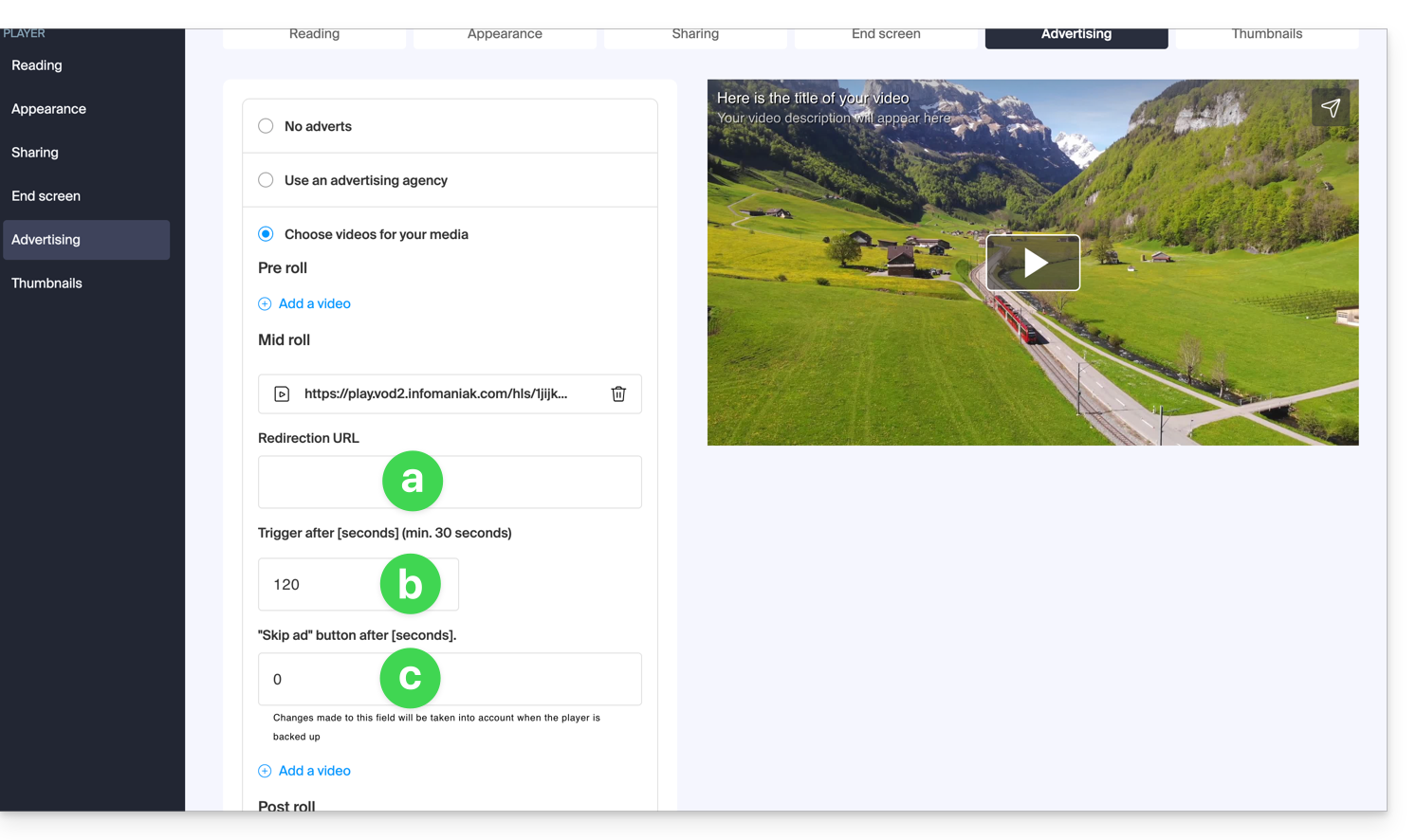
- Se escolher um ou mais vídeos entre os seus conteúdos, pode escolher:
- o URL para o qual enviar o utilizador se este clicar no anúncio para obter mais informações,
- o momento em que o vídeo deverá começar (apenas mid roll),
- o momento em que o utilizador poderá ignorar o anúncio:
- Clique no botão para Salvar.
Link para esta FAQ: https://faq.infomaniak.com/2527
Esta seção de perguntas frequentes foi útil?
Este guia explica como partilhar ficheiros de vídeo/áudio carregados num serviço VOD/AOD Infomaniak.
Introdução
- Ao partilhar um conteúdo multimédia alojado na Infomaniak, tem a possibilidade de especificar, entre outras coisas:
- o momento exato do vídeo (marcação de tempo em hora/minuto/segundo) para o qual o espetador será direcionado ao utilizar o link em questão
- uma data de expiração para o link de partilha
- qual dos seus Players deverá ser utilizado para reproduzir o conteúdo multimédia
- o início automático do conteúdo multimédia após a execução do link de partilha
- a reprodução em ciclo do conteúdo multimédia partilhado
- Um botão de partilha (Whatsapp, X, etc.) também pode ser configurado dentro do próprio Player.
Compartilhar um conteúdo de vídeo sob demanda (VOD) / vídeo sob demanda por assinatura (AOD) a partir do painel de controle
Para isso:
- Clique aqui para acessar o gerenciamento do seu produto no painel de controle Infomaniak (precisa de ajuda?).
- Clique diretamente no nome atribuído ao produto em questão:
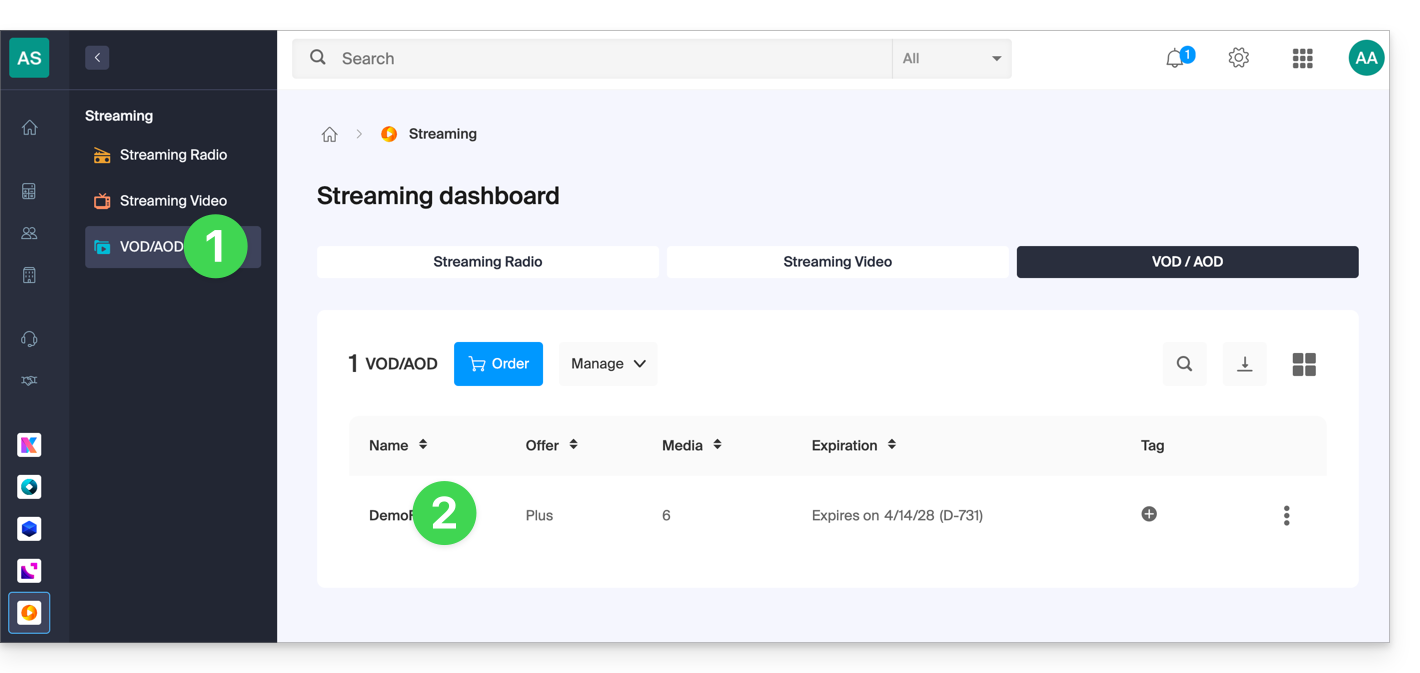
- Clique em Mídia no menu lateral esquerdo.
- Clique em Gerenciamento de mídia no menu lateral esquerdo.
- Clique no menu de ação ⋮ do arquivo em questão na tabela exibida.
- Clique em Compartilhar:
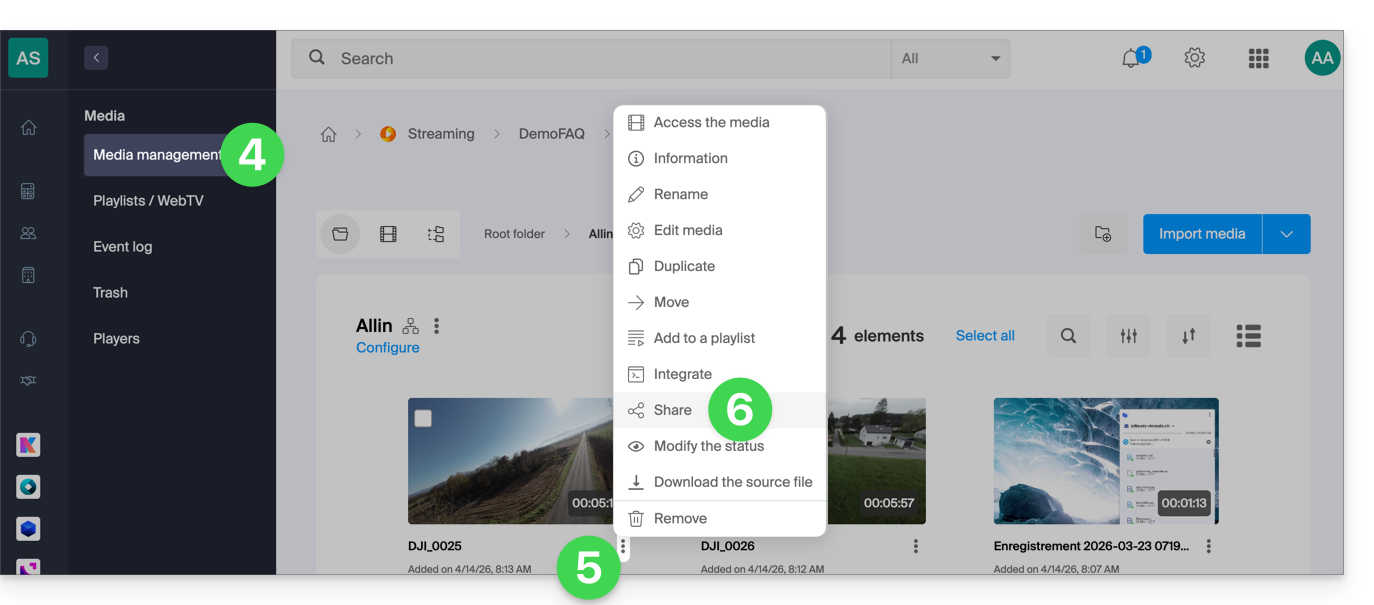
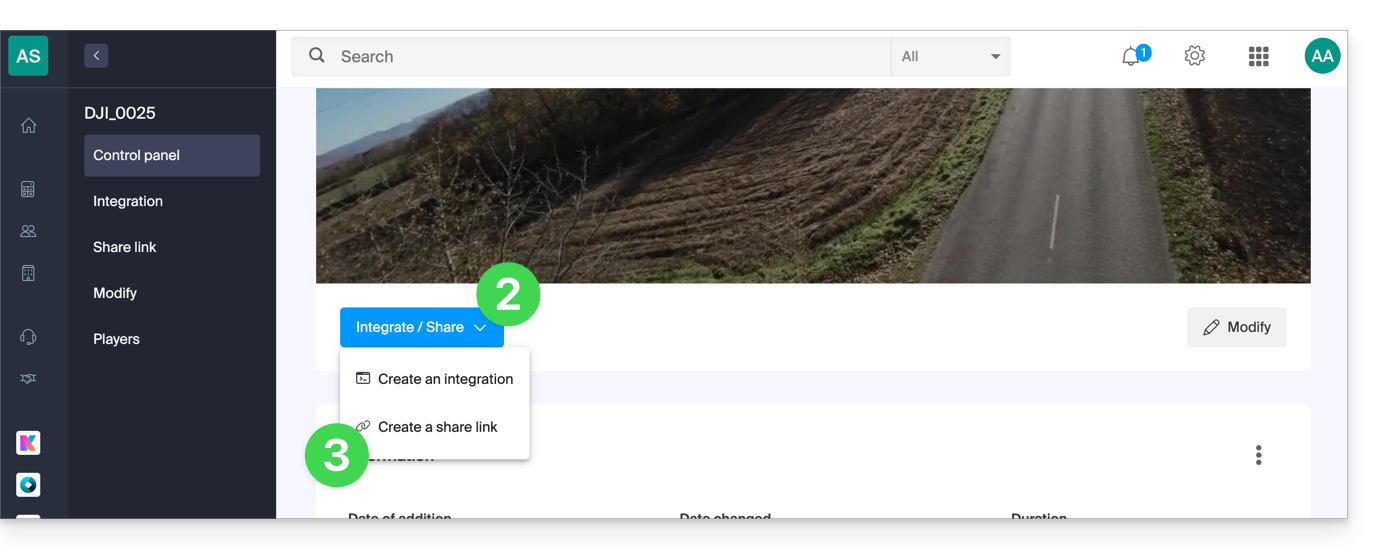
Você também pode clicar no arquivo em questão para obter uma solução de compartilhamento mais completa:
- No item 5 acima, clique diretamente na miniatura do arquivo em questão.
- Clique no botão azul Partilhar.
- Escolha criar um link de partilha:
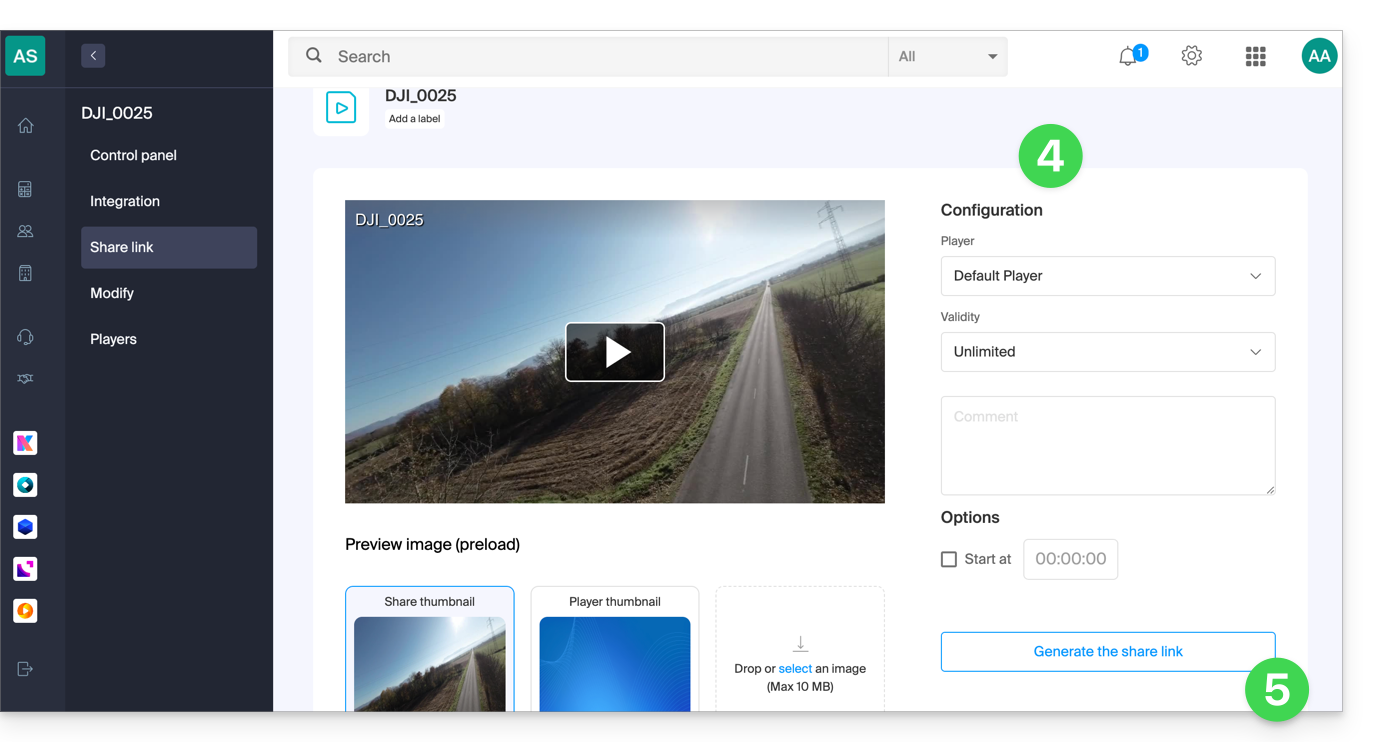
- Defina as opções desejadas, incluindo a miniatura do vídeo compartilhado, se necessário.
- Clique no botão para gerar um link de compartilhamento:
Usar o link de compartilhamento
Sempre que você clica no botão para gerar ou atualizar o link de compartilhamento, uma caixa é exibida, oferecendo a opção de compartilhar facilmente em diferentes plataformas, como Linkedin ou Whatsapp: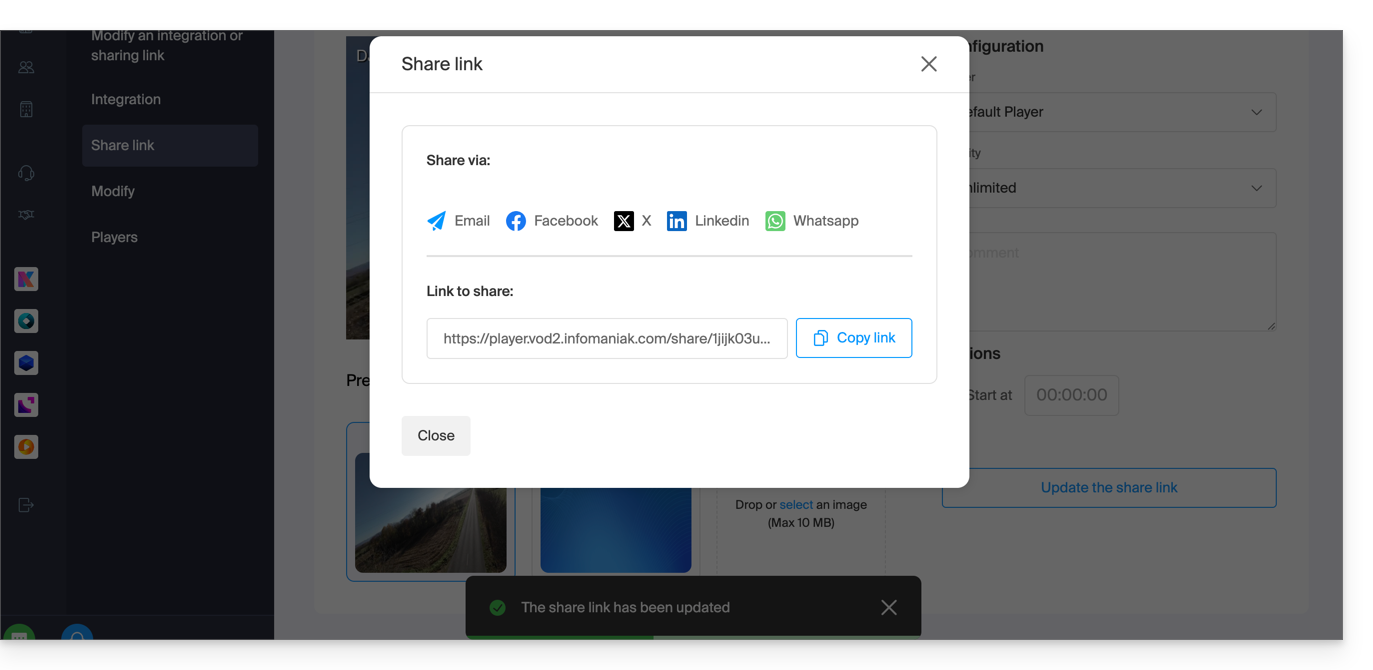
Para obter simplesmente um link que direcione diretamente para o arquivo em questão, clique no botão de cópia do link.
Ao acessar este link, será exibida uma página simplificada que exibirá seu arquivo e o comentário associado, caso você tenha adicionado um:
Um botão de compartilhamento nesta página de publicação permite compartilhar novamente o vídeo com outras pessoas ou incorporá-lo (inclusive por meio de um código iframe) diretamente nas plataformas compatíveis:
Modificar ou remover um link de compartilhamento
Para isso:
- Clique aqui para acessar o gerenciamento do seu produto no Manager Infomaniak (precisa de ajuda?).
- Clique diretamente no nome atribuído ao produto em questão.
- Clique em Mídia no menu lateral esquerdo.
- Clique em Gerenciamento de mídia no menu lateral esquerdo.
- Clique diretamente na miniatura da mídia desejada.
- Clique no botão azul Partilhar.
- Escolha editar um link de partilha:
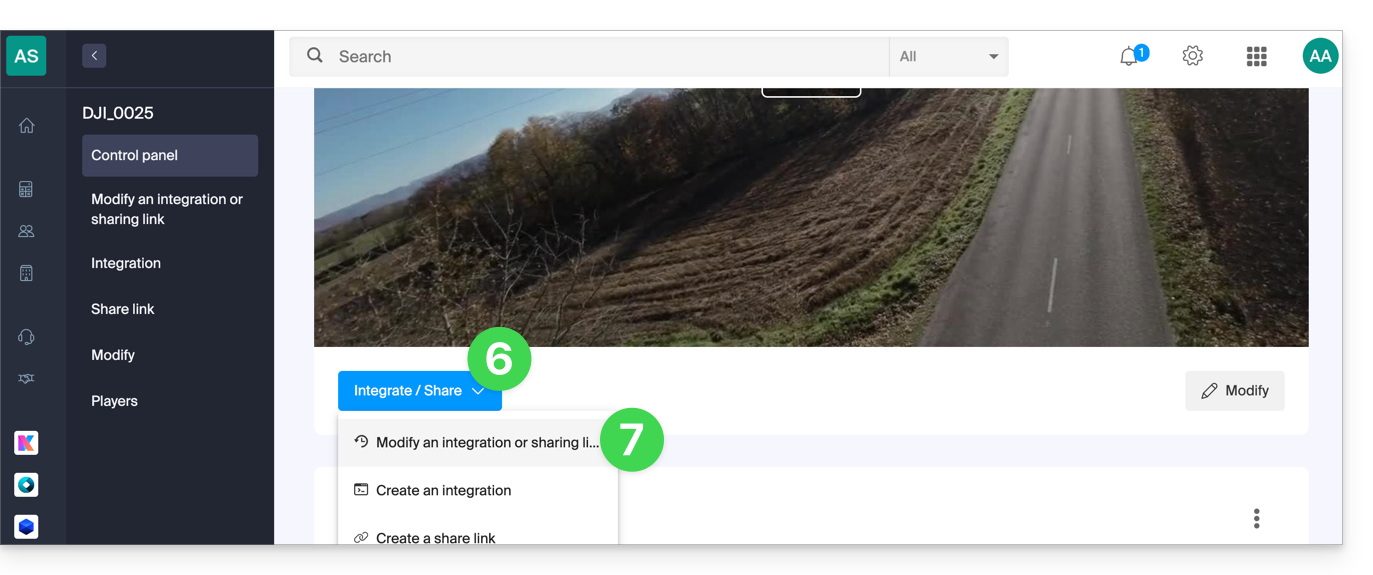
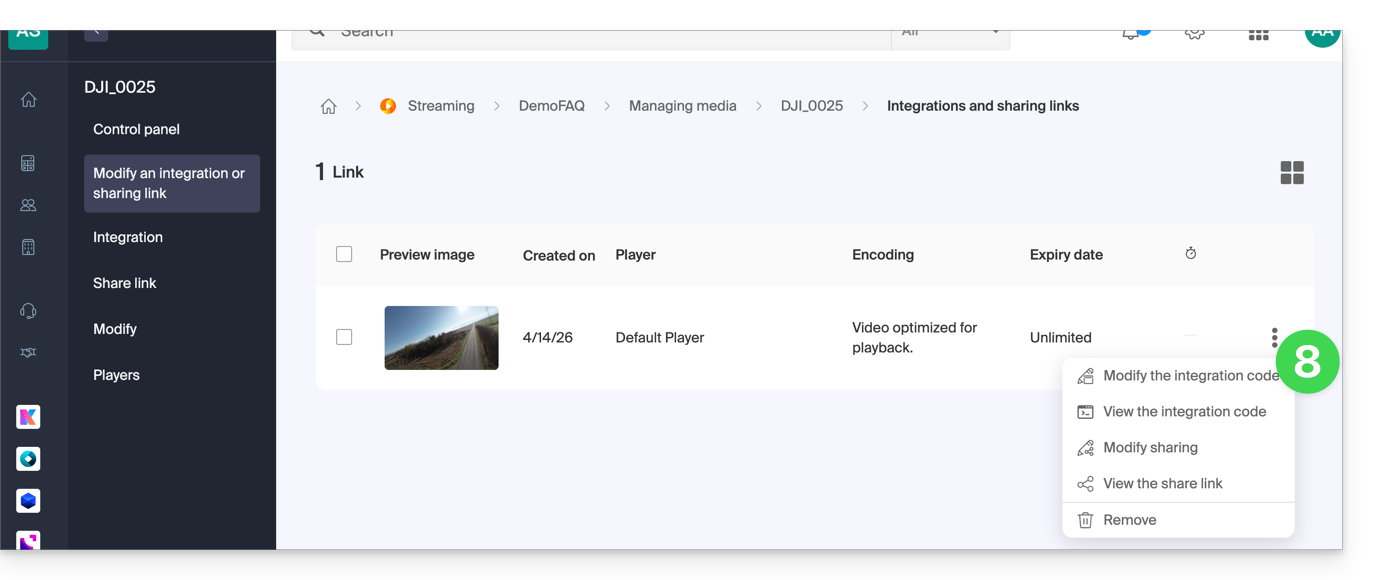
- Na página que é exibida, clique no menu de ação ⋮ à direita do link que deseja modificar ou excluir:
Link para esta FAQ: https://faq.infomaniak.com/2528
Esta seção de perguntas frequentes foi útil?
Este guia permite que você utilize rapidamente as funções essenciais do seu espaço VOD/AOD Infomaniak.
Gerenciar mídias
- Importar um arquivo
- Mover um arquivo
- Editar um arquivo de mídia
- Gerenciar as legendas de um arquivo de mídia
- Adicionar um novo arquivo de mídia para substituir outro
- Carregar o arquivo de mídia original
Transmitir / partilhar os conteúdos multimédia
- Gerir os Players
- Incorporar mídia
- Compartilhar mídia
- Gerenciar compartilhamentos de mídia a partir de um reprodutor
- Integrar e compartilhar mídia no WordPress
- Transmitir uma lista de vídeos sob demanda ao vivo no Streaming de vídeo
- Modificar uma miniatura
- Criar capítulos em um vídeo
- Gerenciar anúncios em um reprodutor
Proteger o VOD/AOD
- Proteger vídeos por restrição GeoIP
- Proteger vídeos com uma senha
- Proteger vídeos com uma chave única
- Adicionar uma marca d'água
Tem alguma pergunta ou sugestão?
- Em caso de problema, consulte a base de conhecimento antes de entrar em contato com o suporte.
- Clique aqui para partilhar uma opinião ou sugestão sobre um produto Infomaniak.
Link para esta FAQ: https://faq.infomaniak.com/2542
Esta seção de perguntas frequentes foi útil?
Um reprodutor (ou seja, um leitor de arquivos multimídia) é essencial para seus conteúdos multimídia quando você os integra em seu espaço VOD/AOD Infomaniak, para disponibilizá-los aos seus espectadores e usuários.
Criar um reprodutor
Para criar um reprodutor:
- Clique aqui para acessar o gerenciamento do seu produto no Manager Infomaniak (precisa de ajuda?).
- Clique diretamente no nome atribuído ao produto em questão:
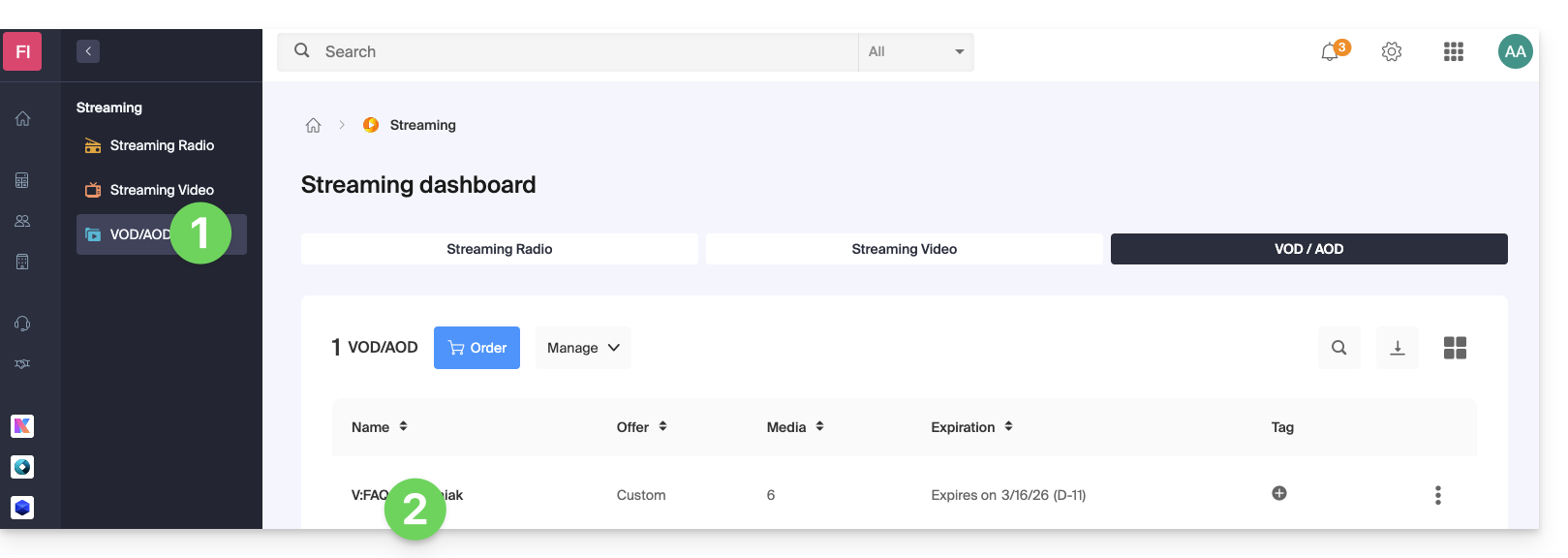
- Clique em Utilizadores no menu lateral esquerdo.
- Clique no botão azul para adicionar um novo reprodutor:
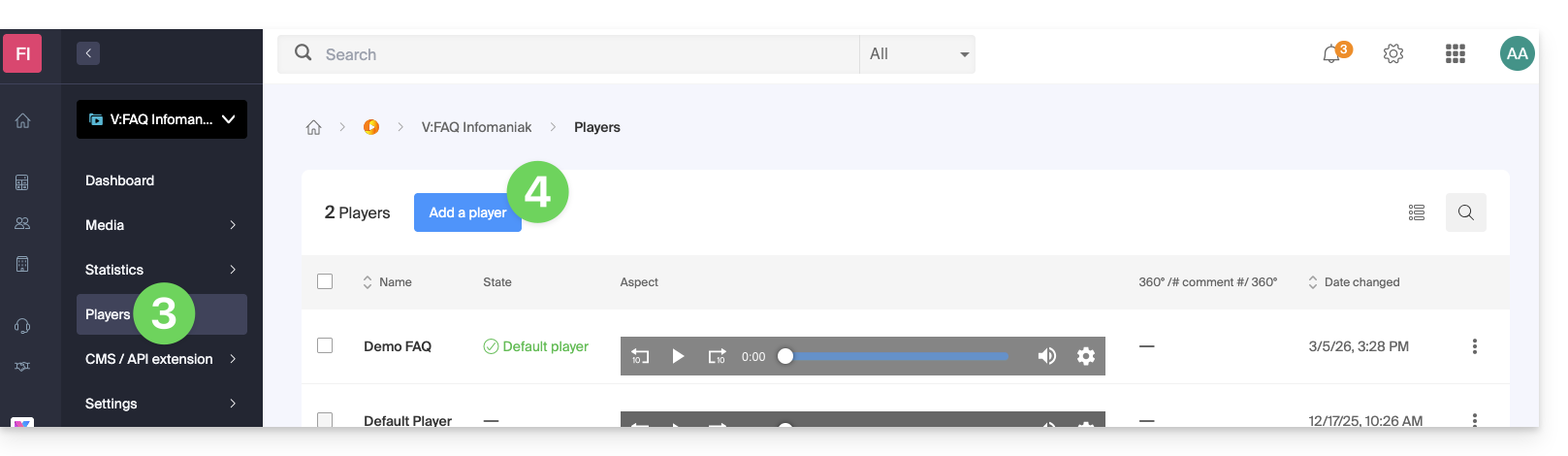
- Em seguida, você será direcionado para a página de configuração, e as guias (ou menus) permitem gerenciar vários aspectos do reprodutor, como a barra de reprodução na parte inferior e os ícones de compartilhamento:
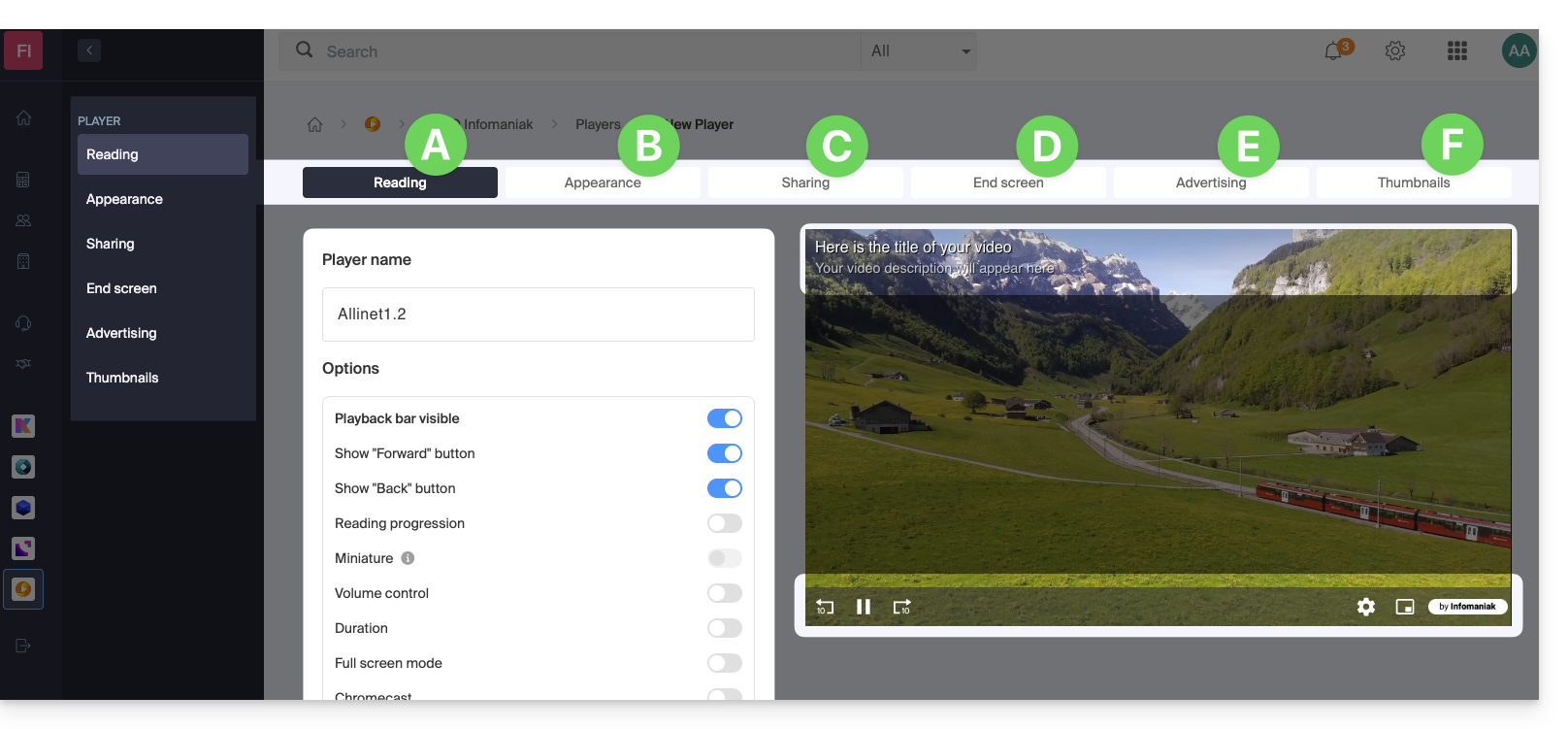
A. Guia Reprodução
É aqui que pode dar um nome ao reprodutor e personalizar os elementos que devem ou não estar presentes:
- barra de reprodução (com ou sem desaparecimento após X segundos de inatividade)
- botão Avançar e Retroceder
- exibição do progresso da reprodução e, se sim, exibição das miniaturas na barra de reprodução
- controle de volume
- duração do arquivo
- exibir em tela cheia
- Chromecast (se estiver visível, a opção poderá ser ativada por um utilizador que utilize o navegador Chrome e tenha um Chromecast na mesma rede)
- logotipo Infomaniak
- botão “Pular a introdução” e, em caso afirmativo, em que ponto do vídeo o espectador deve ser direcionado
Também é possível escolher o modo de reprodução MPEG-DASH em vez do HLS padrão, iniciar automaticamente a reprodução ao carregar o conteúdo e forçar a exibição das legendas (que o espectador poderá sempre desativar, se desejar).
B. Guia Aparência
É aqui que pode escolher as cores e os estilos de visualização (temas) do reprodutor, bem como um logótipo e a exibição do título e da descrição do conteúdo multimédia.
C. Guia Partilha
É aqui que pode escolher as permissões relativas ao compartilhamento e à integração do Player em outros sites.
D. Guia Ecrã final
É aqui que pode definir um comportamento global do leitor para o ecrã final (por exemplo, sugerir o vídeo seguinte a reproduzir com base no conteúdo da mesma pasta). Também pode ajustar estas definições individualmente para cada vídeo.
E. Guia Publicidade
O Pre-roll, Mid-roll e Post-roll são gerenciados aqui. Consulte este outro guia sobre o assunto.
F. Guia Miniaturas (pré-visualização da mídia)
É aqui que pode modificar a imagem de pré-visualização (miniatura) visível no leitor quando a mídia está a carregar ou está indisponível/restrita (isto não substitui a miniatura do vídeo).
Modificar um Player
Para modificar e aceder às configurações de um Player existente:
- Clique aqui para acessar o gerenciamento do seu produto no painel de controle Infomaniak (precisa de ajuda?).
- Clique diretamente no nome atribuído ao produto em questão.
- Clique em Utilizadores no menu lateral esquerdo.
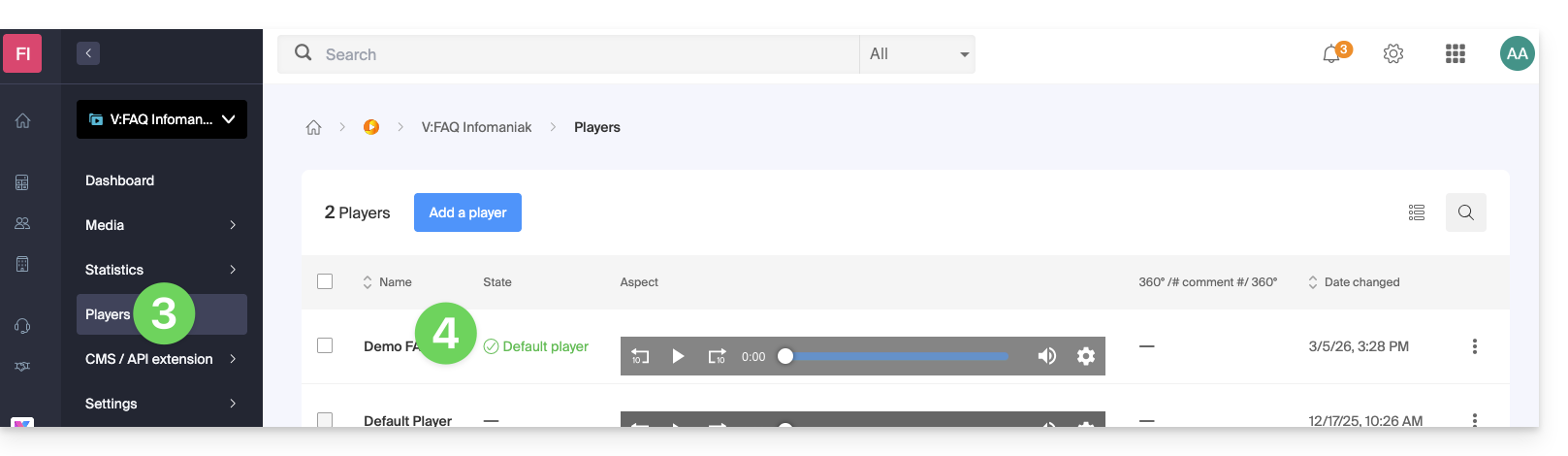
- Clique diretamente no nome atribuído ao utilizador em questão:
Botão de tela cheia
Não é possível exibir automaticamente o conteúdo multimídia diretamente em tela cheia ao iniciar a reprodução.
Clique para iniciar a reprodução e, em seguida, clique no botão correspondente ao modo de tela cheia, após tê-lo adicionado previamente na aba Reprodução do seu reprodutor: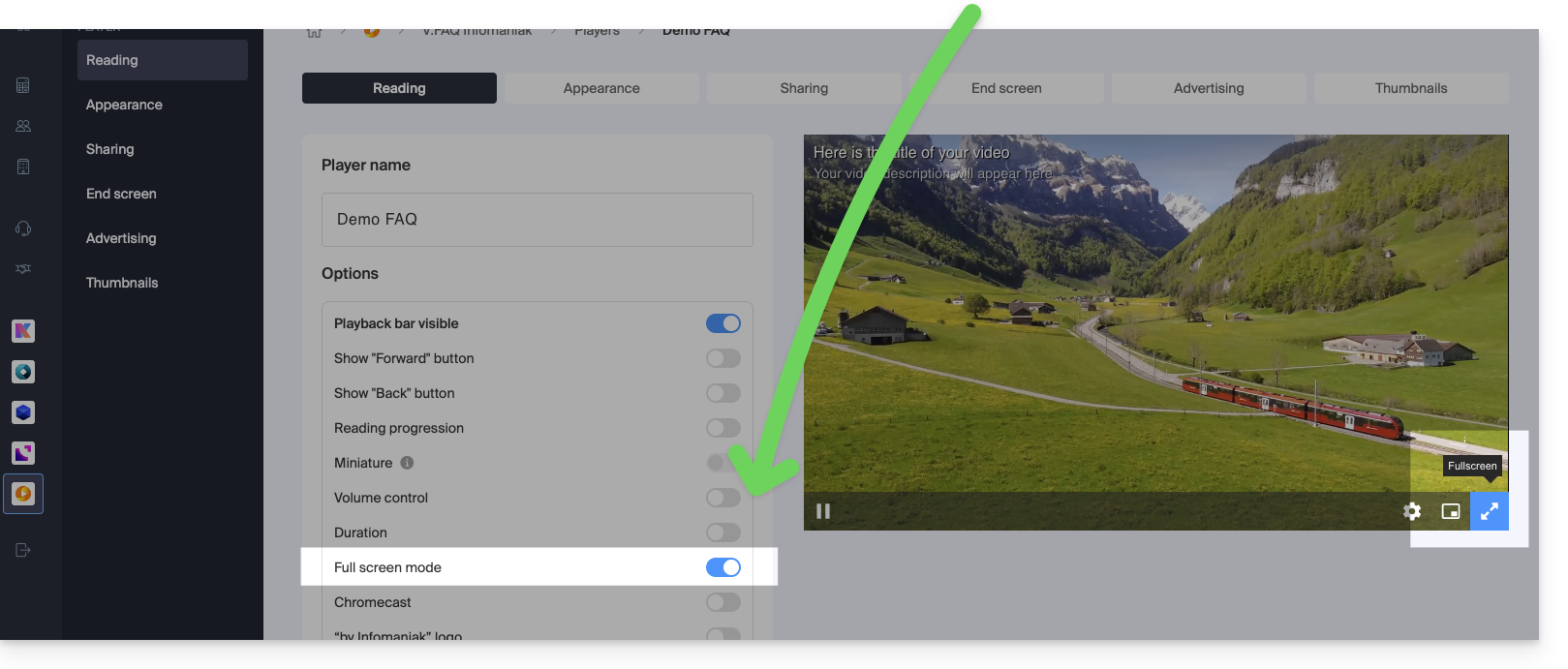
Link para esta FAQ: https://faq.infomaniak.com/2561
Esta seção de perguntas frequentes foi útil?
Este guia apresenta o funcionamento e a configuração das regras de transcodificação do serviço VOD/AOD da Infomaniak. Este serviço permite armazenar, gerir e difundir os seus ficheiros multimédia online, automatizando simultaneamente a sua codificação através de um sistema de pastas hierárquicas.
Introdução
- As predefinições são otimizadas para gerar 4 qualidades, desde 360p até 1080p (HD):
- para ir além, 2K, 4K, é necessário criar manualmente essas regras de codificação.
- Cada pasta (raiz ou subpasta) pode ser configurada com regras de transcodificação específicas que definem a forma como os arquivos de mídia importados serão codificados (vídeo e áudio).
- Não há recodificação de mídia já importada se:
- você modificar uma regra posteriormente
- você mover um arquivo para outra pasta
- Para aplicar uma nova regra, é necessário substituir ou reenviar o arquivo.
Configurar as regras de codificação
Para aceder à configuração das codificações a utilizar para qualquer conteúdo enviado para a pasta raiz:
- Clique aqui para acessar a gestão do seu produto no Manager Infomaniak (precisa de ajuda?).
- Clique diretamente no nome atribuído ao produto em questão.
- Clique em Mídia no menu lateral esquerdo.
- Clique em Gerenciamento de mídia no menu lateral esquerdo.
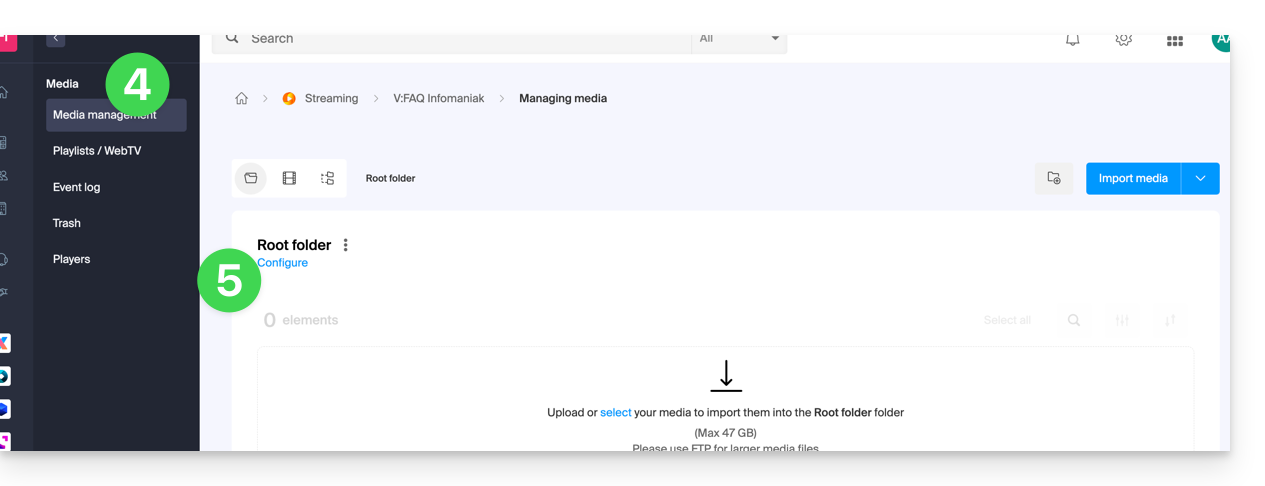
- Você acessa a pasta raiz; clique em Configurar:
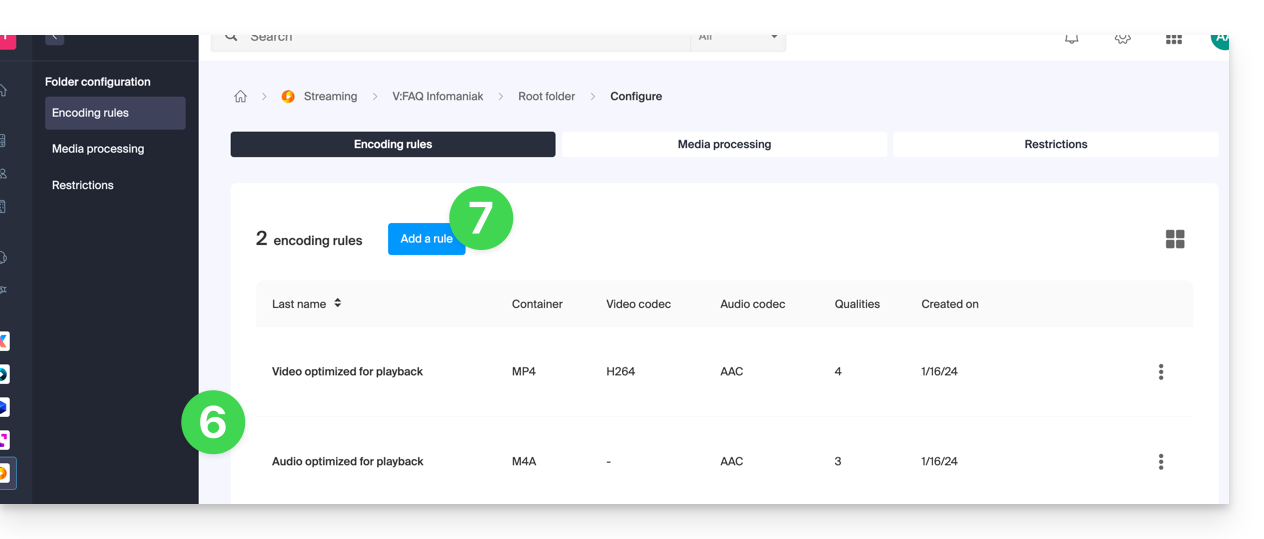
- As regras de codificação padrão são sempre apresentadas.
- Clique no botão para adicionar novos:
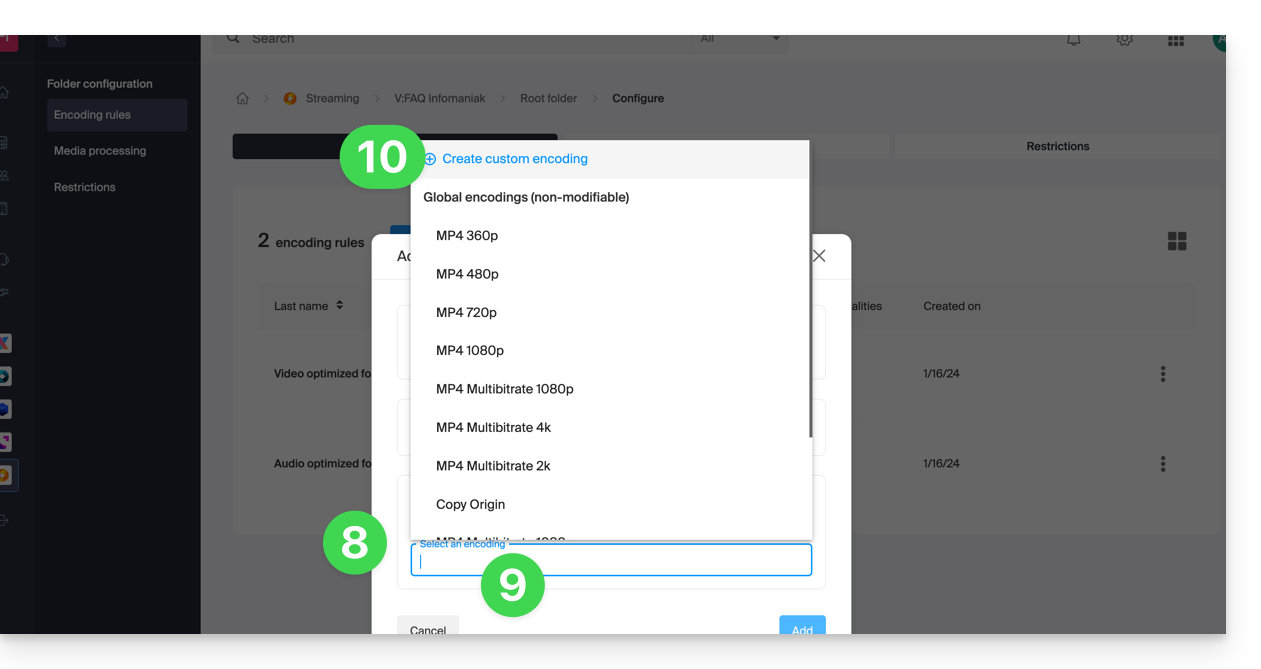
- Escolha predefinições otimizadas para as suas necessidades ou selecione o modo avançado para definir precisamente as suas configurações:
- Vídeo: codec (H.264, H.265, VP9…), resolução, taxa de quadros, taxa de bits, proporção.
- Áudio: codec (AAC, MP3…), taxa de bits, frequência de amostragem.
- Clique no campo para selecionar uma codificação.
- Clique em Criar uma codificação personalizada:
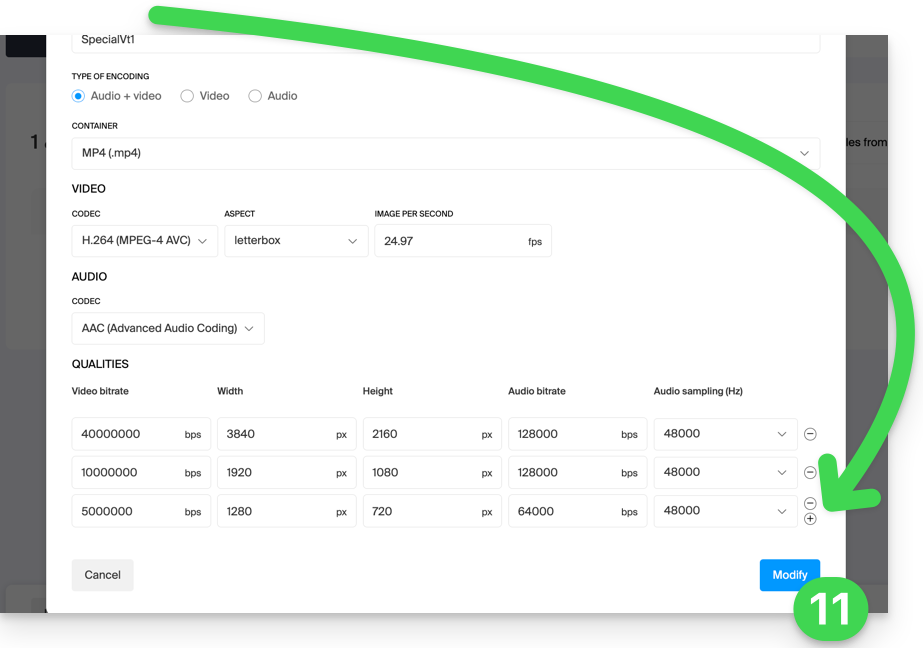
Dê um nome à regra, insira as configurações de áudio/vídeo de acordo com suas necessidades. Você pode controlar o comportamento da proporção (relação largura/altura):
keep_ratio: mantém a proporção original; se as dimensões solicitadas não corresponderem, barras pretas são adicionadas.copy: mantém a aparência original sem adaptação; se a resolução for diferente, a imagem pode ser distorcida.fill: o vídeo é redimensionado para ocupar toda a resolução, mantendo a proporção; uma parte da imagem pode ser recortada.stretch: o vídeo é redimensionado para a resolução solicitada sem respeitar a proporção, o que resulta em distorção.
Várias qualidades podem ser gerenciadas dentro de uma única regra; não se esqueça de validar para adicionar a regra:
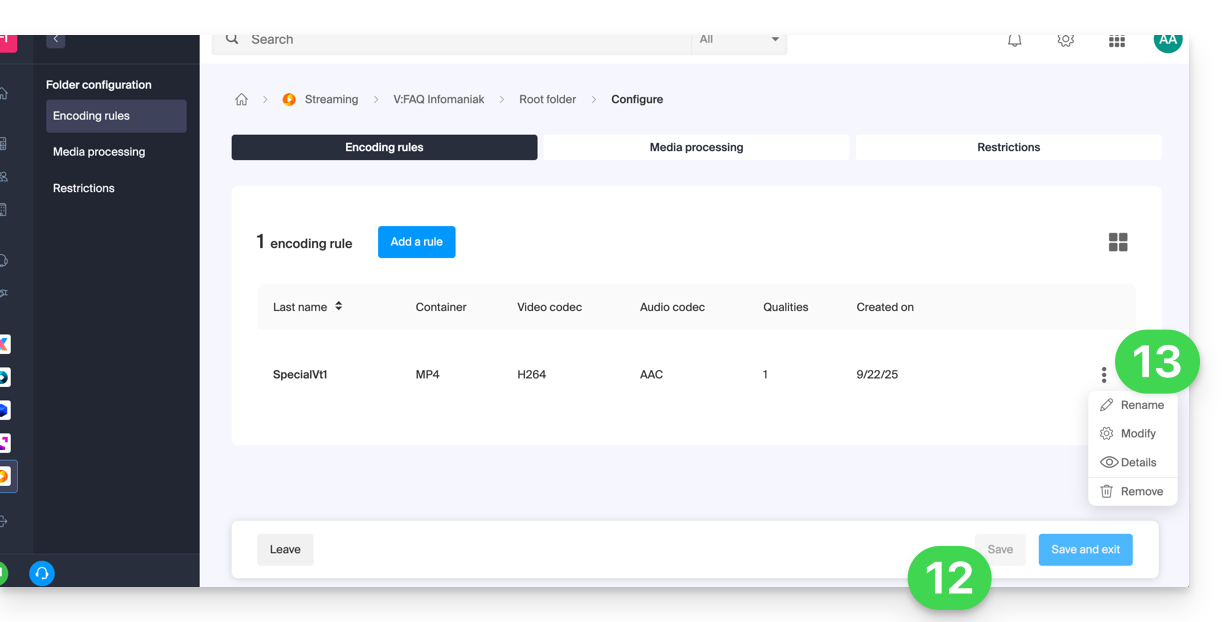
- A nova regra é adicionada, clique no botão Salvar para guardar a adição.
- Se necessário, pode manter apenas esta nova regra e remover as regras anteriores clicando no menu de ação ⋮ à direita das regras em questão na tabela que é exibida e, em seguida, removendo-as. O menu também permite rever os detalhes da sua configuração personalizada, modificá-la ou renomeá-la:
Hereditariedade das configurações
Se você definir uma configuração na pasta raiz, ela será aplicada automaticamente a todas as subpastas criadas dentro dela, cada pasta herdando, por padrão, as configurações da pasta pai. Portanto, essas regras de codificação serão aplicadas aos arquivos de mídia que você importar para o seu espaço VOD/AOD, mesmo que sejam importados em uma subpasta.
No entanto, observe que as regras podem ser definidas por pasta, portanto, uma subpasta que você criar poderá aplicar regras de codificação específicas: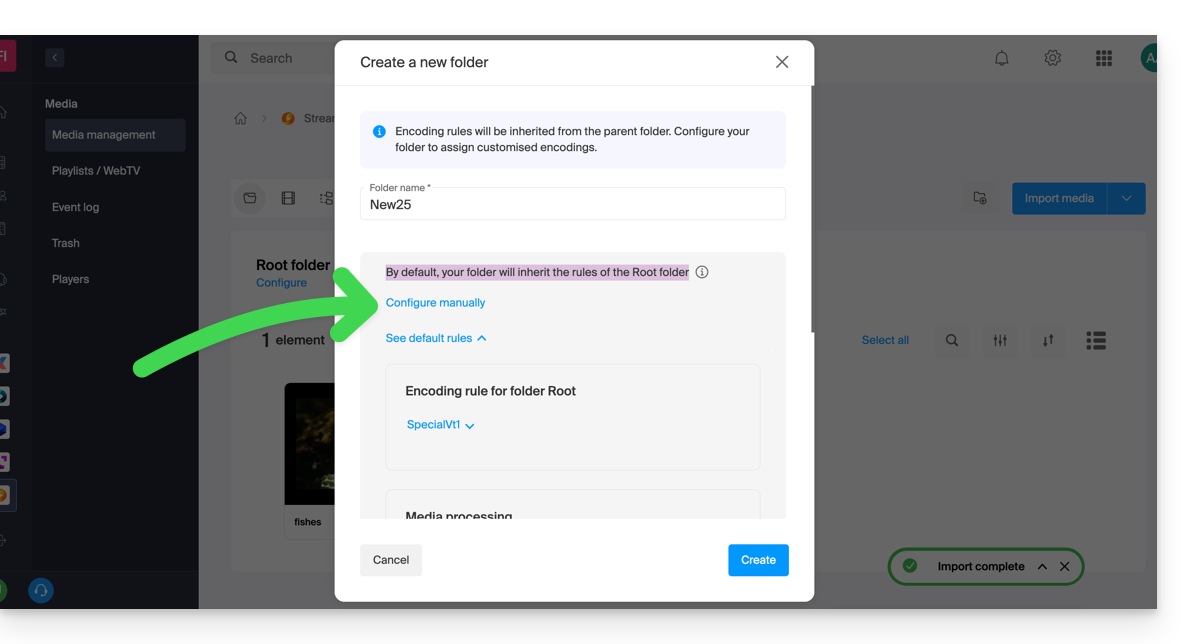
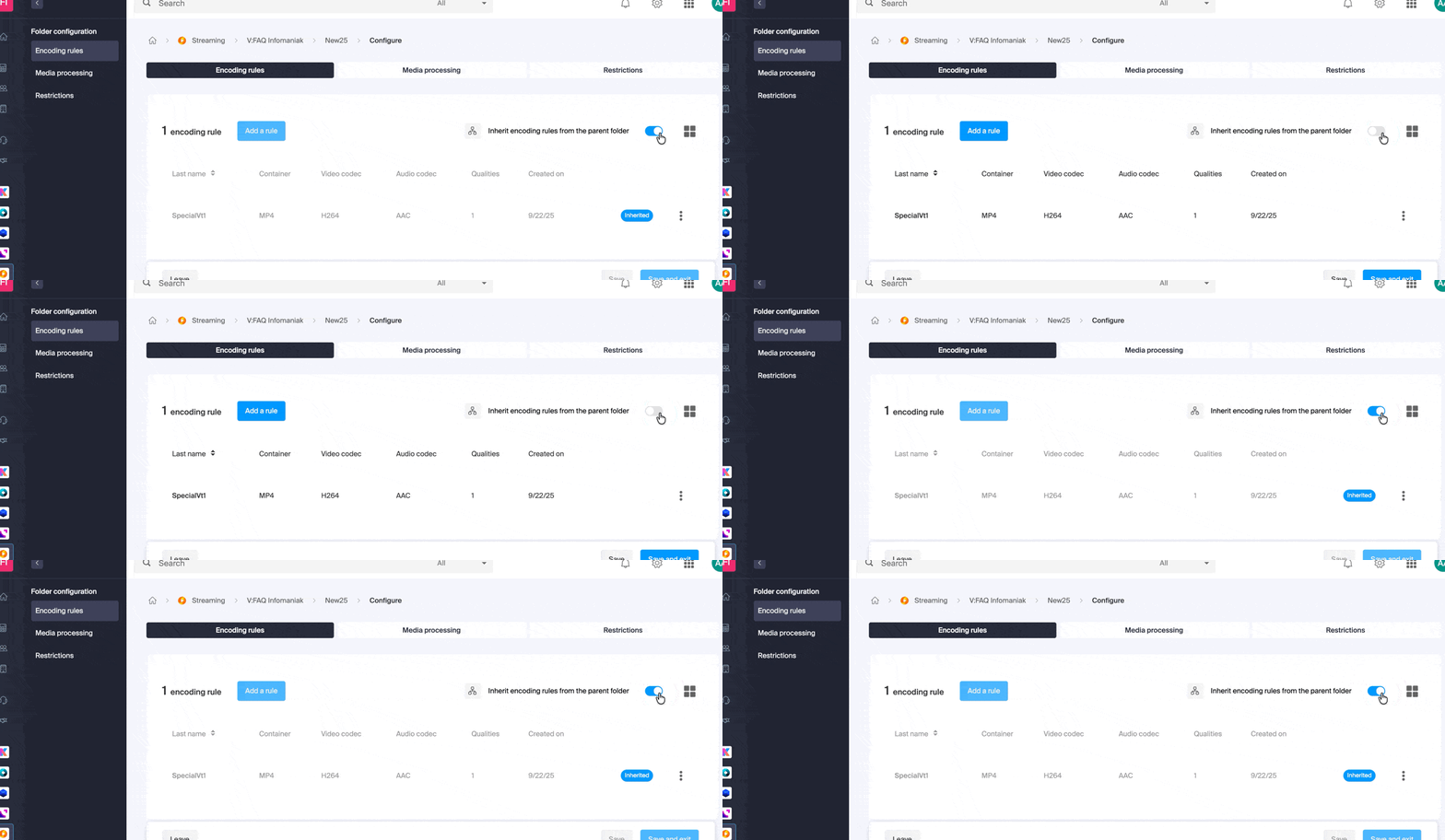
Desative a herança a qualquer momento na página de configuração da pasta existente para definir configurações específicas:
Link para esta FAQ: https://faq.infomaniak.com/2568
Esta seção de perguntas frequentes foi útil?
Este guia explica como criar e gerenciar seus tokens de autenticação para interagir com a API Infomaniak de forma segura.
Introdução
- Características dos tokens:
- Número: sem limite de criação
- Validade: ilimitada por padrão (personalizável no momento da criação)
- Inatividade: um token é automaticamente desativado se não for utilizado durante um ano
- Exemplo de utilização:
Gerenciar os tokens da API
Ao criar, você deve definir a aplicação e o escopo de acesso:
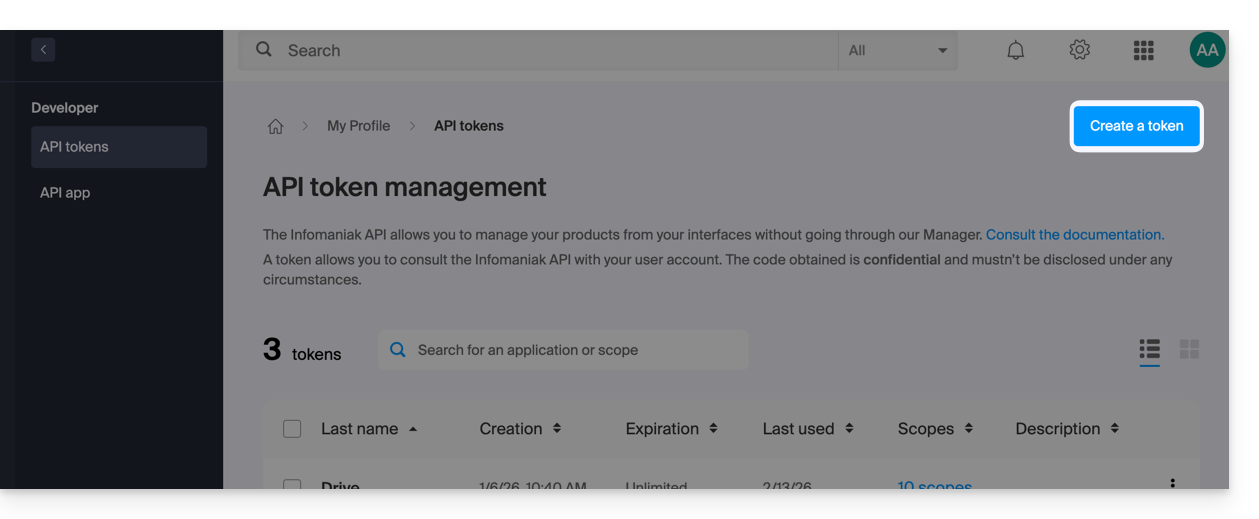
- Acesse a gestão de tokens no painel de controle (precisa de ajuda?).
- Clique em Criar um token:
- Selecione o produto/aplicativo e o período de validade:
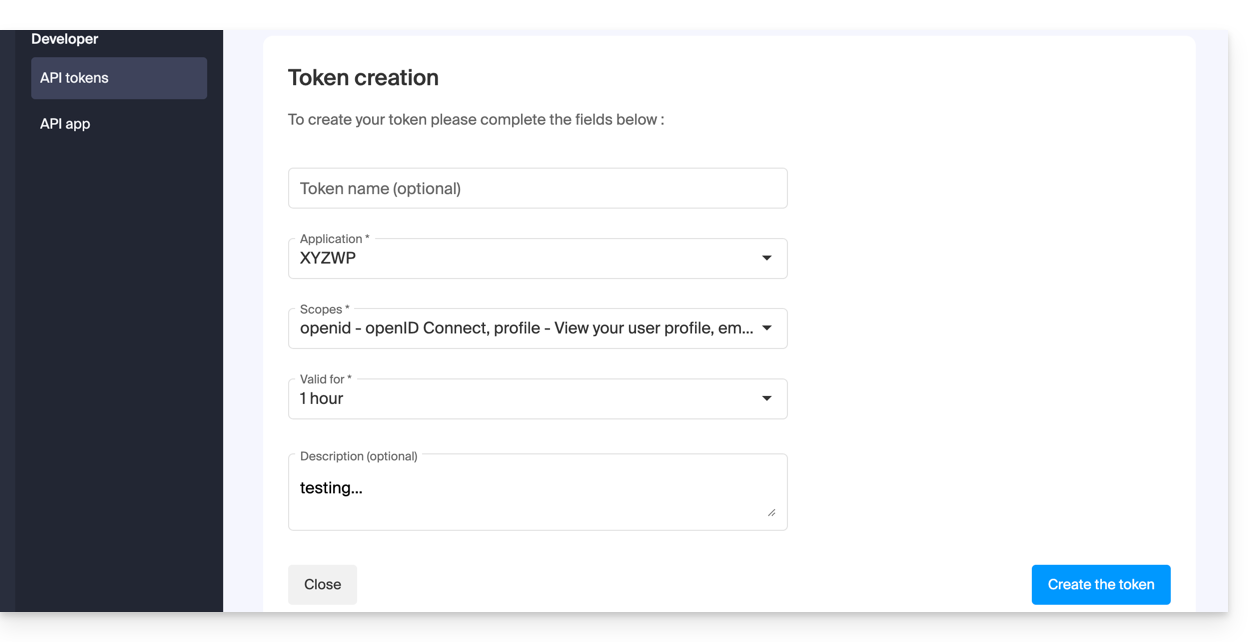
- Confirme a operação com a sua senha de conta.
- Importante: copie o token e guarde-o num local seguro; ele não será mais exibido posteriormente.
Para remover tokens, selecione-os e clique no botão de revogação que aparece: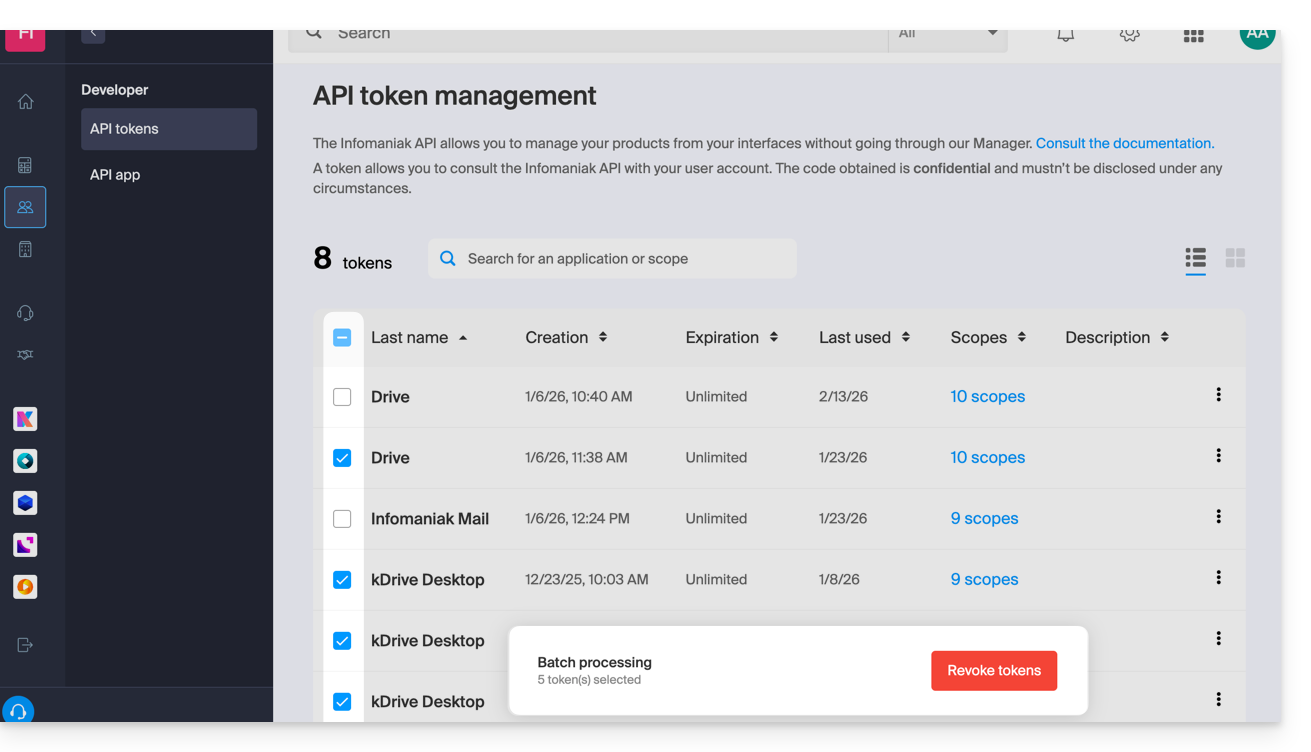
Link para esta FAQ: https://faq.infomaniak.com/2582
Esta seção de perguntas frequentes foi útil?
Este guia detalha a forma como o consumo de VOD/AOD da Infomaniak é calculado.
Calcular o consumo
O cálculo do seu consumo mensal baseia-se na agregação de dois critérios essenciais. No final de cada período de faturação, dois elementos são automaticamente considerados:
- espaço em disco: isto inclui a quantidade de dados armazenados no seu espaço, incluindo os que se encontram na lixeira
- largura de banda: representa o consumo de largura de banda durante o seu período mensal (renovado na data de vencimento).
A soma destes dois valores constitui o montante total do seu consumo durante o período especificado.
Além disso, um indicador do tempo restante está disponível para informá-lo sobre o número de dias restantes até a próxima data de vencimento.
Se a cota permitida for excedida
Várias opções estão disponíveis:
- Esvaziar a lixeira: em primeiro lugar, recomenda-se verificar se a sua lixeira está cheia; se tiver a certeza de que estes ficheiros já não são utilizados, ao esvaziá-la, poderá libertar espaço valioso.
- Pagar o custo do excedente: se considerar que o excedente é temporário, terá de pagar as taxas adicionais por gigabyte consumido; para mais informações sobre este assunto, consulte a página de preços, que indica os diferentes custos do excedente, consoante o plano.
- Atualizar o seu plano: se tiver cada vez mais ficheiros multimédia ou se estes forem muito consultados, pode optar por passar para um plano superior.
Link para esta FAQ: https://faq.infomaniak.com/2798
Esta seção de perguntas frequentes foi útil?
Este guia explica como modificar a imagem de visualização (miniatura) visível num Player VOD Infomaniak quando o acesso é restrito.
Introdução
- Um vídeo pode ter o acesso restrito por restrições geográficas ou outros tipos de restrições (token | palavra-passe).
- Também pode gerir as imagens de visualização normais.
Personalizar o Player VOD
Para modificar a imagem de visualização (miniatura) visível no Player do utilizador afetado por uma restrição que definiu:
- Clique aqui para aceder à gestão do seu VOD/AOD no Manager Infomaniak (precisa de ajuda?).
- Clique diretamente no nome do produto em questão.
- Clique em Players no menu lateral esquerdo.
- Adicione um novo Player ou modifique um Player existente:

- Clique no separador (ou menu suspenso) Miniaturas.
- Personalize as imagens de visualização desejadas:

- Guarde as suas alterações.
Link para esta FAQ: https://faq.infomaniak.com/2917
Esta seção de perguntas frequentes foi útil?