Base de conhecimento
1000 perguntas frequentes, 500 tutoriais e vídeos explicativos. Aqui, você encontra apenas soluções!
Este guia explica como consultar as informações sobre os visitantes que acessaram os sites do seu Hospedagem Web (estatísticas de acesso).
✘ INDISPONÍVEL com
Site Creator autônomo (independente de uma hospedagem Web)
hospedagens Starter
Introdução
- Consulte este outro guia se estiver procurando especificamente os registros de acesso.
- Consulte este outro guia sobre a oferta Site Creator Pro.
Aceder às estatísticas de visitas
Para consultar as estatísticas relativas ao tráfego dos seus sites:
- Clique aqui para aceder à gestão de alojamentos e sites no seu Painel de Controlo Infomaniak (❓: ajuda).
- Clique em o nome do site em questão:
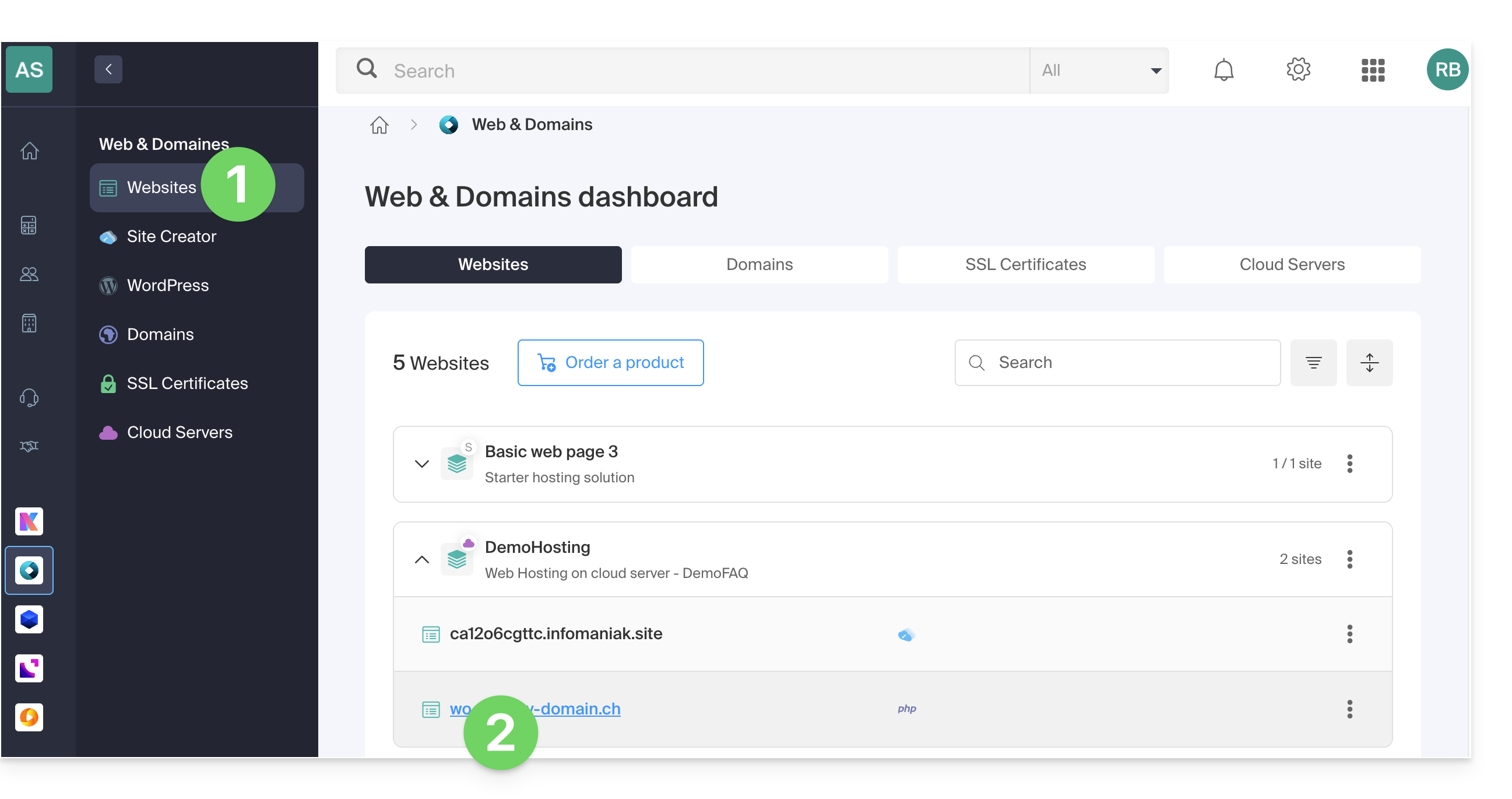
- Clique em Estatísticas no menu lateral esquerdo:
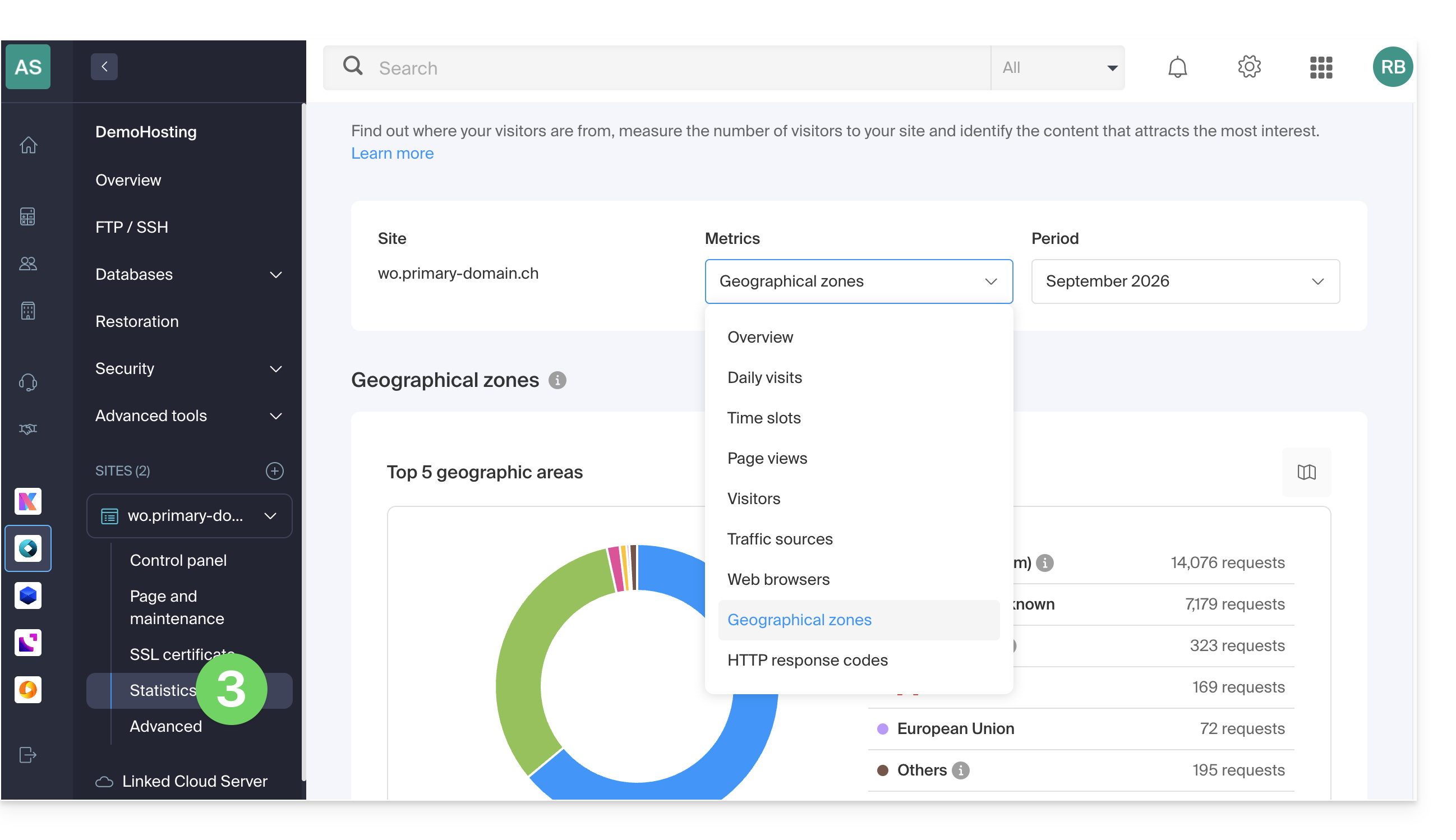
- As barras de ferramentas permitem que você escolha:
- o tipo de estatísticas,
- o período,
- ou baixe os dados para uma ferramenta de terceiros:
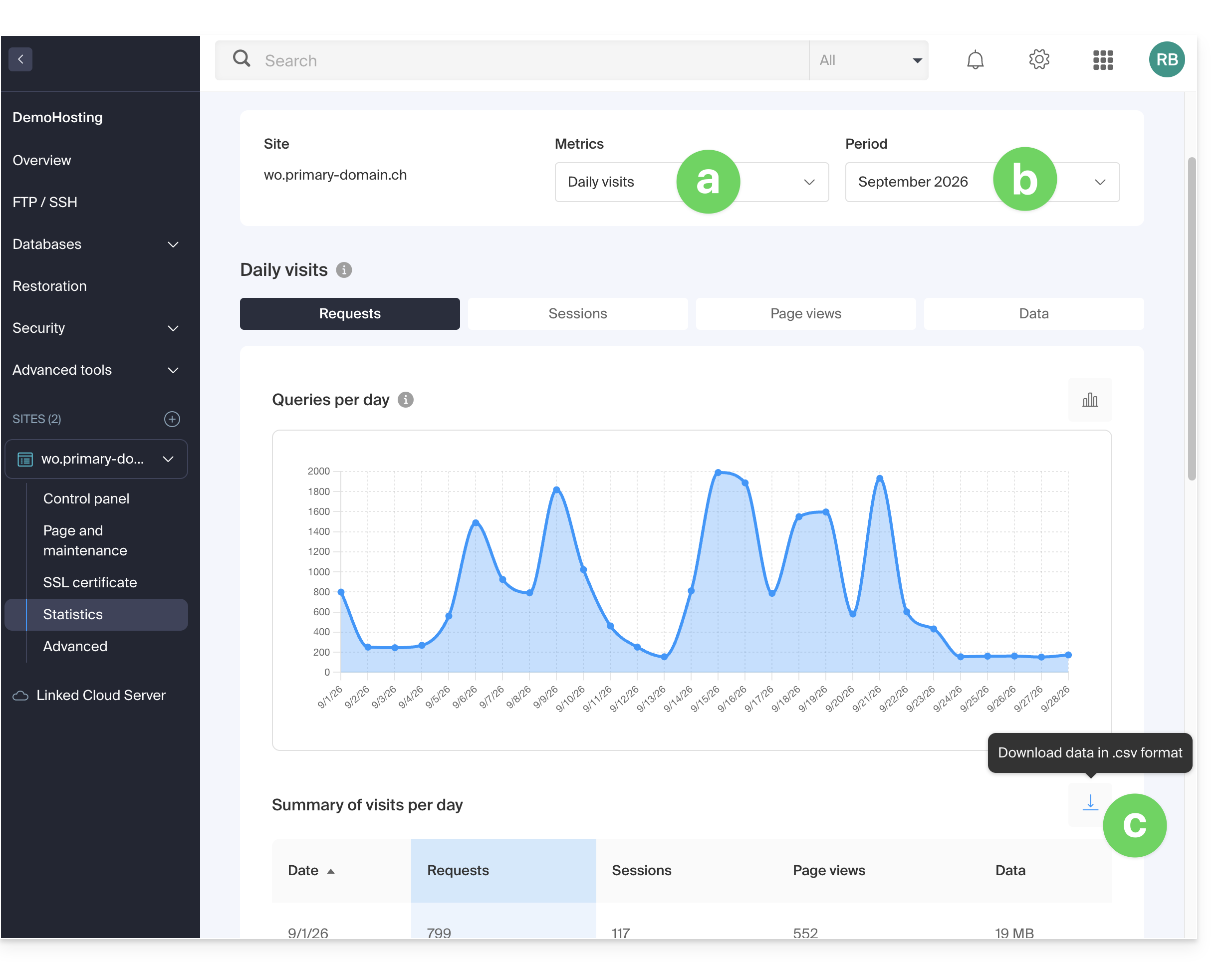
Explicação dos termos
Não há distinção entre humanos e robôs. Também pode usar ferramentas como Matomo, Open Web Analytics ou Google Analytics.
| Categoria | Descrição | Detalhes |
|---|---|---|
| Acessos | Qualquer solicitação enviada ao servidor. | Inclui tudo (HTML, imagens, áudio, etc.). Cada elemento solicitado, visível ou não, conta como uma visita. É como se um visitante ativasse um botão invisível a cada interação. |
| Ficheiros | Solicitações que exigem o envio de dados em resposta. | Registra as solicitações que obrigam o servidor a enviar um arquivo (imagem, HTML). A diferença em relação aos acessos corresponde à relação entre as solicitações recebidas e os dados enviados. |
| Páginas | Número de páginas exibidas no seu site. | Mede as páginas HTML visualizadas, excluindo os ficheiros gráficos ou de áudio. Cada acesso a uma nova página HTML é registado como uma página visualizada. |
| Visitas | Sessões baseadas no endereço IP. | Uma visita começa com uma solicitação IP. Se o endereço retornar em 30 minutos, é considerada uma visita única. Após esse período, uma nova visita é contabilizada. |
| Sites | Estimativa de visitas através de endereços IP fixos. | Exclui as conexões móveis ou dinâmicas. Isso visa os visitantes regulares (empresas, instituições) para compreender melhor o seu público-alvo. |
| Não | Volume de dados enviados pelo servidor. | Quantidade total de dados transferidos durante o período, calculada através dos arquivos de registro (com uma possível margem de erro, dependendo do tamanho dos arquivos). |
| Total de acessos | Total acumulado de requisições. | Uma página com 3 imagens e um texto gera 5 acessos (a página + o texto + as 3 imagens). Este total é, portanto, muito superior ao número de páginas visualizadas. |
| Total de páginas / Visitas | Indicadores de envolvimento. | O número de páginas visualizadas em relação ao número de visitas únicas permite avaliar o interesse dos utilizadores pelo seu conteúdo. |
| Total de sites únicos | Número de IPs distintos. | Representa a diversidade das fontes de tráfego e permite identificar os segmentos de público mais ativos no período. |
| Total de URLs únicas | Caminhos distintos percorridos. | Corresponde às diferentes páginas ou arquivos consultados, fornecendo uma visão geral da sua estrutura de navegação e dos conteúdos mais populares. |
| Total de referências únicas | Número de sites de origem. | Sites externos que direcionaram tráfego para você. Este é um indicador fundamental da eficácia do seu marketing e das suas parcerias. |
Significado de "Comercial (com)" e "Não resolvido"
"Comercial" representa frequentemente uma parte importante do tráfego geográfico. Inclui os utilizadores conectados através de provedores de acesso à Internet (ISP) que utilizam um domínio .com. Como esta extensão é utilizada por muitos ISP e empresas em todo o mundo, não permite determinar um país específico.
As "endereços não resolvidos" são endereços IP que não podem ser localizados geograficamente, frequentemente devido a configurações de privacidade, ao uso de VPN ou a restrições de rede.
Link para esta FAQ: https://faq.infomaniak.com/83
Esta seção de perguntas frequentes foi útil?
Este guia permite que você descubra rapidamente as funções essenciais do assistente de redação Euria disponível no Site Creator da Infomaniak.
Introdução
- O assistente de redação ajudará você a escrever um texto sobre o tema de sua escolha, inclusive se ele precisar ser baseado em elementos existentes, graças à inteligência artificial.
- Não se trata de um agente conversacional ou chatbot; ele não responderá necessariamente a perguntas genéricas nem manterá uma conversa com você.
- Utilize-o, por exemplo, para redigir:
- um novo título que deve conter elementos específicos
- um novo parágrafo sobre um tema particular
- uma reformulação de um trecho de texto
- uma sintaxe gramatical correta
- uma tradução para uma língua estrangeira
- um artigo de blog
- etc.
- Consulte este outro guia sobre o modelo utilizado pelo assistente de redação e as responsabilidades de cada um.
Como usar o assistente?
Pré-requisitos
- Aceder ao Site Creator:
- Clique aqui para aceder à gestão do seu produto no Manager Infomaniak (❓: ajuda).
- Clique diretamente no nome atribuído ao Site Creator em questão.
- Clique no botão Editar o meu site para iniciar o editor:
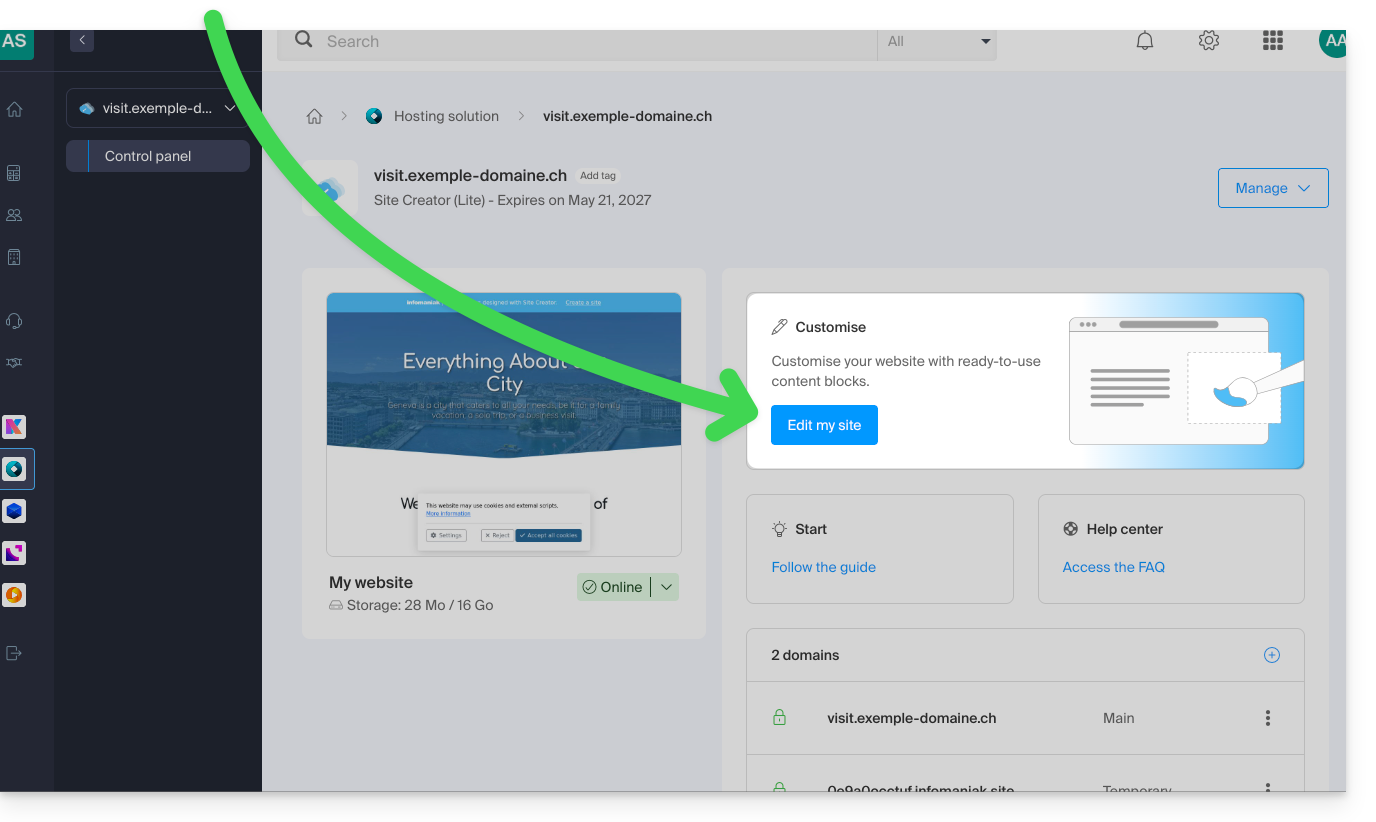
Em seguida, para iniciar o assistente de redação:
- Clique num bloco de conteúdo, texto, etc.
- Clique no ícone Euria na barra de edição para abrir o assistente:
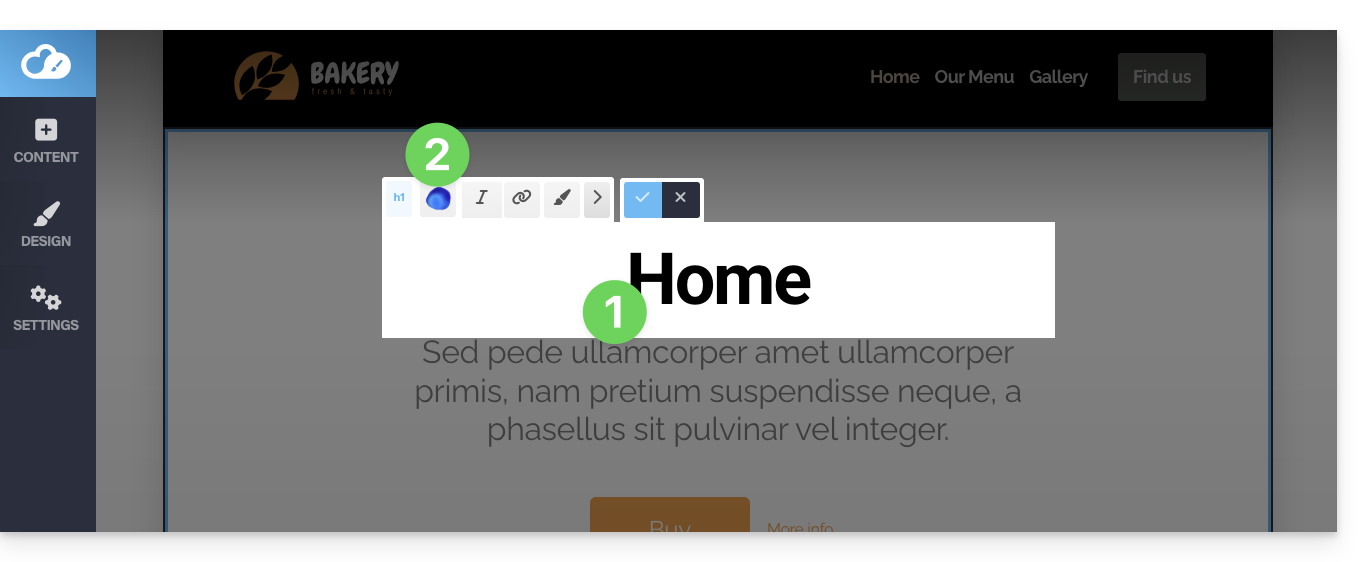
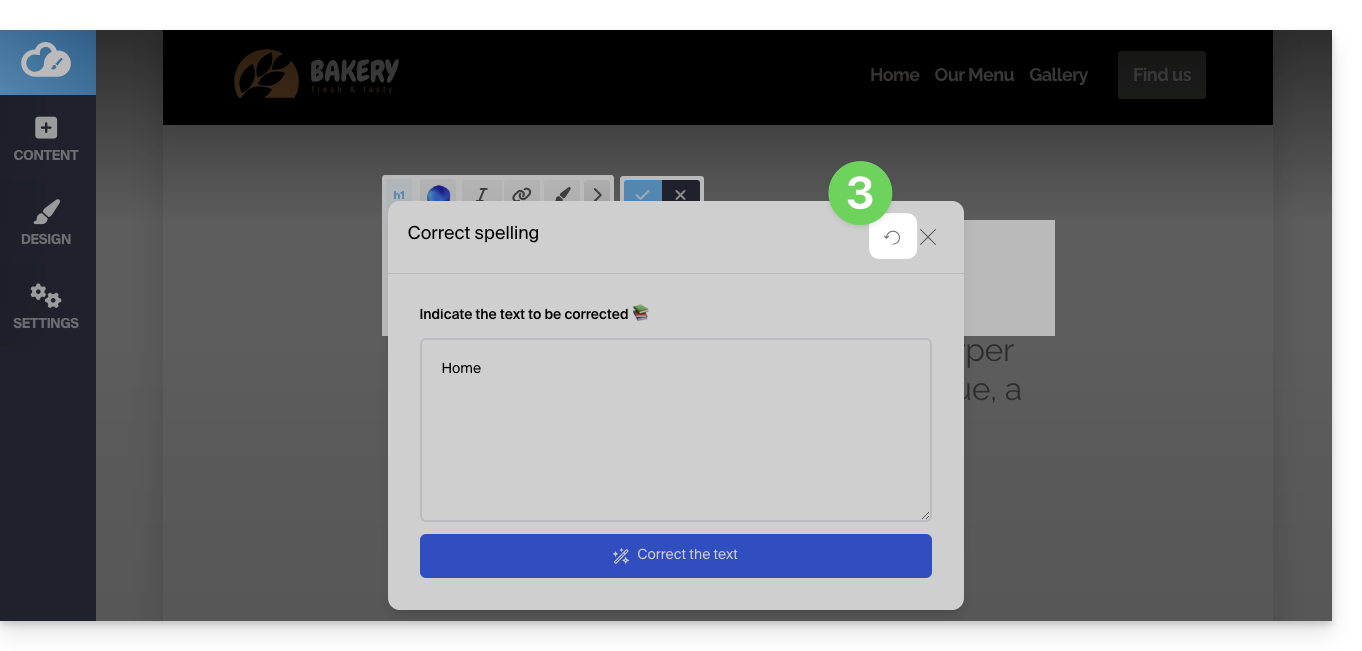
- Para voltar à escolha principal depois de selecionar um tipo de adição, clique no ícone no canto superior direito:
Se o bloco já contiver conteúdo e você optar por reformular um parágrafo, poderá usar os botões do assistente para selecionar o tom do seu texto (sério/amigável) e adicionar ou encurtar as frases sugeridas…
- Por exemplo:
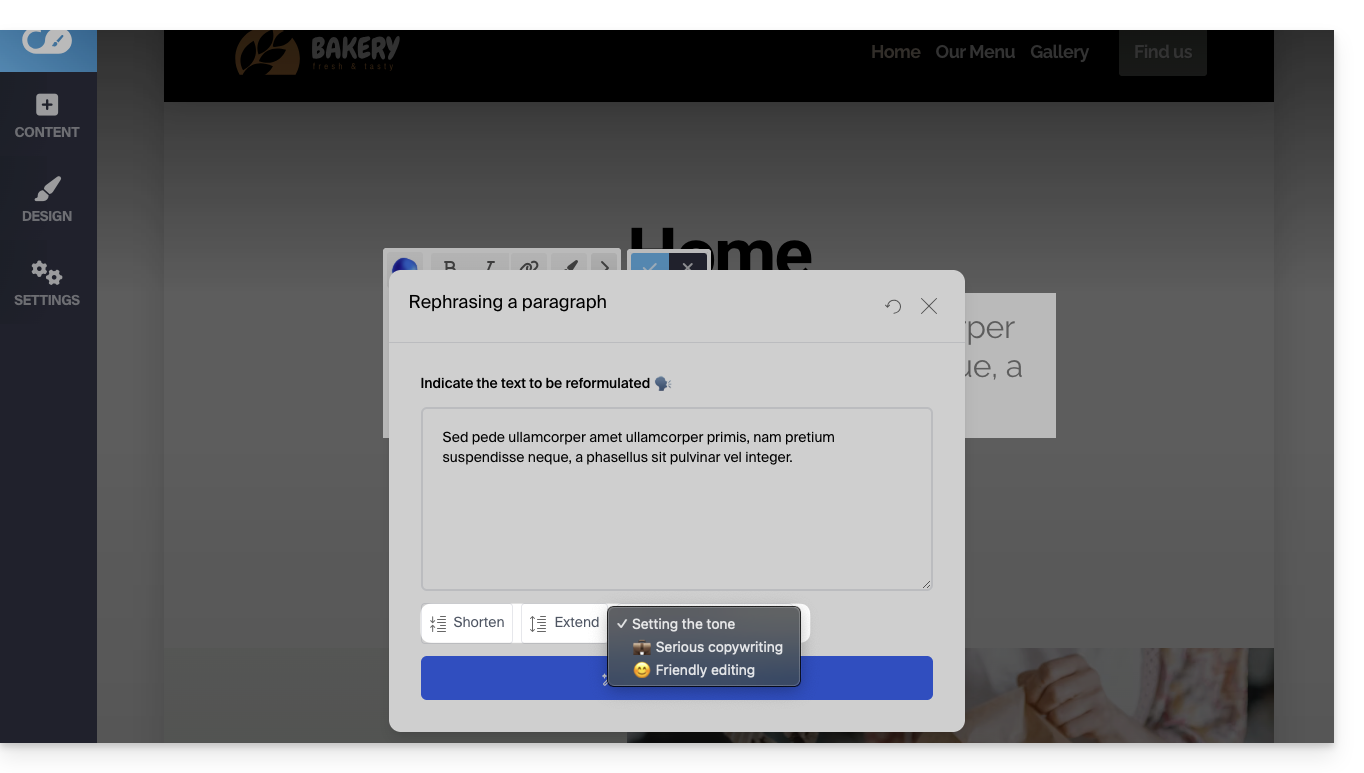
Link para esta FAQ: https://faq.infomaniak.com/1542
Esta seção de perguntas frequentes foi útil?
Obrigado por confiar a hospedagem do seu site à Infomaniak e por criar o seu conteúdo com o Site Creator. Este guia permite que você utilize rapidamente as funções essenciais desta ferramenta de criação de sites, acessível e simples.
Introdução
- O Site Creator está disponível…
- … com cada plano de hospedagem web pago
- … ou de forma independente (standalone disponível em 3 versões) e, neste caso, não requer nenhuma outra oferta específica
- Recomenda-se usar a versão mais recente de um navegador, como Chrome, Firefox, Safari e Microsoft Edge, preferencialmente em um computador.
Guias de operação
Informações básicas:
- Gerenciar páginas
- Edição simples de páginas
- Gerenciar os blocos de conteúdo
- Gerenciar os arquivos de mídia (imagens, vídeos, documentos, etc.)
- Gerenciar o(s) menu(s) de navegação
- Gerenciar temas, cores, fontes
- Gerenciar o nome e os detalhes do site
Informações avançadas:
- Edição avançada de páginas
- Gerenciar os módulos adicionais (galeria, blog, loja, etc.)
- Gerenciar idiomas e traduções
- Criar um formulário de contato
- Gestão de cookies (RGPD)
- Limitações do Site Creator
Você também pode excluir o site criado com o Site Creator e começar do zero, criando um novo site.
Saiba mais sobre o Site Creator:
- Francês | Webinar gravado nas instalações da Infomaniak.
- Alemão | Guia de início rápido :: Tutorial
- Italiano | Tutorial
Ajuda contextual
Para consultar ou rever a ajuda contextual ao iniciar o Site Creator, clique neste ponto do seu Painel de Controle: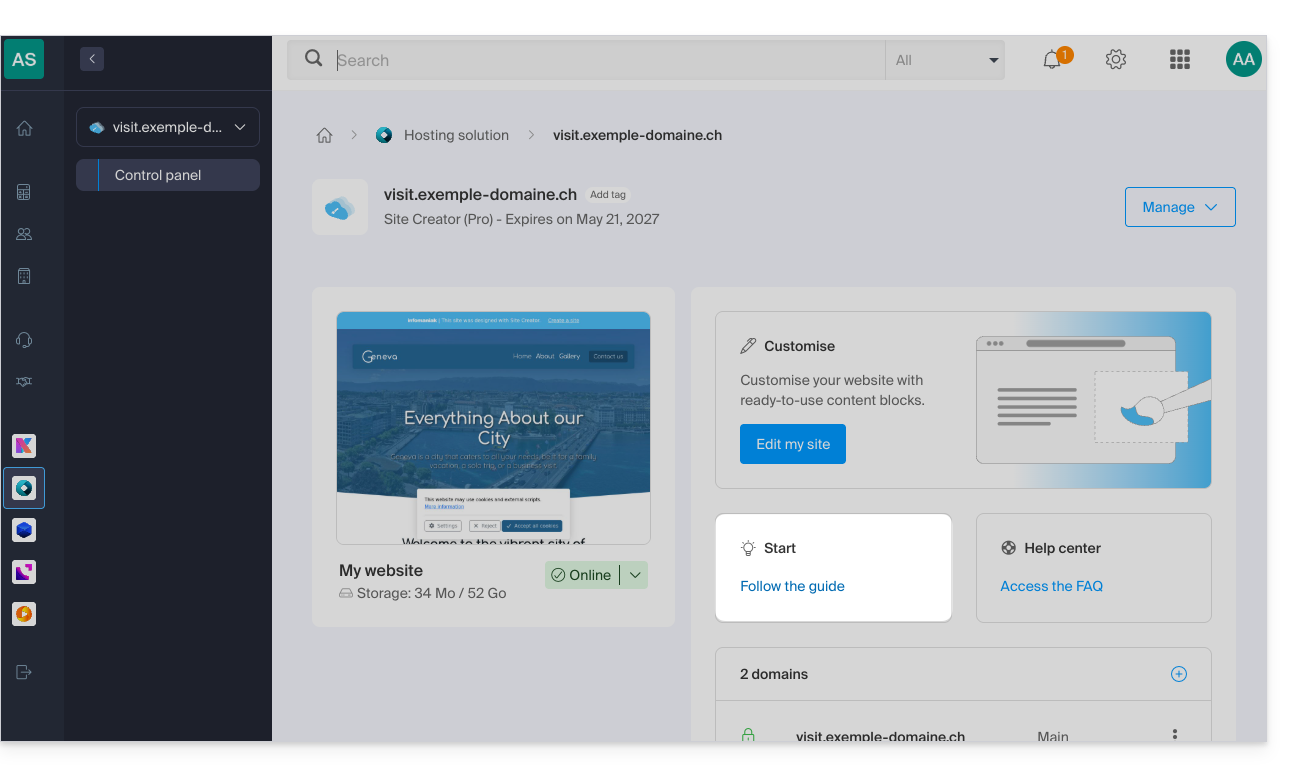
Em caso de problema, acesse a base de conhecimento antes de entrar em contato com o suporte da Infomaniak.
Clique aqui para partilhar uma opinião ou sugestão sobre um produto Infomaniak.
Link para esta FAQ: https://faq.infomaniak.com/1698
Esta seção de perguntas frequentes foi útil?
Este guia apresenta o módulo Base de Conhecimento para o Site Creator da Infomaniak, semelhante ao módulo Perguntas e Respostas, que permite formatar rapidamente artigos do tipo FAQ ou similares, presentes na sua página.
Pré-requisitos
- Aceder ao Site Creator:
- Clique aqui para aceder à gestão do seu produto no Manager Infomaniak (precisa de ajuda?).
- Clique diretamente no nome atribuído ao Site Creator em questão.
- Clique no botão Editar o meu site para iniciar o editor:
Configuração e utilização
Para inserir o módulo no local desejado no Site Creator:
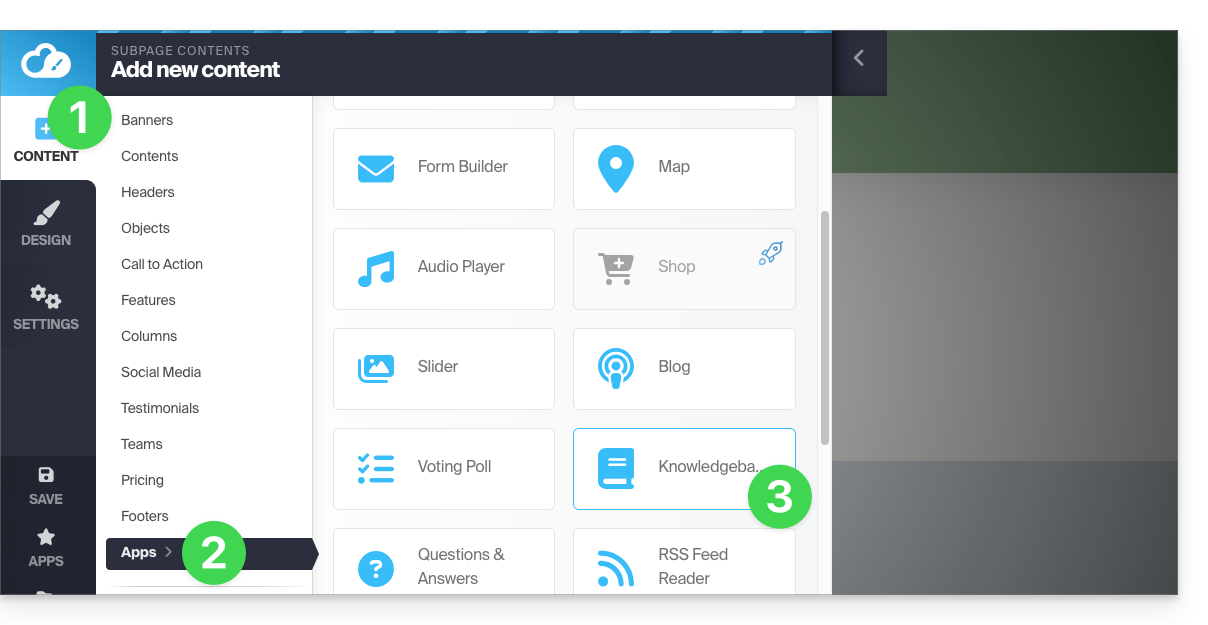
- Clique no botão Conteúdo no menu lateral esquerdo.
- Clique em Aplicações na parte inferior da lista.
- Clique em Base de Conhecimento:
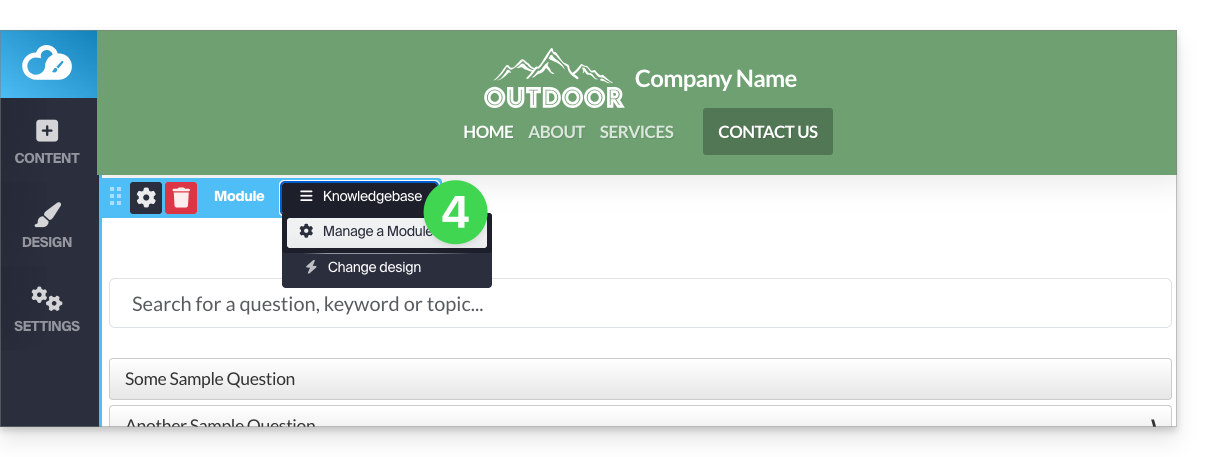
- Depois de adicionar o módulo, passe o cursor sobre ele para editá-lo:
- O botão azul permite adicionar uma nova pergunta:
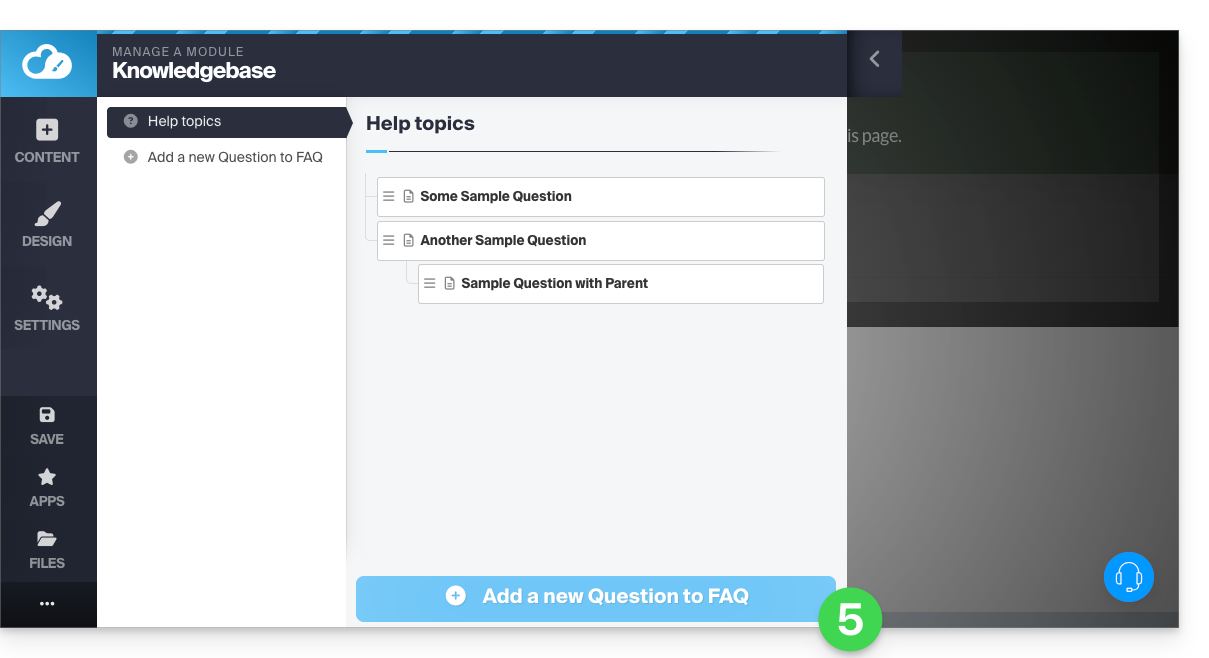
Depois de preencher o formulário (título, texto com formatação, palavra-chave para facilitar a pesquisa, resumo e, se aplicável, um link para um vídeo do YouTube), salve na parte inferior da página.
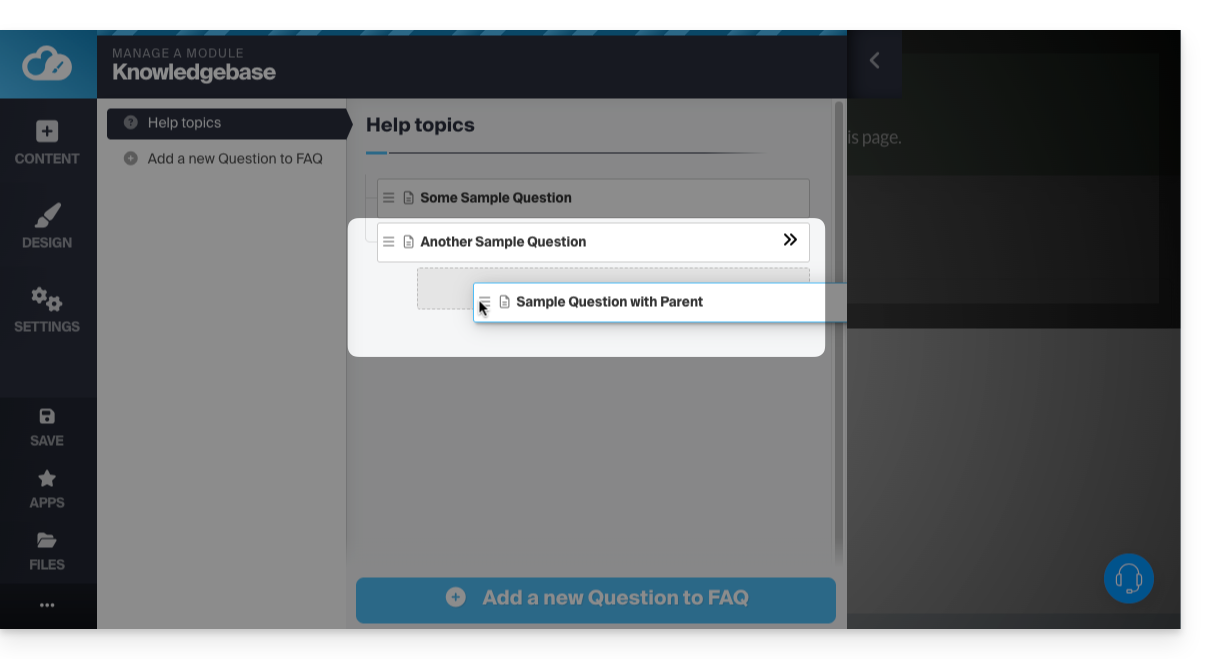
- É possível organizar seus textos criando um formulário com apenas um título de "categoria" ("Geral", por exemplo) e, em seguida, arrastando seus formulários para a direita para subcategorizá-los (pai - filho):
Navegar na base de conhecimento
A navegação em seus formulários será apresentada da seguinte forma. Ao clicar na "categoria" criada, as perguntas/respostas serão exibidas: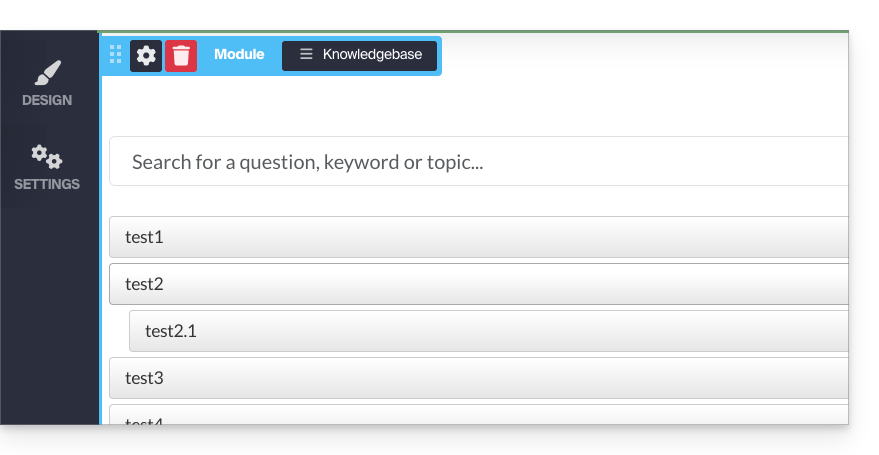
URL dos formulários criados
Ao clicar em uma pergunta, uma página da Web separada será aberta, com a pergunta como título e a resposta abaixo. A URL desta página de resposta será composta pelo endereço da página onde você inseriu o módulo, seguido de "/kb/X-a-pergunta", onde X é o número correspondente à ordem de criação de seus formulários: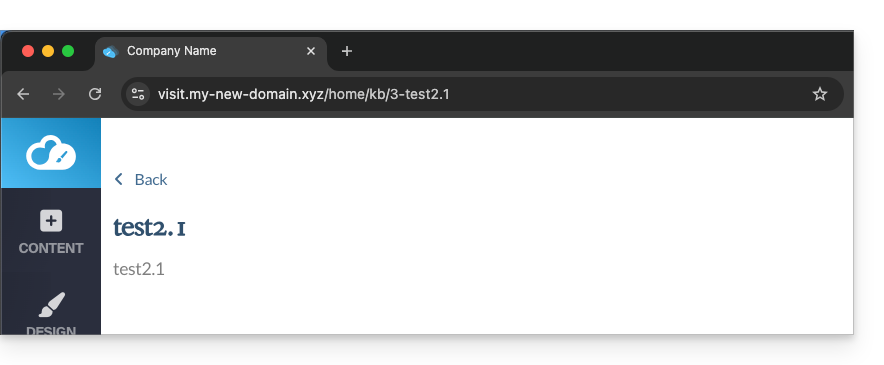
Personalizar a exibição
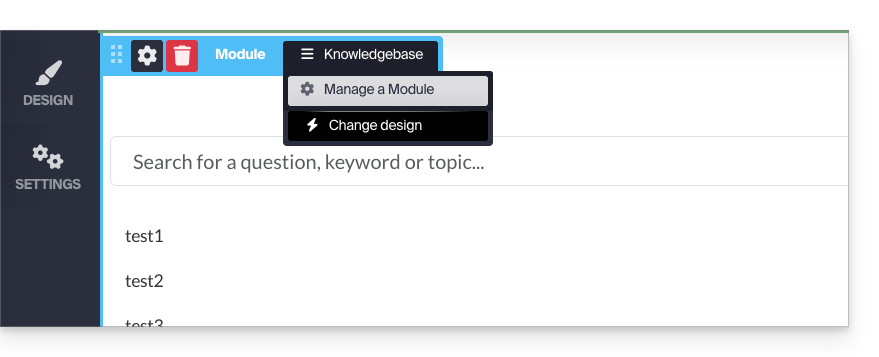
Ao passar o mouse novamente sobre o seu módulo no modo de edição, você pode alterar a exibição e tornar sua árvore transparente:
Adicionar palavras-chave
Palavras-chave (separadas por um espaço) podem ser adicionadas: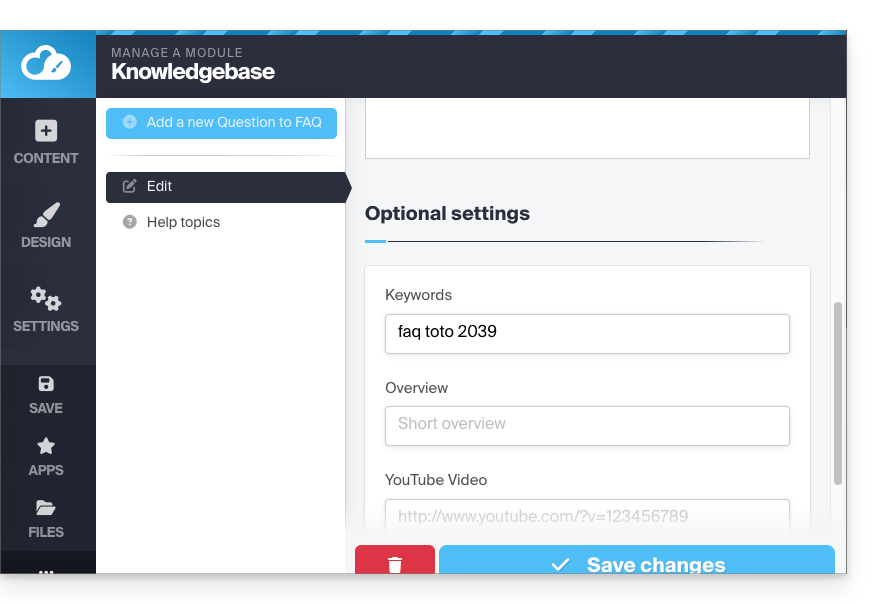
Isso permite filtrar a exibição das respostas, inserindo a tag na barra de pesquisa (do módulo inserido):
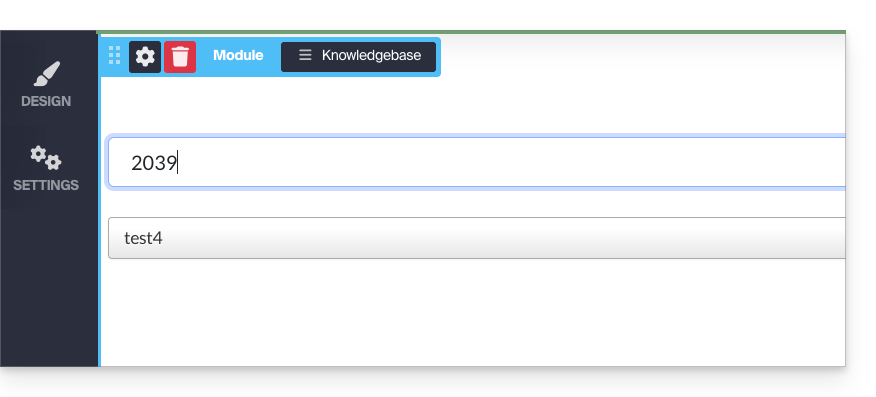
Exibir o módulo em vários locais
O aplicativo Base de Conhecimento pode ser adicionado em diferentes locais do seu site, mas será sempre o mesmo módulo. Não é possível diferenciar a aparência ou o conteúdo de acordo com as páginas em que o módulo é inserido.
Link para esta FAQ: https://faq.infomaniak.com/1783
Esta seção de perguntas frequentes foi útil?
Este guia apresenta o módulo Perguntas e Respostas para o Site Creator da Infomaniak, semelhante ao módulo Base de Conhecimento, que permite formatar rapidamente artigos do tipo FAQ presentes na sua página.
Pré-requisitos
- Aceder ao Site Creator:
- Clique aqui para aceder à gestão do seu produto no Manager Infomaniak (precisa de ajuda?).
- Clique diretamente no nome atribuído ao Site Creator em questão.
- Clique no botão Editar o meu site para iniciar o editor:
Configuração e utilização
Para inserir o módulo no local desejado no Site Creator:
- Clique no botão Conteúdo no menu lateral esquerdo.
- Clique em Aplicações na parte inferior da lista.
- Clique em Base de Conhecimento:
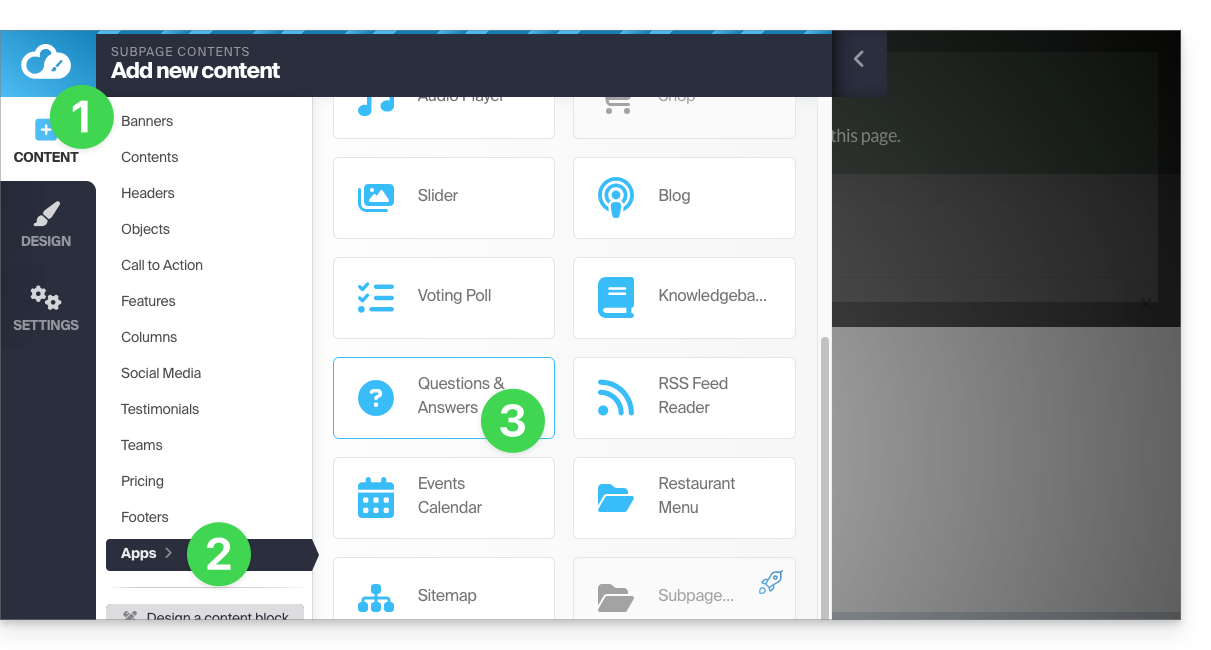
- Depois de adicionar o módulo, passe o cursor sobre ele para editá-lo:
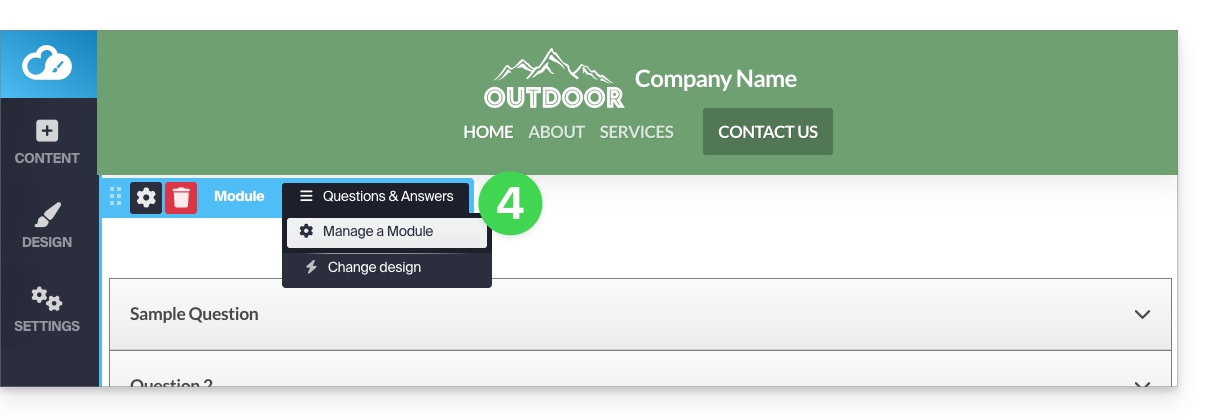
- O botão cinzento permite adicionar uma nova pergunta/resposta:
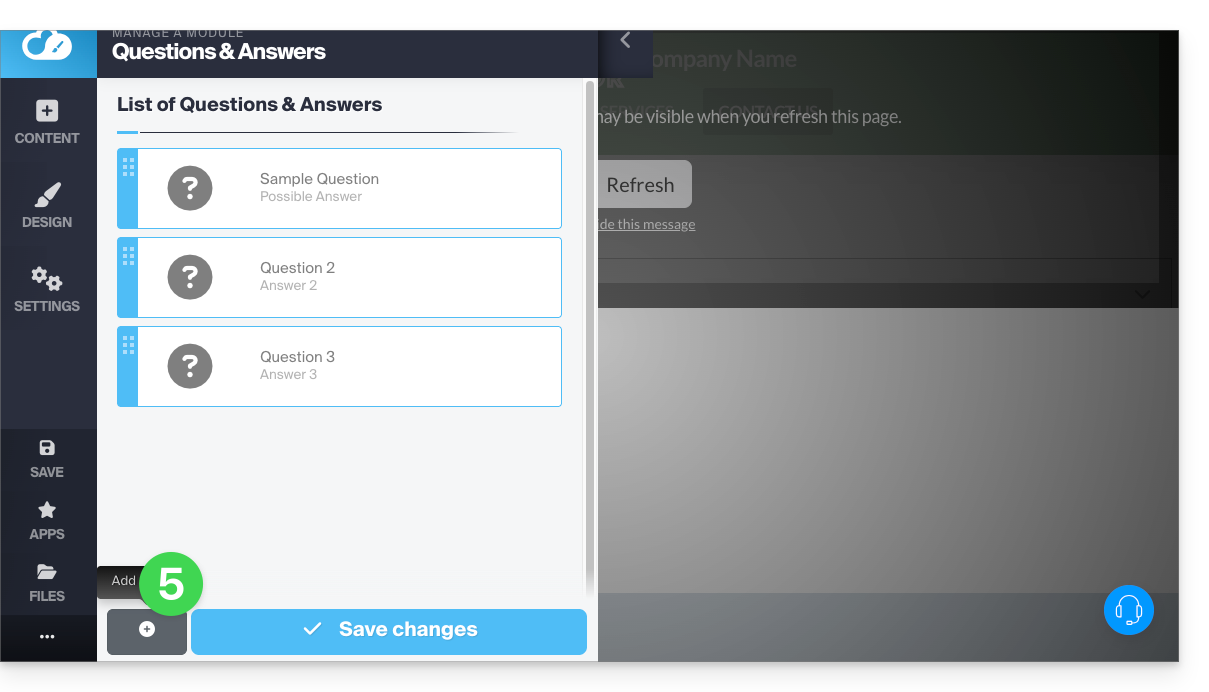
Guarde as suas alterações na parte inferior da página.
Essas perguntas podem ser transformadas em títulos (como pequenos blocos de título) se você desejar formatar suas fichas dentro de "categorias", por exemplo. Para isso, passe o mouse sobre o cartão e clique no lápis e, em seguida, na engrenagem para alternar para o sistema de exibição desejado: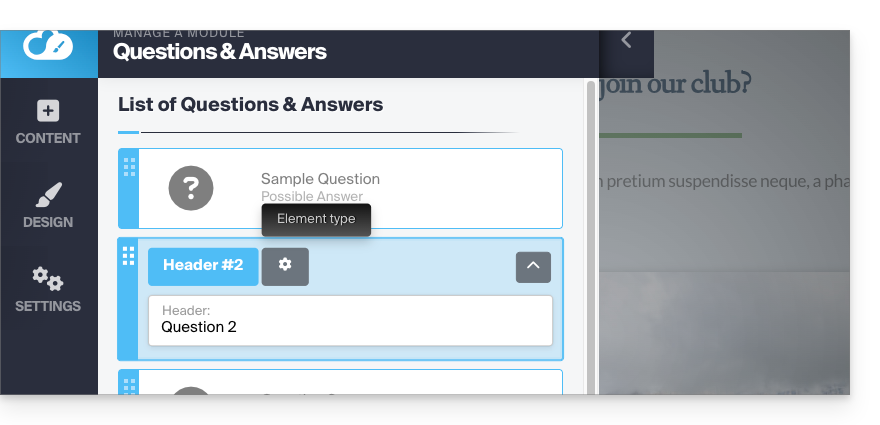
Reorganize a ordem de suas perguntas/respostas, se necessário, arrastando os cartões para cima ou para baixo: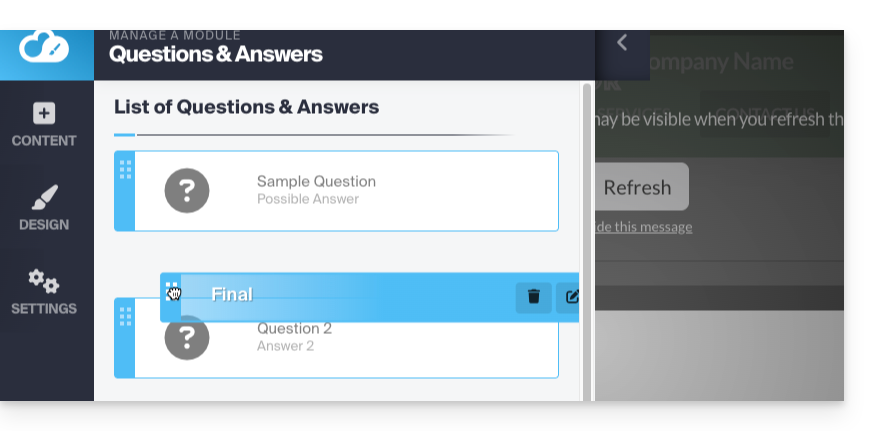
Navegar pelas perguntas/respostas
A navegação em suas fichas será apresentada como abaixo. Um clique na pergunta (ou ) exibirá a resposta: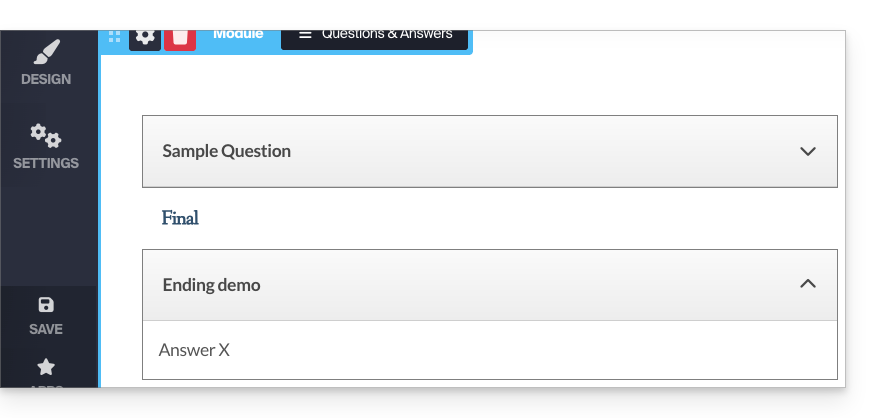
Personalizar a exibição
Ao passar o mouse novamente sobre seu módulo no modo de edição, você pode alterar a exibição e tornar sua estrutura transparente.
Você também pode aplicar código HTML ao redigir suas respostas, para criar um link, por exemplo: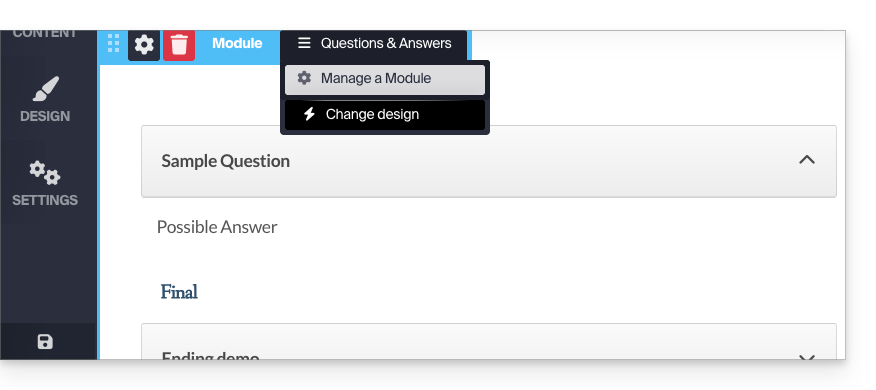
Exibir o módulo em vários locais
O aplicativo pode ser adicionado a diferentes locais do seu site, mas será sempre o mesmo e único módulo. Não é possível diferenciar a exibição ou o conteúdo de acordo com as páginas em que o módulo é inserido.
Link para esta FAQ: https://faq.infomaniak.com/1784
Esta seção de perguntas frequentes foi útil?
Este guia diz respeito às mensagens enviadas a partir do Site Creator (por exemplo, formulário de contacto ou módulo de comércio eletrónico).
Introdução
- Por padrão, os e-mails são enviados através do protocolo PHP mail() sem autenticação (❓: ajuda).
- Recomenda-se usar o método SMTP autenticado em vez disso (❓: ajuda).
Alterar o método de envio
Pré-requisitos
- Ter um endereço de e-mail válido ou criar um (❓: ajuda my kSuite | Serviço de E-mail/kSuite).
- Criar uma senha para o dispositivo (❓: ajuda my kSuite | Serviço de E-mail/kSuite) com um nome, por exemplo, “
Site Creator” (ou “SC2026”, etc., tanto faz) para este endereço de e-mail: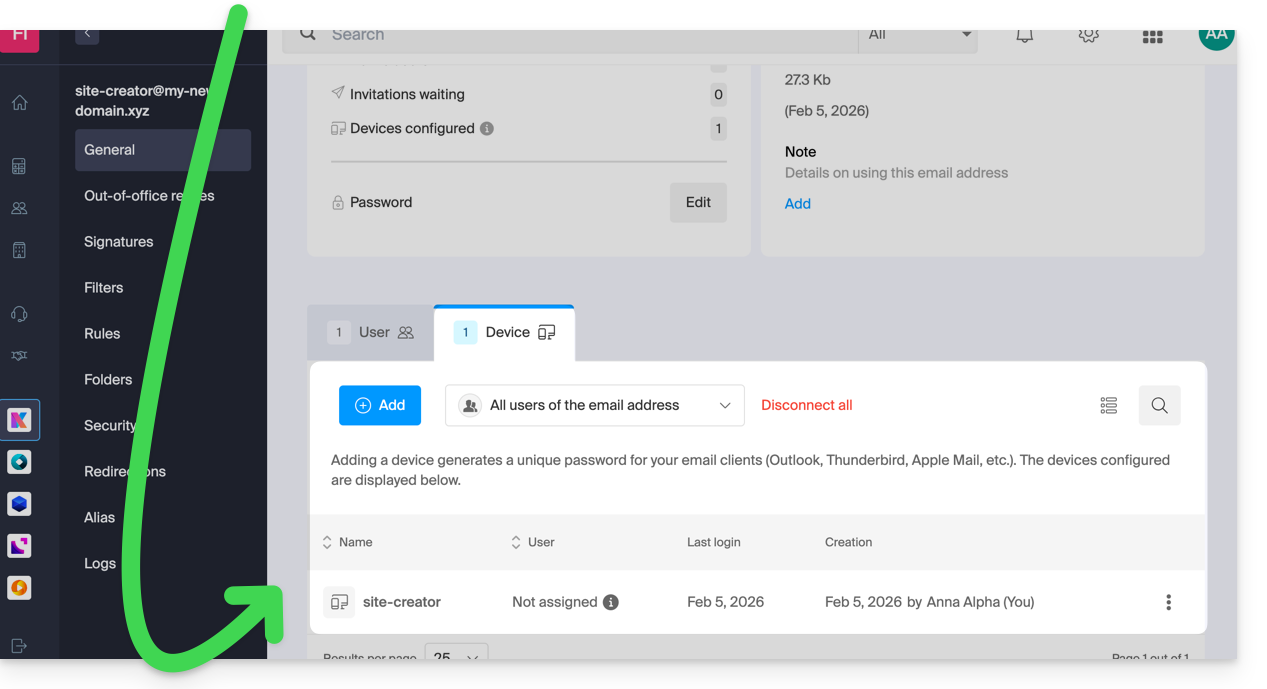
- Verificar se a configuração do domínio está correta (❓: ajuda Serviço de Email/kSuite).
- Aceder ao Site Creator:
- Clique aqui para aceder à gestão do seu produto no Manager Infomaniak (❓: ajuda).
- Clique diretamente no nome atribuído ao Site Creator em questão.
- Clique no botão Editar o meu site para iniciar o editor:
Para alterar o método de envio de e-mails no Site Creator:
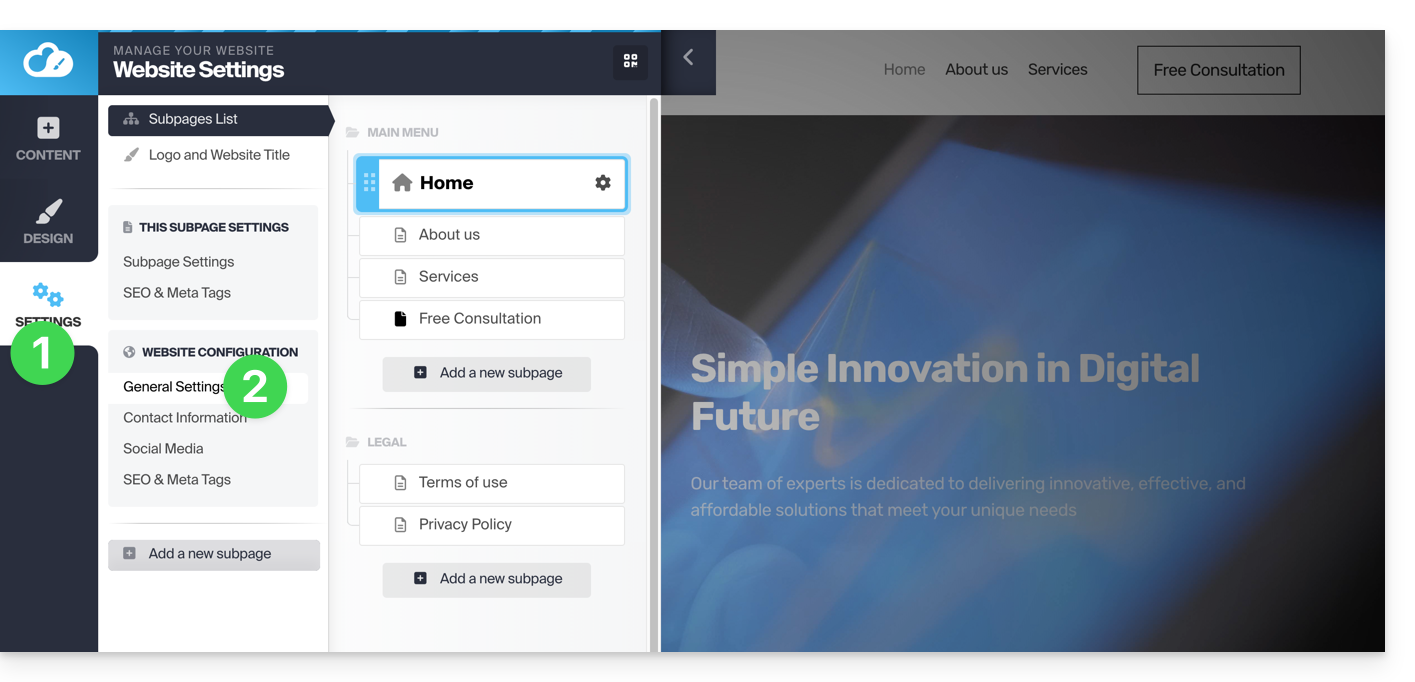
- Clique no botão Configurações no menu lateral esquerdo.
- Clique em Configurações gerais:
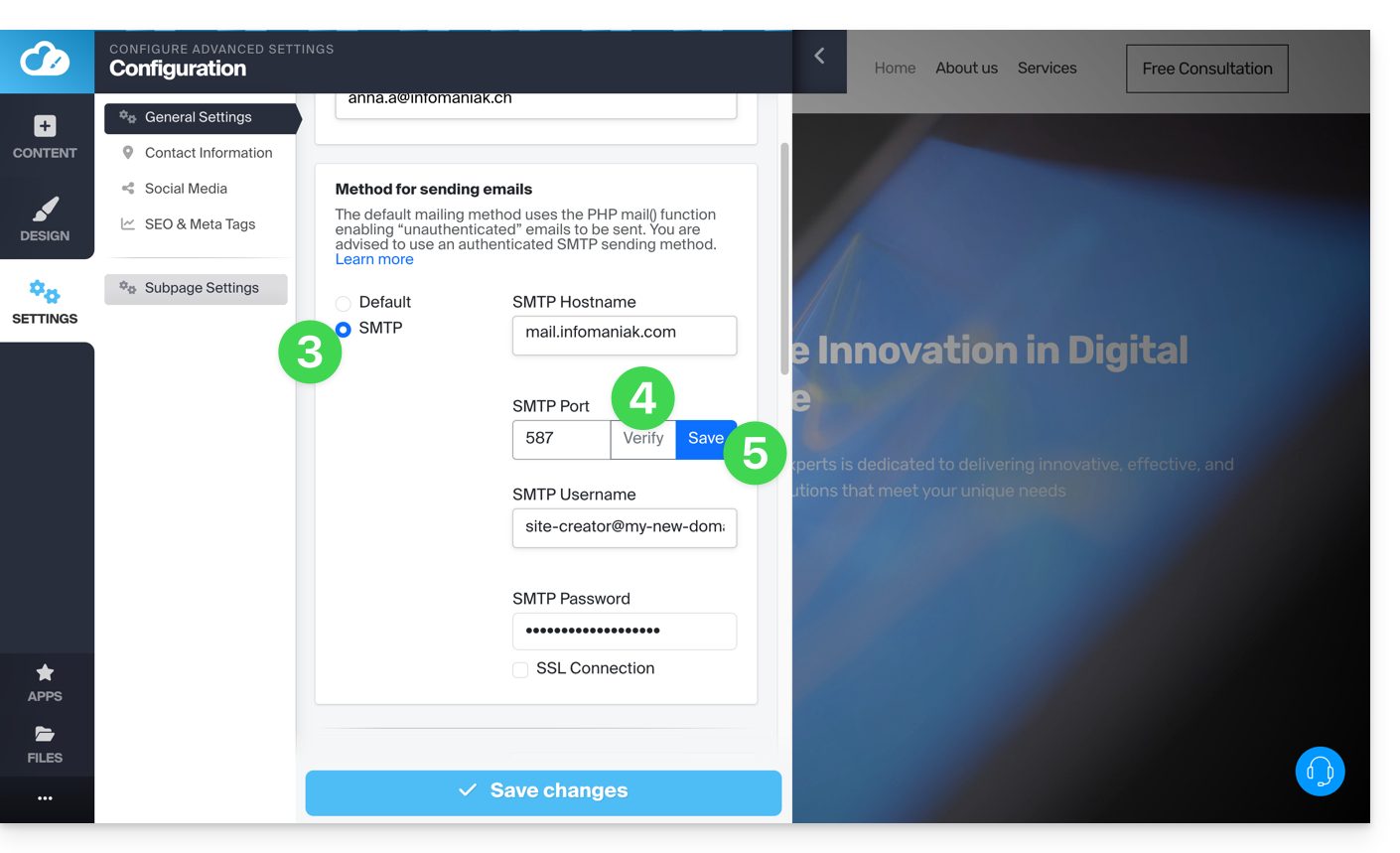
- Escolha o método SMTP e preencha os campos com os dados do servidor SMTP, bem como as informações relativas ao seu endereço de e-mail e sua senha:
- Servidor SMTP de saída =
mail.infomaniak.com - Porta SMTP:
587 - Nome de usuário/username = o endereço de e-mail completo (❓: ajuda)
- Senha/password = a senha gerada para o endereço de e-mail que você deseja consultar (❓: ajuda my kSuite | Serviço de E-mail/kSuite).
- Consulte este outro guia se você precisar de informações sobre outras portas compatíveis.
- Servidor SMTP de saída =
- Depois de preencher todos os campos, clique no botão Verificar.
- Se tudo estiver correto, o botão Guardar será exibido e você poderá clicar nele para guardar as suas configurações de e-mail:
Link para esta FAQ: https://faq.infomaniak.com/1867
Esta seção de perguntas frequentes foi útil?
Este guia ajuda a resolver erros de configuração caso tenha dificuldades em associar o seu nome de domínio ao Site Creator.
Problemas frequentes e soluções
Identifique o estado atual do seu domínio para aplicar a solução correspondente:
| Estado do nome de domínio | Solução recomendada |
|---|---|
| Gerido por outro fornecedor (externo) | Encomendar uma zona DNS ou transferir o domínio para a Infomaniak |
| Já associado a um site ou definido como alias (sinônimo) | Excluir o site existente ou desvincular o domínio |
| Utiliza atualmente um endereço IP dedicado | Desinstalar o IP dedicado |
| Protegido por um certificado SSL (autoassinado, DV ou EV) | Desinstalar o certificado |
| Permissões insuficientes na hospedagem | Modificar as permissões de acesso |
Link para esta FAQ: https://faq.infomaniak.com/1956
Esta seção de perguntas frequentes foi útil?
Este guia explica como adicionar e configurar um módulo de loja onlineno seu site criado com o Site Creator Infomaniak para começar a vender online e oferecer os seus produtos.
Pré-requisitos
- Aceder ao Site Creator:
- Clique aqui para aceder à gestão do seu produto no Manager Infomaniak (precisa de ajuda?).
- Clique diretamente no nome atribuído ao Site Creator em questão.
- Clique no botão Editar o meu site para iniciar o editor:
Adicionar a loja online no Site Creator
Temas dedicados
Se pretende criar um site totalmente dedicado aos seus produtos, na forma de uma loja online, pode optar, desde o início, por aplicar um tema entre os da categoria E-Commerce: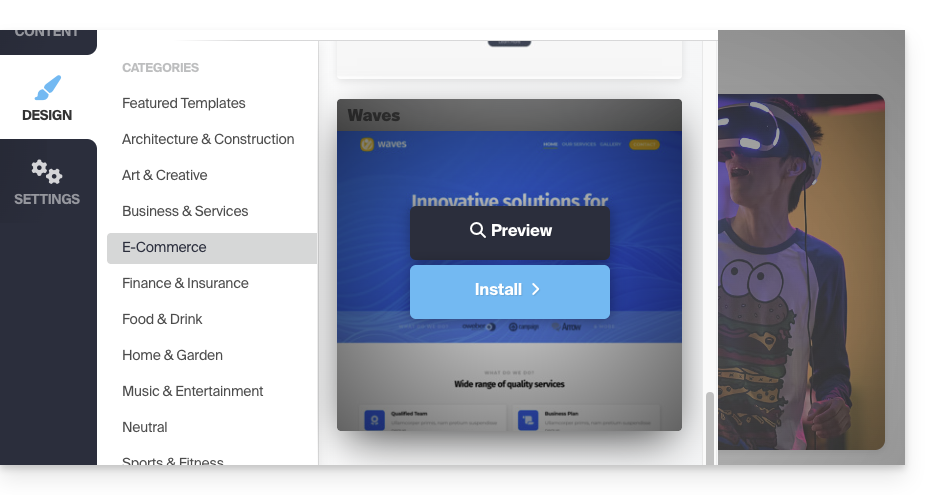
Módulo de loja para o Site Creator
Se o módulo Loja ainda não estiver integrado nas suas páginas, basta adicioná-lo no local desejado:
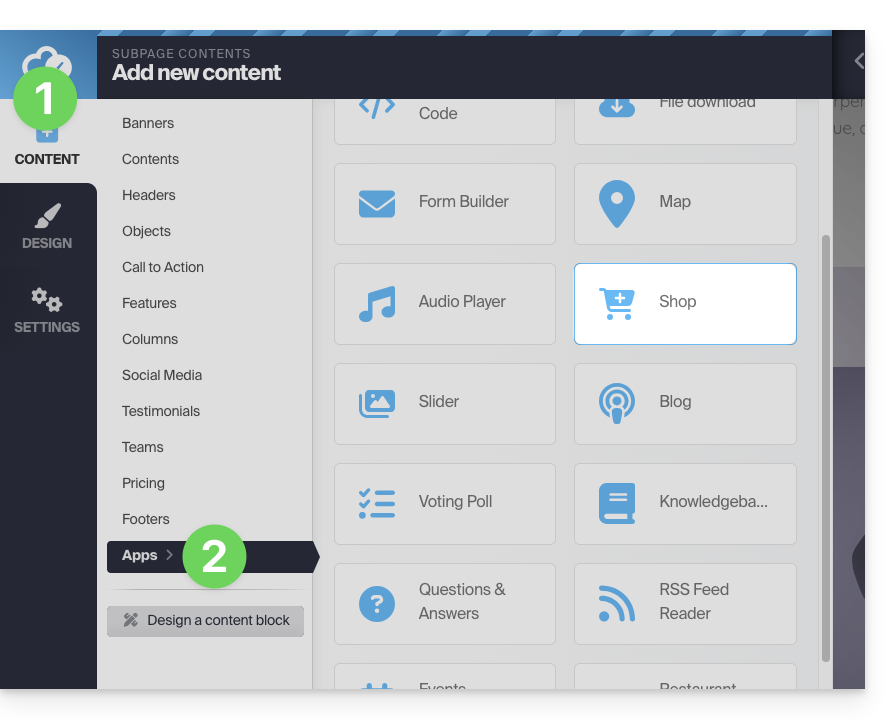
- Clique no botão Conteúdo na barra lateral esquerda.
- Clique em Aplicativos na parte inferior da lista e, em seguida, em Loja:
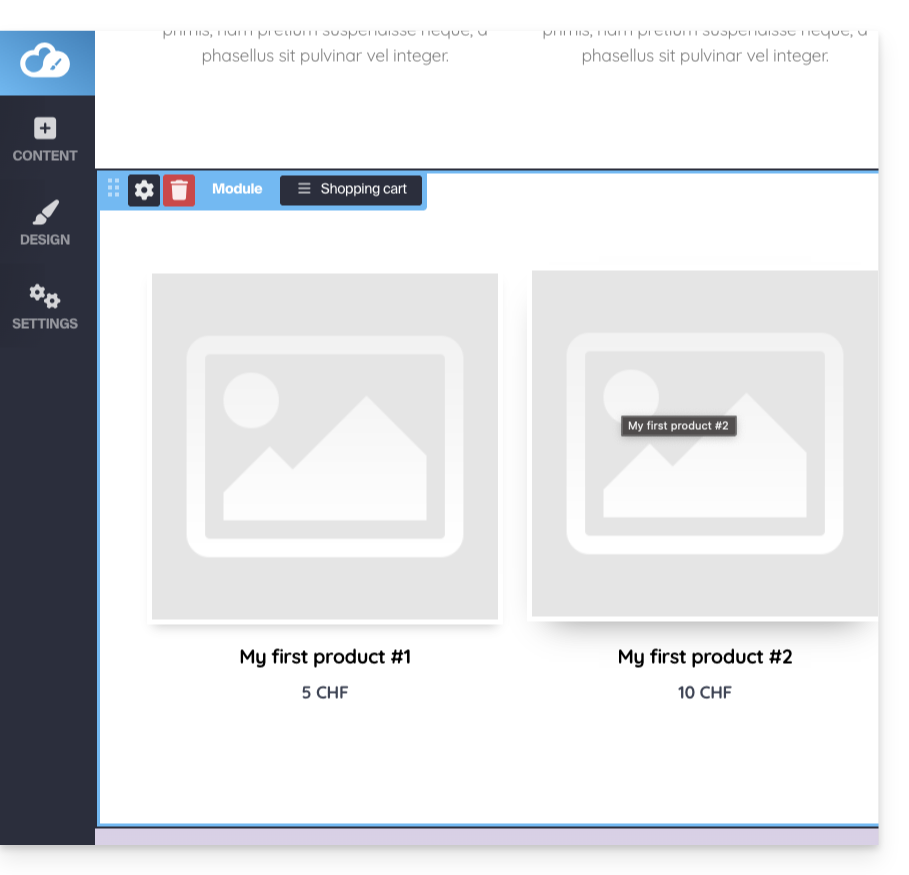
- A loja e 3 produtos de exemplo são inseridos:
Configurar a loja
Consulte este outro guia sobre as diferentes opções de configuração da loja Site Creator.
Link para esta FAQ: https://faq.infomaniak.com/2450
Esta seção de perguntas frequentes foi útil?
A Infomaniak oferece diferentes planos Site Creator, gratuitos ou pagos, que atendem a diversas necessidades. É essencial compreender bem as condições associadas a cada tipo de plano antes de fazer a sua escolha.
Compreender os diferentes planos Site Creator
O Site Creator está disponível…
- … seja gratuitamente com cada serviço de hospedagem web pago existente (adicione um, se necessário):
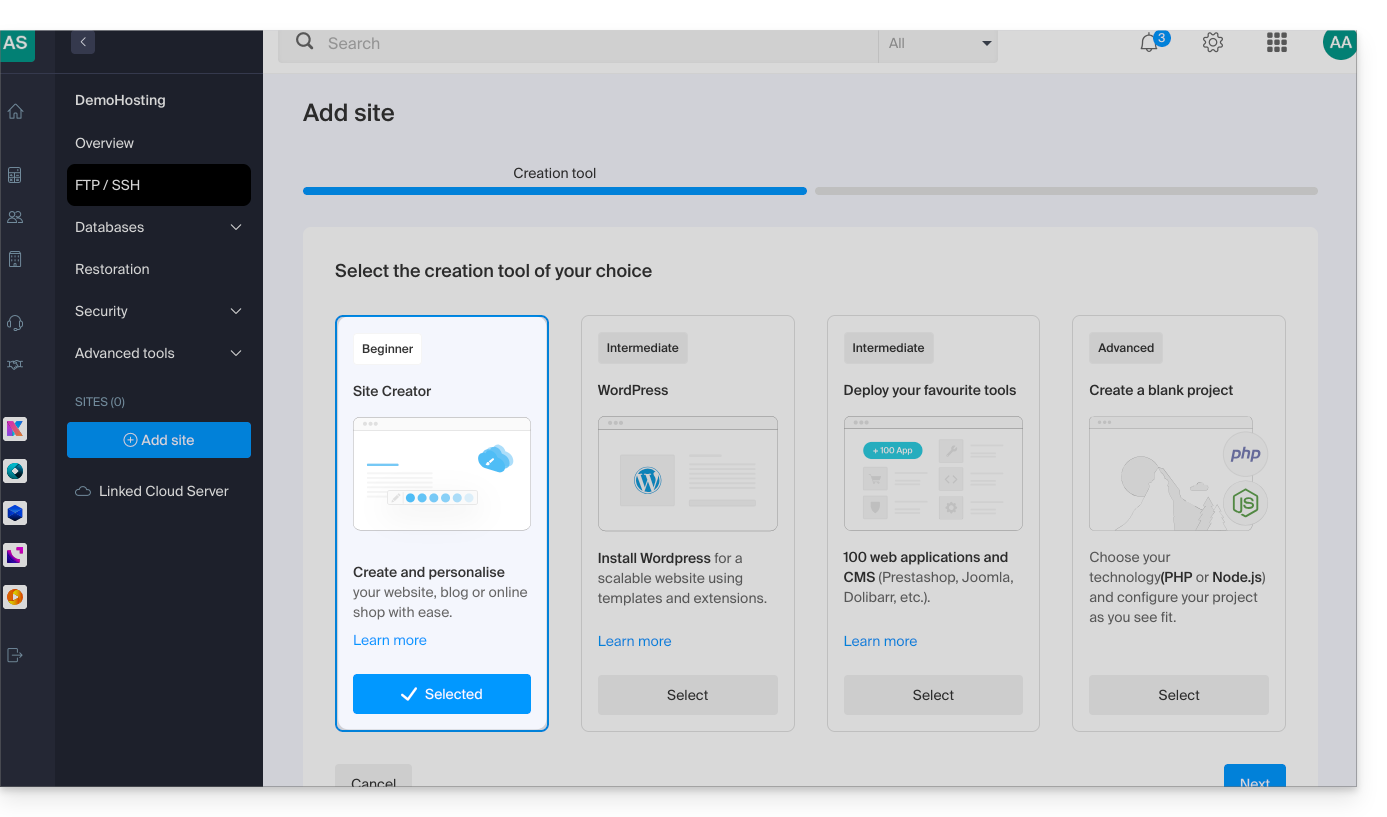
- Neste caso, apenas 1 Site Creator pode ser configurado por serviço de hospedagem web Infomaniak.
- Para gerenciar vários sites criados com o Site Creator na mesma Organização, é necessário ter vários serviços de hospedagem web.
- … ou de forma independente (standalone disponível em 3 versões) e, neste caso, não requer nenhuma outra oferta específica:
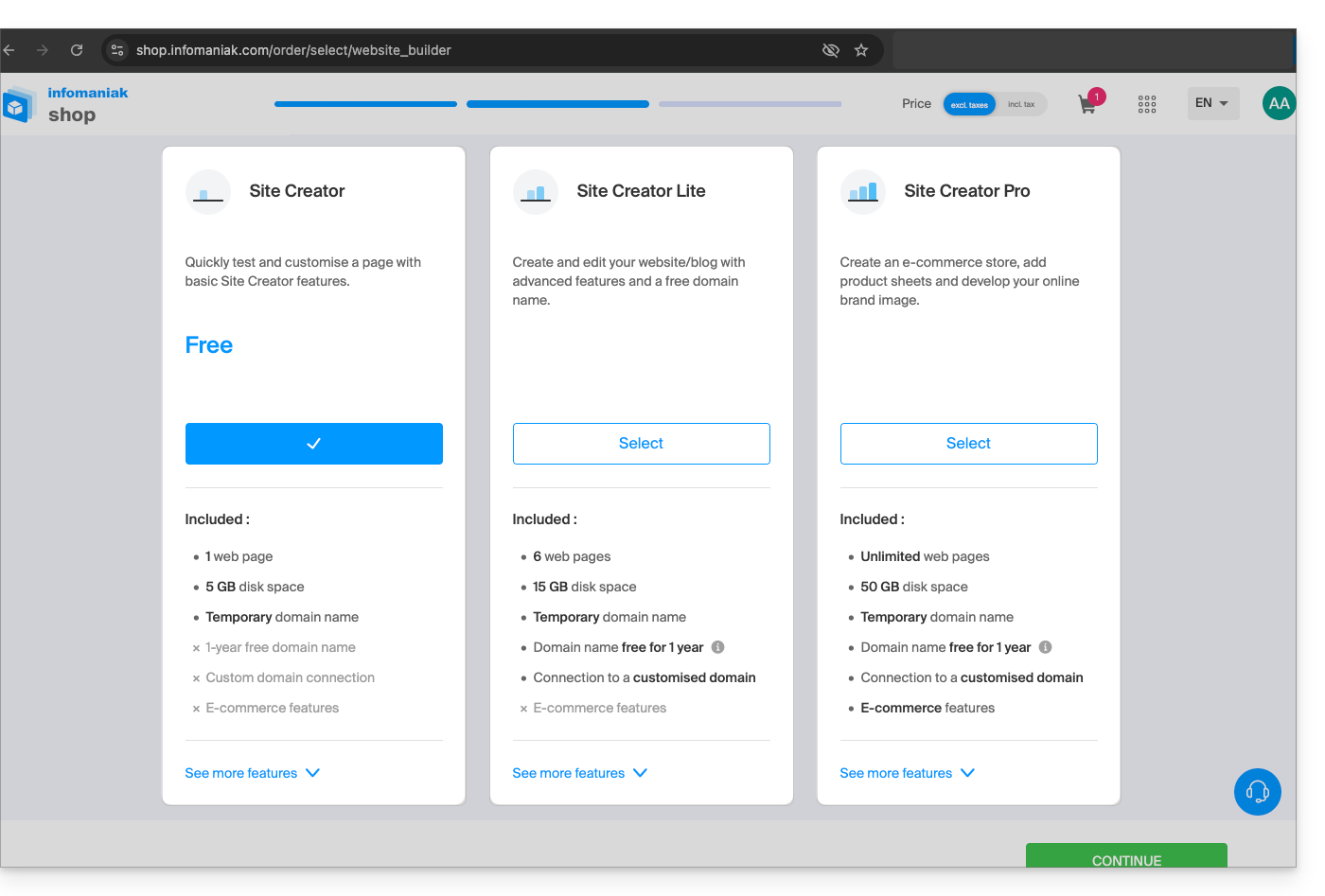
- Site Creator Grátis
- Site Creator Lite
- Site Creator Pro
1. Site Creator Grátis
Esta oferta é apresentada como uma solução de teste e descoberta e é totalmente gratuita. Destina-se a utilizadores que desejam familiarizar-se com a ferramenta ou publicar uma página web extremamente simples:
- Permite apenas uma única página web e oferece um espaço de disco reduzido (5 GB).
- Esta oferta não permite a conexão a um nome de domínio personalizado (será do tipo
*.infomaniak.site) e inclui a exibição obrigatória da menção publicitária da Infomaniak. - Os módulos de crescimento importantes, como a gestão completa de um blog, o uso da Inteligência Artificial para a geração de texto ou a função "Mapa do site", não estão incluídos.
2. Site Creator Lite
O plano Lite é a oferta de nível básico paga da Infomaniak. É ideal para a criação de um site institucional ou de um blog pessoal simples, pois elimina as principais limitações da versão gratuita e desbloqueia os módulos necessários para um site completo:
- Permite a criação de um site mais completo, com um limite de 6 páginas web e um espaço de disco mais amplo (15 GB).
- Inclui a oferta de um nome de domínio durante um ano e, ponto essencial, a remoção de qualquer menção publicitária da Infomaniak no site.
- Ao contrário da oferta Free, o plano Lite oferece acesso a funcionalidades importantes para a navegação e organização, nomeadamente o módulo de Criação e gestão de Blog, bem como o módulo Mapa do site.
3. Site Creator Pro
A oferta Pro é a fórmula premium do Site Creator. É destinada exclusivamente aos projetos mais ambiciosos, como o lançamento de uma loja online completa, graças à remoção de todas as restrições de conteúdo e à integração de ferramentas de comércio e análise avançadas:
- Remove todas as limitações de conteúdo, oferecendo páginas web ilimitadas e um amplo espaço de disco de 50 GB.
- É a única oferta que integra a gestão completa do e-commerce (pedidos, stock, descontos) e permite a integração das principais plataformas de pagamento (Stripe, PayPal, Mollie) para uma atividade comercial online.
- O plano Pro é o único que oferece acesso a ferramentas de análise e monitorização de desempenho externas cruciais, como Google Analytics, Hotjar e ferramentas como o Google reCaptcha.
Compromisso relacionado às ofertas pagas
Ao contrário de outros produtos Infomaniak, algumas ofertas do Site Creator incluem um nome de domínio gratuito. Essas ofertas exigem um compromisso firme por um período mínimo de 12 meses, sem possibilidade de reembolso, nem que seja parcial, mesmo que:
- você decide interromper o uso do Site Creator antes do final do primeiro ano,
- você cancela seus produtos,
- você encerra sua conta de usuário ou sua Organização.
Alterações nas ofertas e manutenção do seu site
É possível fazer a transição de um plano gratuito para um plano pago mais completo:
- Clique aqui para acessar o gerenciamento do seu site no Manager Infomaniak (precisa de ajuda?).
- Clique no menu de ações ⋮ à direita do site em questão na tabela exibida.
- Clique em Editar oferta:
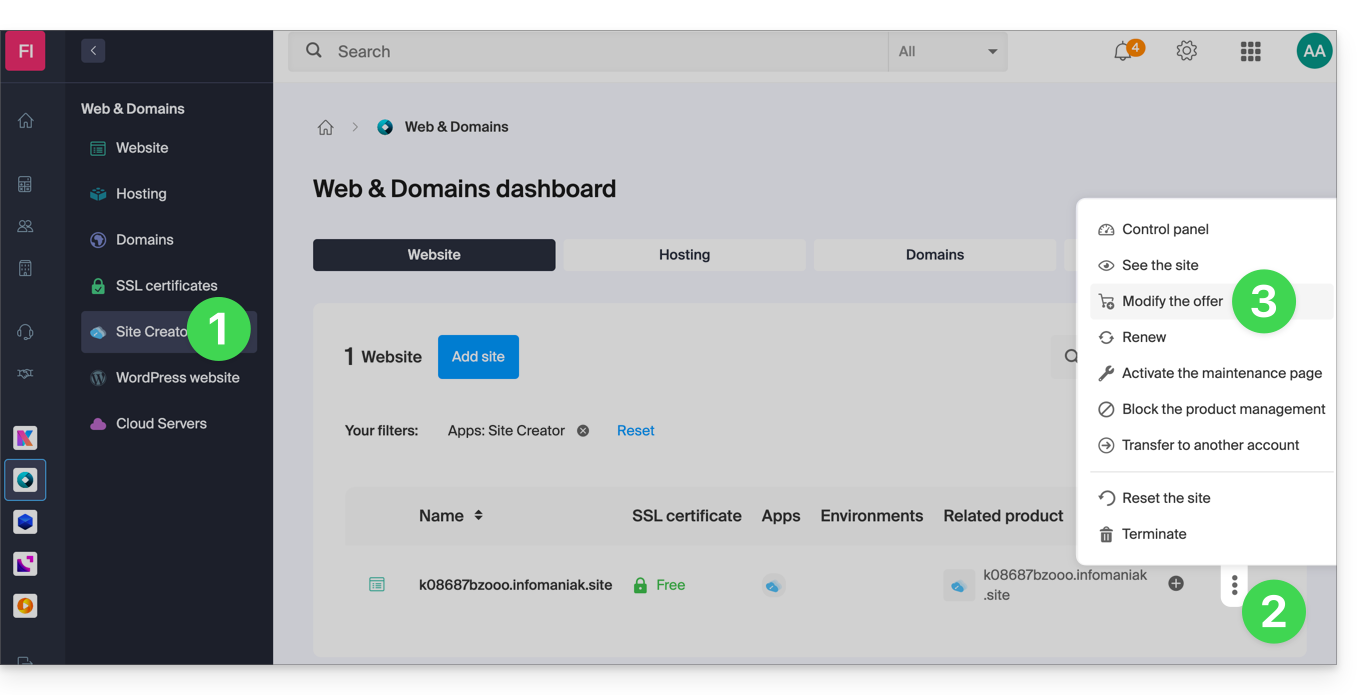
Também é possível fazer o upgrade para um plano superior (por exemplo, de Lite para Pro).
Por outro lado,não é possível fazer o downgrade para um plano inferiorou retornar a um plano gratuito depois de ativar um plano pago.
Se desejar manter o seu site ativo, deverá renovar obrigatoriamente a mesma oferta paga. Não é possível migrar para uma versão gratuita do Site Creator, mesmo que:
- não utilize nenhum dos módulos pagos,
- o seu site contém apenas uma página.
O que fazer se quiser voltar para o plano gratuito?
Nesse caso, você deve:
- cancelar seu site atual após copiar manualmente todas as informações que deseja manter,
- ativar uma nova oferta Site Creator gratuita,
- reconstruir o seu site, colando o conteúdo recuperado do site antigo.
Link para esta FAQ: https://faq.infomaniak.com/2518
Esta seção de perguntas frequentes foi útil?
Este guia explica como integrar em páginas web arquivos de vídeo/áudio importados para um serviço VOD/AOD Infomaniak.
Introdução
- Este código de incorporação VOD/AOD é único e corresponde às configurações que você está especificando na página.
- Ele permite incorporar o mesmo vídeo com diferentes configurações de exibição, de acordo com suas necessidades.
- Posteriormente, poderá modificar as configurações desta integração ajustando-as na página do histórico de integrações no Manager Infomaniak.
- Paralelamente, pode partilhar um ficheiro multimédia de diferentes formas.
Gerar e copiar o código de incorporação
O código de incorporação pode ser encontrado na sua interface VOD; aqui está um exemplo com um reprodutor padrão:
- Clique aqui para acessar o gerenciamento do seu produto no painel de controle Infomaniak (precisa de ajuda?).
- Clique diretamente no nome atribuído ao produto em questão:
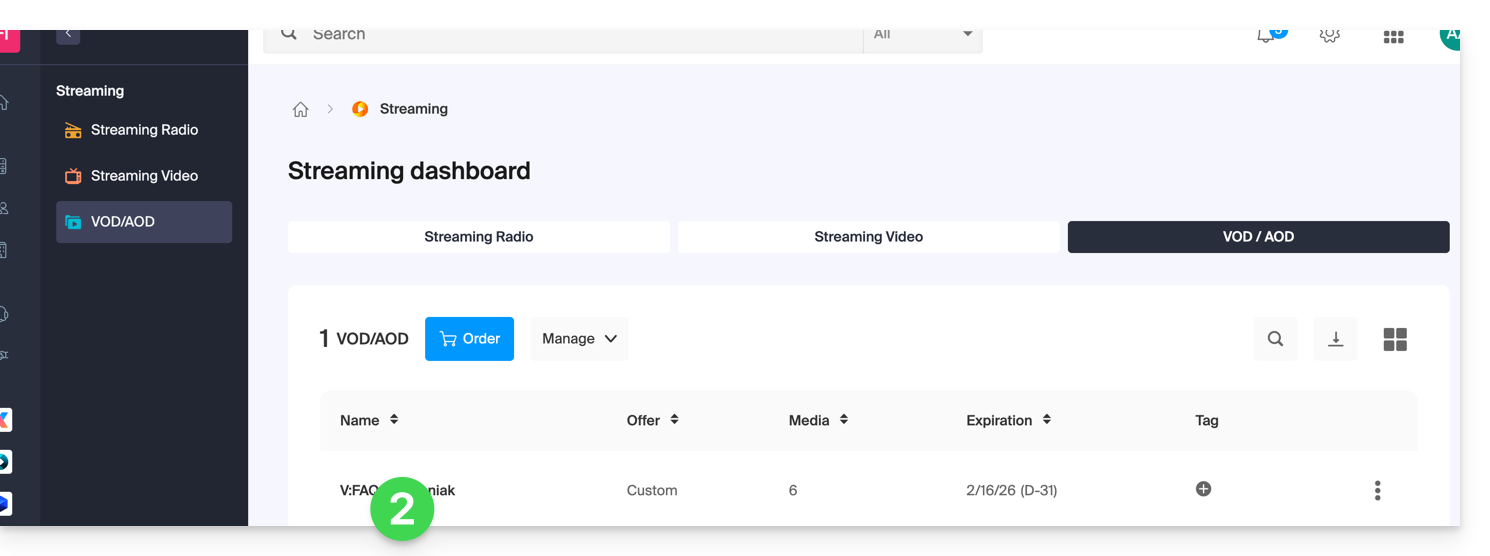
- Clique em Mídia no menu lateral esquerdo.
- Clique em Gerenciamento de mídia no menu lateral esquerdo.
- Clique no arquivo correspondente na tabela que aparece:
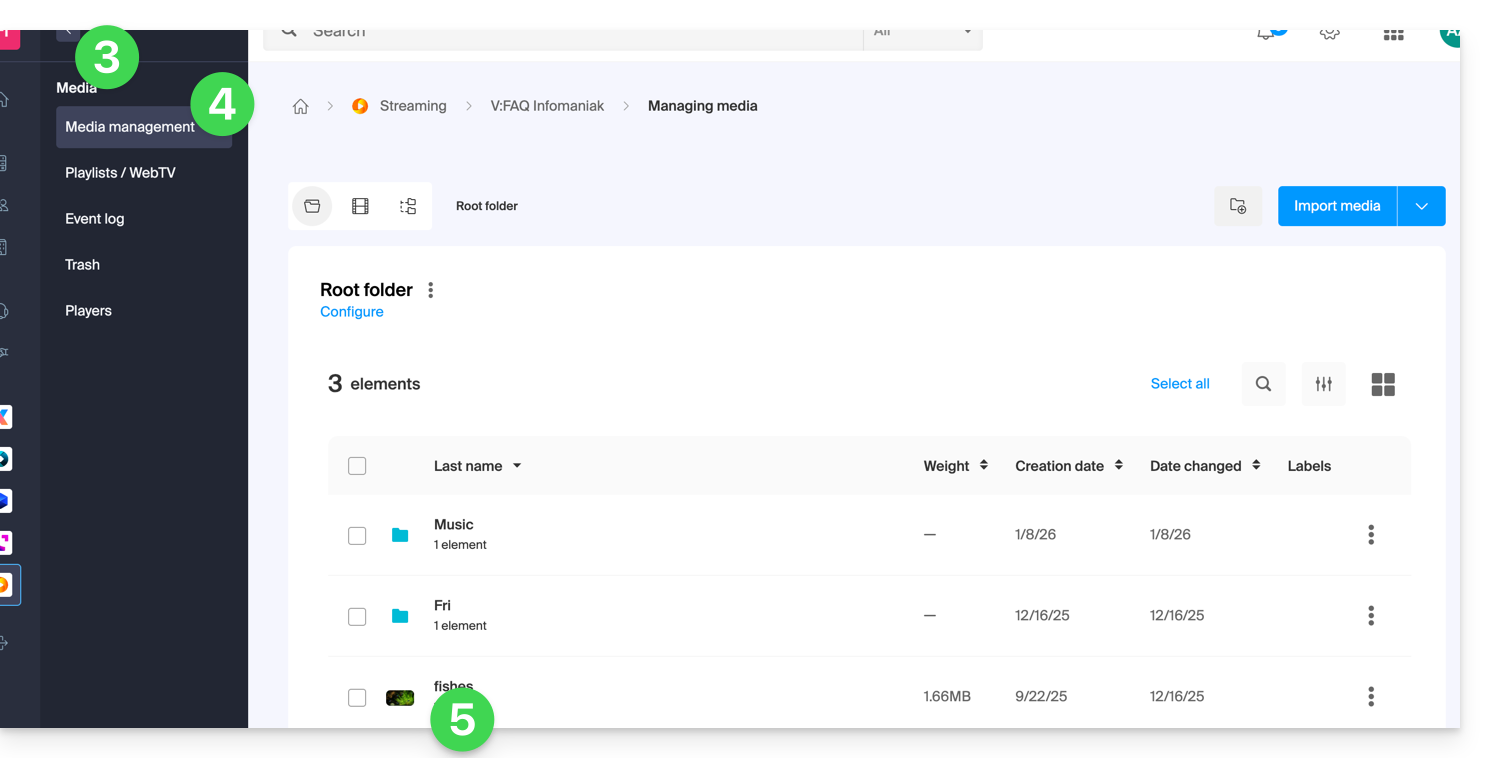
- Clique no botão azul Incorporar.
- Clique em Criar uma integração:
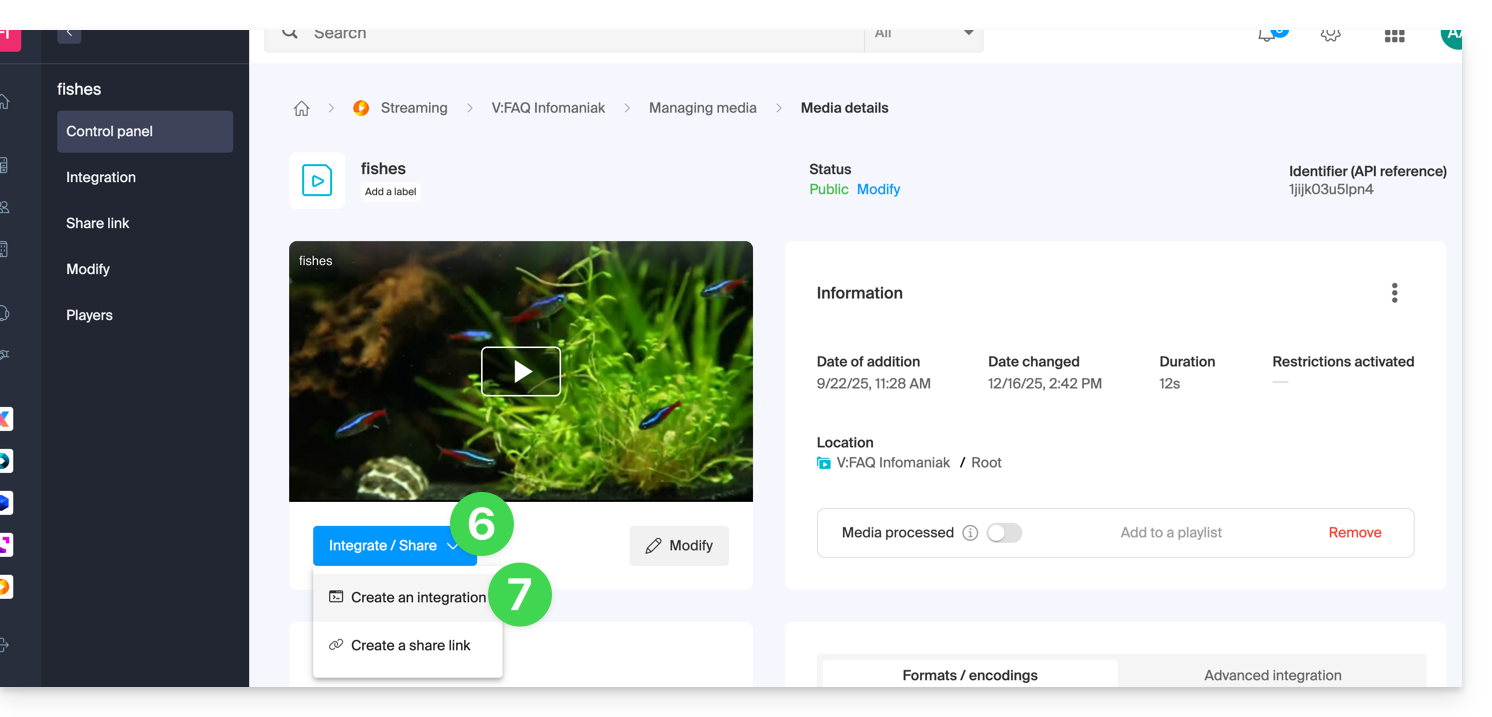
- Personalize a integração do conteúdo multimídia (reprodutor a ser usado, carimbo de data/hora, reprodução em loop, reprodução automática, …).
- Escolha a miniatura a ser exibida quando o conteúdo multimídia estiver pausado.
- Clique no botão para Gerar o código de incorporação:
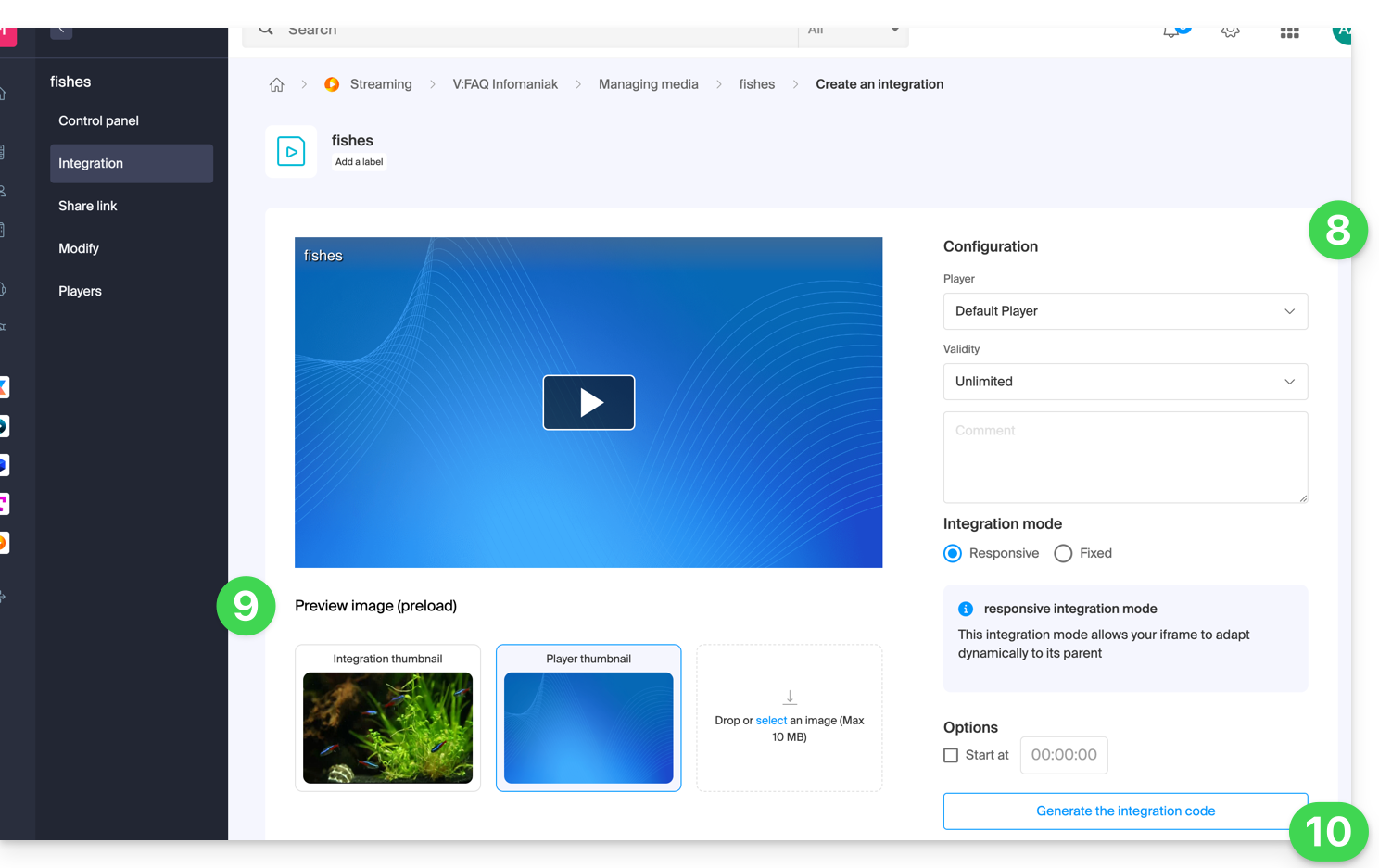
- Copie o código para o integrar no local desejado:
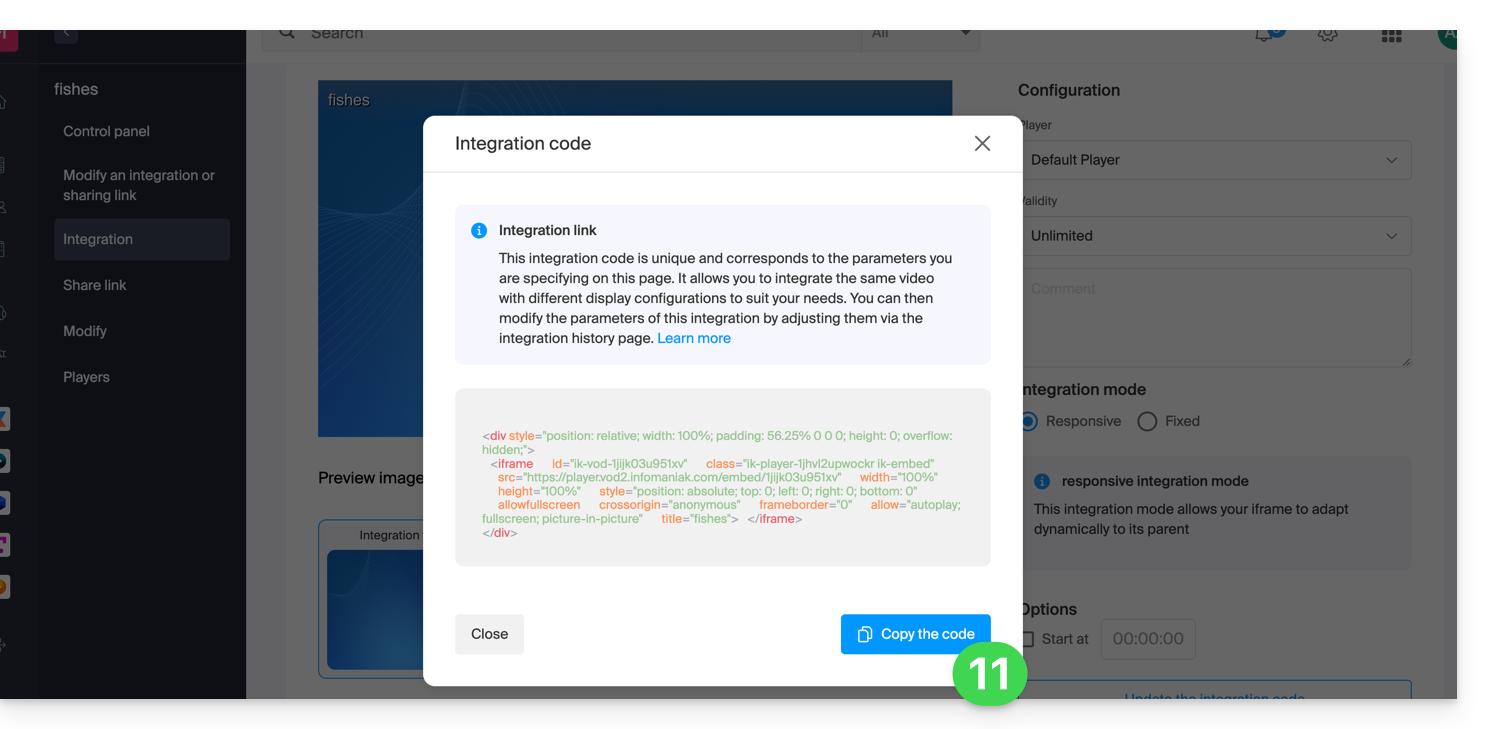
Nesse caso, o conteúdo multimídia será inserido com o reprodutor padrão, mas você tem a opção de escolher, entre os reprodutores que criou, qual deve ser proposto durante a integração.
Modificar uma integração anterior
Para personalizar novamente a integração já efetuada do seu meio de comunicação e, com o objetivo de conservar o código correspondente sem ter de o inserir novamente:
- Clique aqui para acessar o gerenciamento do seu produto no painel de controle Infomaniak (precisa de ajuda?).
- Clique diretamente no nome atribuído ao produto em questão.
- Clique em Mídia no menu lateral esquerdo.
- Clique em Gerenciamento de mídia no menu lateral esquerdo.
- Clique no arquivo correspondente na tabela que aparece.
- Clique no botão azul Incorporar.
- Clique em Editar uma integração:
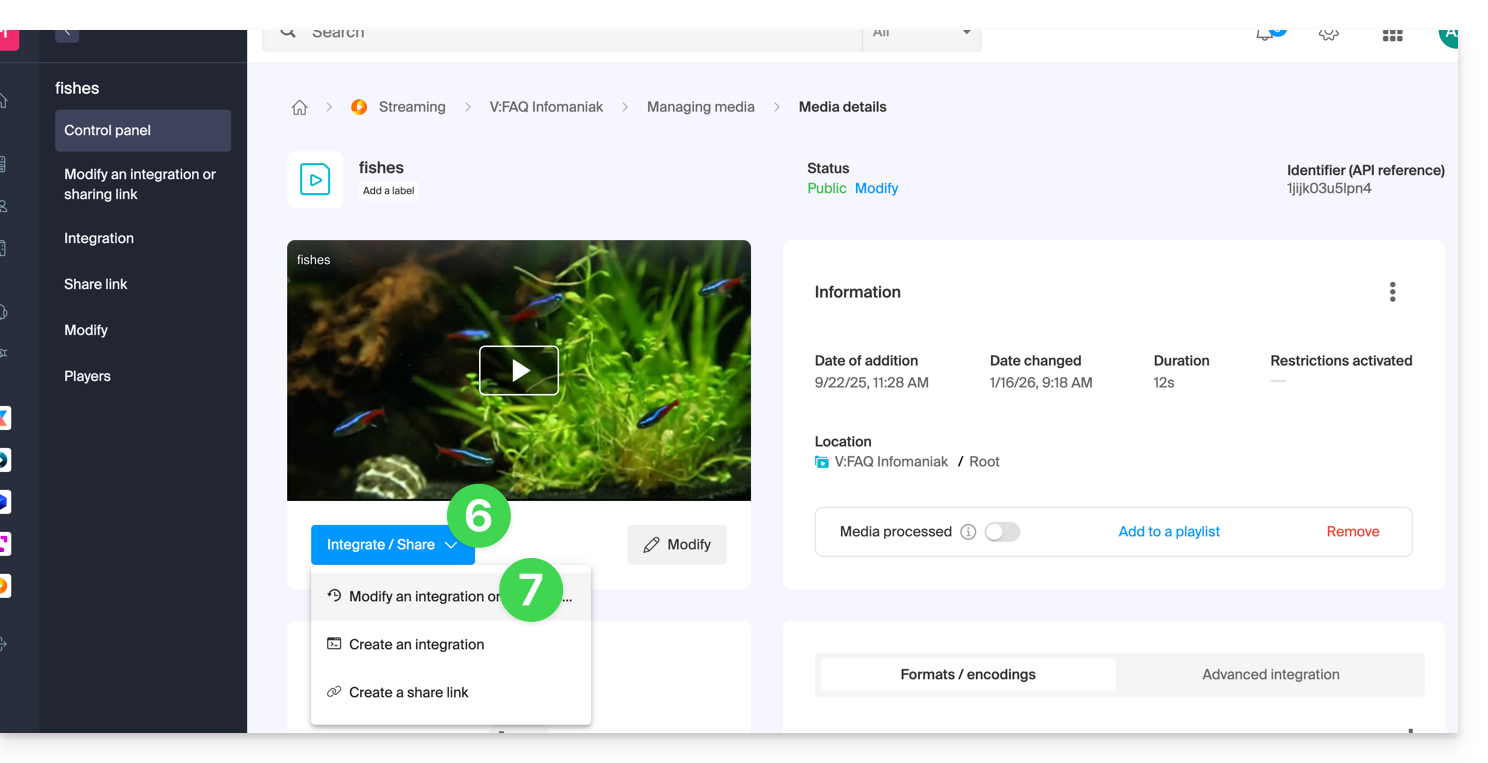
- Clique no menu de ação ⋮ à direita do item correspondente na tabela que é exibida.
- Clique no elemento desejado para obter/modificar os códigos de incorporação:
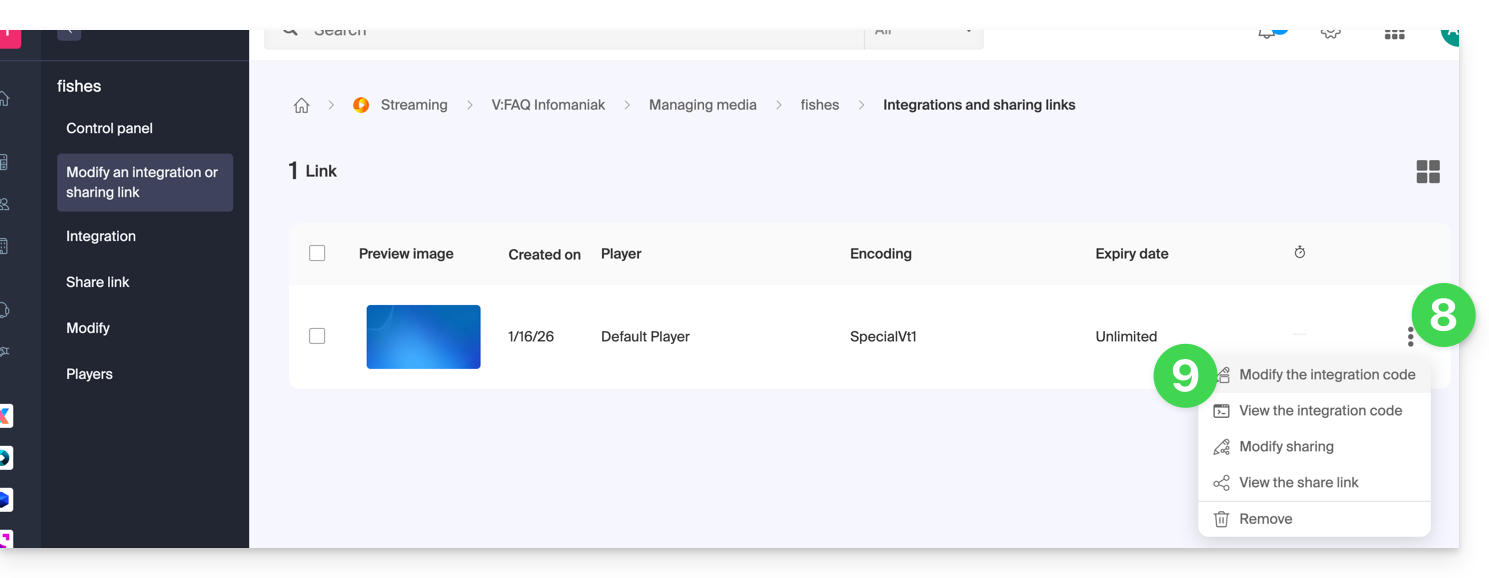
Cole o código de incorporação…
Na página web de sua escolha, cole o código HTML no local desejado: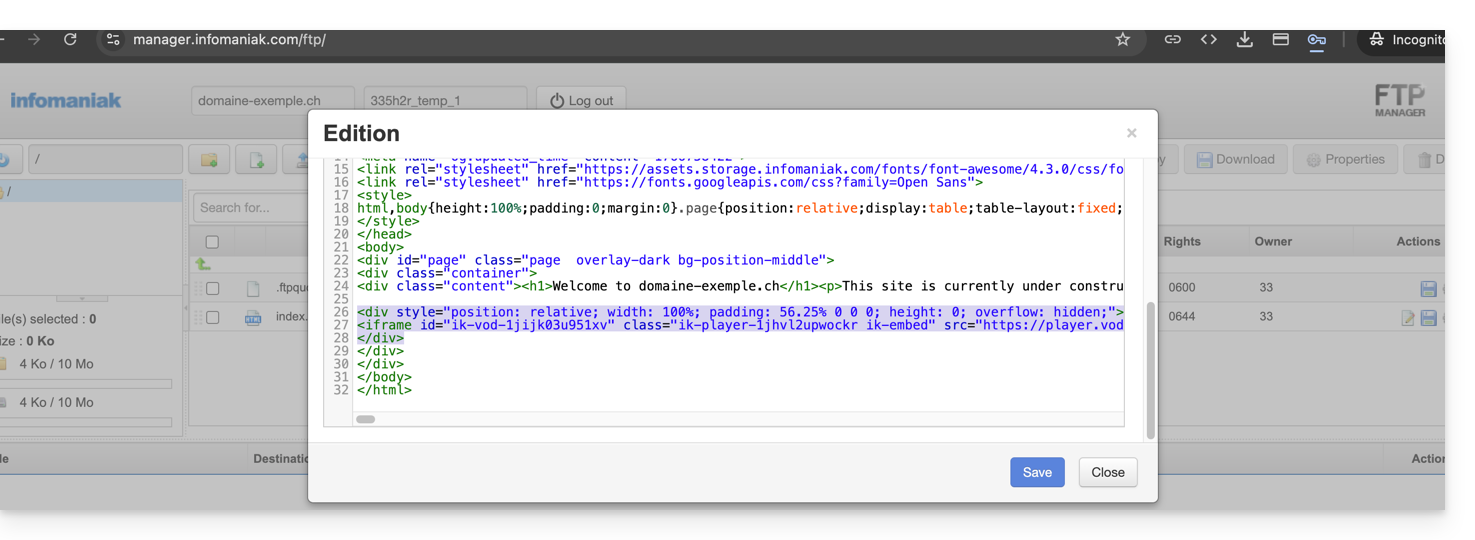
… no Site Creator Infomaniak
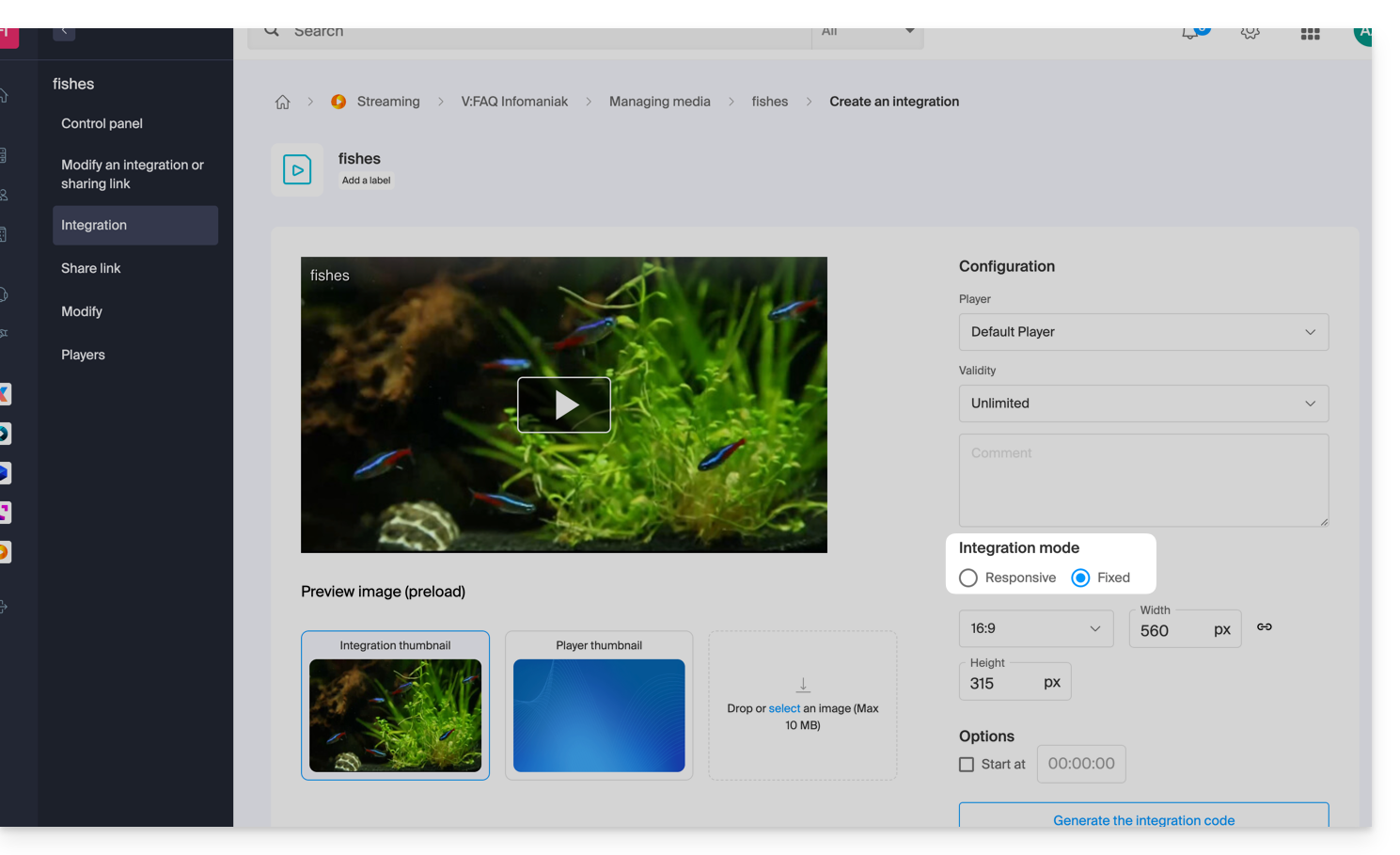
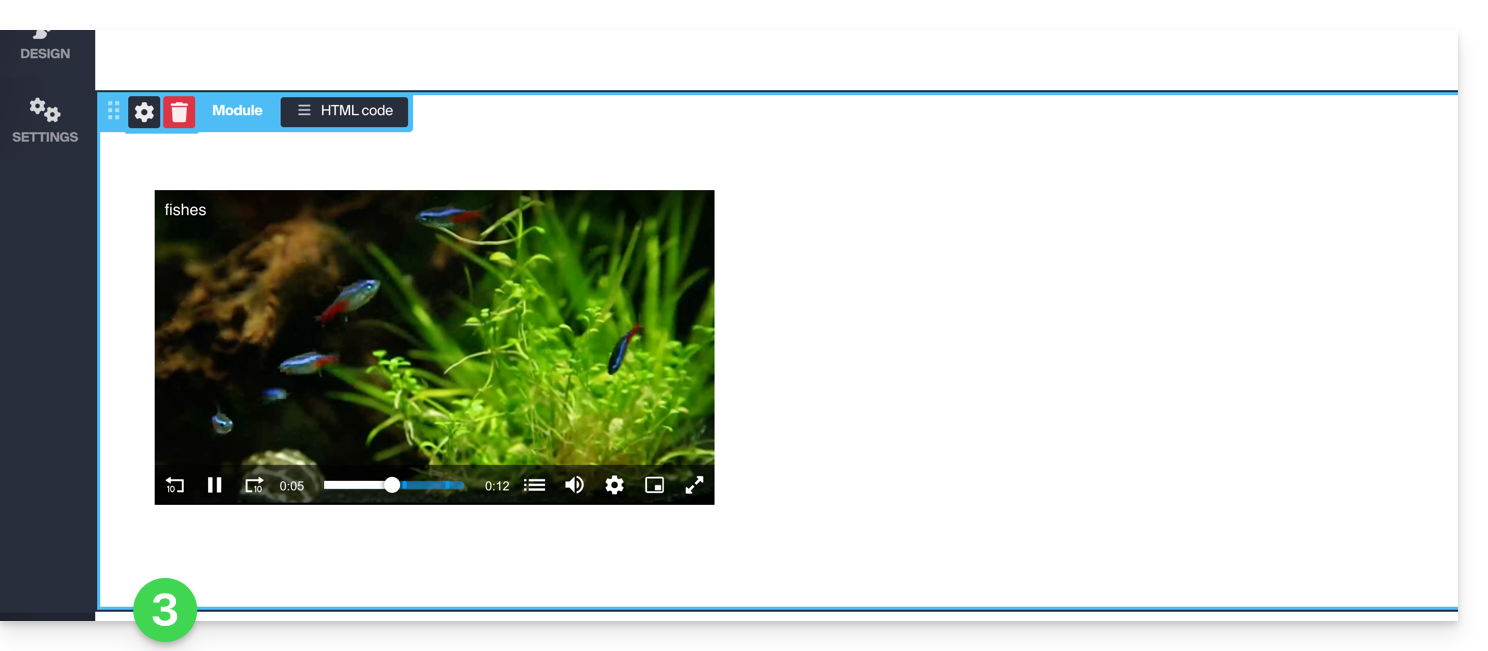
- Para o Site Creator, é necessário gerar um código de incorporação “Fixo” (e não “Responsivo”):
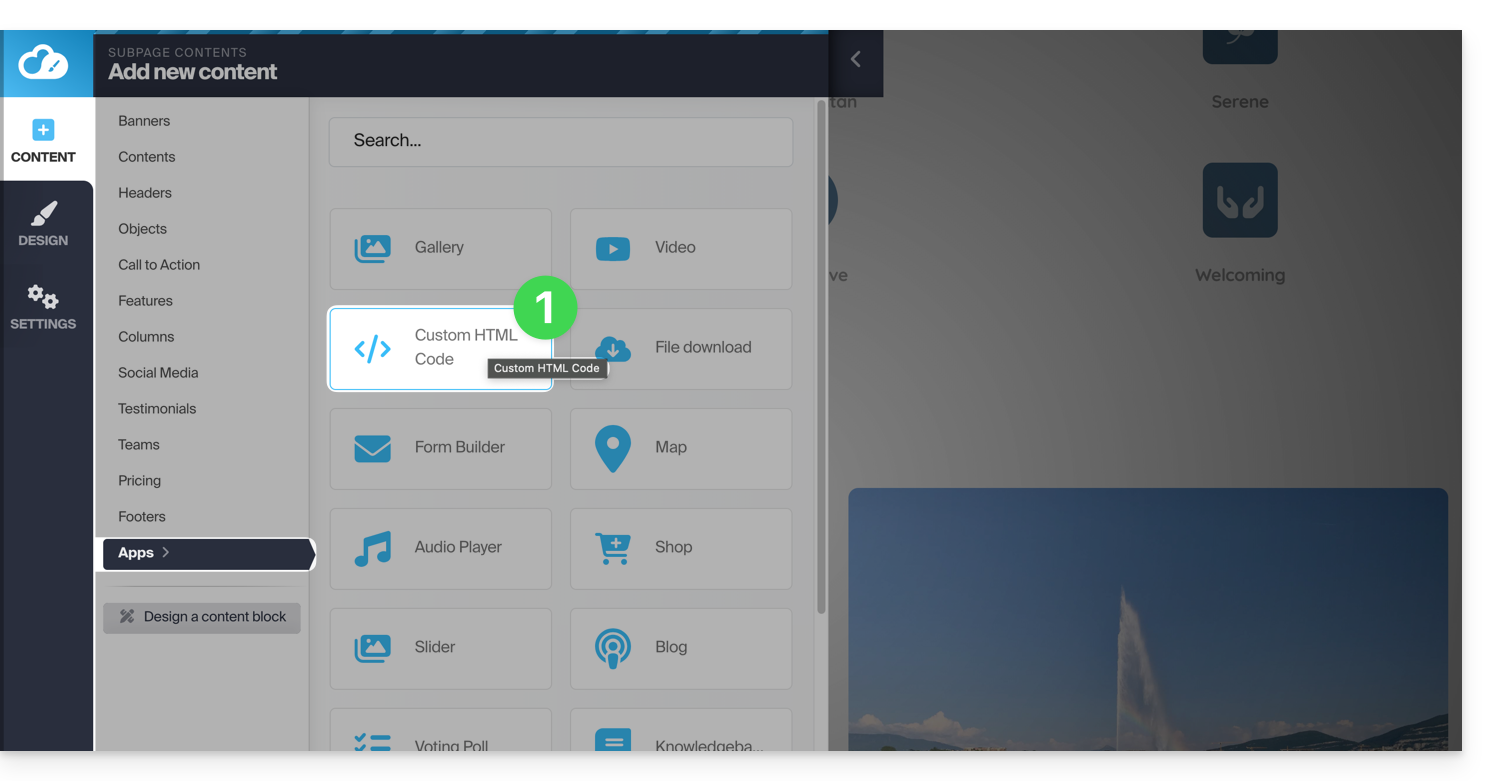
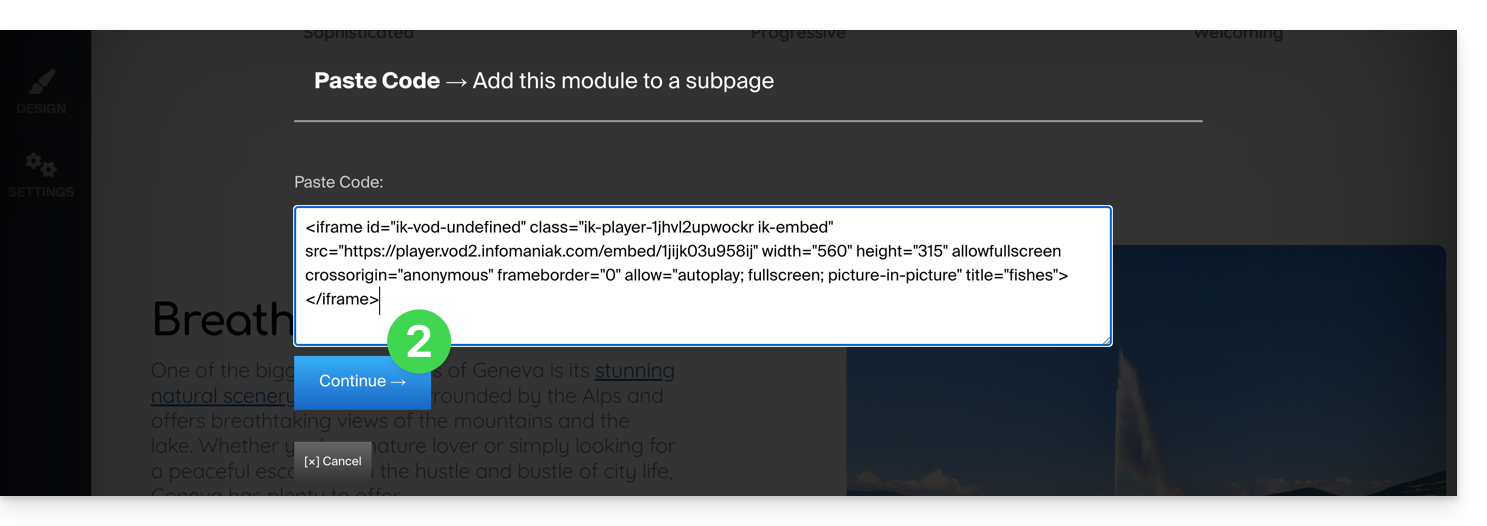
- Em seguida, cole este código no Site Creator, dentro de um bloco “Código HTML personalizado”:
Link para esta FAQ: https://faq.infomaniak.com/2525
Esta seção de perguntas frequentes foi útil?
Este guia apresenta os módulos Calendário e Calendly para o Site Creator da Infomaniak.
Pré-requisitos
- Aceder ao Site Creator:
- Clique aqui para aceder à gestão do seu produto no Manager Infomaniak (precisa de ajuda?).
- Clique diretamente no nome atribuído ao Site Creator em questão.
- Clique no botão Editar o meu site para iniciar o editor:
Módulo Calendário
No Site Creator:
- Clique no botão Aplicações no menu lateral esquerdo.
- Clique em Calendário:
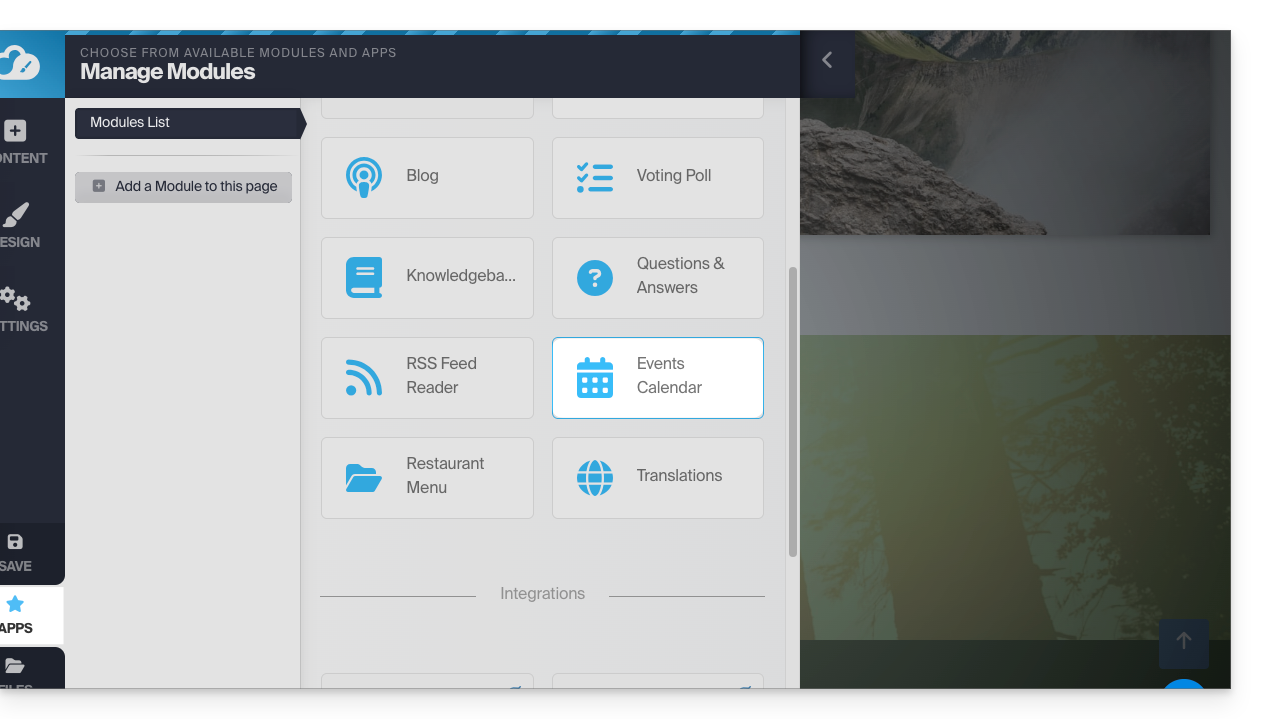
Adicione eventos relacionados à sua atividade que deseja exibir de forma dinâmica em seu site: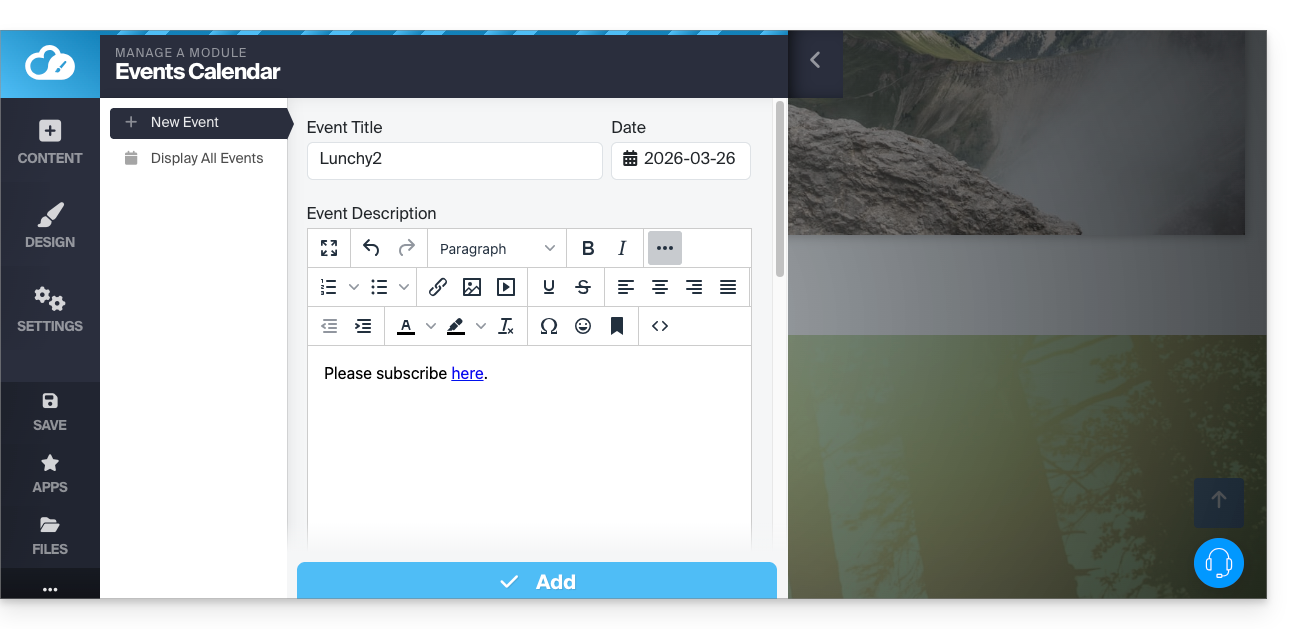
Depois de adicionar alguns eventos, você pode visualizá-los no calendário no mesmo local: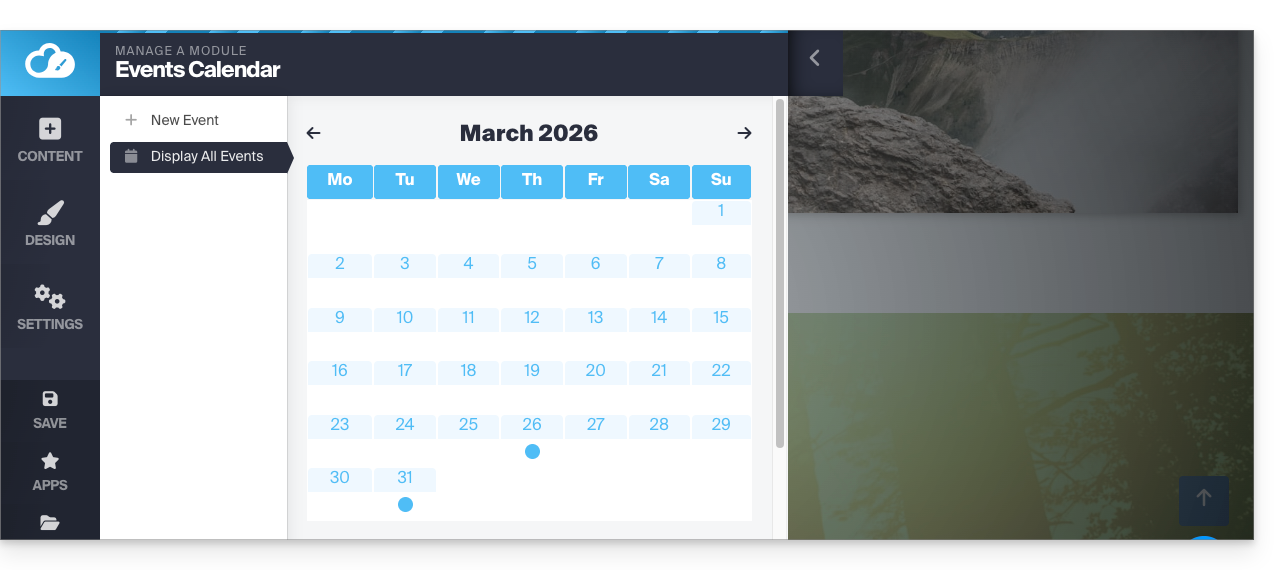
Em seguida, insira o módulo Calendário no local desejado do seu site: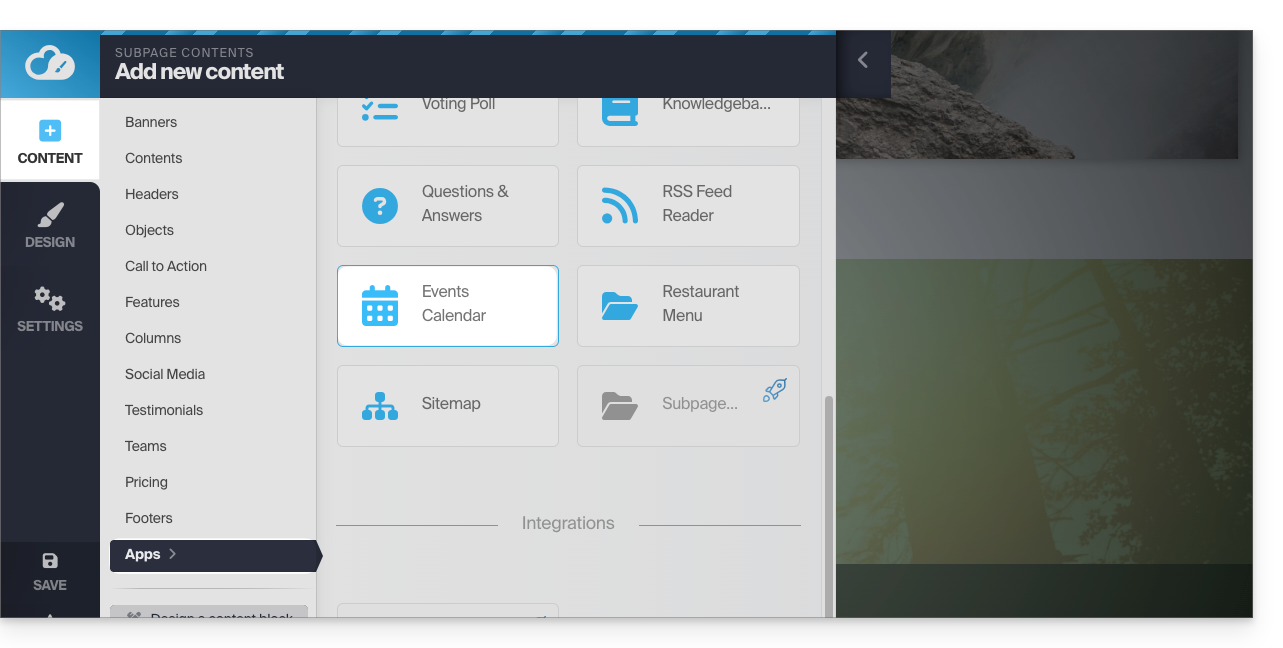
Os seus visitantes poderão ver os eventos agendados, incluindo quando os modificar no seu calendário: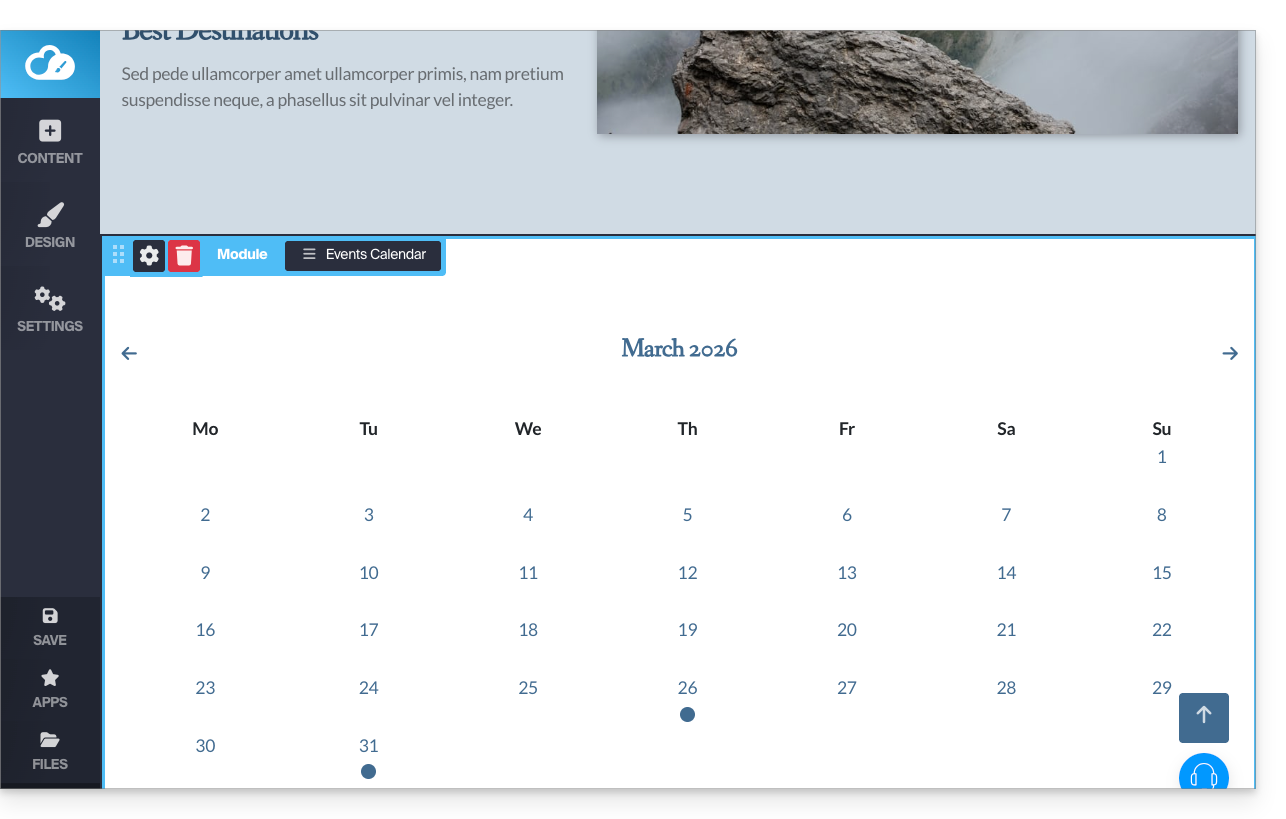
Módulo Calendly
✘ INDISPONÍVEL com
Site Creator Grátis / Lite
Esta integração é possível desde que você tenha uma conta no serviço externo Calendly.
No Site Creator:
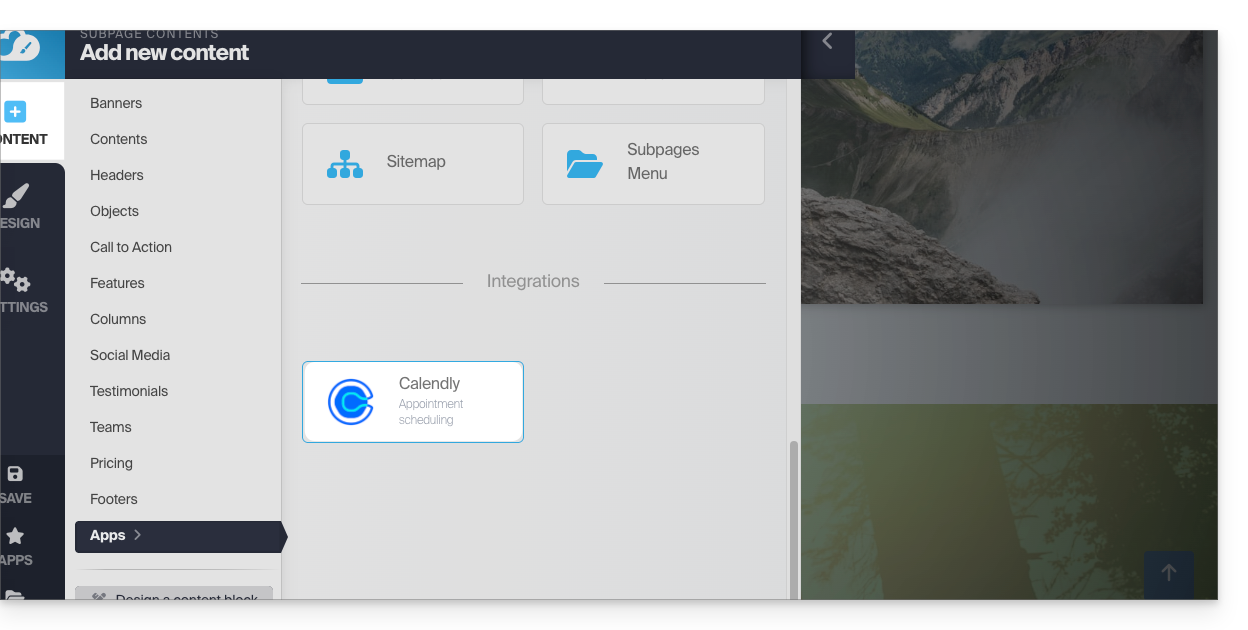
- Clique no botão Conteúdo no menu lateral esquerdo.
- Clique em Apps no menu lateral esquerdo.
- Clique em Calendly para inserir o módulo:
- Clique para configurar o aplicativo com as informações da sua conta Calendly:
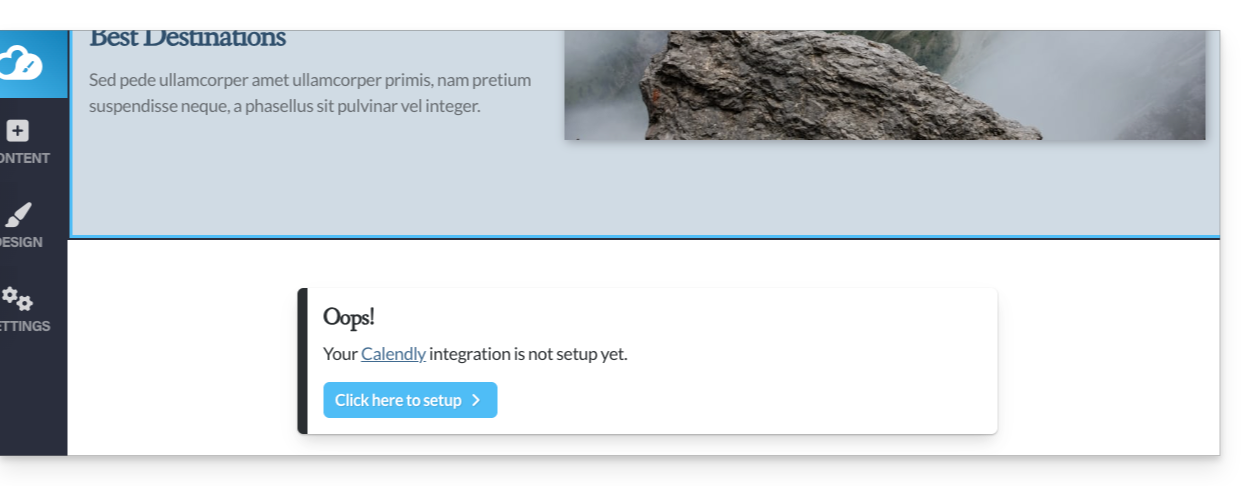
Em seguida, insira o módulo Calendly no local desejado do seu site para exibir suas informações do Calendly: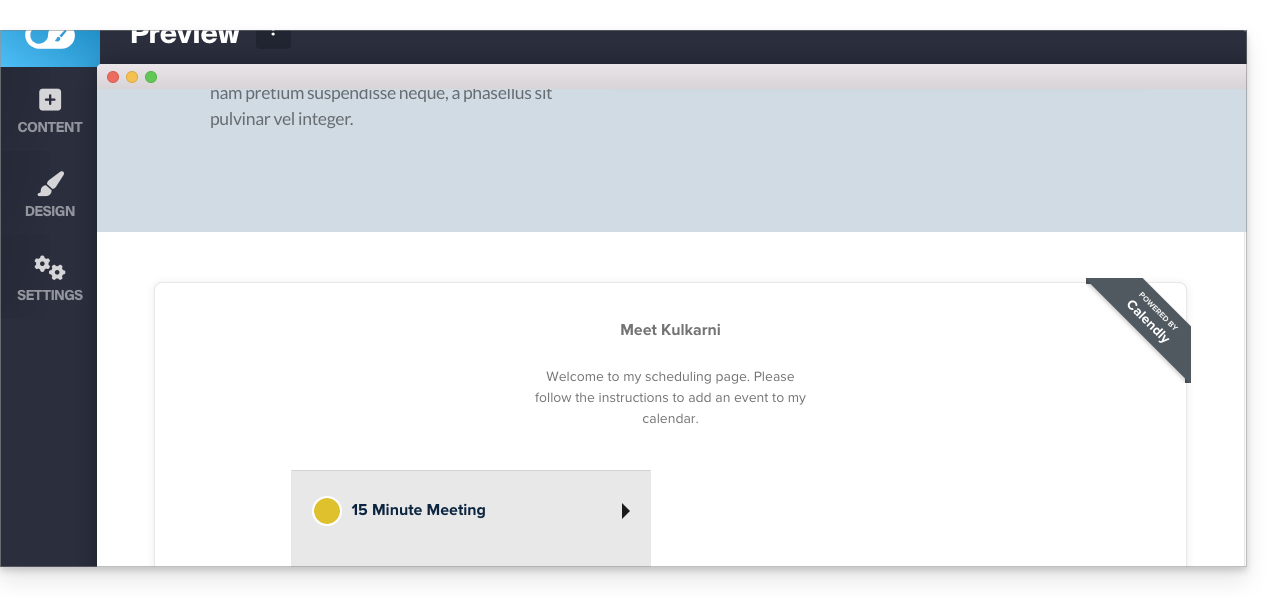
Link para esta FAQ: https://faq.infomaniak.com/2578
Esta seção de perguntas frequentes foi útil?
Este guia explica como gerir a primeira página de um Site Creator Infomaniak, ou seja, a página inicial visível quando se digita o endereço do seu site (por exemplo, www.domain.xyz).
Introdução
- A página inicial é obrigatória, mas é fácil definir uma nova página inicial a qualquer momento entre as suas páginas existentes.
- Consulte este outro guia para gerir as páginas adicionais.
Modificar a página inicial do site
Pré-requisitos
- Aceder ao Site Creator:
- Clique aqui para aceder à gestão do seu produto no Manager Infomaniak (precisa de ajuda?).
- Clique diretamente no nome atribuído ao Site Creator em questão.
- Clique no botão Editar o meu site para iniciar o editor:
Depois de estar no Site Creator:
- Clique no botão Configurações no menu lateral esquerdo – a lista das suas páginas será exibida:
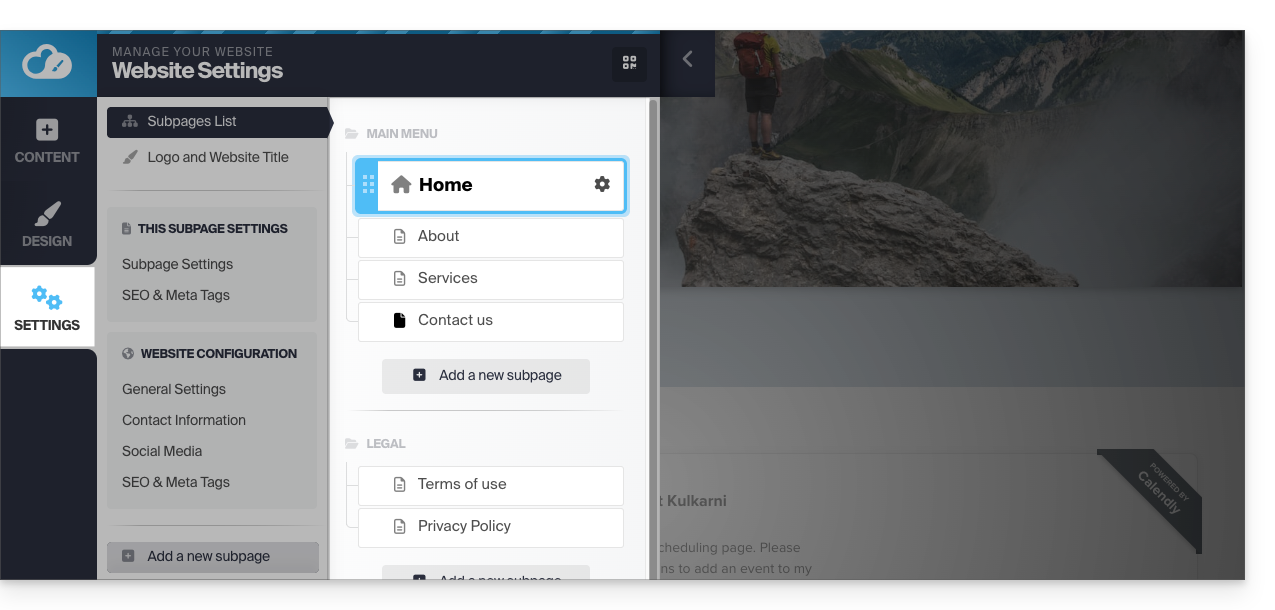
- Clique e arraste a página inicial atual (representada por um ícone de casa) para o final da lista:
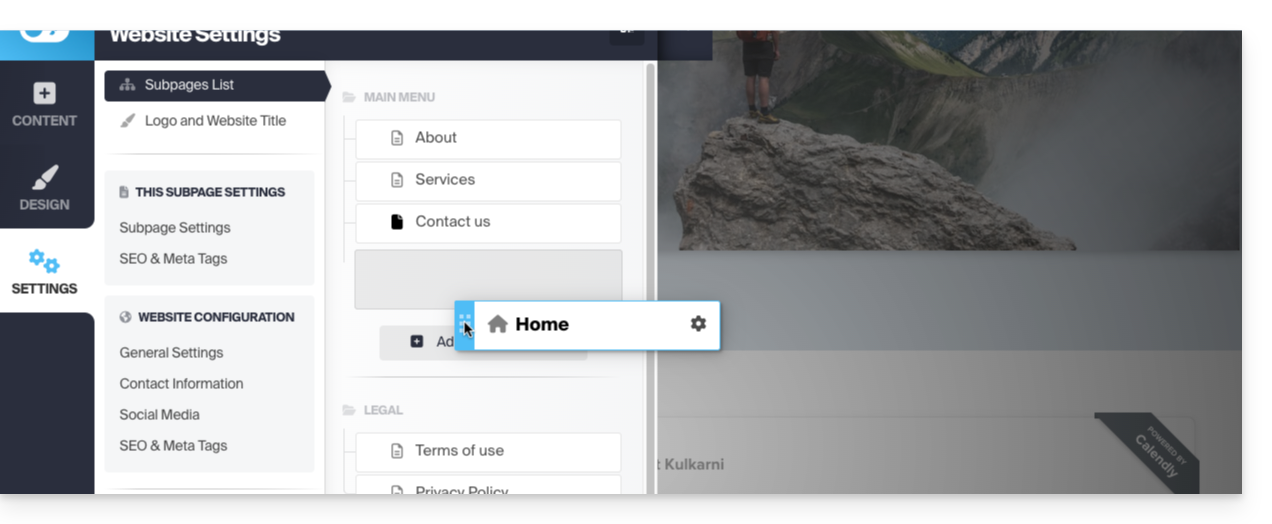
- Clique no ícone desta página para alterar o tipo de página para uma página convencional.
- Salve as alterações:
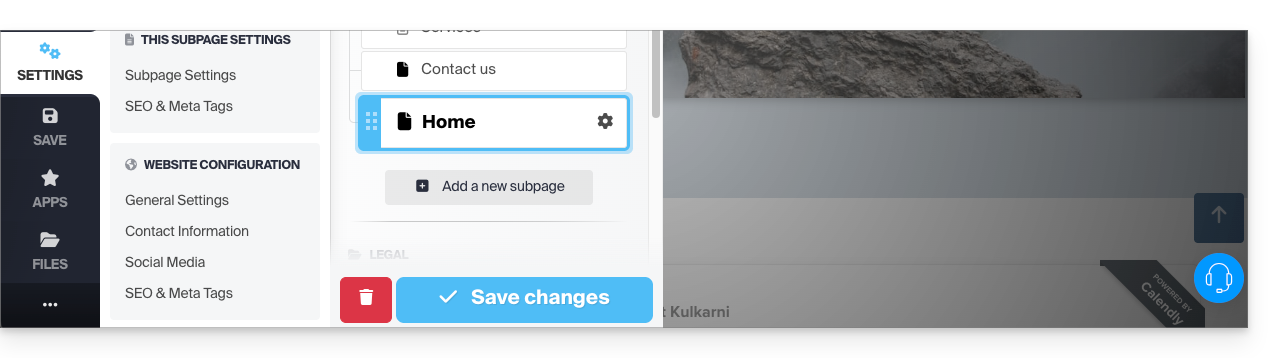
- Volte para as configurações e clique no ícone Configurações na página que será a nova página inicial:
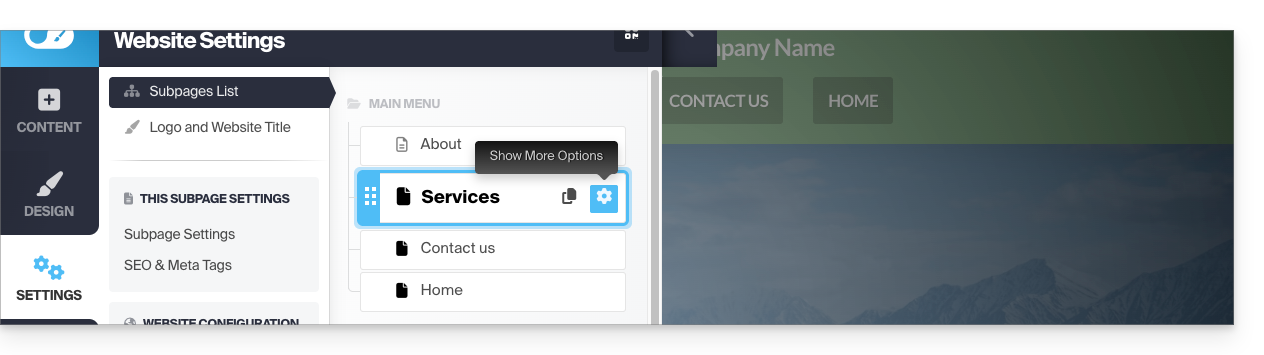
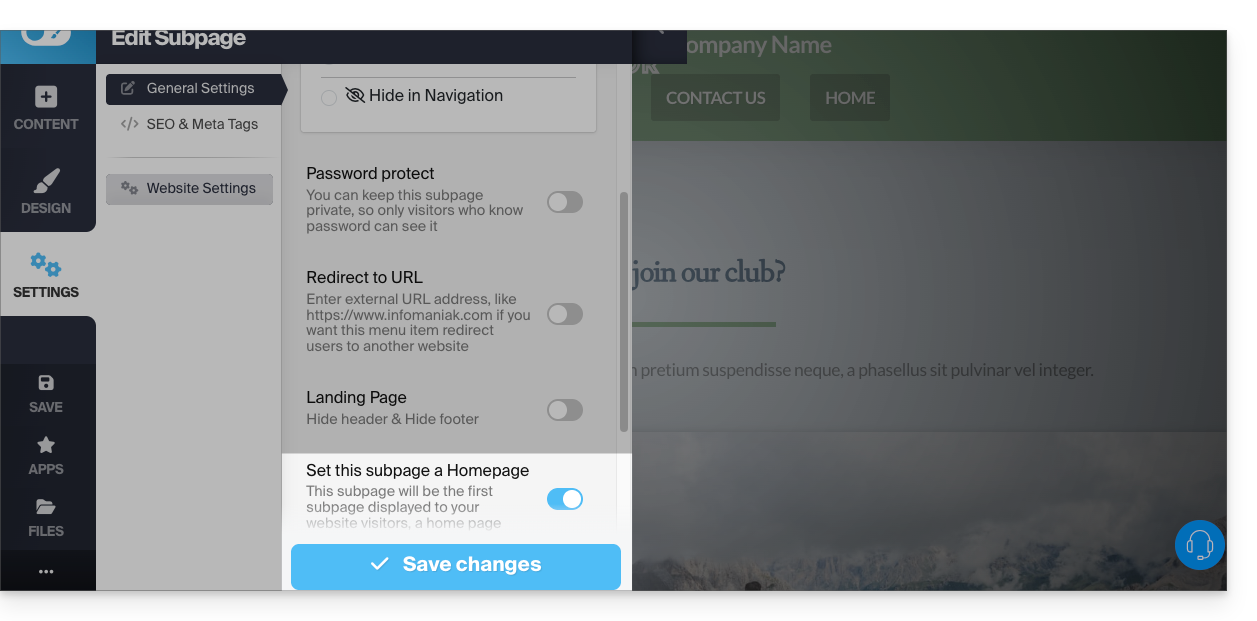
- Clique no botão de alternância para definir esta página como página inicial do seu site.
- Salve as alterações:
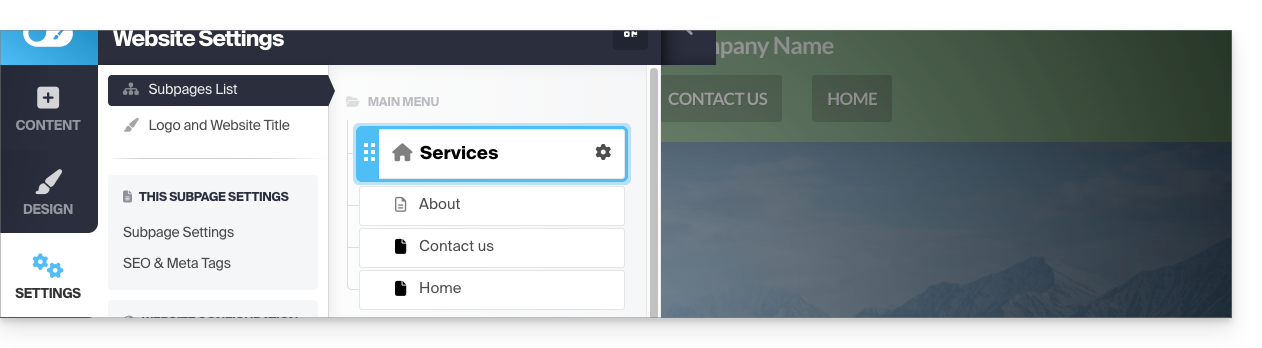
- Volte para as configurações e clique no ícone desta página para alterar o tipo de página para página inicial e posicioná-la como a primeira:
- Salve as alterações e teste o efeito da alteração visitando seu site, que não terá mais a mesma página inicial padrão:
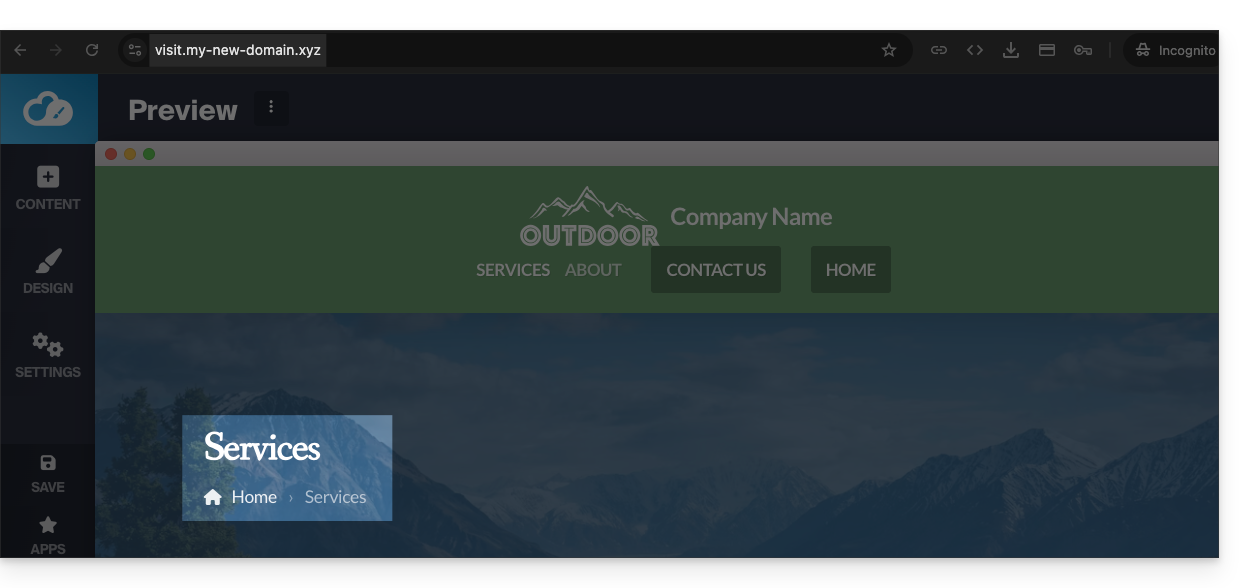
- Antes, a página inicial era a padrão:
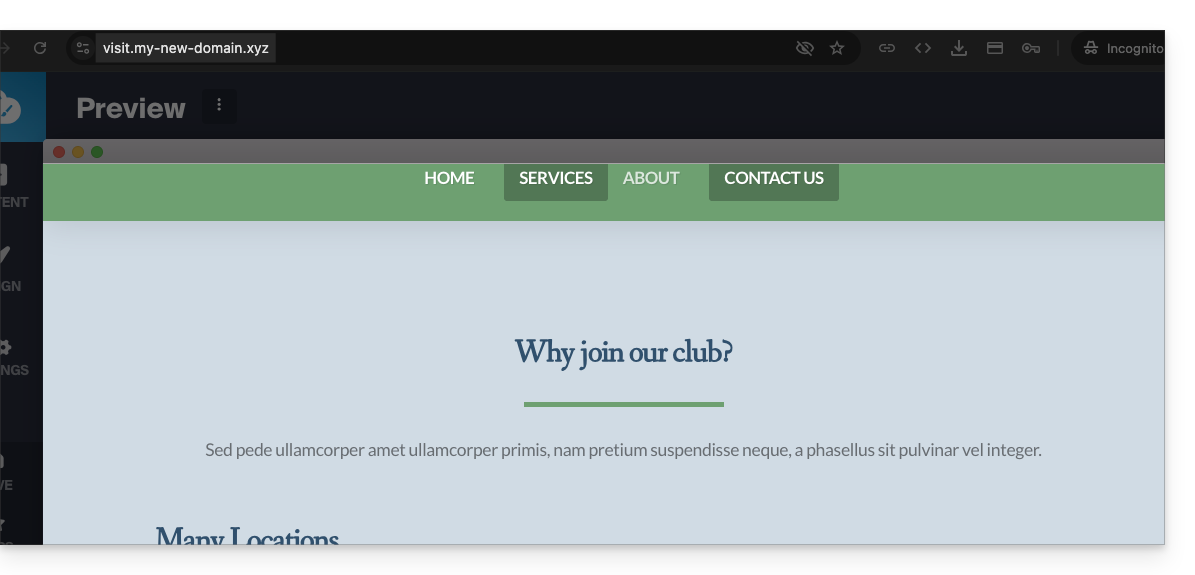
- Antes, a página inicial era a padrão:
Link para esta FAQ: https://faq.infomaniak.com/2638
Esta seção de perguntas frequentes foi útil?
Este guia explica como obter e conectar-se ao Site Creator da Infomaniak com uma hospedagem web existente.
Introdução
- O Site Creator está disponível…
- … seja gratuitamente com cada plano de hospedagem web pago.
- … seja de forma independente (versão autônoma disponível em 3 versões) e, neste caso, não requer nenhuma outra oferta específica.
- Consulte este outro guia para compare as diferentes opções disponíveis.
- Não precisa de nenhum download para usar o Site Creator, tudo acontece online, numa interface acessível a partir de qualquer navegador.
1. Adicionar o Site Creator à sua hospedagem web existente
Para adicionar o Site Creator a um site da sua hospedagem web existente:
- Clique aqui para acessar o gerenciamento do seu serviço de hospedagem no painel de controle Infomaniak (precisa de ajuda?).
- Clique diretamente no nome do serviço de hospedagem em questão.
- Para adicionar um site, consulte este outro guia a partir do ponto 3 e selecione Site Creator no ponto 4:
2. Adquirir o Site Creator sem hospedagem específica
Para obter o Site Creator de forma independente, acesse a descrição das ofertas Site Creator Free, Lite e Proe deixe-se guiar clicando no botão da oferta que lhe interessa.
Aceder ao Site Creator
Para começar a usar o Site Creator para criar o seu site:
- Clique aqui para acessar o gerenciamento do seu produto no Manager Infomaniak (precisa de ajuda?).
- Clique diretamente no nome atribuído ao Site Creator em questão.
- Clique no botão Editar meu site para iniciar o editor:
Quando o Site Creator estiver instalado no seu site e você navegar nele, se não tiver feito logout do Manager Infomaniak, então o menu de edição ficará visível (apenas para você) para que possa usar o editor a qualquer momento.
Pode ocultá-lo e retornar a ele quando quiser:

Link para esta FAQ: https://faq.infomaniak.com/2704
Esta seção de perguntas frequentes foi útil?
Este guia é sobre o Site Creator, a ferramenta da Infomaniak para a criação de sites, que oferece, entre outras coisas, uma biblioteca para seus arquivos multimídia (imagens, vídeos, documentos, etc.).
Pré-requisitos
- Aceder ao Site Creator:
- Clique aqui para aceder à gestão do seu produto no Manager Infomaniak (precisa de ajuda?).
- Clique diretamente no nome atribuído ao Site Creator em questão.
- Clique no botão Editar o meu site para iniciar o editor:
Aceder aos ficheiros
A biblioteca pode ser acessada na parte inferior do menu lateral esquerdo, em Arquivos: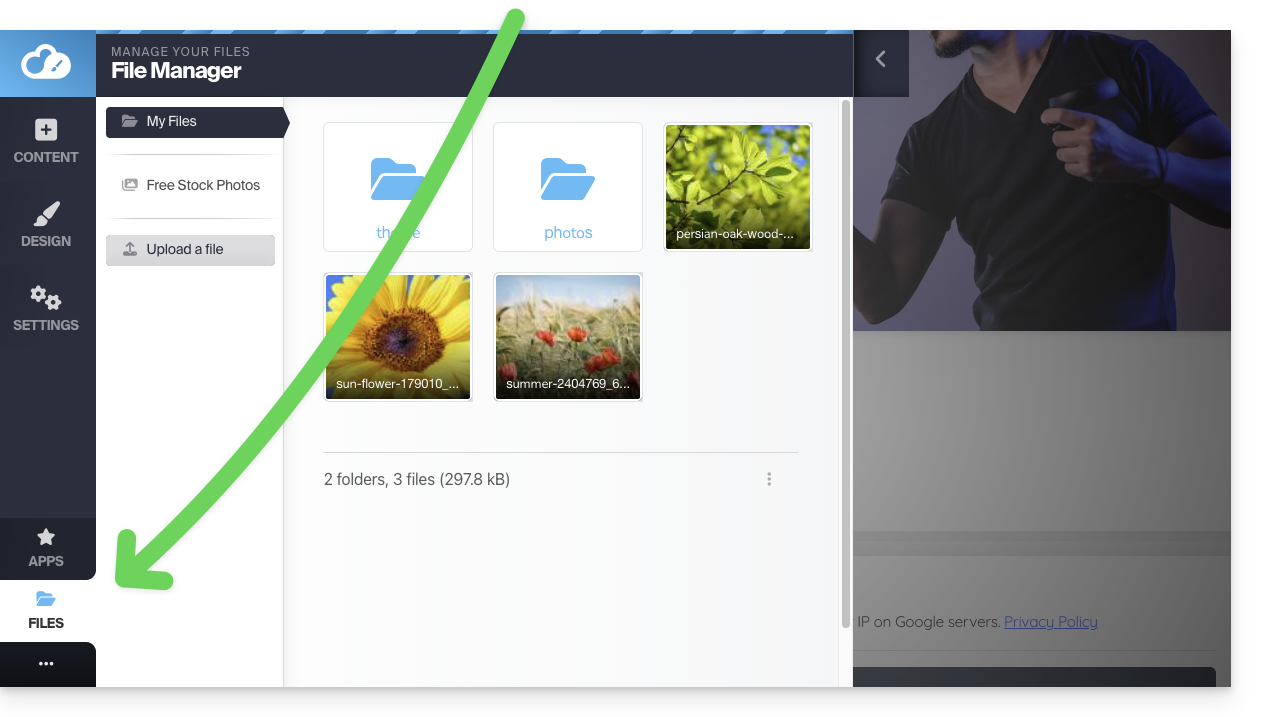
Esses arquivos estarão disponíveis quando você estiver editando suas páginas e quiser inserir conteúdo.
Organize seus arquivos, pastas e subpastas
Atenção: você não pode:
- mover arquivos/pastas
- renomear ficheiros/pastas
- eliminar uma pasta se esta não estiver completamente vazia
Portanto, pense na organização dos seus arquivos de mídia e na sua estrutura de pastas, se possível, antes de criar o site.
Criar uma nova pasta
Utilize o menu de ação ⋮ no canto inferior direito da janela: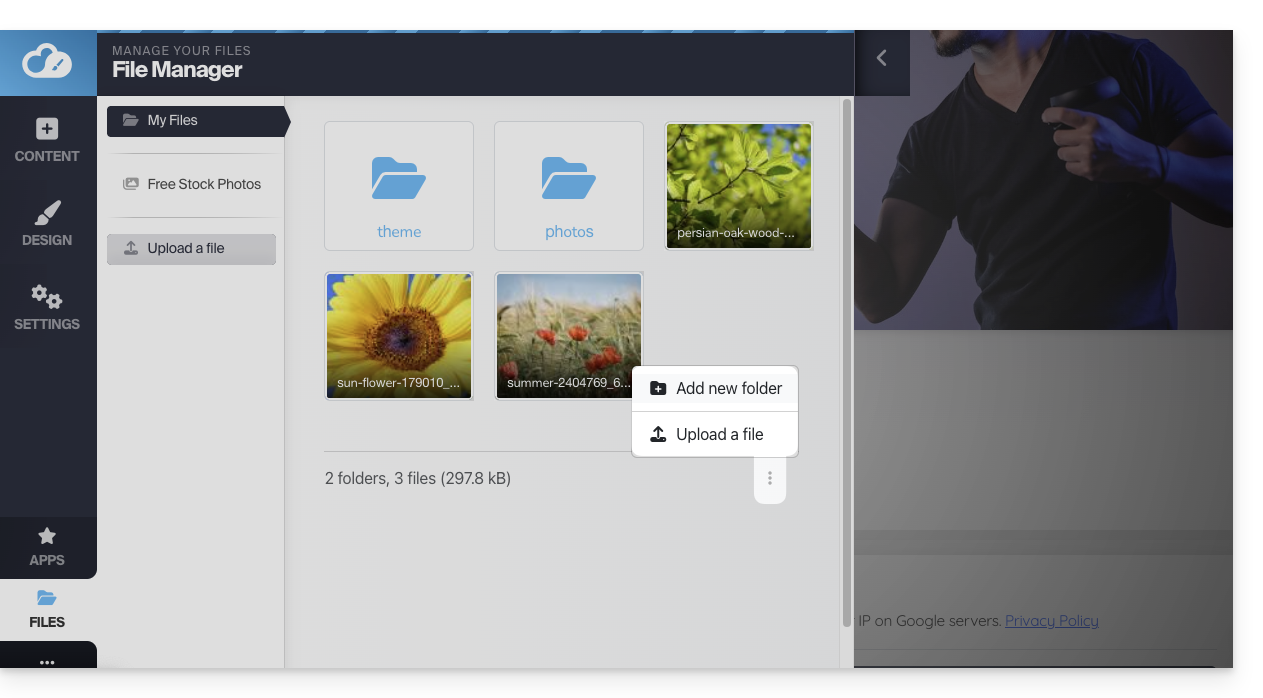
Carregar um novo arquivo na biblioteca
Clique em Enviar arquivo para navegar no seu disco rígido e carregar os arquivos desejados: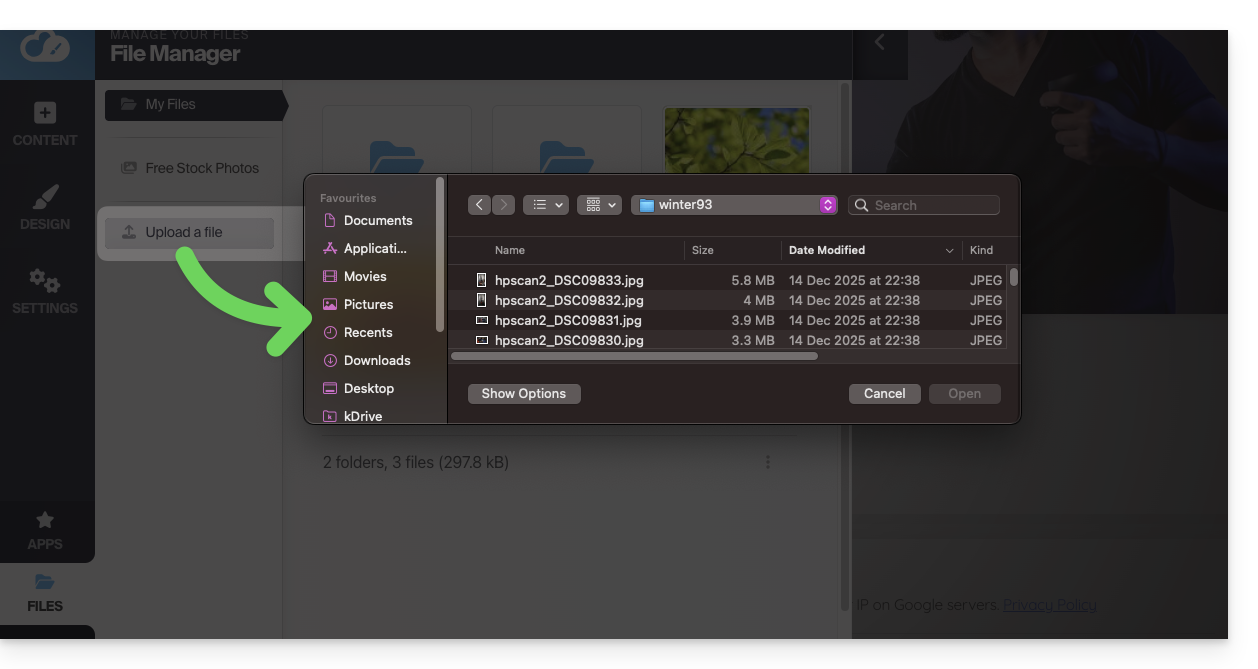
Os formatos de imagem habituais são suportados (webp, jpg, jpeg, png, gif, svg, etc.), sendo o formato webp o recomendado (oferece a melhor relação qualidade/compressão para uma exibição web ultrarrápida).
O mesmo se aplica aos vídeos (mp4, mov, etc.) e você também pode carregar arquivos (zip, pdf, etc.) para, por exemplo, disponibilizá-los aos visitantes através do módulo Download de arquivos.
Comprimir uma imagem
As imagens grandes são redimensionadas automaticamente por padrão durante a importação: as imagens com mais de 1200 px são reduzidas automaticamente para 1200 px, mas você pode gerenciar isso nas configurações gerais: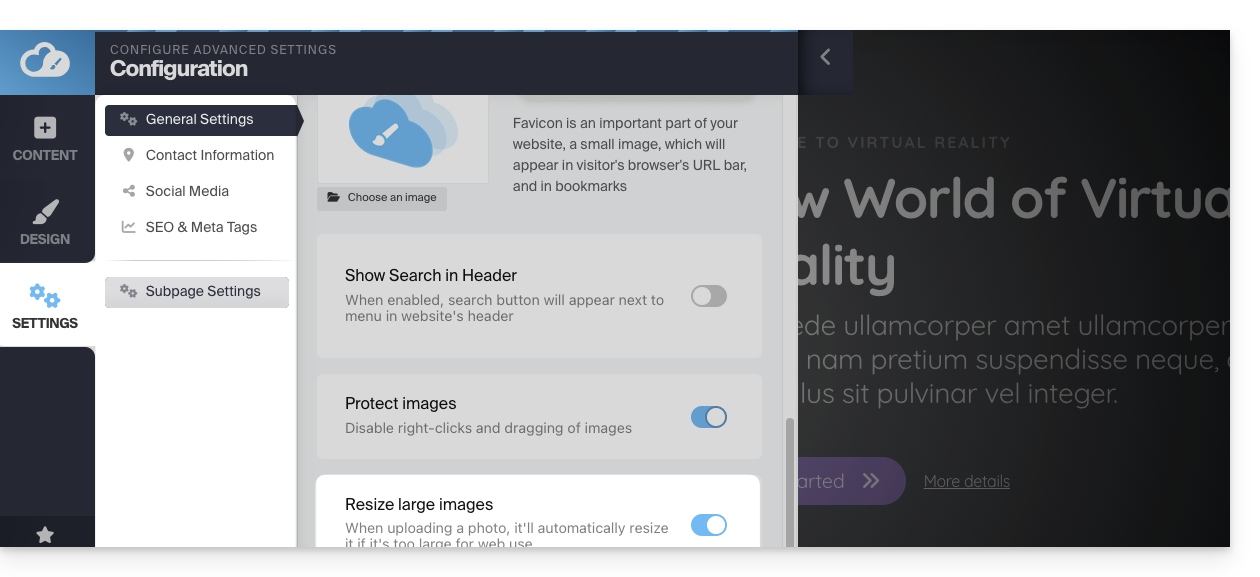
Você também pode comprimir a própria imagem usando a opção Comprimir uma imagem na biblioteca, para que seu site seja exibido mais rapidamente: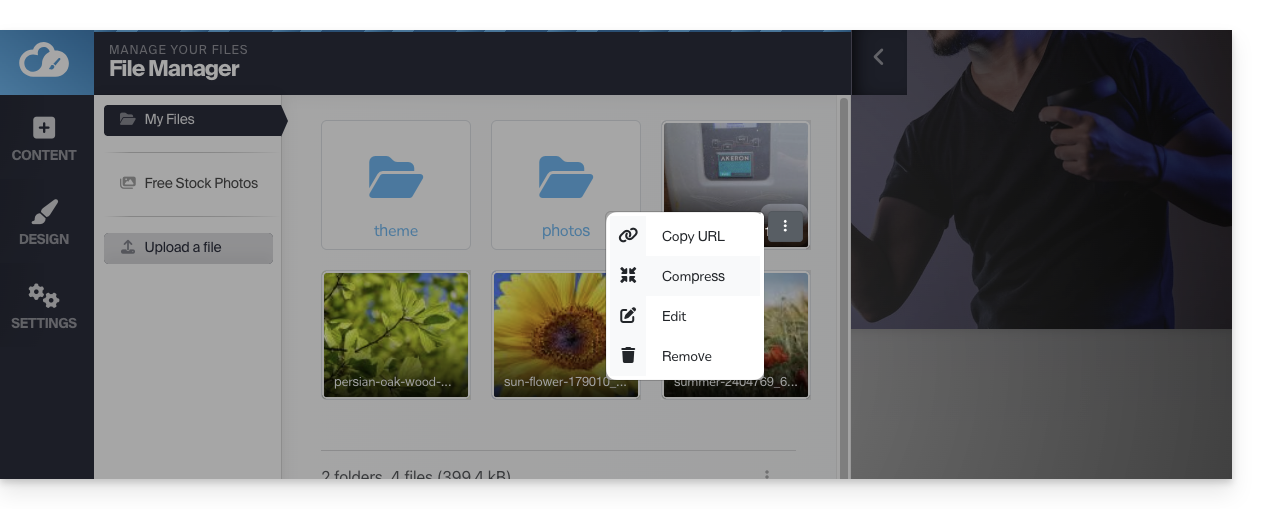
⚠ A opção Comprimir uma imagem gera o erro de chave da API TinyPNG (A chave da API TinyPNG não está definida)…
Para evitar isso, obtenha uma chave de API TinyPNG no site deles e insira-a em Aplicações > TinyPNG no SiteCreator: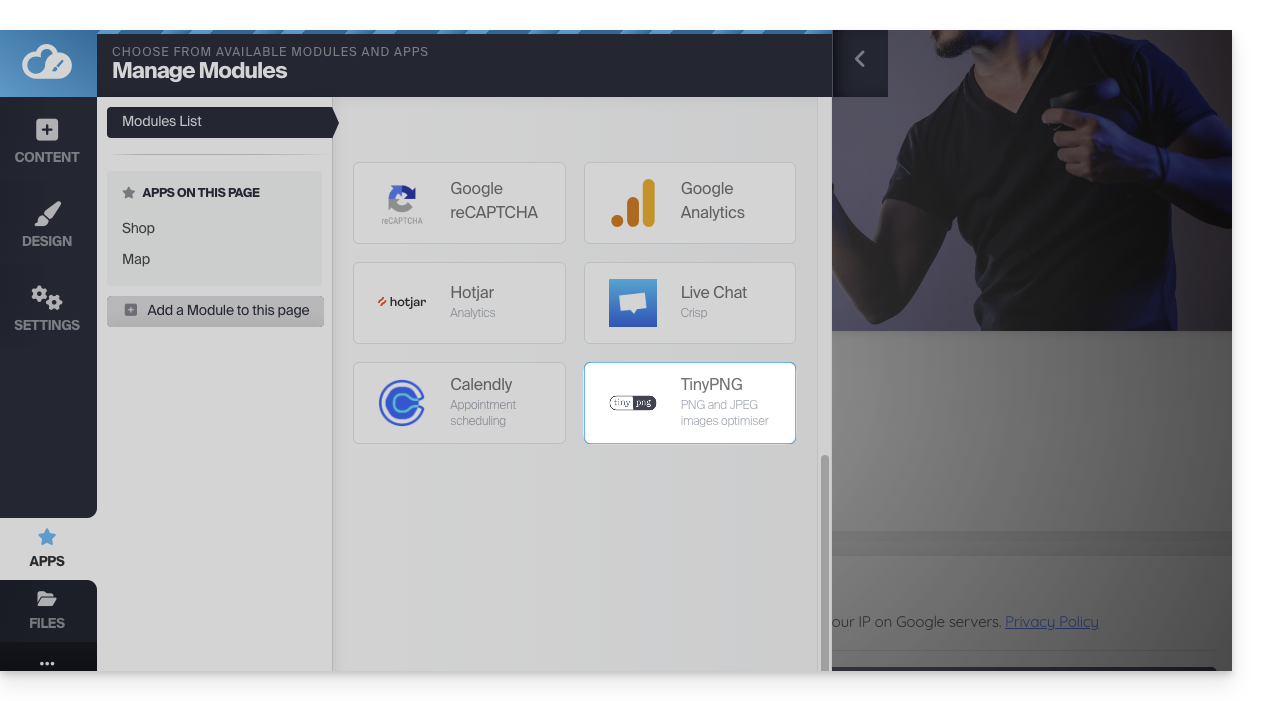
Abrir o editor de imagem
Passe o cursor sobre uma imagem da biblioteca e clique no menu de ação ⋮ para acessar o editor de imagem:
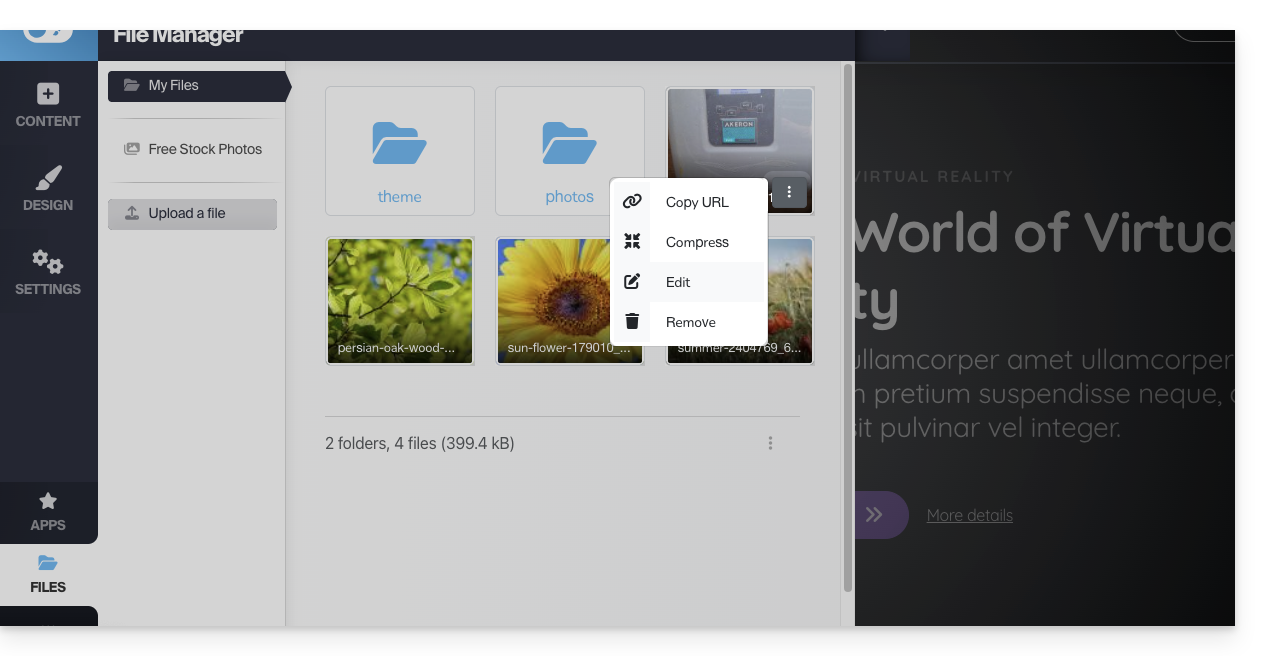
Ao salvar suas alterações, a imagem será salva como uma cópia em sua biblioteca: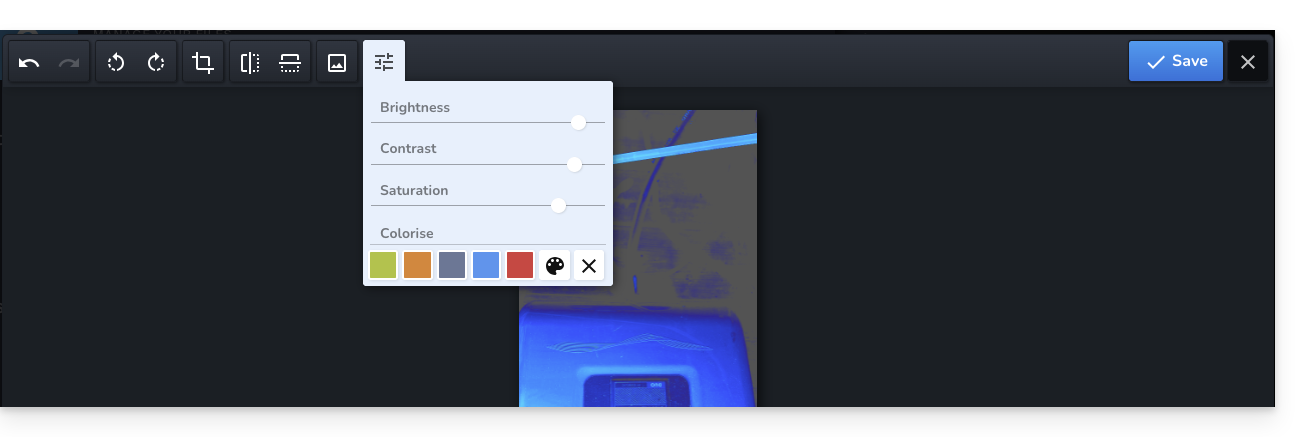
Otimizar o SEO e a acessibilidade
Depois de importar as imagens da biblioteca para as suas páginas web, não se esqueça de preencher o Texto alternativo (etiqueta Alt) nas configurações do bloco de imagem. Esta descrição textual é essencial: permite que os motores de busca (como o Google) compreendam o conteúdo das suas imagens, ao mesmo tempo que torna o seu site acessível a pessoas com deficiência visual que utilizam leitores de ecrã.
Como não é possível renomear os arquivos depois de carregados, crie o hábito de nomeá-los corretamente no seu computador antes de enviá-los. Evite nomes genéricos (ex: IMG_1234.jpg) e opte por nomes descritivos com hífens (ex: swiss-home-repair.jpg) para melhorar o seu posicionamento nos motores de busca.
Pesquisar e usar imagens de uso livre
Na barra lateral esquerda da biblioteca, você encontrará um item de menu que leva a imagens de stock (banco de imagens) livres de direitos autorais, que pode inserir na sua biblioteca para enriquecer o seu site: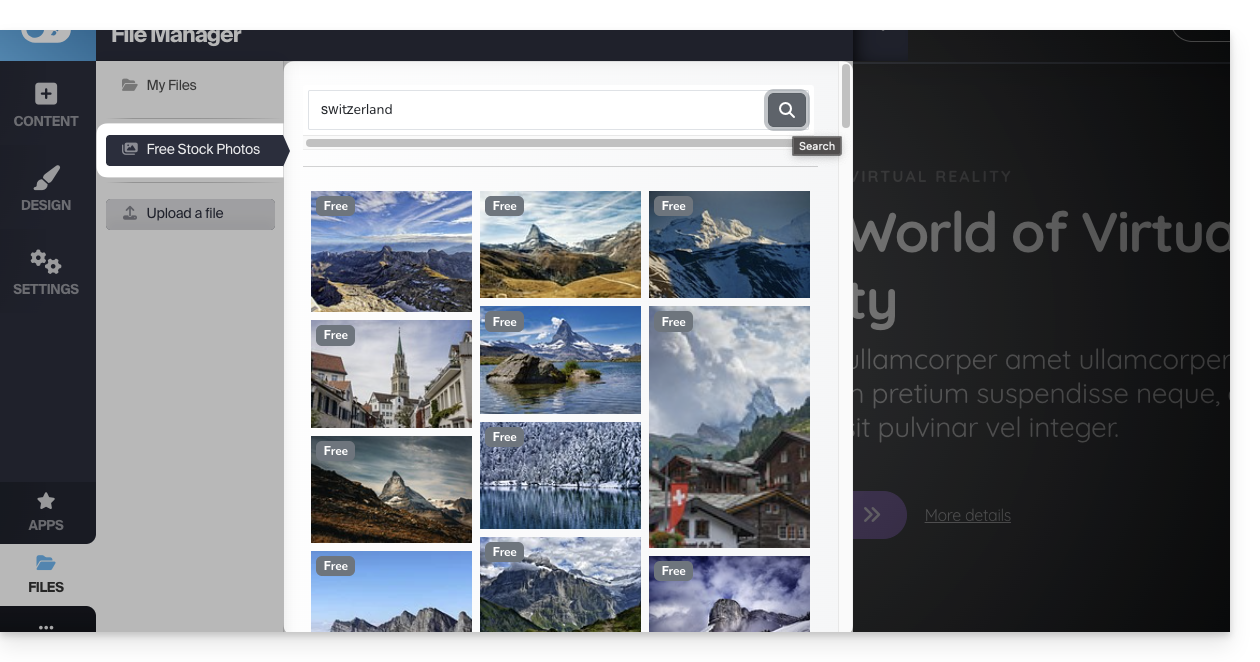
Proteger o seu conteúdo: desativar o clique com o botão direito
Clique em Configurações na barra lateral esquerda e, em seguida, em Configurações gerais. Na parte inferior, você encontrará uma opção que, quando ativada, impede que os visitantes cliquem com o botão direito no seu site: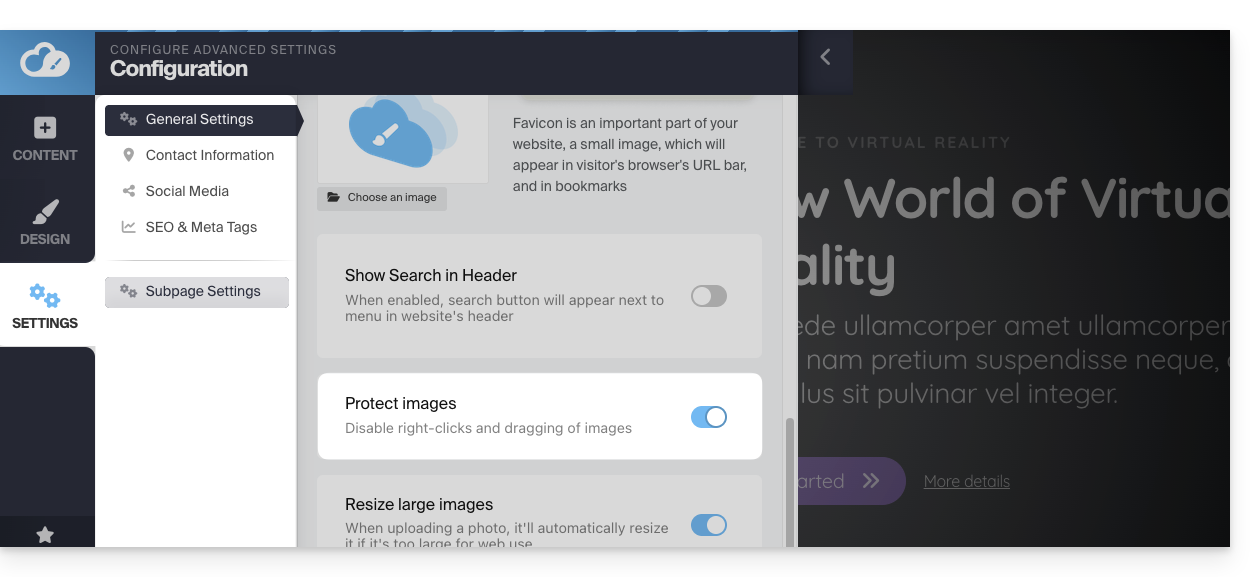
Como resolver um problema de envio de mídia
Tente fazer o upload de imagens WEBP, JPG ou PNG com o menor tamanho possível (idealmente abaixo de 500 KB); não é necessário enviar para o servidor imagens com uma largura superior a 1000-2000 pixels.
Certifique-se também de que os seus ficheiros de imagem sejam guardados com o perfil de cor RGB, que é o padrão para visualização em ecrã. Evite o perfil CMYK, que é muito pesado e reservado exclusivamente para impressão em papel, pois pode causar erros de visualização ou impedir a importação.
Se estiver a tentar fazer o upload de ficheiros diretamente a partir da sua câmara ou smartphone, tente redimensioná-las antes de fazer o upload; por exemplo, a partir do seu iPhone, a imagem pode estar no formato HEIF/HEIC, que não é suportado nativamente pelos navegadores web – tente convertê-la para JPG primeiro.
Link para esta FAQ: https://faq.infomaniak.com/2705
Esta seção de perguntas frequentes foi útil?
Este guia diz respeito ao Site Creator da Infomaniak, que permite criar um site completo composto por várias páginas.
Introdução
- A página inicial é obrigatória (com ou sem cabeçalho e rodapé).
- Adicione páginas adicionais, em branco, protegidas por senha ou contendo diretamente um conteúdo específico (por exemplo, um formulário de contato).
- Adicione páginas legais (para inserir seus termos e condições de uso, por exemplo).
- Todas elas farão parte do(s) menu(s) de navegação do site.
- Para (re)criar um site completo, com páginas e subpáginas (exemplos de sites pré-definidos), você pode instalar um modelo de site.
Adicionar uma página ao site
Pré-requisitos
- Aceder ao Site Creator:
- Clique aqui para aceder à gestão do seu produto no Manager Infomaniak (precisa de ajuda?).
- Clique diretamente no nome atribuído ao Site Creator em questão.
- Clique no botão Editar o meu site para iniciar o editor:
Depois de acessar o Site Creator:
- Clique no botão Configurações no menu lateral esquerdo – a lista das suas páginas será exibida.
- Clique no botão Adicionar página abaixo da árvore existente:
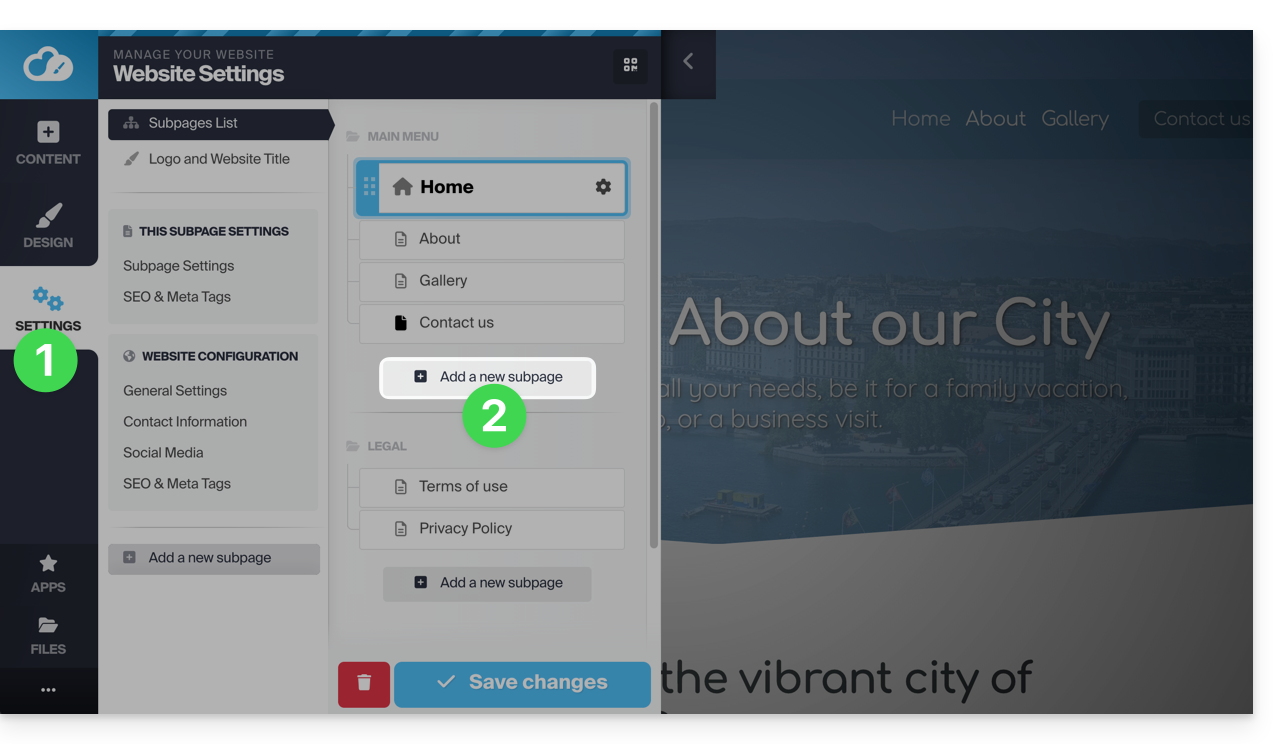
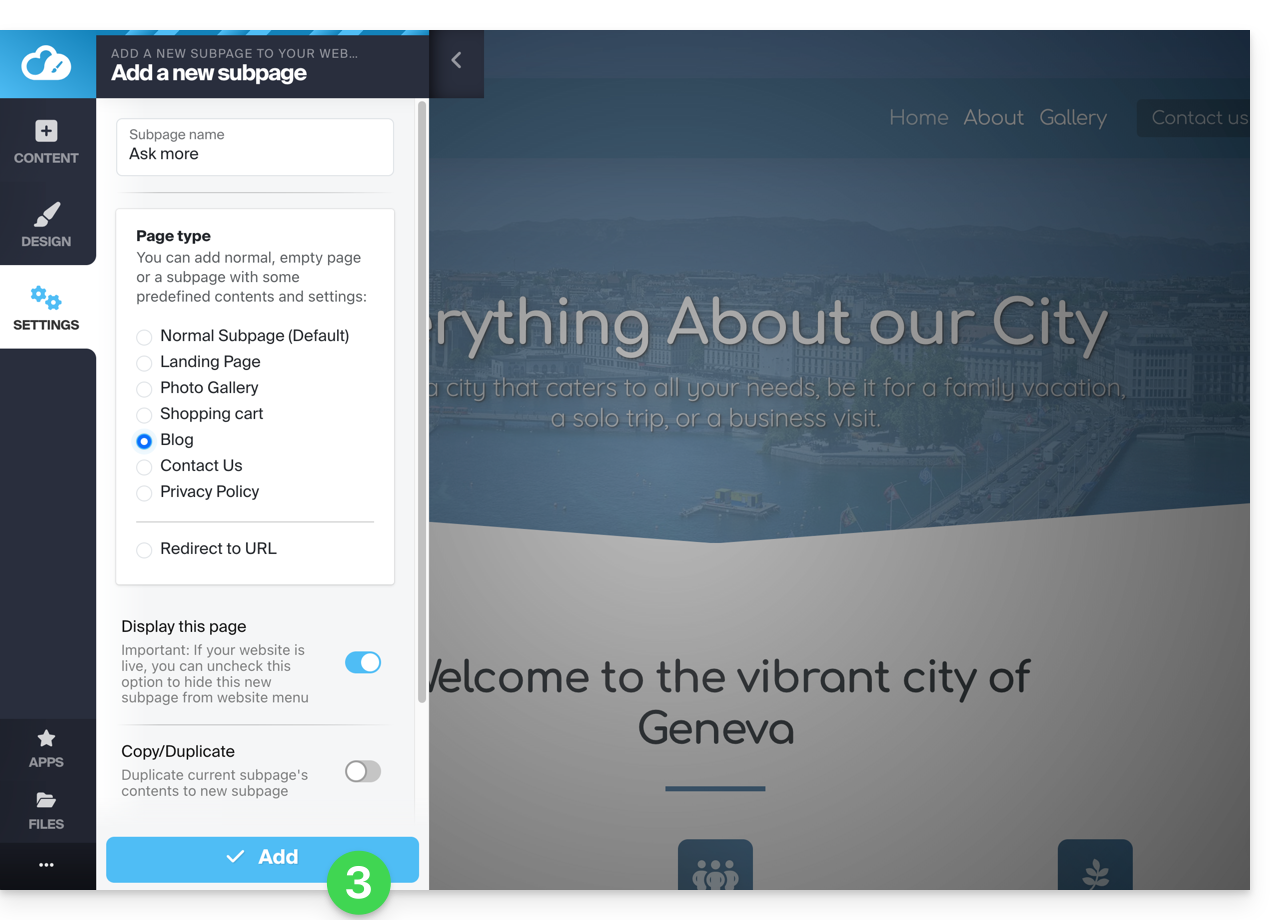
- Escolha um nome para a página e selecione Mostrar mais opções para escolher o tipo de página e outras configurações, e clique em Adicionar para criar a página:
Copiar / Duplicar uma página
Para isso:
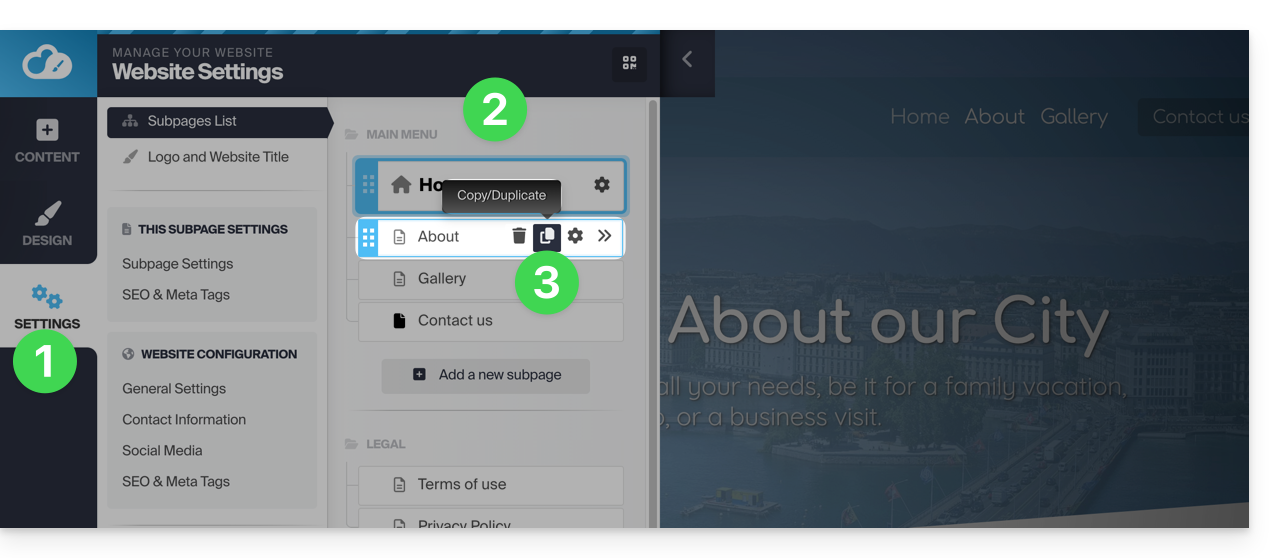
- Clique no botão Configurações no menu lateral esquerdo – a lista das suas páginas será exibida.
- Passe o cursor sobre a página desejada na árvore existente.
- Clique no ícone de duplicação que aparece ao passar o mouse:
Outra possibilidade:
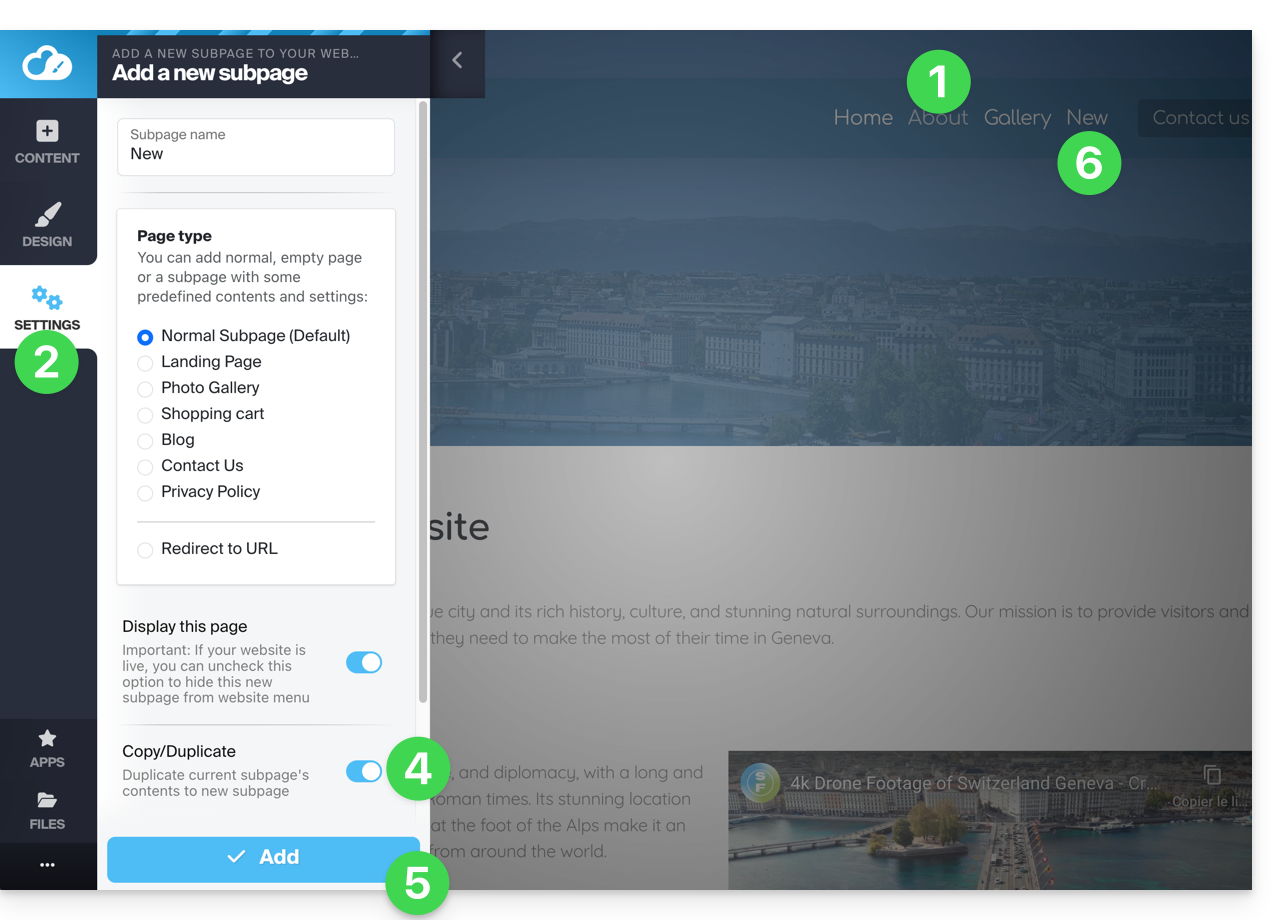
- Acesse a página do site que você deseja clonar.
- Clique no botão Configurações no menu lateral esquerdo.
- Clique no botão Adicionar página abaixo da árvore existente. Escolha um nome para a página e clique em Mostrar mais opções para escolher o tipo de página.
- Em Mostrar mais opções, ative a opção Clonar / duplicar para reutilizar o conteúdo da página atual.
- Clique para Adicionar a página.
- A nova página é exibida no menu com o mesmo conteúdo da página em que você estava no passo 1:
Renomear uma página
Atenção, renomear uma página altera o seu URL.
Para isso:
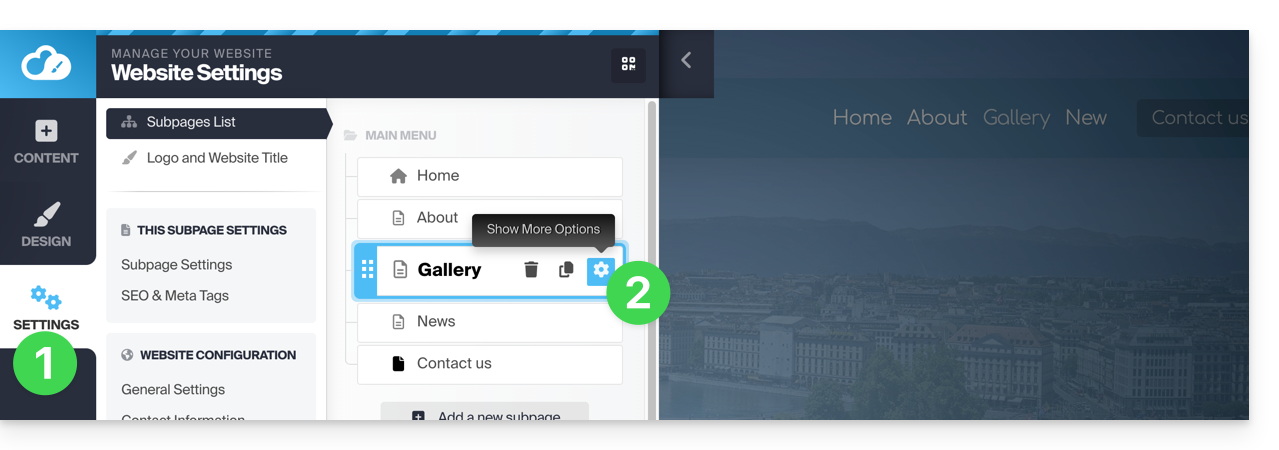
- Clique no botão Configurações no menu lateral esquerdo – a lista das suas páginas será exibida.
- Passe o cursor sobre a página desejada na árvore existente e clique no ícone de engrenagem para acessar as opções da página, cujo nome de exibição é:
Outra possibilidade: em Configurações, na árvore existente, você pode renomear suas páginas diretamente e, em seguida, clicar em Salvar alterações na parte inferior da página: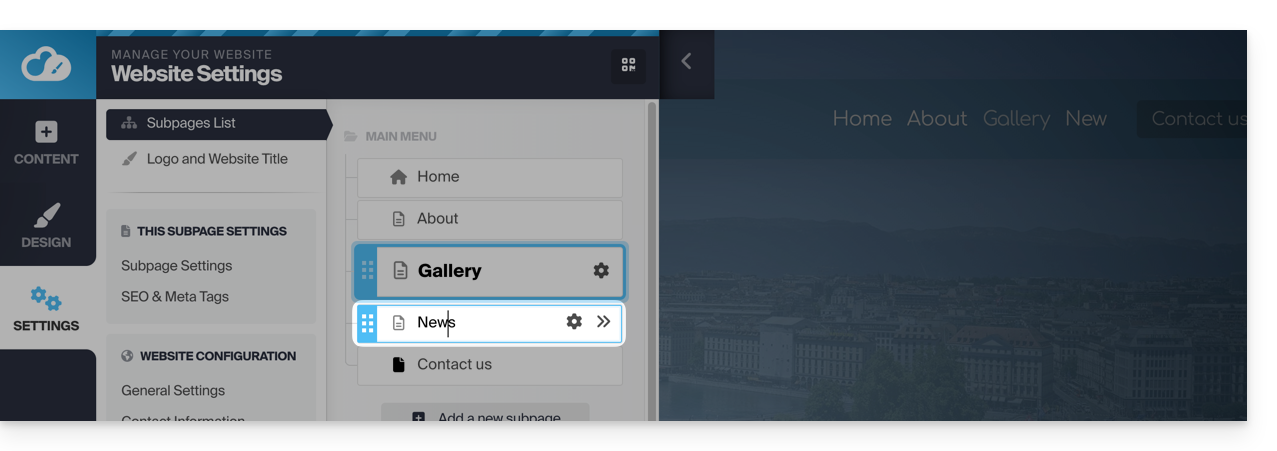
Alterar a ordem das páginas
Isto pode ser útil, especialmente para defina uma das suas páginas existentes como página inicial em vez da página inicial atual. Para isso:
- Clique no botão Configurações no menu lateral esquerdo – a lista das suas páginas será exibida.
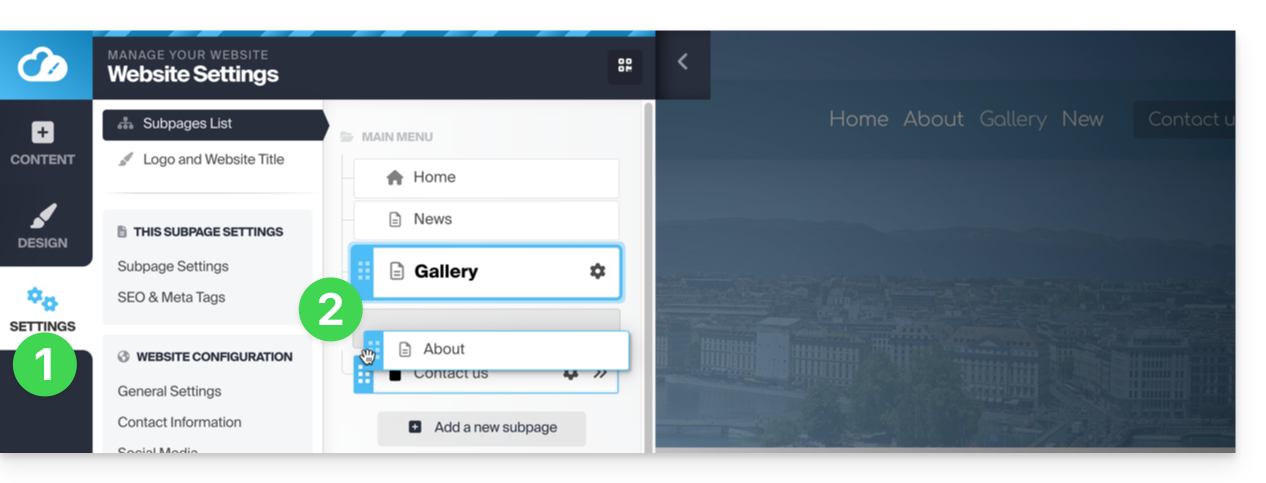
- Na estrutura existente, pode arrastar diretamente as suas páginas para alterar a sua ordem (isso influencia principalmente a exibição das páginas dentro de um menu) e, em seguida, Guardar as alterações na parte inferior da página:
Excluir uma página
Para isso:
- Clique no botão Configurações no menu lateral esquerdo – a lista das suas páginas será exibida.
- Passe o cursor sobre a página desejada na árvore existente.
- Passe o cursor sobre o ícone de engrenagem e clique no ícone da lixeira que aparece ao passar o cursor:
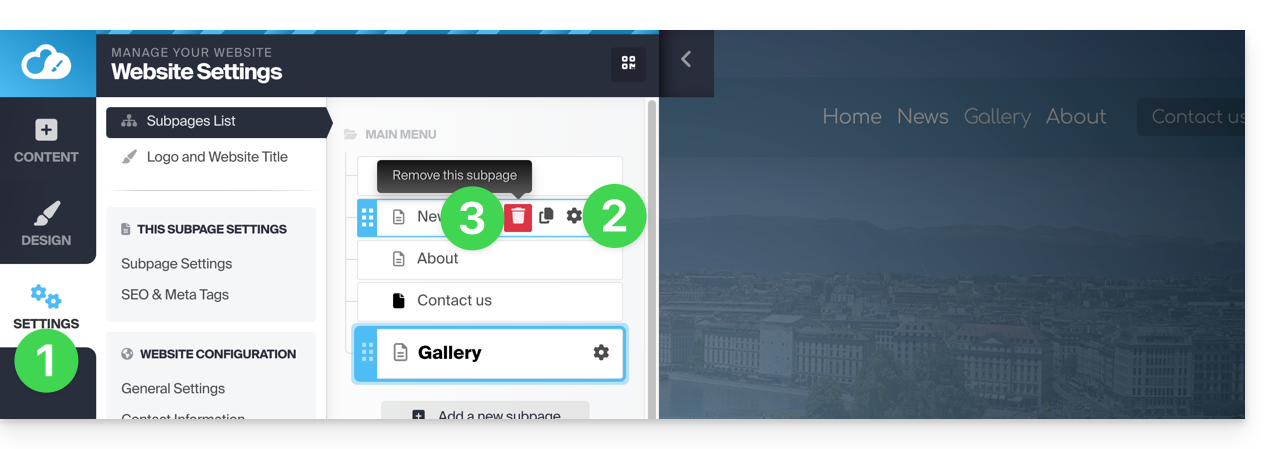
- Confirme a exclusão e a página desaparecerá sem possibilidade de anulação.
Outra possibilidade: aceda à página que pretende eliminar. Em Configurações, clique no botão vermelho Lixeira, na parte inferior da página, para eliminar a página atual: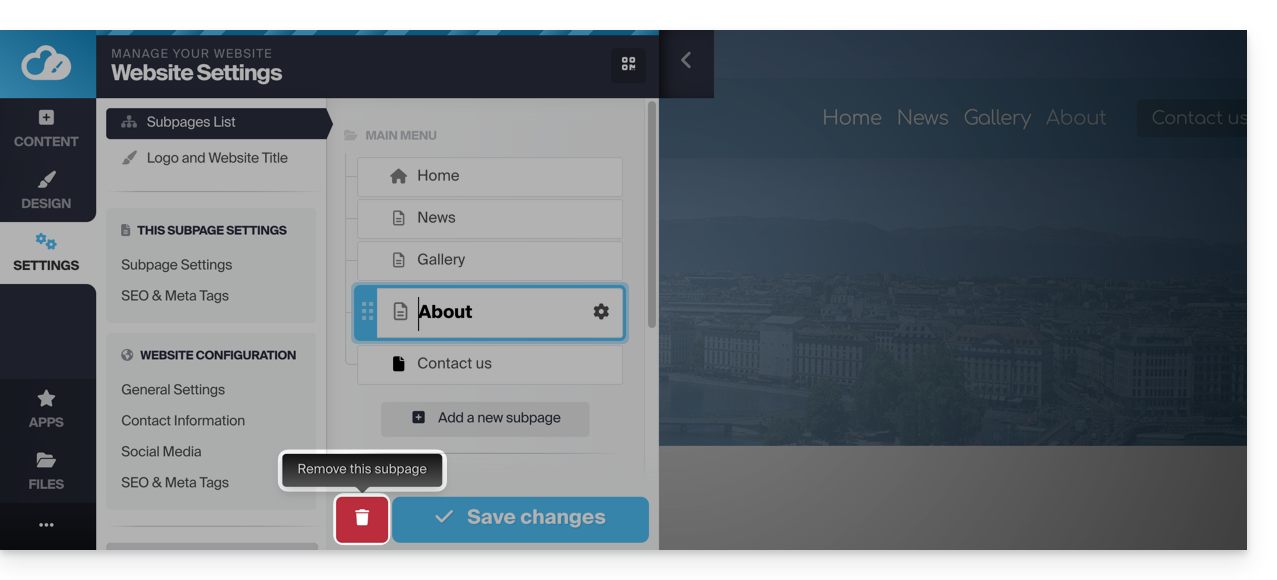
Criar uma página privada / protegida por palavra-passe
Para isso:
- Clique no botão Configurações no menu lateral esquerdo – a lista das suas páginas será exibida.
- Passe o cursor sobre a página desejada na árvore existente.
- Clique no ícone de engrenagem para acessar as opções da página.
- Ative a opção de proteção por senha para definir uma senha que será solicitada ao acessar a página.
- Salve as alterações na parte inferior da página:
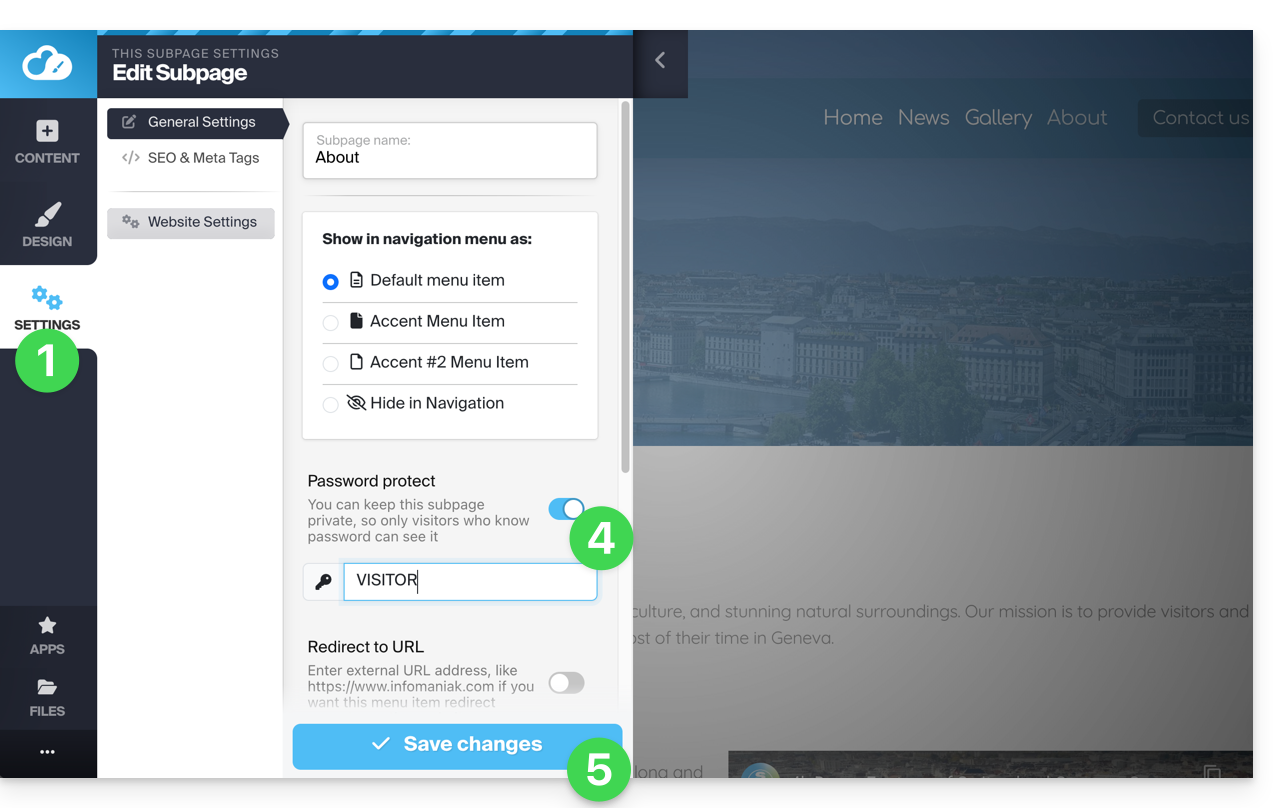
Para testar, visite a página a partir de um navegador em modo de navegação privada (para não estar conectado ao Site Creator) ou pré-visualize a página a partir do editor: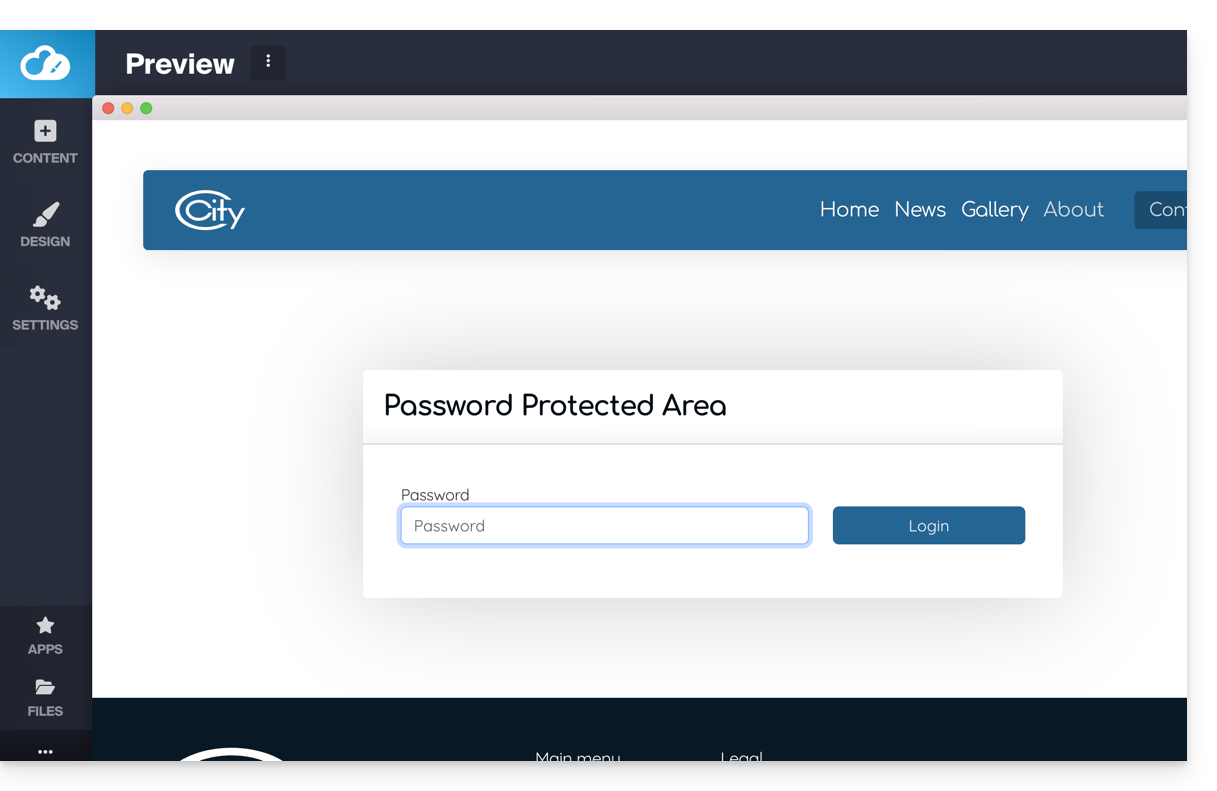
Adicionar uma página "oculta"
Para adicionar uma página que não aparecerá no menu principal (mas que permanecerá acessível através do seu endereço direto e através de um motor de pesquisa, caso este indexe a sua página, bem como no mapa do site, se desejar):
- Clique no botão Configurações no menu lateral esquerdo – a lista das suas páginas será exibida.
- Passe o cursor sobre a página desejada na árvore existente.
- Clique no ícone de engrenagem para acessar as opções da página.
- Escolha o último tipo de exibição para ocultar a página na navegação e determine se deseja incluí-la no mapa do site.
- Salve as alterações na parte inferior da página:
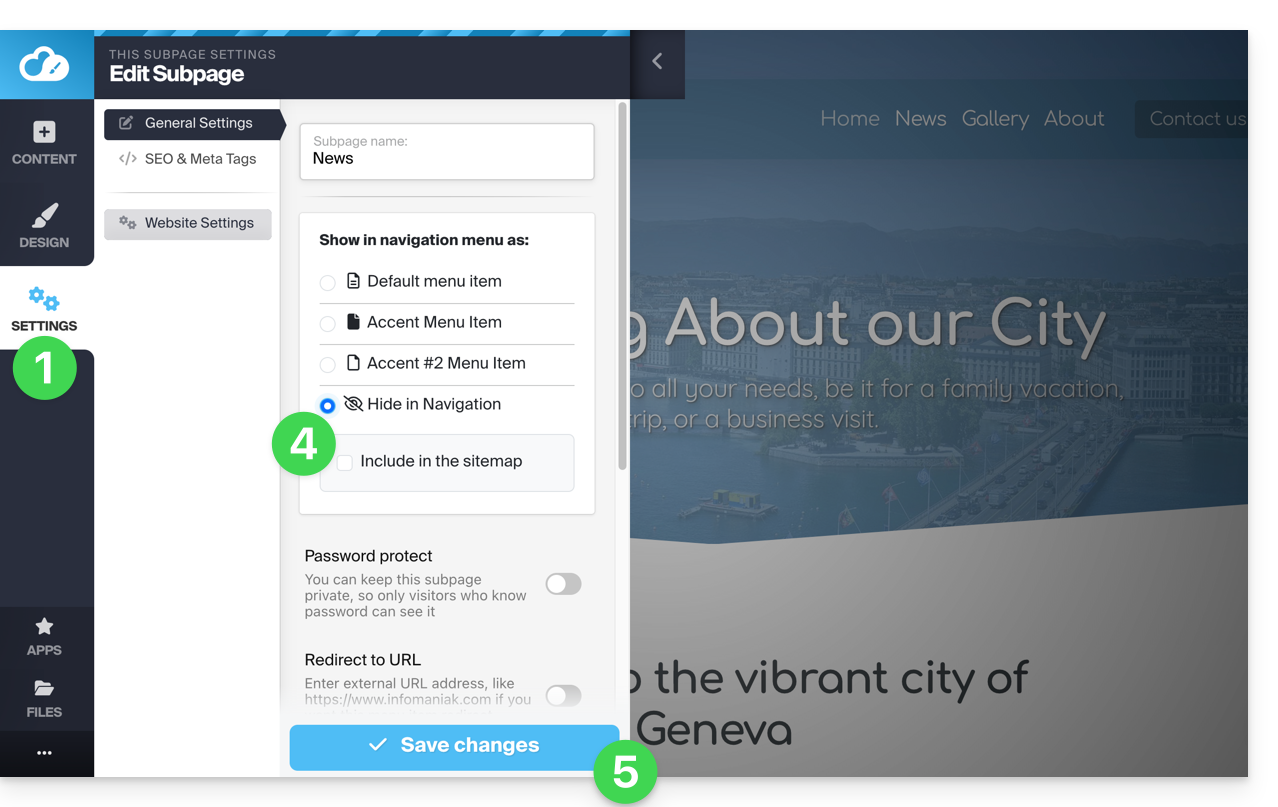
Outra possibilidade: passe o cursor sobre a página desejada na árvore existente e clique no ícone da página à esquerda do nome da sua página, até que o ícone com um círculo e uma barra apareça:
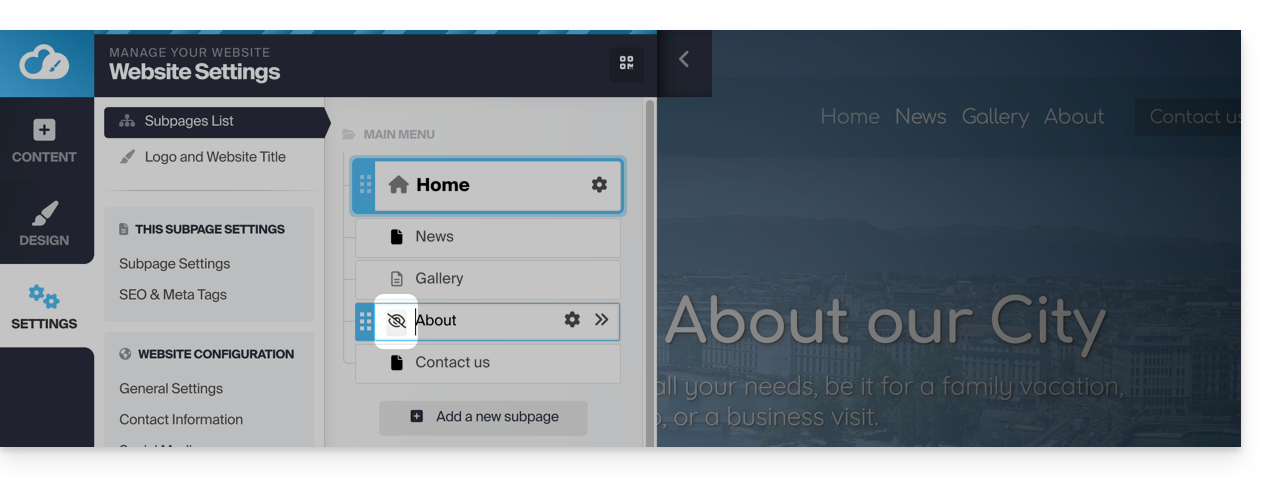
Salve as alterações na parte inferior da página.
Se necessário, pode criar um link para esta página oculta a partir de outra página, pois a página oculta aparecerá na lista de páginas do site quando adicionar um link interno: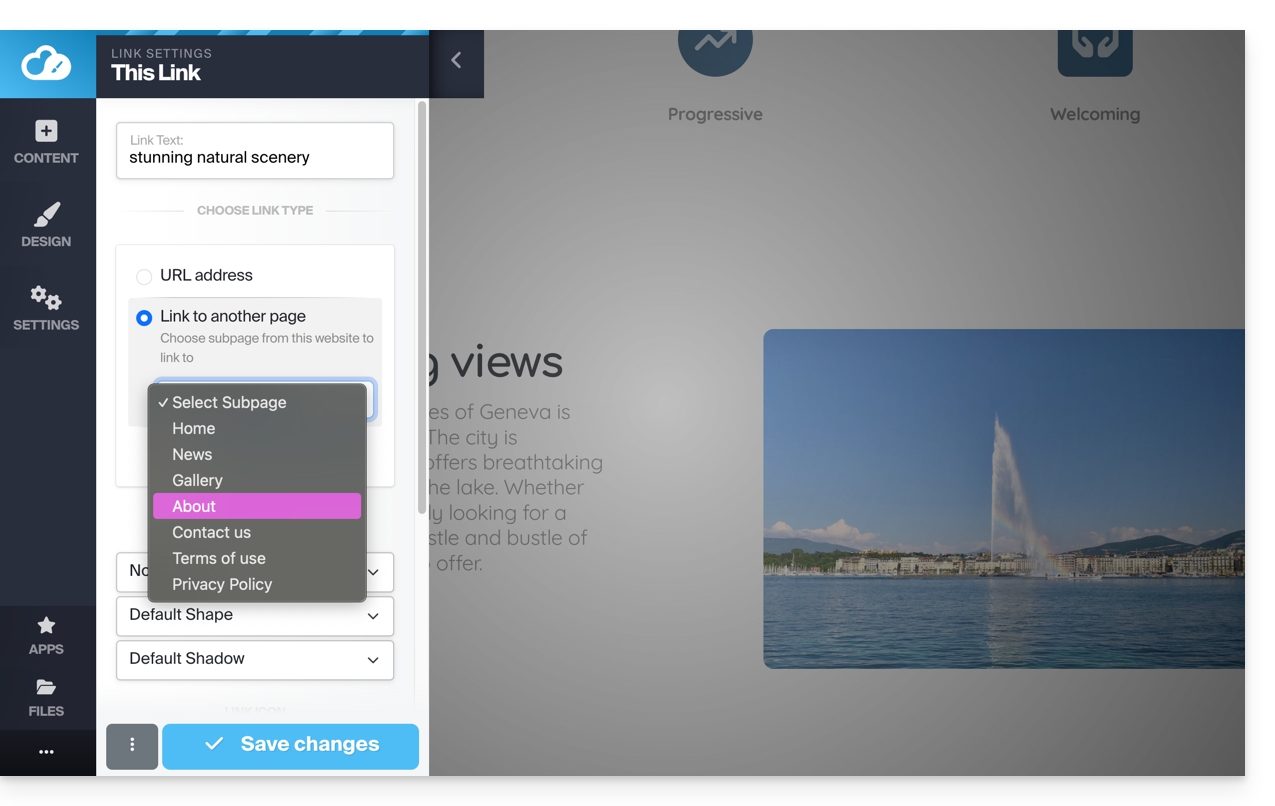
Link para esta FAQ: https://faq.infomaniak.com/2706
Esta seção de perguntas frequentes foi útil?
Este guia detalha o comportamento do Site Creator da Infomaniak e do site criado com ele, em relação aos diferentes formatos e resoluções de tela.
Pré-requisitos
- Aceder ao Site Creator:
- Clique aqui para aceder à gestão do seu produto no Manager Infomaniak (precisa de ajuda?).
- Clique diretamente no nome atribuído ao Site Creator em questão.
- Clique no botão Editar o meu site para iniciar o editor:
Visualizar o site em diferentes dispositivos
Os sites criados com o Site Creator são automaticamente adaptados aos navegadores, independentemente do dispositivo utilizado (computador, dispositivo móvel, tablet, tela grande ou pequena, etc.). No entanto, podem apresentar comportamentos diferentes dependendo de certos parâmetros que você pode ajustar.
Para visualizar a versão do site de acordo com o dispositivo de visualização:
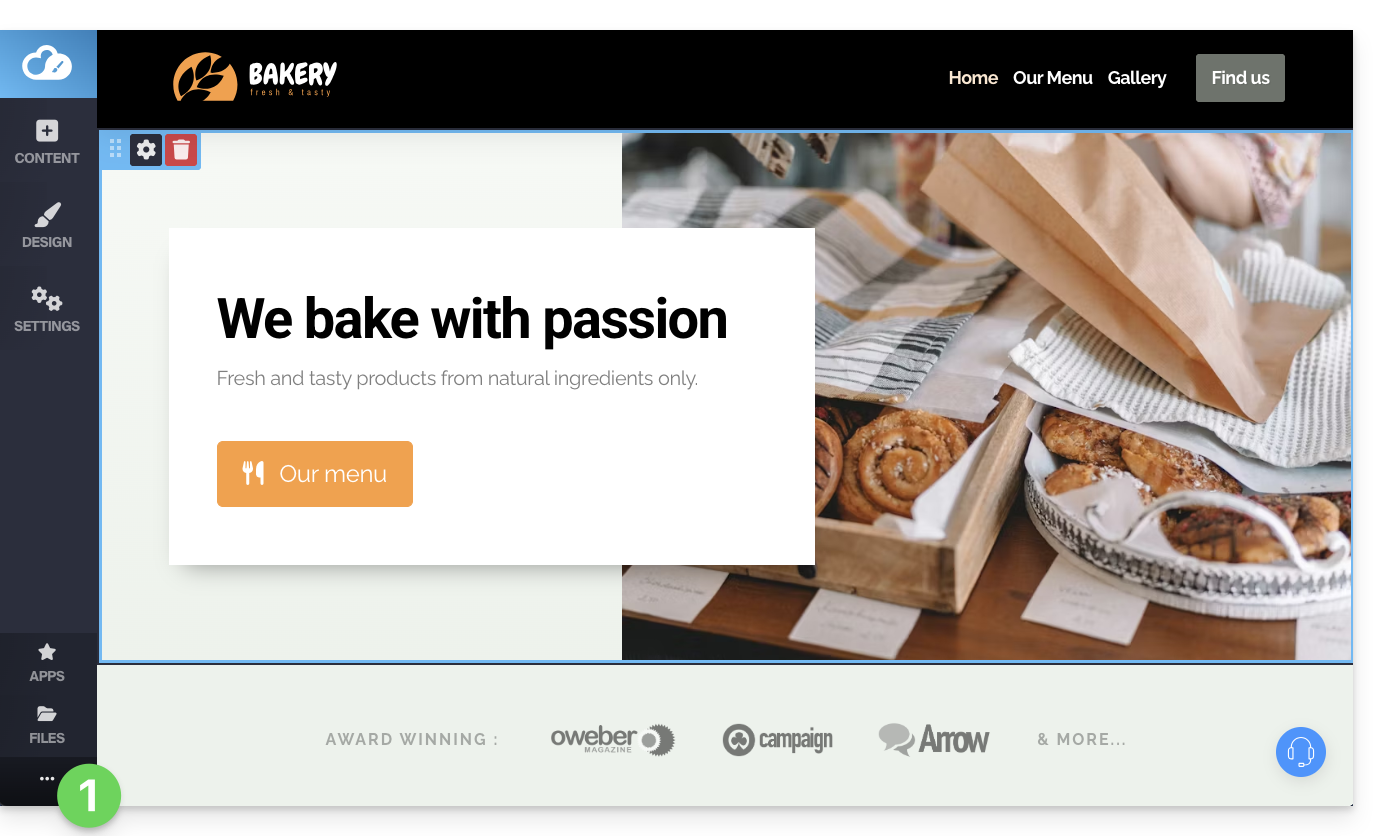
- Clique no botão •••, localizado na parte inferior do menu lateral esquerdo, para expandir as opções de publicação e visualização:
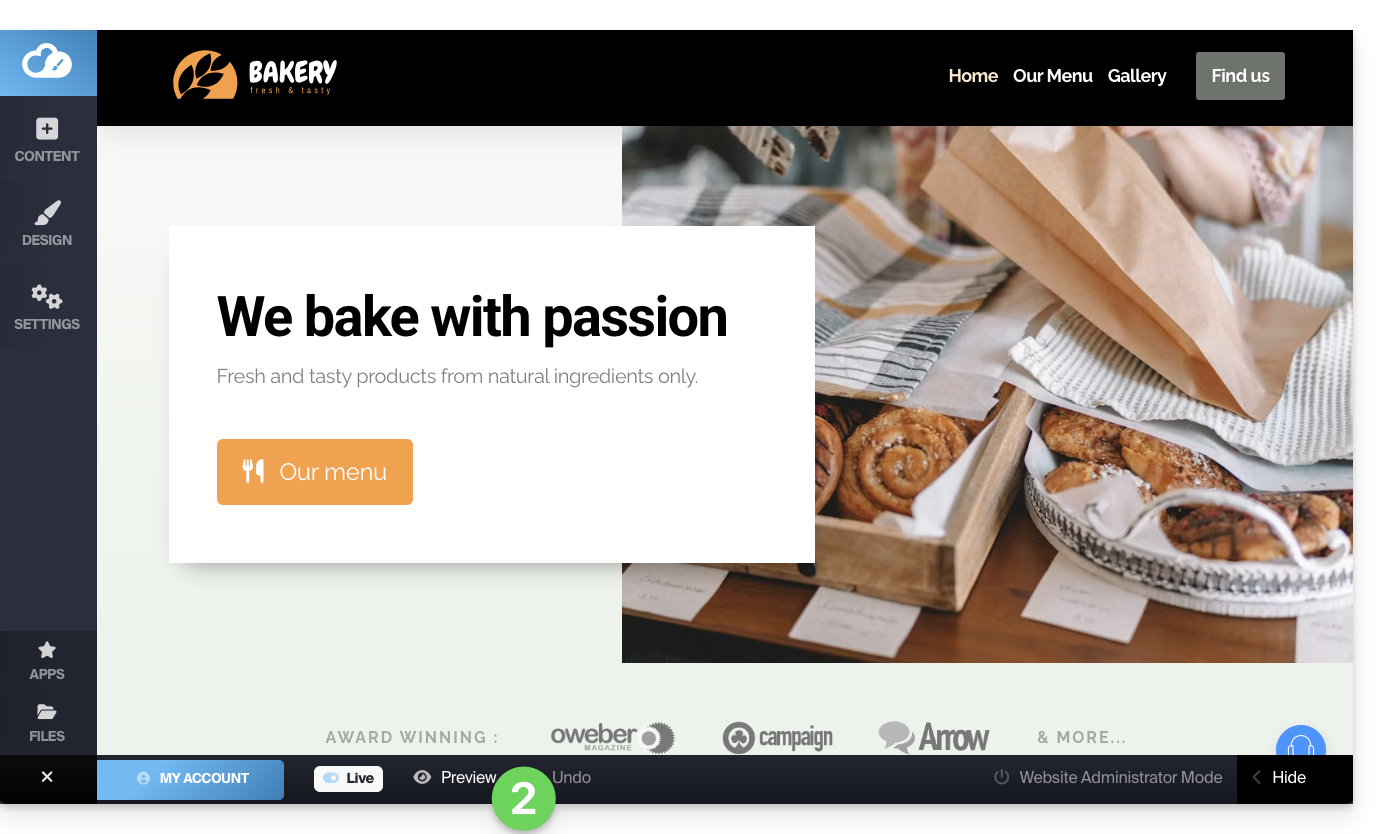
- Clique em Visualizar:
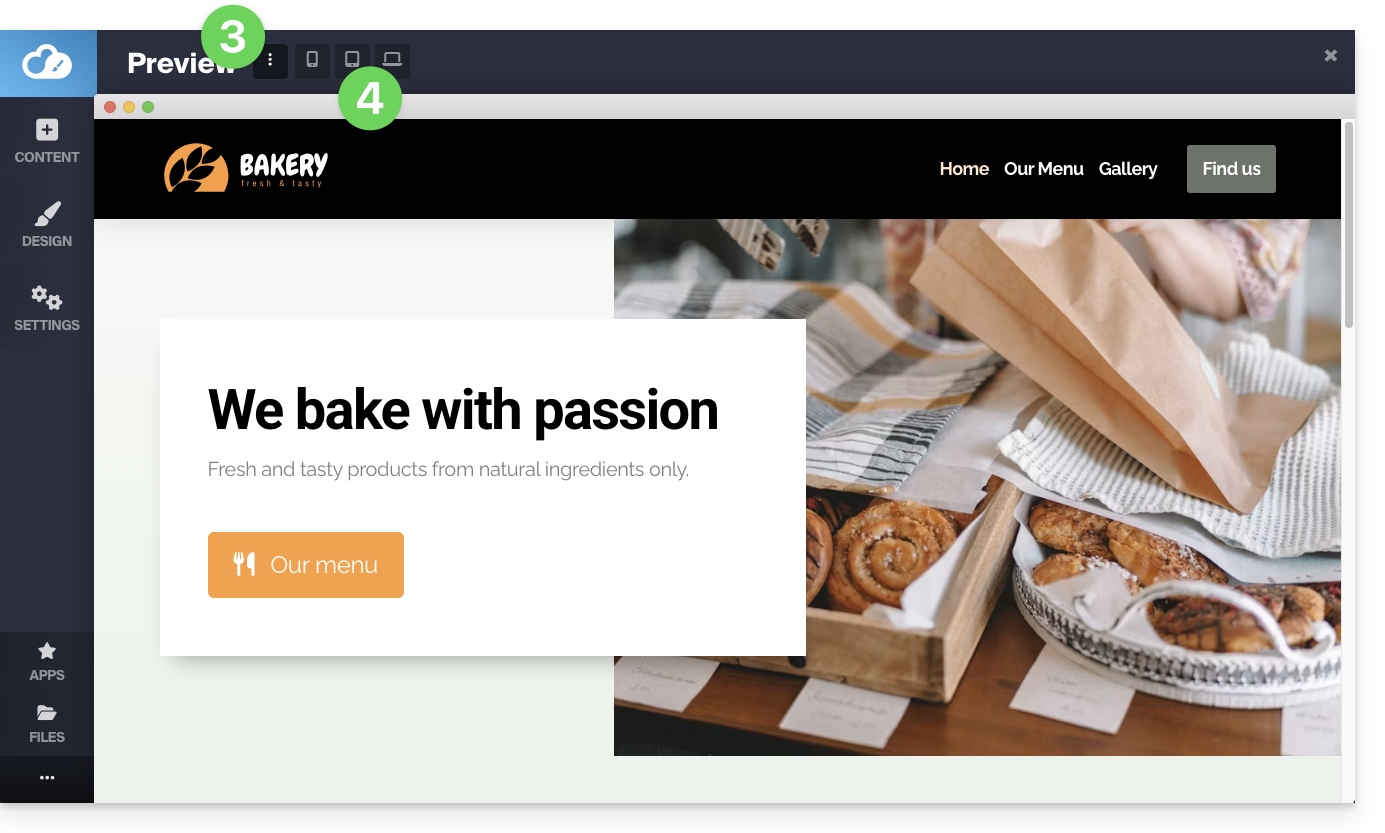
- Na parte superior da página, clique no menu de ação ⋮ à direita de Pré-visualização para alterar o tipo de dispositivo de visualização.
- Clique nos diferentes ícones de dispositivo para simular os diferentes formatos de visualização (móvel, vertical, horizontal…):
Exibir seu site em largura reduzida
Você pode reduzir a largura do seu site, dentro de um “container” ou “bloco”. Essa exibição especial será visível apenas em telas grandes, como as de computadores:
- Clique no botão Design no menu lateral esquerdo.
- Clique em Mais configurações.
- Ative o botão de alternância (toggle switch) para exibir o contêiner:
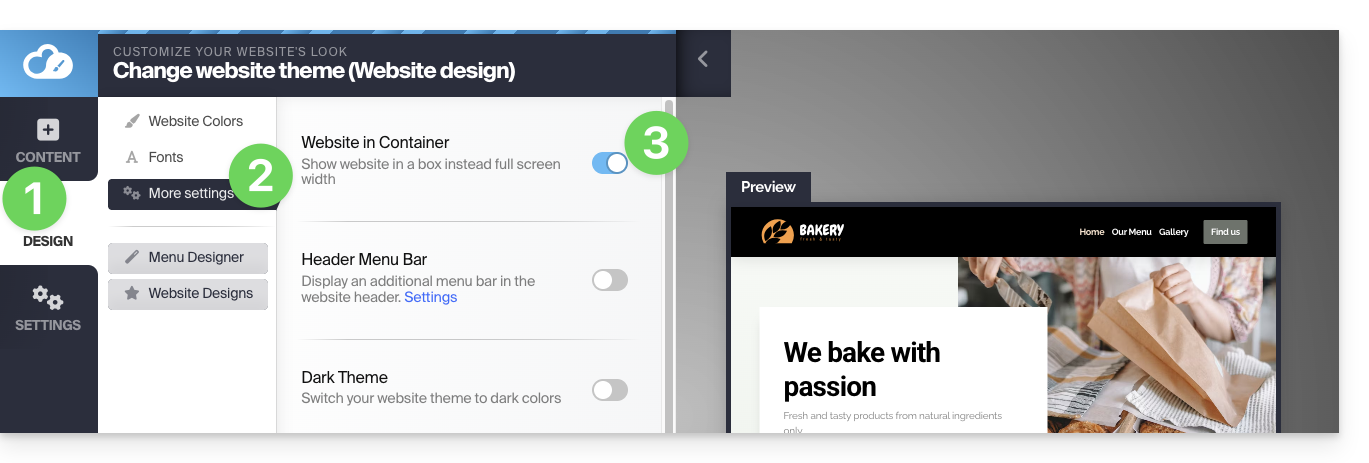
- Salve as alterações na parte inferior da página.
Ocultar um bloco de conteúdo de acordo com o tipo de dispositivo
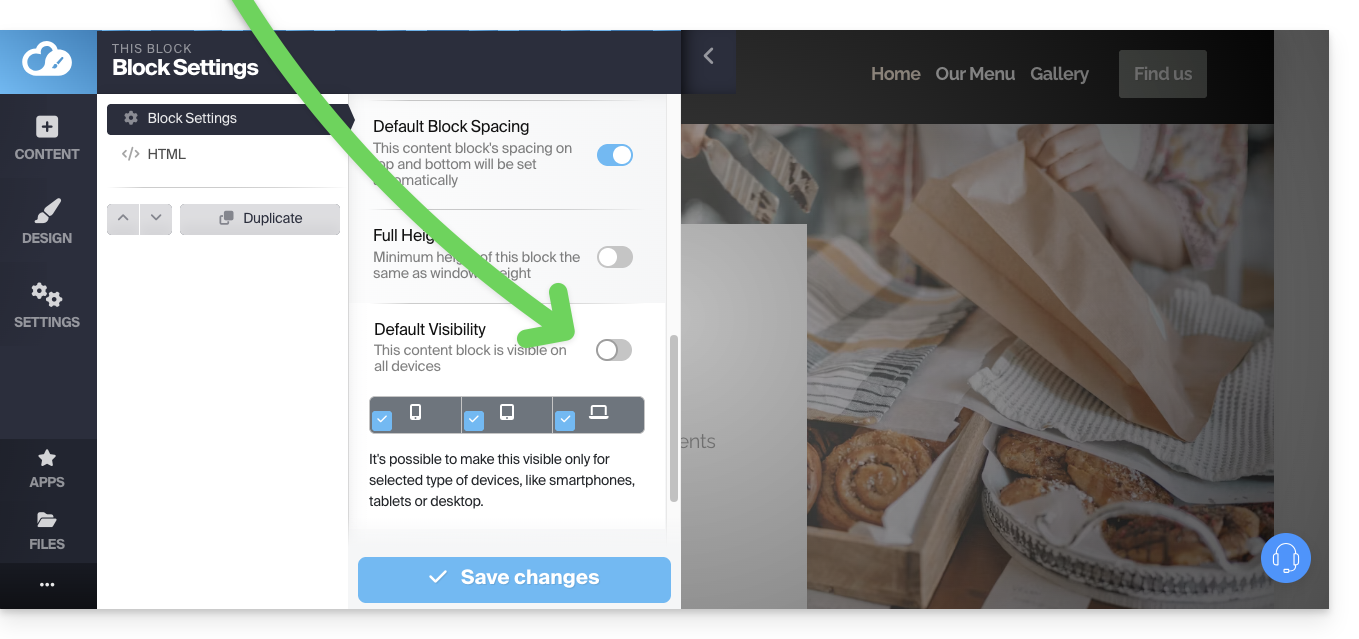
Nas opções de um bloco de conteúdo, ao desativar a visibilidade padrão, você poderá definir para exibir este bloco apenas em determinados tipos de dispositivo (por exemplo, dispositivos móveis):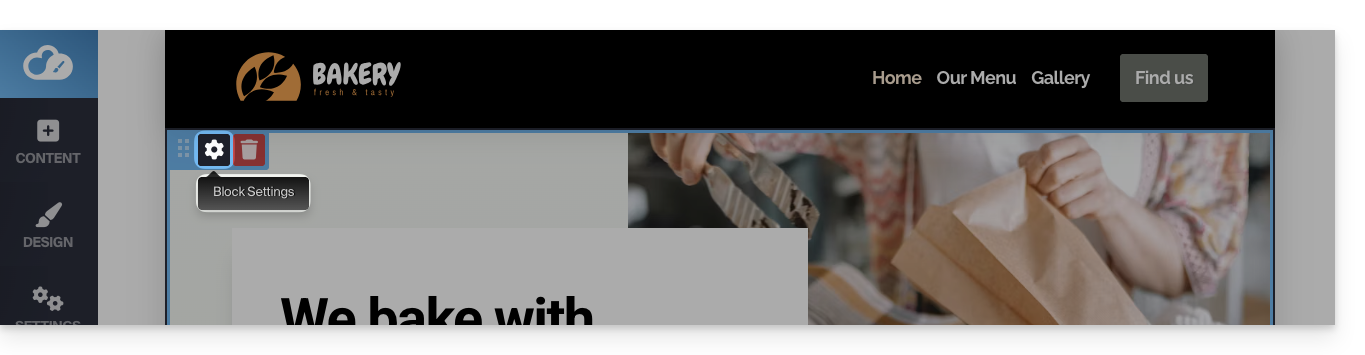
Link para esta FAQ: https://faq.infomaniak.com/2707
Esta seção de perguntas frequentes foi útil?
Este guia aborda os blocos de conteúdo, que são um dos elementos mais importantes do Site Creator da Infomaniak.
Introdução
- Estes são os blocos de conteúdo que lhe permitirão criar facilmente conteúdo nas suas páginas.
- Existem vários tipos, separador, lista de preços, mapa do site, blocos simples de texto ou imagem, etc.
- Geralmente, eles já vêm pré-configurados para facilitar a sua utilização.
Adicionar um bloco de conteúdo
Pré-requisitos
- Aceder ao Site Creator:
- Clique aqui para aceder à gestão do seu produto no Manager Infomaniak (precisa de ajuda?).
- Clique diretamente no nome atribuído ao Site Creator em questão.
- Clique no botão Editar o meu site para iniciar o editor:
Dentro do Site Creator:
- Clique no botão Conteúdo no menu lateral esquerdo: a lista de blocos será exibida.
- Escolha a categoria desejada no lado esquerdo e, em seguida, o conteúdo desejado no lado direito.
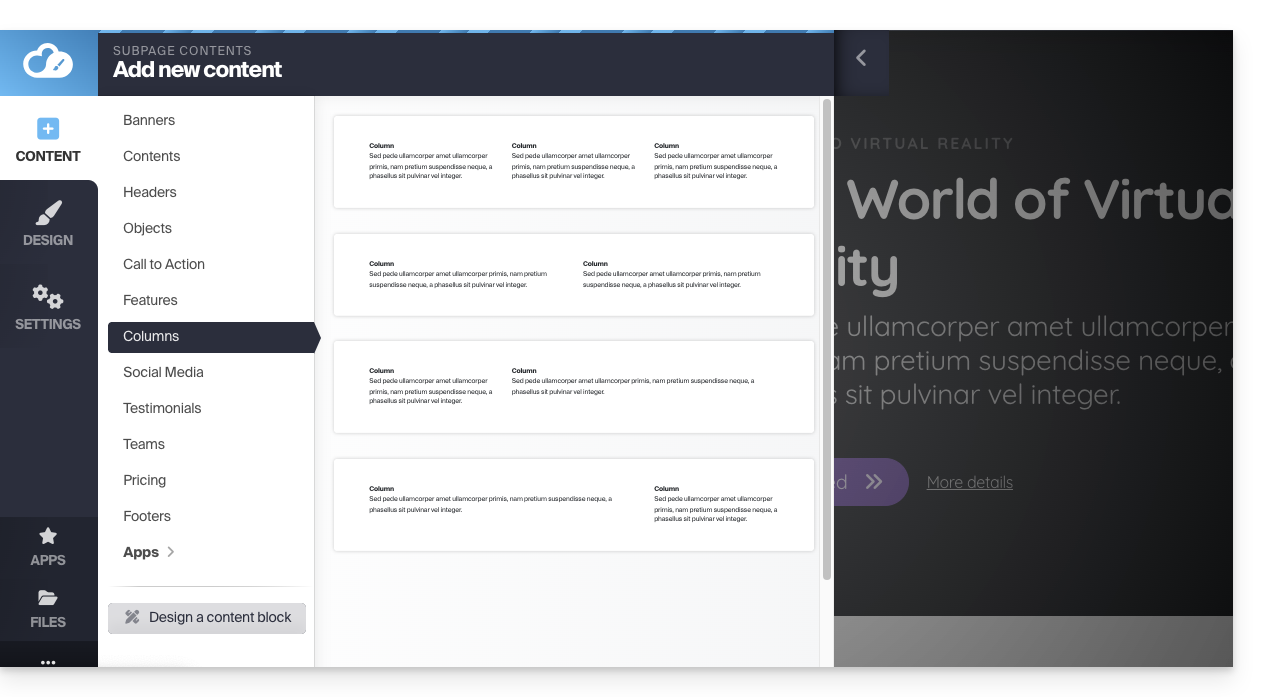
Ao clicar no conteúdo desejado, ele será exibido na página que você estava editando.
Outra possibilidade: aceder diretamente à página e passar o cursor sobre o espaço acima ou abaixo de um bloco existente: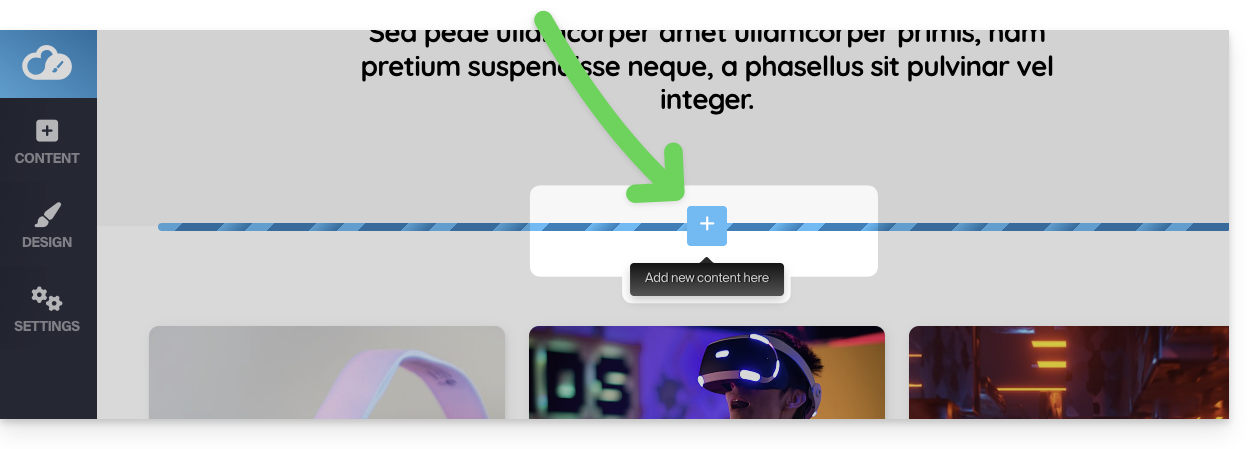
Remover um bloco de conteúdo
Passe o cursor sobre o bloco que deseja remover na sua página e clique no ícone da lixeira que aparece ao passar o cursor: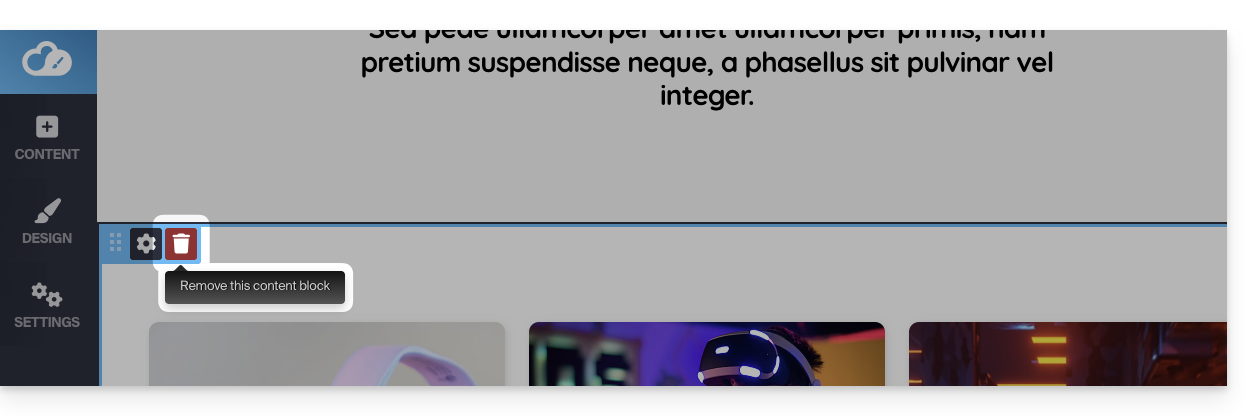
Confirme a remoção e ele desaparecerá.
Você pode desfazer este tipo de operação.
Duplicar um bloco
Passe o cursor sobre o bloco que deseja duplicar na sua página e clique na engrenagem que aparece ao passar o cursor.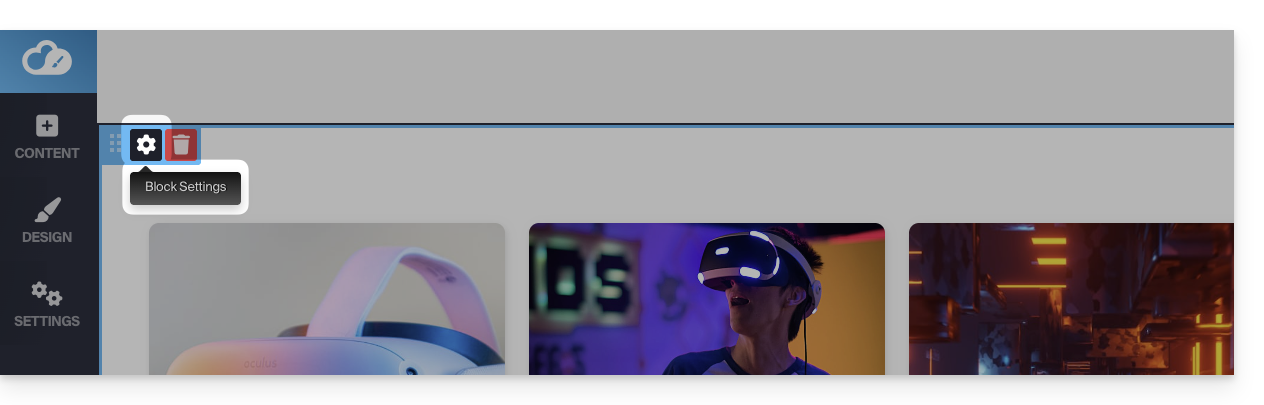
Em seguida, escolha o local desejado para a duplicação: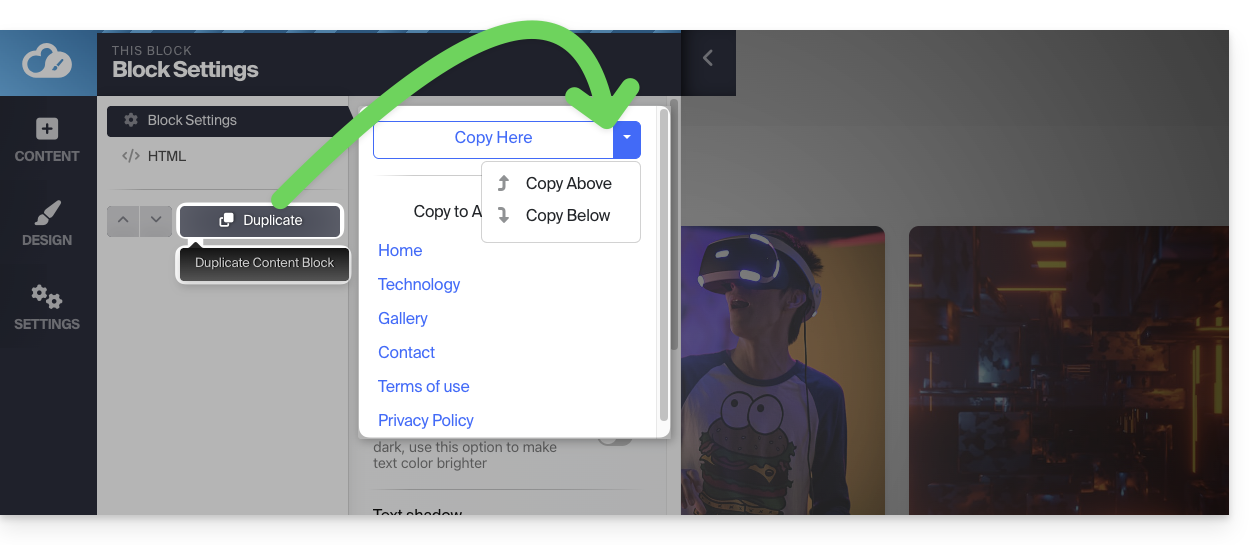
Modificar um bloco de conteúdo
Cada elemento editável do bloco de conteúdo será destacado quando você passar o mouse sobre ele. Basta clicar em um desses elementos para iniciar a edição.
Além disso, você pode editar o código HTML (recomendado apenas para usuários avançados), caso precise de mais controle sobre qualquer bloco de conteúdo. Isso permite, por exemplo, inserir um código HTML de inscrição na newsletter da Infomaniak.
Você também pode remover alguns elementos dos seus blocos de conteúdo: ao editar o texto, há o botão "seta para a direita" que exibe mais opções e o botão Excluir: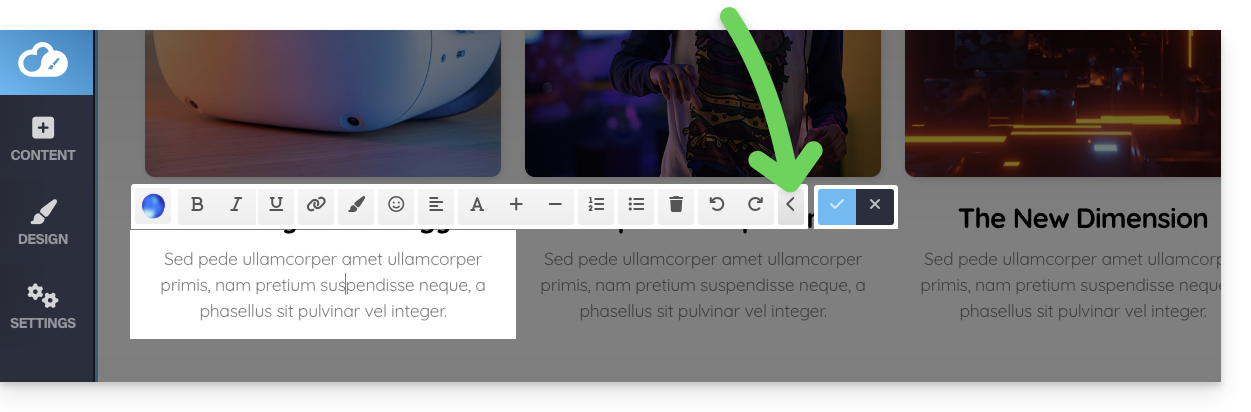
Para editar uma imagem, clique nela e uma nova janela será aberta. Na parte inferior, há o botão Salvar à direita e o botão Excluir vermelho à esquerda: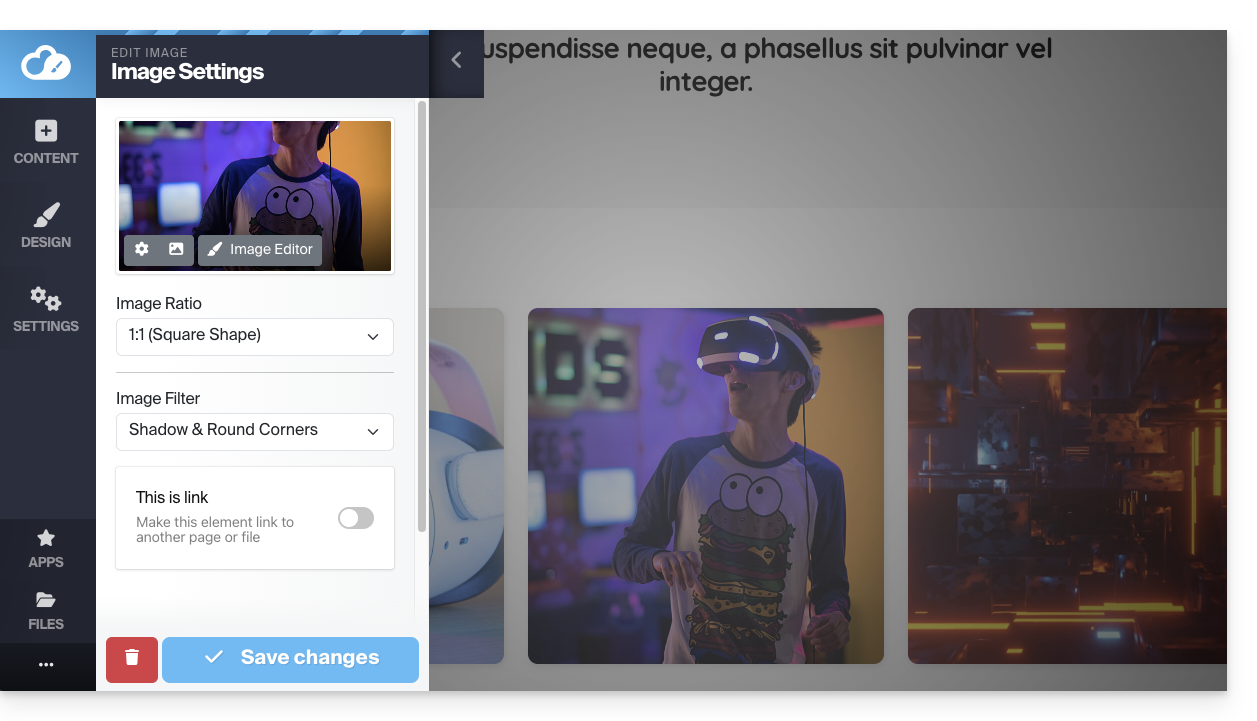
Criar um bloco de conteúdo
Na barra lateral esquerda, abaixo dos conteúdos que podem ser adicionados à sua página, você encontrará um botão para Criar um bloco de conteúdo: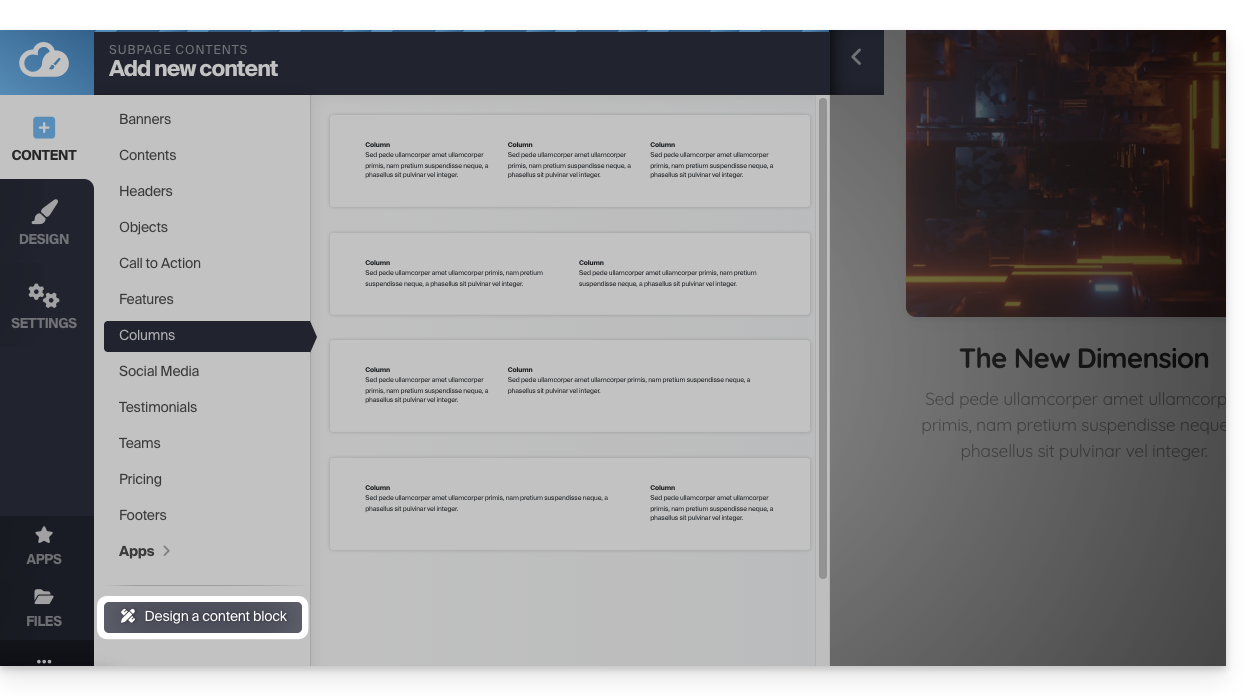
Todos os elementos que compõem os blocos estão dispostos à esquerda. Você pode arrastá-los para o seu bloco modelo para criar o bloco ideal. Ele será inserido na sua página ao clicar em Aplicar as alterações na parte inferior da página: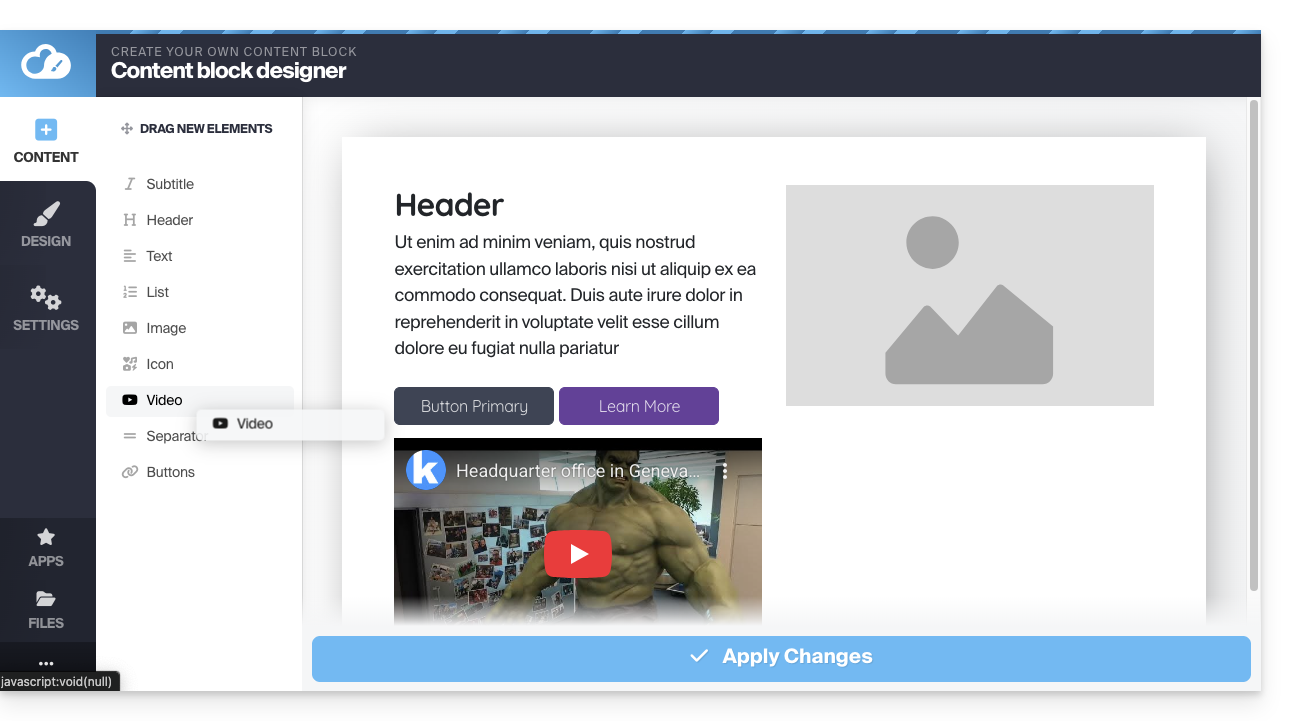
Modificar as margens do bloco
Passe o cursor sobre o bloco de conteúdo que deseja modificar e clique no ícone de engrenagem:
Role as configurações até Espaçamento padrão dos blocos e clique para definir suas próprias configurações: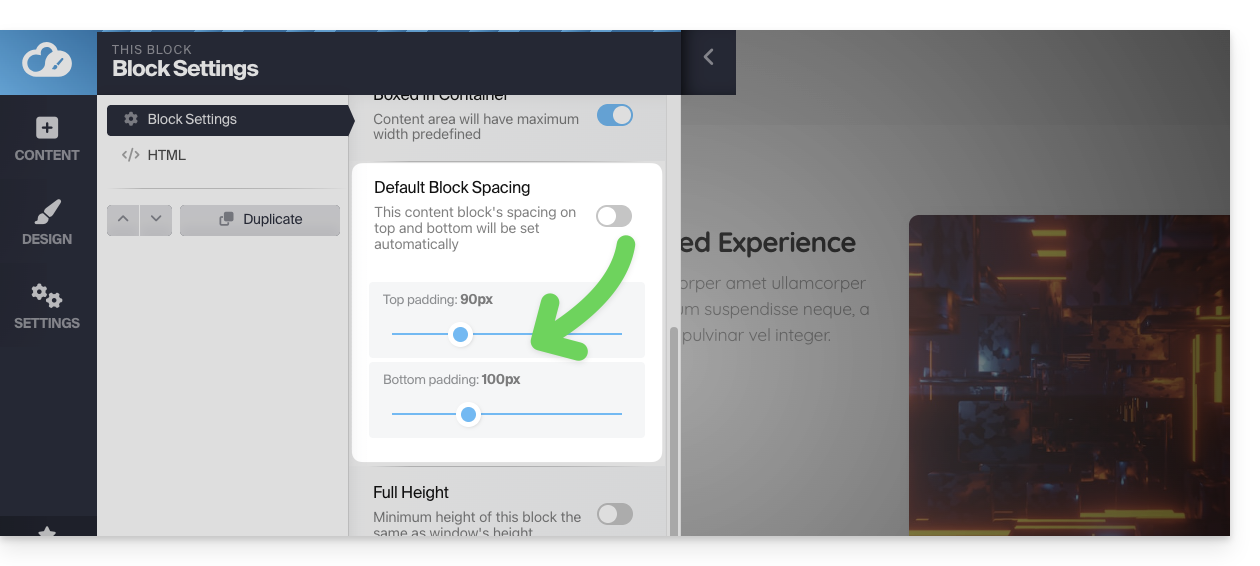
A roda dentada de configurações também permite modificar a cor ou a imagem de fundo do bloco: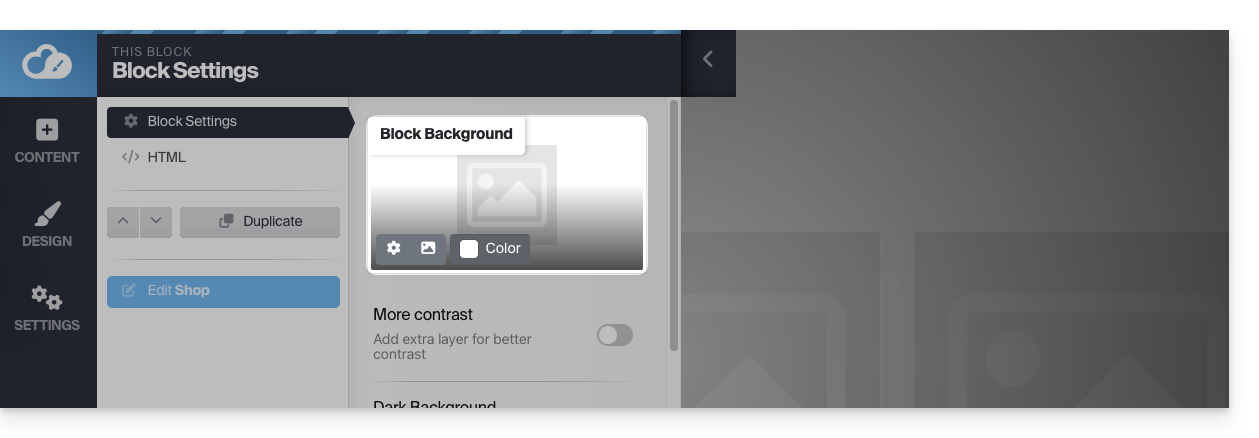
Mover um bloco para cima ou para baixo
O conteúdo da sua página está dividido em "blocos". Pode adicionar mais blocos e reorganizá-los.
Passe o cursor sobre o bloco de conteúdo que pretende mover e clique na área com os pontos no canto superior esquerdo; mantenha o botão pressionado para mover o bloco: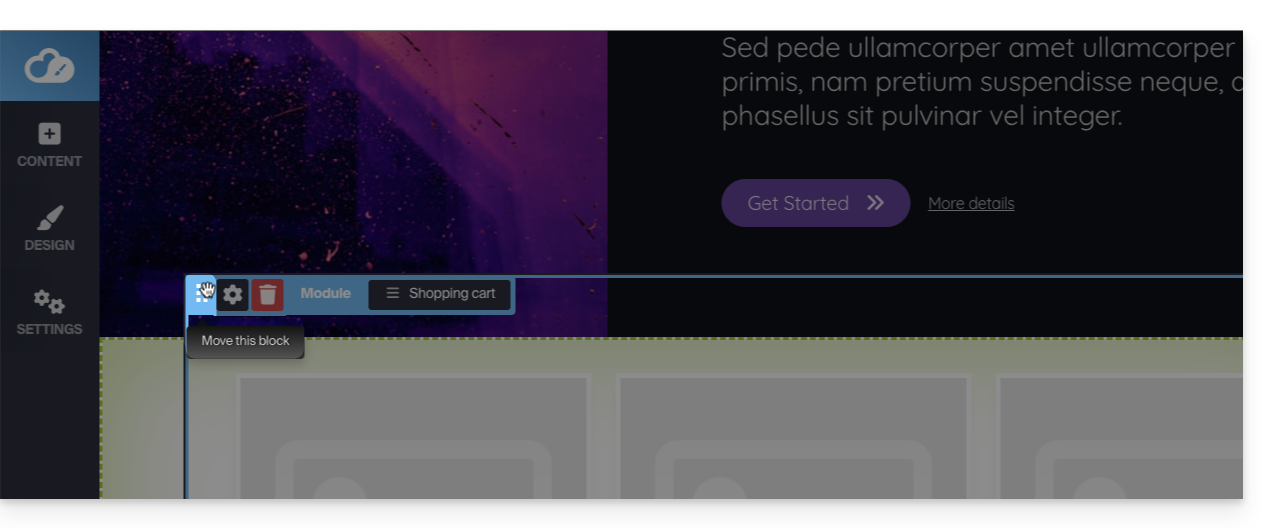
Criar um espaço entre dois blocos
Para criar um espaço horizontal entre os blocos de conteúdo, adicione um separador manualmente: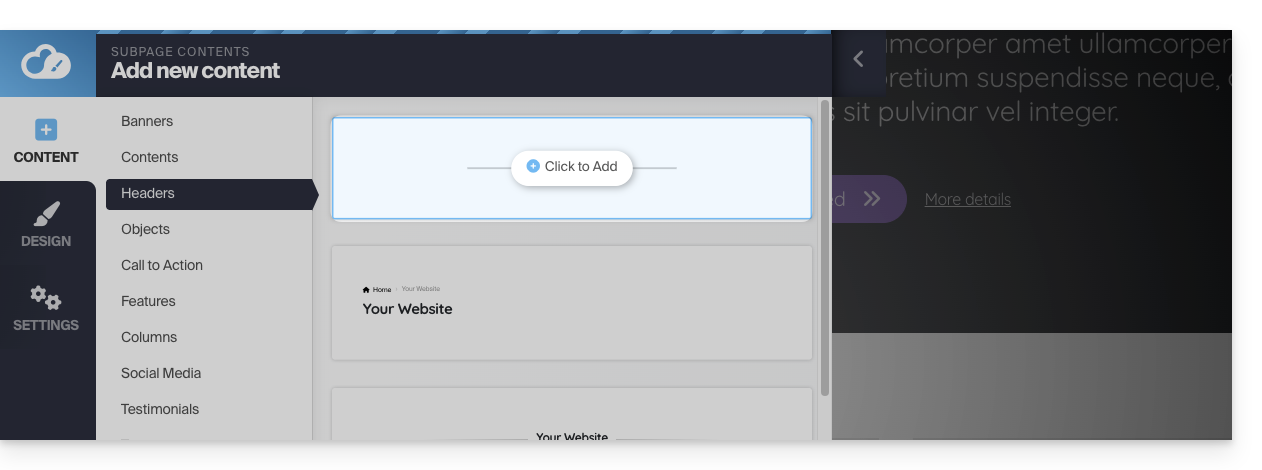
Em seguida, você poderá definir a cor e o tamanho, clicando diretamente no separador: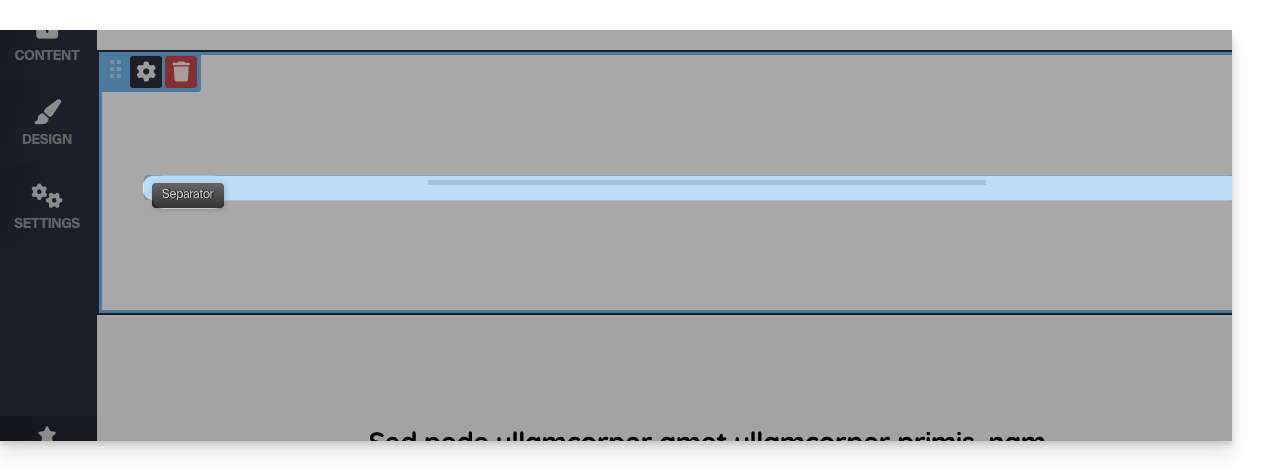
Você também pode "decorar" a parte superior e inferior de um bloco de forma mais automática, ativando a opção Decoração ao editar um bloco: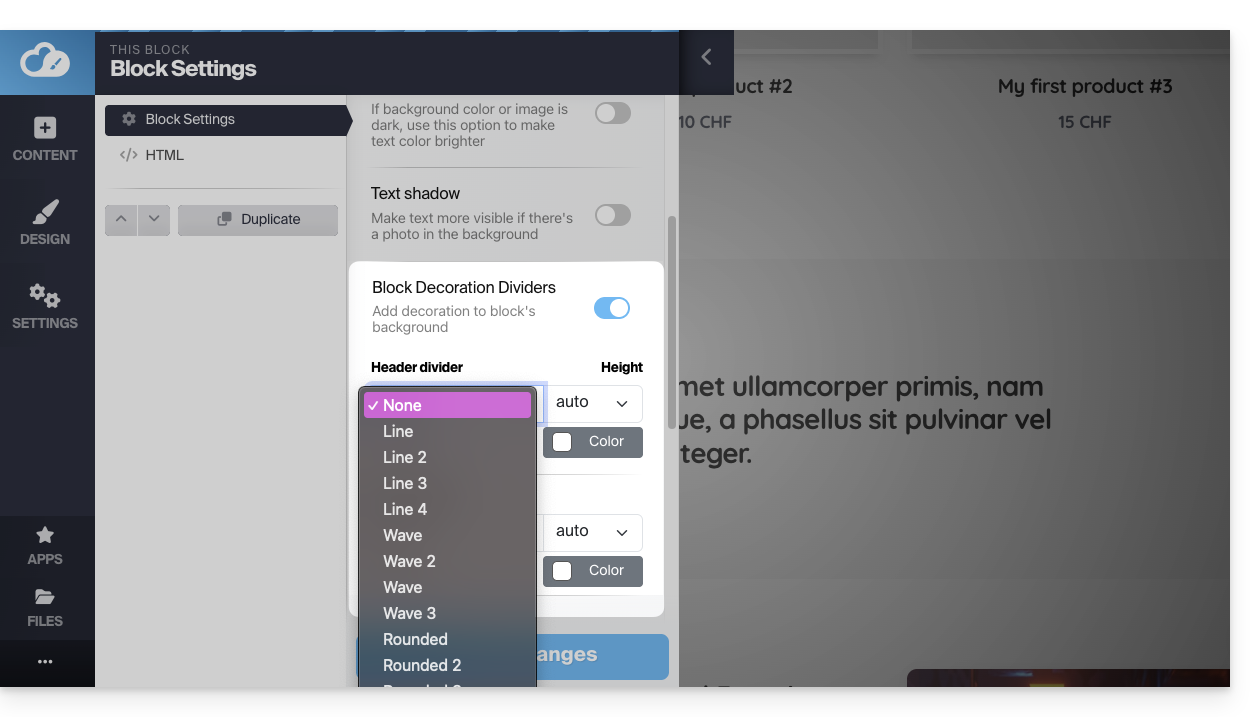
Link para esta FAQ: https://faq.infomaniak.com/2708
Esta seção de perguntas frequentes foi útil?
Este guia ajuda você a entender como criar e editar páginas no Site Creator da Infomaniak.
Pré-requisitos
- Aceder ao Site Creator:
- Clique aqui para aceder à gestão do seu produto no Manager Infomaniak (precisa de ajuda?).
- Clique diretamente no nome atribuído ao Site Creator em questão.
- Clique no botão Editar o meu site para iniciar o editor:
Edição simples de páginas
A edição de uma página ocorre em tempo real e suas modificações são salvas automaticamente à medida que você edita o conteúdo dos seus blocos. Você pode desfazer suas modificações, se necessário.
Criar um link
Crie um link a partir de uma imagem ou de um texto, selecionando diretamente o objeto. Na barra de ferramentas que aparece, clique no menu de ação •••.
Em seguida, clique no ícone de link para abrir a seção que permitirá especificar o tipo de link e as opções associadas: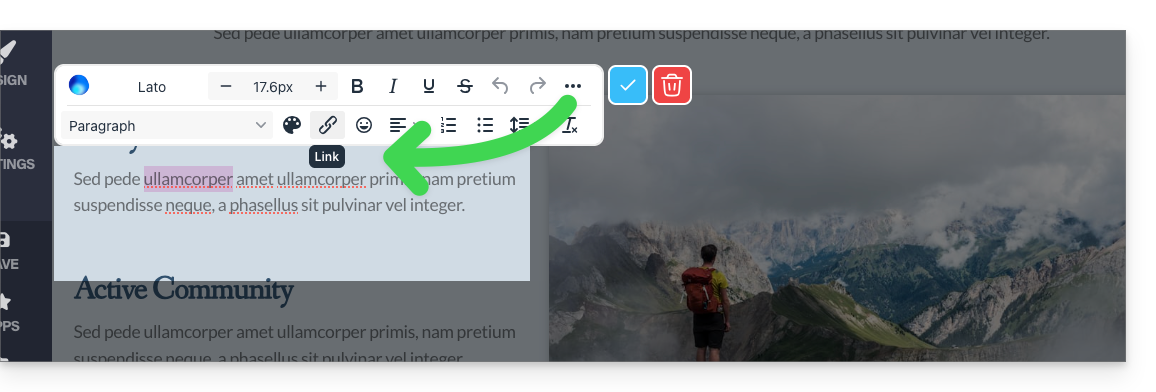
Transformar um link em botão
Nas configurações do seu link, poderá escolher o estilo (botão arredondado, preenchido, etc.), o ícone associado, etc.: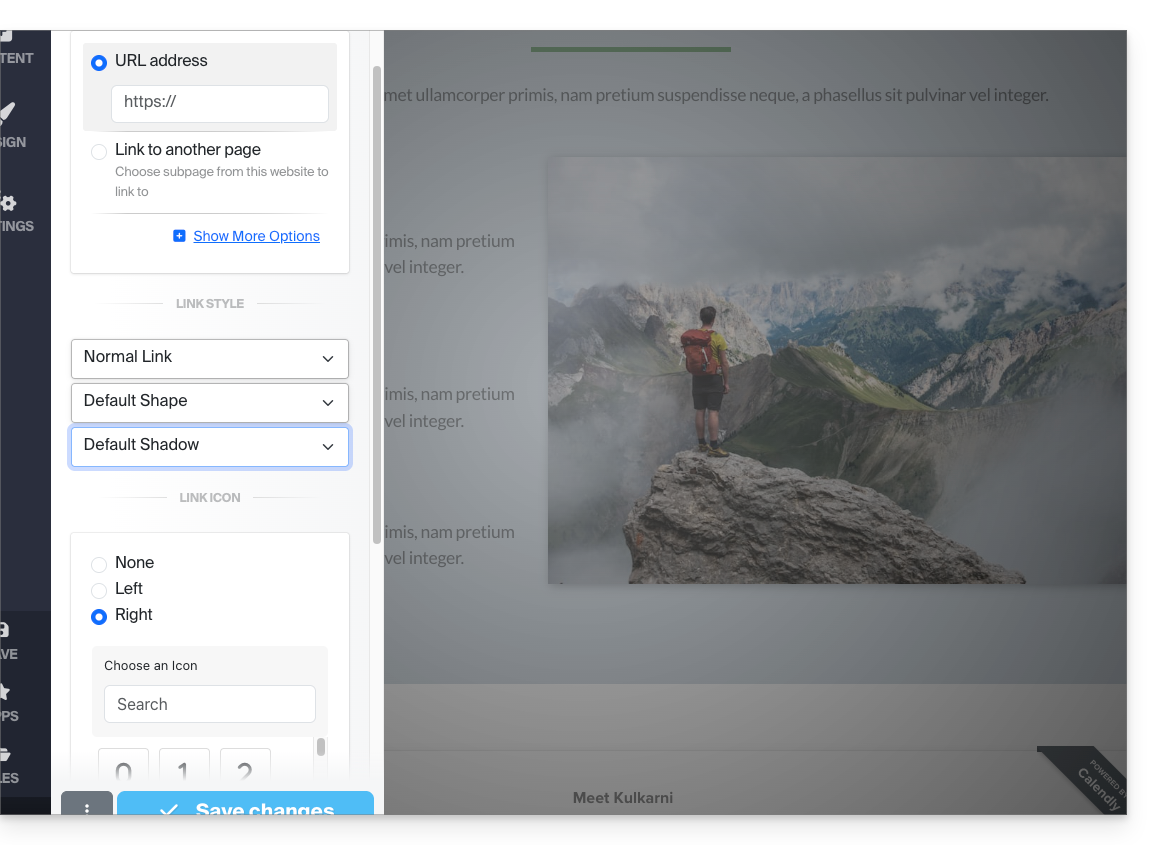
Editar um link
Edite um link clicando nele e, em seguida, clicando no ícone de link: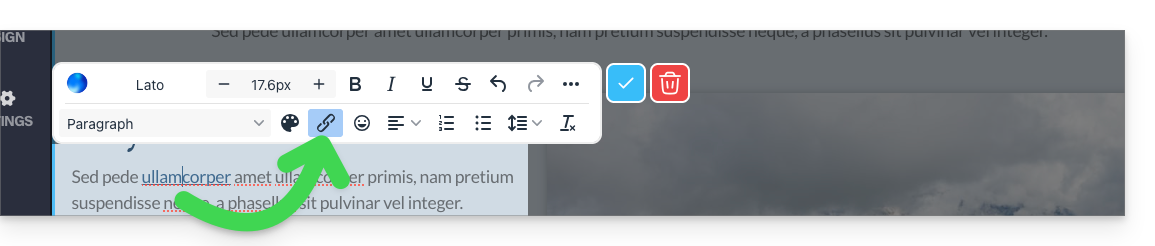
Criar um link para um arquivo
Para permitir que seus visitantes façam o download de um arquivo a partir de um link em um objeto, clique em Mostrar mais opções nas configurações do seu link.
Em seguida, escolha o tipo “Arquivo”, o que permitirá que você carregue o arquivo correspondente no servidor, para que ele possa ser disponibilizado para download aos seus visitantes: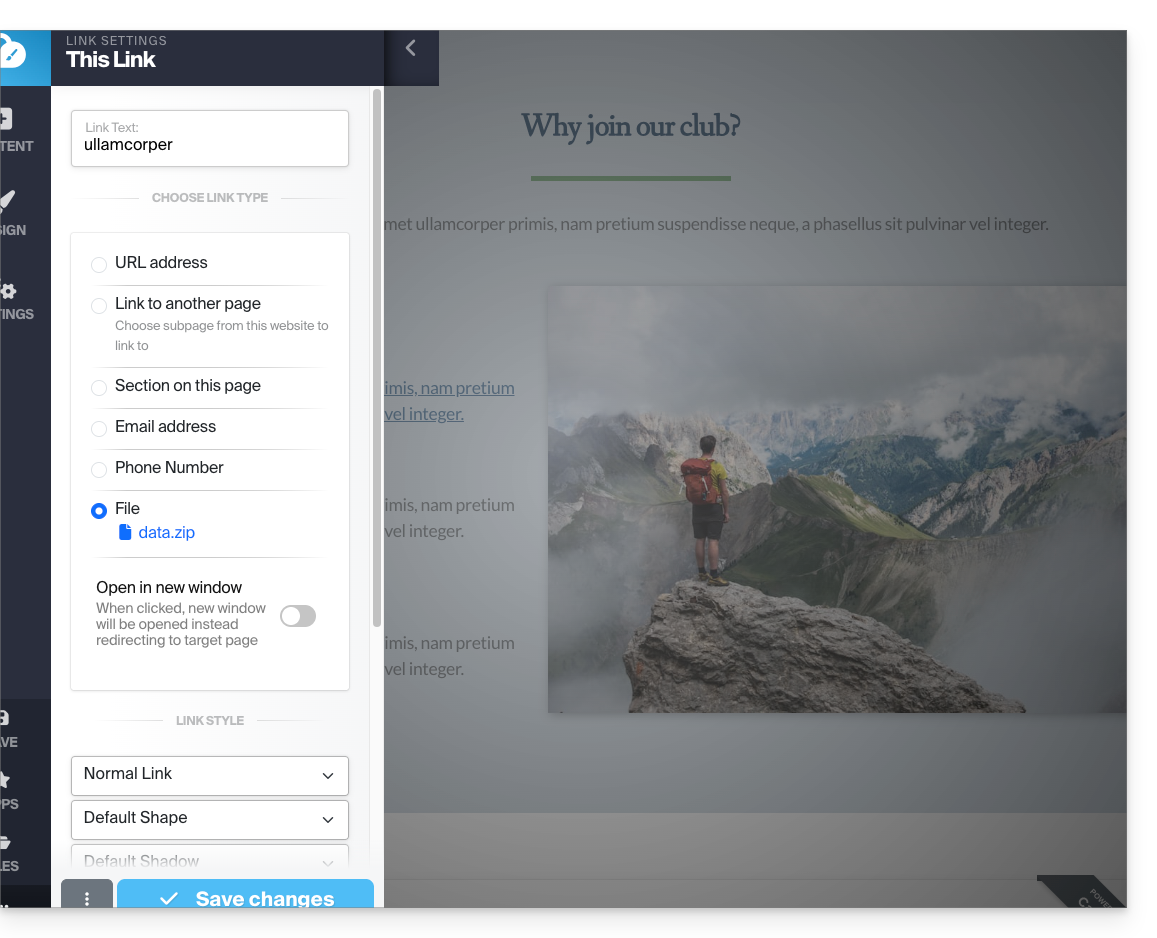
Criar um link para um e-mail
Escolha o tipo "Endereço de e-mail" nas configurações do seu link. Ao clicar no link, será aberta a aplicação de e-mail padrão do utilizador e será iniciado um novo e-mail com o endereço de e-mail pré-preenchido: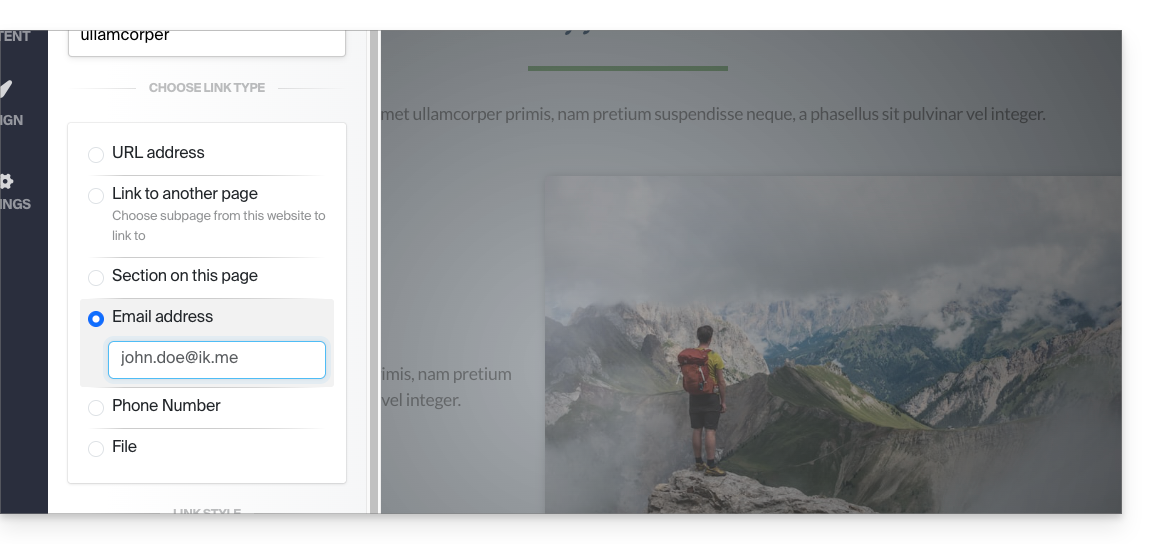
Para evitar que o endereço de e-mail seja inserido diretamente na sua página, insira um formulário de contacto.
Criar um link para uma seção específica
Para direcionar o visitante para uma parte específica do seu site ou de outro, utilize o sistema de âncoras.
Criar um link a partir de uma imagem
Ao clicar em uma imagem para editá-la, basta ativar o botão "Este é um link" abaixo da imagem para poder especificar o endereço URL que será exibido quando um visitante clicar nela: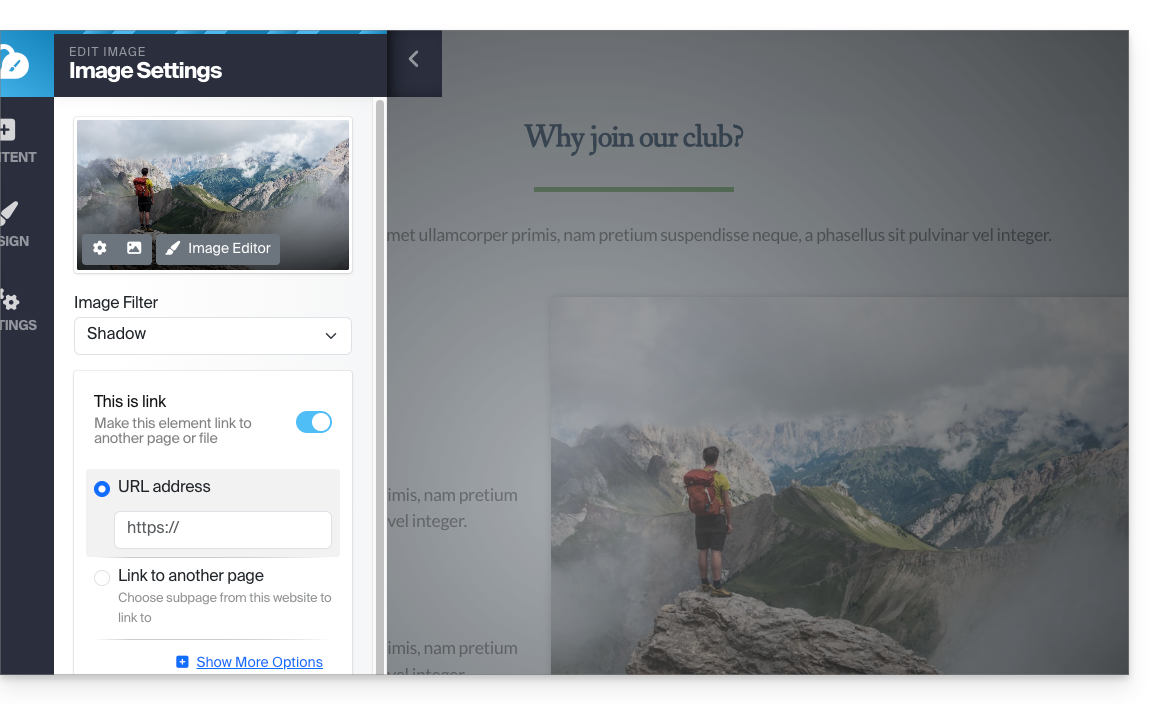
Você também pode aplicar um link em uma imagemutilizando um vídeo do YouTube como URL: isso criará automaticamente um ícone do tipo PLAY que, ao ser clicado, abrirá o vídeo em janela do tipo lightbox.
Criar uma lista, inserir um emoji... e salvar
As diferentes opções de formatação do seu texto estão localizadas acima da seleção do texto:
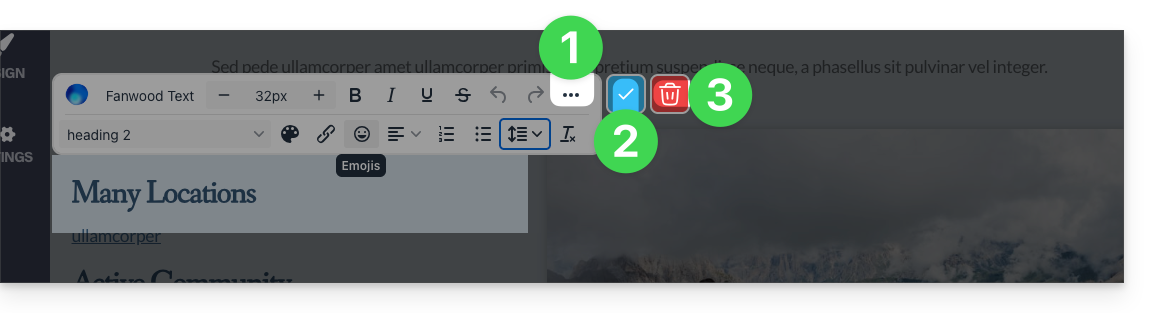
- Opções adicionais (listas com marcadores, alinhamento, emojis, etc.) estão acessíveis através do menu de ações •••.
- Aplique e confirme as alterações com o símbolo ✓.
- Atenção: a lixeira remove o texto que você está editando:
Link para esta FAQ: https://faq.infomaniak.com/2709
Esta seção de perguntas frequentes foi útil?
Este guia destina-se aos utilizadores da ferramenta Site Creator que pretendem aprofundar a edição das suas páginas.
Pré-requisitos
- Aceder ao Site Creator:
- Clique aqui para aceder à gestão do seu produto no Manager Infomaniak (precisa de ajuda?).
- Clique diretamente no nome atribuído ao Site Creator em questão.
- Clique no botão Editar o meu site para iniciar o editor:
Abrir o editor HTML
Depois de acessar o Site Creator, você pode editar o código HTML (recomendado apenas para usuários avançados) se precisar de mais controle sobre qualquer bloco de conteúdo:
- Passe o mouse sobre o bloco que deseja editar na sua página e clique na engrenagem que aparece ao passar o mouse:

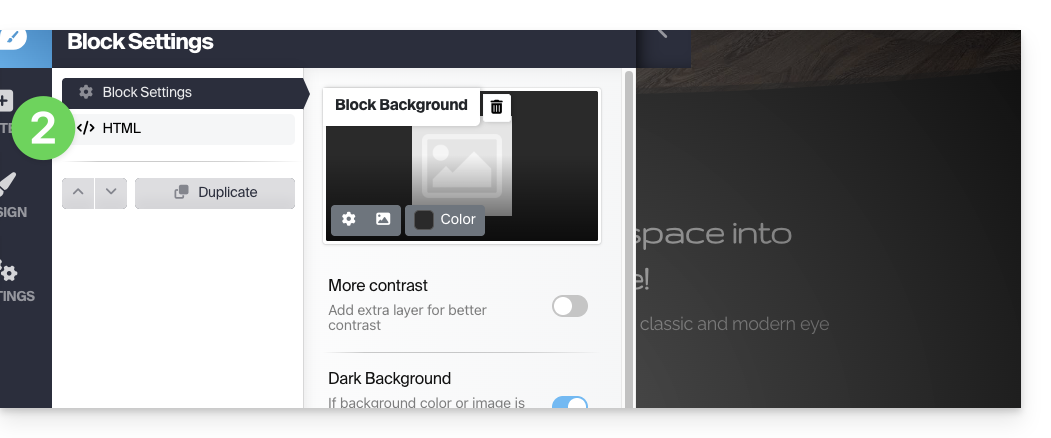
- Clique no elemento HTML na barra lateral esquerda para editar o código HTML do bloco:
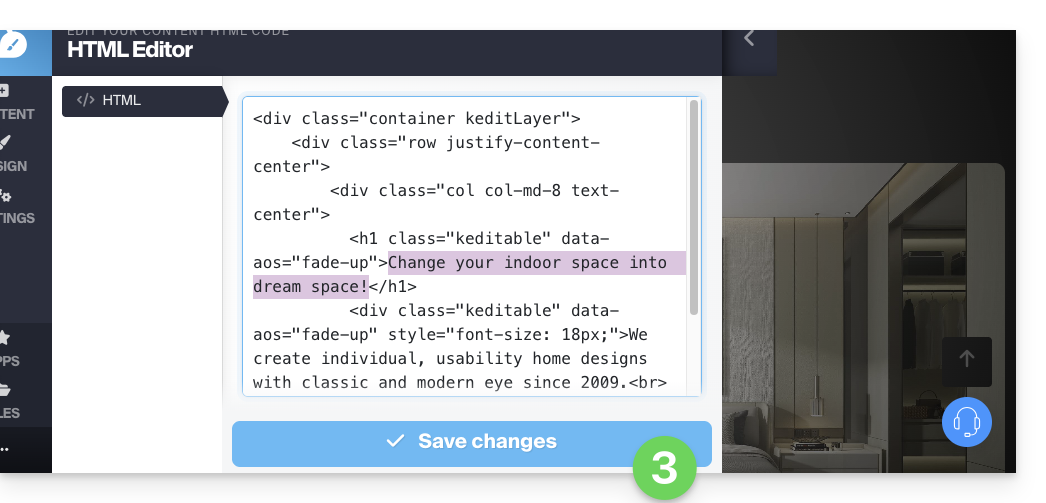
- Lembre-se de guardar as suas alterações:
Adicionar um bloco HTML
Para começar do zero com um bloco HTML vazio, você pode inserir o módulo Código HTML personalizado na sua página a partir da lista de aplicativos: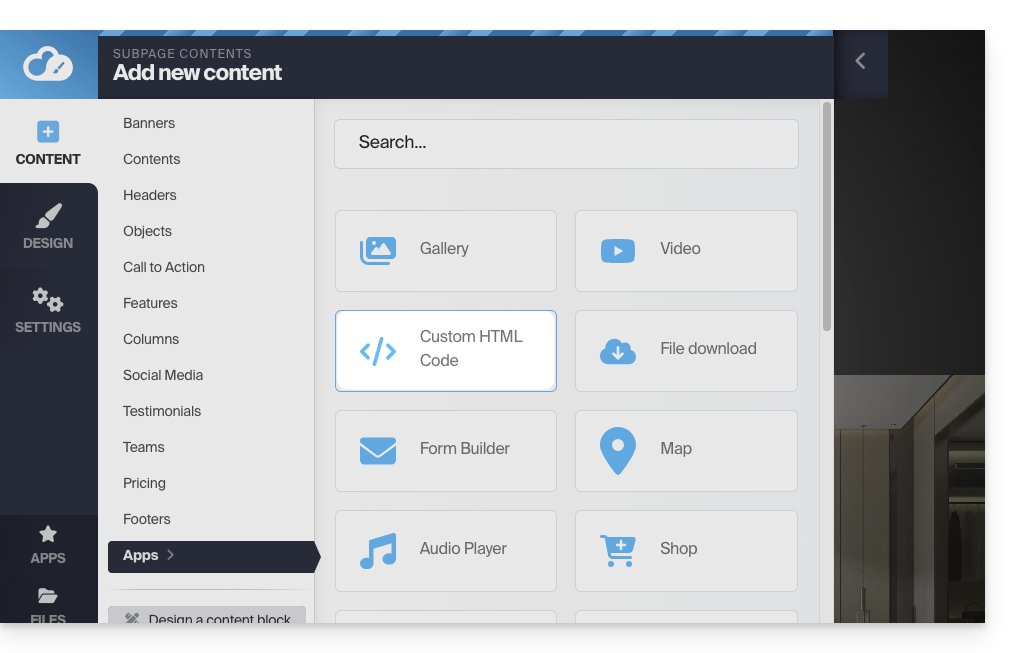
O texto pode então ser editado através do botão CÓDIGO HTML, que permite abrir o editor HTML:
Você também pode adicionar código fora dos blocos.
É fortemente recomendado não inserir tags do tipo html, head ou body, pois elas podem entrar em conflito com o código-fonte da própria aplicação.
Link para esta FAQ: https://faq.infomaniak.com/2710
Esta seção de perguntas frequentes foi útil?
Este guia destina-se aos utilizadores do Site Creator da Infomaniak que pretendem otimizar o posicionamento do seu site nos motores de busca.
Introdução
- A Infomaniak é um dos provedores de hospedagem mais eficientes do mercado francófono, o que contribui para o bom posicionamento dos seus sites nos resultados de pesquisa.
- Por outro lado, a Infomaniak não intervirá no conteúdo ou no desenvolvimento dos sites hospedados (consulte este outro guia sobre otimização para mecanismos de busca).
Adicionar o Site Creator ao Google
Pré-requisitos
- Aceder ao Site Creator:
- Clique aqui para aceder à gestão do seu produto no Manager Infomaniak (precisa de ajuda?).
- Clique diretamente no nome atribuído ao Site Creator em questão.
- Clique no botão Editar o meu site para iniciar o editor:
Para submeter o seu site ao motor de pesquisa Google:
- Clique no botão Aplicações no menu lateral esquerdo.
- Clique na aplicação Adicionar ao Google:
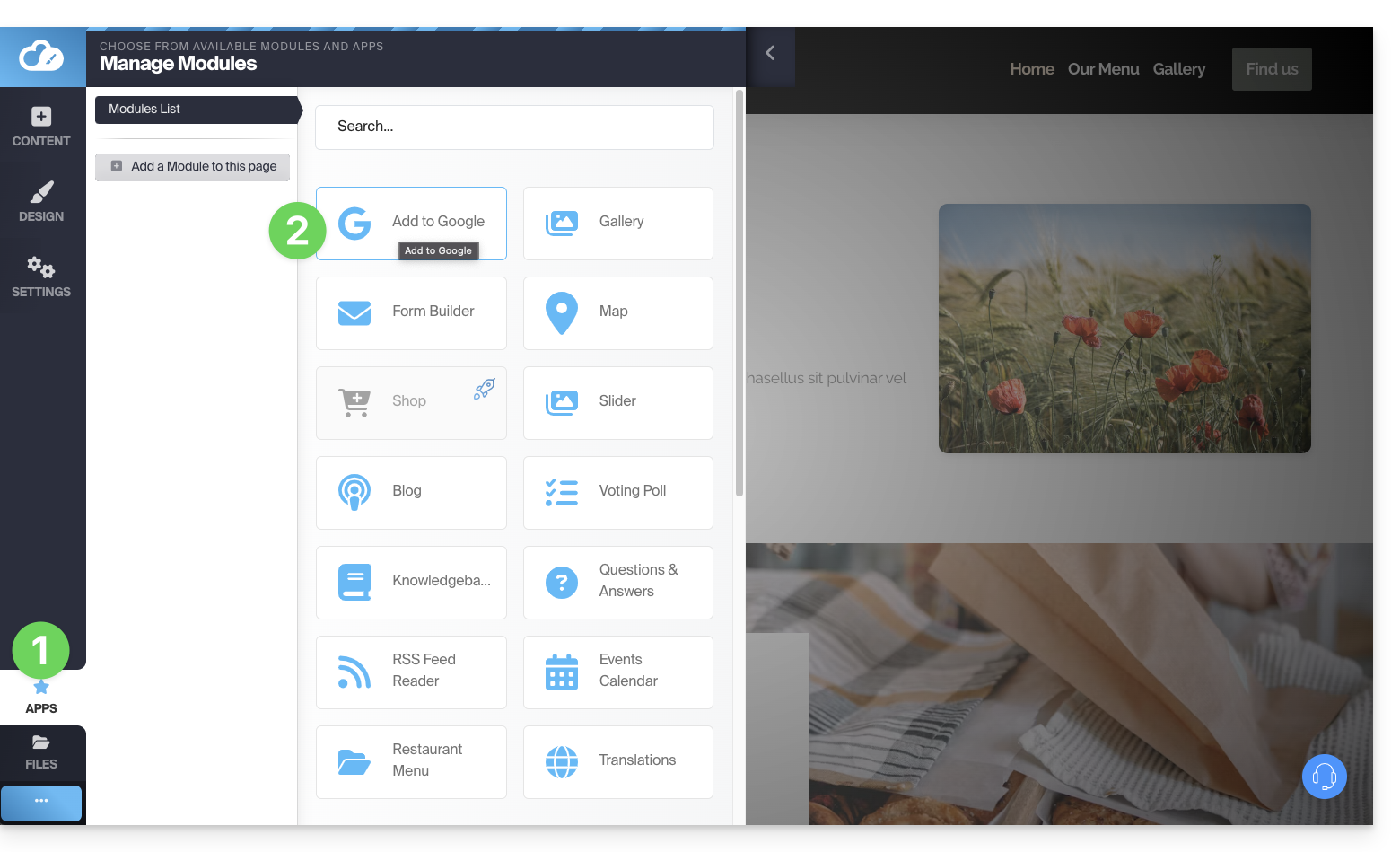
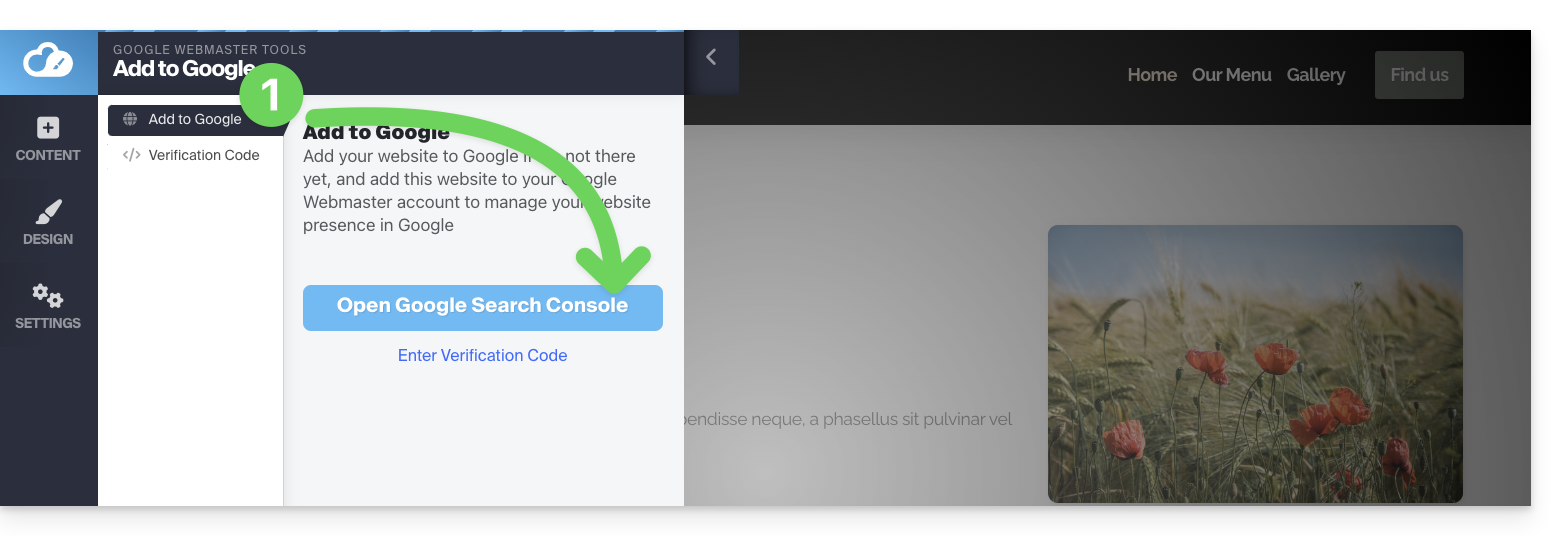
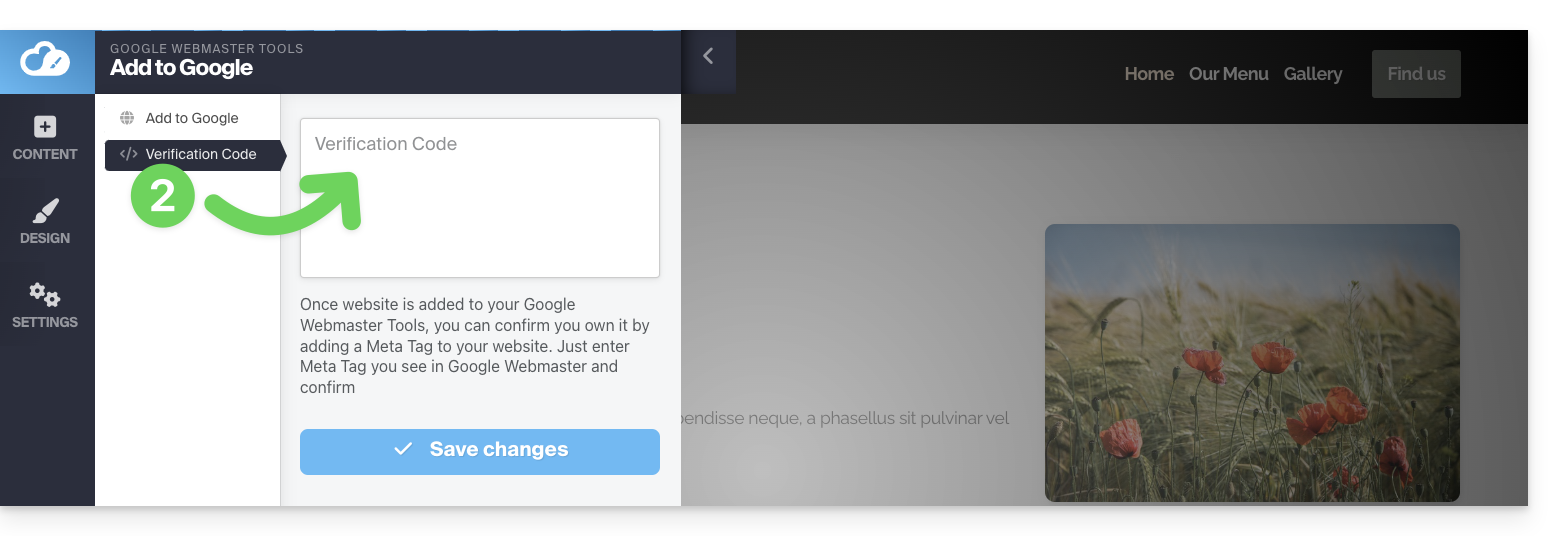
Esta aplicação permite realizar 2 operações:
- Abrir a interface do Google Search Console, que permite gerir as análises do seu site:
- Você pode inserir o código de verificação fornecido pelo Google Search Console, caso escolha o método simples (veja abaixo):
Verificação da propriedade (solicitada pelo Google)
Quando deseja adicionar o seu site à ferramenta Google e clica no botão na etapa 1 acima, serão apresentadas duas opções:
- o método para monitorizar um domínio inteiro, que exige uma verificação a ser realizada no nível do seu nome de domínio (na interface Infomaniak, caso o seu nome de domínio/zona DNS seja gerido pela Infomaniak);
- o método mais simples para indicar o URL exato do seu site, e para o qual a verificação será feita diretamente no Site Creator:
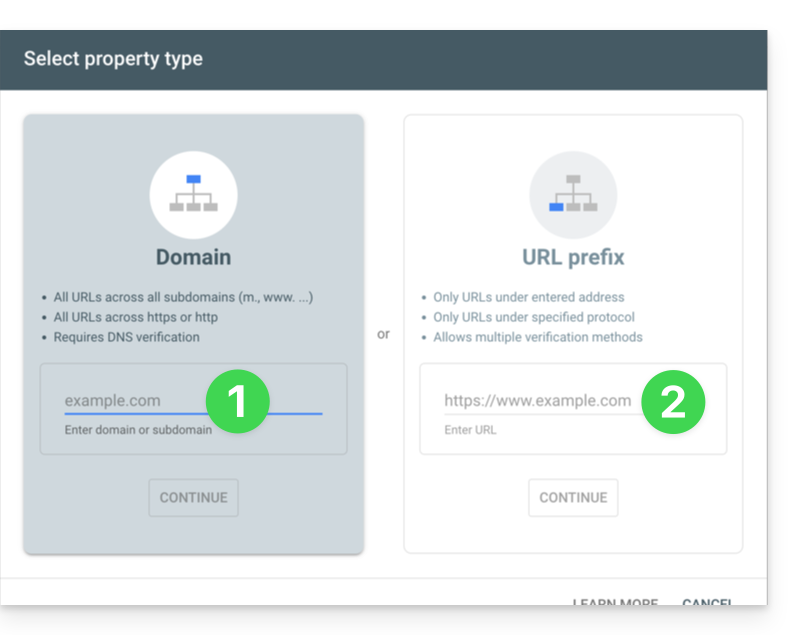
1. Método com verificação da propriedade do nome de domínio
- Insira o URL completo do seu Site Creator e clique em Continuar:
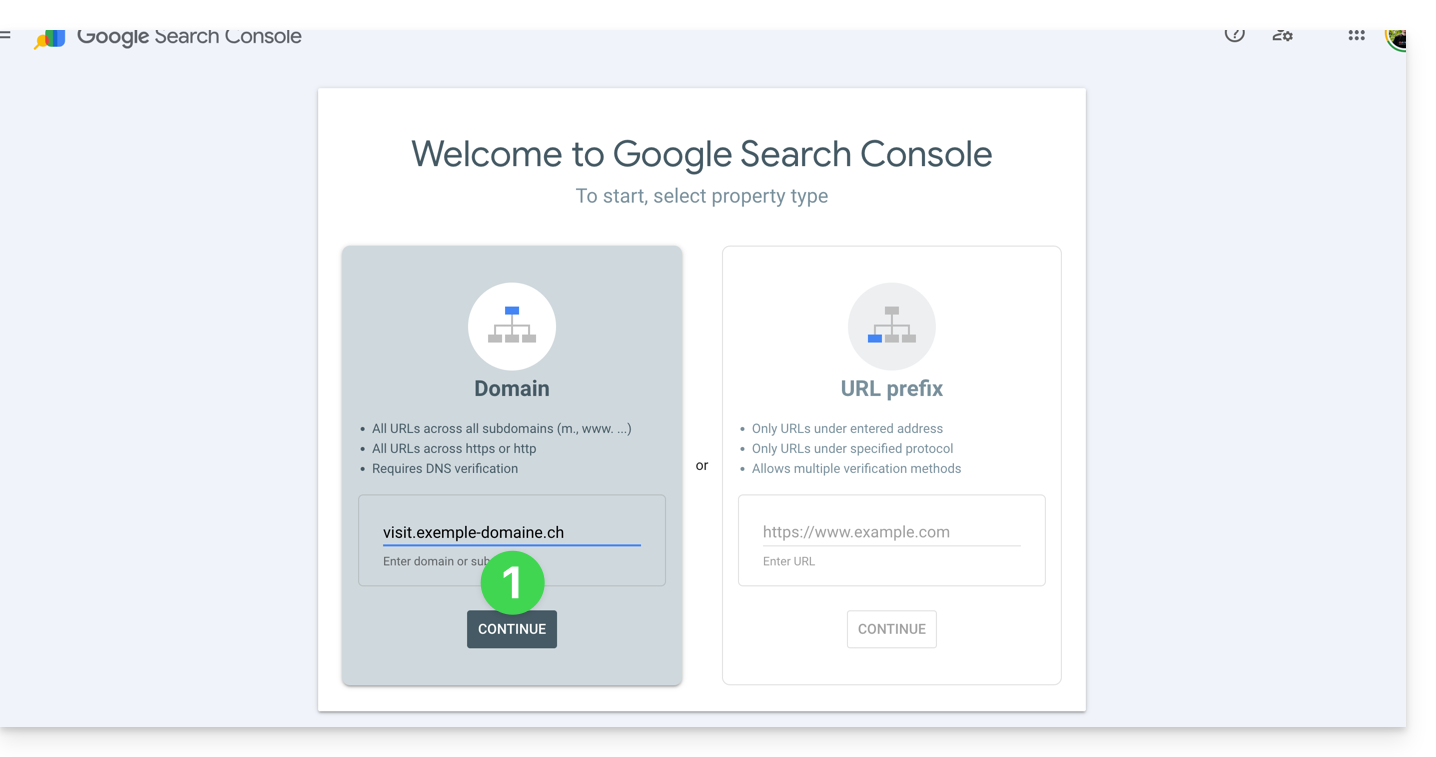
- Verifique se o tipo
TXTestá selecionado e clique no botão COPIAR: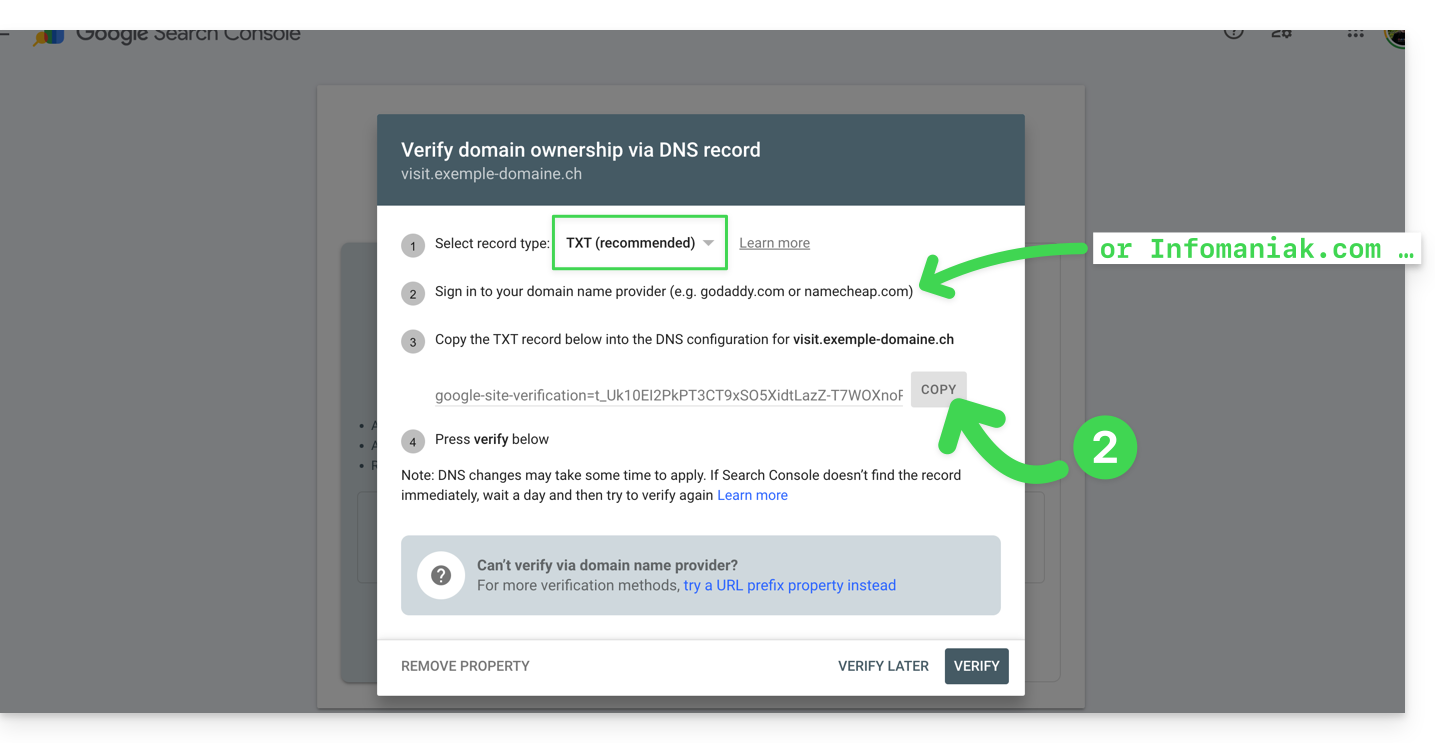
- Clique aqui para acessar o gerenciamento do seu nome de domínio, caso ele seja gerenciado na Infomaniak (caso contrário, você deverá aplicar essas operações no provedor correspondente).
- Clique diretamente no nome atribuído ao produto em questão.
- Clique em Zona DNS no menu lateral esquerdo.
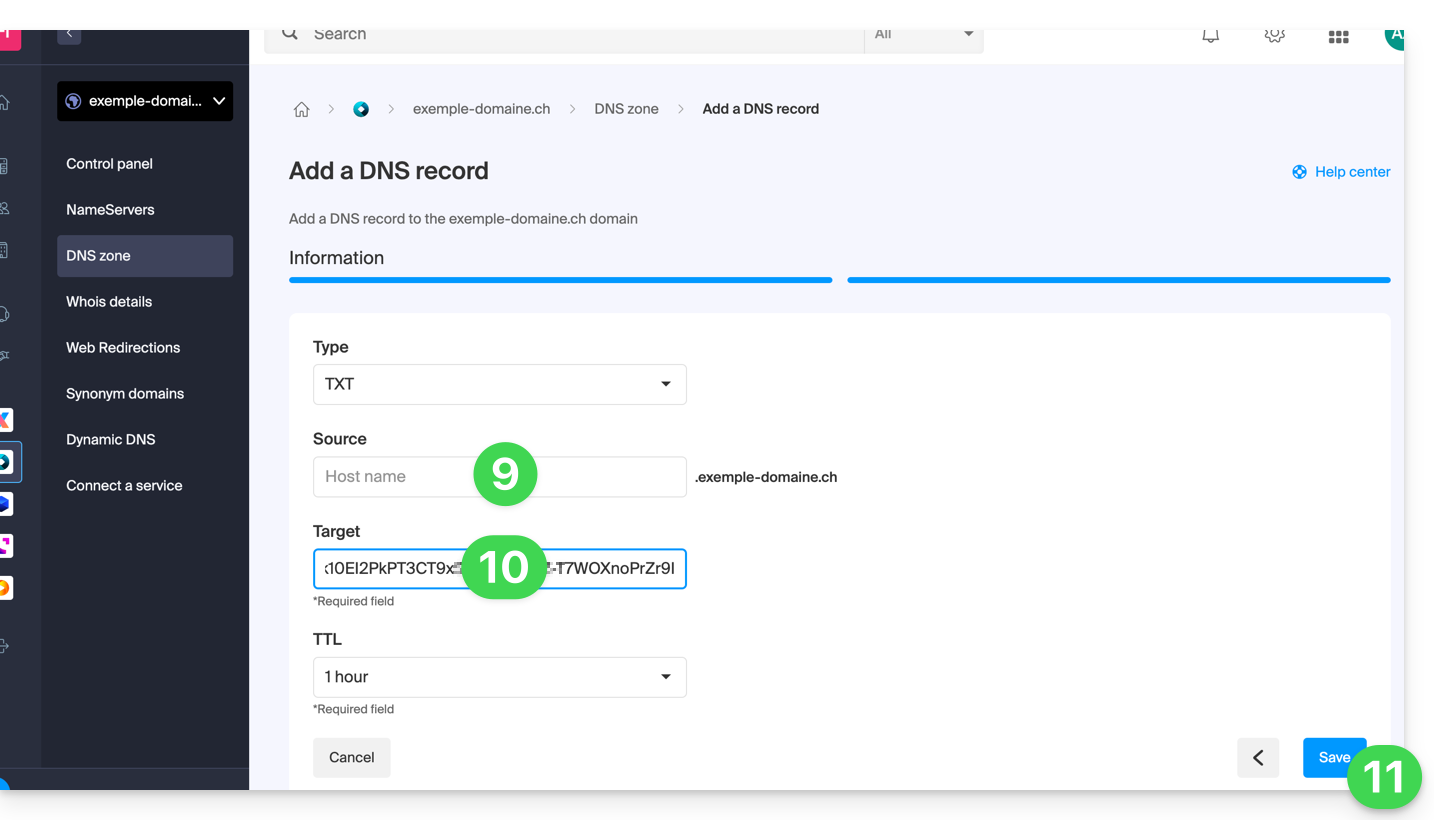
- Clique no botão para adicionar um registo:
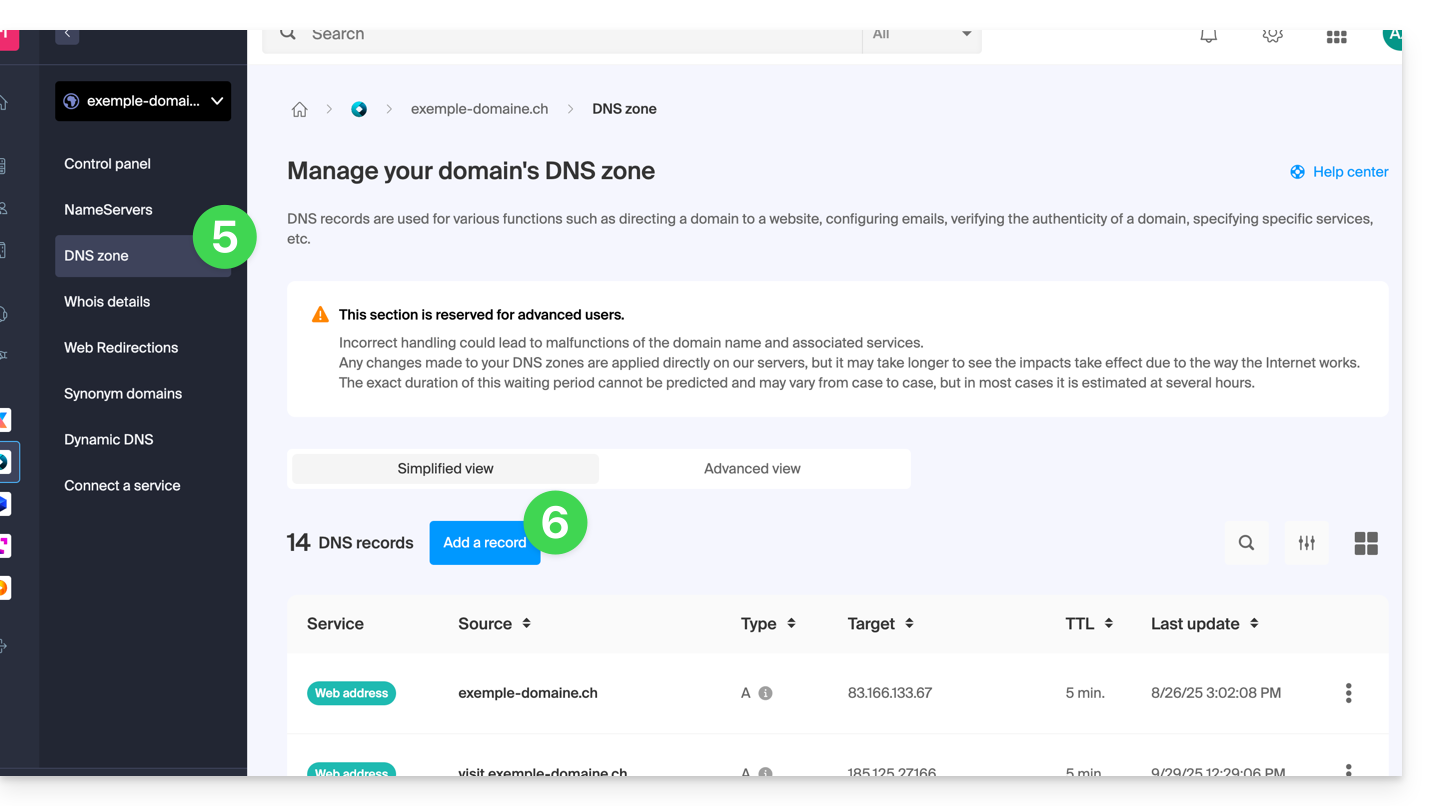
- Selecione o tipo TXT na lista.
- Clique no botão Seguinte:
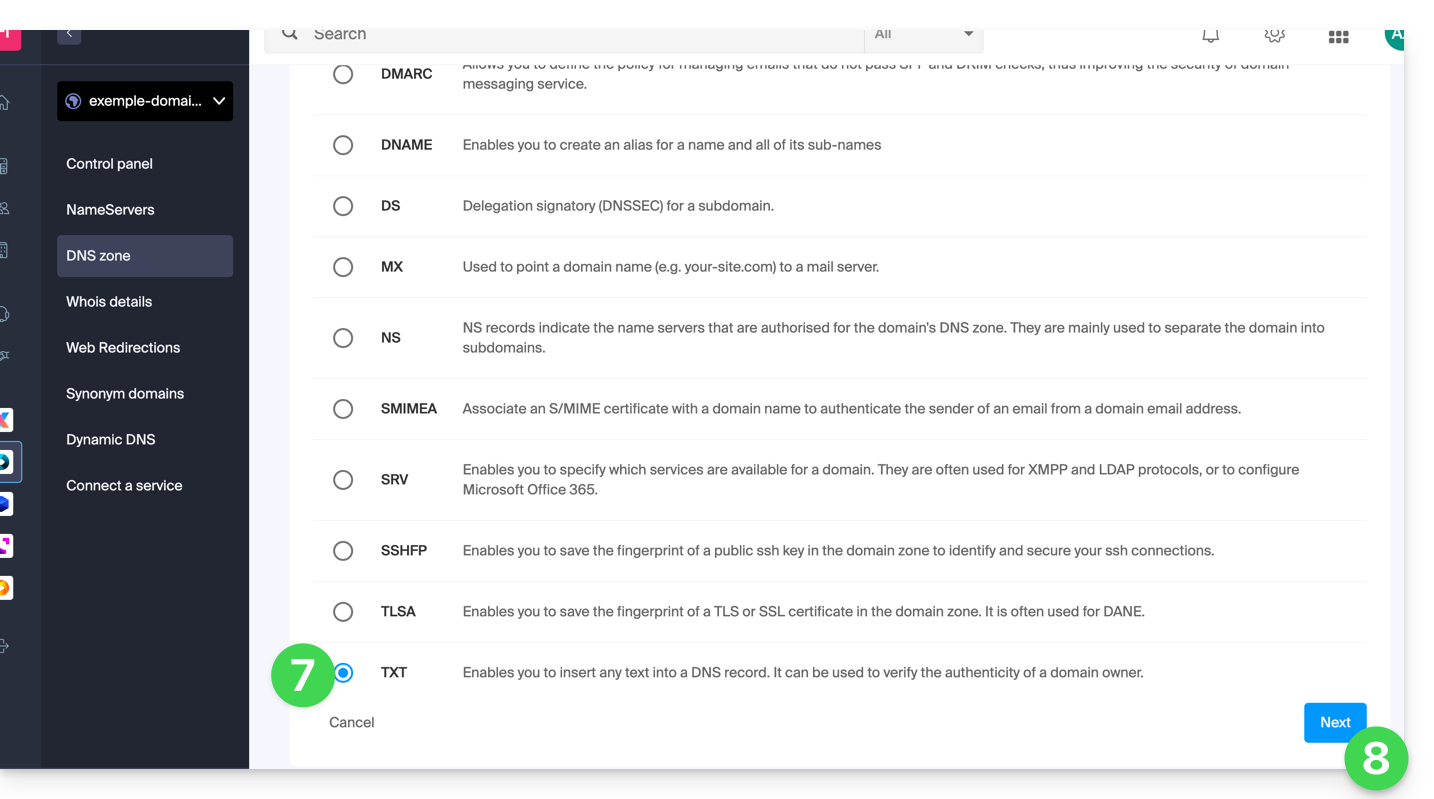
- Deixe este campo em branco ou insira o termo que precede o seu nome de domínio, caso tenha criado um site
xxx.domain.xyz(neste exemplo, você deverá inserirvisitno campo Origem, já que o Site Creator foi criado emhttps://visit.exemple-domaine.ch). - Cole as informações obtidas no passo 2 acima.
- Clique no botão para Salvar:
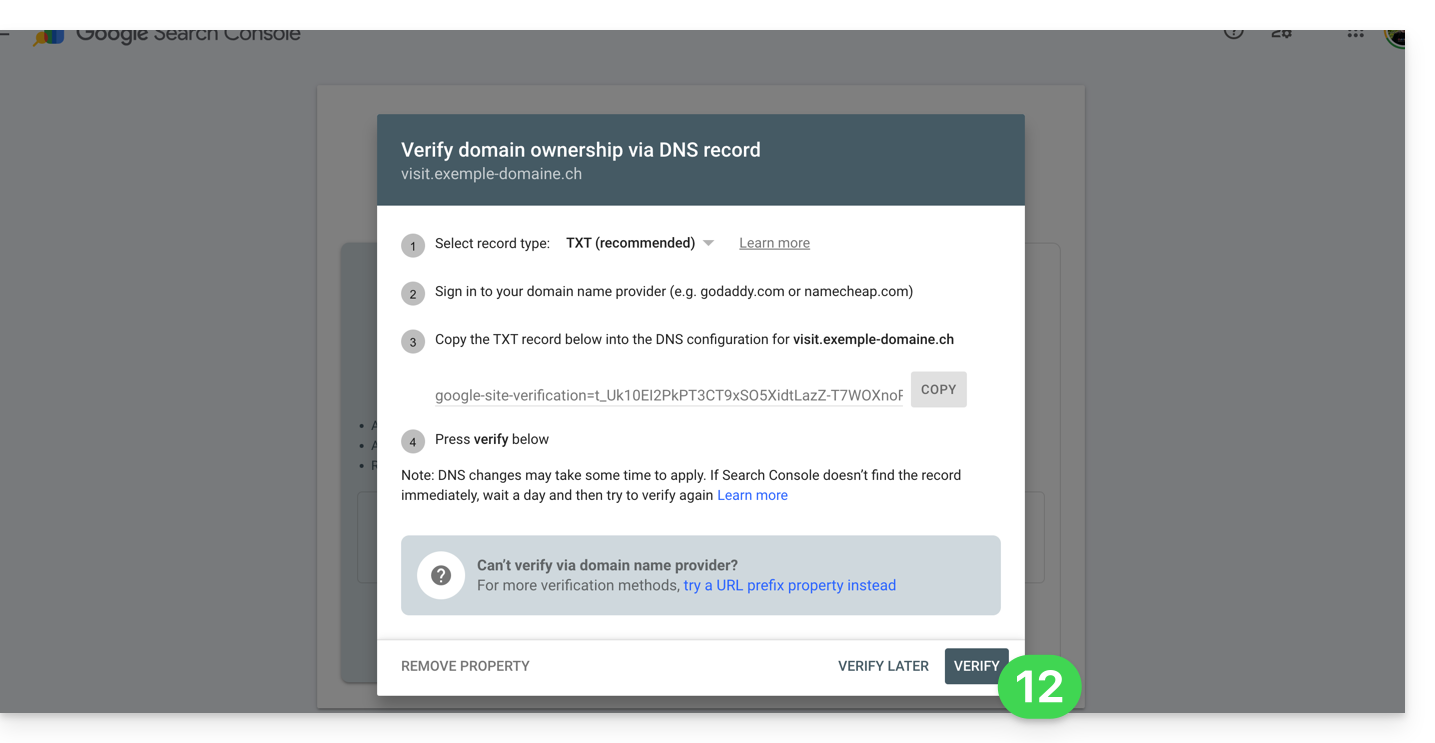
- Volte para a ferramenta do Google e clique em Verificar (aguarde alguns minutos se a verificação não for concluída):
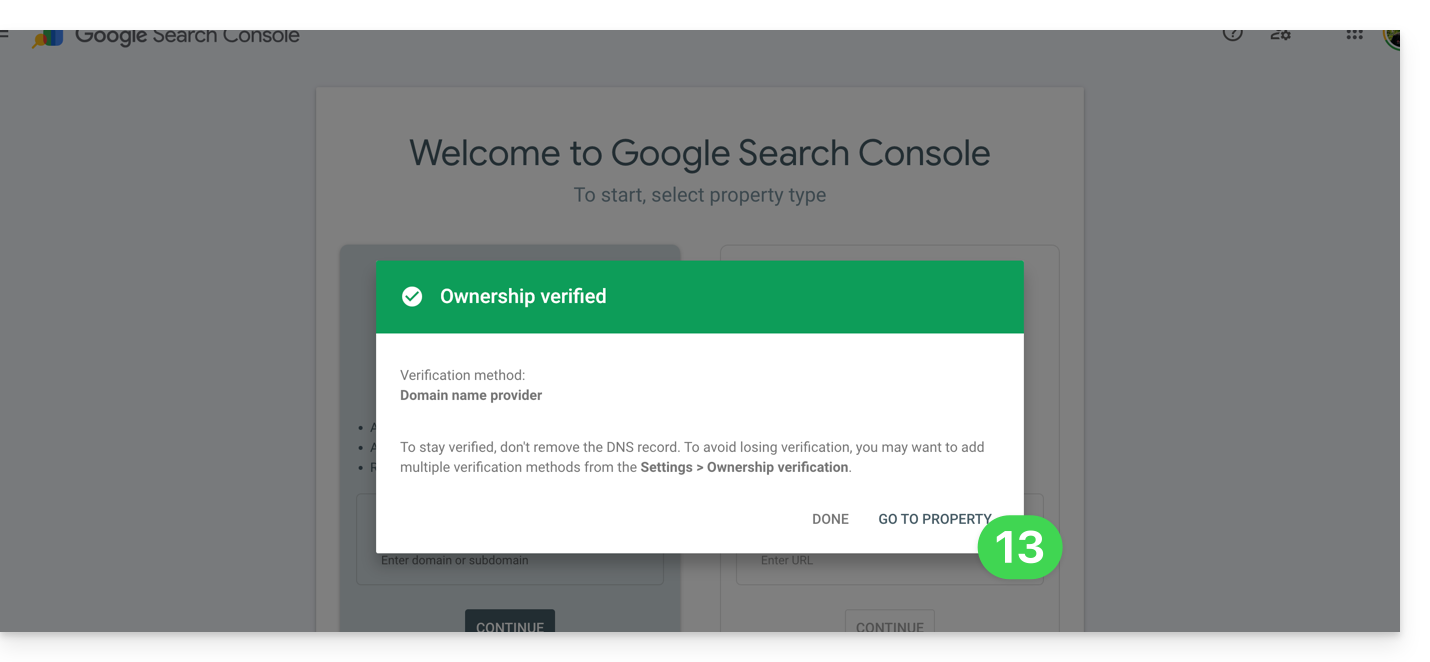
- Pronto, a ligação entre o seu Site Creator e a consola de análise foi estabelecida; clique no botão para configurar a propriedade:
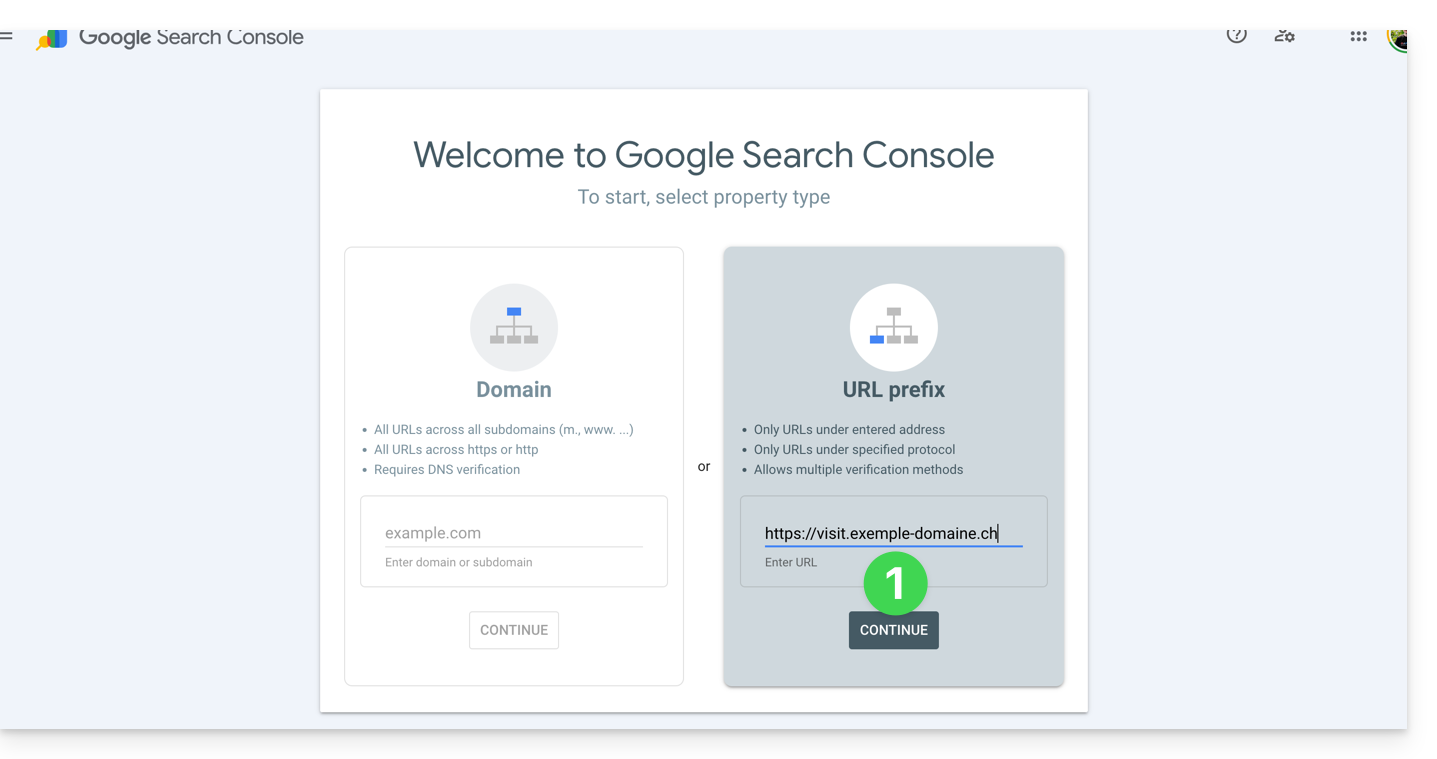
2. Método simples
- Insira o URL completo do seu Site Creator e clique em Continuar:
- Clique na seta para baixo para expandir a seção TAG HTML, que permite obter a informação a ser colada no Site Creator para comprovar a sua propriedade.
- Clique no botão COPIAR:
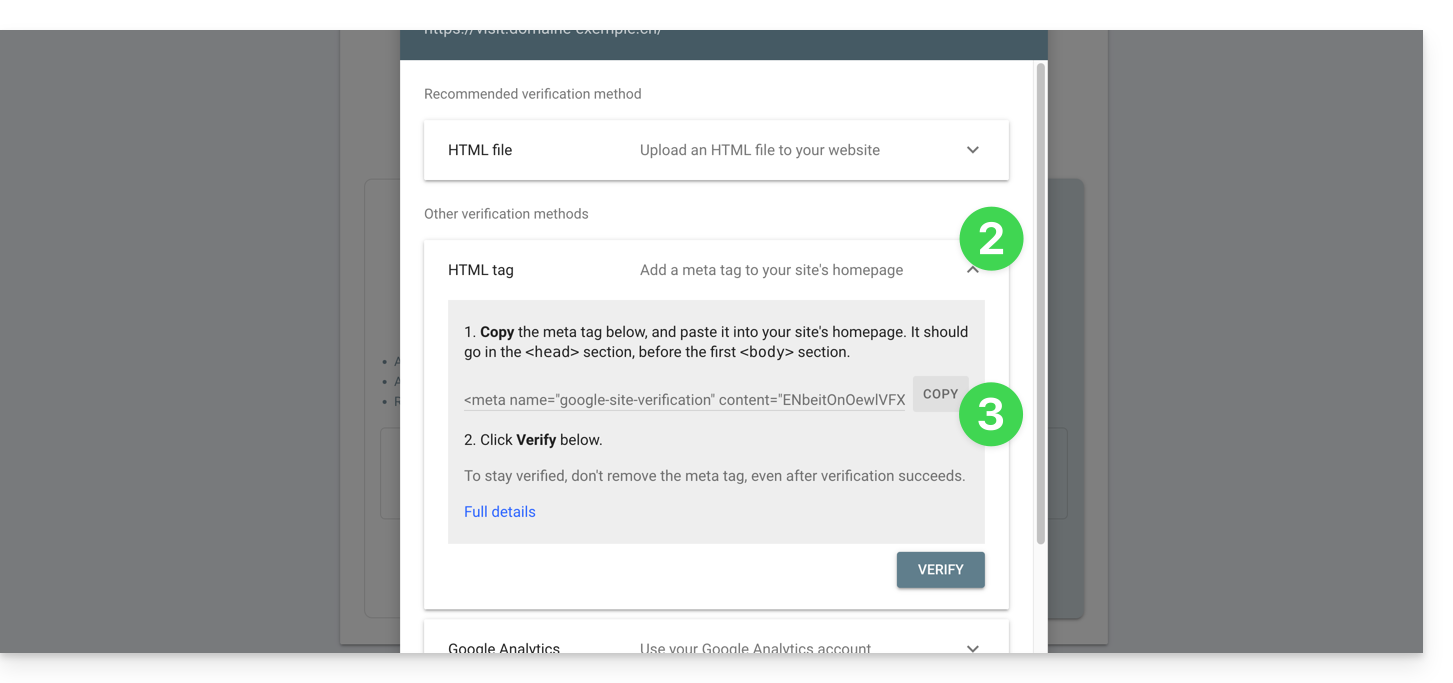
- Cole as informações no campo apropriado no Site Creator.
- Salve as alterações:
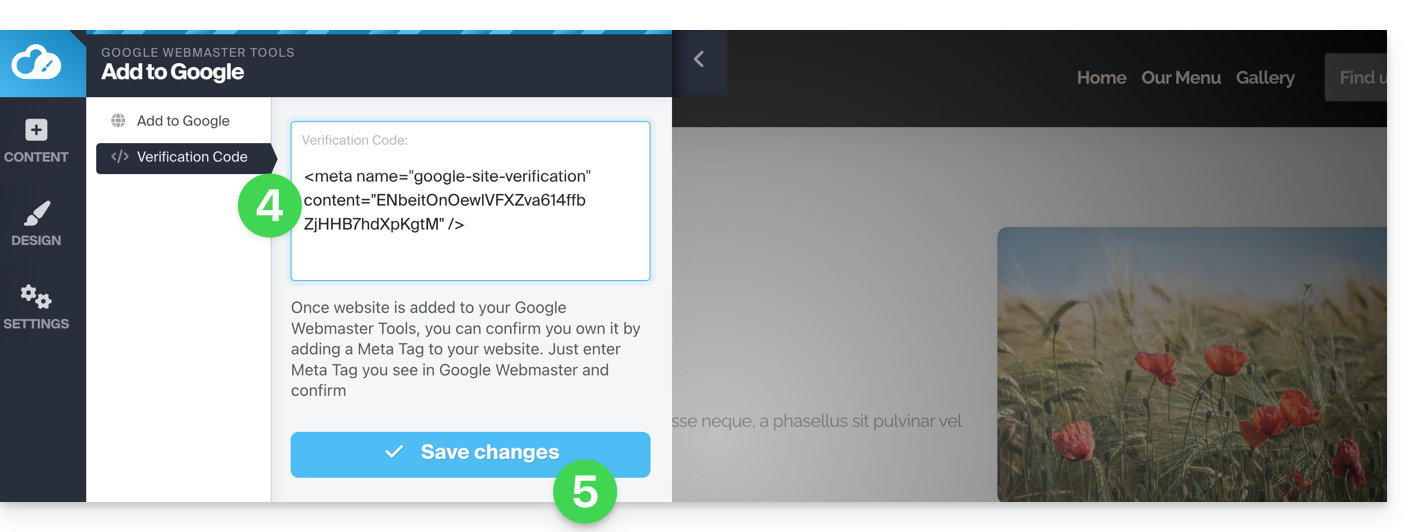
- Volte para a ferramenta do Google e clique em Verificar (aguarde alguns minutos se a verificação não for concluída):
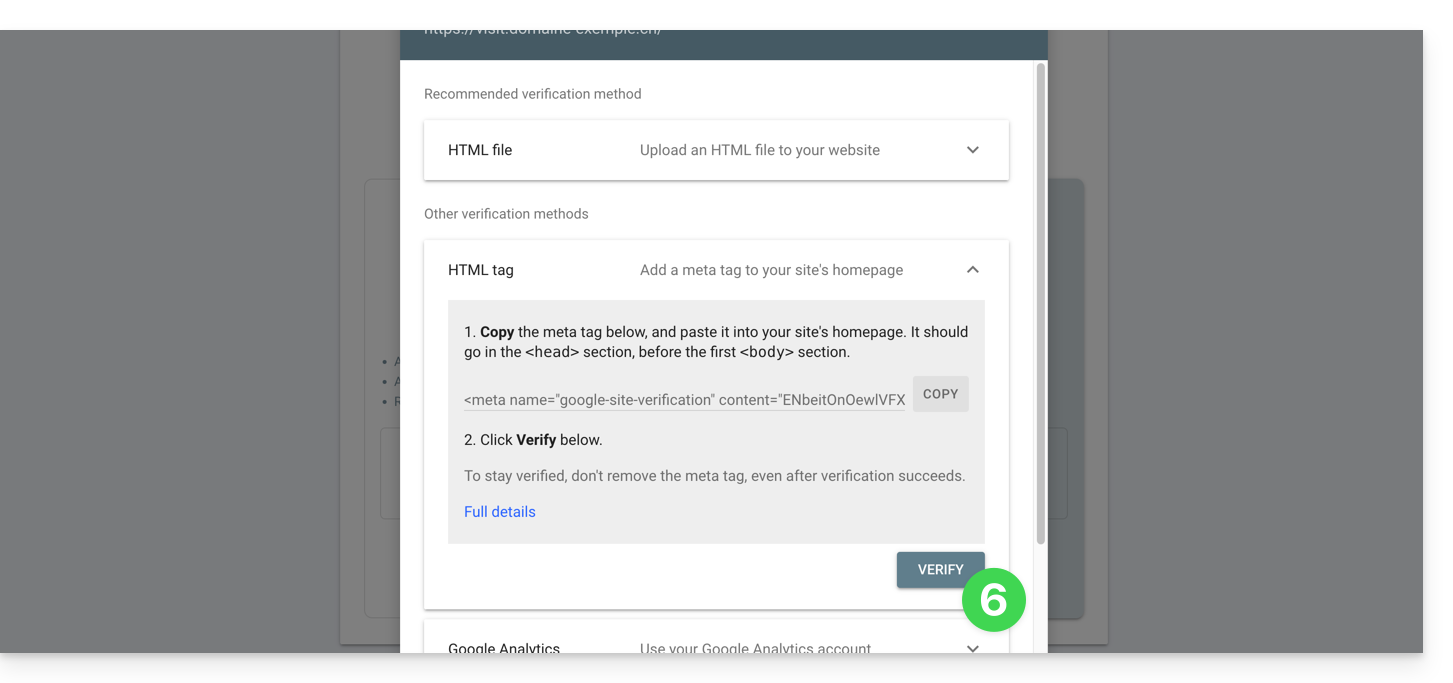
- Pronto, a ligação entre o seu Site Creator e a consola de análise foi estabelecida; clique no botão para configurar a propriedade:
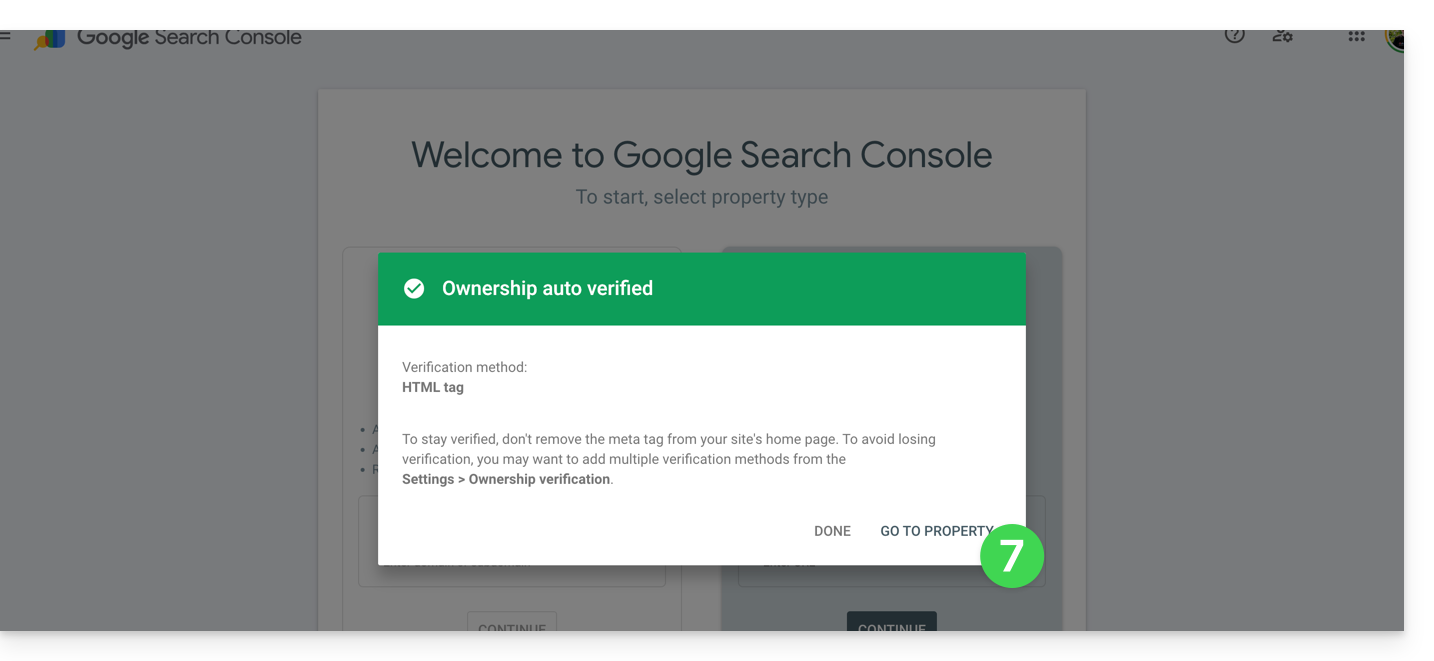
Definir as metatags
Dentro do Site Creator:
- Clique no botão Configurações no menu lateral esquerdo.
- Clique em Configurações gerais.
- Clique em SEO e metadados.
- Insira o título, a descrição e as palavras-chave de todo o site:
É também aqui que pode gerir o ficheiro robots.txt, se necessário.
Para definir isso, mas para uma página específica:
- Clique no botão Configurações no menu lateral esquerdo.
- Clique em Configurações gerais.
- Clique em Configurações da subpágina.
- Clique em SEO e Metadados.
Se não fizer alterações nesta página, o Site Creator gerirá dinamicamente as suas metatags.
Você também pode gerenciar as URLs das suas páginas independentemente do título SEO da sua página (página com o nome "Contato" no lado SEO, enquanto sua URL será, por exemplo, "/empresa").
Quais "Meta Keywords"?
Para inserir várias palavras-chave, separe-as com uma vírgula ou caractere semelhante:
Sitemap.xml
Não confundir com o módulo Mapa do site, o arquivo sitemap.xml lista todas as páginas do seu site para ajudar os motores de busca a descobri-las e indexá-las de forma eficiente. Você pode examiná-lo para entender a estrutura do site; substitua domain.xyz pelo seu nome de domínio para acessá-lo (de forma pública) a partir de um navegador:
{{URL_30}}Envie seu URL para o Google Search Console (consulte o primeiro capítulo acima neste guia) e outras ferramentas para webmasters para melhorar a indexação.
Inserir códigos de rastreamento
O seu site integra um módulo de Estatísticas simples, mas pode usar o Google Analytics ou outros métodos de rastreamento (como o Facebook Pixel ou o Google Tag), que exigem a inserção de um código no seu site:
- Clique no botão Configurações no menu lateral esquerdo.
- Clique em Configurações gerais.
- Clique em SEO e estatísticas.
- Role a página para baixo e insira seus códigos de rastreamento.
Link para esta FAQ: https://faq.infomaniak.com/2711
Esta seção de perguntas frequentes foi útil?