Base de conhecimento
1000 perguntas frequentes, 500 tutoriais e vídeos explicativos. Aqui, você encontra apenas soluções!
Edite facilmente uma página do Site Creator
Este guia ajuda você a entender como criar e editar páginas no Site Creator da Infomaniak.
Edição simples de páginas
Comece por iniciar sessão no Painel de Controle Infomaniak com o seu identificador (utilizador com os direitos necessários sobre o produto em questão):
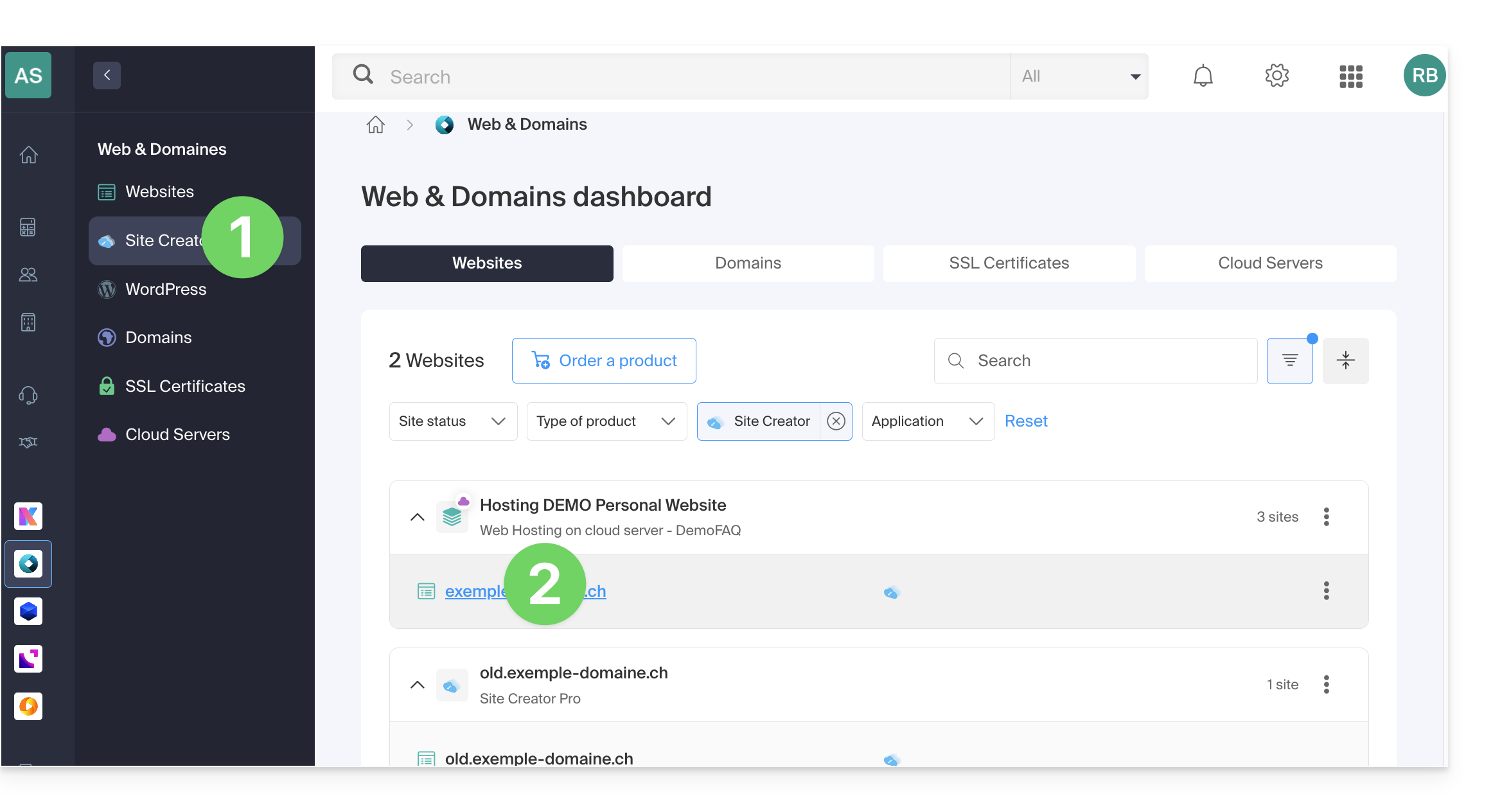
- Clique aqui para aceder à gestão de alojamentos e sites (filtrada para mostrar apenas o Site Creator).
- Se nada for exibido, pode ser que não esteja na Organização à qual o seu site está associado (❓: ajuda).
- Clique em o nome do Site Creator em questão:
- Clique no botão para editar o seu site:
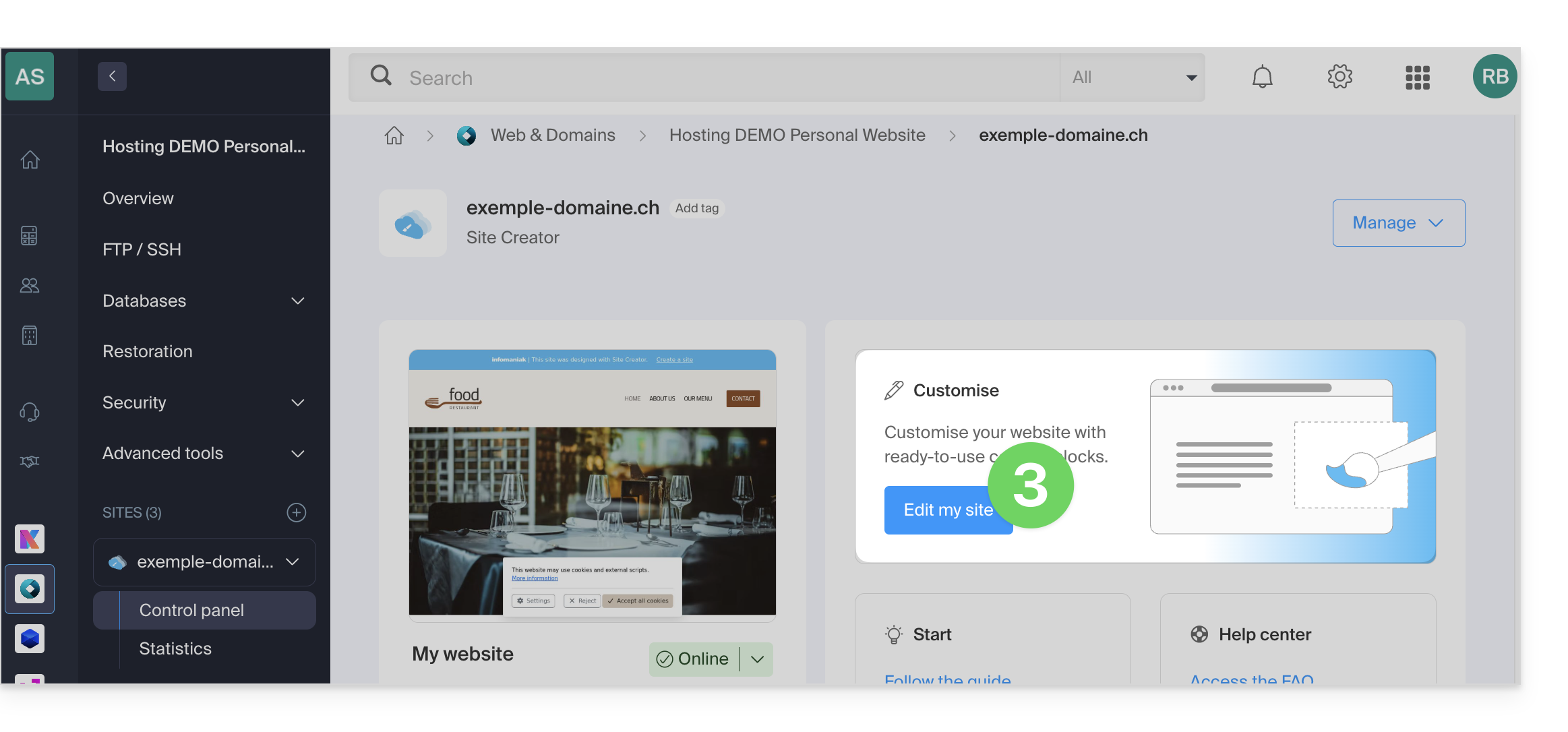
Dentro do Site Creator, a edição de uma página é feita em tempo real e as suas alterações são salvas automaticamente à medida que edita o conteúdo dos seus blocos. Pode desfazer as suas alterações, se necessário.
Criar um link
Crie um link a partir de uma imagem ou de um texto, selecionando diretamente o objeto. Na barra de ferramentas que aparece, clique no menu de ação •••.
Em seguida, clique no ícone de link para abrir a seção que permitirá especificar o tipo de link e as opções associadas: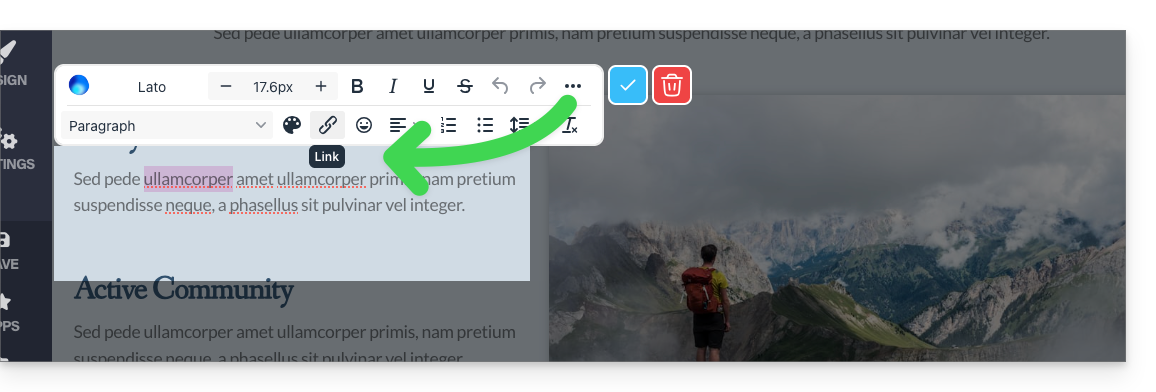
Transformar um link em botão
Nas configurações do seu link, poderá escolher o estilo (botão arredondado, preenchido, etc.), o ícone associado, etc.: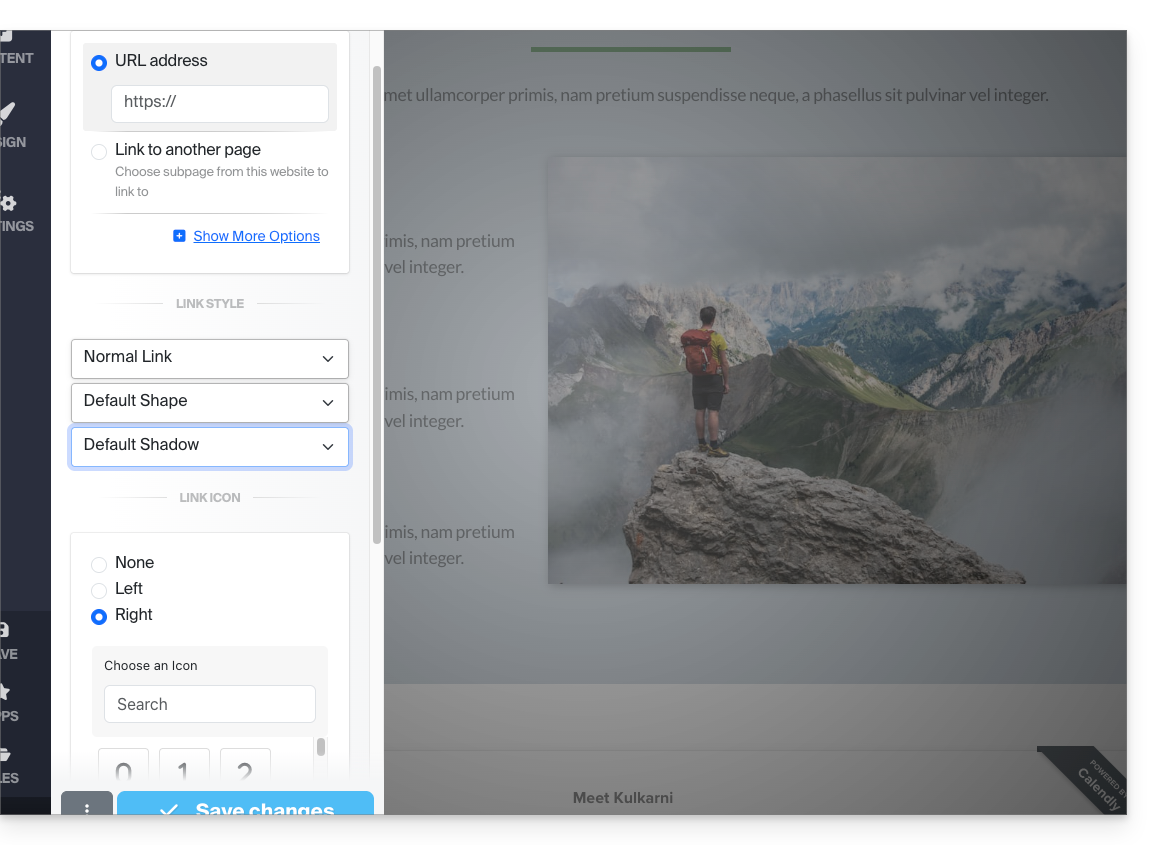
Editar um link
Edite um link clicando nele e, em seguida, clicando no ícone de link: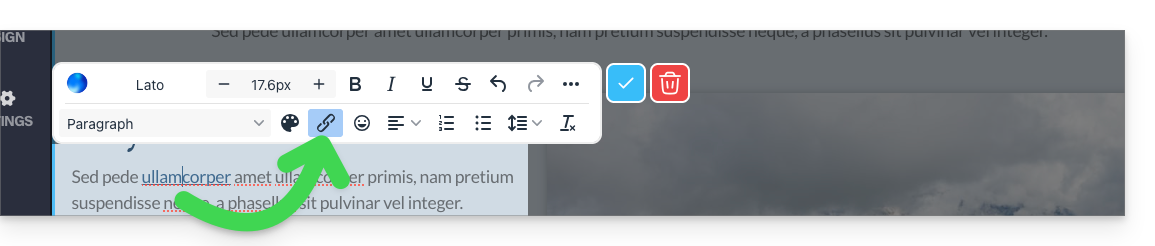
Criar um link para um arquivo
Para permitir que seus visitantes façam o download de um arquivo a partir de um link em um objeto, clique em Mostrar mais opções nas configurações do seu link.
Em seguida, escolha o tipo “Arquivo”, o que permitirá que você faça o upload do arquivo correspondente no servidor, para que ele possa ser disponibilizado para download aos seus visitantes: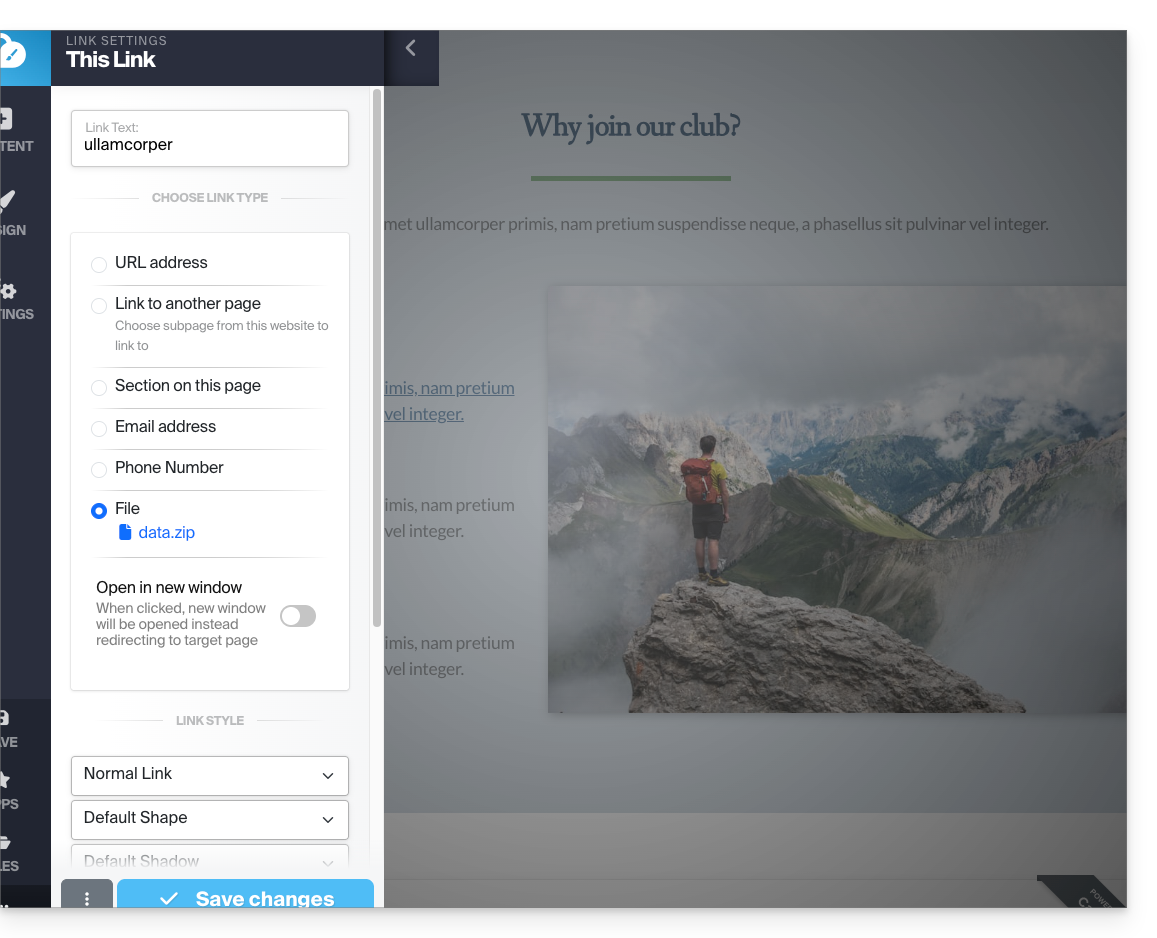
Criar um link para um e-mail
Escolha o tipo "Endereço de e-mail" nas configurações do seu link. Ao clicar no link, será aberta a aplicação de e-mail padrão do visitante e será iniciado um novo e-mail com o endereço de e-mail pré-preenchido: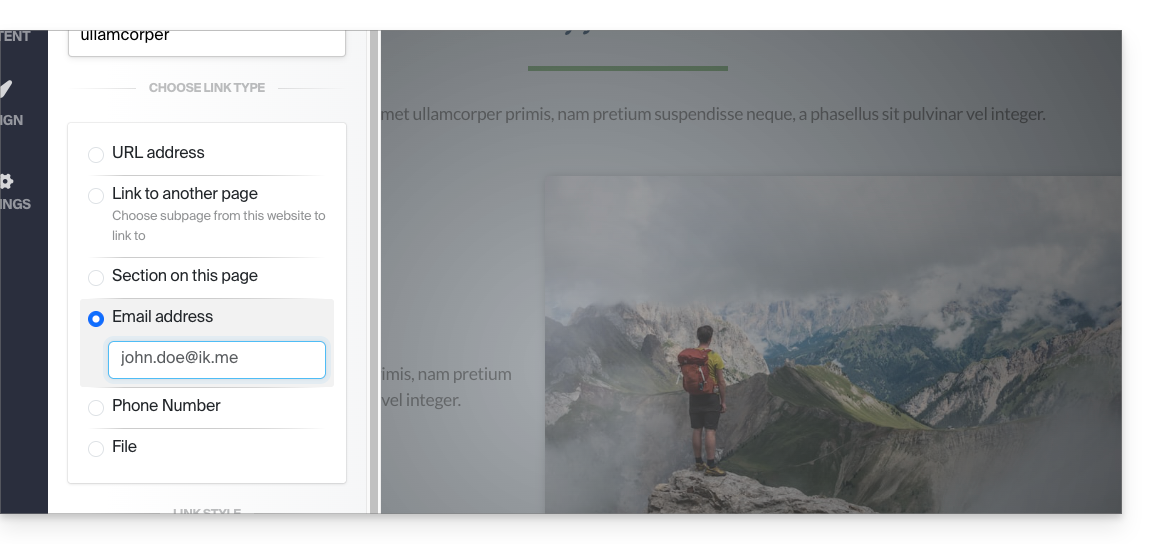
Para evitar que o endereço de e-mail seja inserido diretamente na sua página, insira um formulário de contato.
Criar um link para uma seção específica
Para direcionar o visitante para uma parte específica do seu site ou de outro, utilize o sistema de âncoras.
Criar um link a partir de uma imagem
Ao clicar em uma imagem para editá-la, basta ativar o botão "Este é um link" abaixo da imagem para poder especificar o endereço URL que será exibido quando um visitante clicar nela: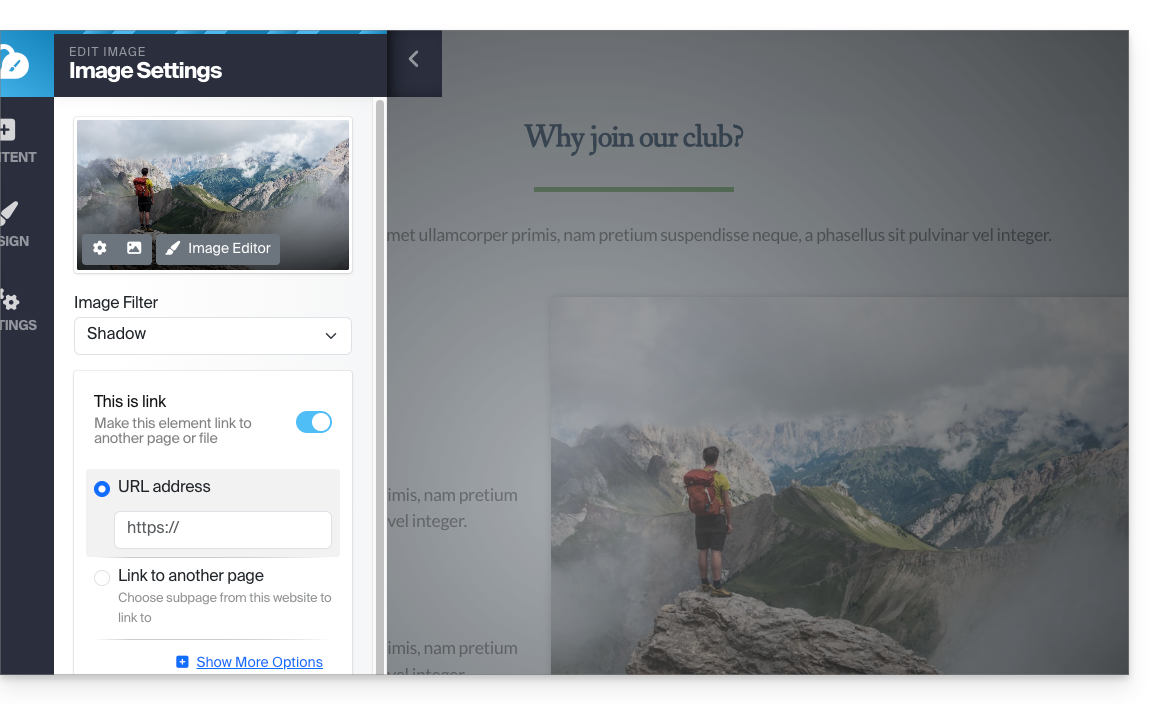
Você também pode aplicar um link em uma imagemutilizando um vídeo do YouTube como URL: isso criará automaticamente um ícone do tipo PLAY que, ao ser clicado, abrirá o vídeo em janela do tipo lightbox.
Criar uma lista, inserir um emoji... e salvar
As diferentes opções de formatação do seu texto estão localizadas acima da seleção do texto:
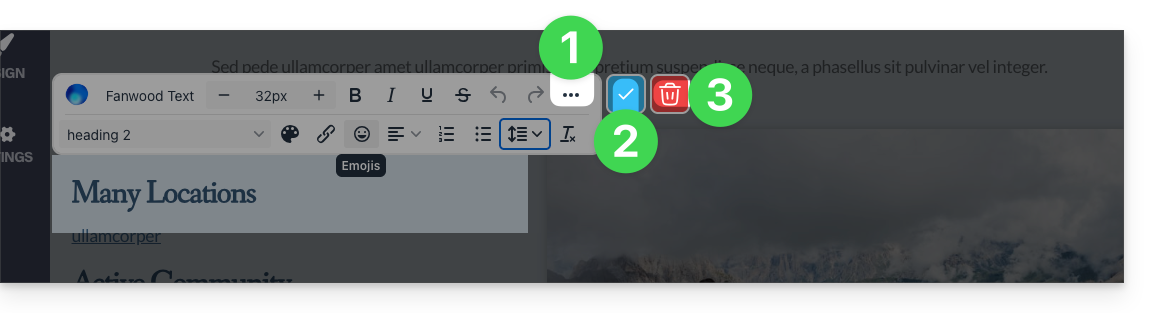
- Opções adicionais (listas com marcadores, alinhamento, emojis, etc.) estão acessíveis através do menu de ações •••.
- Aplique e confirme as alterações com o símbolo ✓.
- Atenção: a lixeira remove o texto que você está editando:
Link para esta FAQ: https://faq.infomaniak.com/2709
Esta seção de perguntas frequentes foi útil?