Knowledge base
1000 FAQs, 500 tutorials and instructional videos. Here, there are only solutions!
This guide provides instructions for creating a highly available, multi-datacenter infrastructure with Jelastic Cloud.
Introduction
- The principle of a highly available, multi-datacenter infrastructure is to replicate all necessary elements (web server, database server, and load balancer) in another datacenter to ensure the operation of your websites and apps in the event of unforeseen circumstances (traffic spikes, hardware failures, network outages, etc.).
- The advantages of a highly available, multi-datacenter infrastructure are numerous:
- In the event of an issue with one server, another server immediately takes over; your websites and apps remain accessible.
- In the event of a disruption with a component in one datacenter, the replicated infrastructure in the other datacenter takes over immediately; your websites and apps remain accessible.
- In the event of significant traffic spikes, traffic is distributed between the two infrastructures by load balancers; your websites and apps remain accessible and fast.
Setting up a highly available infrastructure with Jelastic Cloud
For the purposes of this example, 2 web servers with 2 load balancers will be set up, each of these elements being hosted in Switzerland in a different Infomaniak datacenter.
Before proceeding, log in to the administration interface of your Jelastic Cloud server:
- Click here to access the management of your product on the Infomaniak Manager (need help?).
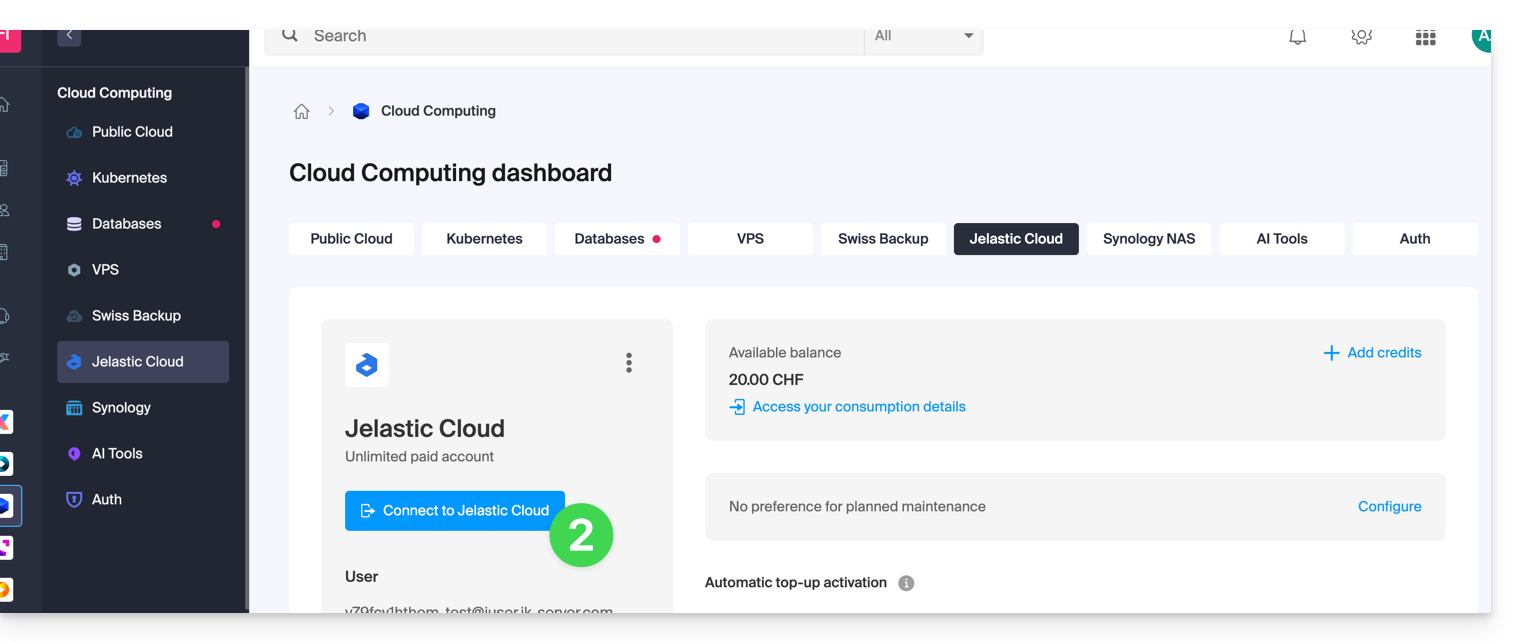
- Click on Connect to Jelastic Cloud:
1. Creating Web Servers
A web server hosts the content of your websites (PHP files, images, PDFs, etc.).
Here are the steps to create your first server:
- Click on New environment.
- Click on the PHP tab.
- In App. Servers, choose, for example, an Apache server.
- Adjust the environment's resources according to your needs.
- Choose Geneva DC2 for the server location.
- Rename the environment so you can easily identify it later (e.g. DC2-apache).
- Click on Create.
Then, create the second web server in a different datacenter:
- Click on New environment.
- Click on the PHP tab.
- In App. Servers, choose an Apache server, for example.
- Adjust the environment's resources according to your needs.
- Choose Geneva DC3 for the server location.
- Rename the environment so you can easily identify it later (e.g. DC3-apache).
- Click on Create.
2. Creating load balancers
A load balancer distributes the load and traffic of your websites across your web servers.
Here are the steps to create your first server:
- Click on New environment.
- Click on the PHP tab.
- In Load Balancing, choose an NGINX server, for example.
- Adjust the environment's resources according to your needs.
- Choose Geneva DC2 for the server location.
- Rename the environment so you can easily identify it later (for example, DC2-nginx).
- Click on Create.
Then, create the second load balancer in a different datacenter:
- Click on New environment.
- Click on the PHP tab.
- In Load Balancing, choose an NGINX server, for example.
- Adjust the environment's resources according to your needs.
- Choose Geneva DC3 for the server location.
- Rename the environment so you can easily identify it later (e.g. DC3-nginx).
- Click on Create.
3. Configuring the load balancers and the domain name
Now, you just need to tell the load balancers which web servers they should distribute traffic to.
Start by creating the load-balancer.conf file on both load balancers:
- Connect to the
DC2-nginxserver via SSH by clicking the Web SSH button in the environment. - Open the load-balancer.conf file:
nano /etc/nginx/conf.d/load-balancer.conf. - Adapt the code in the file with the URL of your web servers:
http {
upstream backend {
server apache-dc2.jcloud-ver-jpc.ik-server.com;
server apache-dc3.jcloud.ik-server.com;
}
server {
listen 80;
location / {
proxy_pass {{URL_4}}
}
}
}
- Repeat these 3 steps for the
DC3-nginxserver.
Next, modify the load balancer configuration file:
- Connect to the
DC2-nginxserver via SSH by clicking the Web SSH button in the environment. - Create the following configuration file:
nano /etc/nginx/nginx.conf. - Adjust the URL of the server configuration file:
user nginx;
worker_processes auto;
worker_rlimit_nofile 2048;
load_module modules/ngx_stream_module.so;
#load_module modules/ngx_http_modsecurity_module.so;
error_log /var/log/nginx/error_log info;
events {
worker_connections 2048;
use epoll;
}
include /etc/nginx/conf.d/load-balancer.conf;
- Restart the NGINX service:
sudo /etc/init.d/nginx restart. - Repeat these four steps for the
DC3-nginxserver.
You now need to specify which servers your domain name should redirect traffic to.
Beforehand,Install a public IP address on your load balancers :
- Deploy the DC2-nginx server node.
- Hover over the public IP line and click on the + that appears on the right.
- Add a public IPv4 address.
- Repeat these 3 steps for the DC3-nginx server.
At this point, all you have left to do is create two A records in the DNS zone of your domain name with the public IP address of your two load balancers.
To ensure that the changes are quickly taken into account, it is recommended to configure the A records with a TTL of 5 minutes.
In this example, the domain redirects your visitors to the load balancers, which in turn redirect traffic to the web servers.
4. Testing the high availability infrastructure
To test the proper functioning of your infrastructure, enter your domain name in a browser such as Brave, Chrome, Edge, Firefox, Opera, Safari… and try disabling one element of your infrastructure at a time (one of the two load balancers, one of the two web servers). If everything is working correctly, you should still be able to access the content hosted on one of the two web servers.
Please note: data replication between the web servers or database servers must be configured by you.
Link to this FAQ: https://faq.infomaniak.com/2401
Has this FAQ been helpful?
This guide concerns the kCheck mobile app (application for iOS/Android smartphones or tablets), created to simplify identity verification procedures and enhance the security of your Infomaniak account.
Introduction
- For security reasons, in order to guarantee the identity of the person making a specific request to Infomaniak, an identity verification procedure may be triggered in the following cases (non-exhaustive list):
- forgotten Infomaniak account password (user account)
- forgotten login email address
- deactivation of two-factor authentication (2FA)
- unlocking an Infomaniak account
- during the first payment of revenue for the Ticketing product
- when ordering a product (suspicion of spam or fraud, brand name, etc.)
- This application allows you to securely transfer the requested information.
- Infomaniak respects your privacy: the information transmitted via the kCheck application will be kept until your request is fully processed; in any case, it will be automatically deleted after 72 hours if this request is not processed.
Starting the identity verification
Prerequisites
- A QR code or a link provided by Infomaniak.
- The kCheck mobile app installed on your device: iOS (iPhone, etc.) or Android.
- An Internet connection on the mobile device.
You can then have your identity verified with kCheck:
- Launch the kCheck app on your mobile device.
- Tap Start.
- Tap Scan a QR code.
- Point your device's camera at the provided QR code.
- Enter your mobile phone number.
- Enter the confirmation code you receive.
- Allow geolocation (required to continue).
- Select the type of ID you have (ID card or passport).
- Follow the steps to photograph your ID.
- Take a selfie (of yourself) with your ID in your hand in front of you.
Your documents will then be securely transmitted to Infomaniak support. These requests are processed with priority and have an average response time of 2 hours during business hours.
If your order is blocked...
For security reasons, some orders may be automatically blocked.
When your order is placed, an email is sent to the email address associated with your Infomaniak Manager account. This email contains the procedure for unblocking your order. If you cannot find it, you can request that it be resent from your Manager by clicking Resend the procedure from the red banner informing you of the block.
Prerequisites
- Open the email containing the unblocking procedure.
- The kCheck mobile app installed on your device: iOS (iPhone, etc.) or Android.
- An internet connection on your mobile device.
You can then start the unlocking process with kCheck:
- Launch the kCheck app on your mobile device.
- Tap Start.
- Tap Scan a QR code.
- Scan the QR code in the email.
- Follow the unlocking procedure until the end.
Special cases
- If you do not take any action within 10 days, the order will be automatically cancelled and the full amount will be refunded to the payment method used.
- If you do not have a mobile device to follow this procedure, contact Infomaniak support.
Link to this FAQ: https://faq.infomaniak.com/2418
Has this FAQ been helpful?
This guide details how to back up the data from your folders and nodes in Jelastic Cloud via the OpenStack Swift protocol to Swiss Backup, the backup solution in an independent Swiss cloud.
Introduction
- To back up data, an extension for Virtuozzo (Jelastic Cloud) is available in the node's add-ons.
- Learn more about the extension (add-on) on Github.
Configure the Swiss Backup extension on Jelastic Cloud
Prerequisites
- Use Jelastic Cloud (at least one Jelastic environment must be active with the extension installed for your backups to be visible).
- Own an Swiss Backup Infomaniak space with an available device quota (minimum 1) for a Cloud backup.
- Add 1 device of type Cloud to obtain the OpenStack Swift settings.
To add the useful extension to Swiss Backup on Jelastic Cloud:
- Log in to the Jelastic Cloud Dashboard of your server.
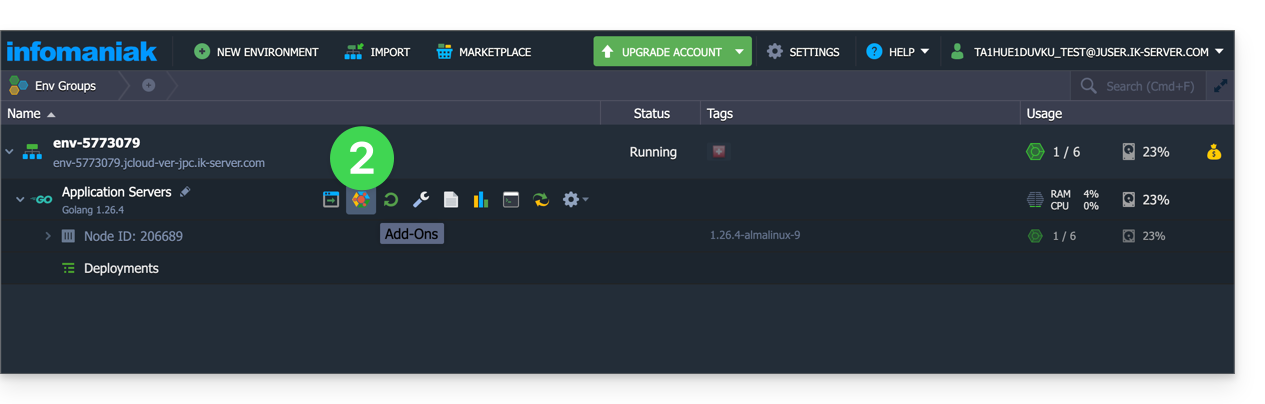
- Go to the addons section:
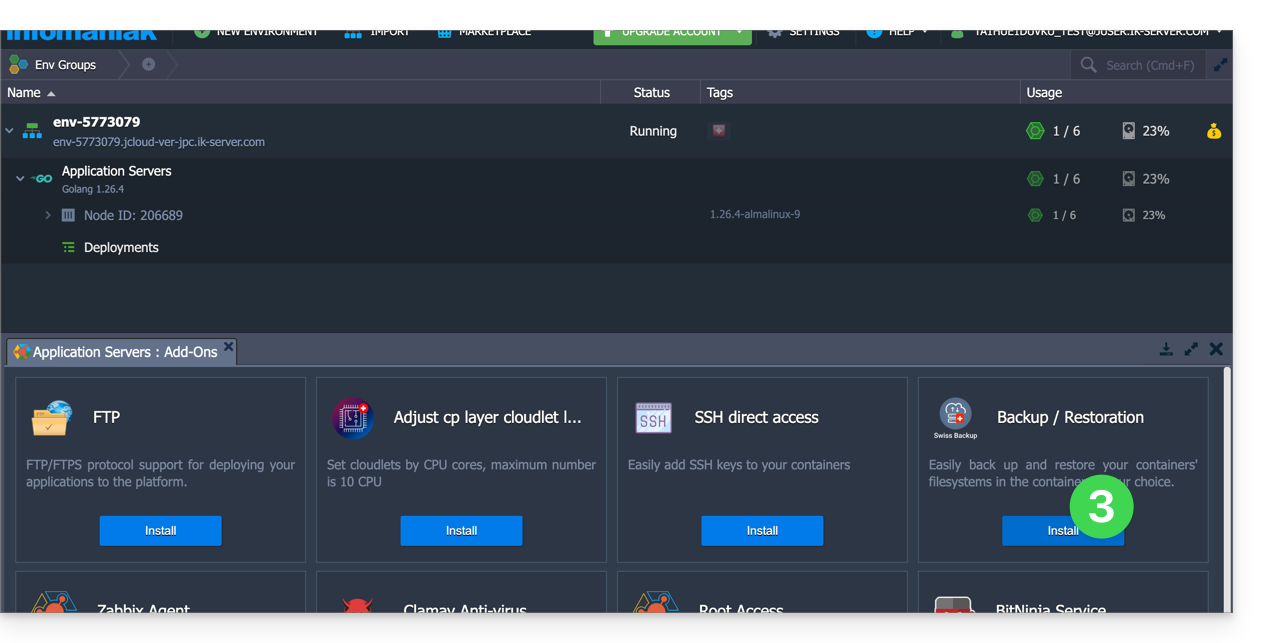
- Search for and install the Backup / Restoration extension:
Two types of backup are then possible and are detailed below:
- Back up specific folders.
- Create a snapshot of an entire node.
Back up specific folders
To back up specific directories:
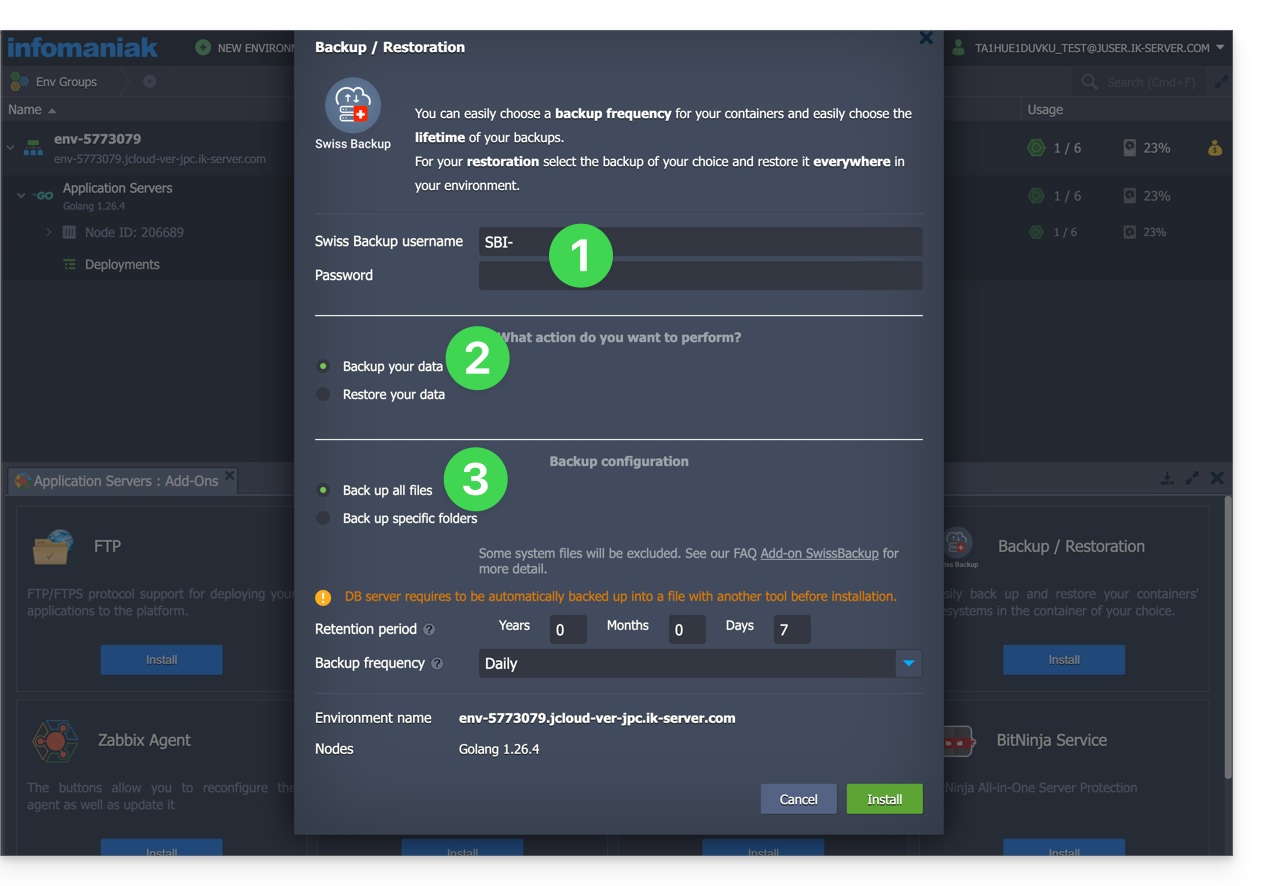
- Enter the username and password according to the information specific to your device.
- Check Backup your data.
- Check Backup specific folders
- Enter the absolute path of the folders to be backed up in the Folders to backup field; you can specify multiple folders by separating each path with a comma, for example:
/root/admin/, /home/user1/, /jelastic/containers/(in this example, 3 folders have been specified)...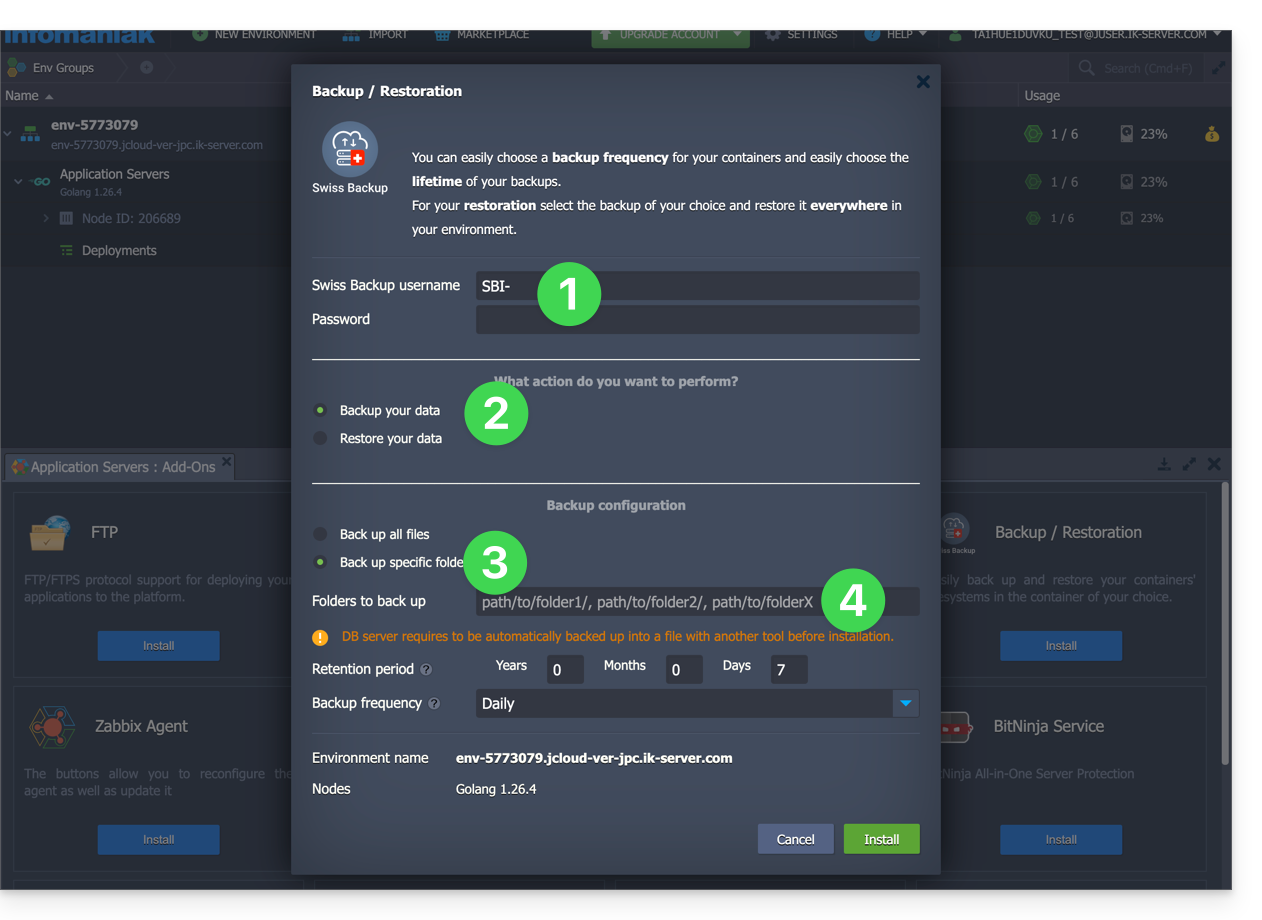
Next, you need to define the frequency of the backups (see below).
Back up an entire node
To back up an entire node:
- Enter the username and password for your Swift device on Swiss Backup.
- Check Backup your data.
- Check Backup all files to back up the entire file system of a node; some files are automatically excluded:
- the
/dev,/proc,/sys,/rundirectories - file systems that are not mounted as part of the root partition, including virtual file systems
- the
Next, you need to define the frequency of the backups.
Define the backup frequency and retention policy
Two options are available for performing the backup:
- daily (at 8 PM UTC)
- every hour (at the beginning of the hour, e.g., at 1 PM, 2 PM, etc.)
You can define the retention period for your backups in years, months, days, and hours. To keep your backups indefinitely, simply set the parameters to 0.
For example, if you perform backups every hour and set a retention policy to 1 year, 2 months, 4 days, 2 hours, this means that each backup will be available for a period of 1 year, 2 months, 4 days, 2 hours (=10322 backups). Note that backups are deleted every Sunday at 10:30 PM (UTC).
Warning: Do not set all parameters to 0, as permanent backups may lead to backup failures.
Recommended limits:
- Year: 1
- Month: 12
- Days: 99
For an hourly backup (every hour), a maximum retention period of one month is recommended. Beyond this value, some backups may fail.
Restore backups
Restore data from a node
- Log in to the Jelastic Dashboard of your server.
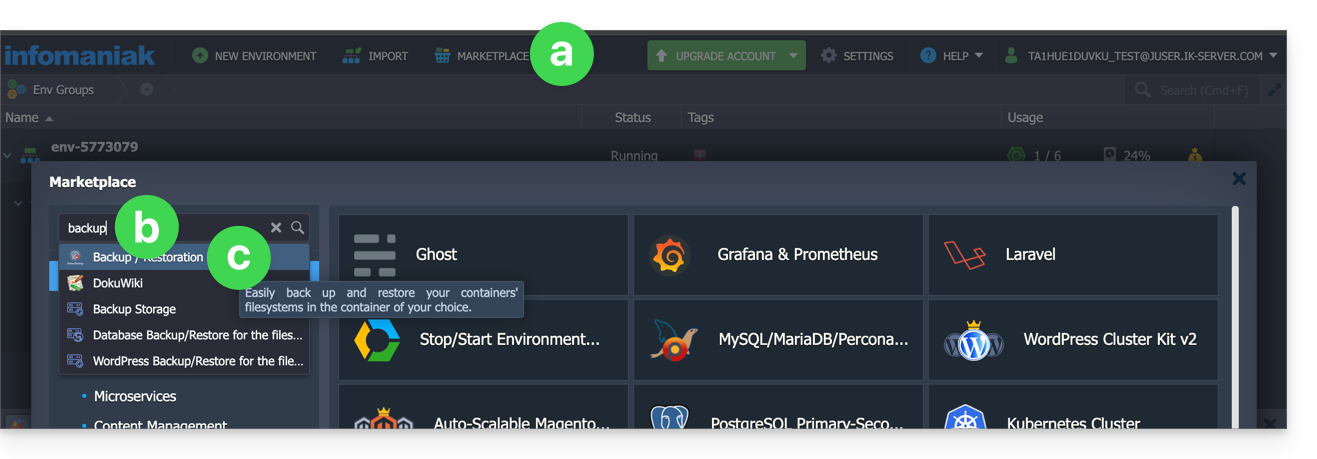
- You will probably need to reinstall (restart) the add-on from the Marketplace:
- Click on Marketplace.
- Search for “backup”…
- Click on the "Backup / Restoration" add-on:
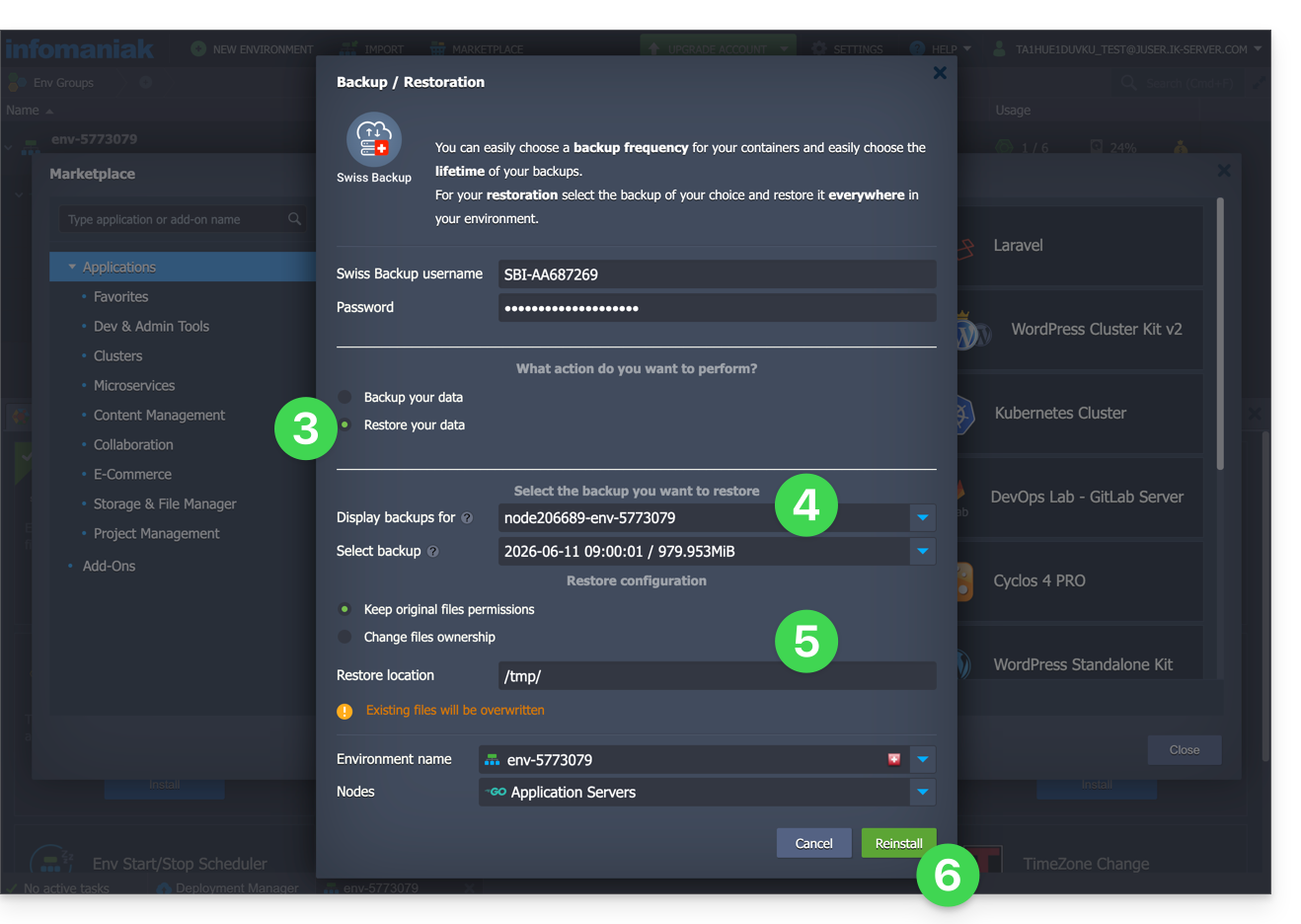
- Once the extension has been added and the username and password for your Swift device on Swiss Backup have been entered, check Restore your data.
- Select the node that contains the backup to be restored.
- Select the backup to restore and the folder to restore it to.
- Click on the Restore button:
Restore specific folders from a snapshot (CLI)
Each backup corresponds to a unique ID. You can include and exclude folders from your snapshots during a restore. To view your snapshots:
. /home/.config/swissbackup/openrc.shrestic snapshots
- Use
--excludeand--includeto restrict the restore to a subset of files in the snapshot; for example, to restore a single file:restore 79766175 --target /tmp/restore-work --include /work/foo
There are case-insensitive variants of --exclude and --include called --iexclude and --iinclude. These options behave in the same way but ignore the case of the paths.
Modify the backup configuration
To do this:
- Log in to the Jelastic Dashboard of your server.
- Once the extension has been added and the username and password for your Swift device on Swiss Backup have been entered, modify the configuration as desired.
The backup schedule is defined by a cron job, and backups are performed using the restic tool.
To manually modify the backup schedule (CLI), as the root user, run the crontab -l command to display the current schedule:
- the line containing
retention-all.shcorresponds to the backup task - the line containing
purge.shcorresponds to the backup retention task
Example:

Modify the schedule using the crontab -e command.
You can modify the line containing the retention-all.sh or retention.sh script; these scripts are responsible for launching your backups. Please note: the cron jobs have been designed to avoid conflicts between backups and multiple deletions. Be mindful of the time required for backups and deletions…
- Learn more about cron jobs: crontab.guru
- Learn more about restic: restic.net
Manually delete backups (CLI)
To do this:
- Source the configuration file:
. /home/.config/swissbackup/openrc.sh - Display available backups:
restic snapshots - Delete the desired backup:
restic forget IdBackup --prune - Delete all backups of a file except the most recent one:
restic forget --tag folders --keep-last 1 --prune

Delete the backup schedule
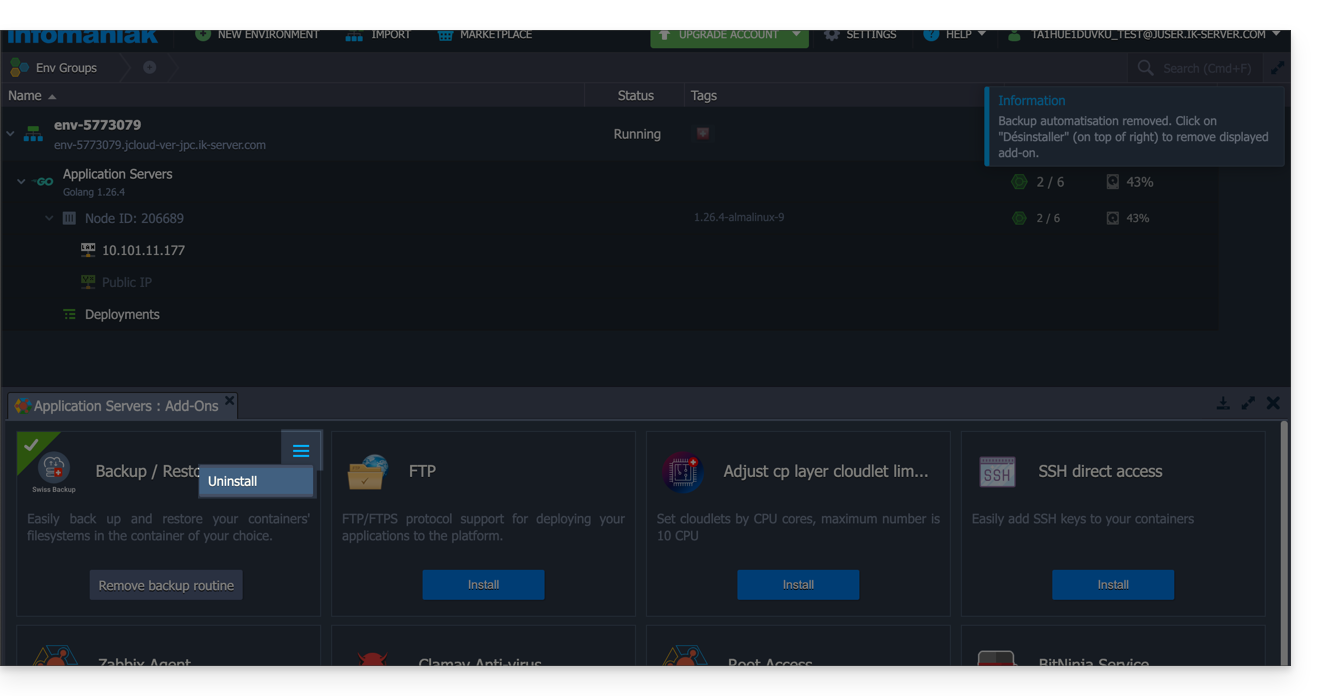
This button allows you to delete the schedule for your backup: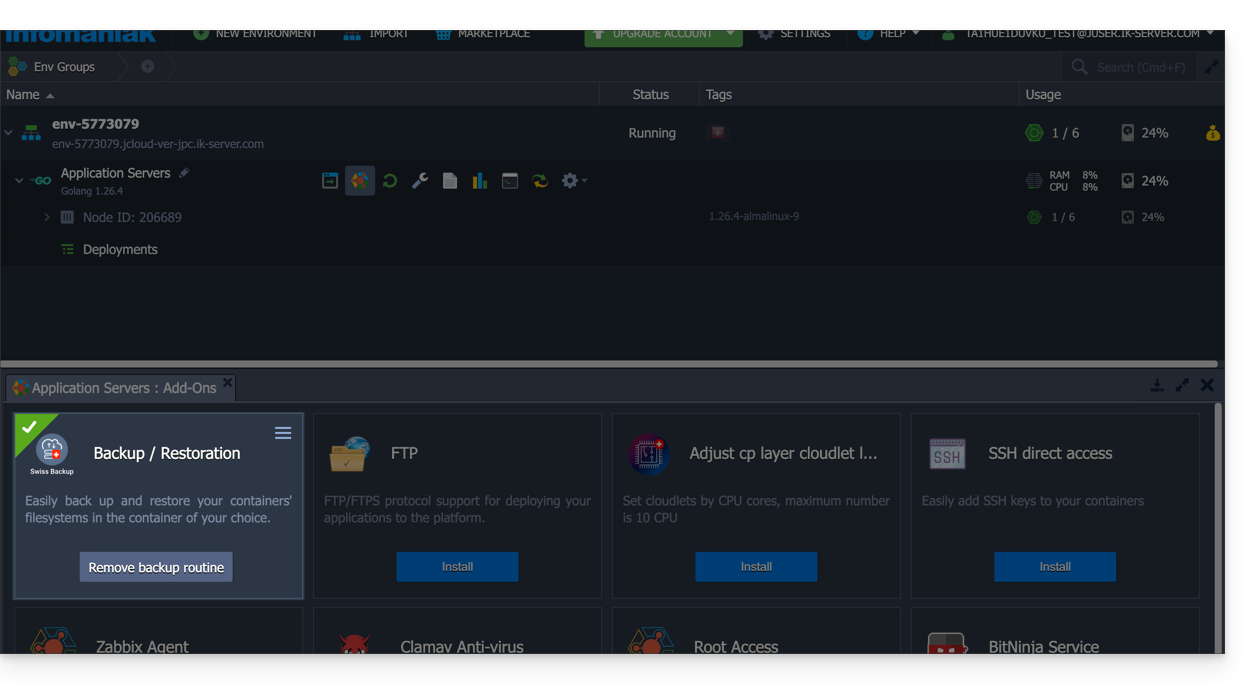
Uninstall the Swiss Backup extension
You must delete the backup schedule (see above) before you can delete the Swiss Backup extension:
Link to this FAQ: https://faq.infomaniak.com/2420
Has this FAQ been helpful?
This guide explains how to customize the time slots during which Infomaniak can perform maintenance to improve your services (new features, bug fixes, etc.).
Introduction
- This feature is only available for:
- Cloud Servers
- Cloud VPS / VPS Lite
- Jelastic Cloud
- Unless otherwise specified, scheduled maintenance is generally performed by Infomaniak between 10 PM and 6 AM.
Modify the scheduled maintenance period
To do this:
- Click here to access the service for which you want to schedule maintenance in the Infomaniak Manager (need help?).
- Click directly on the name assigned to the product in question.
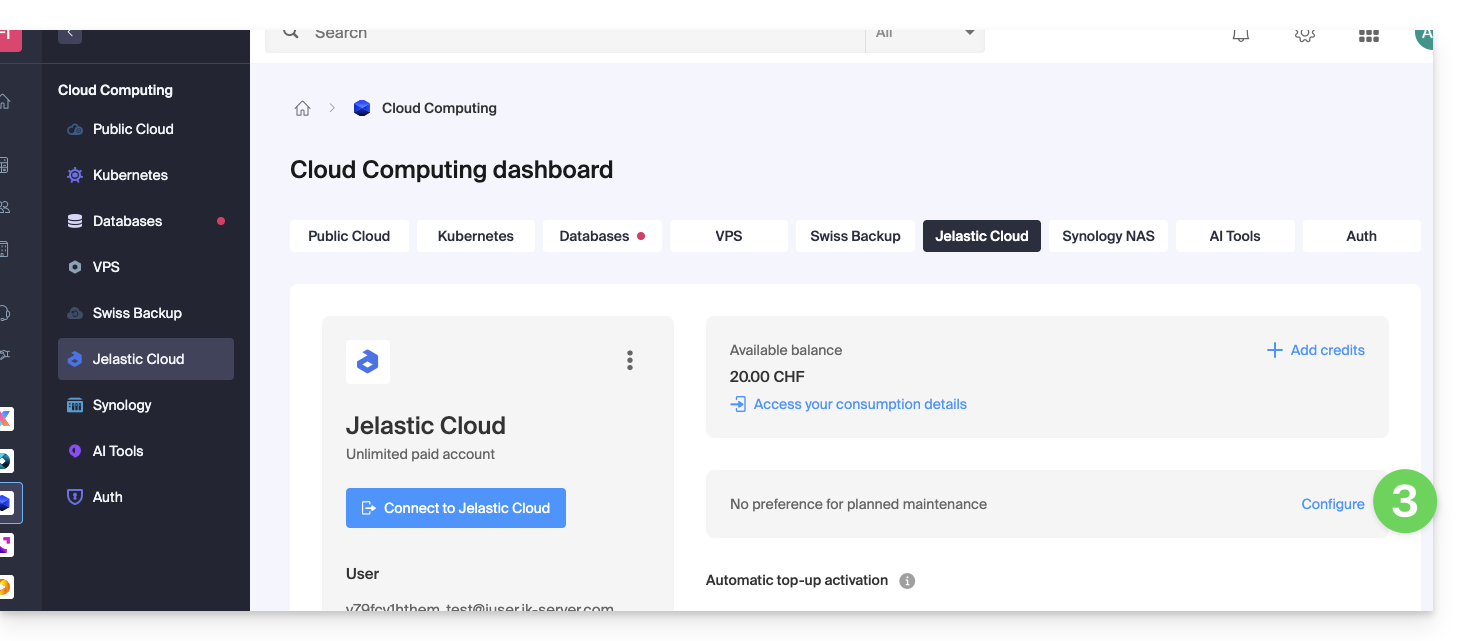
- Click on Scheduled Maintenance in the left-hand menu or on the central page, depending on the service in question (see Jelastic below):
- The same applies to a VPS:
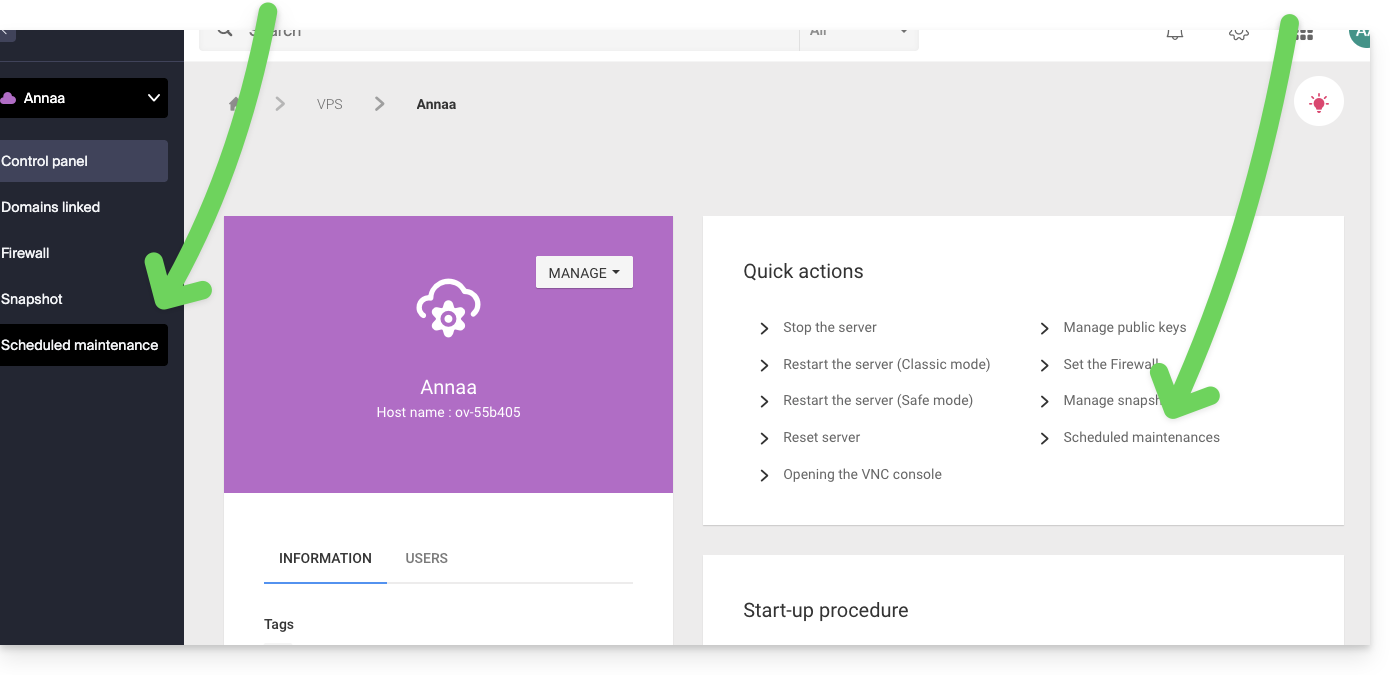
- The same applies to a VPS:
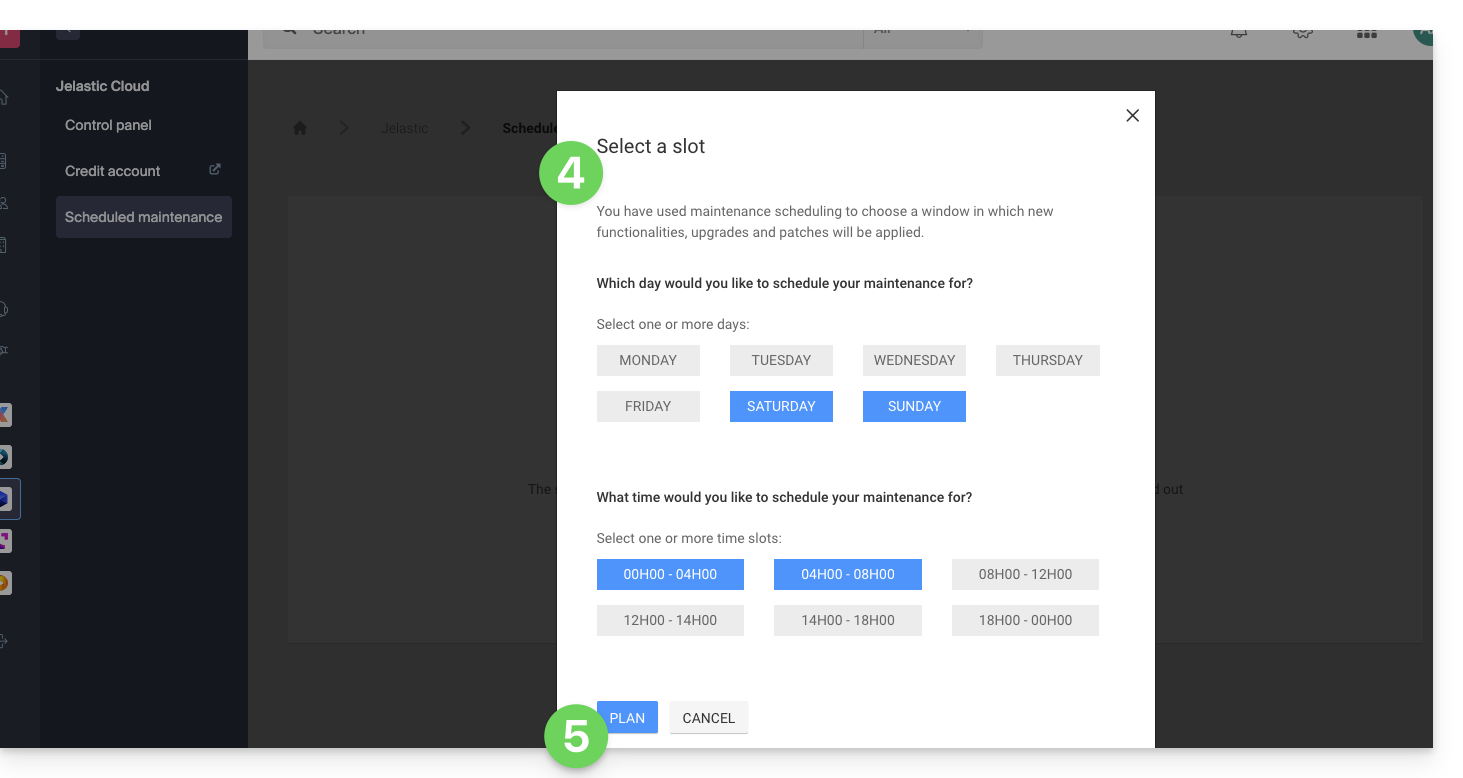
- Click on the buttons to define your preferred time slot, indicated in blue.
- Confirm by clicking the button at the bottom:
Link to this FAQ: https://faq.infomaniak.com/2424
Has this FAQ been helpful?
This guide details how to transfer an Infomaniak Jelastic Cloud environment from one account to another; you can also refer to the official Jelastic documentation (in English only).
Prerequisites
- An environment can be transferred from any type of Jelastic Cloud account (trial, beta, disabled, etc.); however, it is essential that the recipient of the transfer has a paid account. le destinataire du transfert dispose d'un compte payant.
- Also, ensure that the destination account has not reached:
- the maximum number of cloudlets per container
- the maximum number of compute nodes available for an environment
- the maximum number of environments on the account
- Use the user email address of the destination account, which can be found under the "User" section in the destination account's Jelastic dashboard:

Transfer procedure
To perform the transfer:
- Log in to your Jelastic Cloud platform (you will leave the Infomaniak Manager).
- Click on the Settings button next to the environment to be transferred:

- From the Settings menu, select the Change owner option.
- Enter the email address of the destination account, then click Send:

- If the destination account exists and meets the transfer criteria, a notification indicating that the request has been sent will appear.
- An icon will appear next to the environment to be transferred until the transfer request is accepted by the new owner.
- Once the transfer request is accepted, the environment is removed from your account.
It is possible to cancel the transfer process from the Settings menu, Change owner, cancel the transfer request.
Once the transfer is complete, you can cancel the Jelastic product from your account, any remaining credits available at the time of cancellation will be automatically transferred to your Infomaniak prepaid account.
Link to this FAQ: https://faq.infomaniak.com/2453
Has this FAQ been helpful?