Knowledge base
1000 FAQs, 500 tutorials and instructional videos. Here, there are only solutions!
Manage contacts in Infomaniak Contacts
This guide explains how to add or remove contacts in the address books of the Infomaniak Contacts web app (online service ksuite.infomaniak.com/contacts).
Introduction
- To import existing contacts, please refer to this other guide.
- To manage address books, please refer to this other guide.
Add a new contact
To add a new contact entry in an address book:
- Click here to access the Infomaniak Web app Contacts (online service ksuite.infomaniak.com/contacts).
- Click on New contact in the top left corner.
- Choose the existing address book to which you want to add the contact:
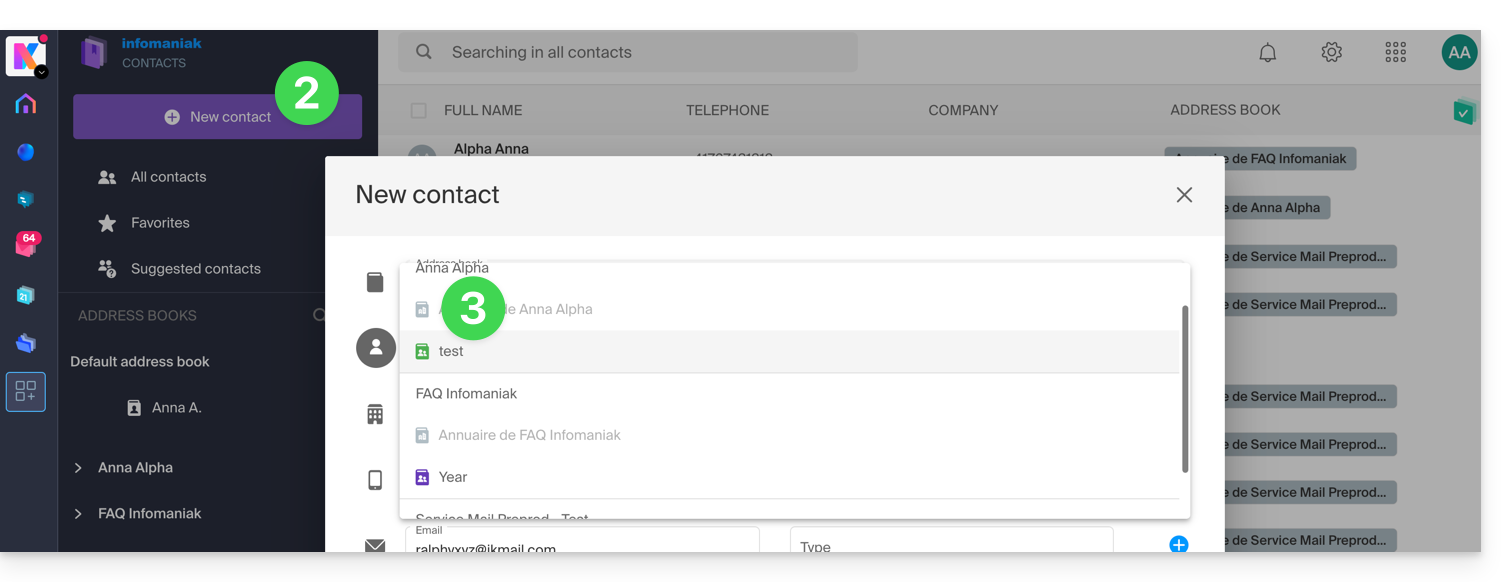
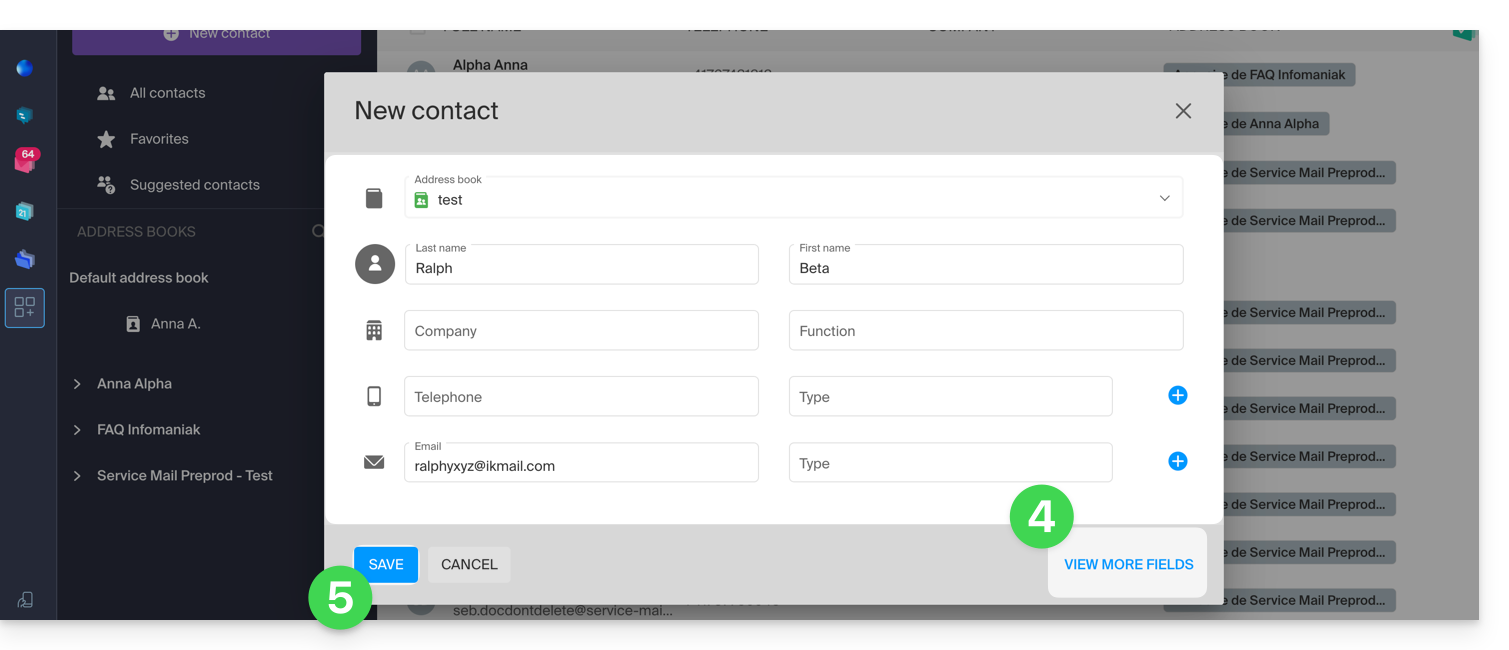
- Fill in the main information (or additional information using the link in the bottom right corner).
- Confirm with the Save button:
Add from frequently used contacts
You can complete an address book using the frequently contacted entries suggested by the app (based on your use of the Web Mail app). The name/first name/email will be pre-filled if available:
- Click here to access the Infomaniak Web Contacts app (online service ksuite.infomaniak.com/contacts).
- Click on Suggested Contacts in the left-hand menu.
- Click on the action menu ⋮ to the right of the contact in question.
- Click Add to add the contact to an existing address book.
- You can also click on the ⋮ action menu in the right sidebar:
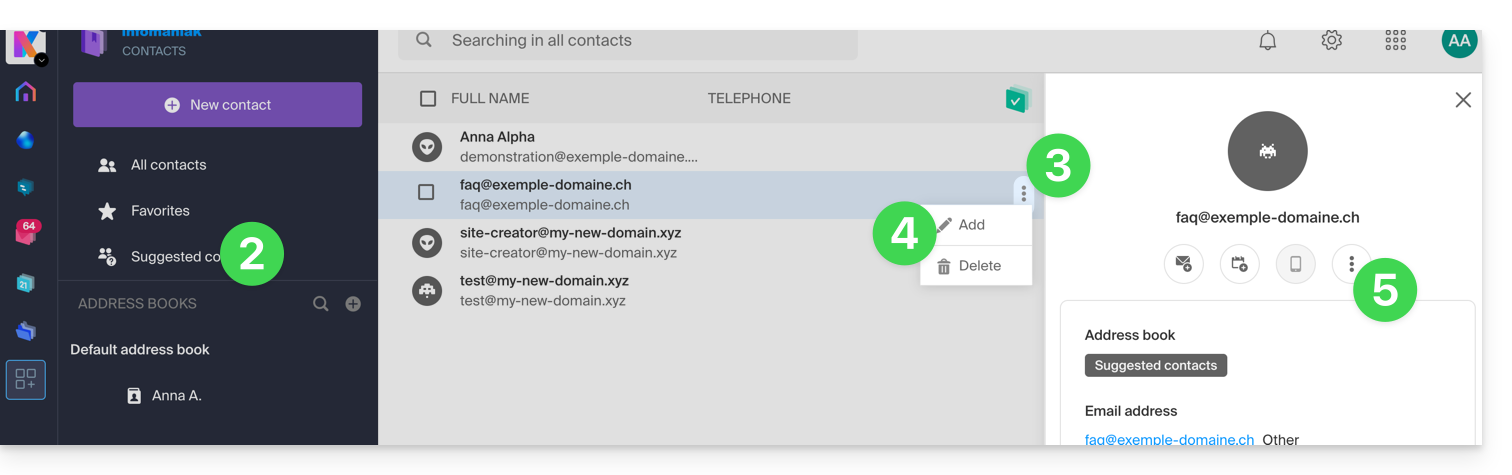
- Complete the contact information if necessary, then click Save.
For Add all suggested contacts at once:
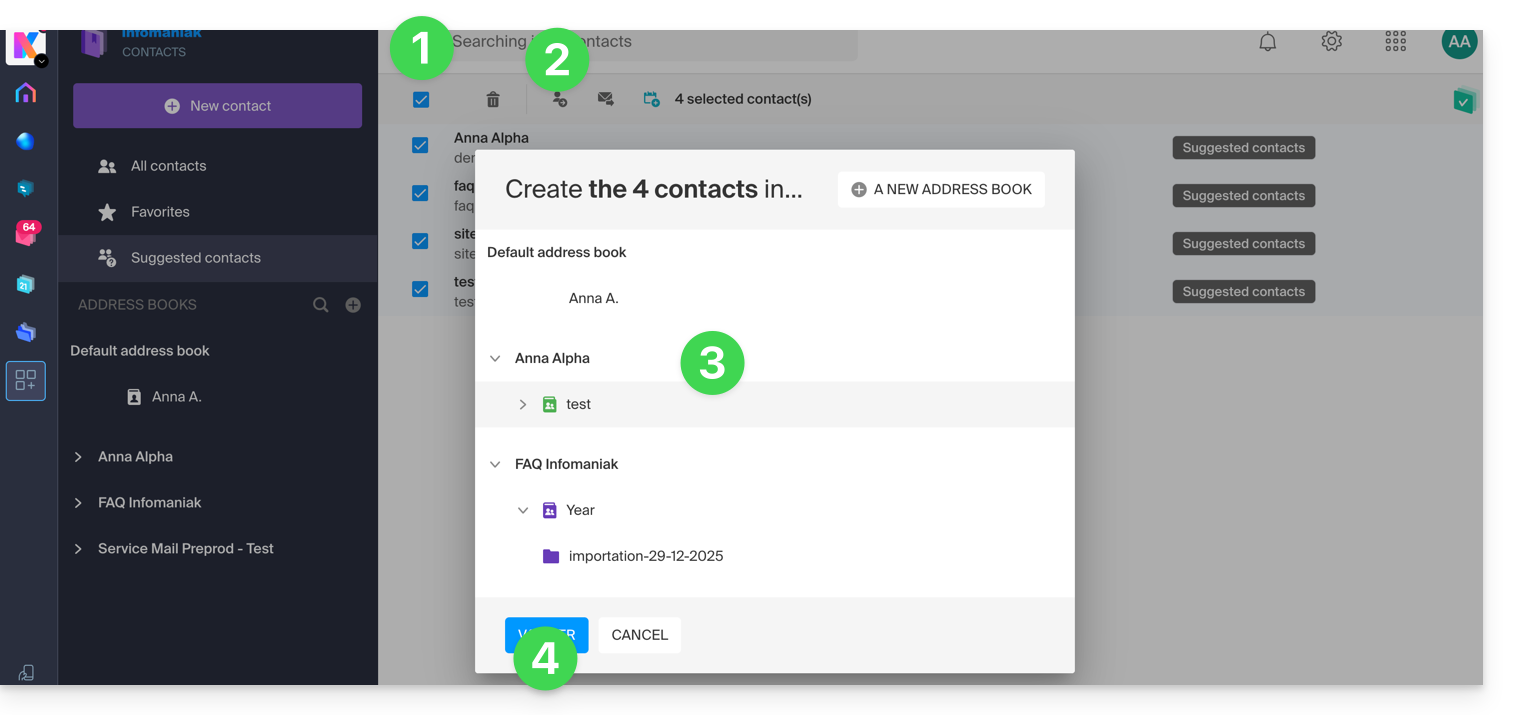
- Click at the top of the column to select all contacts.
- Then, click on the icon that appears at the top of the table.
- Choose the existing address book to which you want to add the contacts.
- Click the button to save all selected contacts:
Add from the Infomaniak Web Mail app
You can create a contact entry directly from the messages you exchange with that contact:
- Click here to access your emails in your Infomaniak kSuite (❓: help).
- Open the message from the sender (or the conversation between multiple participants).
- Hover over the part mentioning the sender or recipient that you want to add to your address book.
- Click on Create a contact:
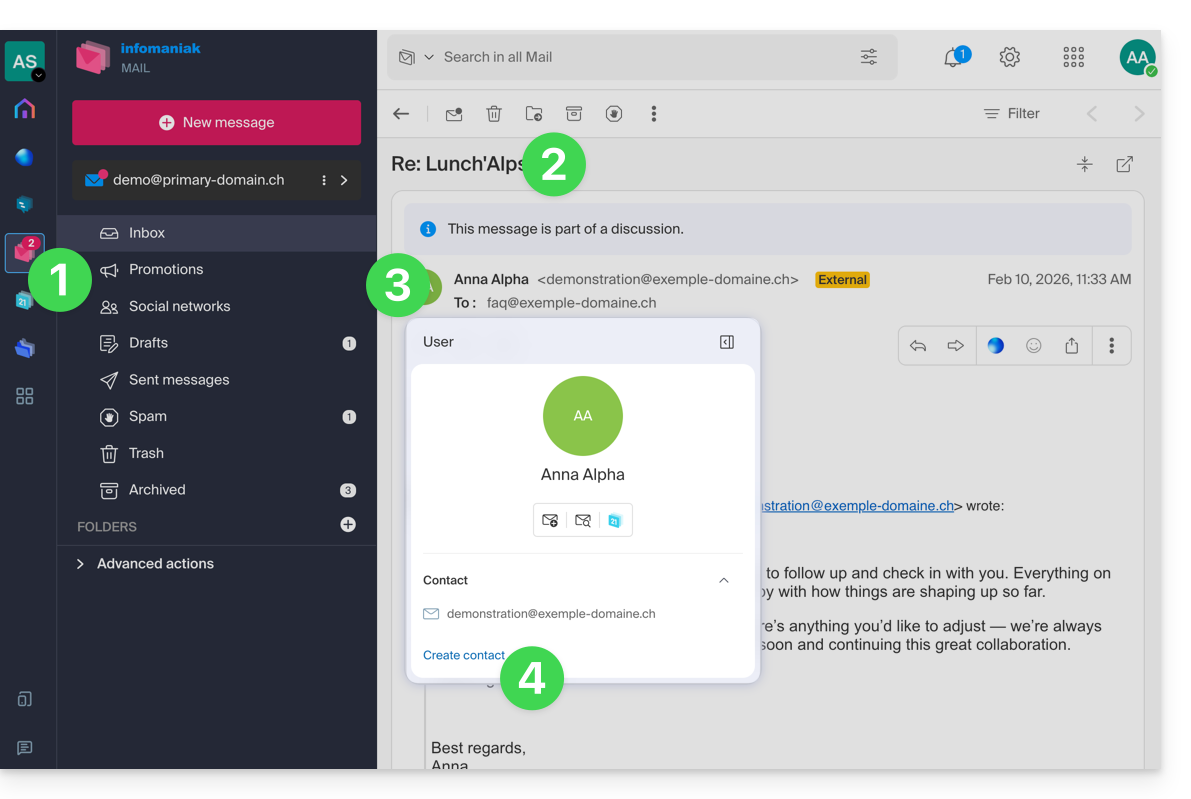
- Complete the contact information as needed, then click Save.
Delete one or more contacts
To remove a contact from your lists:
- Click here to access the Infomaniak Web app Contacts (online service ksuite.infomaniak.com/contacts).
- Select the address book from which you want to delete your contacts:
- Select the contact(s) you want to delete.
- The Trash icon appears at the top of the column, allowing you to delete the selected contacts:
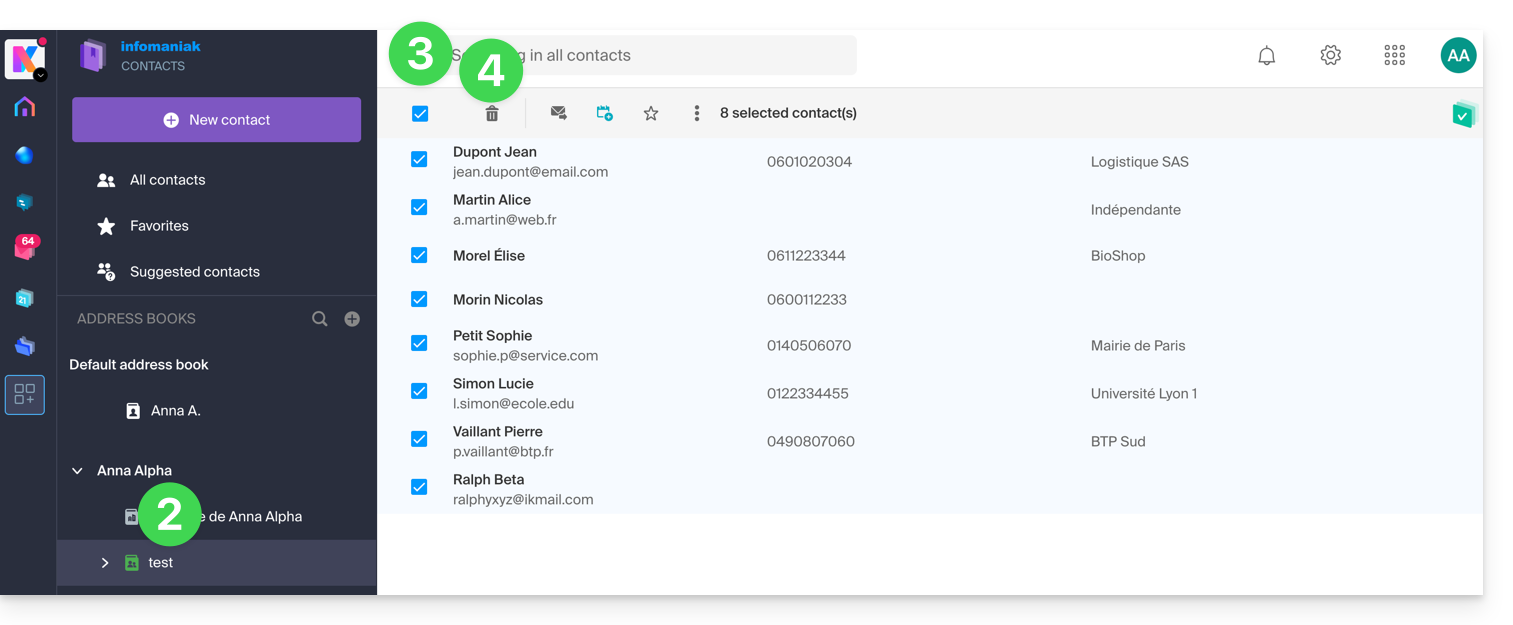
Please note that displaying all contacts does not always allow for deletion, especially if the list includes contacts from Organizations of which you are not an administrator.
Link to this FAQ: https://faq.infomaniak.com/996
Has this FAQ been helpful?