Knowledge base
1000 FAQs, 500 tutorials and instructional videos. Here, there are only solutions!
Create a task in Infomaniak Calendar
This guide explains how to use the task manager in the Infomaniak Calendar web app (online service ksuite.infomaniak.com/calendar/tasks).
Manage your tasks
To add a task to the task manager:
- Click here to access the Tasks web app (online service ksuite.infomaniak.com/calendar/tasks)…
- … also accessible from your calendar by clicking on the Tasks icon in the right-hand side menu:
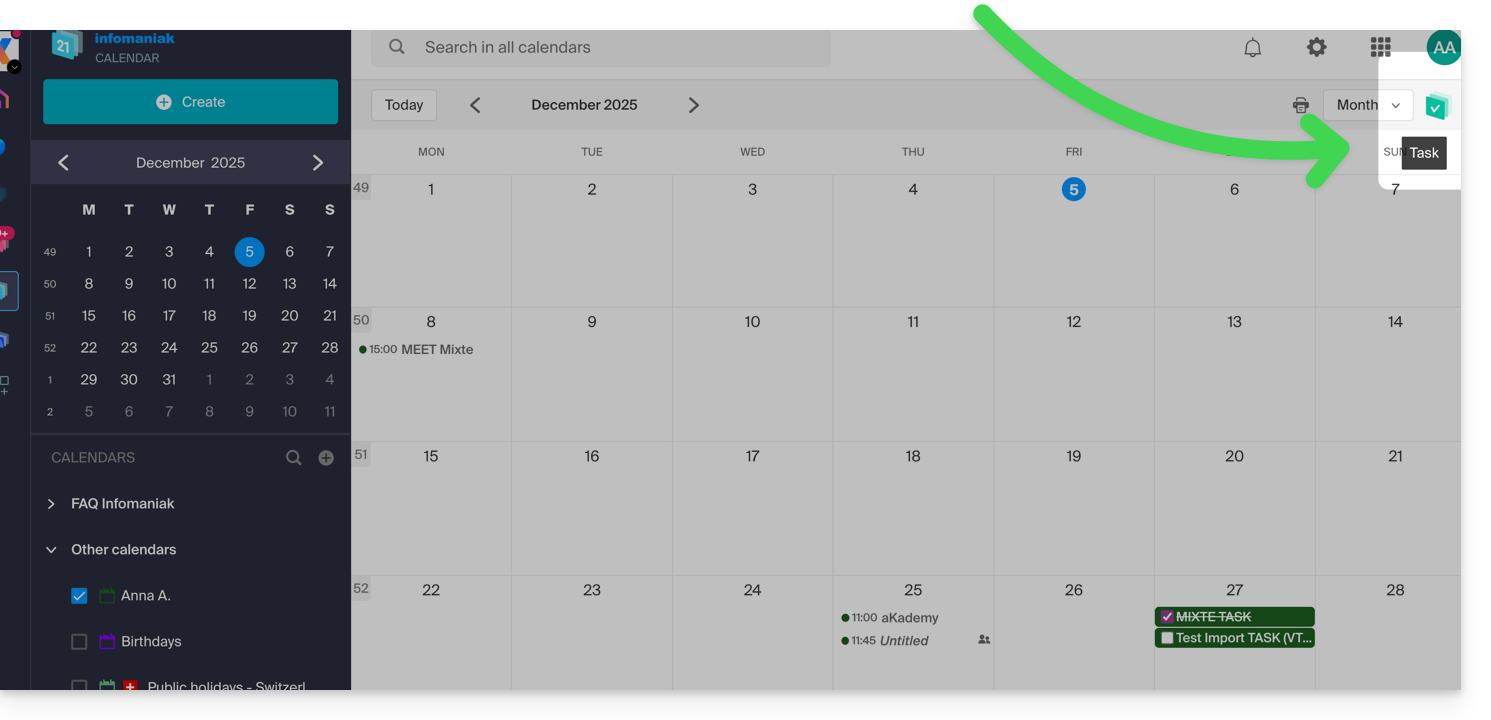
- … also accessible from your calendar by clicking on the Tasks icon in the right-hand side menu:
Once the manager is open, you can Create a task in the upper left corner, linked to the calendar specified to the right of the button: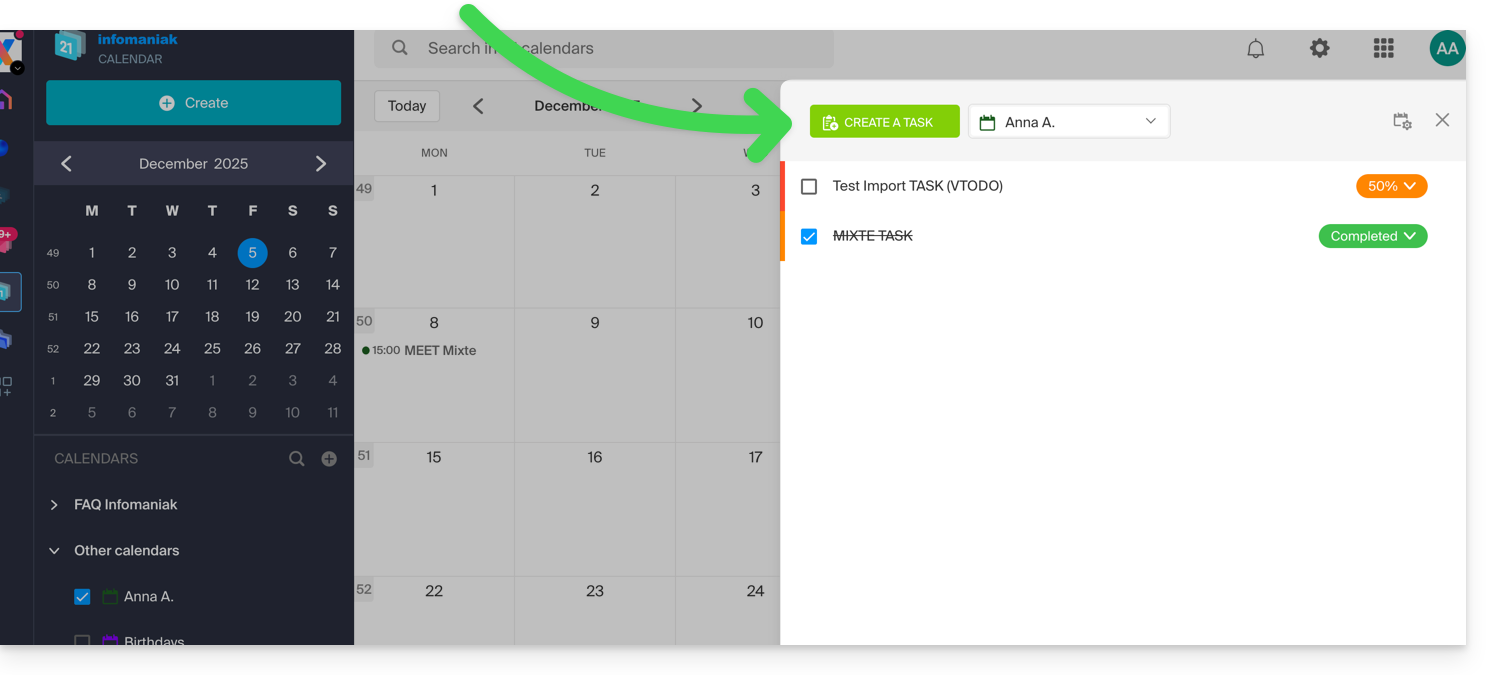
If you add a due date to your task, it will appear on the corresponding calendar: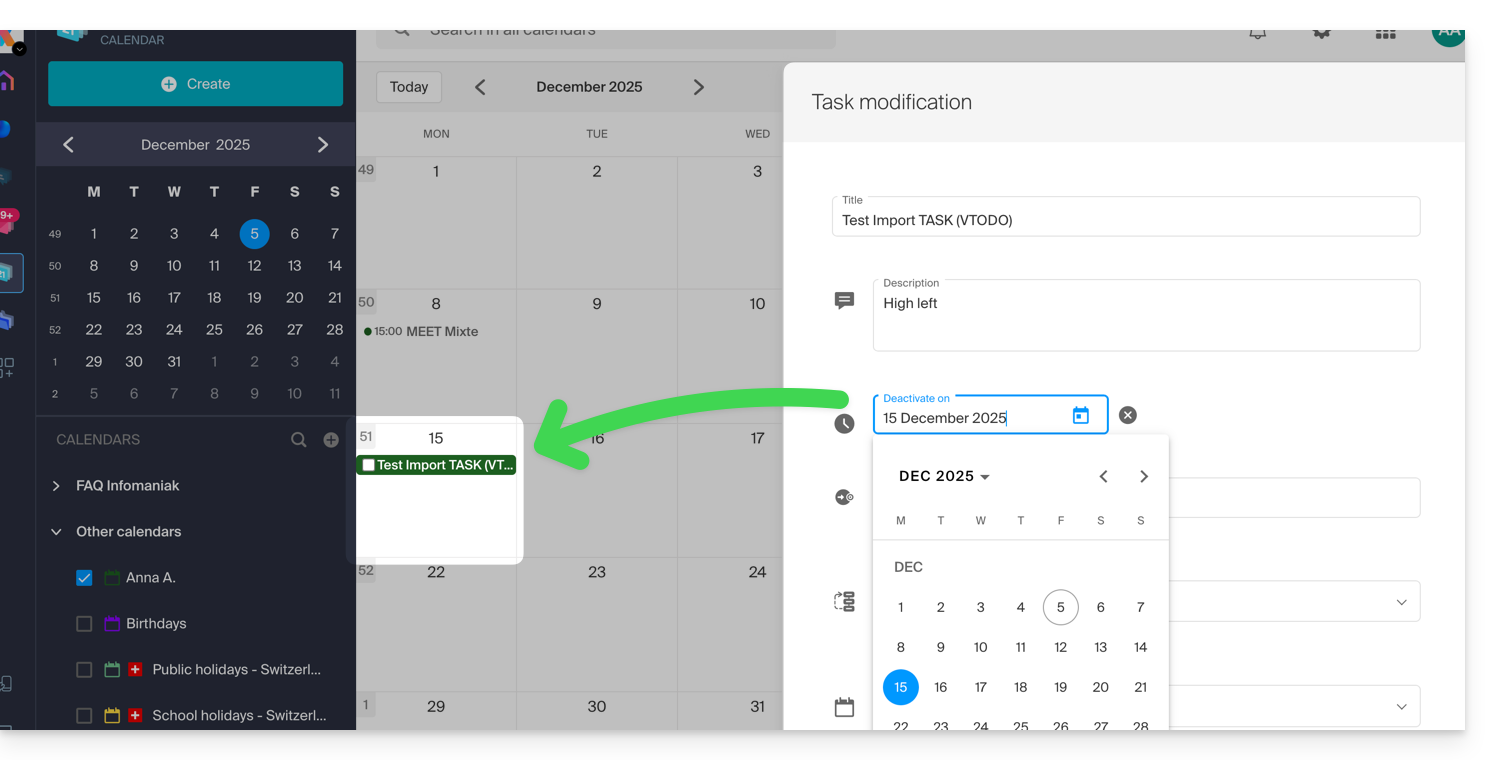
You can also filter and sort your displayed tasks using the button located in the upper right corner of the manager, next to the cross that allows you to close it: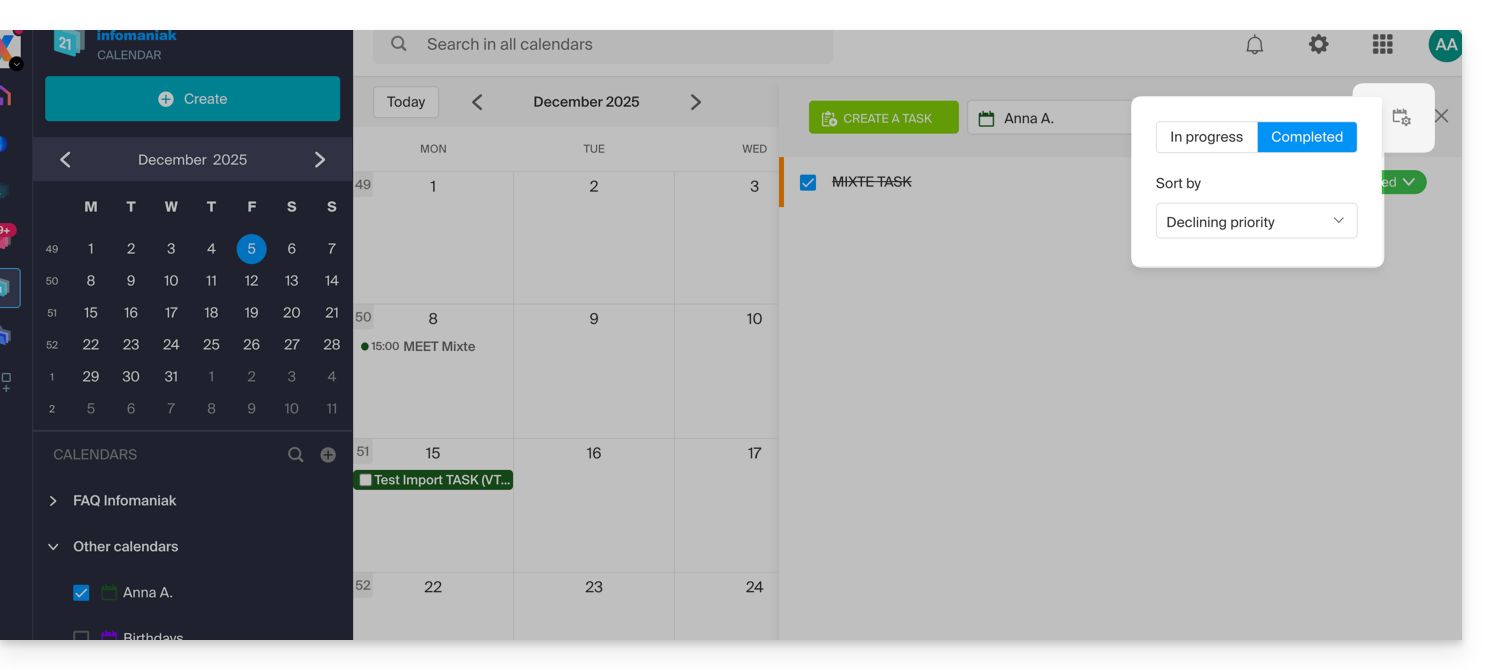
You can import tasks into your calendar.
To synchronize tasks with an Android device, please refer to this other guide.
Link to this FAQ: https://faq.infomaniak.com/984
Has this FAQ been helpful?