Knowledge base
1000 FAQs, 500 tutorials and instructional videos. Here, there are only solutions!
Export an email to kDrive
Update 10/12/2026
This guide explains how to save an email (as if you were downloading it) directly to your kDrive.
Introduction
- Save a received message from one of your Infomaniak Mail service addresses in just a few clicks, in the
.emlformat, which can be read directly within your kDrive interface. - To export all emails from a mail address, please refer to this other guide.
- To export email attachments, please refer to this other guide.
Add an email to kDrive…
… from the Infomaniak Web Mail app
To export the email of your choice to your kDrive:
- Click here to access your emails on your Infomaniak kSuite (❓: help).
- Open the message you want to save.
- Then, click on the share icon at the top of the message to add it to kDrive:
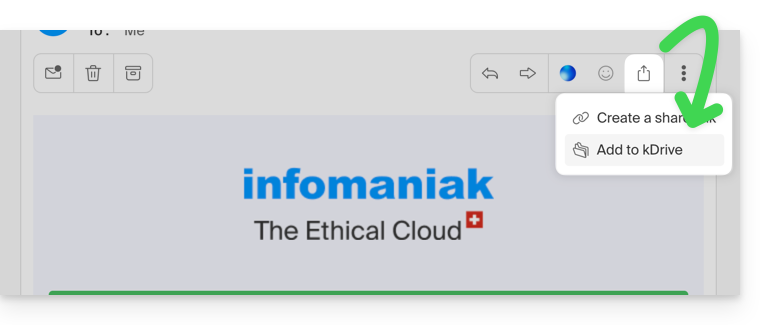
- Then, click on the share icon at the top of the message to add it to kDrive:
- Alternatively, you can also click on the Add to kDrive icon at the top of the message:
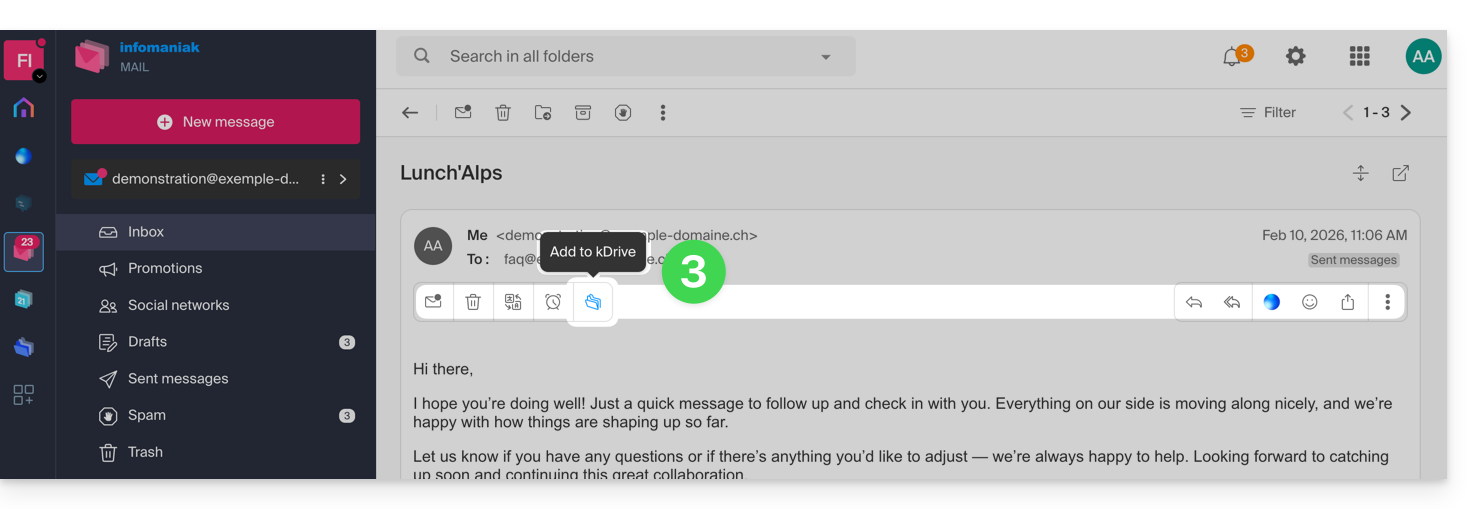
- If the icon is not visible, click on the action menu ⋮ on the right.
- Then choose to customize the actions:
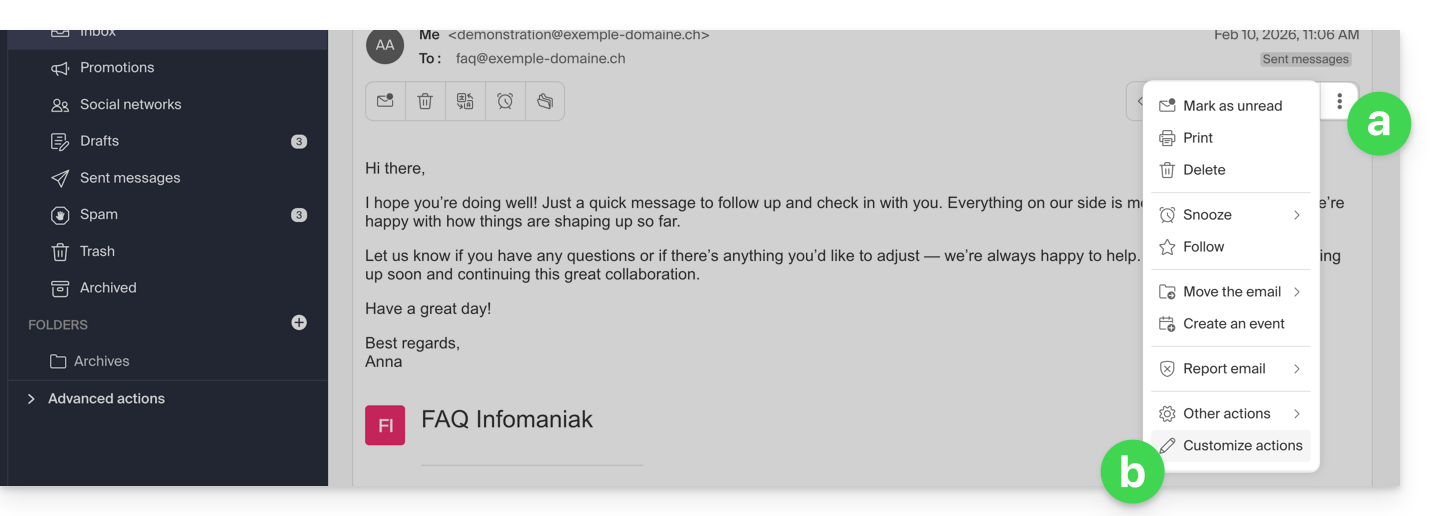
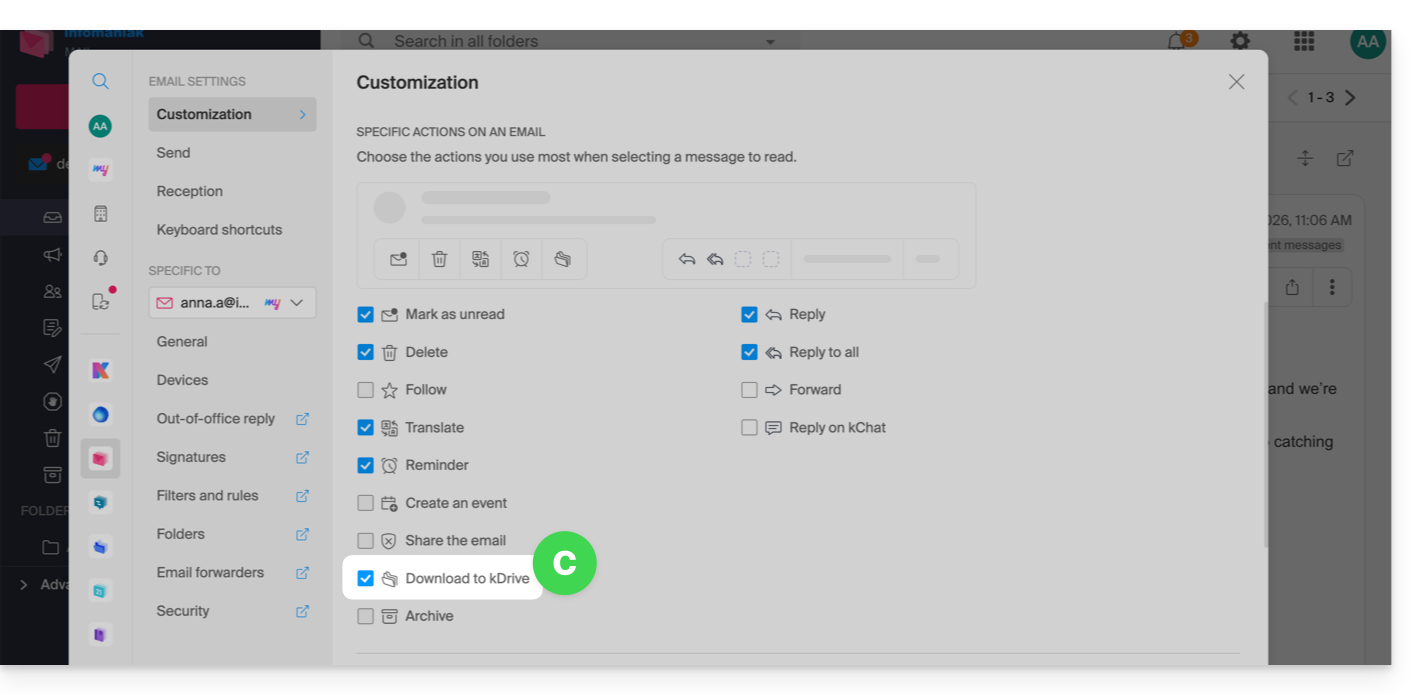
- in order to add the desired action:
- Choose the kDrive (from those to which you are linked by your Organization) and the desired location on it to save your file - if you rename it, keep the
.emlextension so that you can read it directly in the kDrive interface. - Click the Add button.
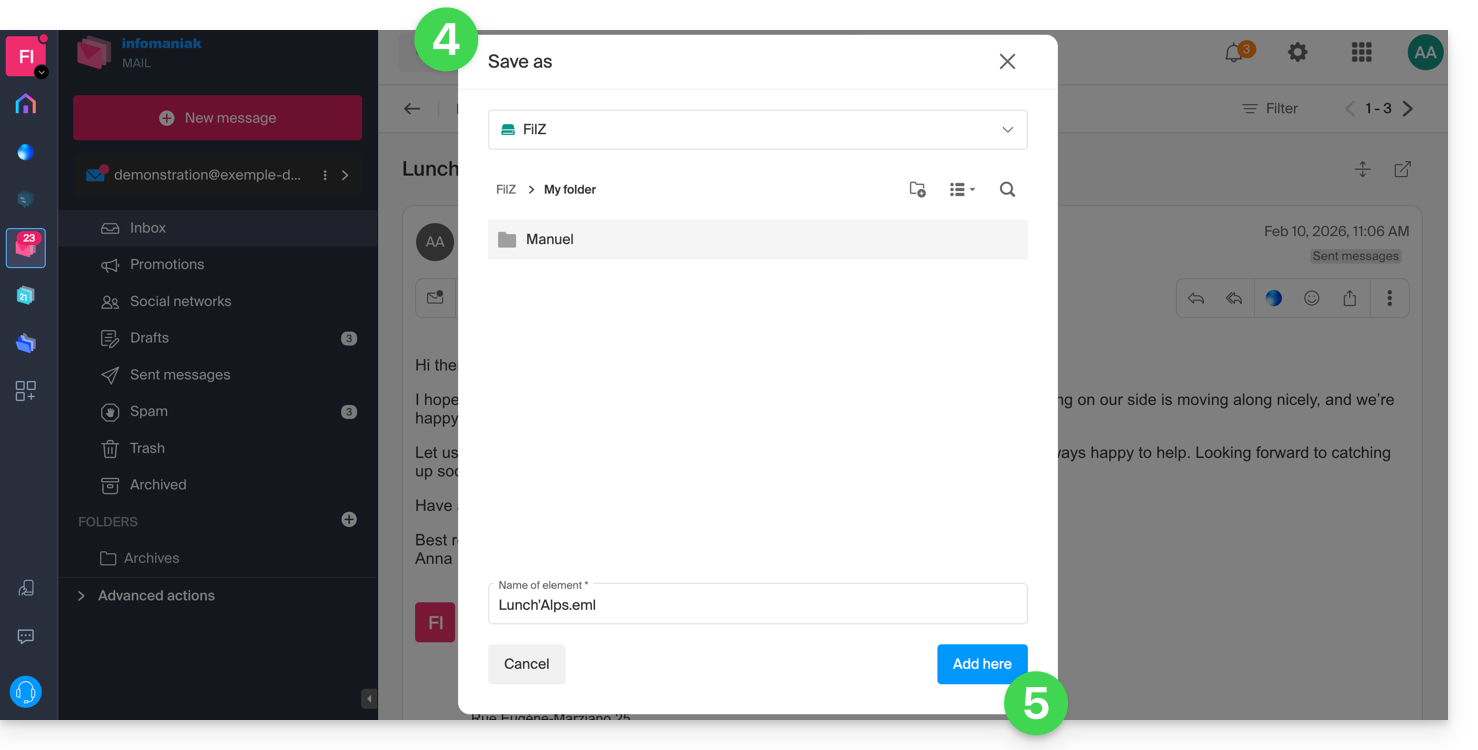
- A message at the bottom of the screen notifies you of the progress of the saving process and allows you to go directly to the email backup location:
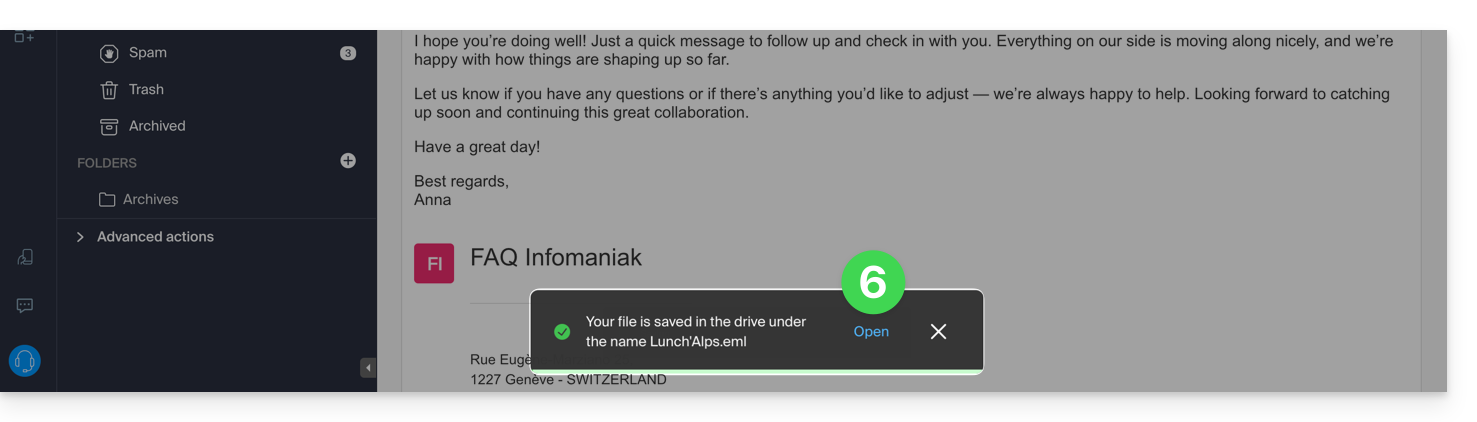
- The saved email can be viewed on kDrive as if you were reading it directly in Mail.
… from the Infomaniak Mail mobile app
To do this:
- Open the email in question on the Infomaniak Mail mobile app (application for iOS/Android smartphones or tablets).
- Click on the action menu ⋮ located in the top right corner of the email.
- Choose Save to kDrive and follow the same procedure as in step 4 above.
Link to this FAQ: https://faq.infomaniak.com/973
Has this FAQ been helpful?