Knowledge base
1000 FAQs, 500 tutorials and instructional videos. Here, there are only solutions!
Manage the UTM tags of a Newsletter
This guide concerns UTM tags, or Urchin Tracking Module, which are tags added to URLs to track and analyze the performance of online marketing campaigns from the Newsletter tool in Infomaniak.
Introduction
- These optional UTM tags consist of specific parameters, such as source, medium, campaign, term, and content, which help identify the origin of traffic from a link.
- By using UTM tags, marketers can understand which campaigns generate traffic, which channels are most effective, and which ads or strategies work best, based on the data collected by web analytics tools.
- UTM tags allow you to create a link between the links in your newsletters and the tracking provided by a tool like Google Analytics on your website.
Enable the UTM feature
Enable this option during the very first step of creating your Newsletter:
- Click here to access the management interface for your product on the Infomaniak Manager (need help?).
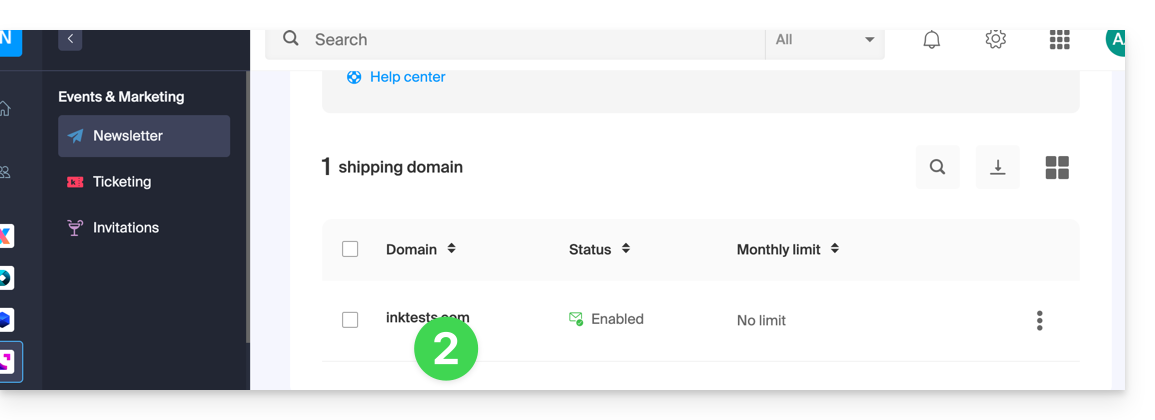
- Click on the domain name in question in the table that appears:
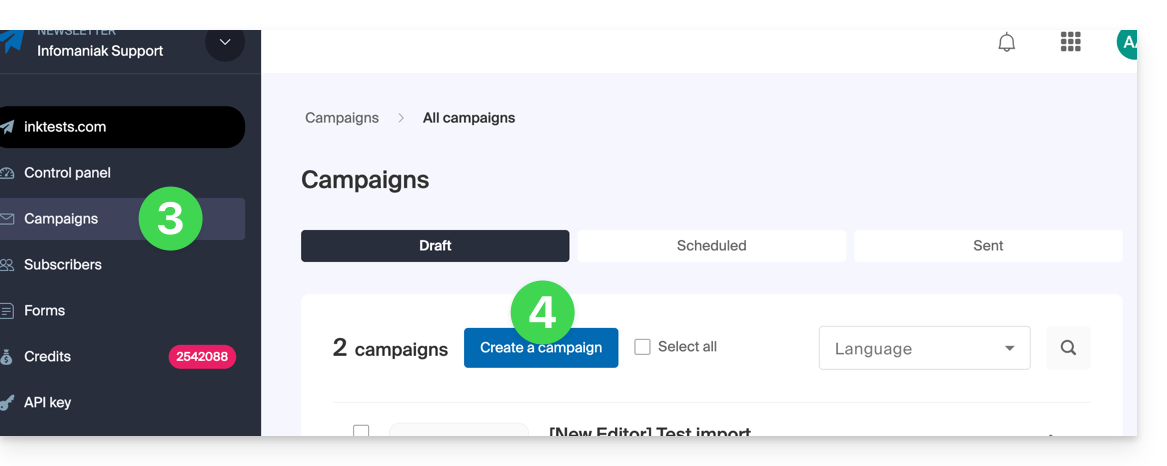
- Click on Campaigns in the left-hand menu.
- Click on Create a campaign:
- Enable the UTM parameter using the toggle switch:
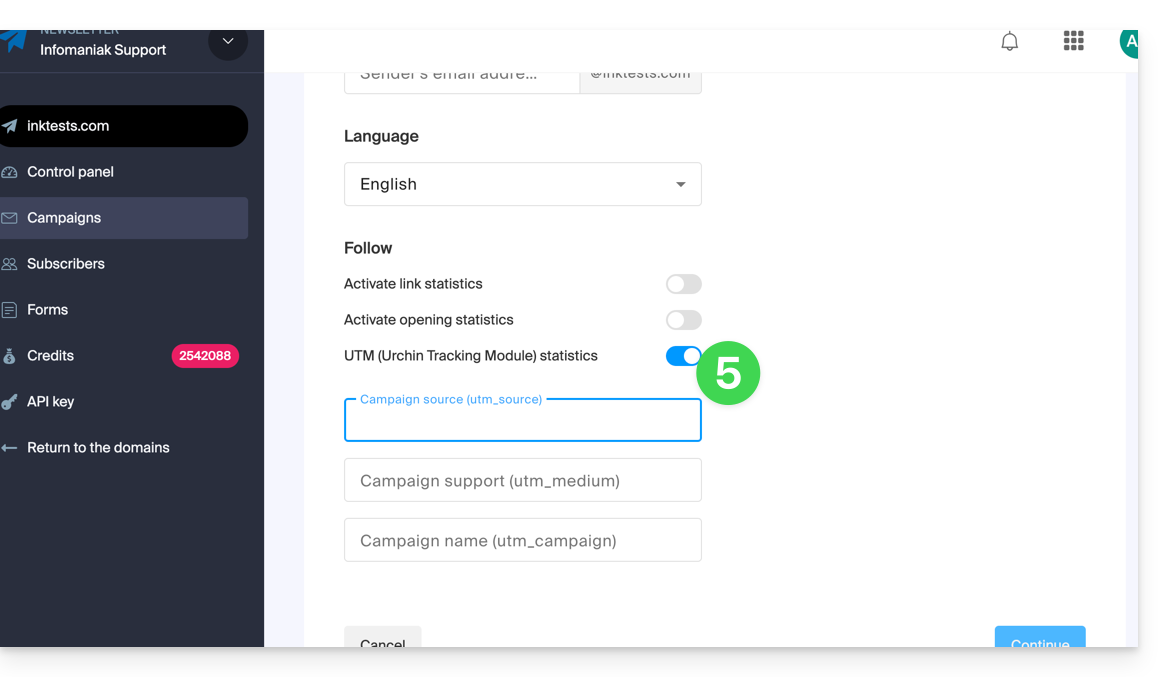
You will find 3 fields to enter keywords of the type utm_parameters:
- campaign source (
utm_source) - campaign source (
utm_medium, e.g., e-mail) - campaign name (
utm_campaign= your campaign name, for example)
Therefore:
- Fill in the 3 UTM fields in step 1 when creating a newsletter.
- Insert a link to your website's URL (which must be correctly configured and analyzed by Google Analytics, for example) in the body of the Newsletter at step 3.
- When the reader clicks on it, they will be redirected to the URL followed by the terms "
?utm_source=...&utm_medium=...&utm_campaign=..." with your keywords in place of "...", of course.
If you enter multiple keywords in these fields, any spaces will be replaced with underscore characters _.
In the future, it will be possible to enter dynamic formulas in these fields, such as the current date, for example. Please also refer to the article https://news.infomaniak.com/comment-creer-un-objectif-google-analytics.
Link to this FAQ: https://faq.infomaniak.com/958
Has this FAQ been helpful?