Knowledge base
1000 FAQs, 500 tutorials and instructional videos. Here, there are only solutions!
Create a unique event on Infomaniak Calendar
This guide explains how to add a simple new, one-time event to a calendar in the Infomaniak Web app Calendar (online service ksuite.infomaniak.com/calendar).
Introduction
- To create a recurring event, please refer to this other guide.
- To schedule a meeting between several users and find the best time slot, please refer to this other guide about the appointment scheduling assistant.
Add a new event
To schedule a single event in a calendar managed by Infomaniak:
- Click here to access the Infomaniak Calendar web app (online service ksuite.infomaniak.com/calendar).
- Click the Create button in the upper left corner.
- Click on Event:
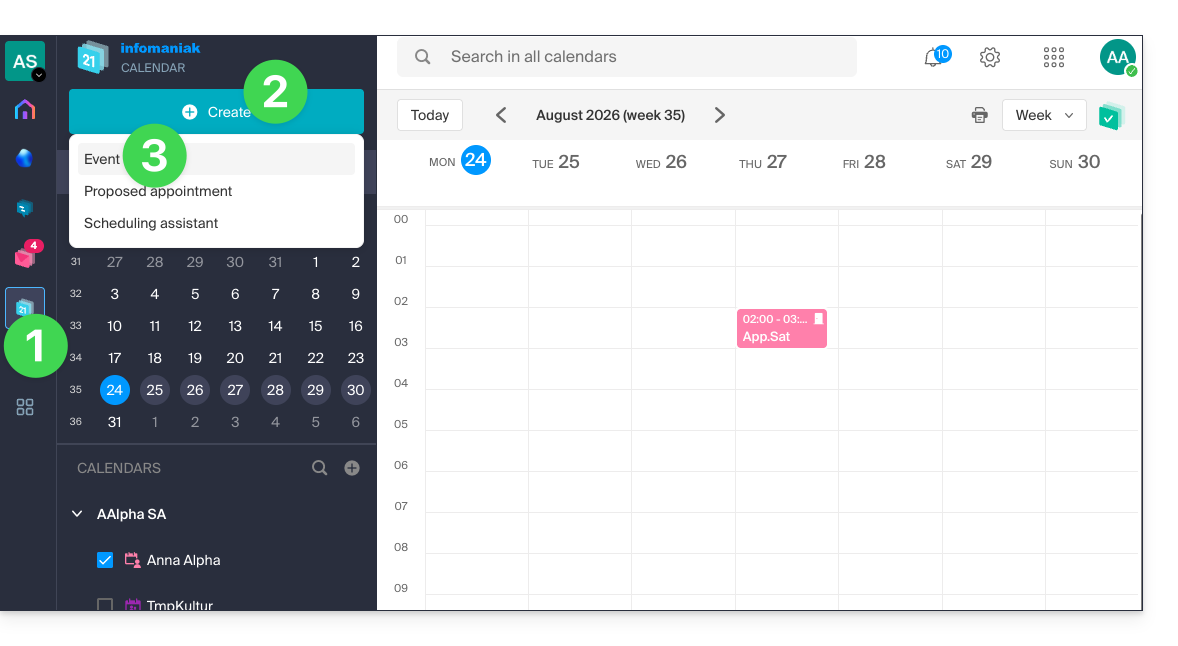
- Fill in the various fields:
- Color and title (subject) of the event
- Date/time or duration, possible recurrence
- Possible participants (see below)
- kMeet link if the event corresponds to a meeting between several people
- Geographical location or meeting room
- Description or attachment from kDrive
- Reminder (notification) deadline
- Calendar concerned
- Choose:
- the calendar in question
- whether the event should have a busy or free status (so as not to block any potential appointment scheduling)
- whether it should be public or private (and in this case, no one will see the event in your calendar unless they have editing rights)
- Click SAVE to add the event to the selected calendar:
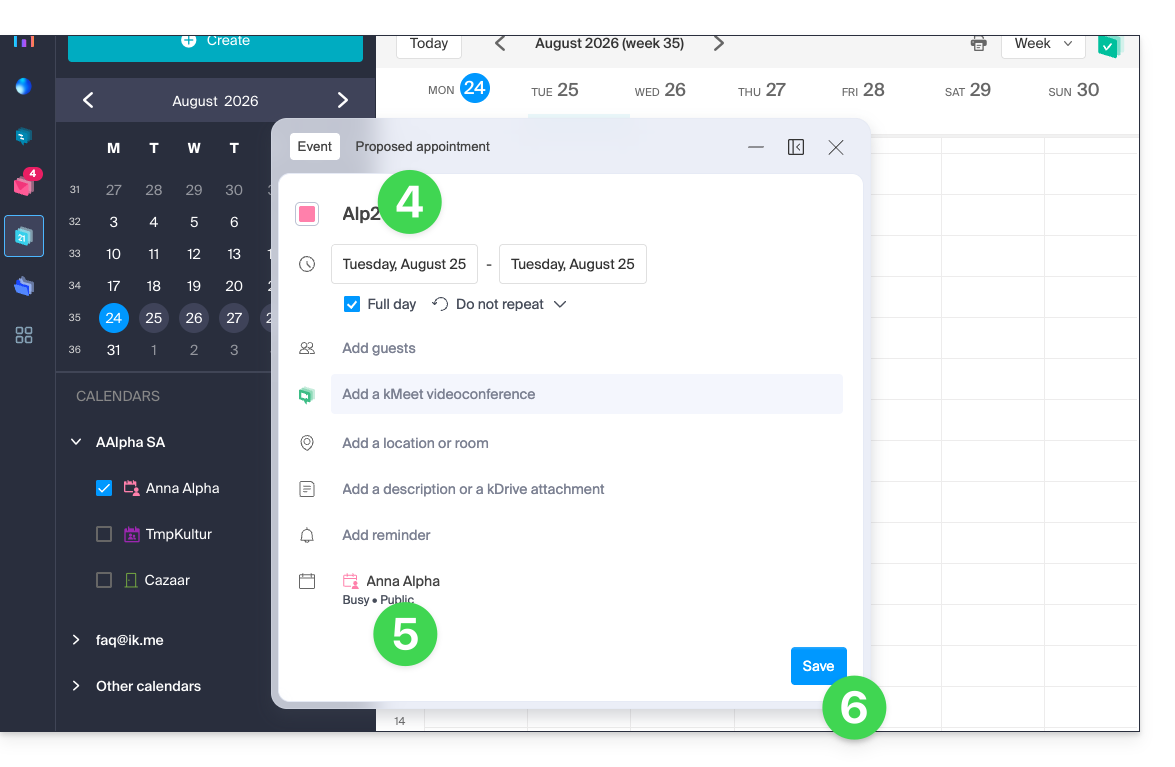
You can also click directly on the calendar to add a new event by dragging your mouse over the desired time period: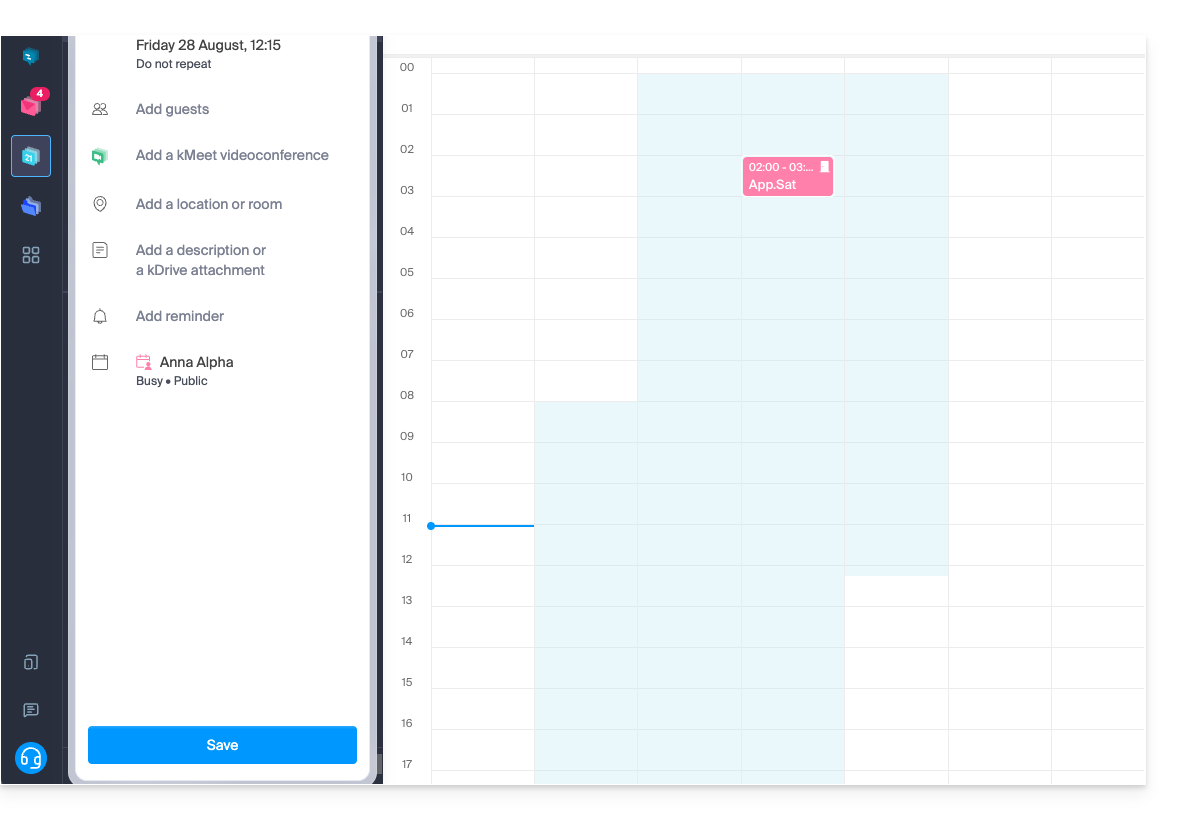
The editing window can be moved on the screen and even inserted into the left sidebar for better calendar visibility: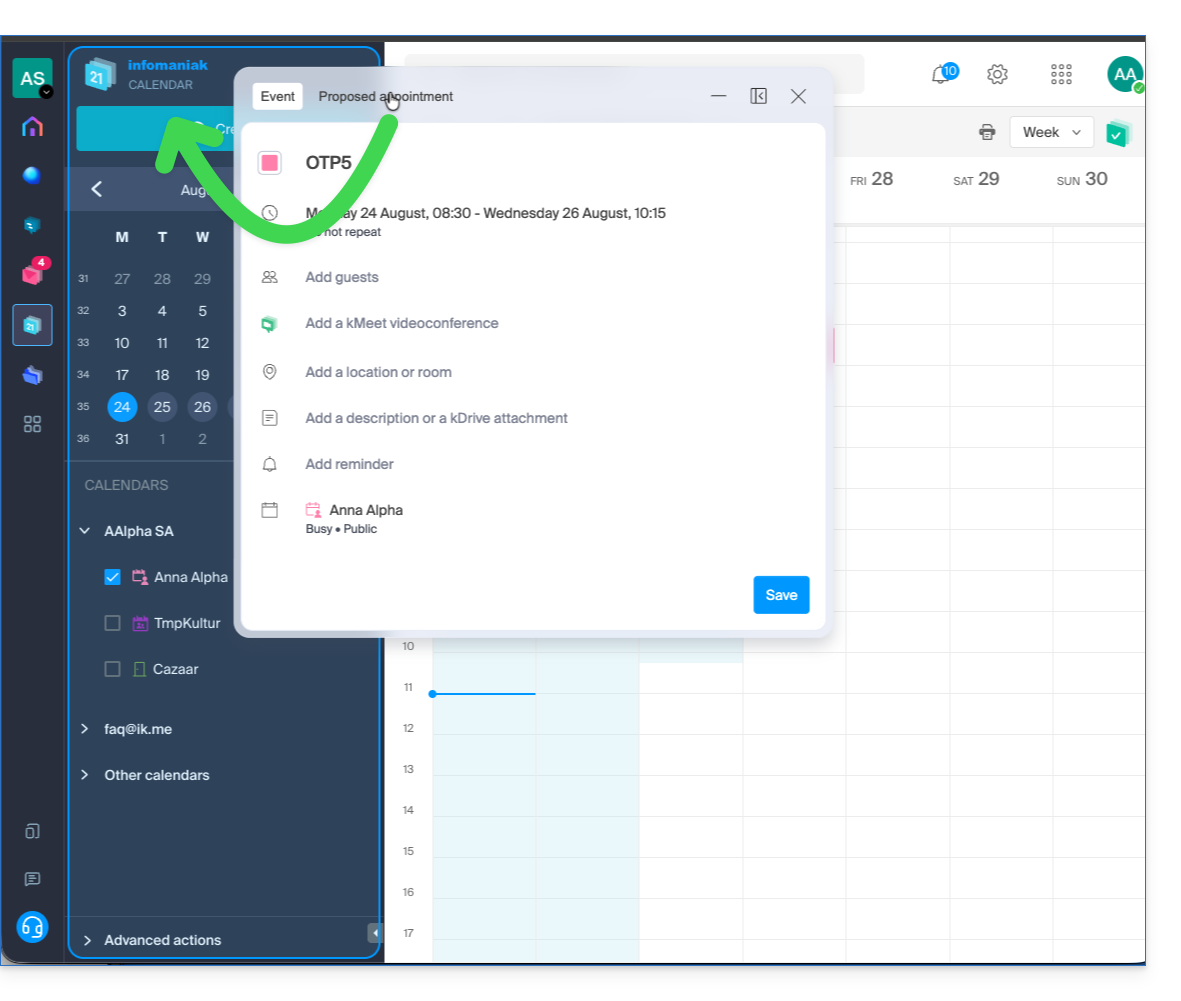
Add participants to the event
To invite users, add their name or email address when creating the event or later: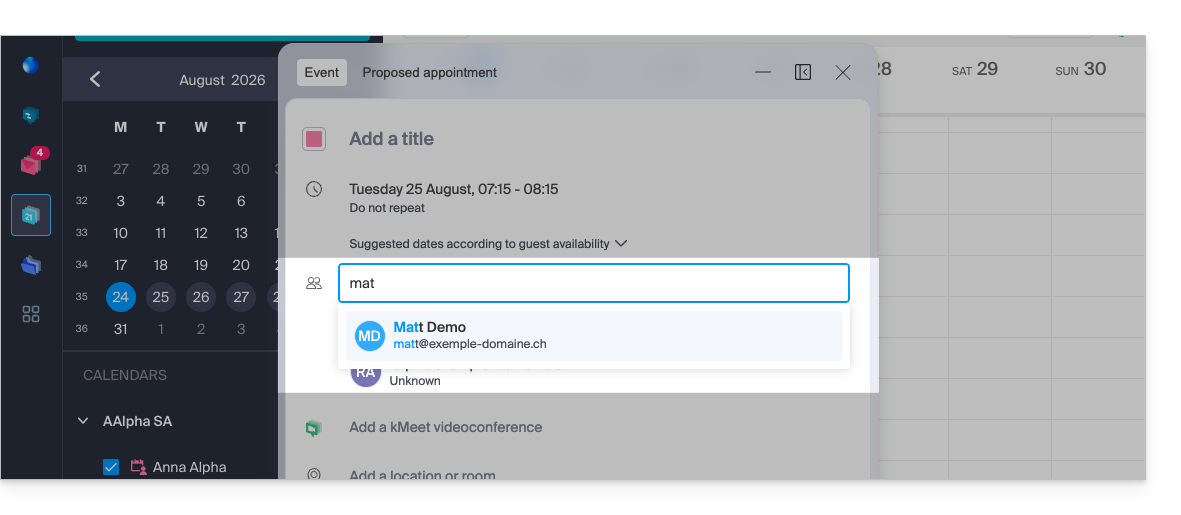
You will be notified of their acceptance or rejection if they follow the procedure sent to them by email when the event is created.
Any update to a scheduled event is also sent by email to all participants.
Link to this FAQ: https://faq.infomaniak.com/956
Has this FAQ been helpful?