Knowledge base
1000 FAQs, 500 tutorials and instructional videos. Here, there are only solutions!
Discover Infomaniak's SSO connection
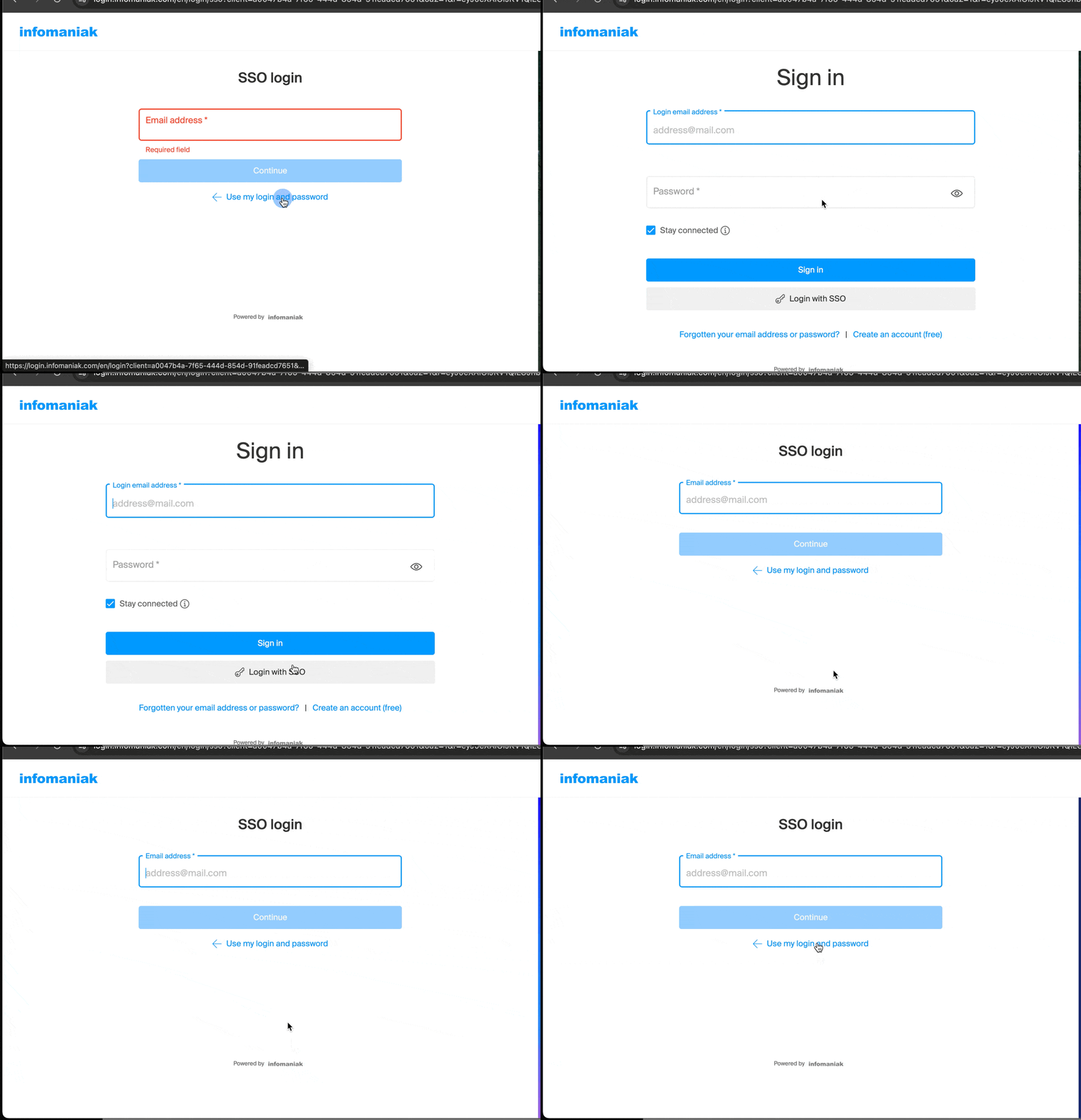
This guide explains what the login button for Single Sign-On (SSO) on Infomaniak login pages does and details the procedure for configuring this feature within your organization.
Introduction
- Single Sign-On (SSO) is an authentication mechanism that allows users to log in to multiple applications using a single set of credentials.
- SSO simplifies access to Infomaniak services and enhances their security, allowing you to:
- use your corporate credentials without an additional password;
- apply the organization's security rules, including multi-factor authentication (MFA);
- centralize account management, provisioning (SCIM), and permissions.
- If you are not aware of this feature or if you are a private Infomaniak customer, log in as usual using the standard blue button.
Configure SSO integration for your organization
Prerequisites
- Infomaniak offers this option on its various login pages, including in its mobile applications.for users whose organization has enabled this feature.
To request SSO activation for your organization, please review the information below and then contact Infomaniak support directly by submitting a request through support.infomaniak.com. Infomaniak will then provide the necessary information to connect its platform to your organization's identity provider.
Compatible identity providers
SSO login and automated user management (SCIM 2.0) are available on Infomaniak login pages and mobile applications with:
- Microsoft Entra ID (formerly Azure AD).
- Any other identity provider (IdP) that supports the standard SAML 2.0 and SCIM 2.0 protocols.
- Okta via the official pre-integrated application available in the Okta Integration Network (OIN) catalog.
Regarding Okta, the official pre-configured integration allows for simplified deployment in a few steps from their administration console:
- Log in to your Okta administration console.
- Go to Applications > Applications > Add Integration.
- Search for Infomaniak in the catalog and click on Add Integration.
- SSO (SAML 2.0) authentication configuration:
- In the Sign On tab, retrieve the Metadata URL or the metadata file generated by Okta.
- Assign the application to the users or groups authorized to access Infomaniak services.
- Automatic provisioning configuration (SCIM 2.0 - Optional):
- In the Provisioning tab, enable the API integration to allow for the automatic creation, updating, and deactivation of user accounts.
- Open a request from support.infomaniak.com and provide your Okta metadata URL to finalize the connection of your domain.
Link to this FAQ: https://faq.infomaniak.com/874
Has this FAQ been helpful?