Knowledge base
1000 FAQs, 500 tutorials and instructional videos. Here, there are only solutions!
Manage emojis in Newsletter
This guide explains how to freely integrate emojis / emoticons / smileys in the title and content of an Infomaniak Newsletter.
Insert an emoticon in the title
To choose an emoticon for your Newsletter title (and/or its preview text):
- Click here to access the management of your product on the Infomaniak Manager (need help?).
- Click on the domain name concerned in the displayed table:
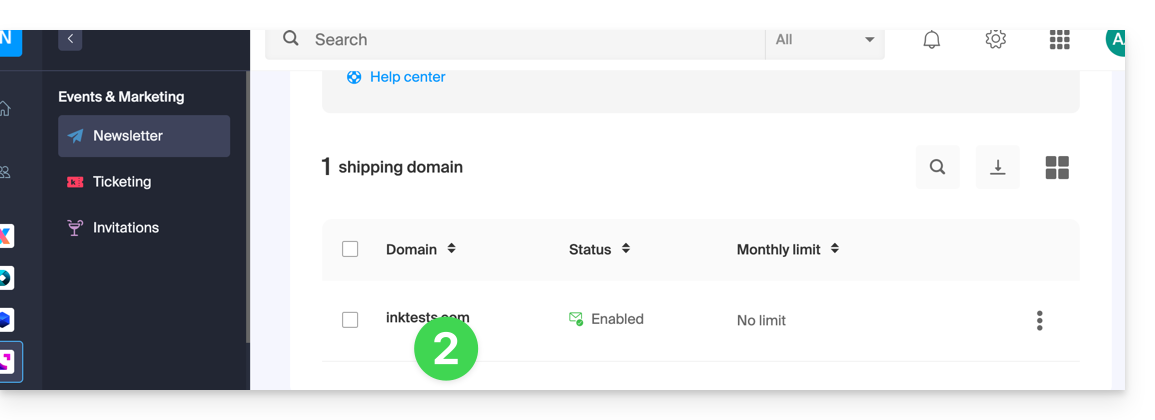
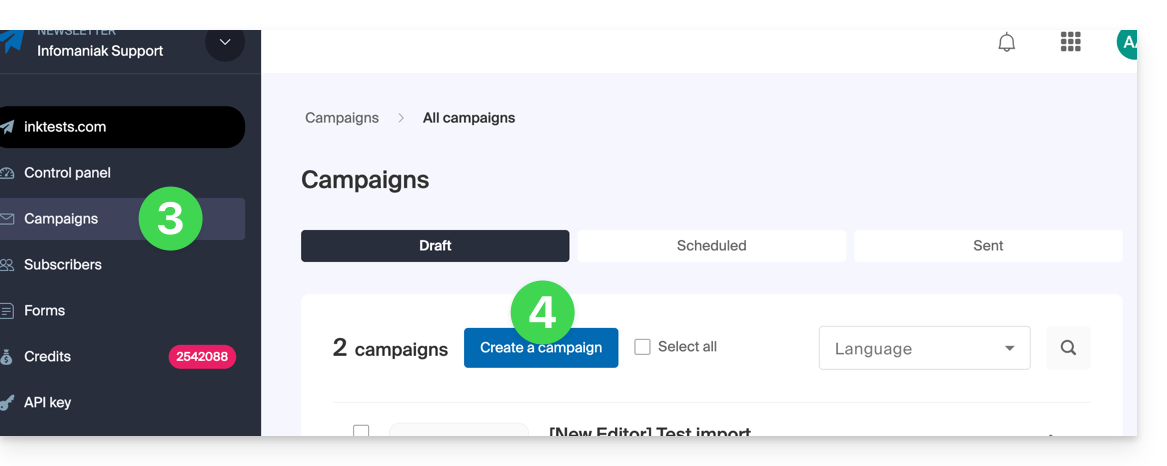
- Click on Campaigns in the left sidebar menu.
- Click on Create a campaign:
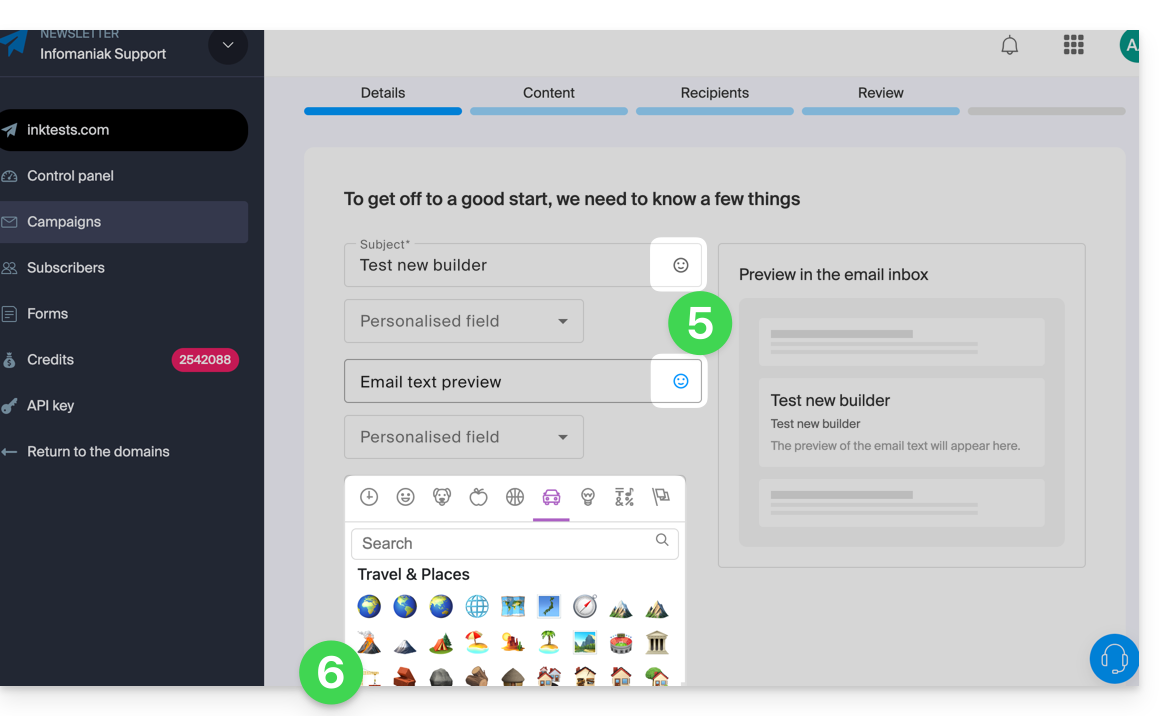
- Click on the Smiley icon in the relevant field to open the emoji panel.
- Click on the emoji to insert:
Insert an emoticon in the body of the email
You can paste any unicode character or emoji that you have copied elsewhere into your text: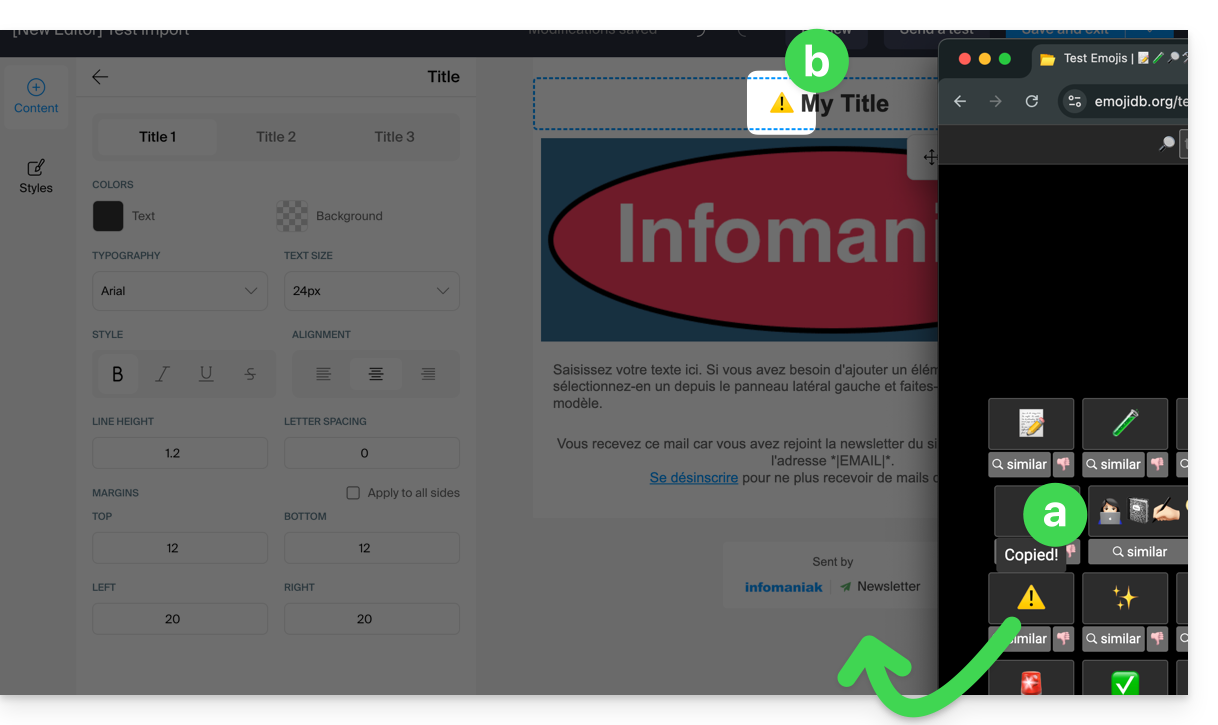
… or display emojis
… on macOS
Press the keys CTRL + CMD ⌘ + SPACE
… on Windows
Press the keys WINDOWS LOGO + PERIOD (.)
Alternative method:
- Right-click on an empty area of the taskbar.
- In the menu, click on Show the on-screen keyboard.
- A keyboard icon will then appear in the taskbar at the bottom right of your screen.
- Click on this icon to display the virtual keyboard.
- Click on the key with a smiley at the bottom left of the keyboard.
- Use the different Windows emojis.
Link to this FAQ: https://faq.infomaniak.com/869
Has this FAQ been helpful?