Knowledge base
1000 FAQs, 500 tutorials and instructional videos. Here, there are only solutions!
Modify the global configuration of a Mail Service
This guide explains how to configure certain settings so that they are automatically applied by default to new email addresses (and users) added to the Mail Service afterwards.
Introduction
To apply settings to all existing email addresses, please refer to this other guide.
Accessing the Global Mail Service Configuration
To do this:
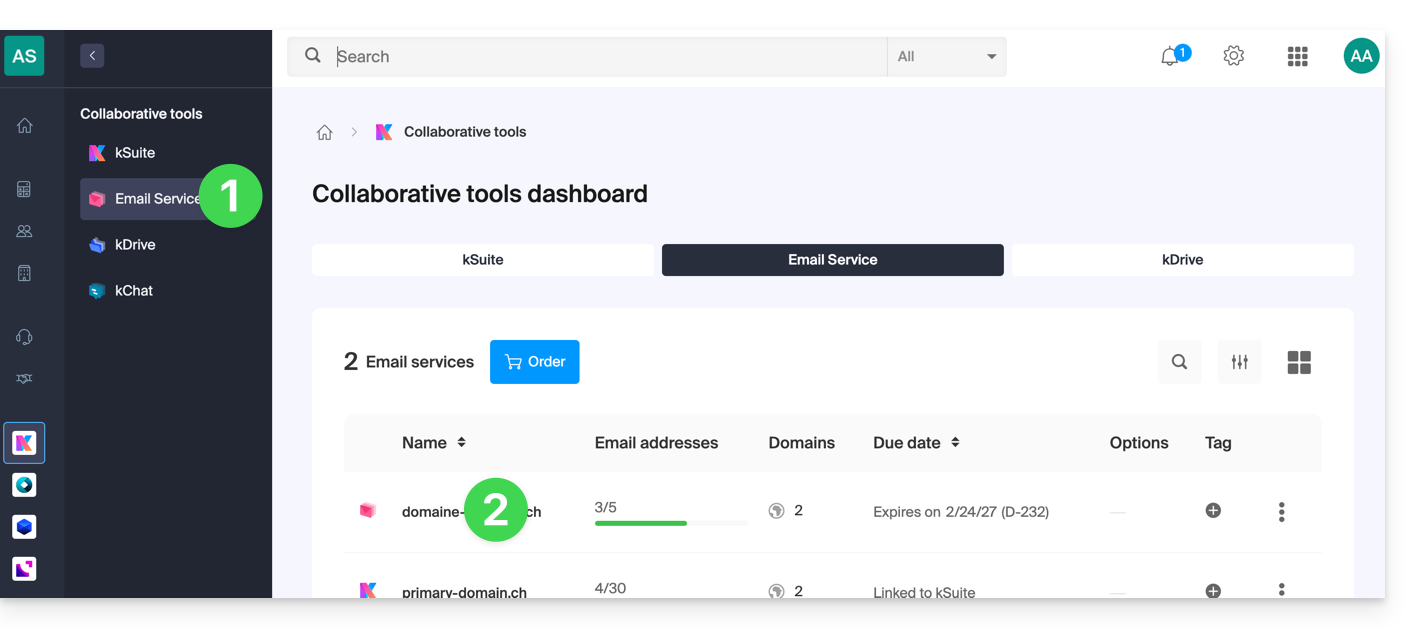
- Click here to access the Mail Service management in your Infomaniak Manager (❓: help).
- Click on the name of the Mail Service in question:
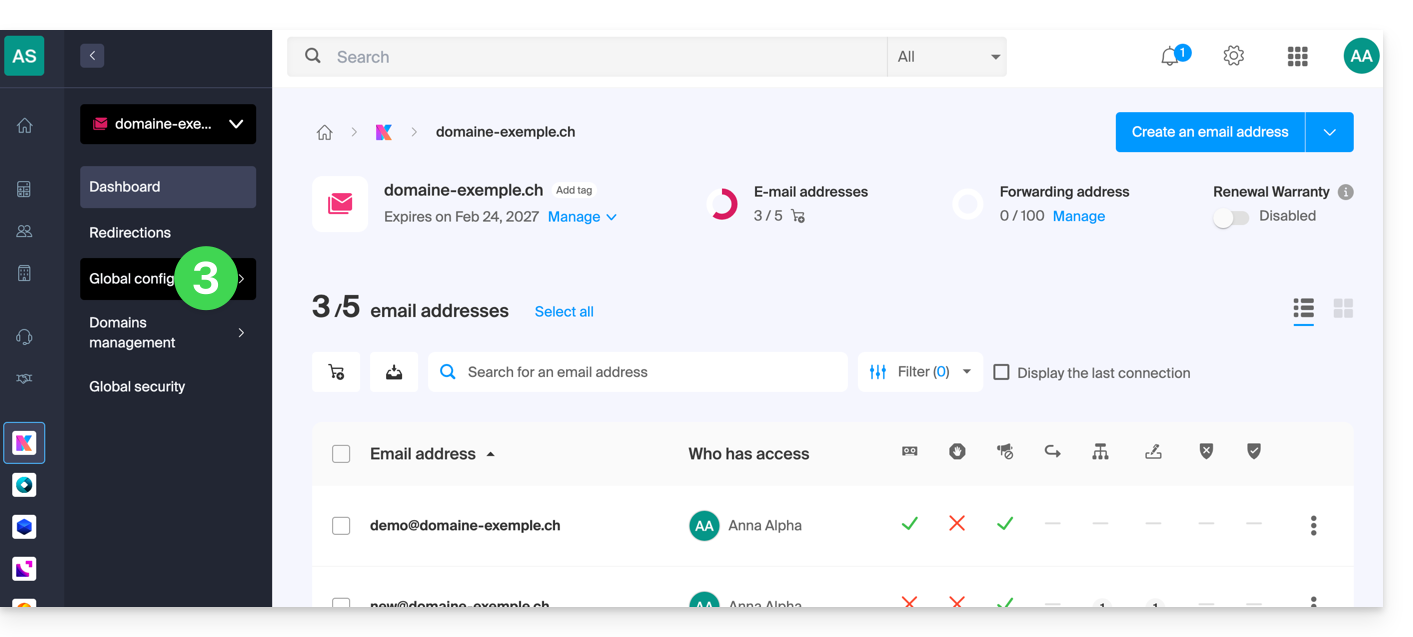
Click on Global Configuration in the left-hand menu:
You can then choose from 5 sections the settings you want to enable or disable by default:
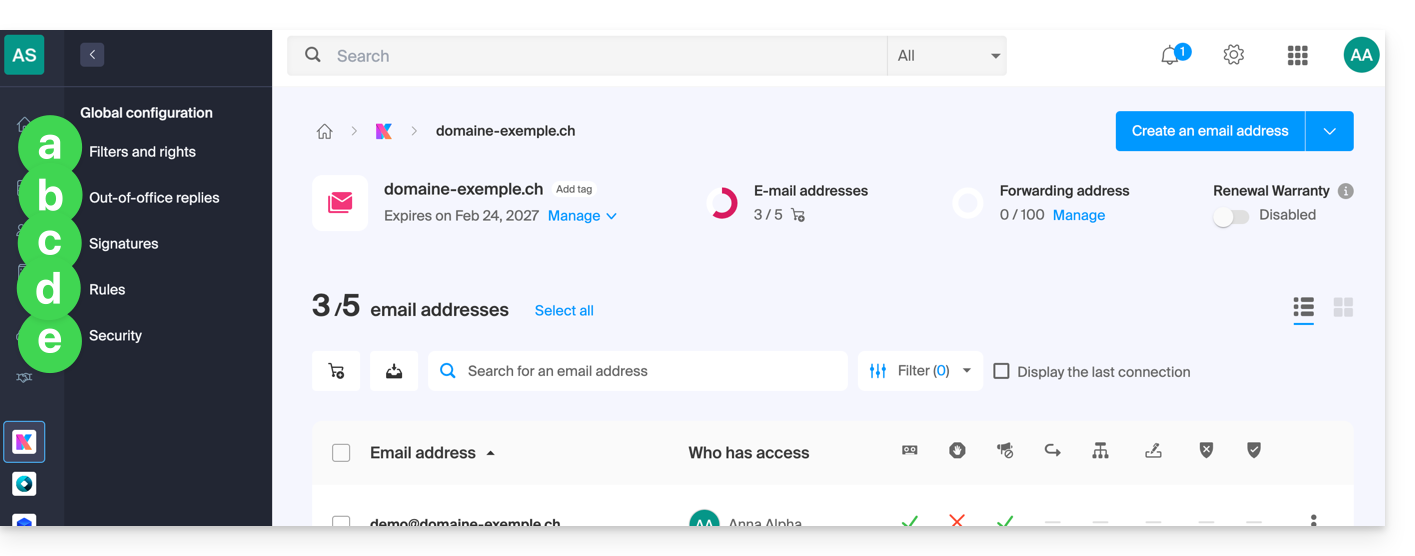
a. Filters and permissions
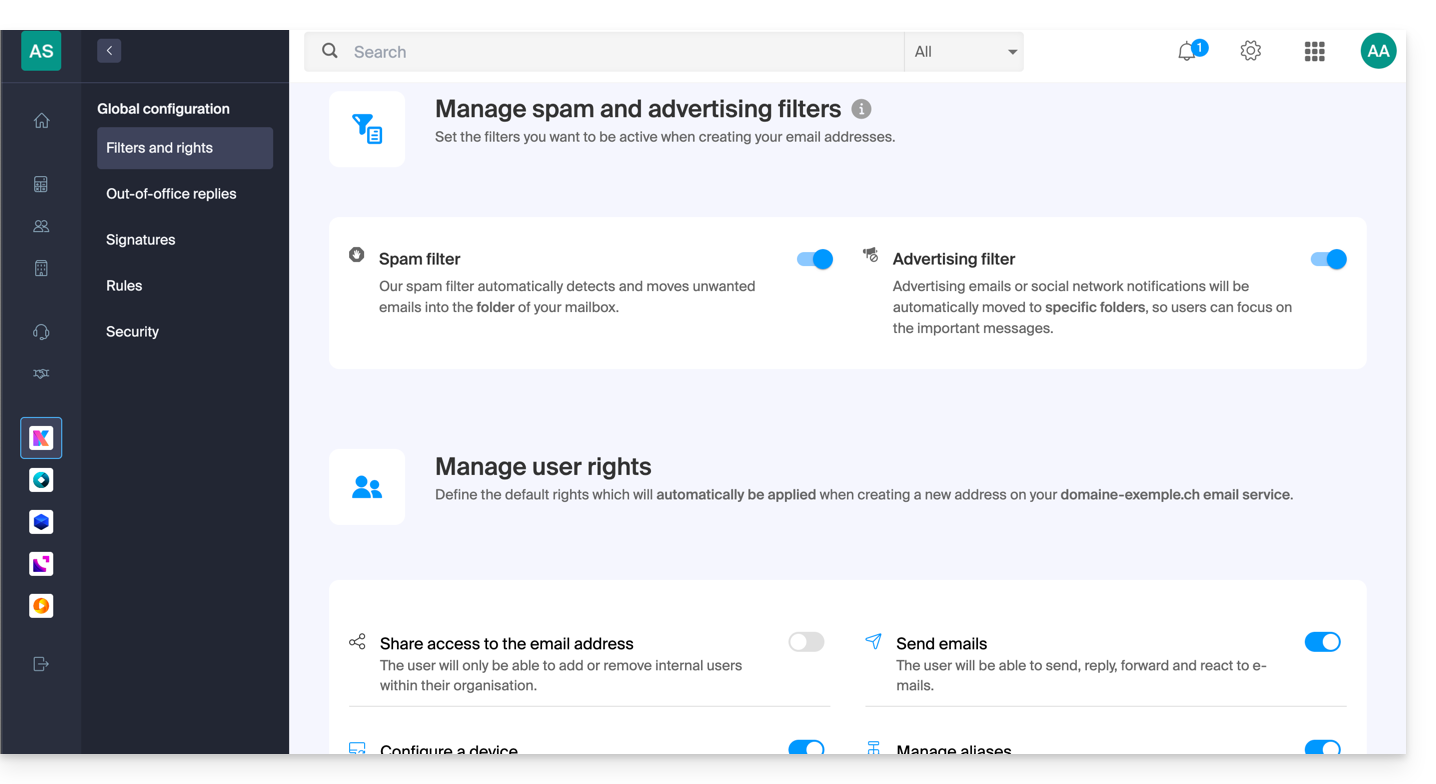
You can choose to enable or disable the anti-spam filter when a new address is created on the Mail service.
The same applies to the advertising filter.
This is also where you can manage the default permissions that a user will have for the email address.
b. Auto-replies
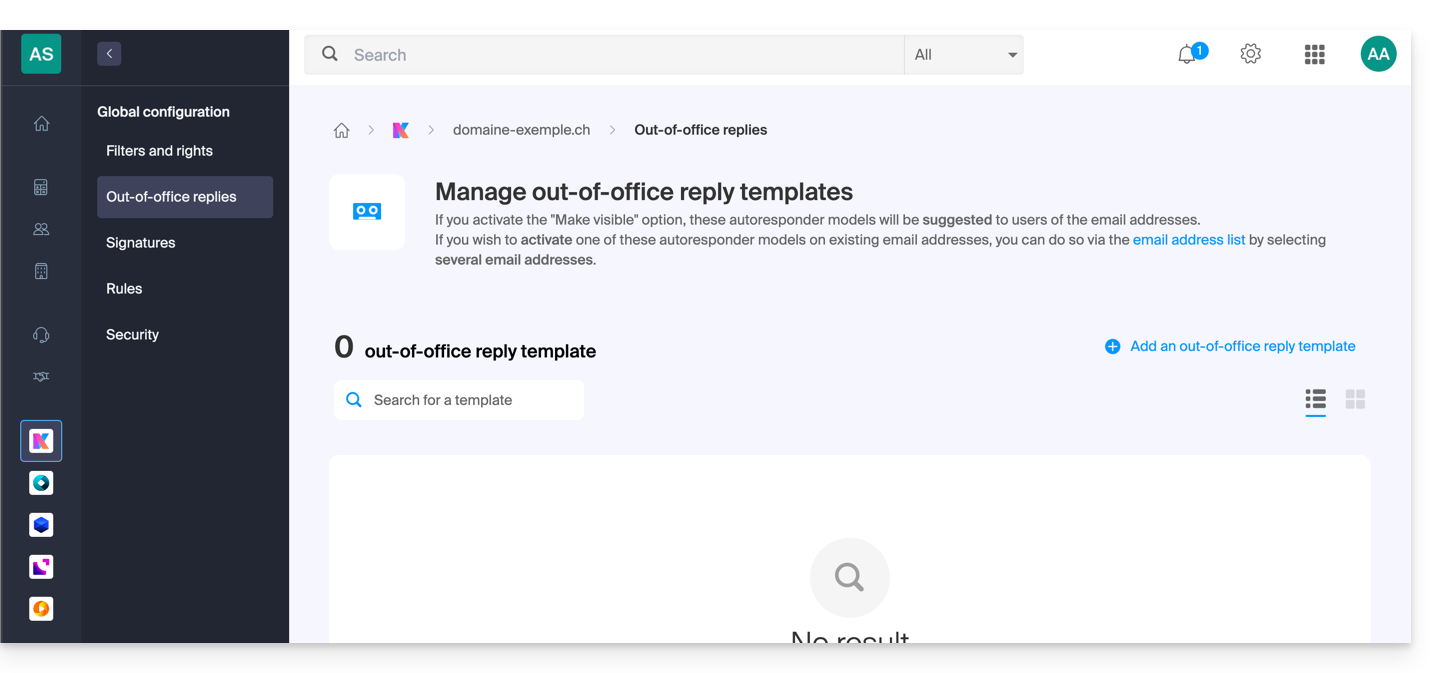
- You can manage the out-of-office message templates that can then be customized by email address users.
c. Signatures
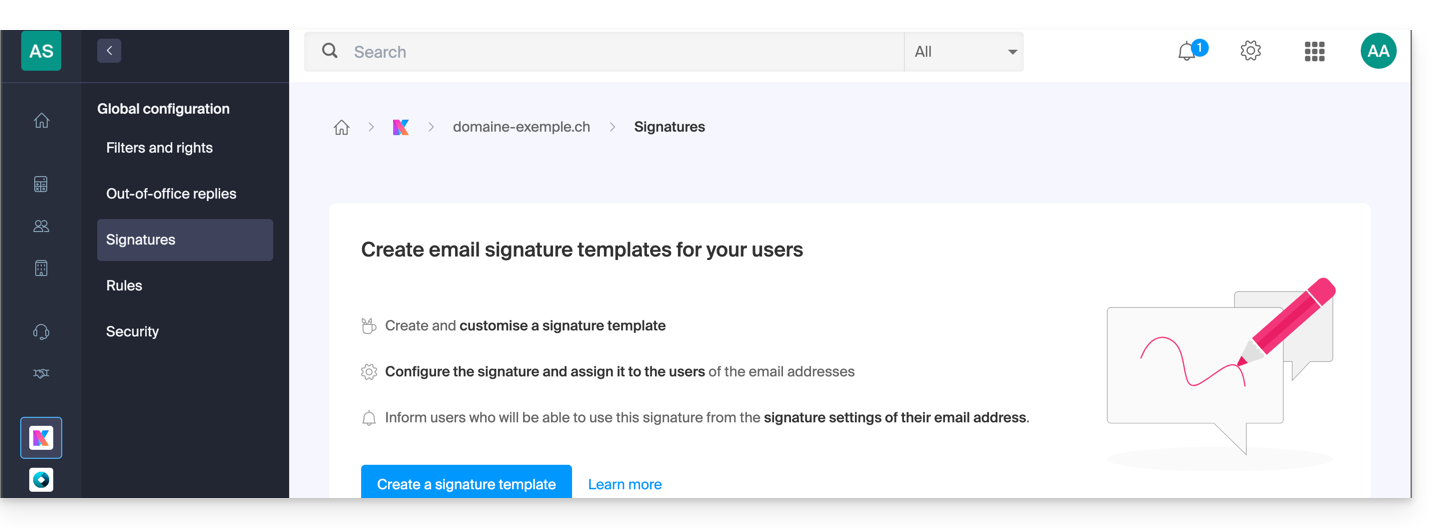
- You can manage the signature templates that users can then customize for their email addresses.
d. Rules
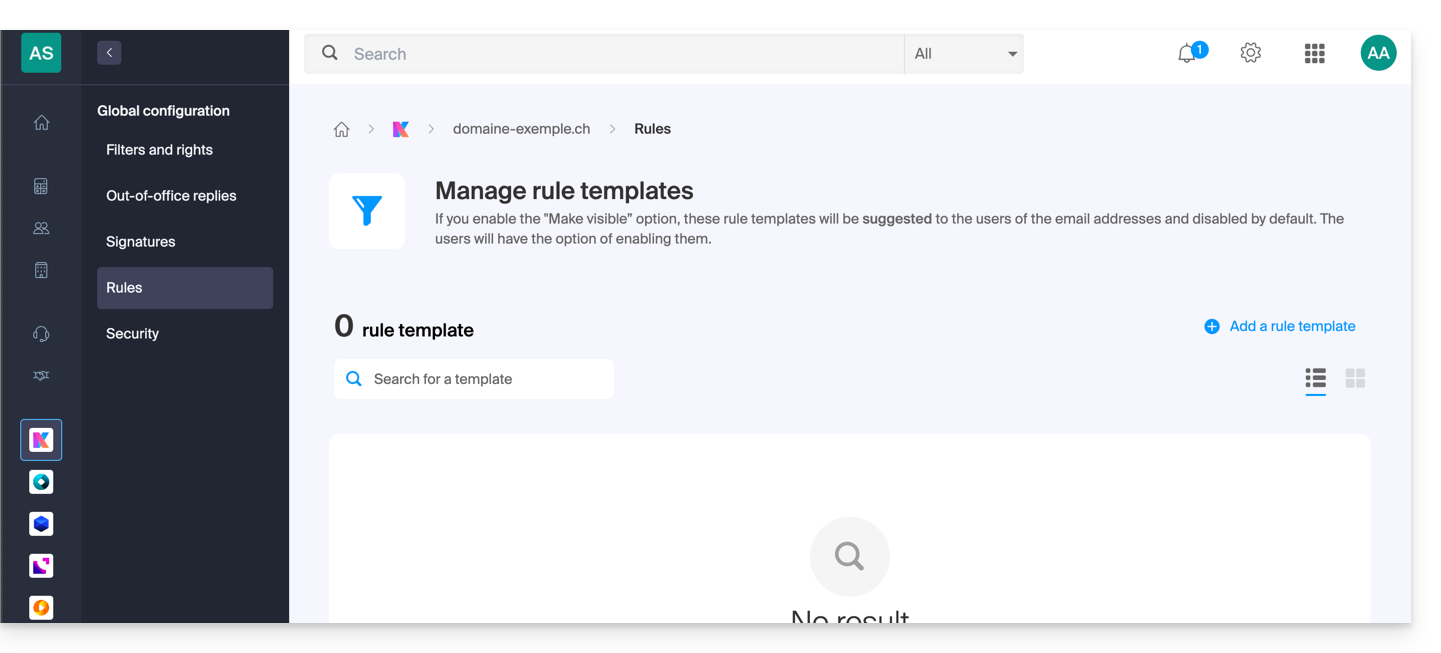
- You can manage the rule templates, which are disabled by default, and which users with email addresses can then adapt and activate.
e. Security
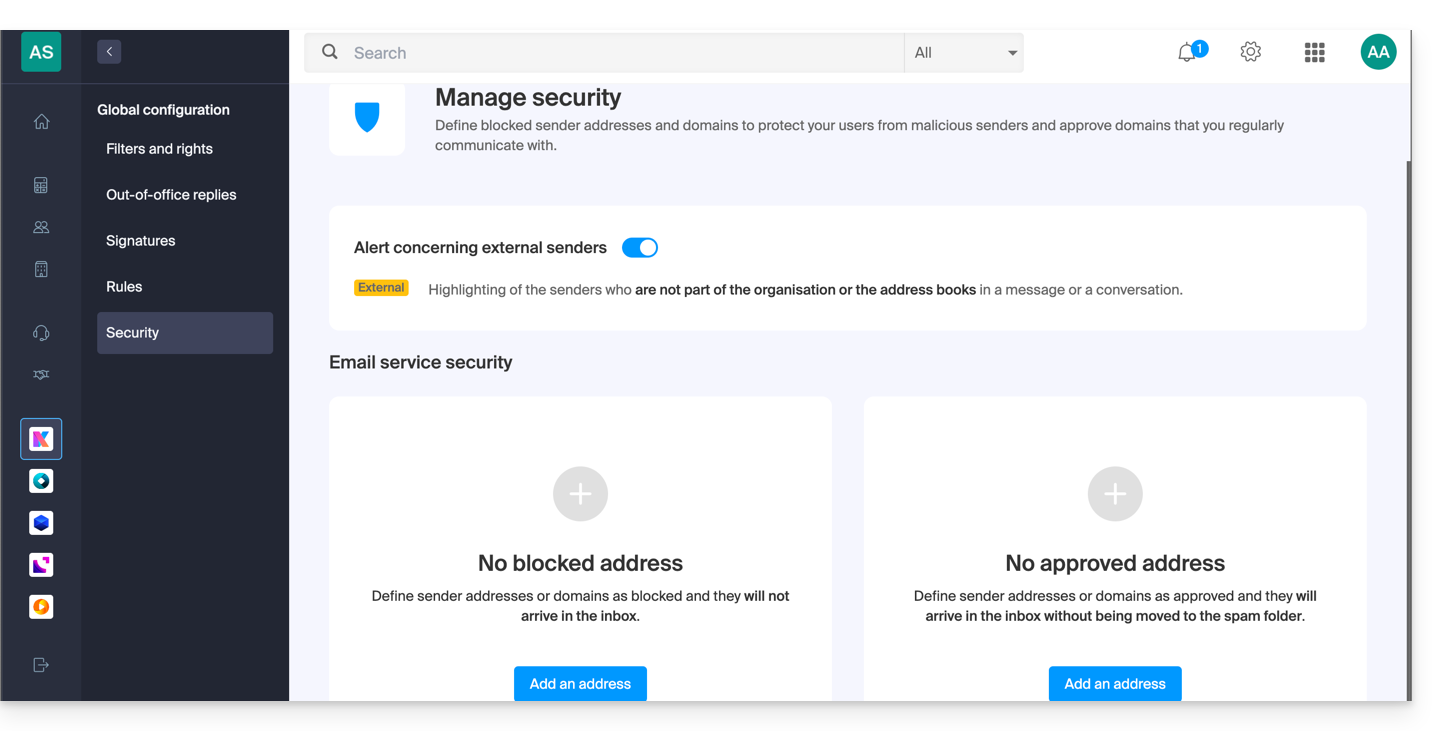
- You can manage the external email warning and, below that, add senders whose emails will always go to the Spam folder, or, conversely, who will never be filtered.
Link to this FAQ: https://faq.infomaniak.com/843
Has this FAQ been helpful?