Knowledge base
1000 FAQs, 500 tutorials and instructional videos. Here, there are only solutions!
Show website statistics
This guide explains how to view information about visitors who have accessed your Web Hosting sites (traffic statistics).
✘ UNAVAILABLE with
Site Creator standalone (independent of web hosting)
Starter hosting plans
Introduction
- Please refer to this other guide if you are specifically looking for access logs.
- Consult this other guide about the Site Creator Pro offer.
Access website traffic statistics
To view statistics regarding the traffic to your websites:
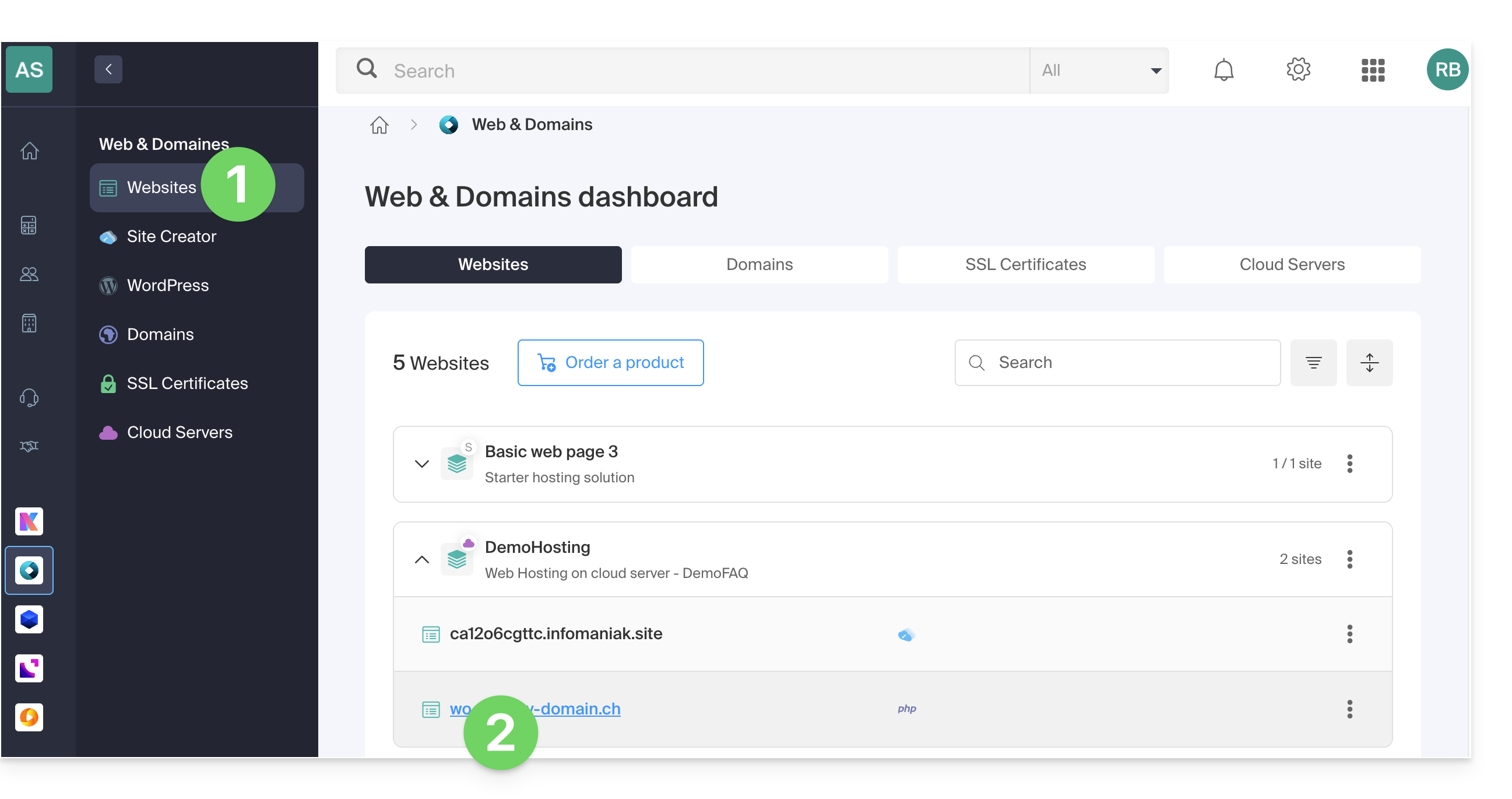
- Click here to access the hosting & website management section in your Infomaniak Manager (❓: help).
- Click on the name of the website in question:
- Click on Statistics in the left-hand menu:
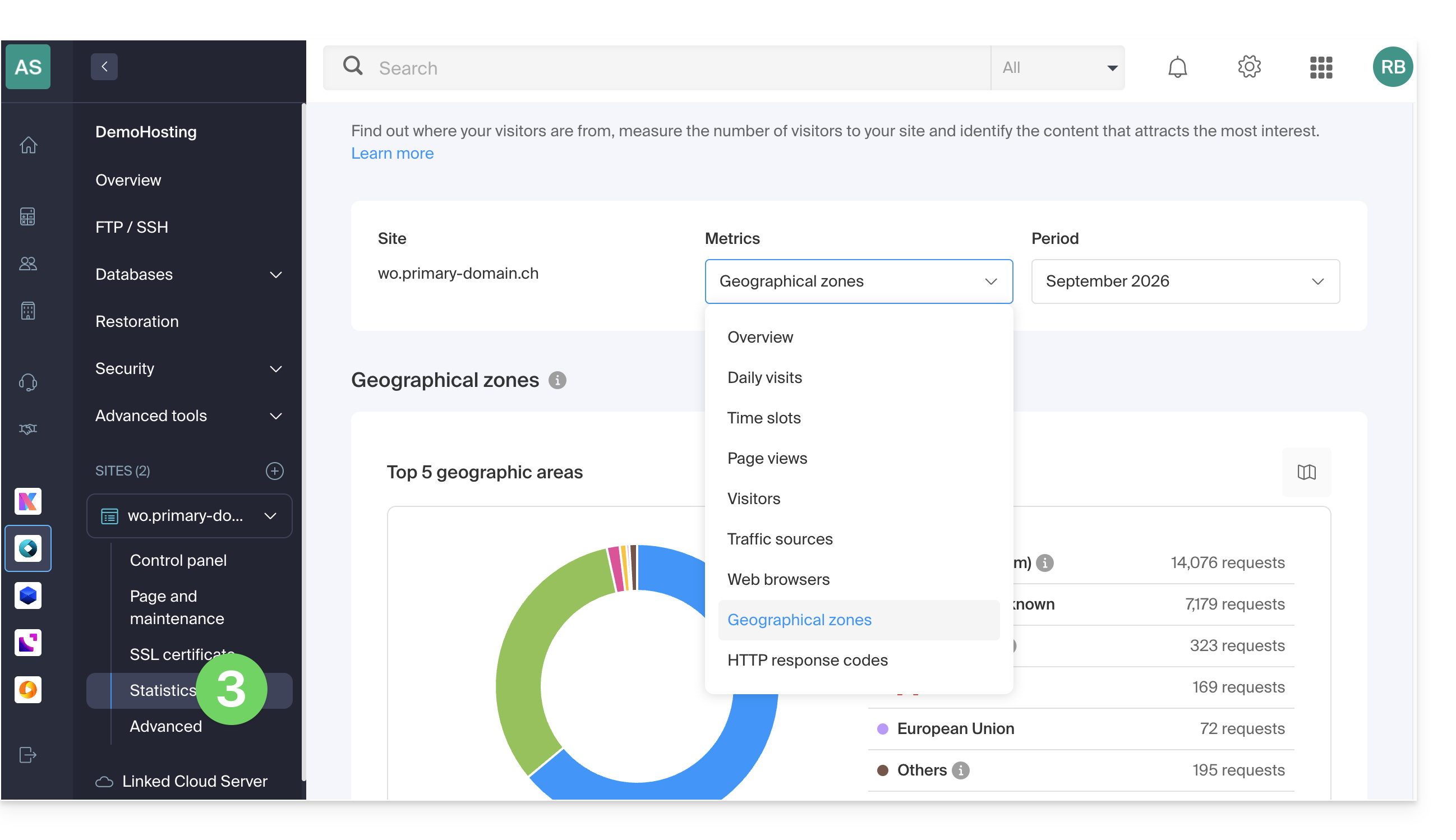
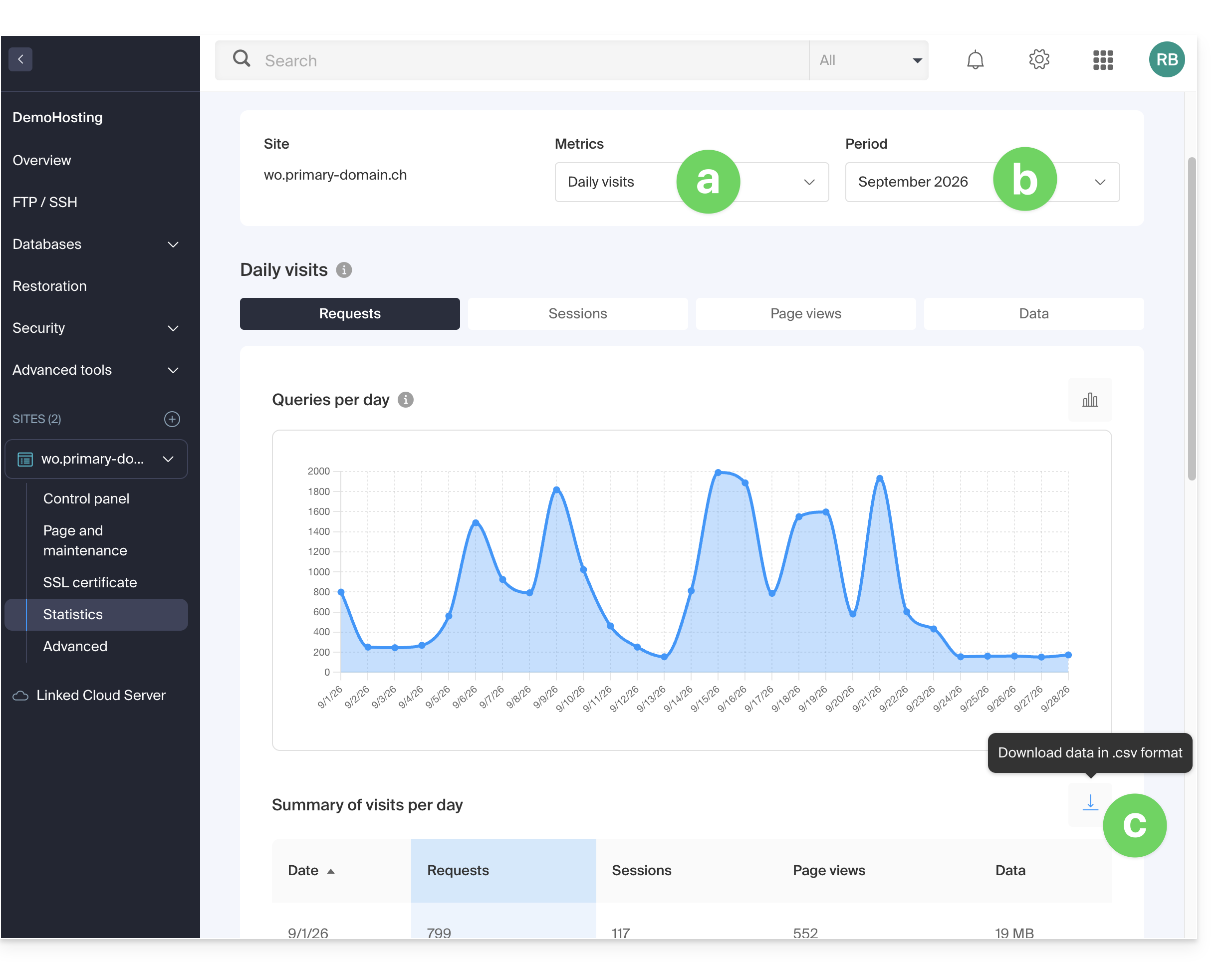
- The toolbars allow you to choose:
- the type of statistics,
- the period,
- or to download the data for a third-party tool:
Explanation of terms
There is no distinction between humans and robots. You can also use tools like Matomo, Open Web Analytics, or Google Analytics.
| Category | Description | Details |
|---|---|---|
| Hits | Every request sent to the server. | Includes everything (HTML, images, audio, etc.). Each requested element, whether visible or not, counts as a hit. It's as if a visitor activated an invisible button with each interaction. |
| Files | Requests requiring data to be sent in return. | Records requests that require the server to send back a file (graphic, HTML). The difference with hits corresponds to the ratio between incoming requests and outgoing data. |
| Pages | Number of pages displayed on your website. | Measures the HTML pages viewed, excluding graphic or audio files. Each access to a new HTML page is recorded as a page view. |
| Visits | Sessions based on IP address. | A visit starts with an IP request. If the address returns within 30 minutes, it is counted as a single visit. After that, a new visit is recorded. |
| Sites | Estimated visits based on fixed IP addresses. | Excludes mobile or dynamic connections. This targets regular visitors (businesses, institutions) to better understand your target audience. |
| Ko | Data volume sent by the server. | Total amount of data transferred during the period, calculated via log files (with a possible margin of error depending on the size of the files). |
| Total hits | Total number of requests. | A page with 3 images and text generates 5 hits (the page + the text + the 3 images). This total is therefore much higher than the number of page views. |
| Total Pages / Visits | Engagement metrics. | The number of pages viewed compared to the number of unique visits allows you to assess the level of interest users have in your content. |
| Total unique sites | Number of distinct IPs. | Represents the diversity of traffic sources and helps identify the most active audience segments during the period. |
| Total number of unique URLs | Distinct paths taken. | Corresponds to the different pages or files visited, providing an overview of your navigation structure and the most popular content. |
| Total number of unique referring domains | Number of source sites. | External sites that have directed traffic to you. This is a key indicator of the effectiveness of your marketing and partnerships. |
Meaning of "Commercial (com)" and "Unresolved"
"Commercial" often represents a significant portion of geographic traffic. It includes users connected via internet service providers (ISPs) using a .com domain. As this extension is used by many ISPs and global companies, it does not allow for the identification of a specific country.
"Unresolved" refers to IP addresses that cannot be geographically located, often due to privacy settings, the use of VPNs, or network restrictions.
Link to this FAQ: https://faq.infomaniak.com/83
Has this FAQ been helpful?