Knowledge base
1000 FAQs, 500 tutorials and instructional videos. Here, there are only solutions!
Secure web access with a password
This guide explains how to protect a section of a website on a Web Hosting plan by requiring a password to be entered before accessing a directory (including subdirectories) from a browser such as Brave, Chrome, Edge, Firefox, Opera, Safari, etc.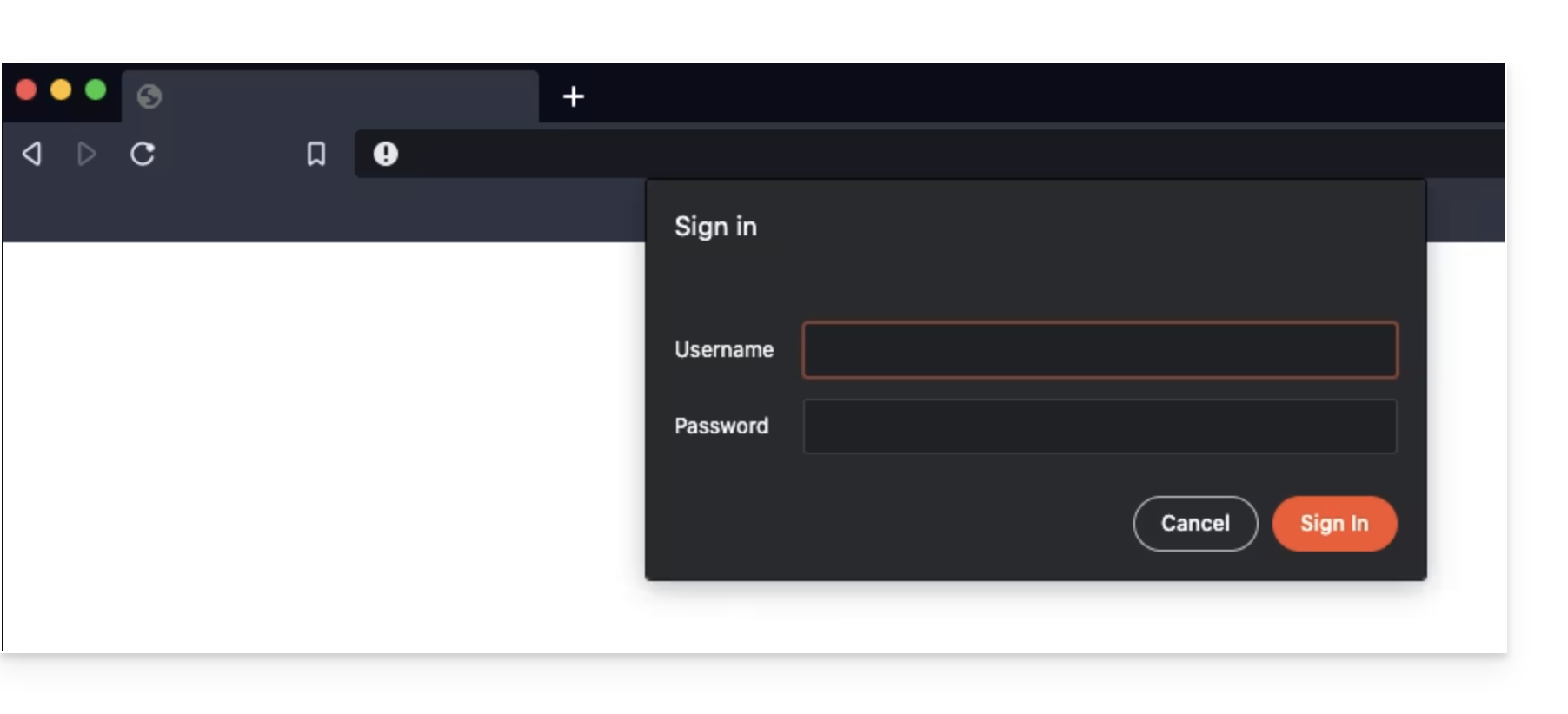
Please note that this does not prevent a user from accessing the directory via FTP.
Simple method
To password-protect (Digest authentication) a directory using the "Folder Protection" tool:
- Click here to access the hosting & website management section in your Infomaniak Manager (❓: help).
- Click on the name of the relevant hosting.
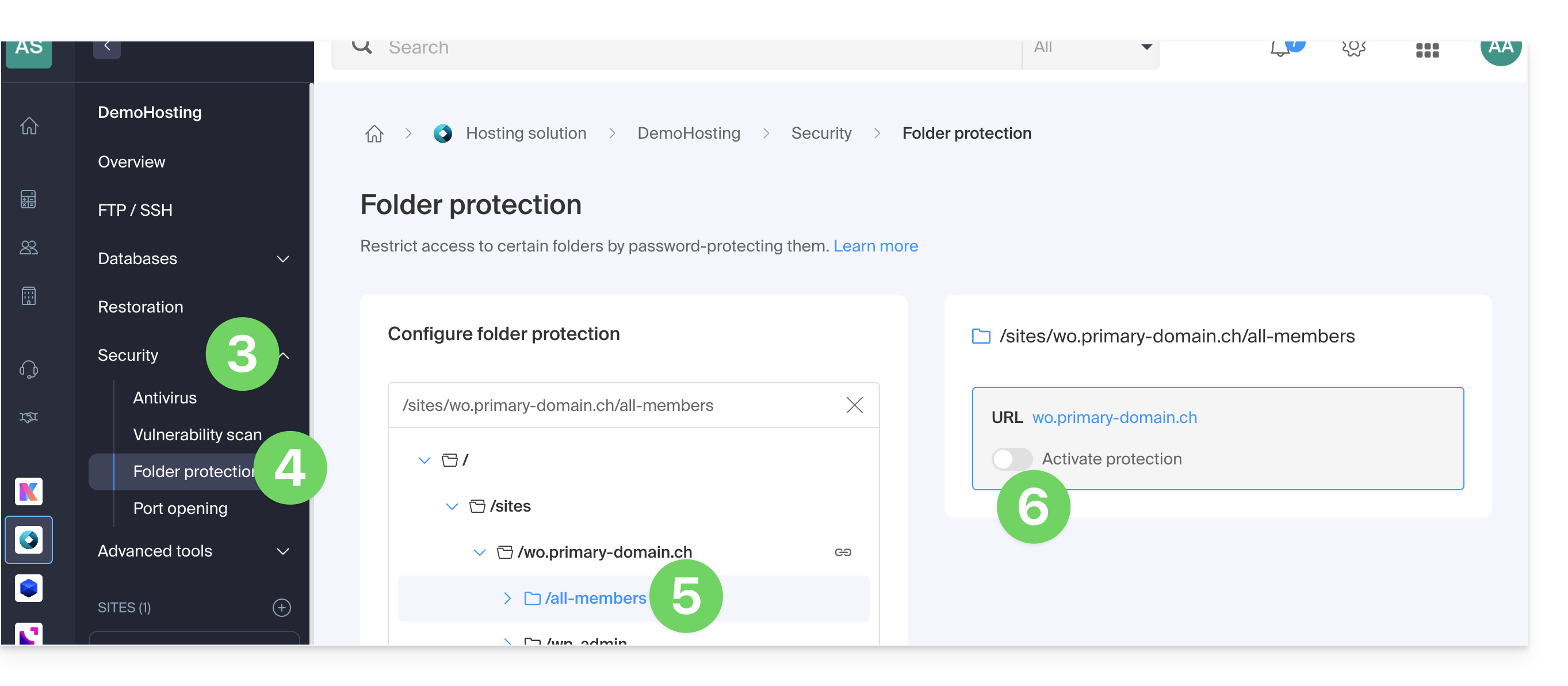
- Click on Security in the left-hand menu.
- Click on Folder Protection.
- Click on the directory you want to protect.
- Enable protection using the toggle switch, then create one or more users:
- Users are defined per directory; the tool does not allow you to manage user groups:
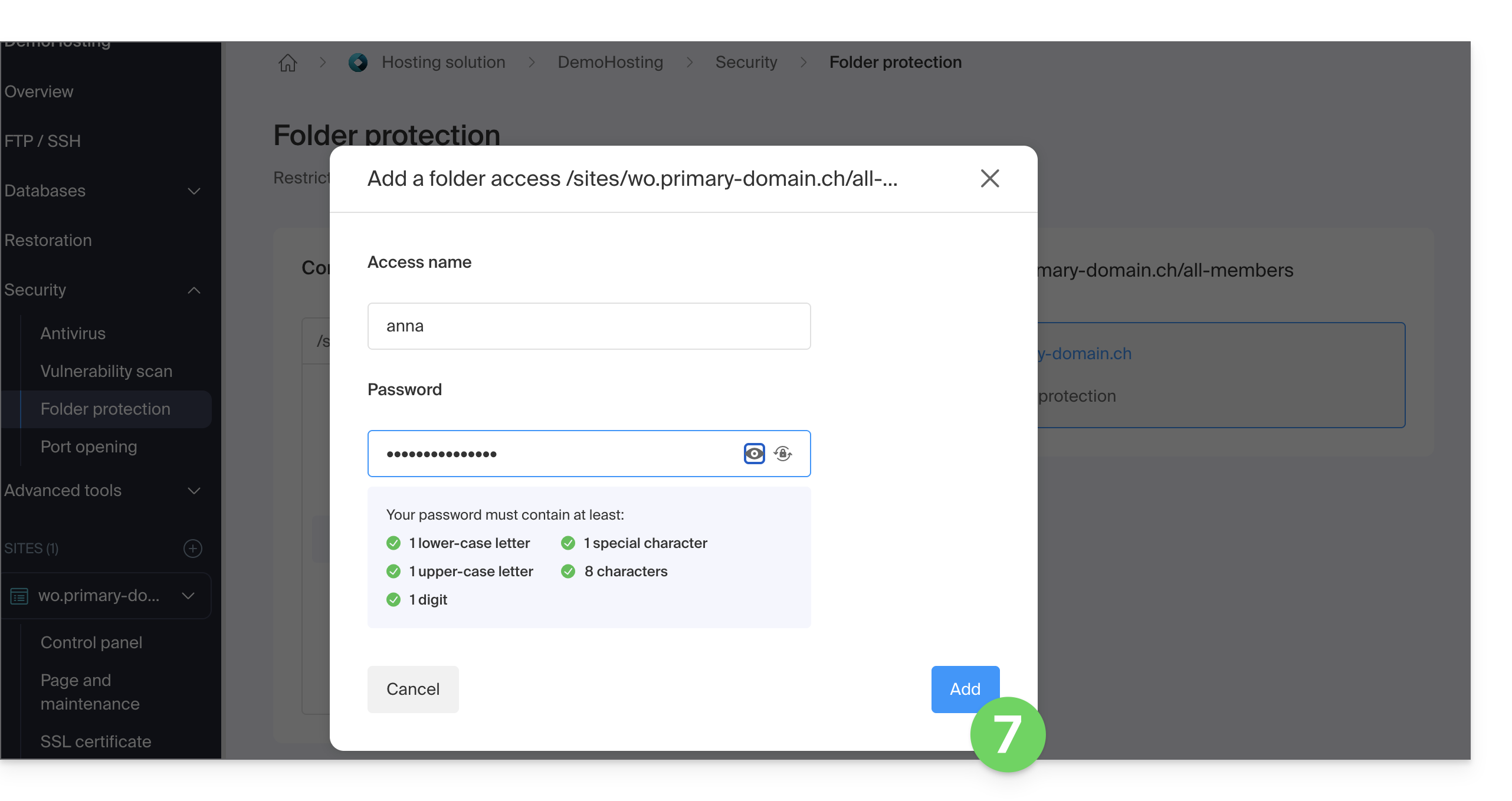
- Users are defined per directory; the tool does not allow you to manage user groups:
- Click the Add button.
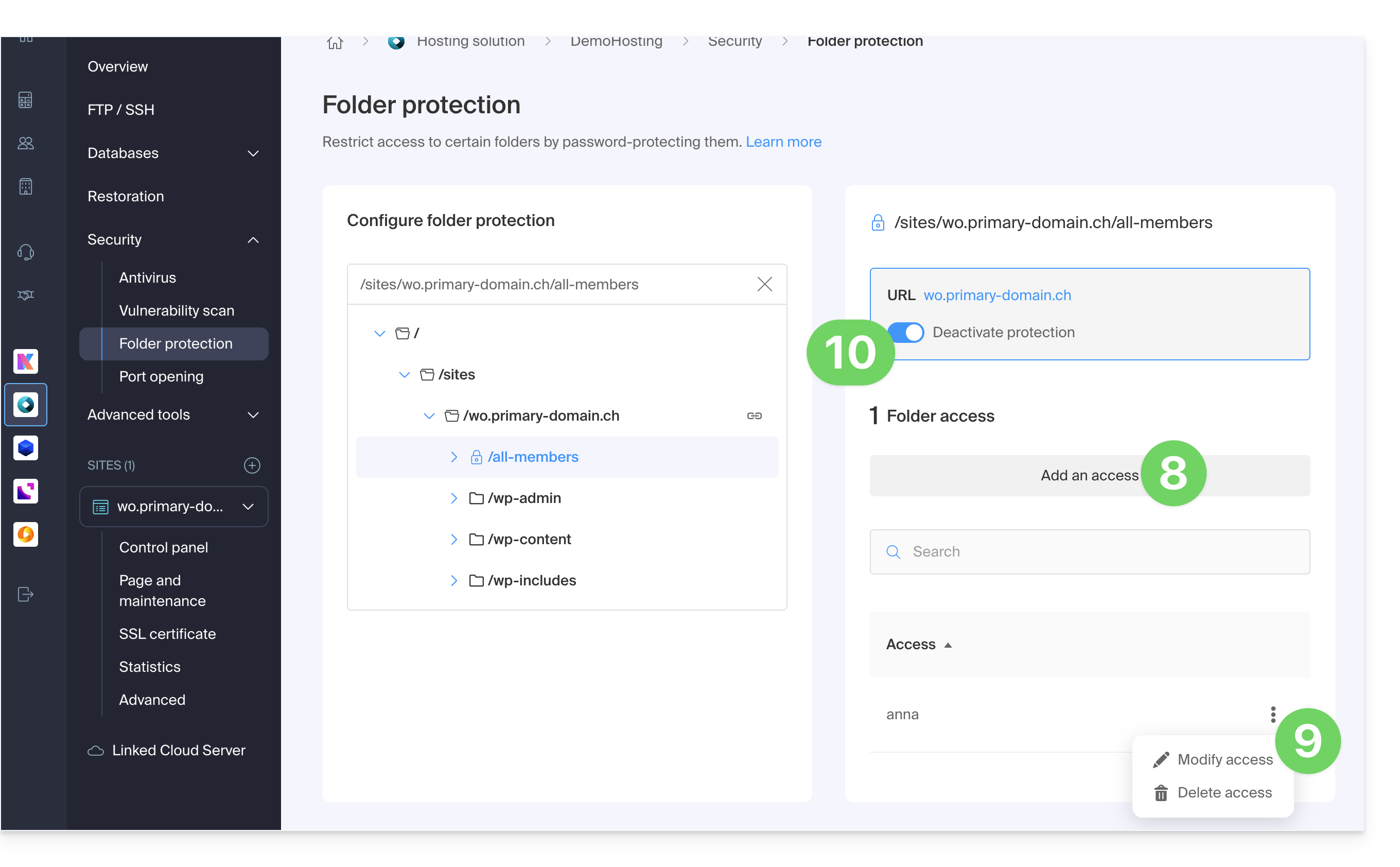
- Click the button to Add access for an additional user if necessary.
- Click on the action menu ⋮ located to the right of the user in question to modify or remove them.
- Click on the toggle switch again to completely disable directory protection:
Manual method via .htaccess
To protect a folder with a password using the .htaccess file of your site:
- Connect to your hosting via an FTP software/client or Web FTP.
In the folder you want to protect, create a file called
password.phpand adapt the following content by replacing12345with the desired password:<?php $password = "12345"; echo password_hash($password, PASSWORD_DEFAULT); // Displays the hashed password ?>- Open a browser and display the
password.phpfile (example: domain.xyz/folder-to-protect/password.php). - The browser will display your encrypted password; copy the encrypted password, as you will need it later.
In the folder you want to protect, create a file called .htaccess and adapt the following content within it:
AuthName "Protected Administration Page"
AuthType Basic
AuthUserFile "/example/.htpasswd"
Require valid-user
Replace /example/ with the absolute path of the folder to be protected. Example:
AuthUserFile "/home/clients/0f83c7afb710e5ae2645a1b704d8772f/web/protected_folder/.htpasswd"In the folder you want to protect, create a file called htpasswd.txt and adapt the following content within it:
username:hashed_password- Replace
usernamewith the desired login. - Replace
hashed_passwordwith the encrypted password copied in step 1 of this guide.
Once the htpasswd.txt file is saved, rename it as follows: .htpasswd.
Open a browser and try to display one of the pages contained in the protected folder. If the instructions have been followed correctly, the login and password (not encrypted) you chose will allow you to access the protected folder.
Other restrictions may also be applied by .htaccess.
Link to this FAQ: https://faq.infomaniak.com/68
Has this FAQ been helpful?