Knowledge base
1000 FAQs, 500 tutorials and instructional videos. Here, there are only solutions!
Modify an Infomaniak hosting configuration
Update 10/27/2026
This guide explains how to modify an existing Web Hosting plan, for example, to host additional websites if the maximum number of websites allowed has been reached, or to obtain a more recent hosting solution to benefit from the latest versions of PHP & MySQL.
Introduction
- To migrate a Cloud Server, please refer to this other guide on migrating to a new generation of Cloud Server.
Order additional websites, disk space, or IP addresses
To access the Web Hosting configuration tool:
- Click here to access the hosting & website management section in your Infomaniak Manager (❓: help).
- Click on the action menu ⋮ located to the right of the hosting in question.
- If the hosting does not contain a website, click on its name and then click on Manage.
- Click on Modify plan:
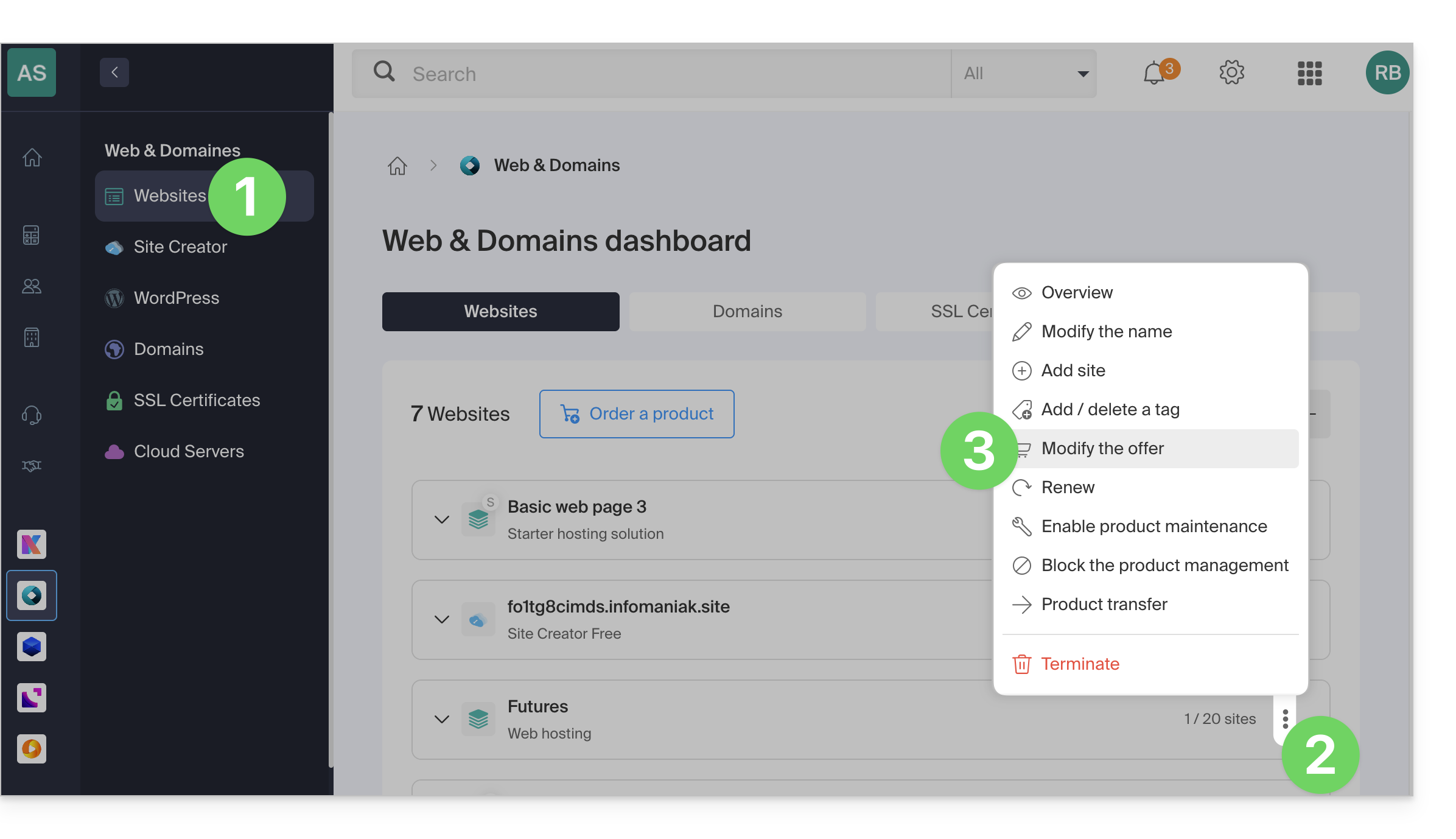
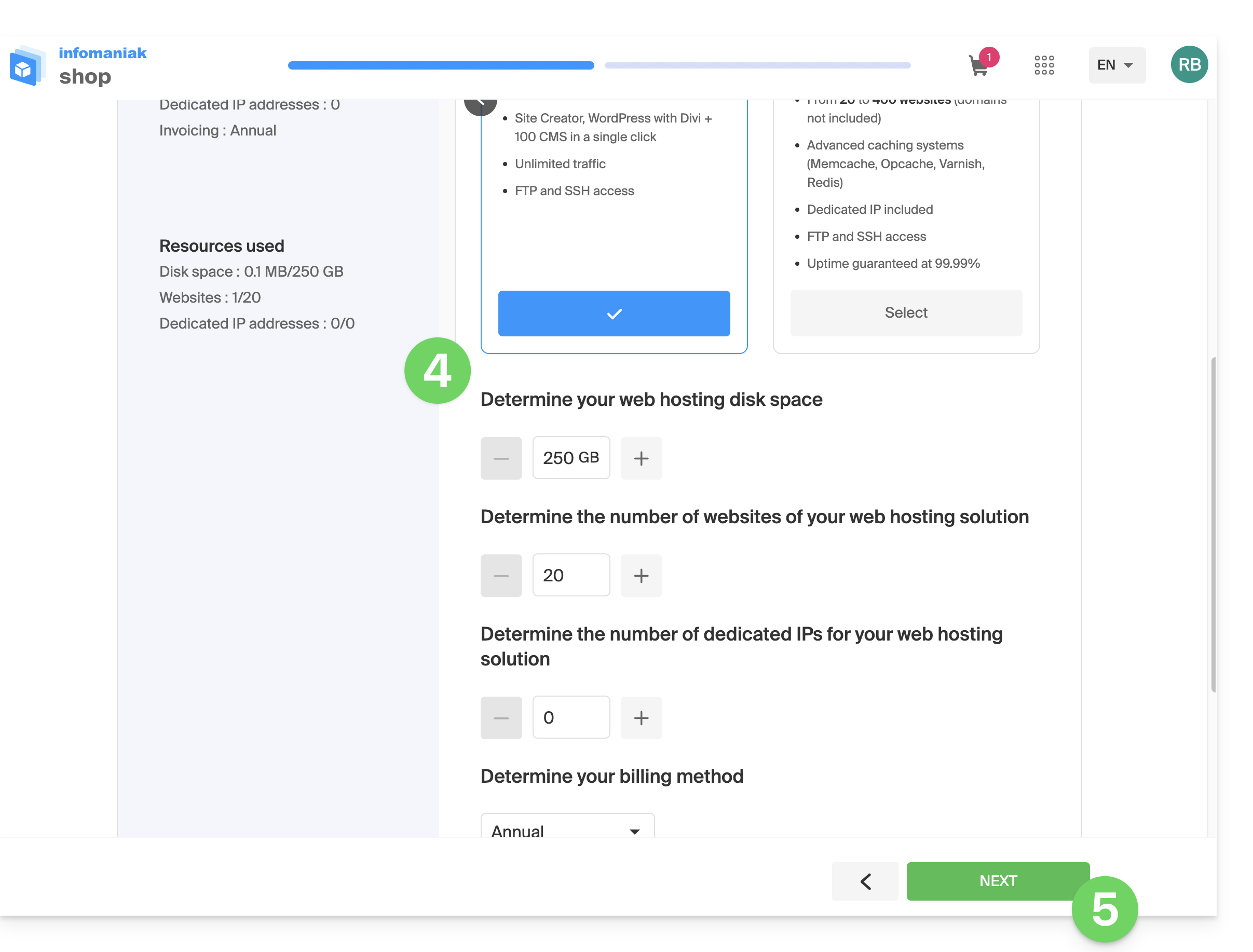
- Increase the values you want to modify.
- Click the Next button to proceed to payment for the changes made to the hosting:
Switch to a more recent server
To obtain a hosting solution on a more recent server and thus benefit from the latest versions of PHP & MySQL:
- Consult this other guide: by following it and before carrying out step 4, you should see an information banner at the top of the page in your Manager; click on the migration button:
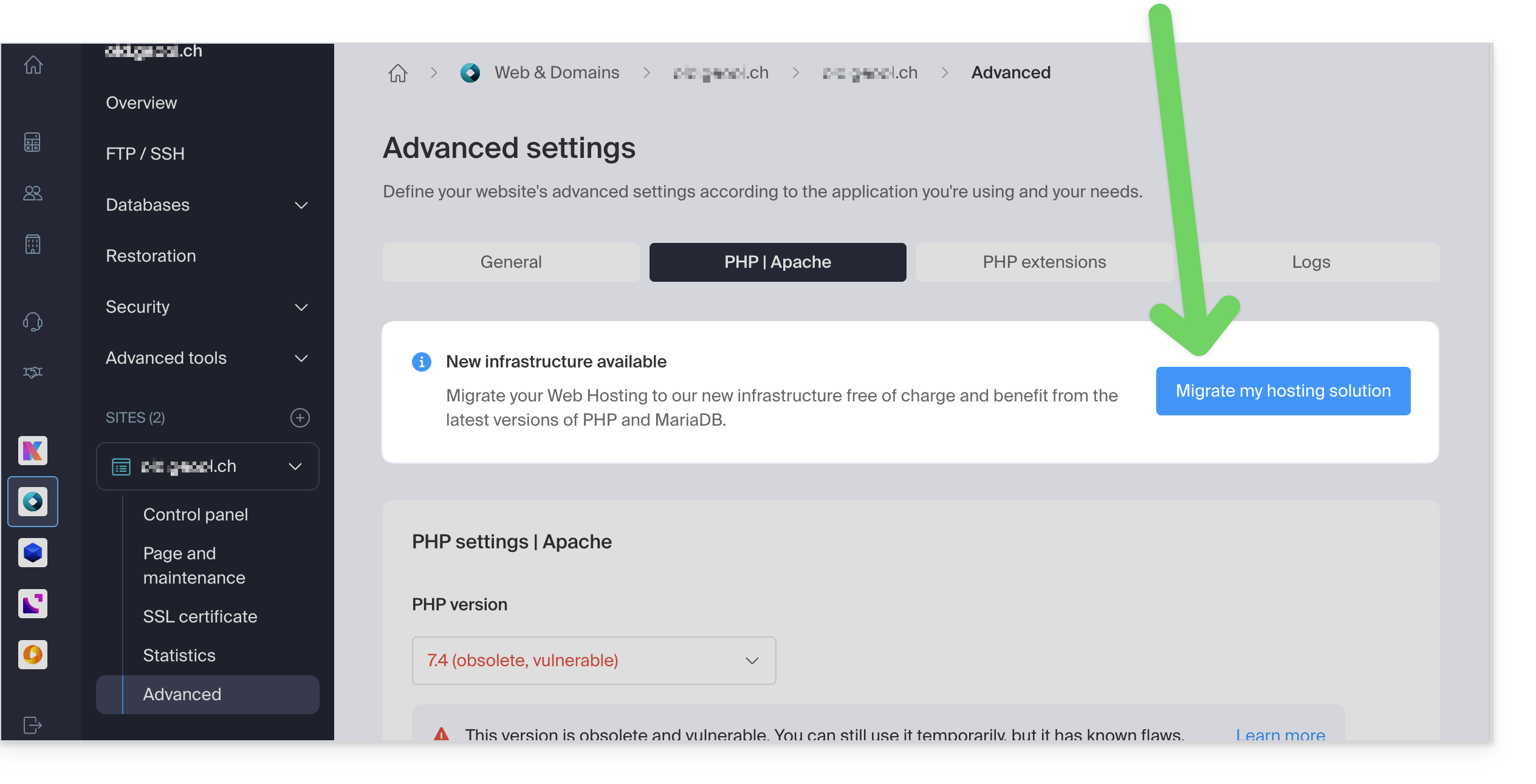
If no information banner is displayed, it means you already have a recent hosting plan.
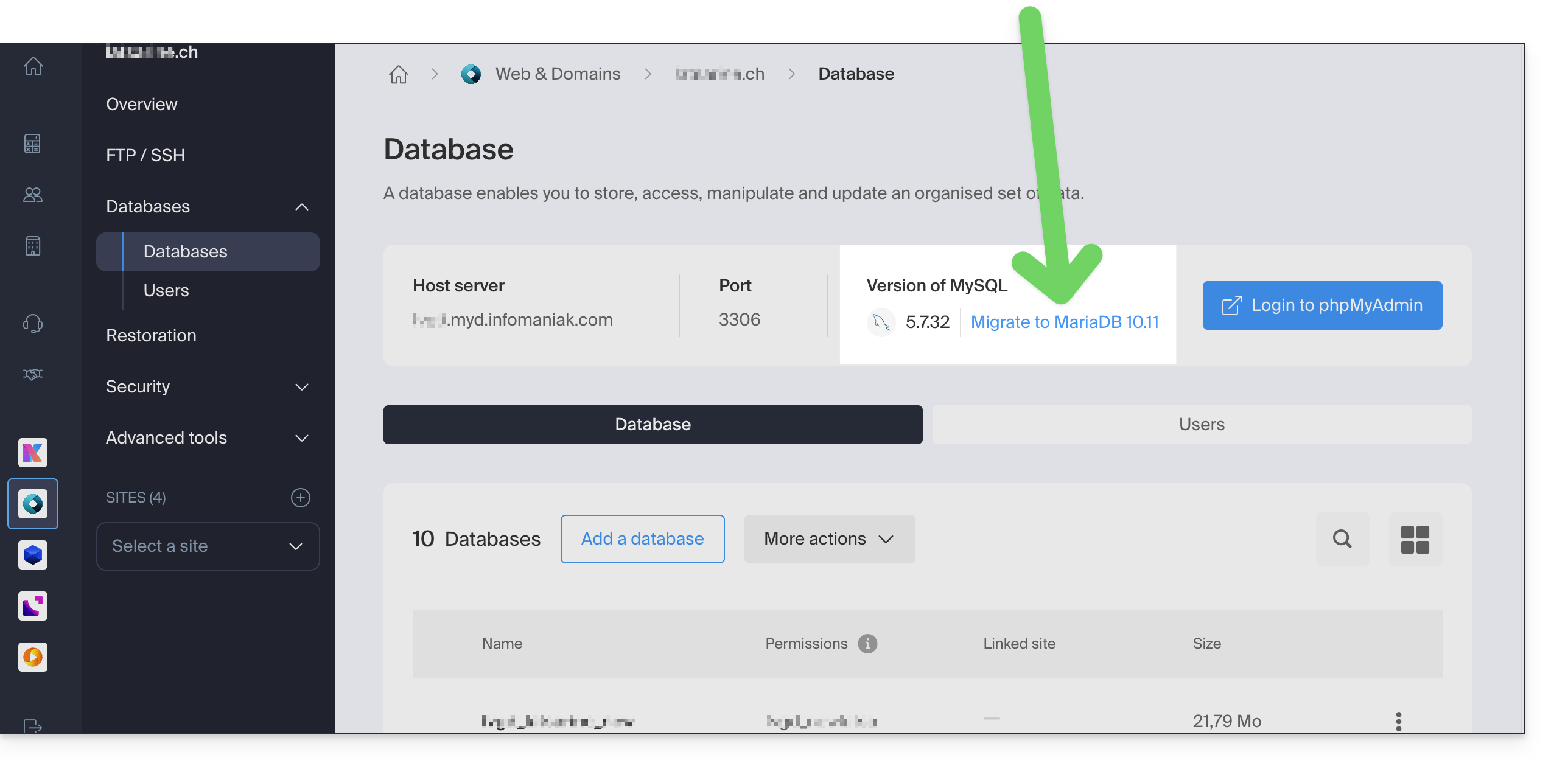
- You can also consult this other guide by following the procedure described in it to the end:
Link to this FAQ: https://faq.infomaniak.com/626
Has this FAQ been helpful?