Knowledge base
1000 FAQs, 500 tutorials and instructional videos. Here, there are only solutions!
Create an email template
This guide explains how to create an email template that can be used when sending your emails from the Infomaniak Mail web app (online service ksuite.infomaniak.com/mail).
Create a new email template
To do this:
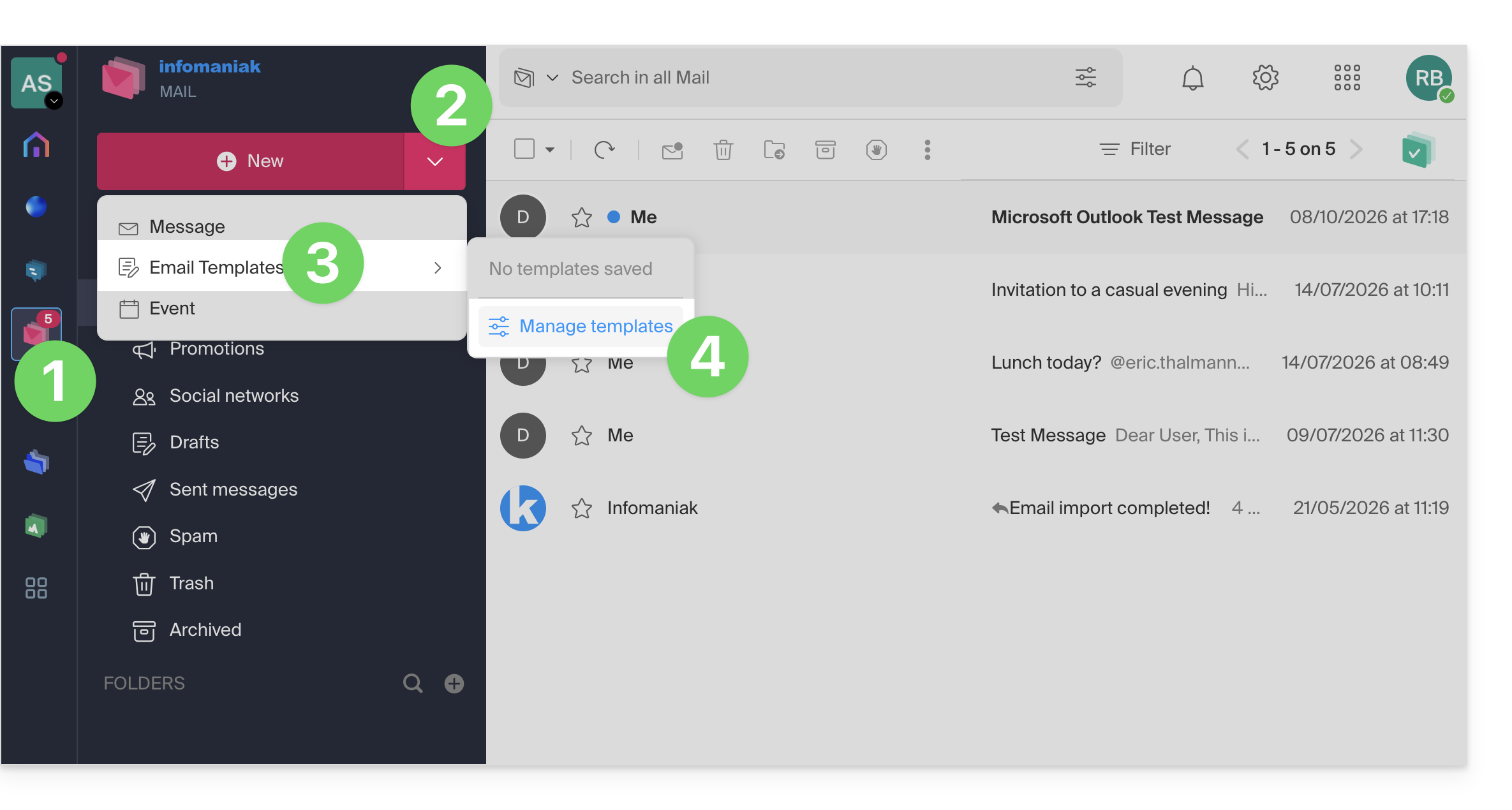
- Click here to access your emails on your Infomaniak kSuite (❓: help).
- Click on the chevron to the right of the New button to access additional actions.
- Click on email templates.
- Then, go to Manage templates:
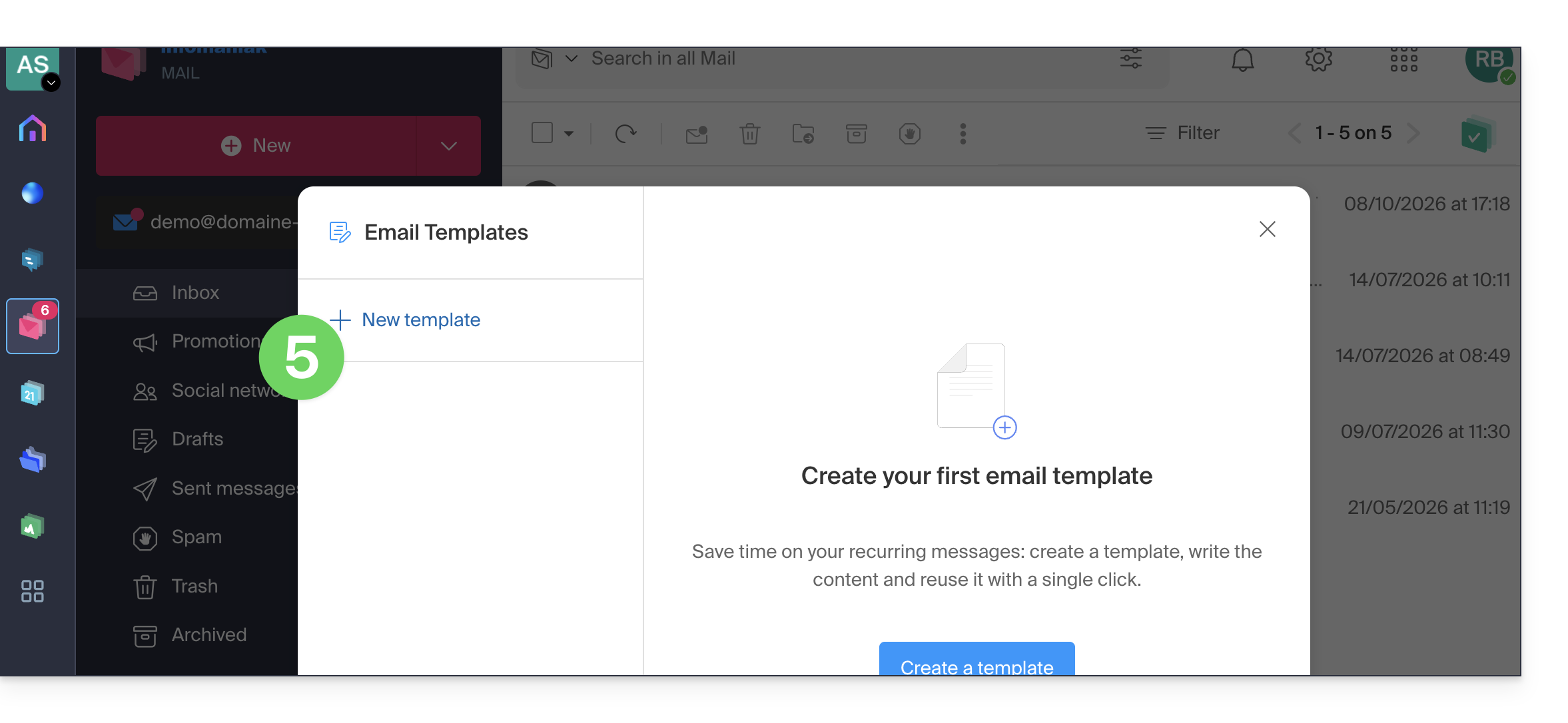
- Click on ➕ New template:
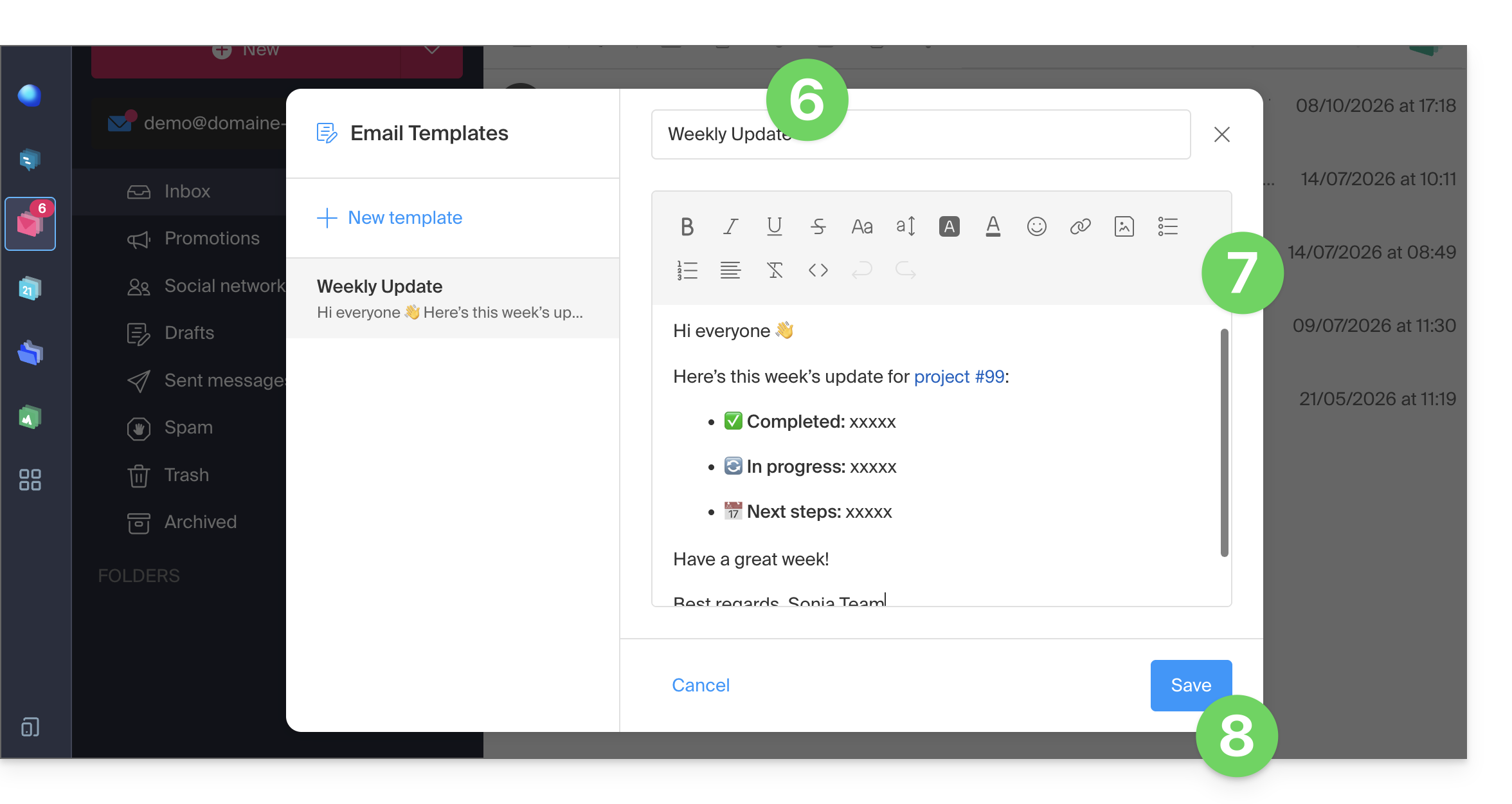
- Enter the name of the template (which will become the subject of the email).
- Enter the content of your template, and format it using the toolbar, including HTML code if necessary.
- Click to Save:
- Once the template is saved, you can edit it if needed.
- Click on the button to use the template in a new email:
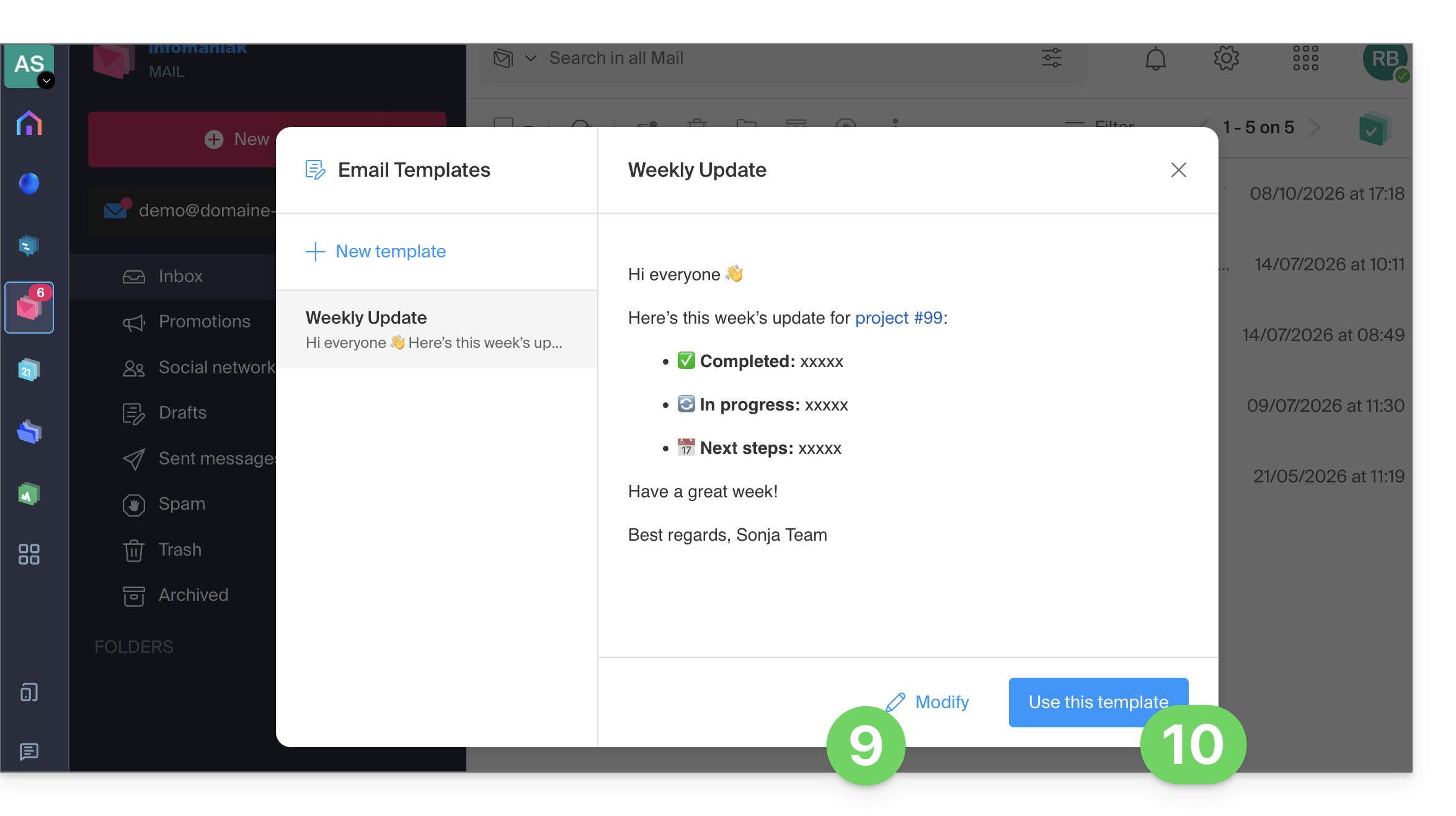
- The subject of the email is taken from the template name (see point 6).
- The body of the email is taken from the template content (see point 7):
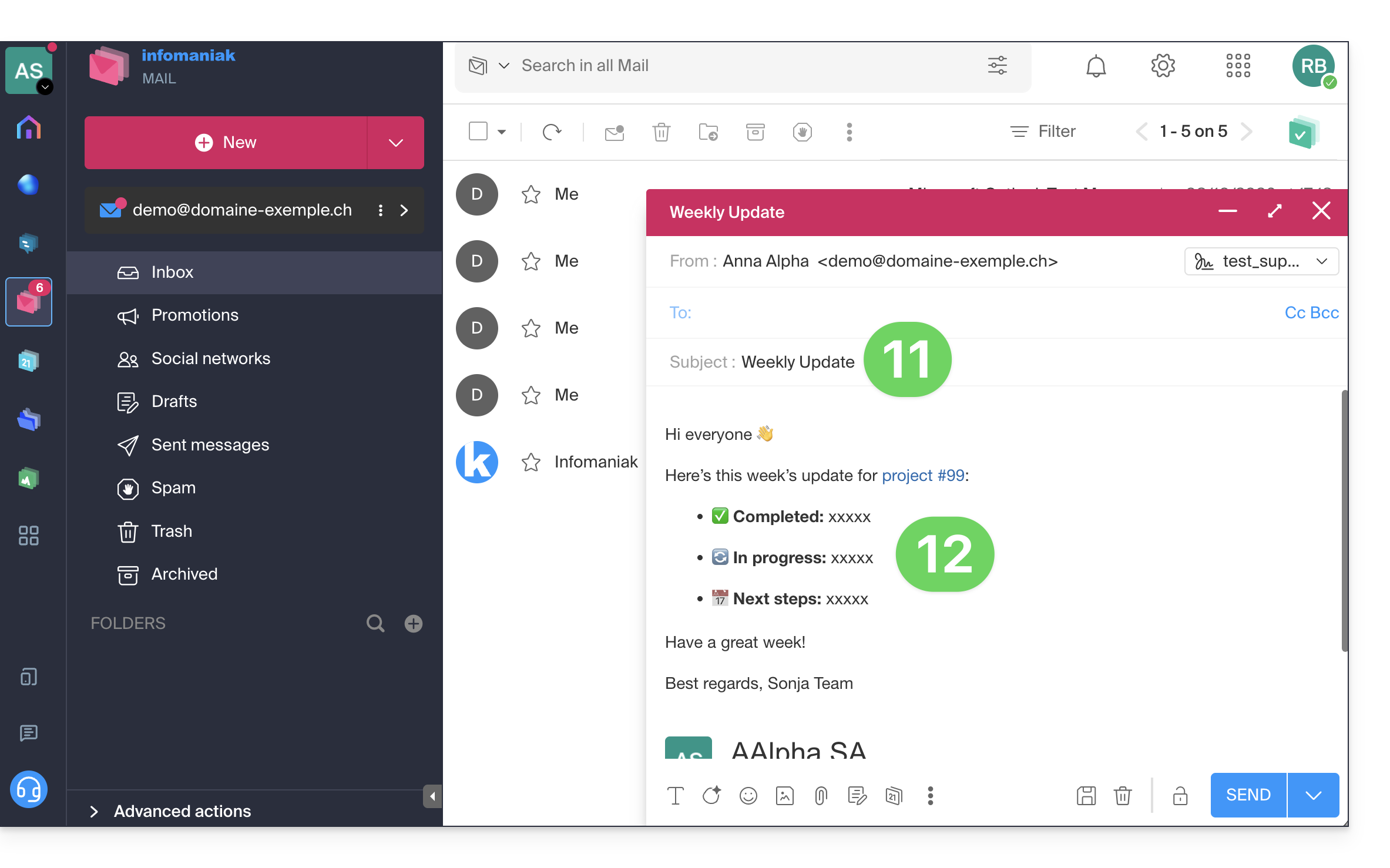
All that remains is to complete your message by adapting the inserted template and to include your recipients in order to send them the message.
Create a new email from a template
To create a new email from an existing template:
- Click here to access your emails on your Infomaniak kSuite (❓: help).
- Click on the chevron to the right of the New button to access additional actions.
- Click on email templates.
- Click on the name of the template to use:
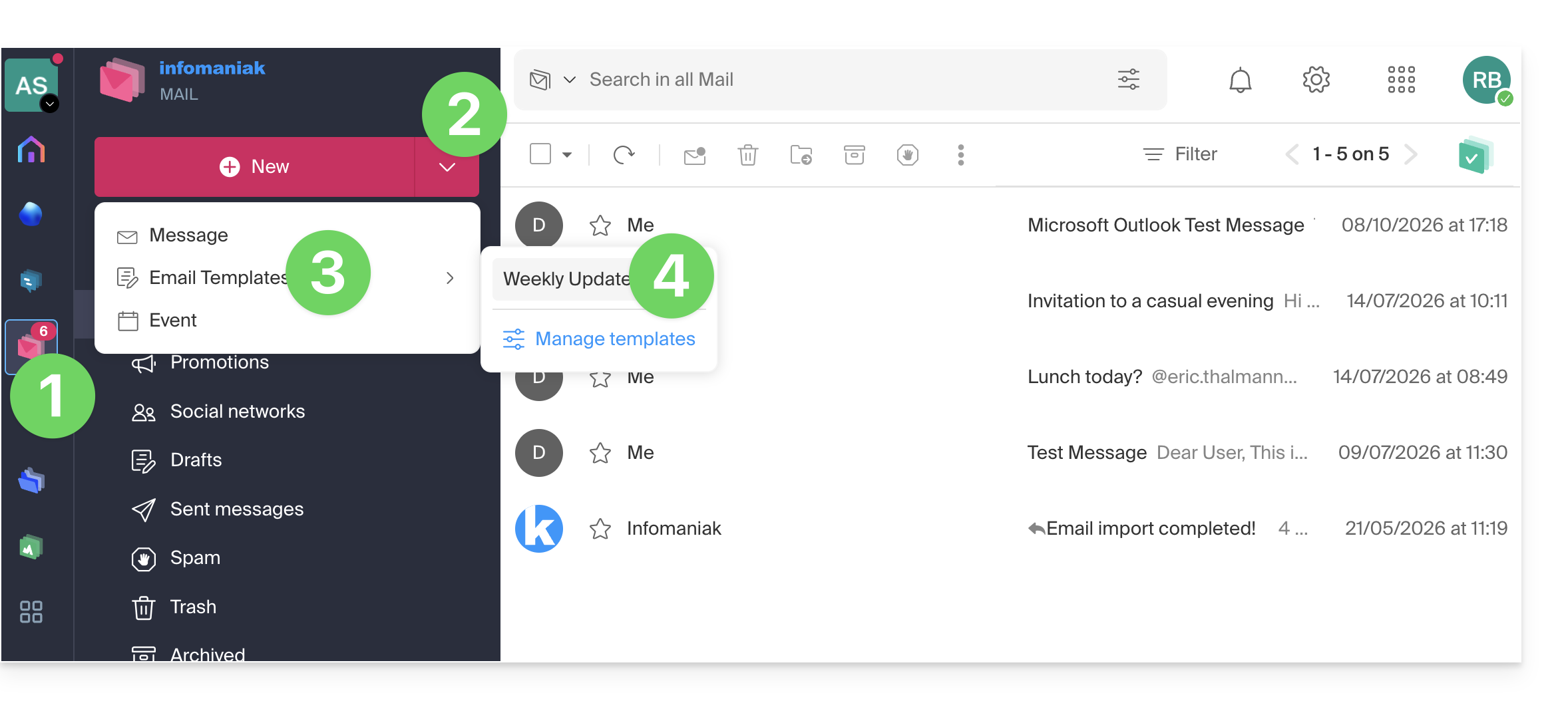
- A new pre-filled email is created.
All you have to do is complete your message by adapting the inserted template, and include your recipients to send them the message.
Insert a template into an email you are currently writing
To insert a pre-written template into an email you have already started:
- In your current email, click on the email template icon in the bottom toolbar:
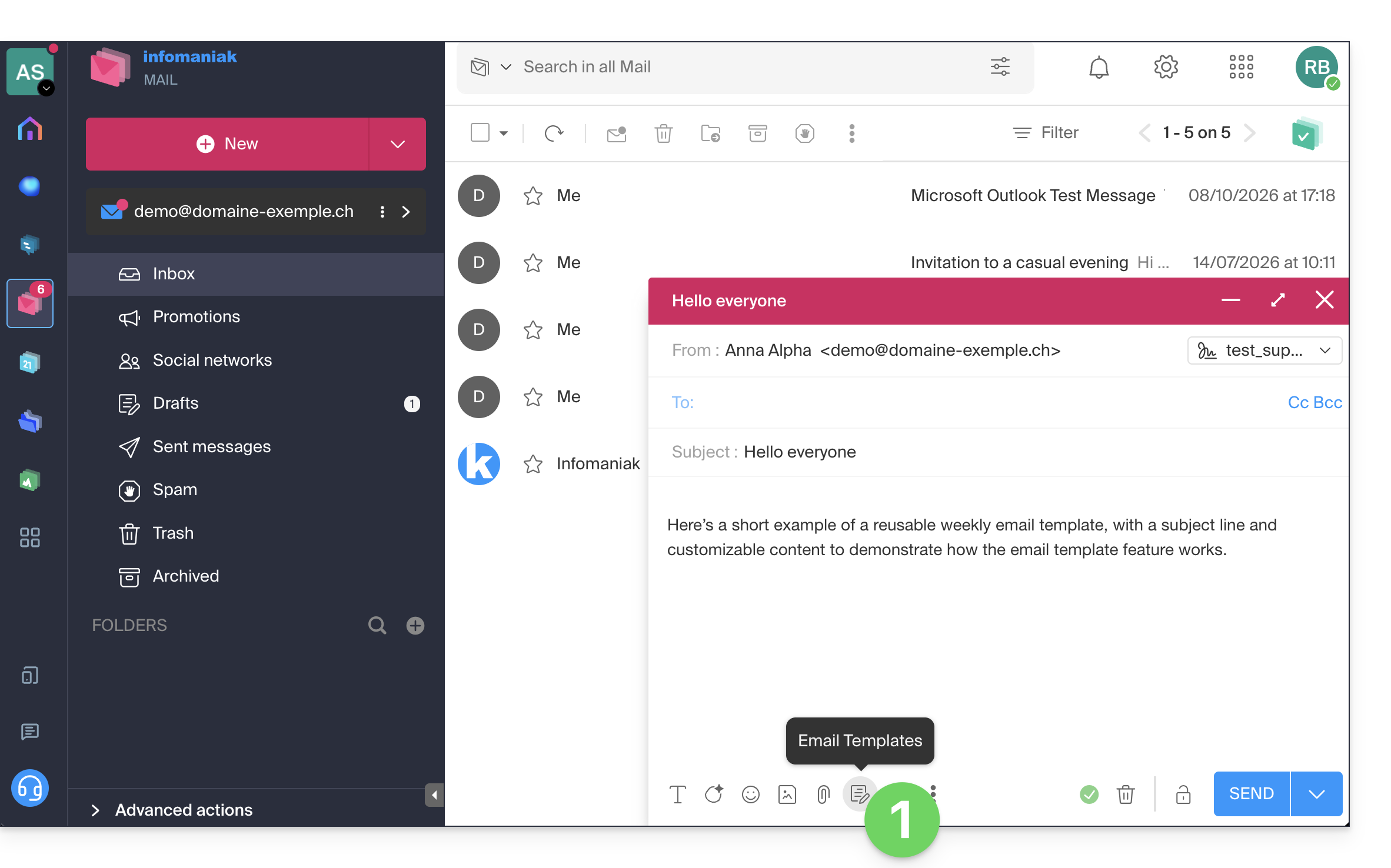
- Choose the template to use.
- Click to insert it at the end of your current message (the message subject will not be replaced):
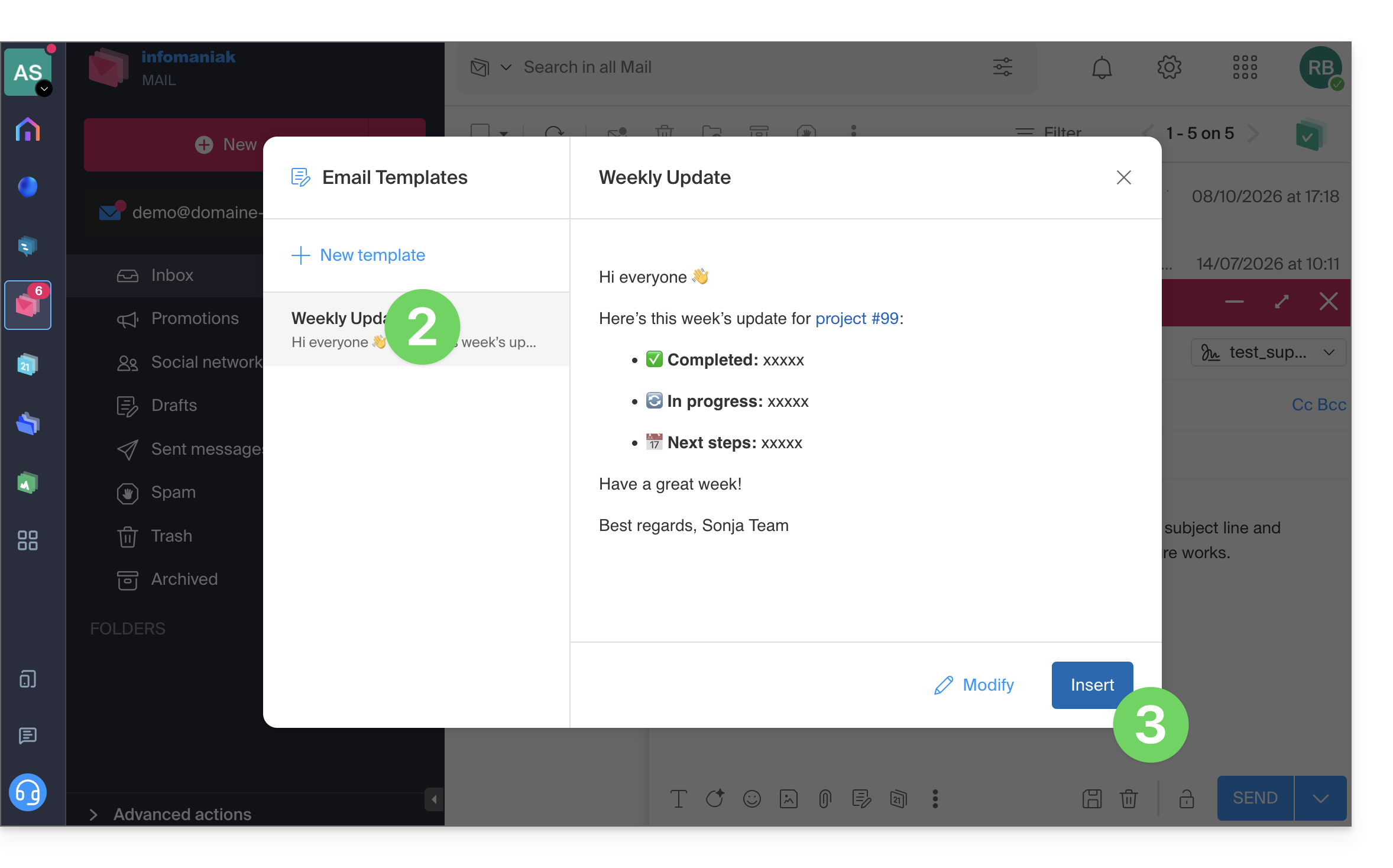
- Adjust your message and the inserted template:
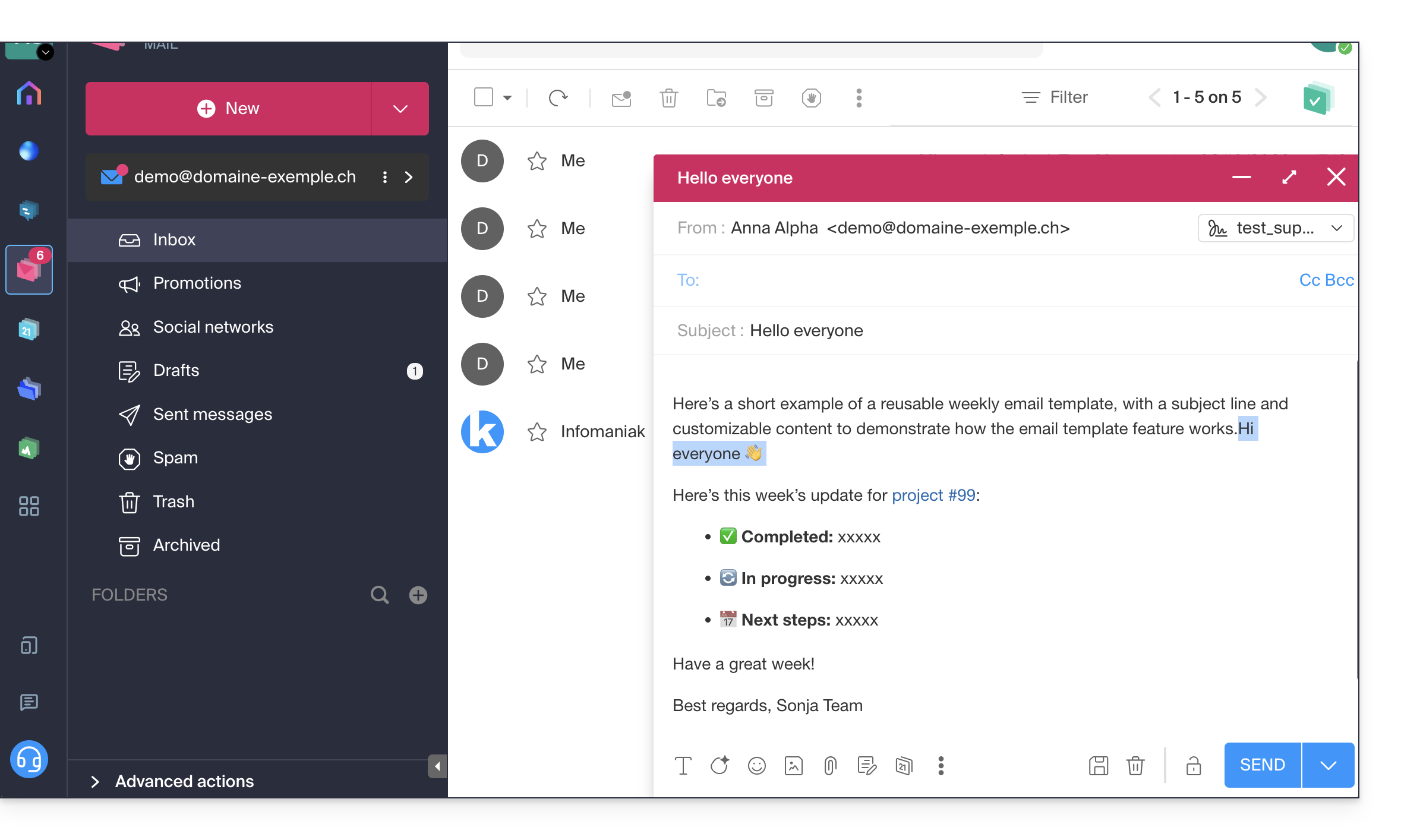
All you have to do now is add your recipients to send them the message.
Link to this FAQ: https://faq.infomaniak.com/605
Has this FAQ been helpful?