Knowledge base
1000 FAQs, 500 tutorials and instructional videos. Here, there are only solutions!
Understanding kDrive v4 Synchronization Modes
This guide details how to manage the synchronization modes and file storage with the desktop application kDrive v4.x on macOS and Windows (this feature is called Lite Sync in version 3.x of the application).
Prerequisites
Two synchronization modes
Managing files online and offline helps optimize your computer's storage space:
1. Stored online (enabled by default when installing version 4 of the app)
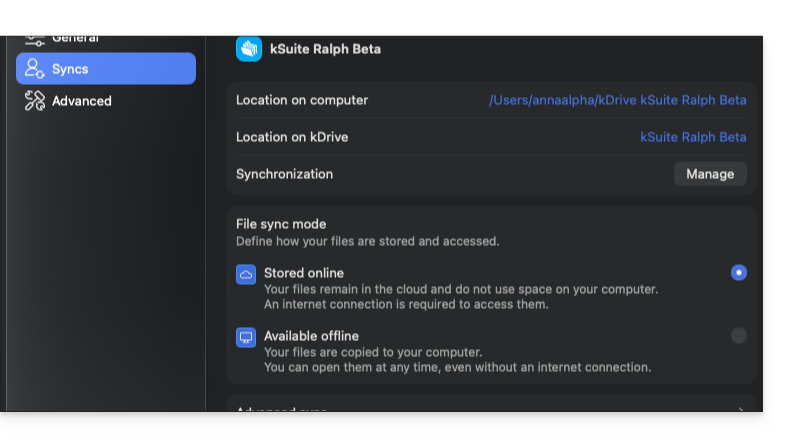
- Your files are primarily stored in the cloud, on the Infomaniak kDrive web application (online service ksuite.infomaniak.com/kdrive) and the kDrive mobile application (iOS / Android).
- They do not take up any local disk space (only traces of a few KB are present, with or without an internet connection).
- The file is downloaded automatically and on demand as soon as it is opened (requires an Internet connection).
- Any new file added to the kDrive folder on your computer is sent to the cloud (as soon as an Internet connection is available), and then immediately reduced in size to represent only a virtual file.
Limited use case: although your files appear in your computer's file structure, they are not physically stored locally. Without an internet connection, it is impossible to open them. You must wait for them to be fully downloaded, for example, to copy them to an external storage device (USB drive, external hard drive).
2. Available offline
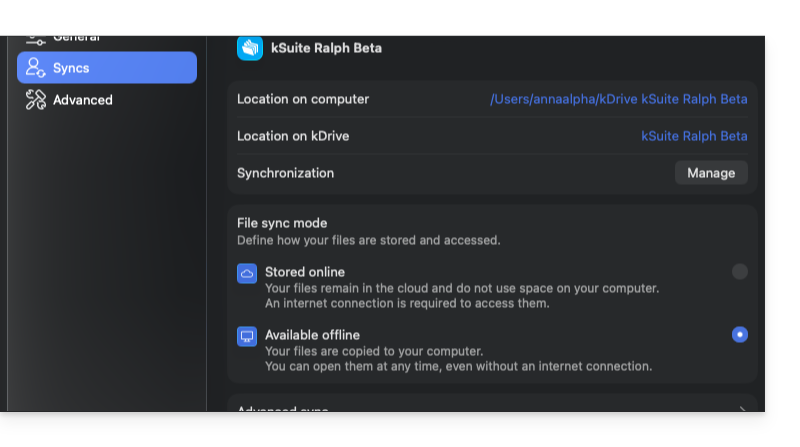
- Your files are stored entirely on your hard drive (exact copy: 1 GB = 1 GB) and remain accessible at any time, even without an Internet connection.
Limitations with local synchronization: on a large-capacity shared kDrive (several hundred GB, or even 1 TB or more) used alone or, especially, by multiple people, the regular addition of many documents will result in their automatic download to your computer. If the total volume exceeds the capacity of your hard drive, the storage will become full, which will block the kDrive application and generate errors.
Choose the default and case-by-case mode
From the kDrive desktop application, you can define how your files are stored and synchronized by default:
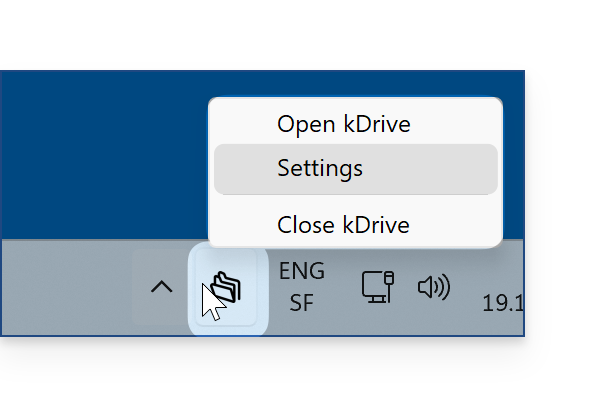
- Launch kDrive on your device: the application icon is visible in the menu bar at the top right on macOS, and in the notification area at the bottom right on Windows (❓: help).
- Right-click on the icon and choose Settings:
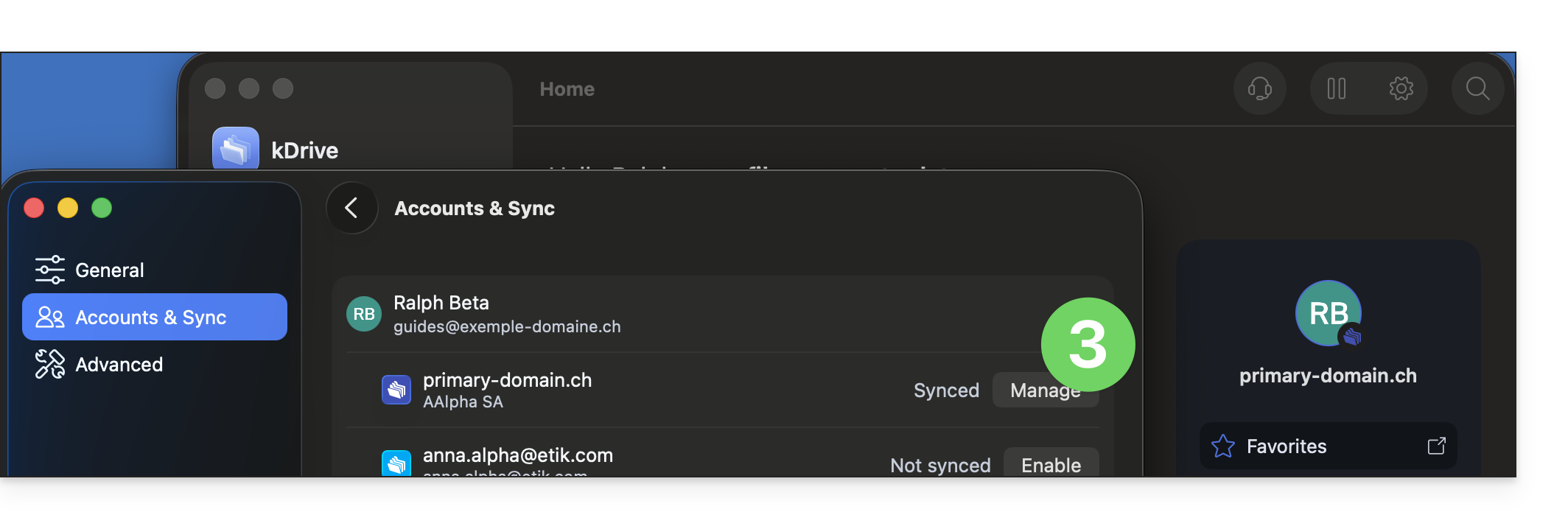
- Go to Accounts & Synchronization, then click on Manage (or the ❯ icon) to the right of the synchronization in question:
- Then select the desired storage mode:
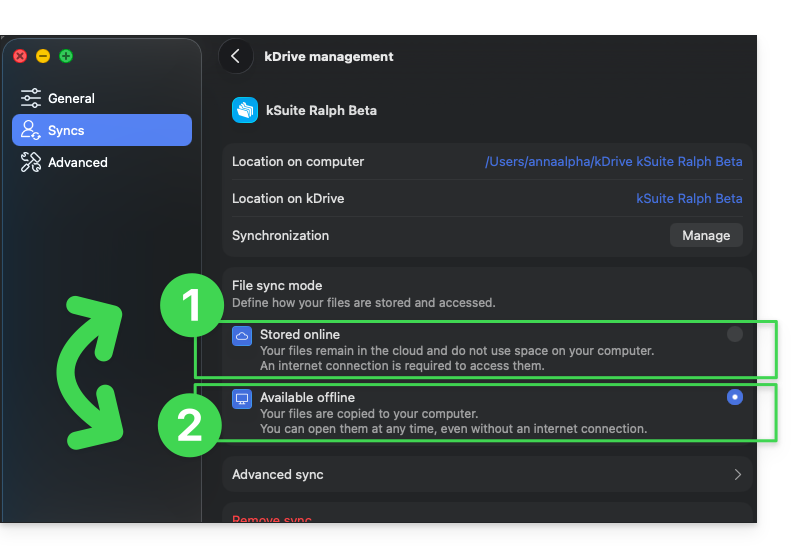
- 1. Stored online: files remain in the cloud and do not use space on your computer.
- 2. Available offline: files are copied to your computer and remain accessible at all times.
If necessary, you will need to repeat these steps for your different synchronizations: each synchronization or managed folder can have its own storage settings according to your needs (see also the last chapter below).
And regardless of the default setting, you can change the behavior of a file or folder on a case-by-case basis directly from File Explorer (Windows) or Finder (macOS):
1. Free up space (online mode)
To free up space on your hard drive by converting local files into online files (by keeping only a small trace of a few KB):
- Right-click on the file or folder that you no longer need locally.
- Select the Free up space option.
- The file remains visible in your file structure but no longer consumes local storage space; it will be downloaded automatically when needed (with an active internet connection).
Note: The "Free up space" action is not automatically applied by default to new files or folders added locally afterward.
2. Make available offline / Always keep on this device
To ensure a file or folder is permanently stored on your device:
- Right-click on the item in your kDrive.
- Select the Always keep available locally or Always keep on this device option.
- The file icon is updated to indicate that the full version is physically saved on your disk.
You can identify the selected setting by the symbols displayed next to the file icons:
Status symbols
Here are the main visual indicators displayed in the File Explorer or Finder:
| Status icons | Description |
|---|---|
| The file is stored in the cloud (light local footprint); on-demand downloading is required to open it. | |
| The file is fully present and physically synchronized on the hard drive. | |
| A synchronization or download operation is in progress. | |
| A synchronization issue has been detected for this item. |
What about advanced synchronization (additional folders)?
Advanced synchronization (❓: help) allows you to select one or more folders located outside the main kDrive directory (on your computer's hard drive) to synchronize them with the kDrive web application. Each folder in advanced synchronization can have its own storage configuration (online or offline), independent of the rest of your kDrive.
Link to this FAQ: https://faq.infomaniak.com/535
Has this FAQ been helpful?