Knowledge base
1000 FAQs, 500 tutorials and instructional videos. Here, there are only solutions!
Download an entire website
This guide will help you download all the data related to your website hosted by Infomaniak.
Introduction
- Automatic backups are performed daily on Infomaniak's infrastructure.
- Nevertheless, you can download a healthy and personal version of your website to keep it safe on your local installation, USB drive,
.ziparchive on kDrive, etc. - To download a website created with WordPress, please refer to this other guide specific to 2 extensions that allow for local backups of the data.
- With the exception of Site Creator, the data of a website hosted by Infomaniak is accessible and visible on the server via an FTP connection (which means that to back up the data, simply download the contents of the parent folder on the server).
- All that remains is to add a backup of the website's database (which contains information not stored in the files accessible via FTP).
Website location
Once you are in the file structure on the server, it may not always be easy to know where to go to download the information related to the website you are interested in.
Start by noting the exact location of the website you want to download by going to manager.infomaniak.com in the website dashboard within your Web Hosting: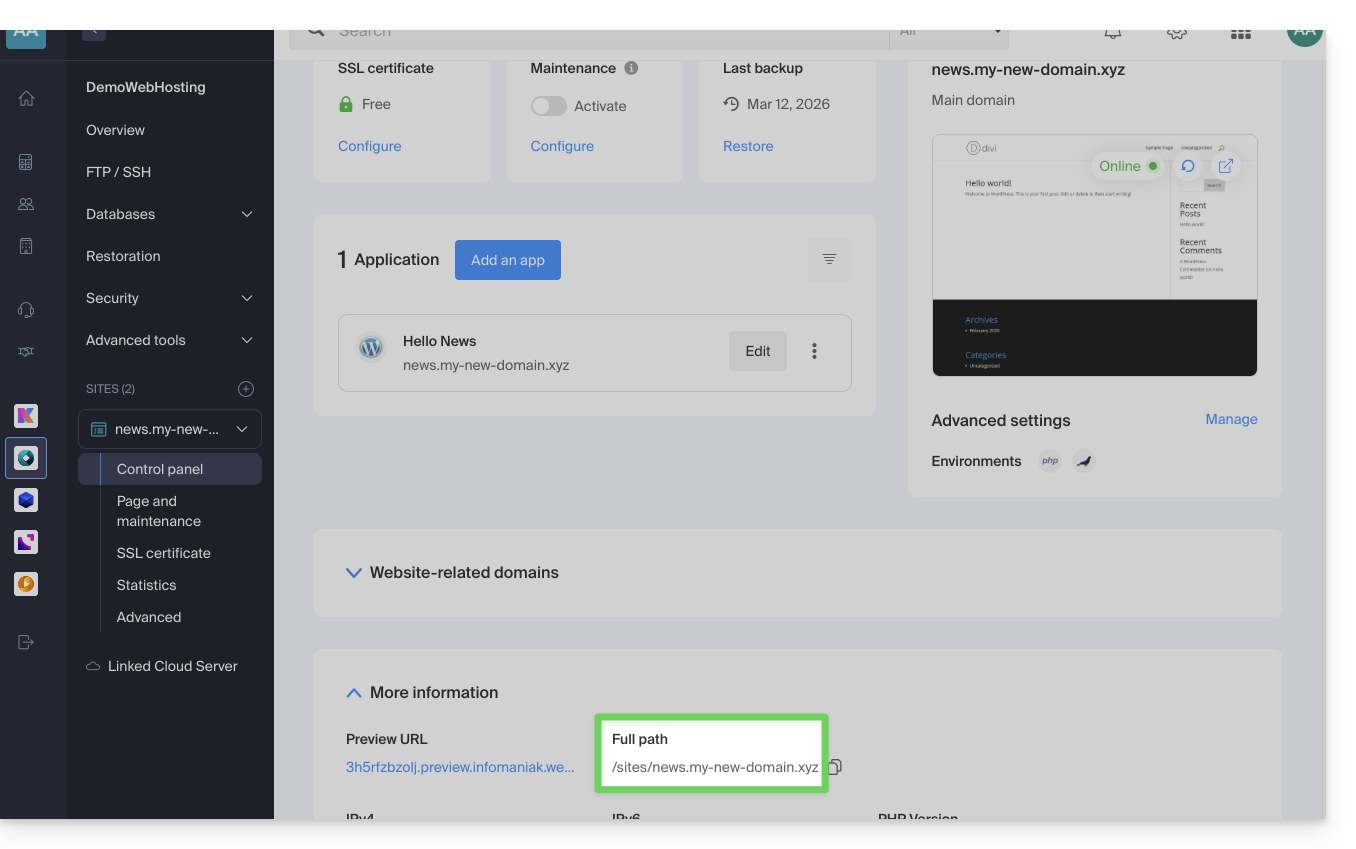
The highlighted indication above is the location of the example website. Go see yours!
Connecting to the server
To access the server, use an FTP software/client or the Web FTP in the Manager, which is suitable for most cases: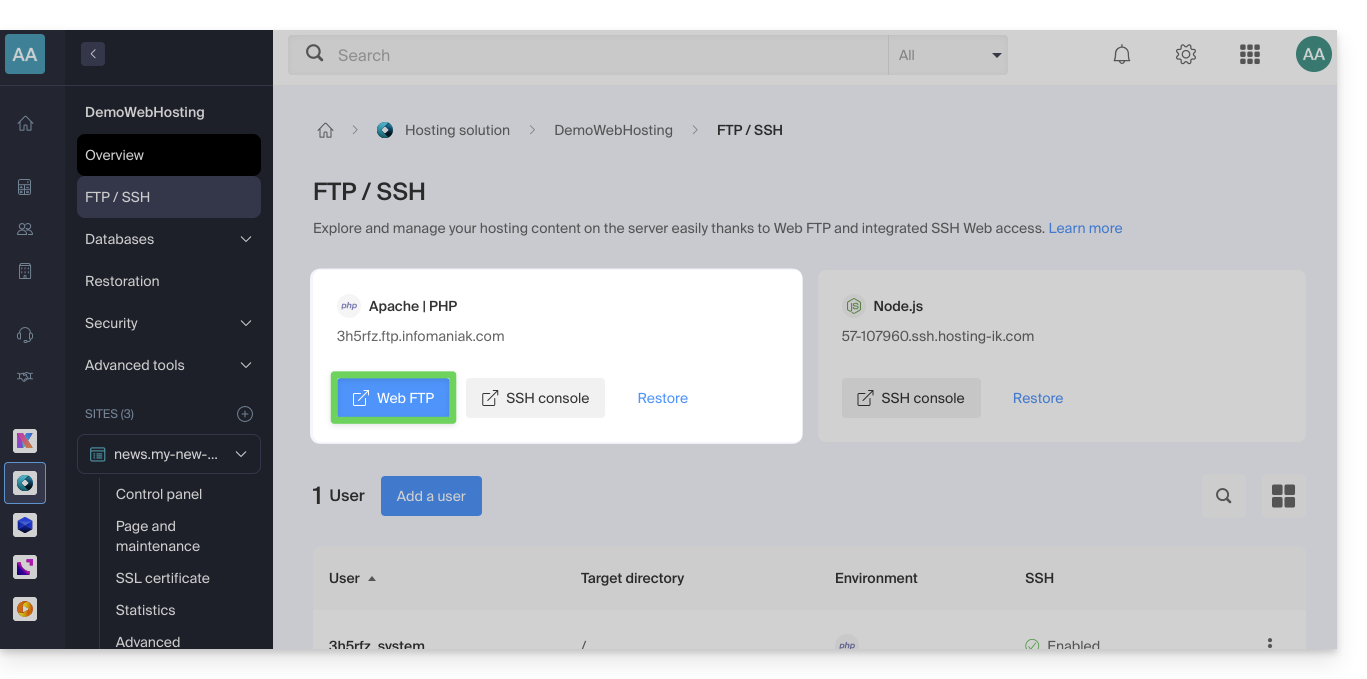
Downloading the website
When you access the Web FTP, go to the location indicated in the first chapter above, and click on the download icon to the right of the folder corresponding to your website: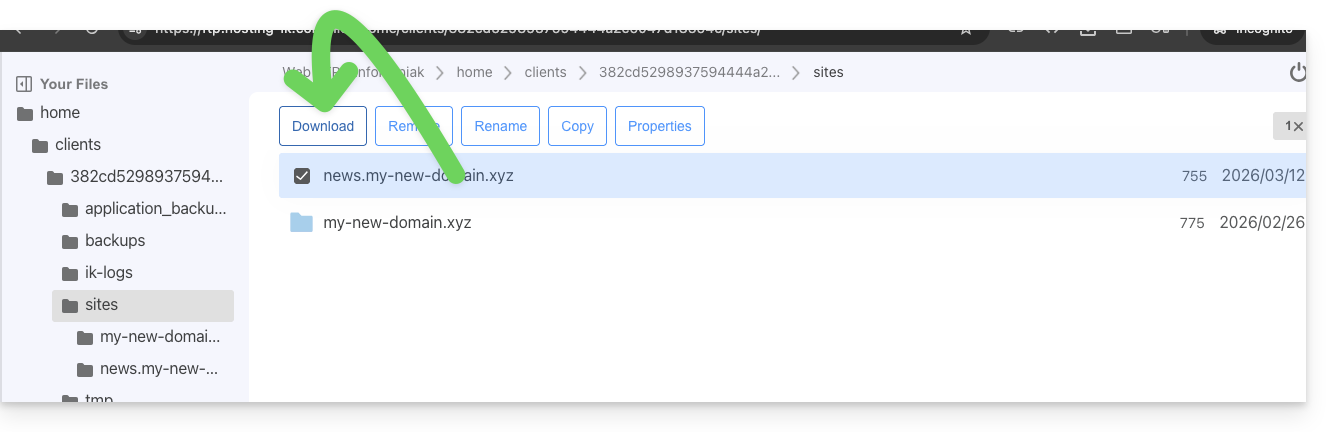
The download will start, and you will receive a .zip archive containing all the files that make up your website (with the exception of files starting with a "." such as .htaccess).
Downloading the database
In most cases, your website uses a database to function. You must therefore also download it.
To do this:
- Click on Databases in the left-hand menu.
- Click on the action menu ⋮ located to the right of your database name (if you are not sure which one to choose, repeat the operation for each of them).
- Click on Download:
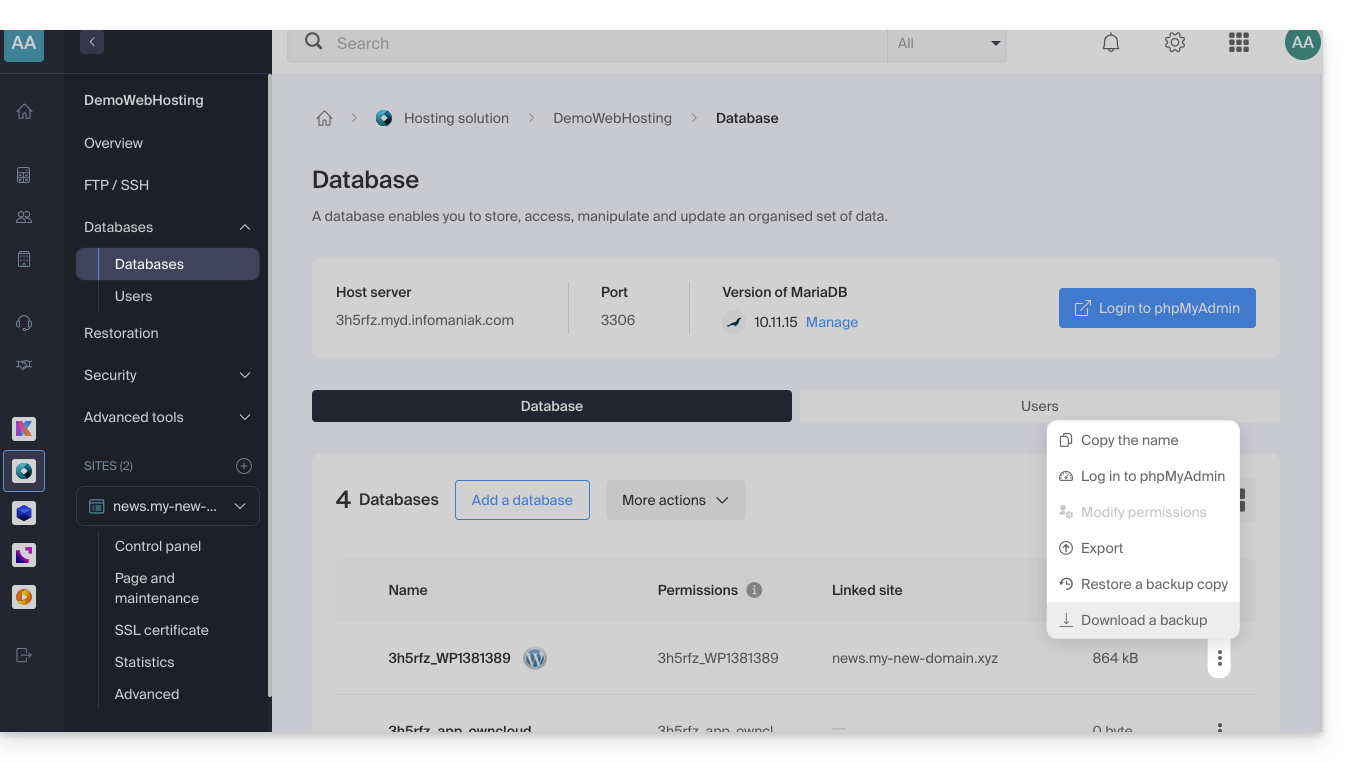
You will need to confirm the download (or export) of the correct, most recent file in the next step to obtain a .sql.gz file that corresponds to all the tables in your database, which you should keep safe.
The download link is sent by email.
Link to this FAQ: https://faq.infomaniak.com/384
Has this FAQ been helpful?