Knowledge base
1000 FAQs, 500 tutorials and instructional videos. Here, there are only solutions!
Update and/or overwrite kDrive data
This guide details how your data is handled during certain operations performed on kDrive.
Introduction
- The storage mode defined in these examples is Available offline (❓: help) so that all files are fully downloaded and present on the computer, but the principle is the same with the Stored online mode.
- Replacing a file or folder is an operation managed by the computer's operating system (macOS, Windows, etc.) and does not directly depend on kDrive.
- For its part, the kDrive application detects the files newly placed in the synchronized folder and uploads them to the web version, even when they replace existing files.
- During this operation, kDrive retains the actual last modification date of each file: the date displayed on the web version therefore corresponds to the date recorded in the file, and not to the date of its replacement or upload.
Desktop app launched and synchronization successful
Prerequisites
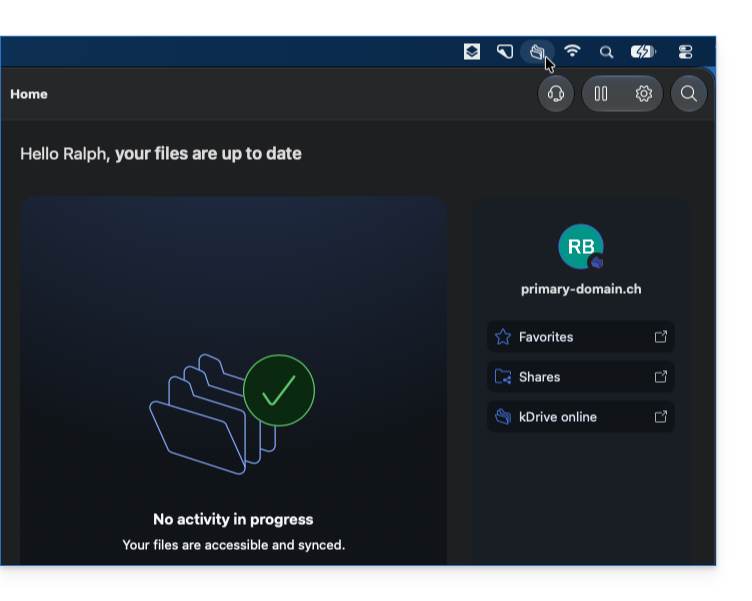
- Install and launch kDrive on your device: the app icon should be visible in the top right corner on macOS/Linux, and in the bottom right corner on Windows (❓: help), and the app should indicate an OK status:
Replacement from the computer
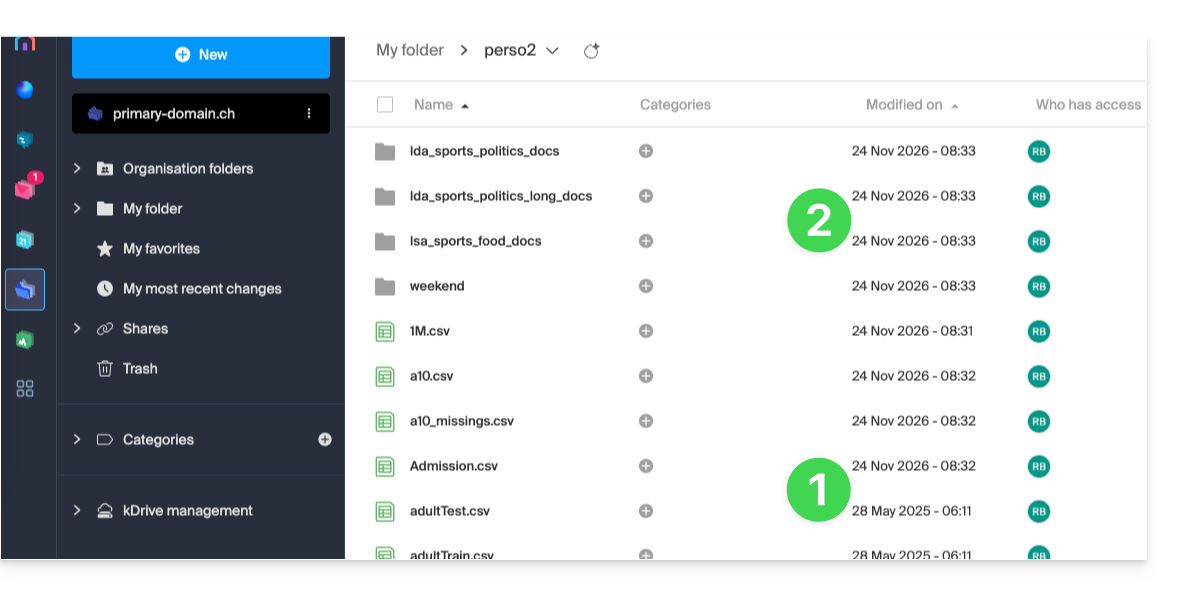
If the computer has a storage folder that is fully synchronized (and therefore has the same content as the web version), and you drag a folder containing files with identical names but more recent modification dates into it, then all the replaced files will be sent from the computer to the web version of kDrive, and new dates will appear only on the files concerned (only the files that are actually more recent, even if the entire folder has been replaced and re-uploaded to kDrive) in the web version:
- The first 4 CSV files were modified locally, outside the synchronization folder, before their previous version was overwritten; therefore, they have a more recent modification date than the files located further down, which were not modified (but were also re-uploaded to kDrive with the others).
- Folders also display a new modification date (corresponding to the date the user overwrote them on their computer), even if their content has not been modified:
Refresh the browser window to see the latest date modifications if necessary.
Replacement from the browser
If the computer has a storage folder that is fully synchronized (and therefore has the same content as the web version), and you import files with identical names via the browser (i.e., on kDrive Web from any computer):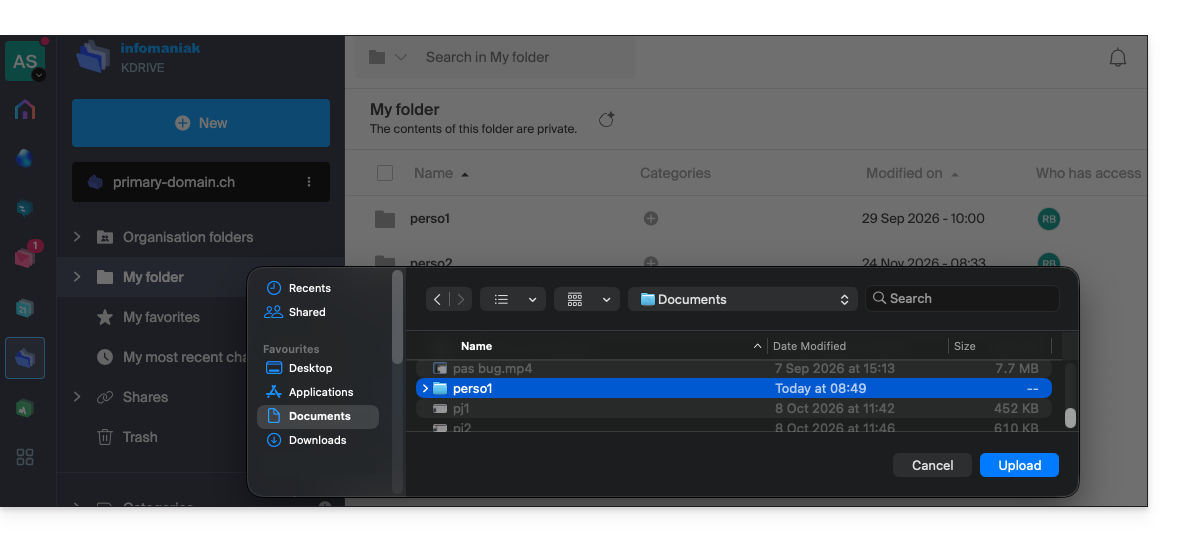
kDrive Web will offer you 3 options: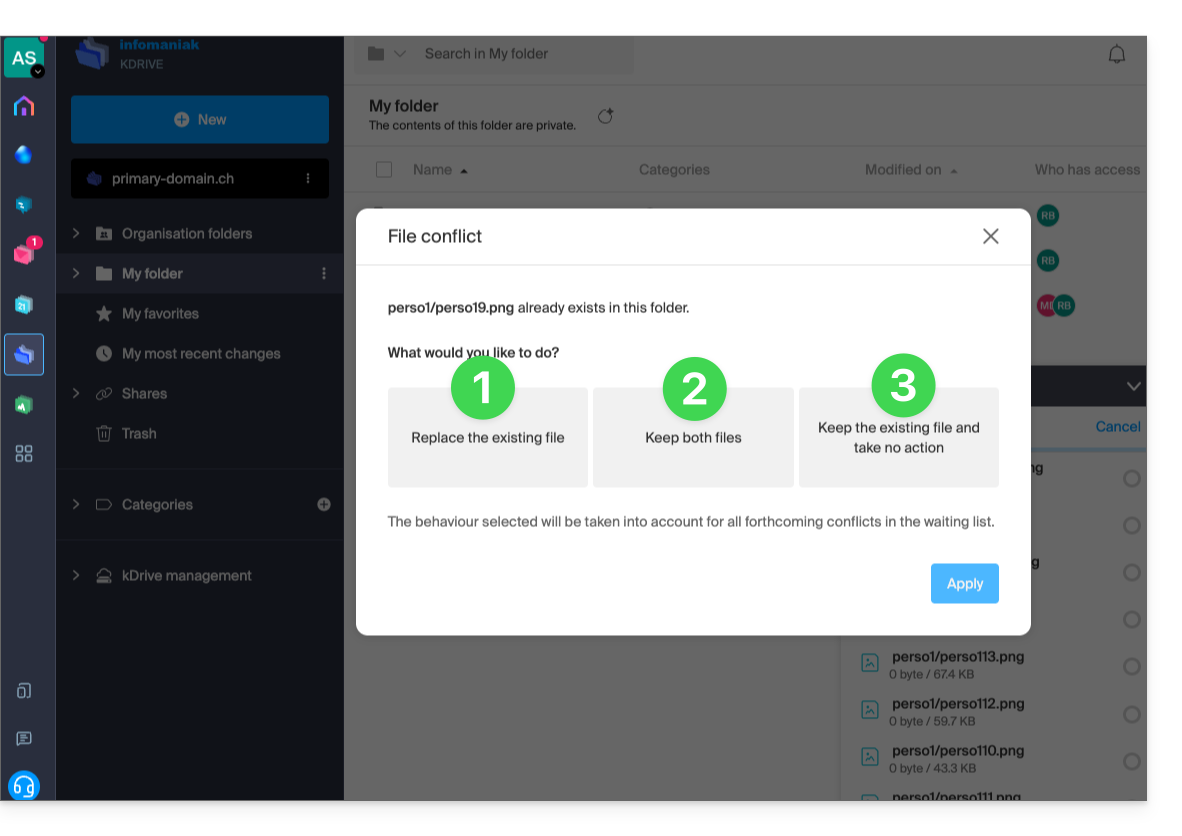
- All content will be imported into kDrive and will replace any existing content in the same location with the same name; the modification dates will be those of the imported files.
- All content will be imported to kDrive, and any content located in the same place with an identical name will be appended with the suffix
(1); the modification dates will be those of the imported files. - Only content that does not already exist on kDrive will be imported:
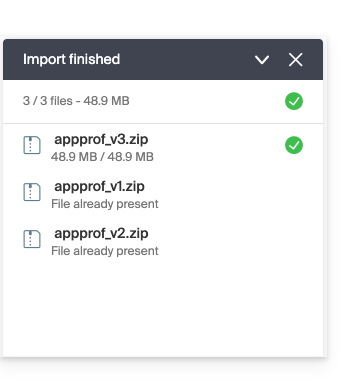
Moving a folder outside the storage folder
If your computer has a storage folder that is fully synchronized (and therefore has the same content as the web version), and you move one of the folders within it to a different location on your computer, it will disappear from its original location in the web version but will remain stored in the online trash (❓: help). Be careful if you then move this same folder back to its original location from your computer, as your data will then be present in two different locations in the web version (trash + original location).
Also, be aware that if you choose to restore the contents of the trash to its original location: 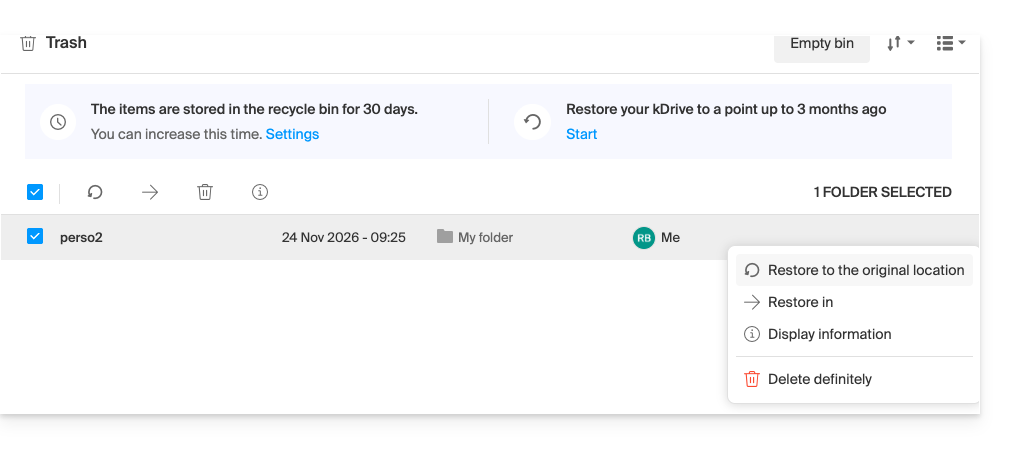
In this case, your data will then be present in two different locations on the computer (storage folder + location outside the storage folder to which you moved your data).
Desktop app temporarily disconnected
Prerequisites
- Do not run the kDrive application in the background on your device: the app icon should not be visible in the top right corner on macOS/Linux, and in the bottom right corner on Windows.
- Or if the app is running, do not have the kDrive in question connected within the app.
- Or if the app is running, the synchronization must be paused (the ⏸ symbol is visible on the app icon in the taskbar):
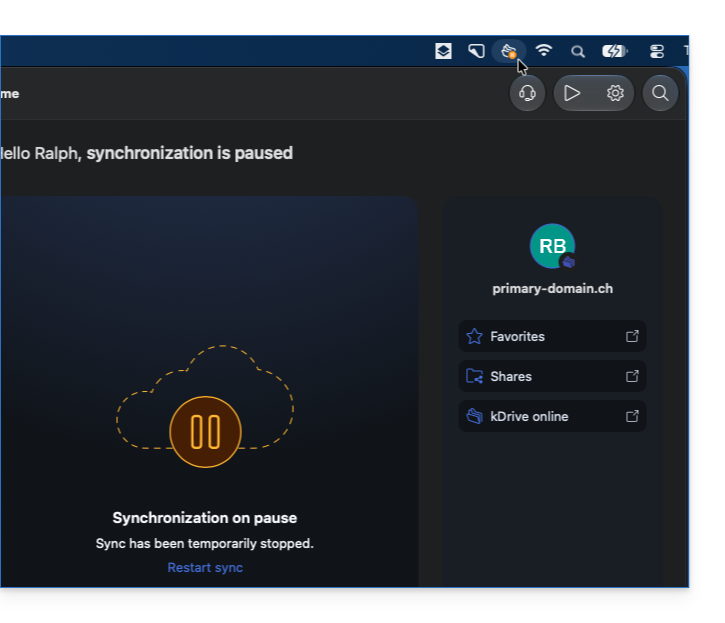
If the kDrive application is temporarily inactive on the computer, and files are modified (locally, i.e., on the computer in the folder used to store kDrive data, or via the online version), synchronization will resume when the application is active again. The most recent files will then be sent from the computer to the web version of kDrive:
- The CSV file has not yet been edited by a user; the previous synchronization is visible (the modification date is identical locally and online):
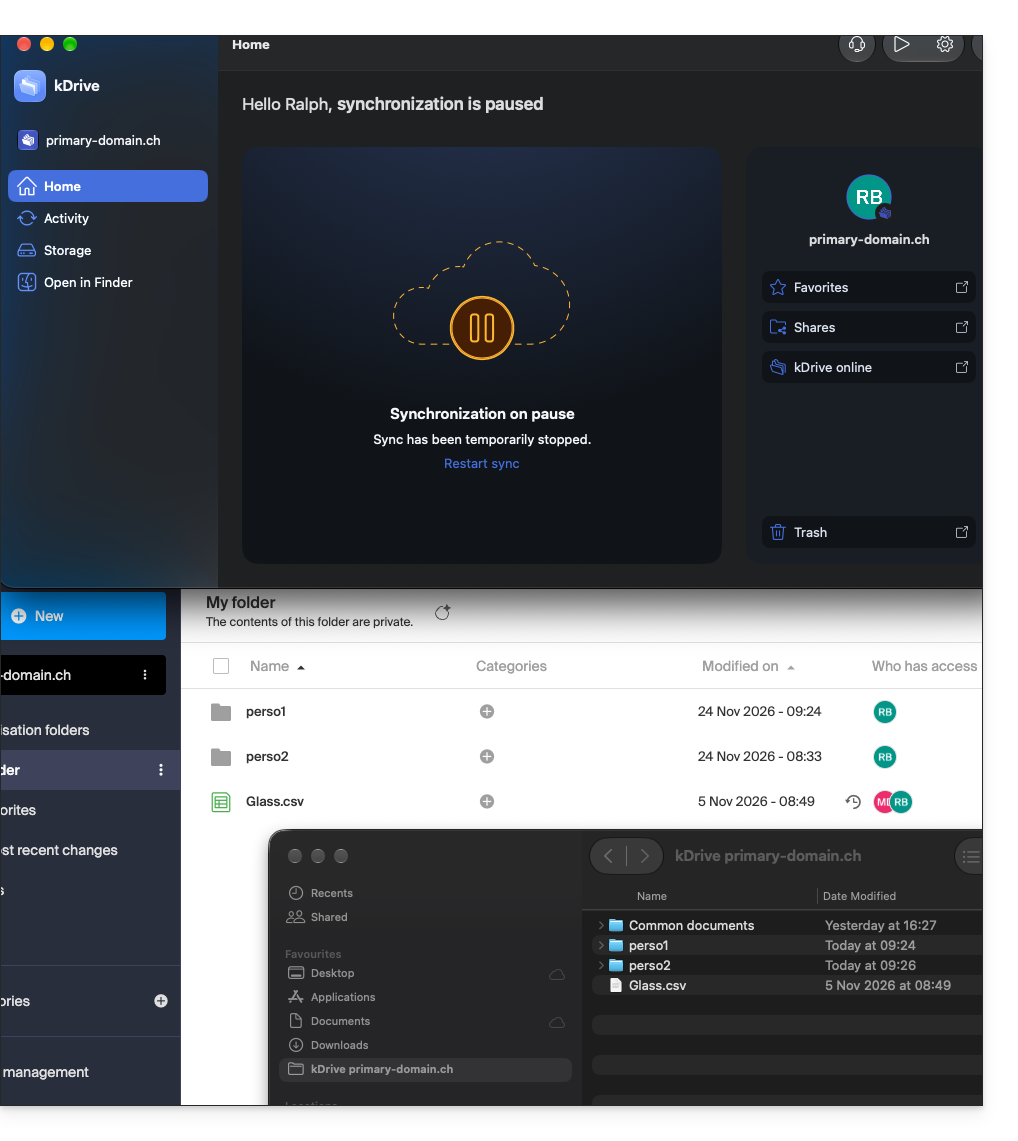
- The file content is edited by a user on the web version (its modification date is updated):
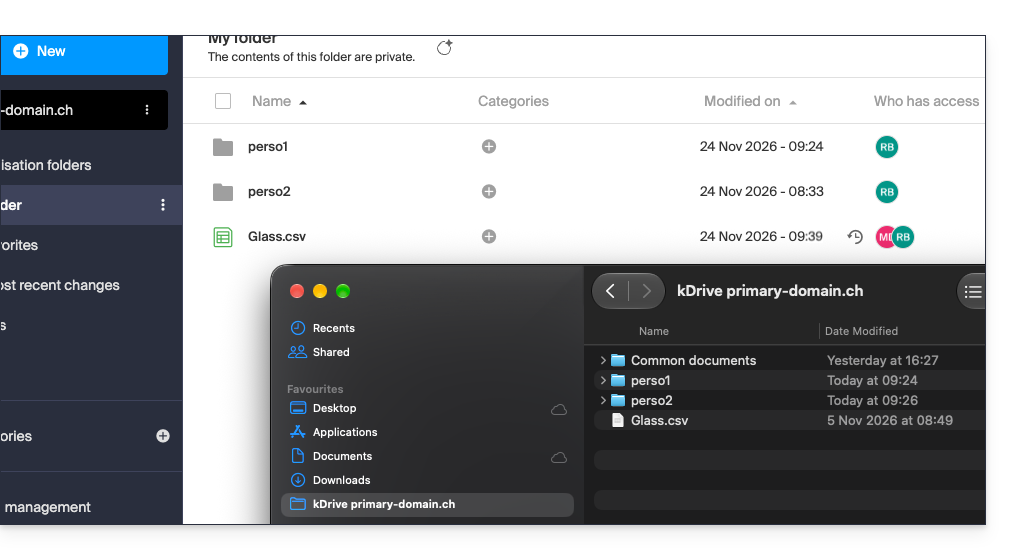
- When synchronization is re-enabled on the application, the most recent version (here, the online version) of the CSV file is downloaded to the computer:
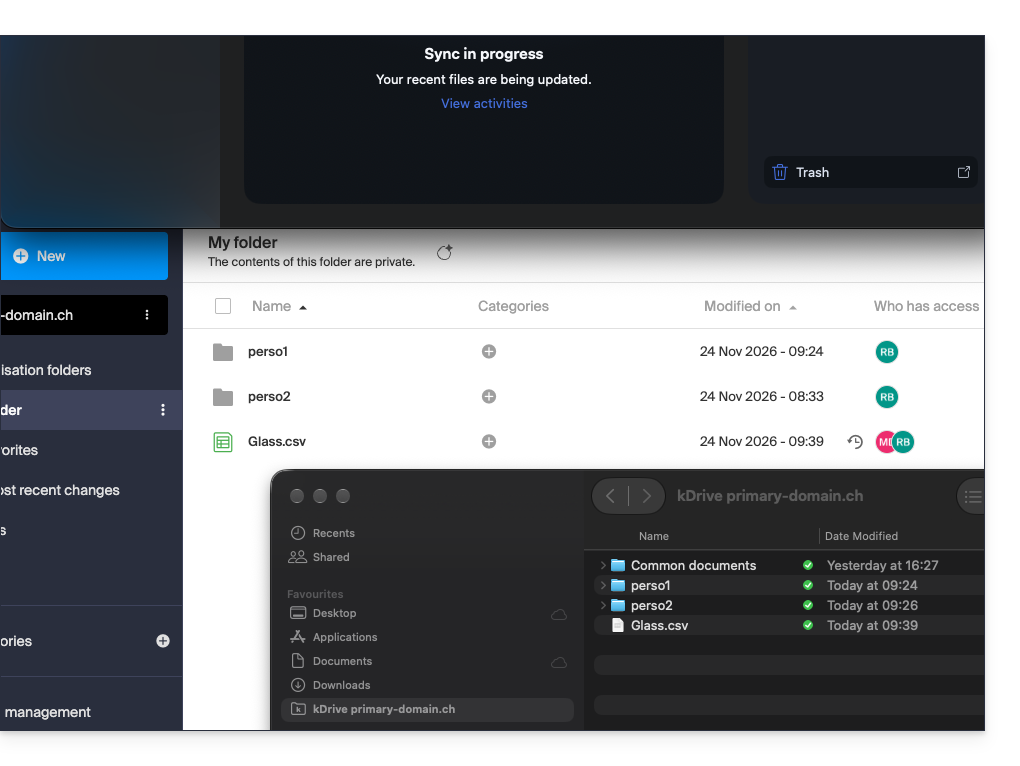
- Synchronization is paused, and the file content is now edited by a user on the computer (its modification date is updated):
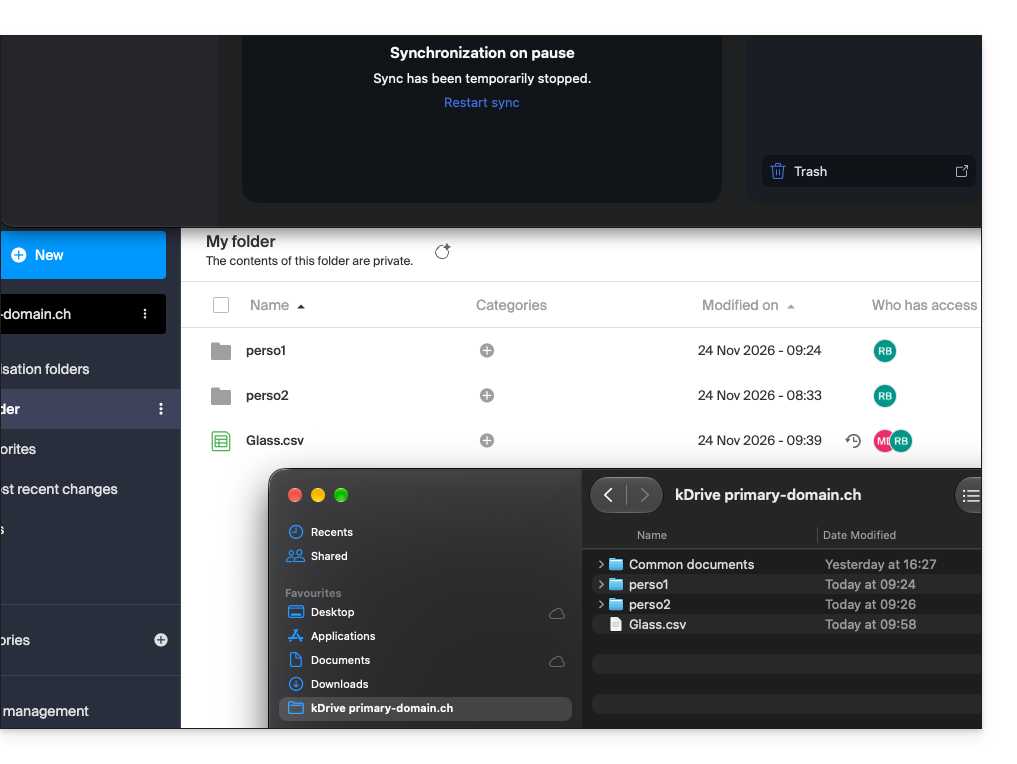
- When synchronization is reactivated in the application, the most recent version (here, the local version on the computer) of the CSV file is sent to kDrive Web:
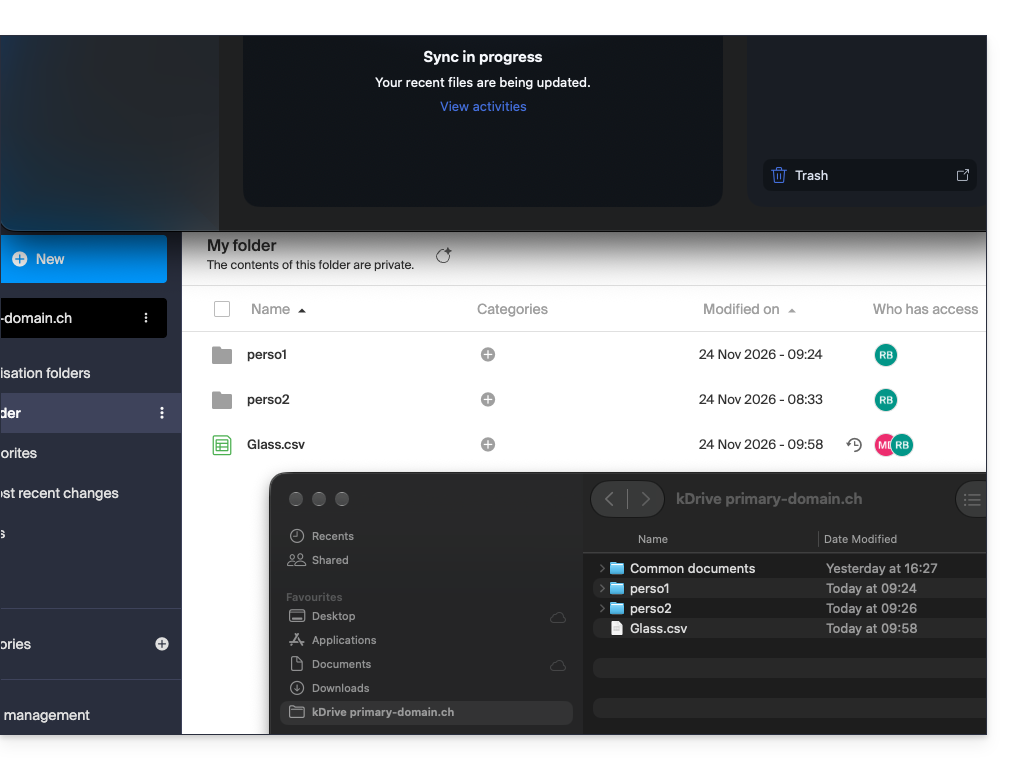
- Synchronization is paused, and the file content is edited simultaneously on the computer and in the online version:
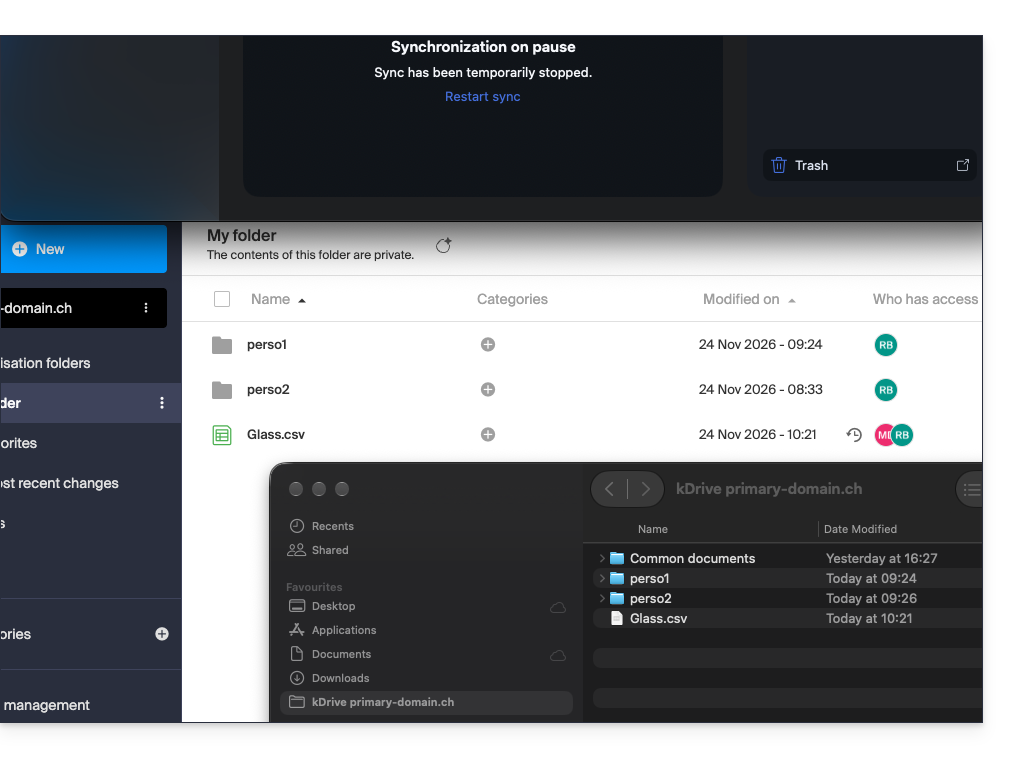
- When synchronization is reactivated in the application, a conflict is detected because the file was modified simultaneously on two different devices. The file modified on the computer is appended with the suffix
_conflict_date_time_XxXXXxxxXx(date & time correspond to the time of the renaming following the conflict), and the file present on kDrive Web is downloaded to the computer: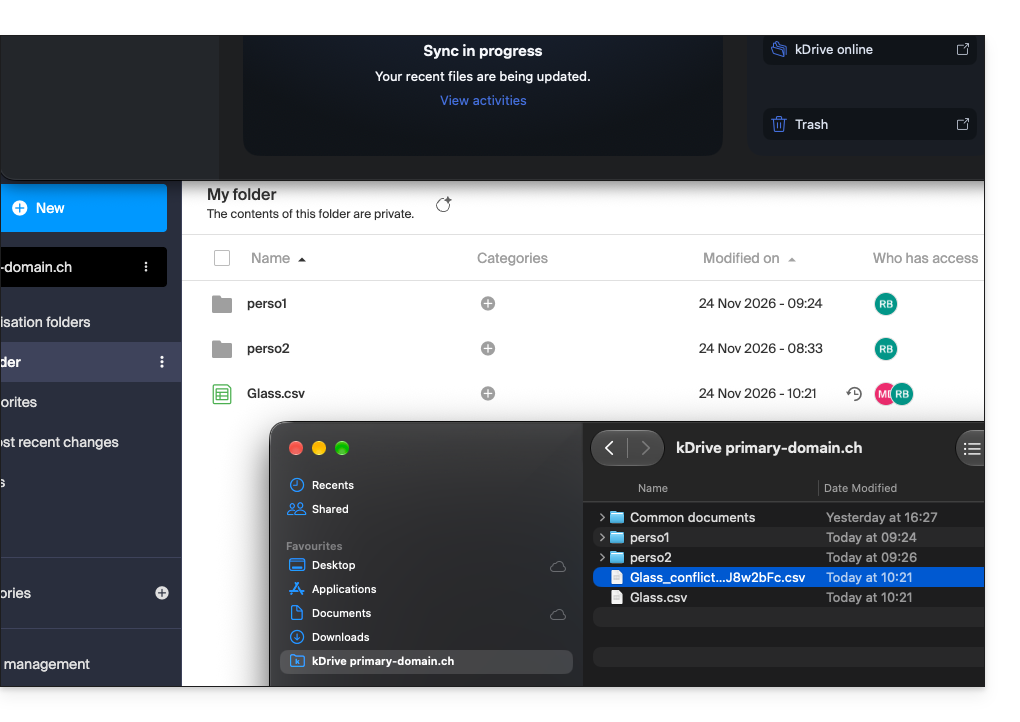
These conflicts are detailed in this other guide.
Computer's Recycle Bin vs kDrive Recycle Bin
If you delete or move files or folders from kDrive Web, and then reconnect the kDrive application on your computer, the changes will be reflected in your local storage folder.
Files and folders deleted from kDrive Web are then moved to the recycle bin on your computer. Be careful if the recycle bin has a limited size, especially under Windows. Items moved in kDrive Web are obviously reflected in your local folder.
If you also deleted files or folders directly from your computer before reconnecting, these deletions will be reflected in kDrive Web during synchronization. The affected items will therefore be placed in the kDrive Web trash, even if you have emptied the trash on your computer.
Previously shared files
Let's take a CSV file that has already been synchronized and manually shared with another kDrive user (❓: help), as indicated by the "Who has access" column: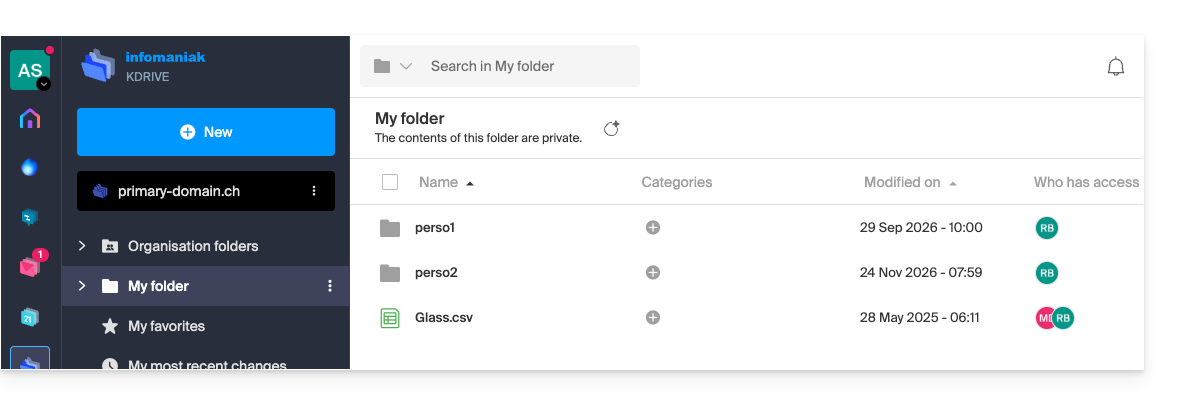
On the computer, the CSV file is replaced and overwritten by the user who moves it from a local folder: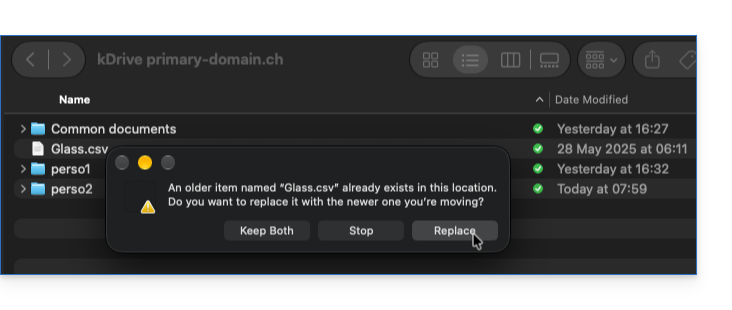
Once the file has been re-synchronized by the kDrive app, its sharing settings remain unchanged after synchronization (only its content and modification date have changed):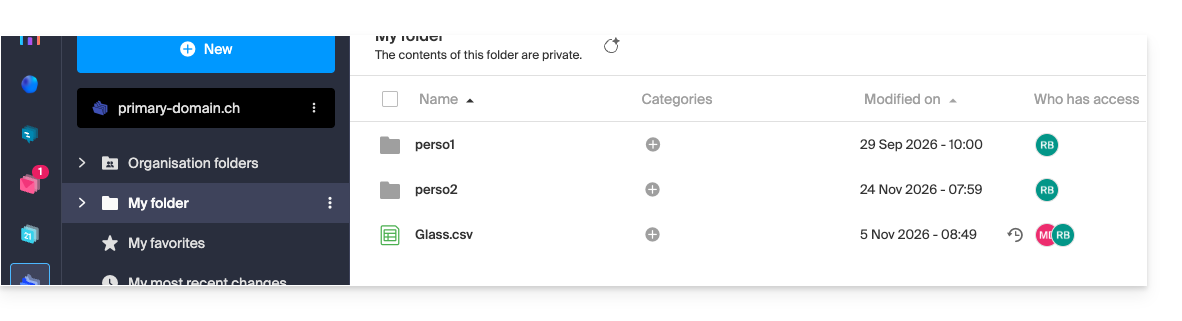
- You can revert to a previous version of this file (❓: help).
Link to this FAQ: https://faq.infomaniak.com/2943
Has this FAQ been helpful?