Knowledge base
1000 FAQs, 500 tutorials and instructional videos. Here, there are only solutions!
Install kDrive on Windows
Update 10/22/2026
This guide details the installation of the kDrive desktop application from Infomaniak on a computer equipped with the Windows operating system. This application allows you to automatically synchronize files from your computer with your online kDrive storage.
Install the kDrive 4.x app on Windows
To do this:
- Open the downloaded application (❓: help) to start the installation on your device.
- The configuration window opens automatically after installing the application (and the app icon should be visible in the bottom right corner on Windows).
- Click the button to log in to your account:
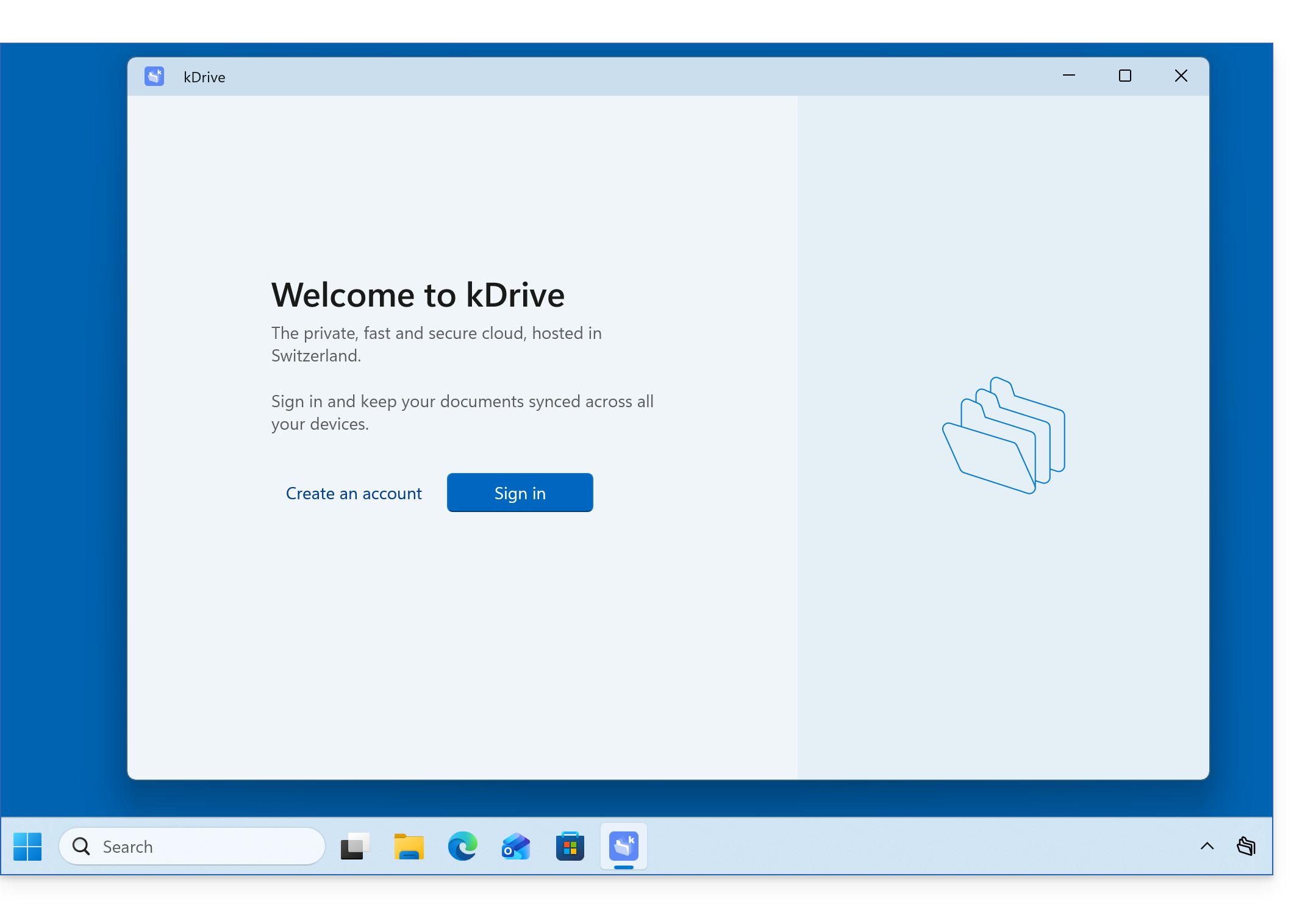
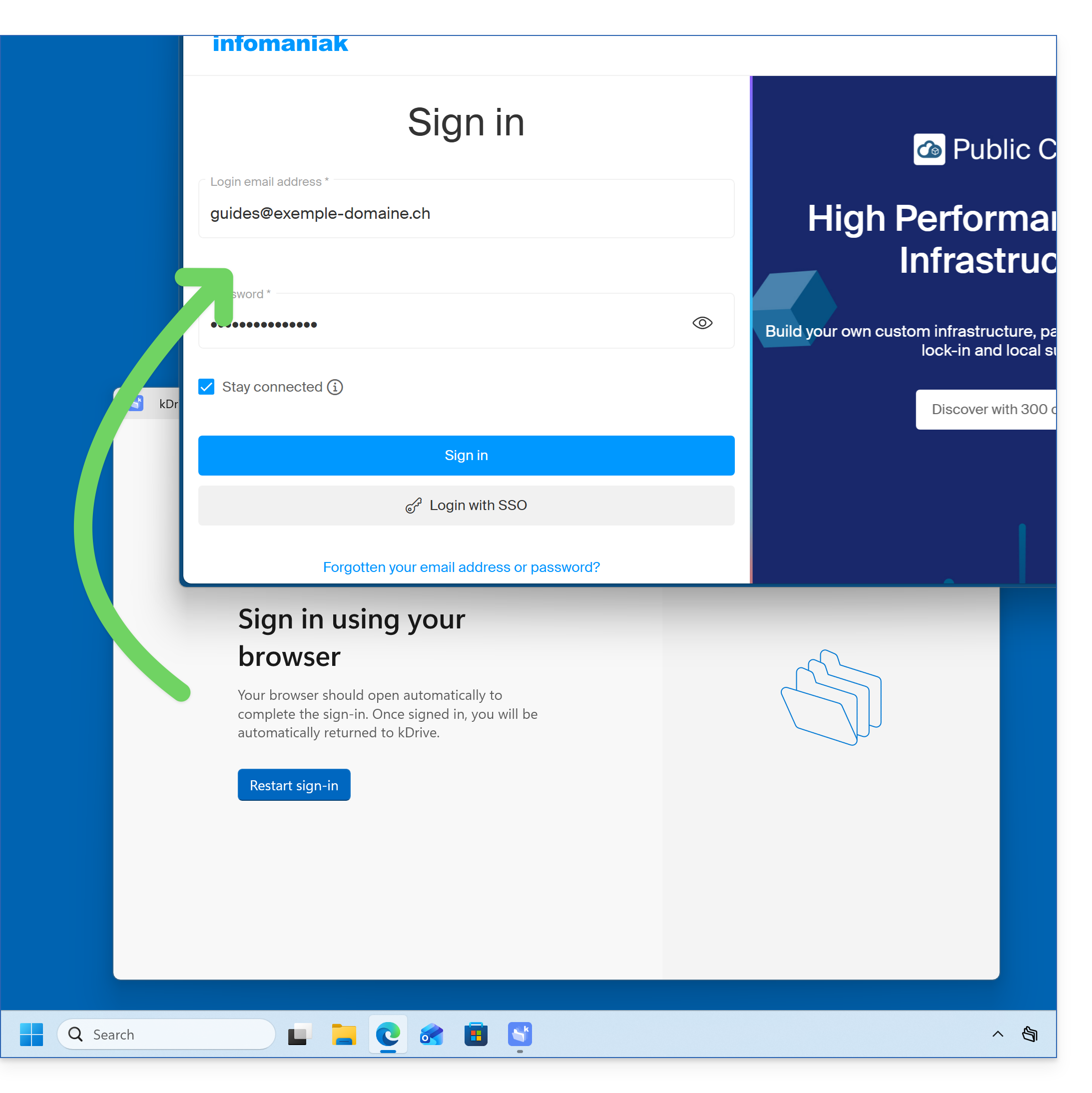
- The browser opens, allowing you to connect to your Infomaniak account, which will take you to the Organization(s) containing your kDrive:
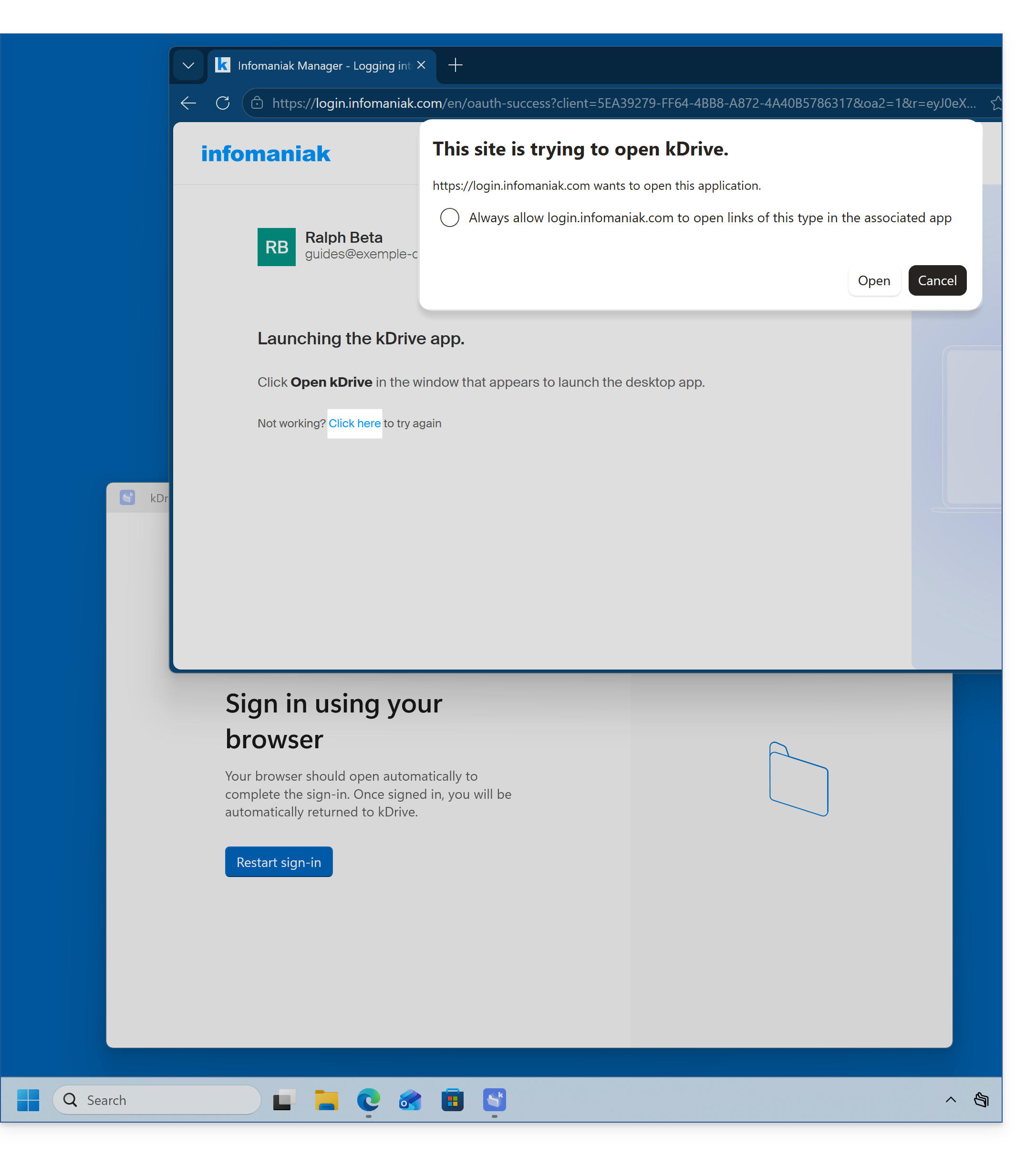
- The browser may ask for your permission to interact with the kDrive application to confirm the connection; click the Open button (if you cancel by mistake, click the link to request it again):
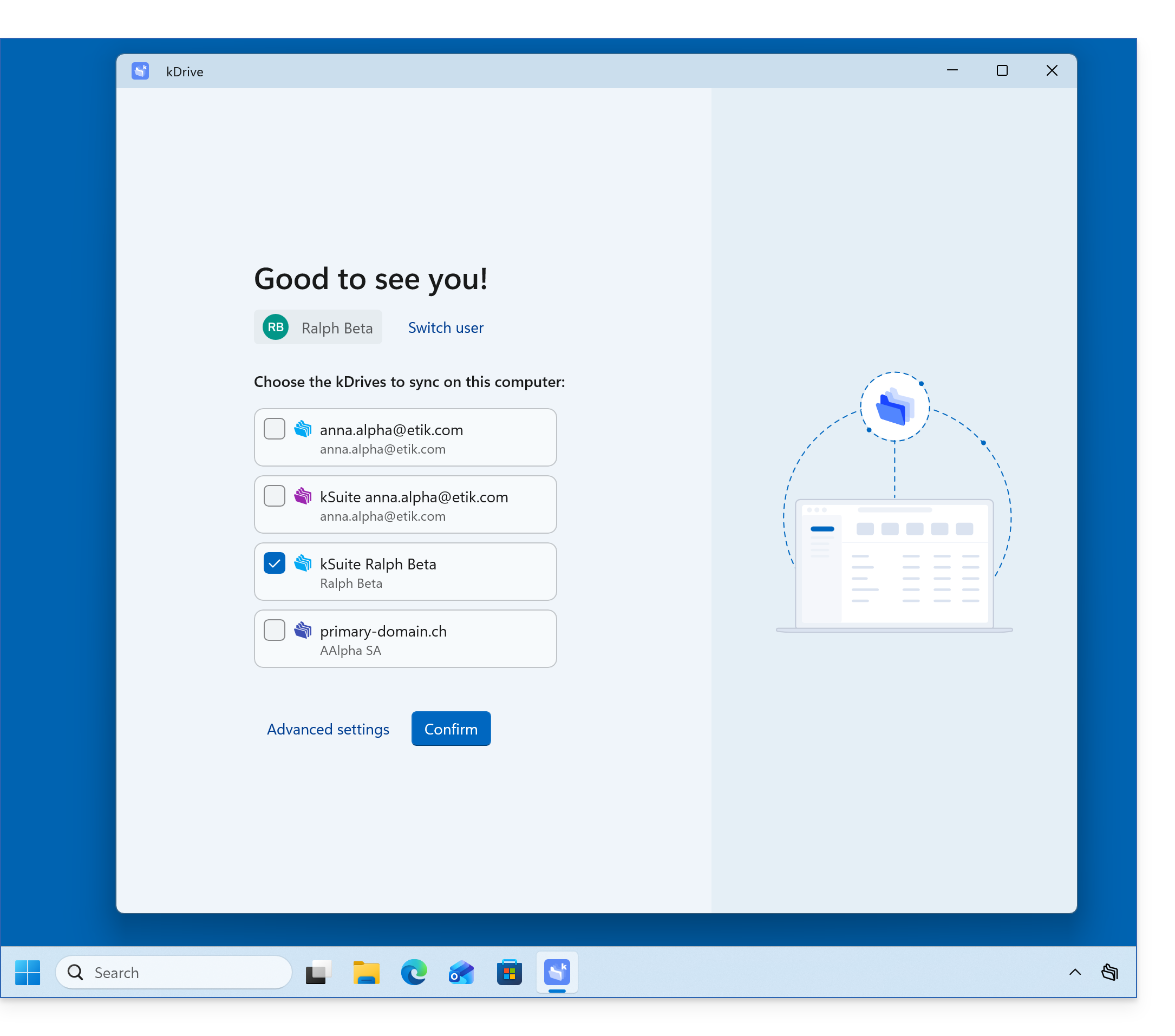
- You can close the browser; select the kDrive(s) that your user has access to and that you want to synchronize on this device, then click on Advanced Settings:
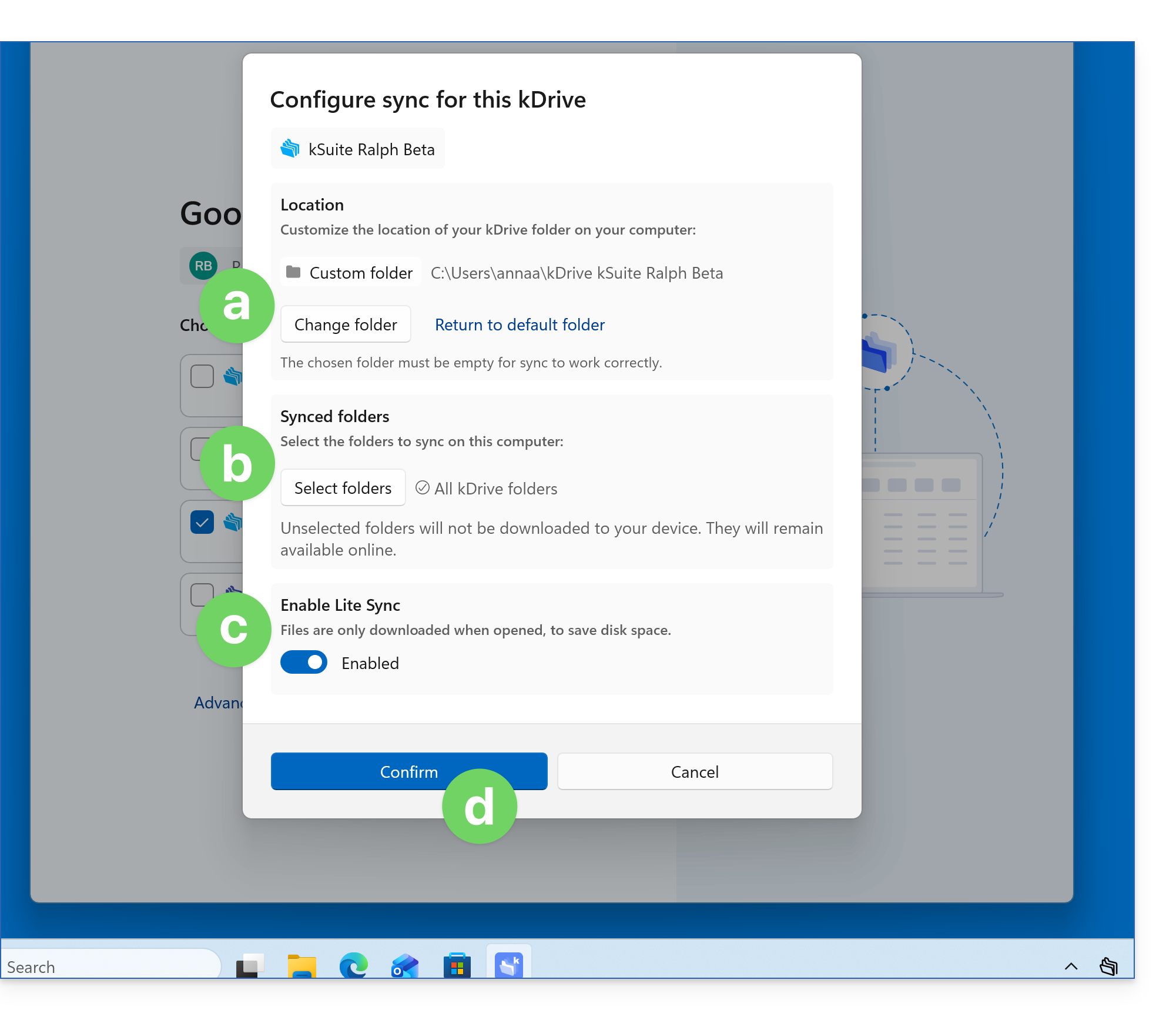
- The Advanced Settings allow you to choose:
- the location where the kDrive data will be stored (the folder must be empty),
- the existing folders on kDrive that should not be displayed on this device (❓: help),
- whether to store the kDrive files on the disk with their actual size, or whether they can be “virtually” listed while being stored on the remote servers (❓: help).
- Confirm at the bottom of the page:
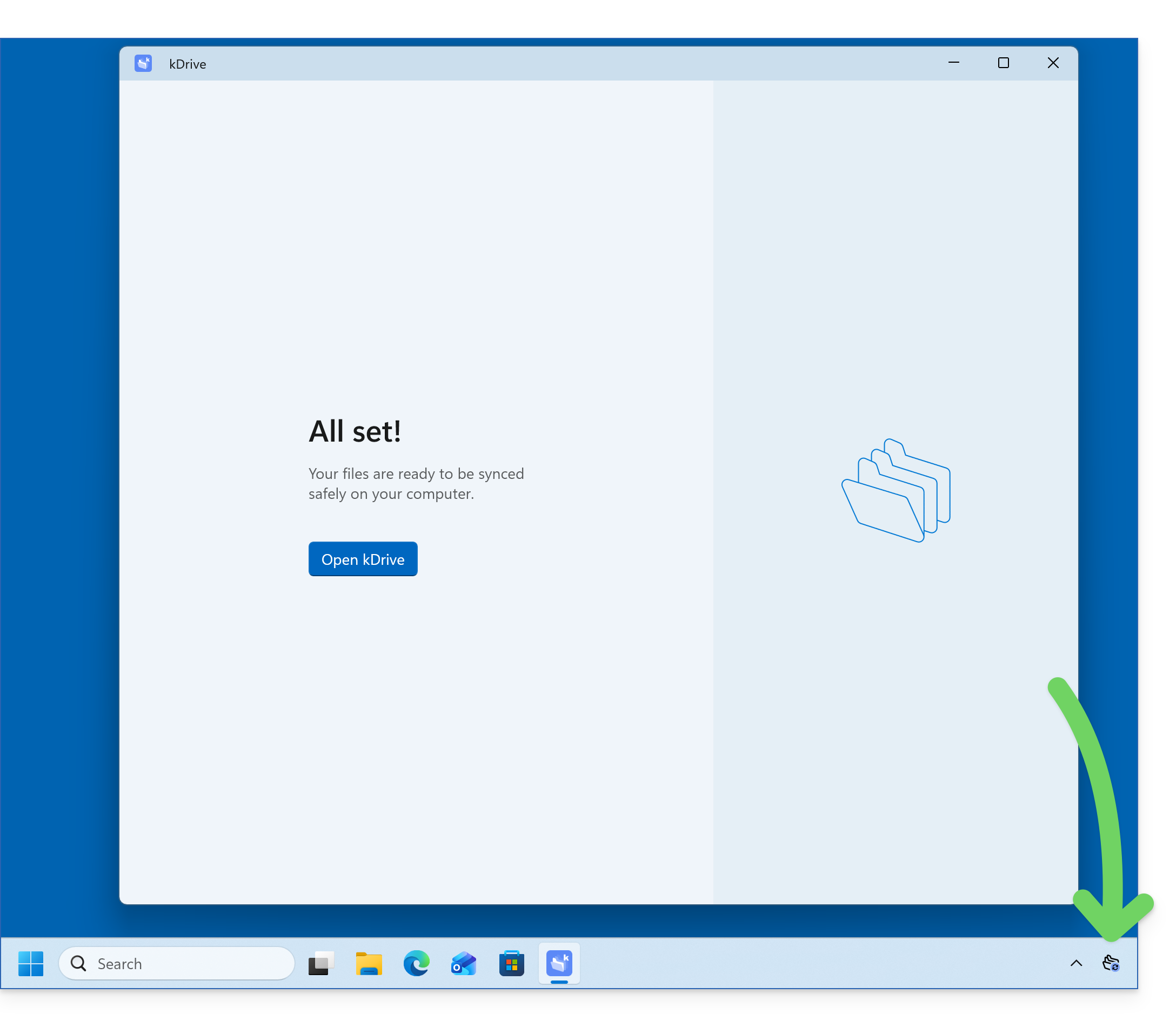
- Click the Confirm button next to the advanced settings to complete the installation; the app should run in the background, allowing for automatic synchronization; you should always see its icon (❓: help):
- Refer to other guides to continue exploring the kDrive application.
Install the kDrive 3.x app on Windows
To do this:
- Open the downloaded application to start the installation on your device.
- Once the installation is complete, the application should open and a form will prompt you to log in to your Infomaniak account.
- Next, choose the kDrive you want to synchronize from the list, if your account allows access to multiple kDrives — you can link others later if needed (❓: help).
- Enable or disable the Lite Sync option (❓: help), which saves space by virtually storing your kDrive files on your computer, only downloading them when necessary.
- A kDrive folder is created on your hard drive at the specified location (it is recommended not to change this location, but if necessary, you can do so by clicking on the pencil icon ✎):
- It will contain any files that already exist on your kDrive (some folders may be ignored - see below) and will upload all files you place in it to the kDrive server in the future.
- During installation,pay attention to the permissions that may be requested (especially on macOS) and that must be granted for the application to function properly (❓: help).
- Once the installation is complete, you can choose to open the file storage location for kDrive on your hard drive.
- You can then compare the data on your hard drive with the data in the kDrive web app from Infomaniak (online service ksuite.infomaniak.com/kdrive):
- Click on the action menu ⋮ on the right side of the kDrive window.
- Click to open the web version.
Link to this FAQ: https://faq.infomaniak.com/2936
Has this FAQ been helpful?