Knowledge base
1000 FAQs, 500 tutorials and instructional videos. Here, there are only solutions!
Install kDrive on macOS (system permissions)
Update 10/22/2026
This guide details the installation of the Infomaniak v4.x desktop application kDrive on a computer running the macOS operating system. This application allows you to automatically synchronize files from your computer with your online kDrive storage space.
Introduction
- Installing kDrive requires you togrant certain permissions to the application's componentsto enable them to run on your Apple computer.
- This guide outlines the steps to follow on recent versions of macOS; for older versions, refer to the last chapter of the guide.
Install the kDrive 4.x app on recent macOS
To do this:
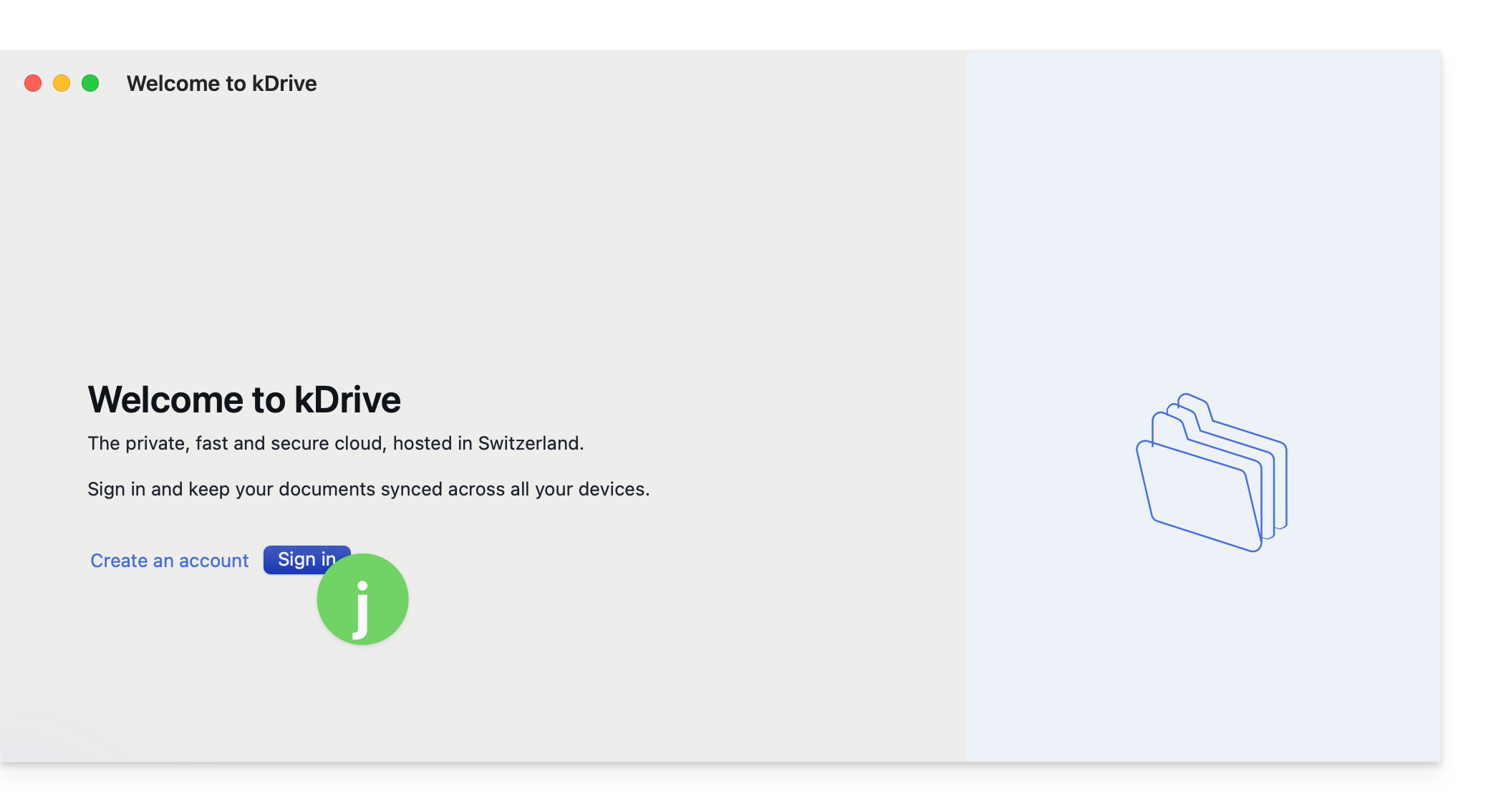
- Open the downloaded application (❓: help) and start the installation on your computer:
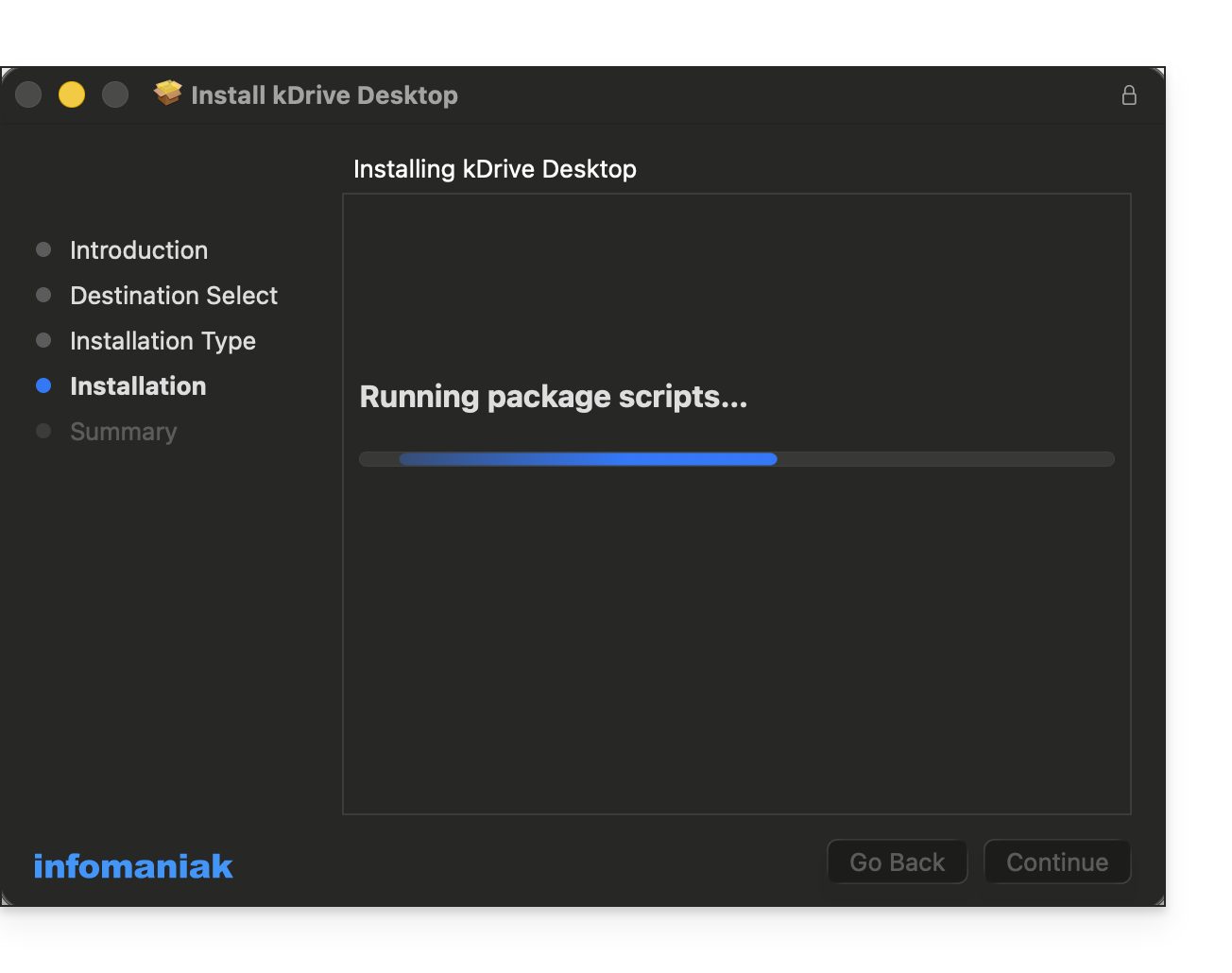
- Once the installation is complete:
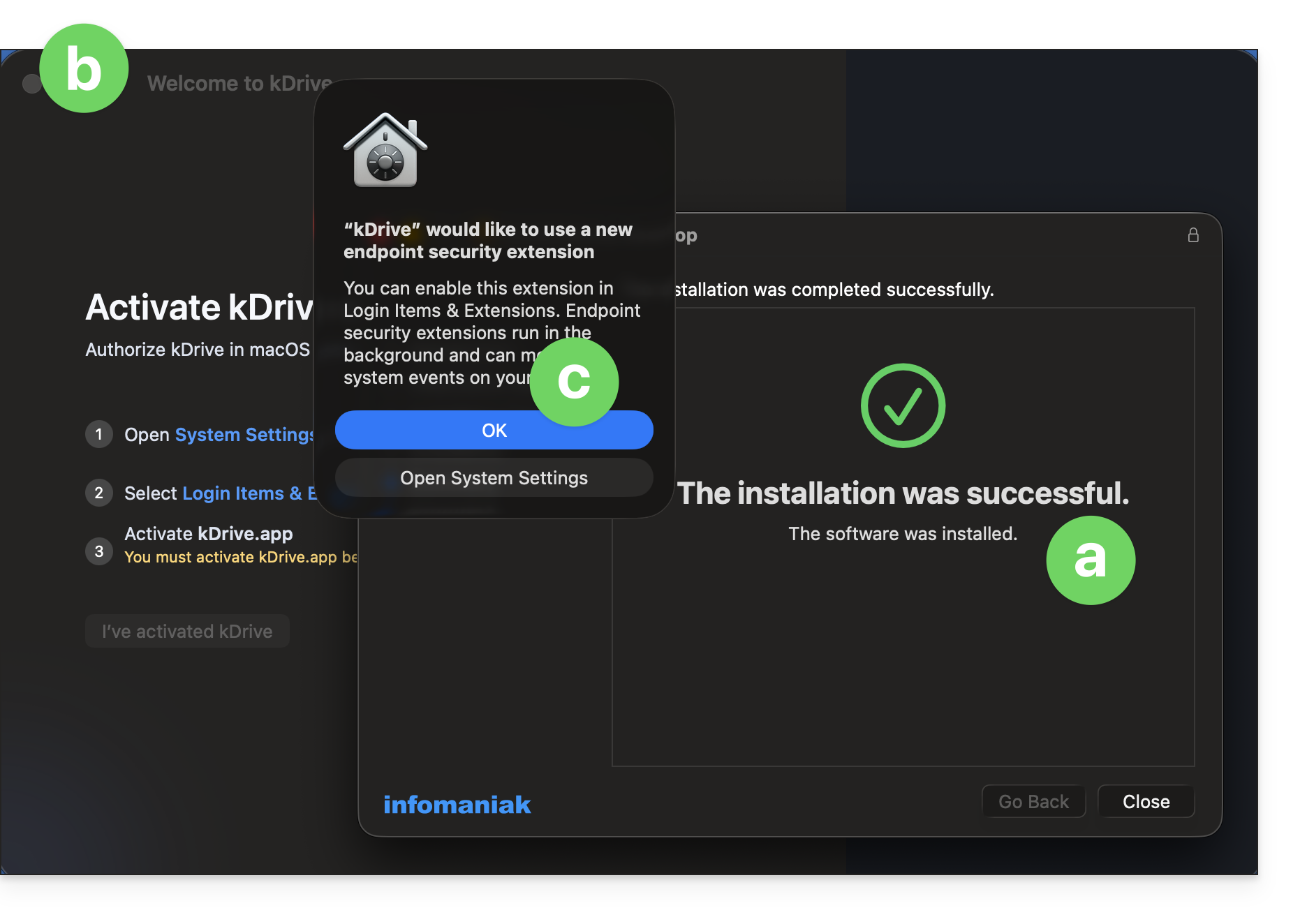
- The installer indicates that the operation was successful.
- The kDrive configuration window opens automatically.
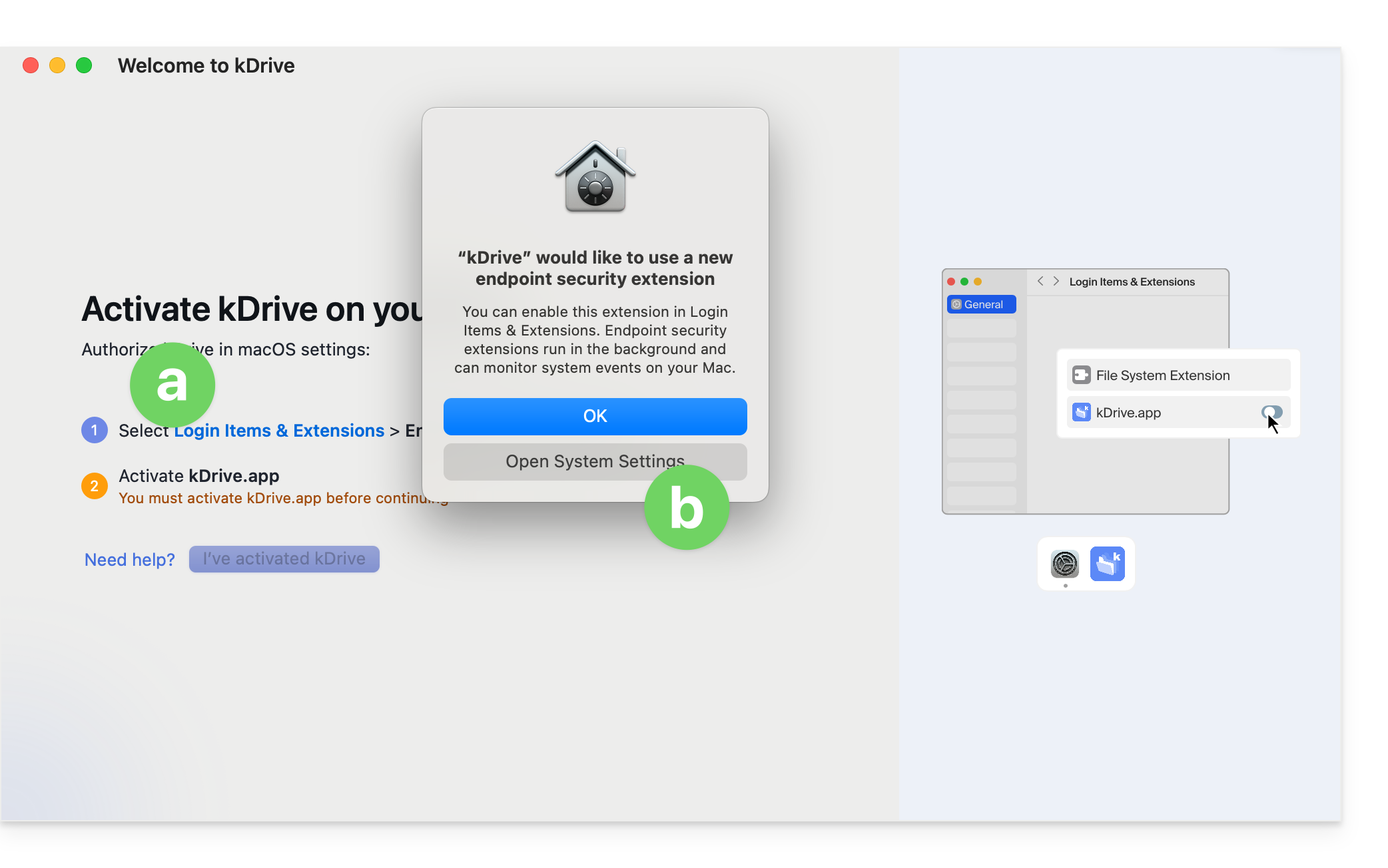
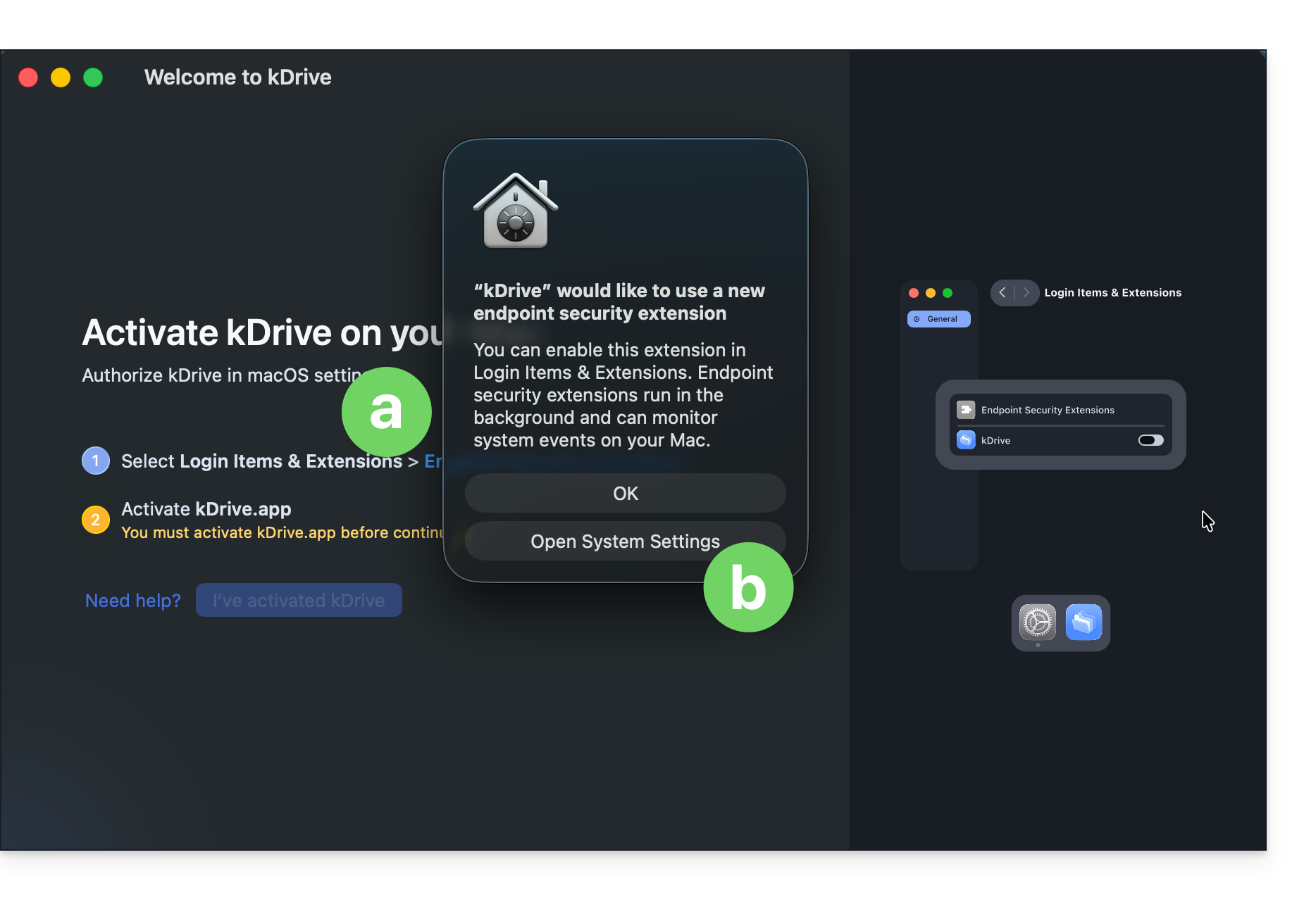
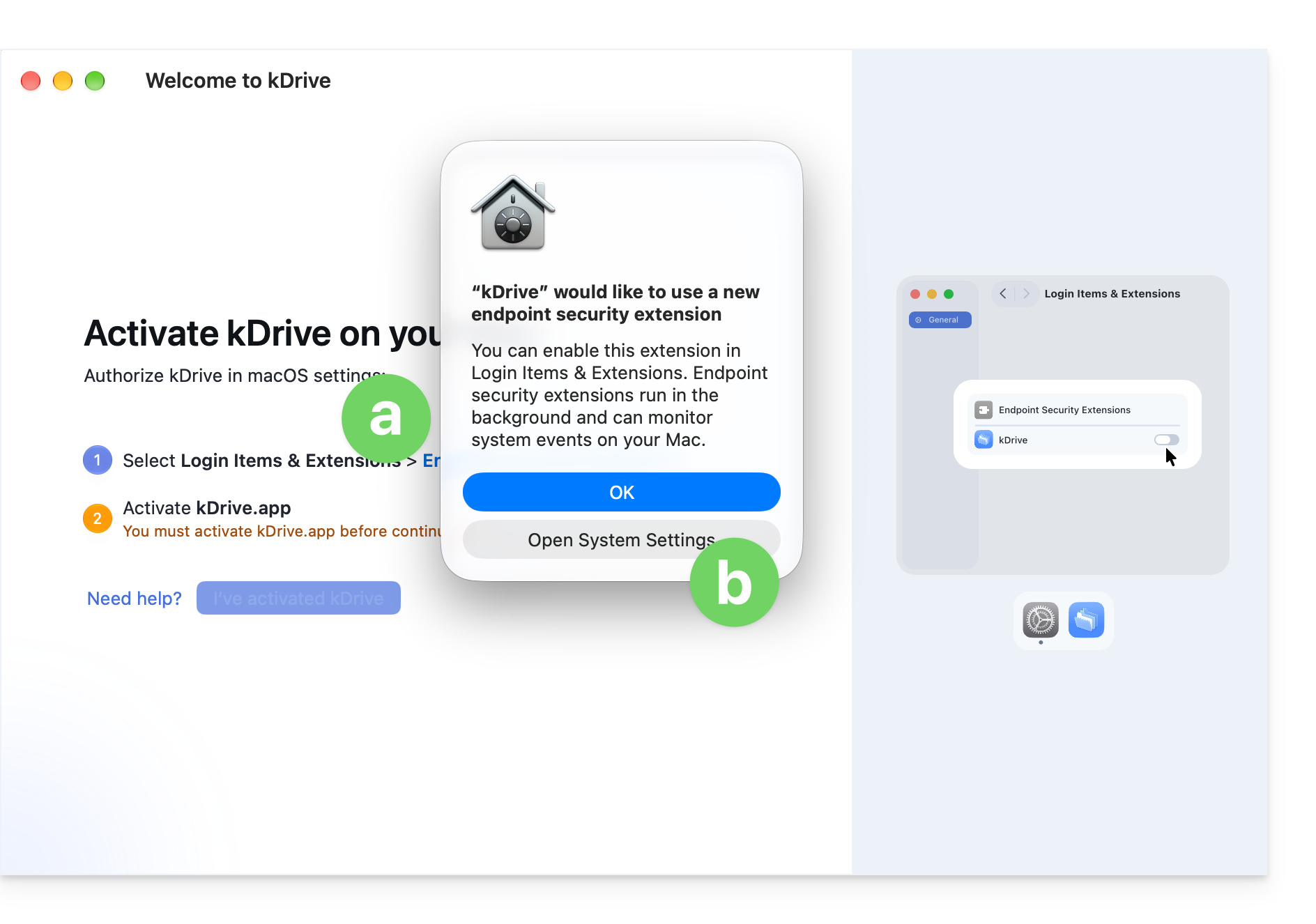
- A macOS permissions window also opens.
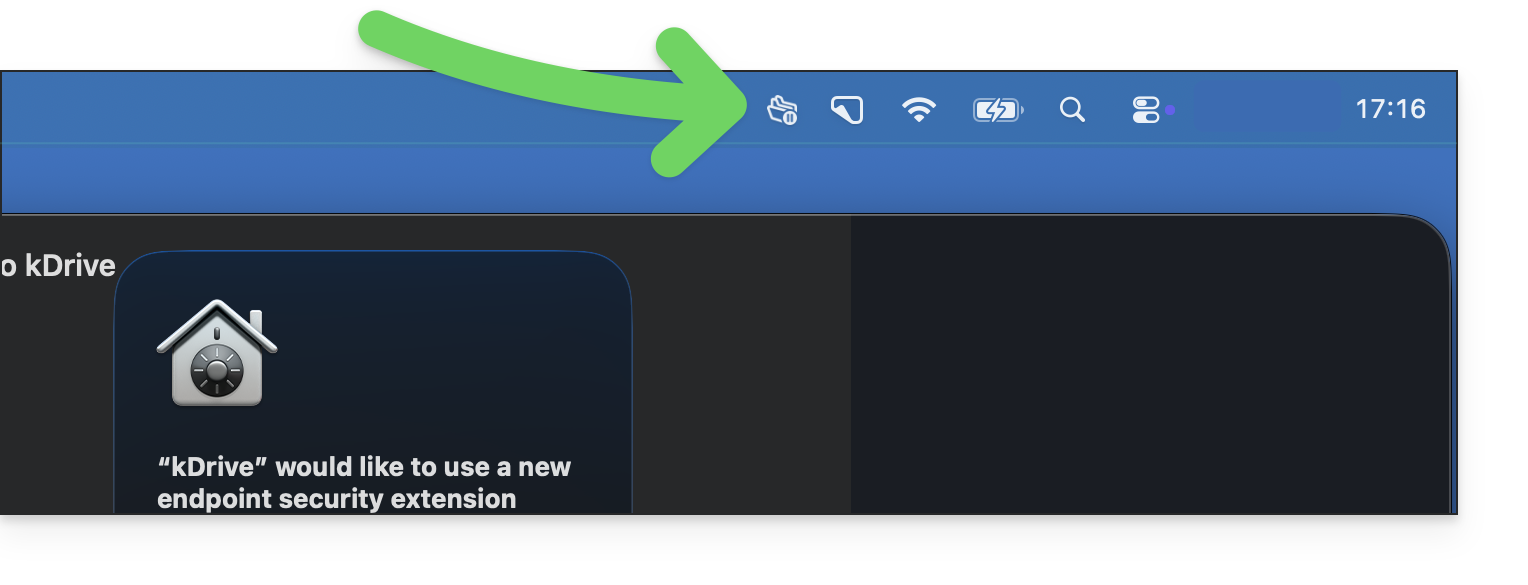
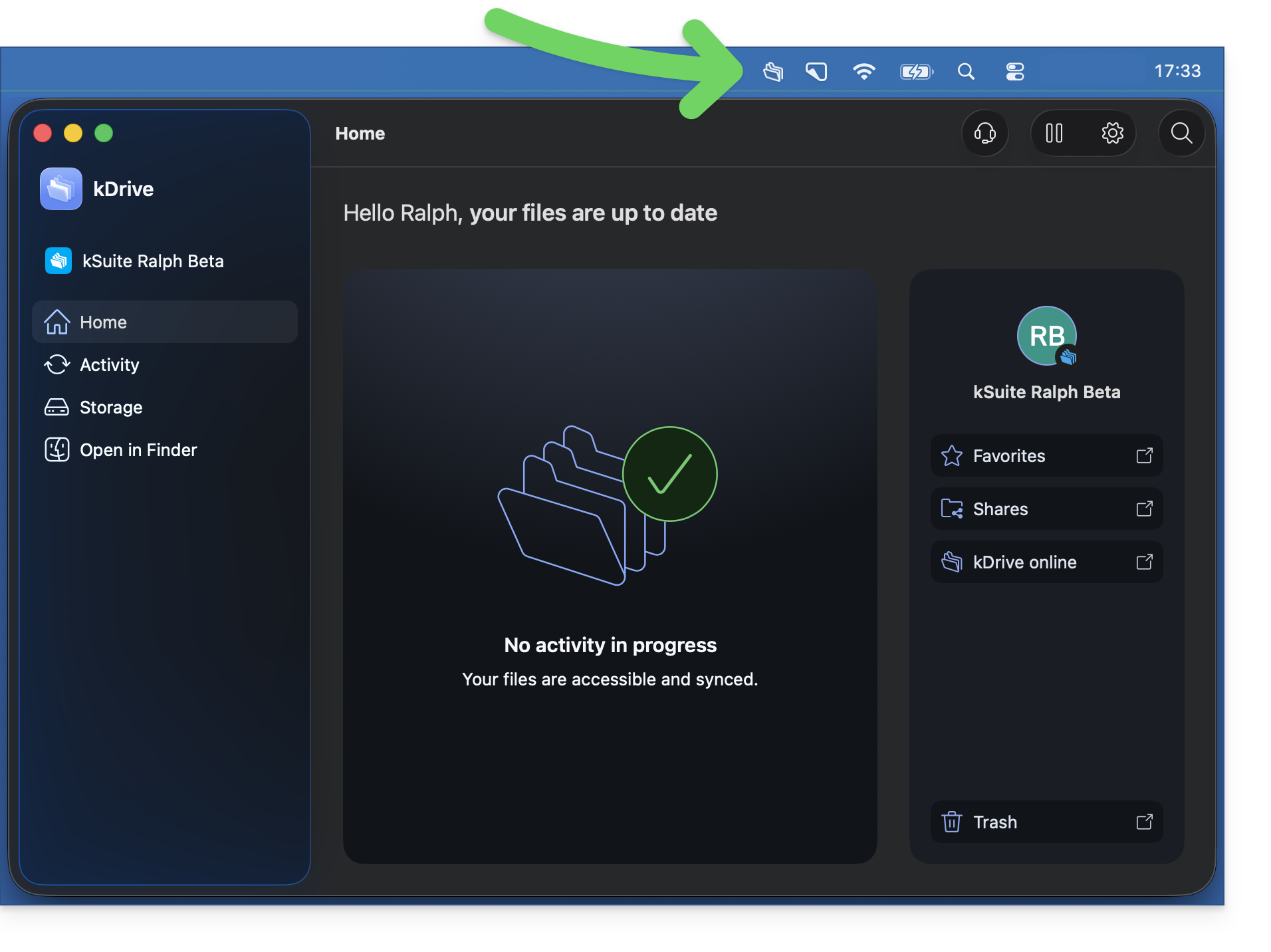
- and the app icon should be visible in the upper right corner on macOS:
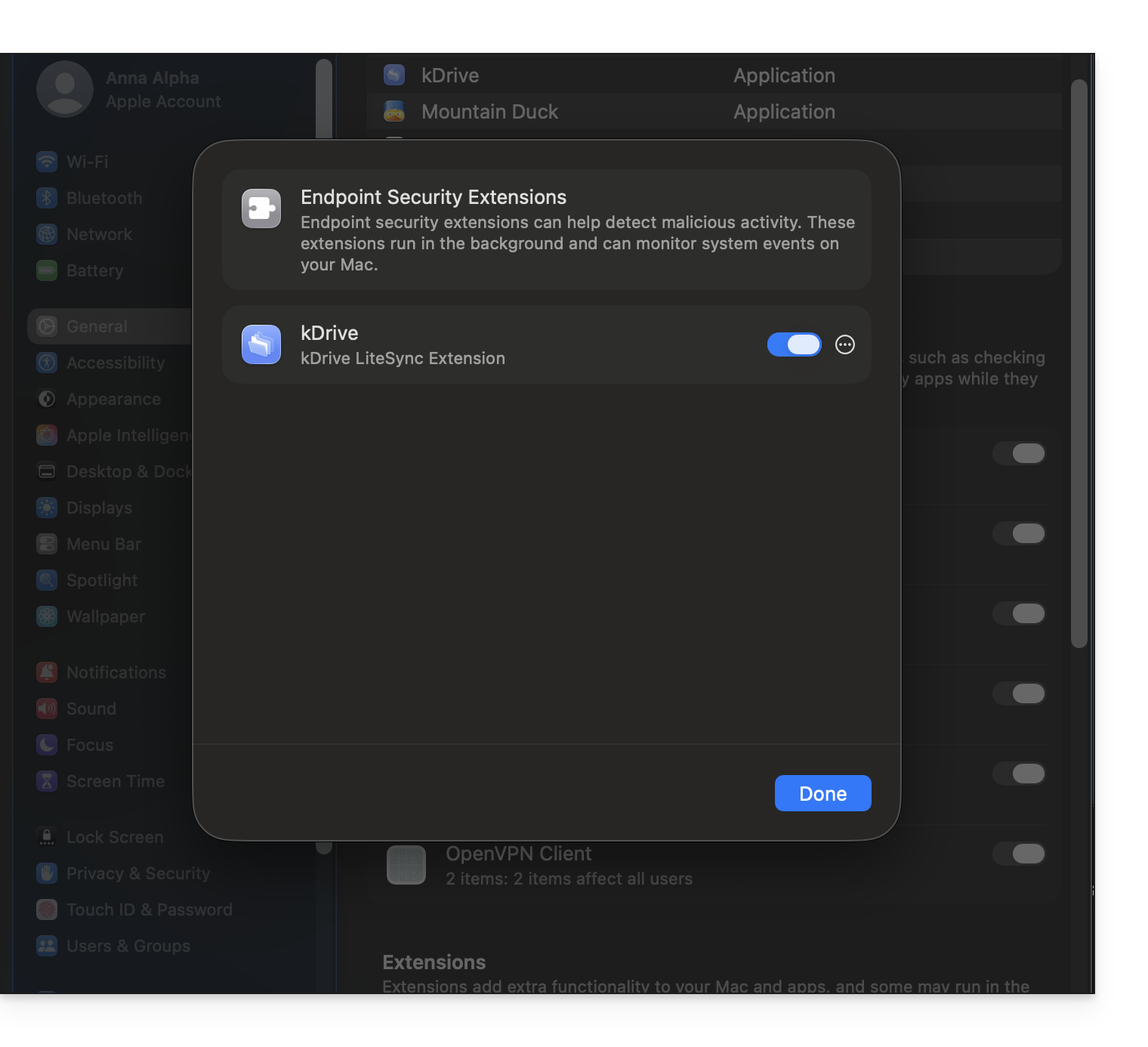
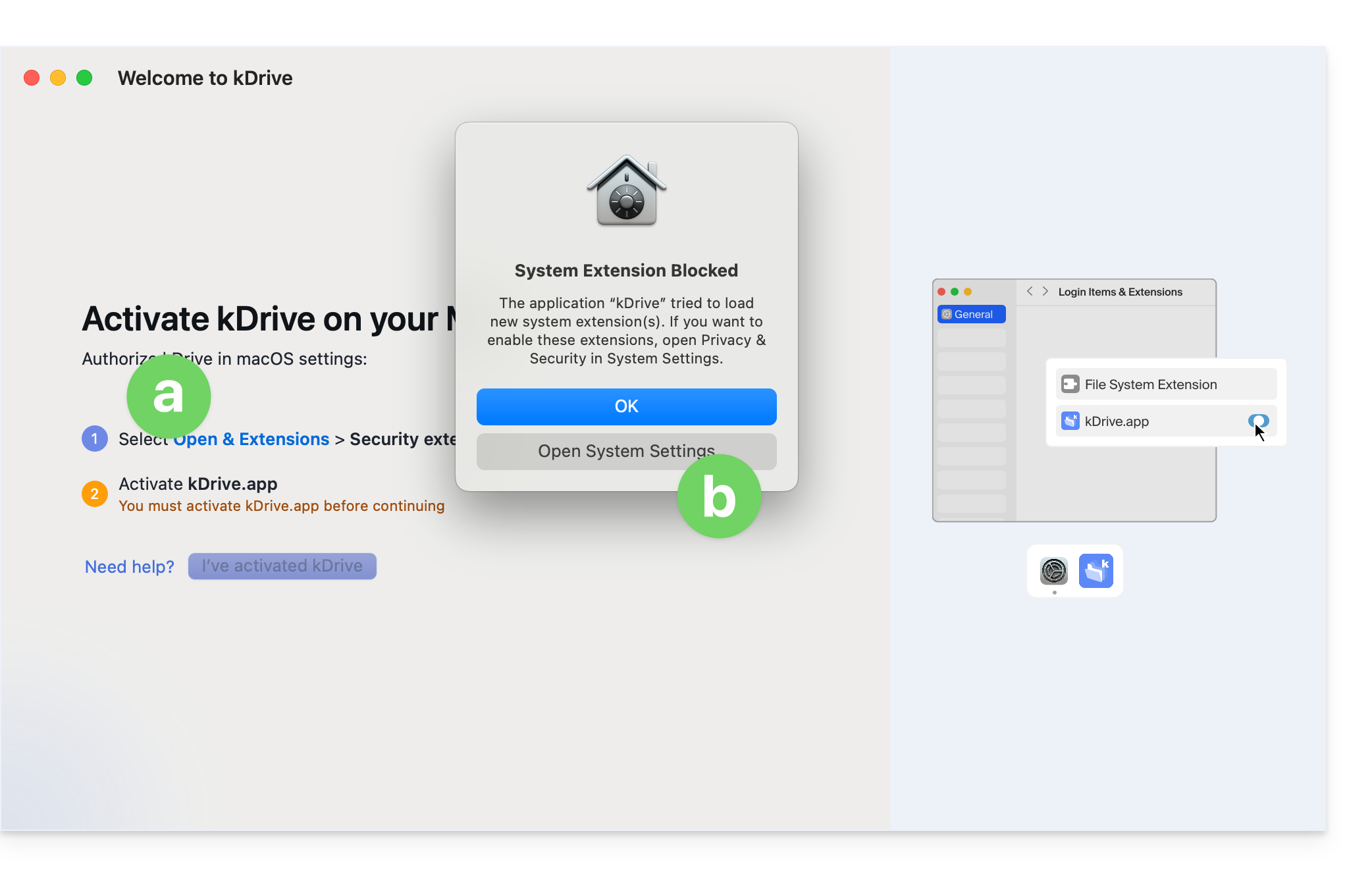
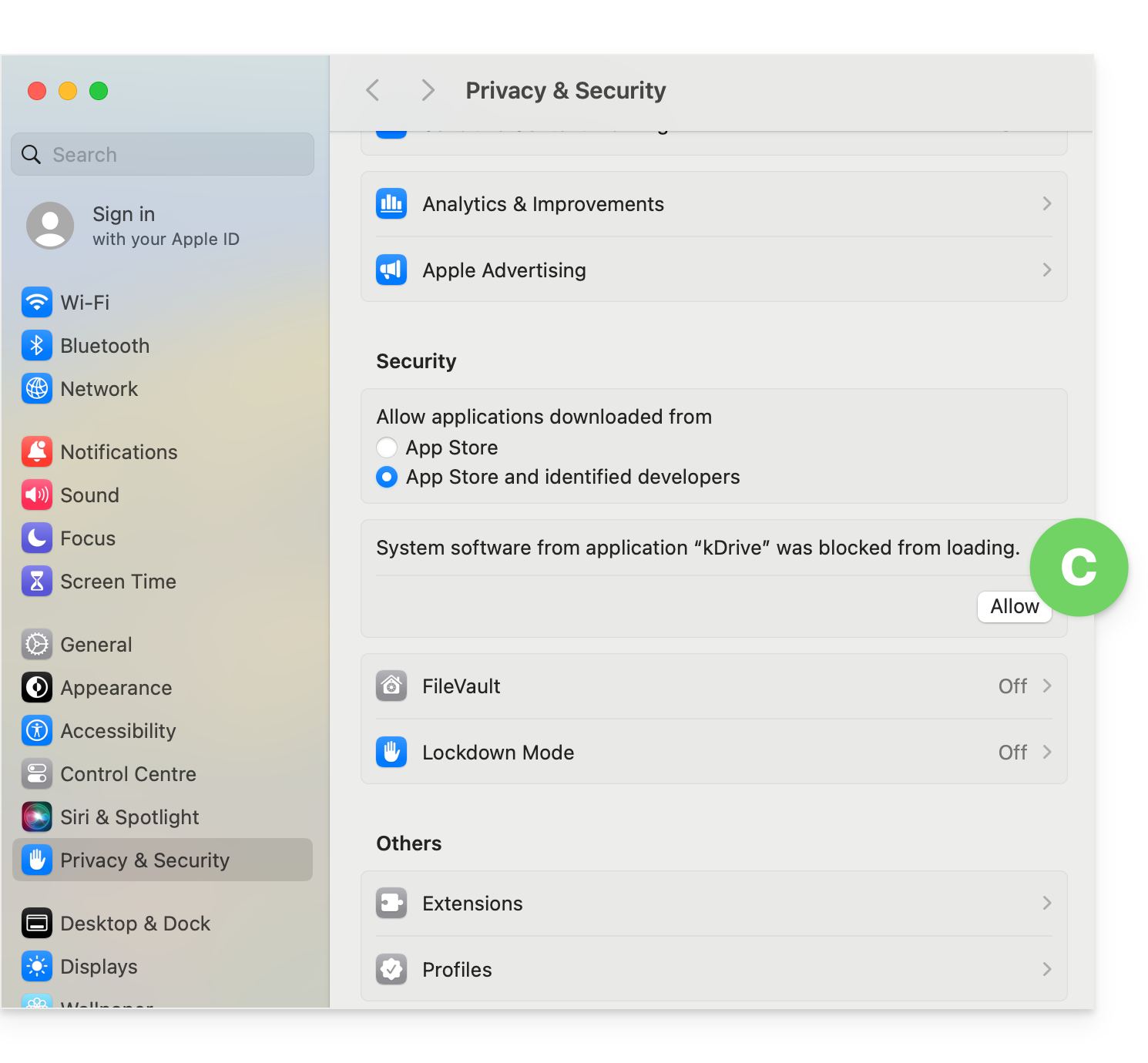
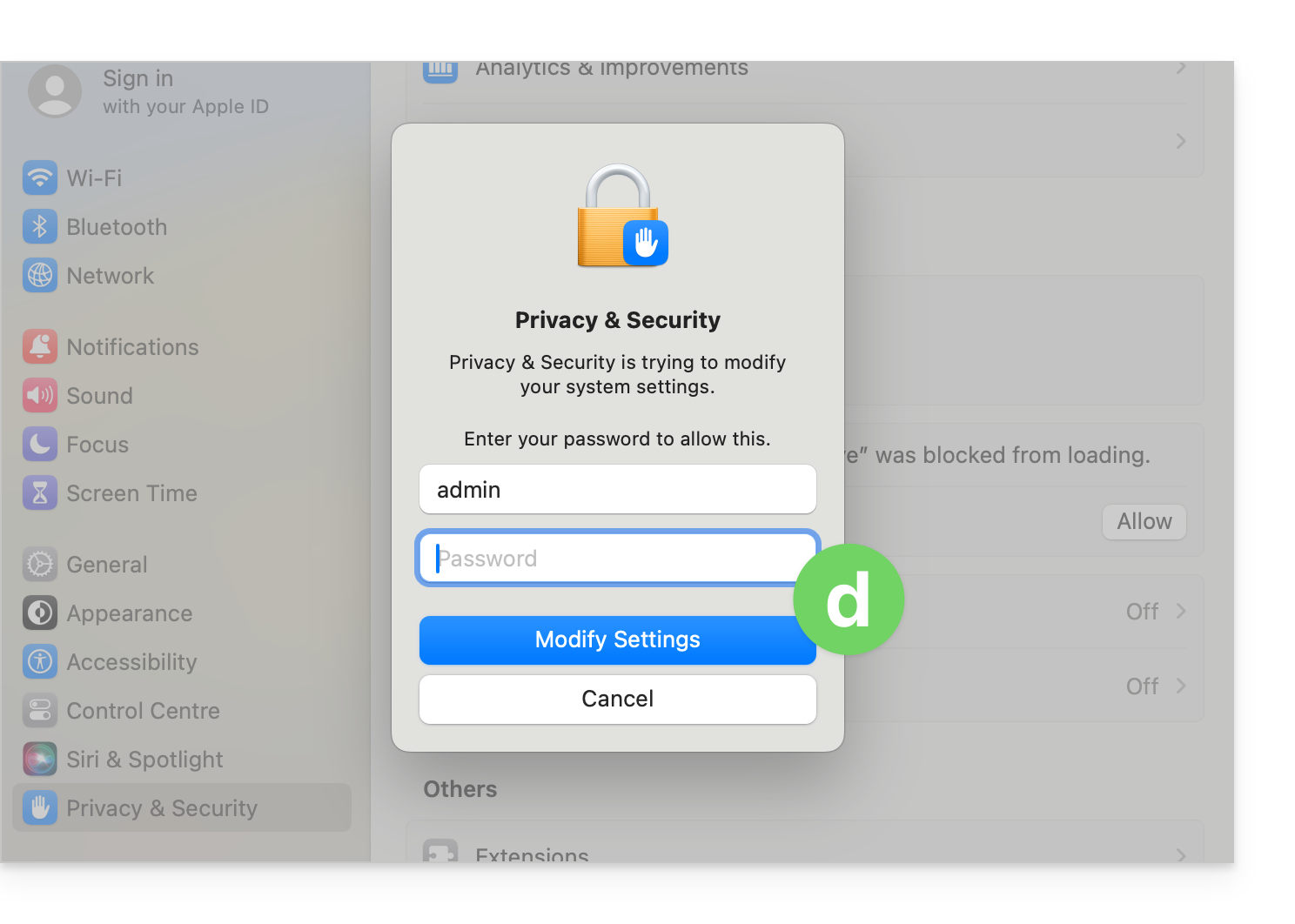
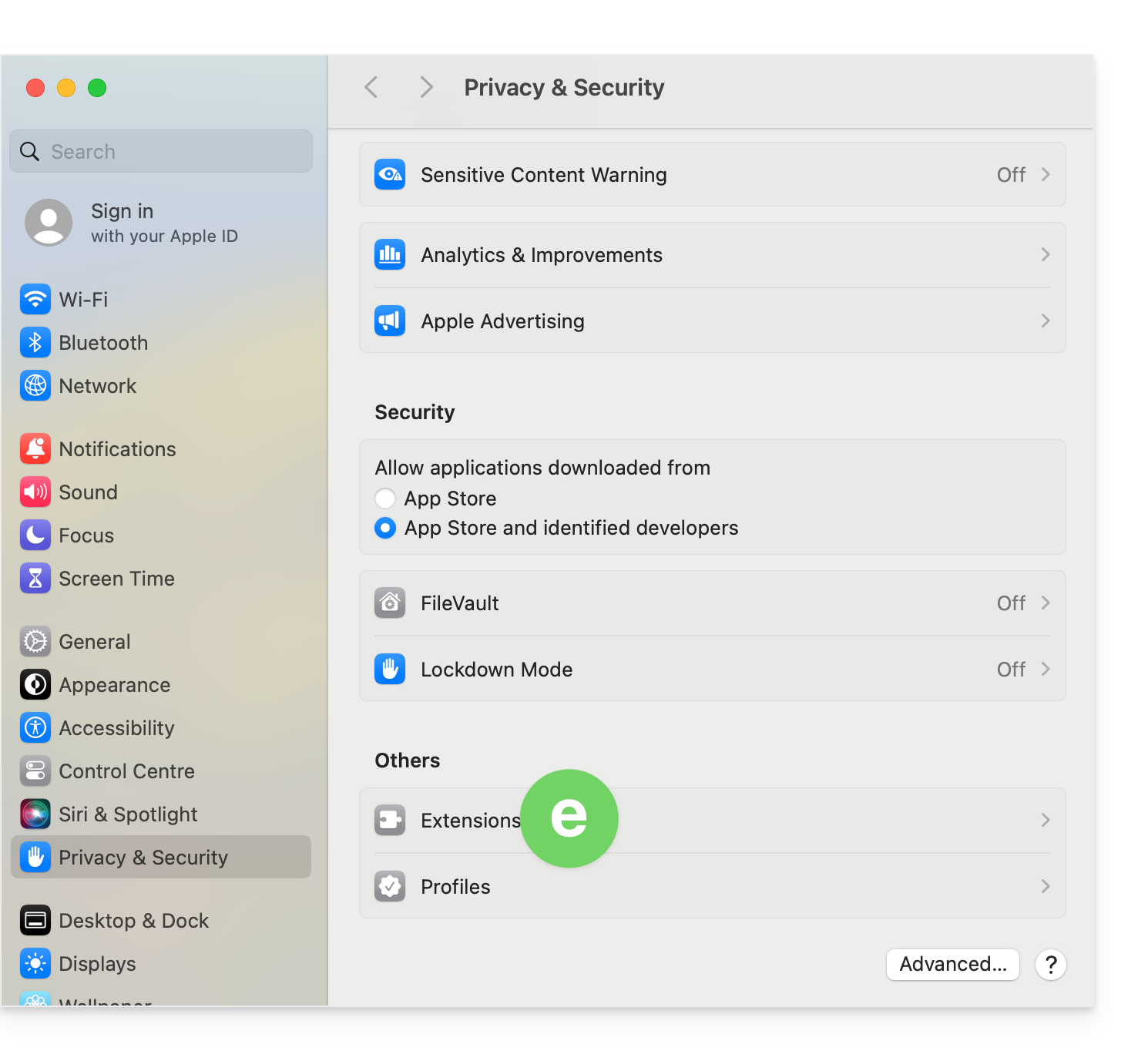
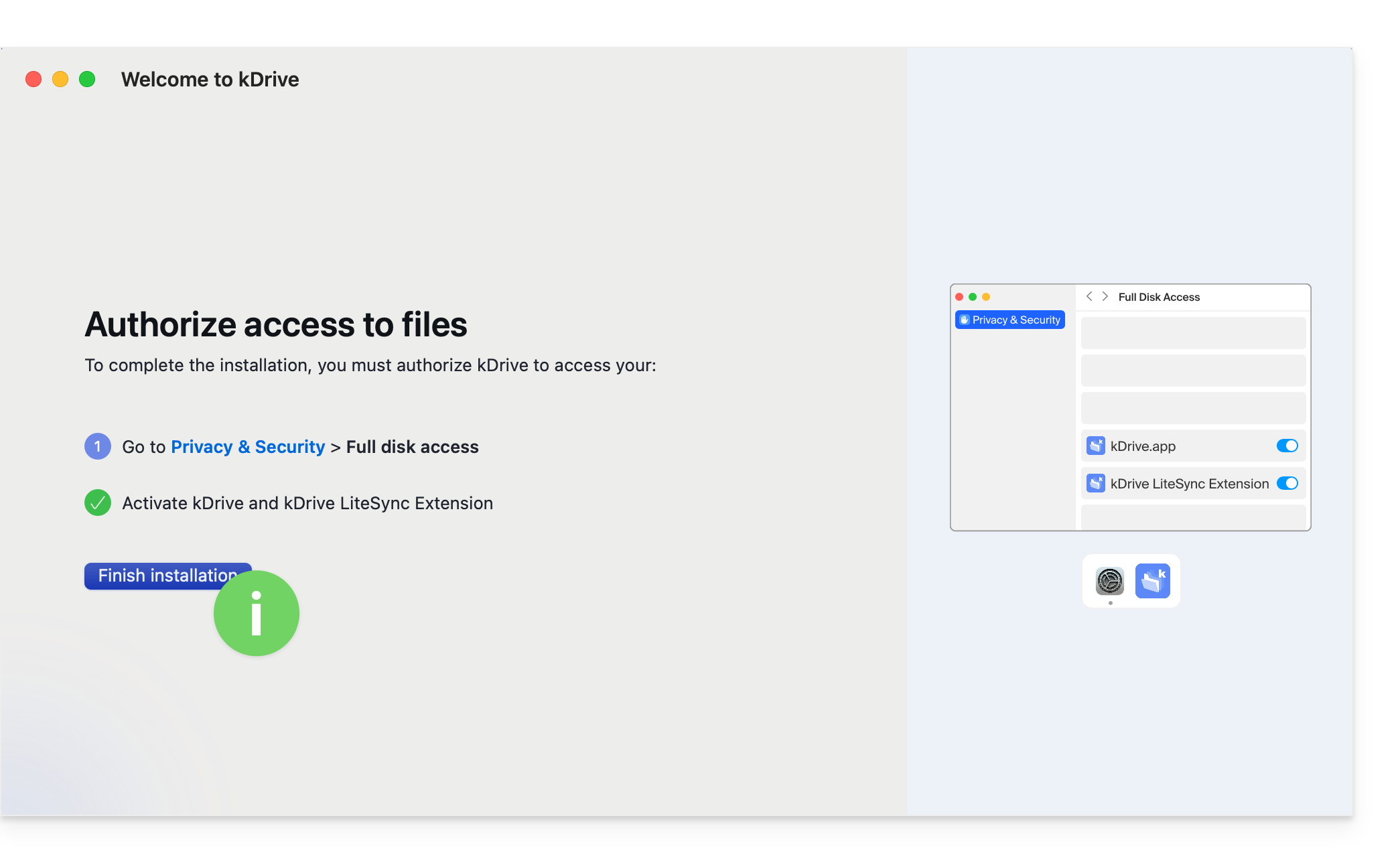
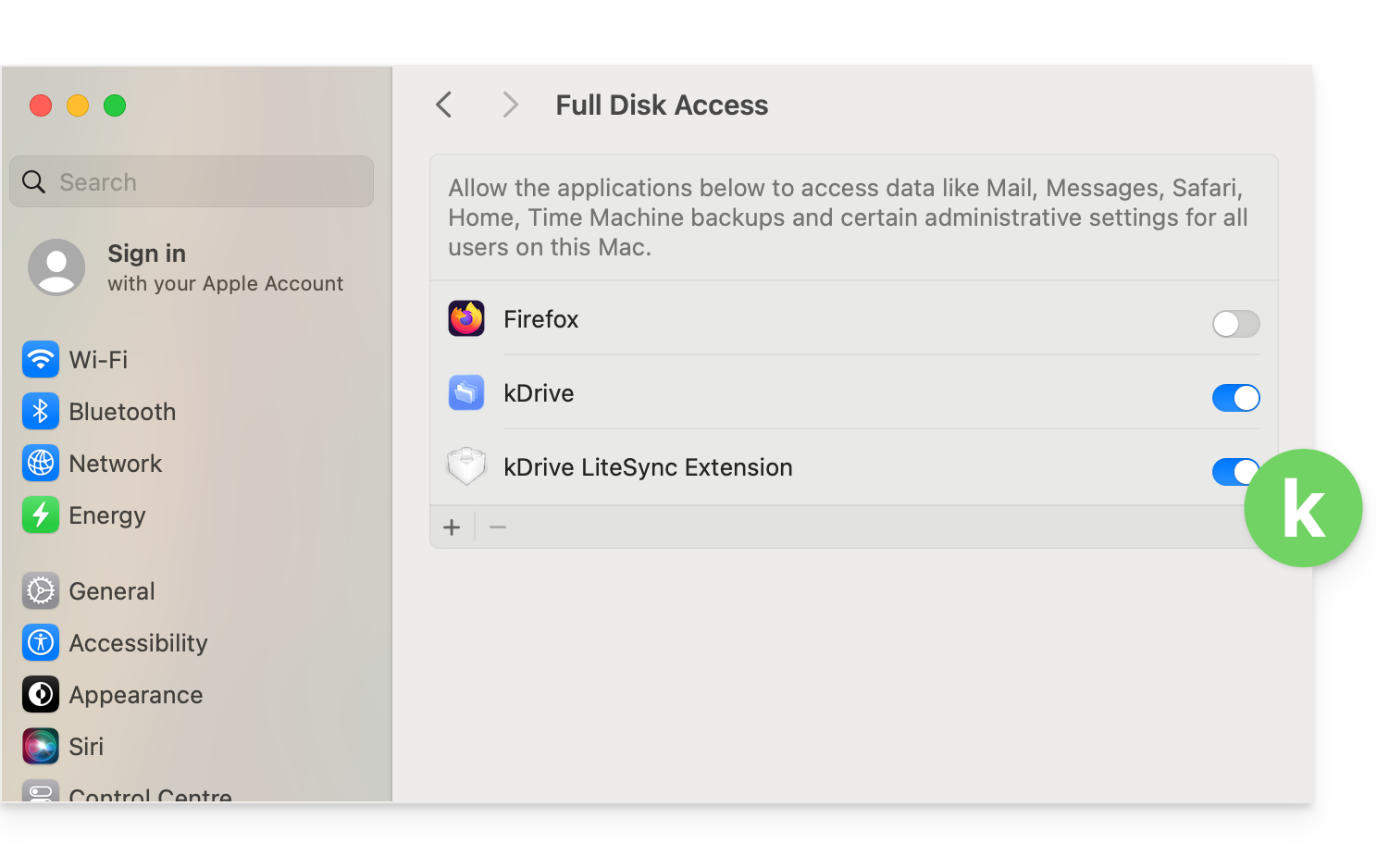
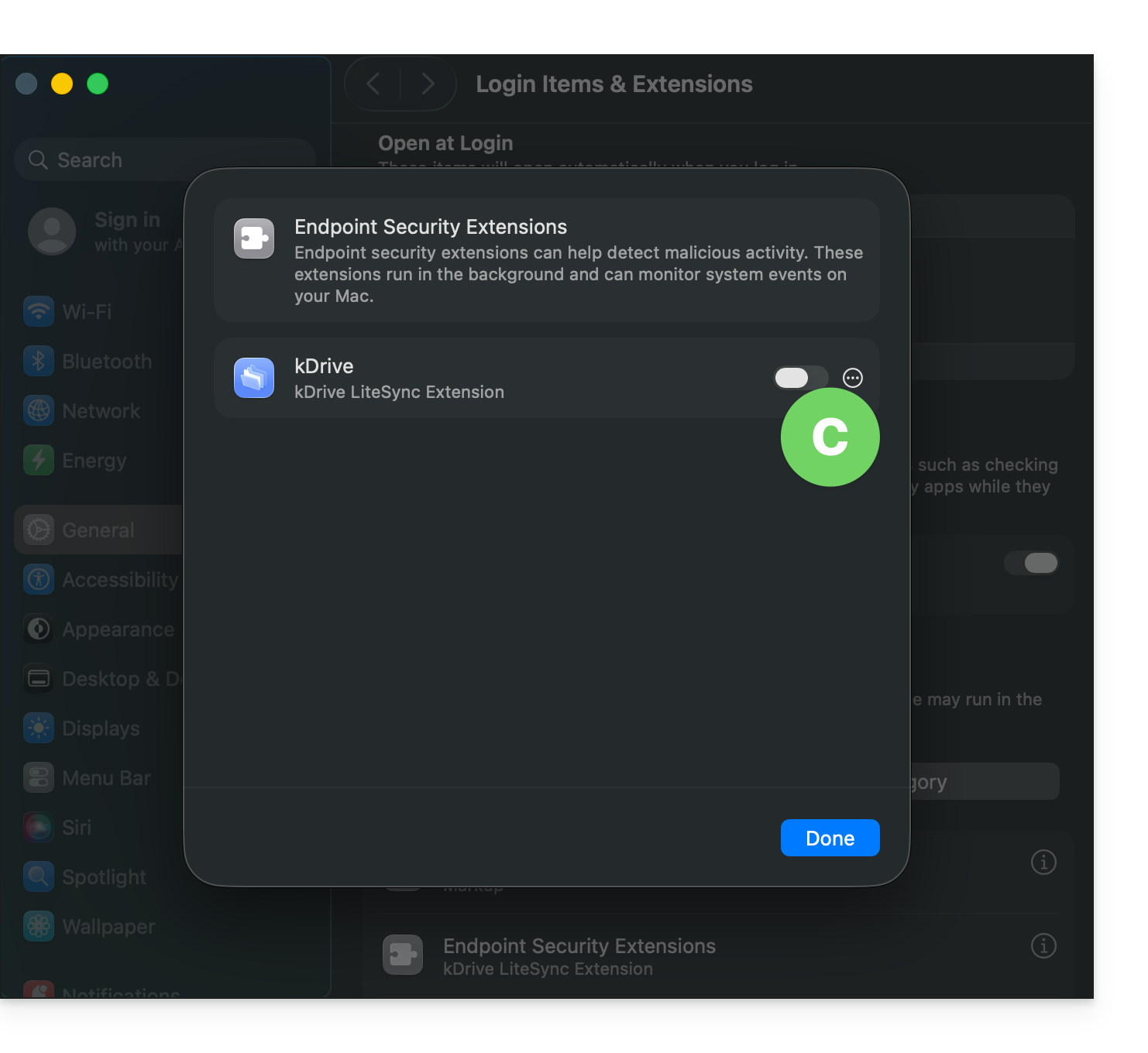
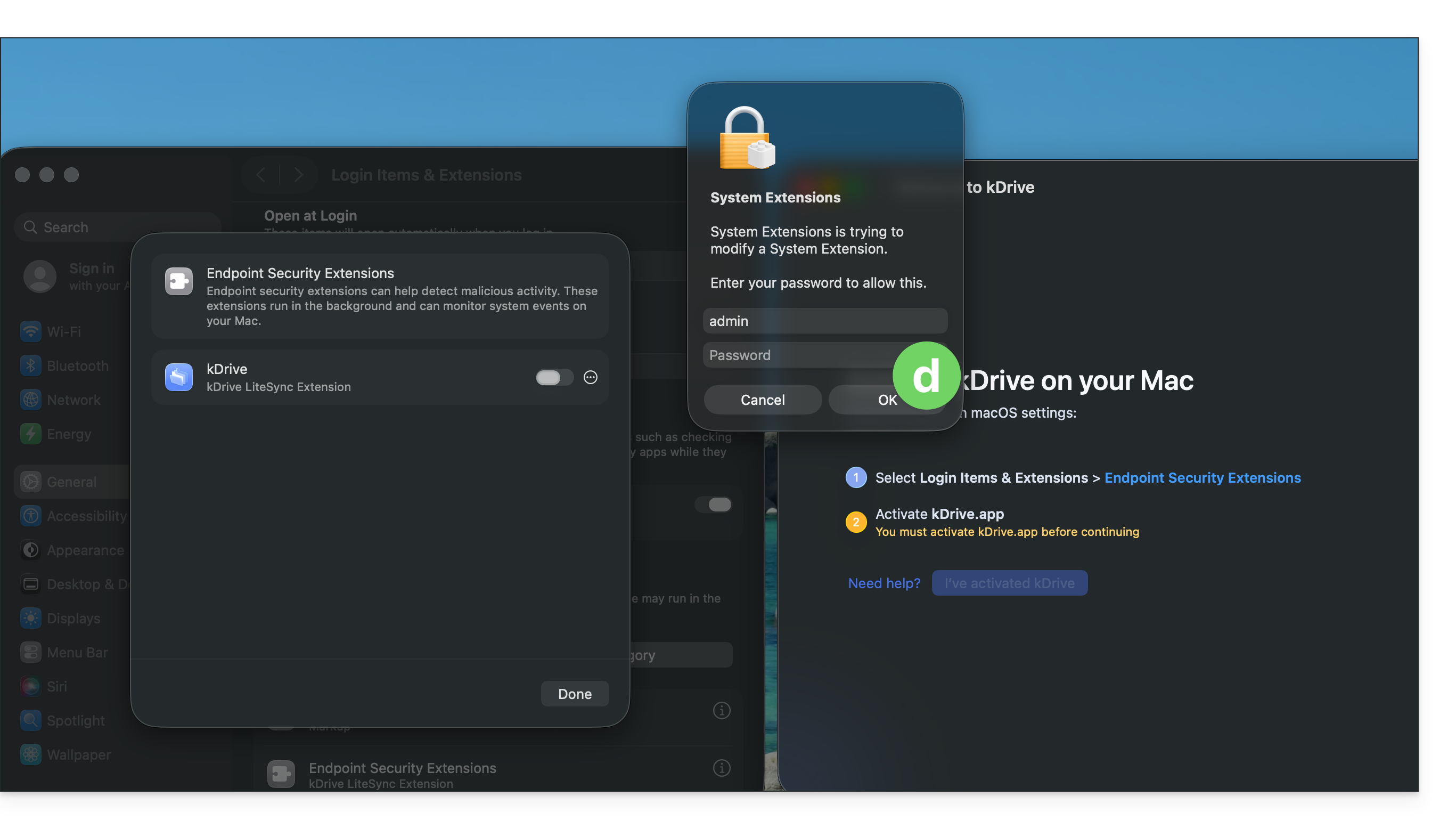
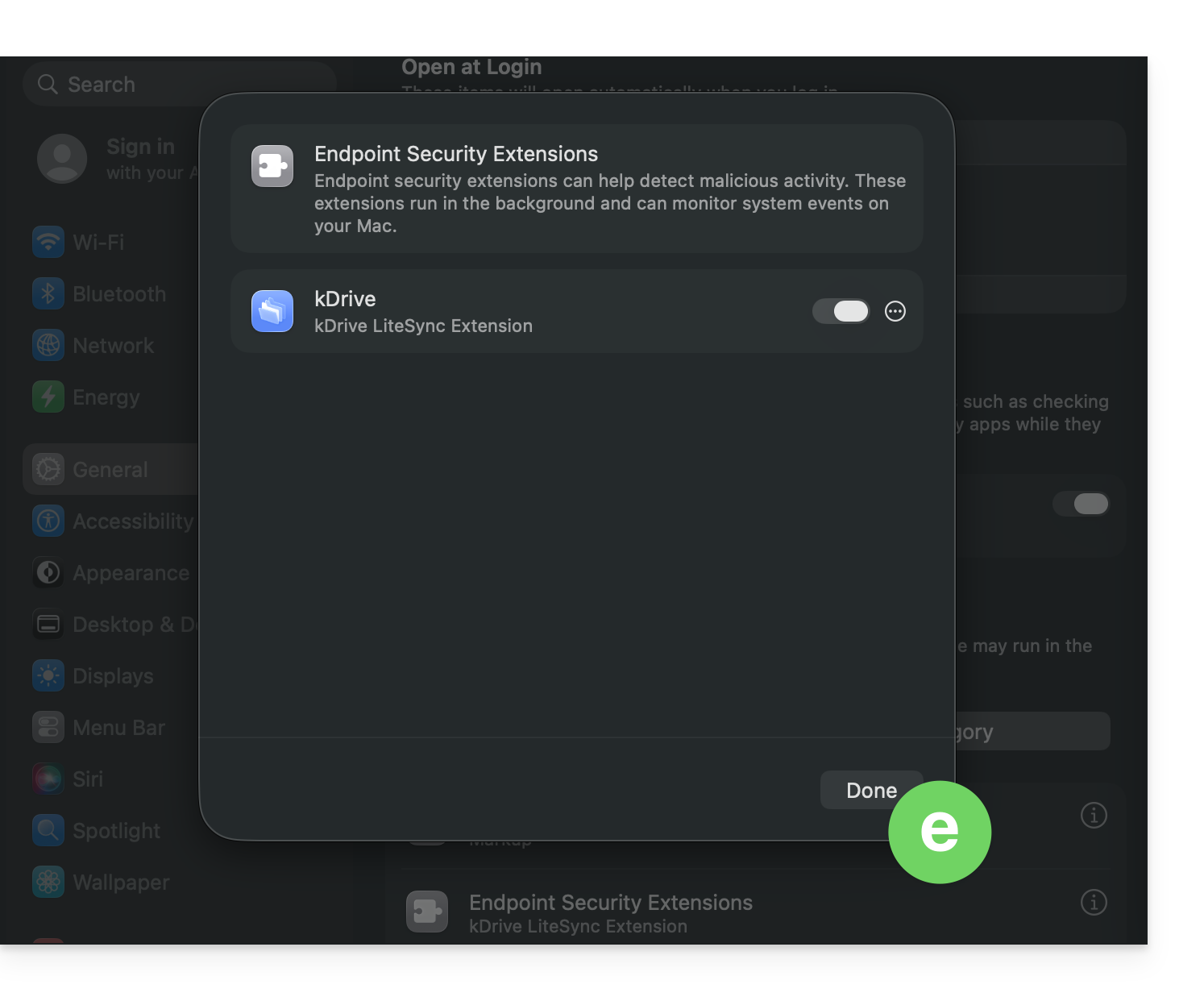
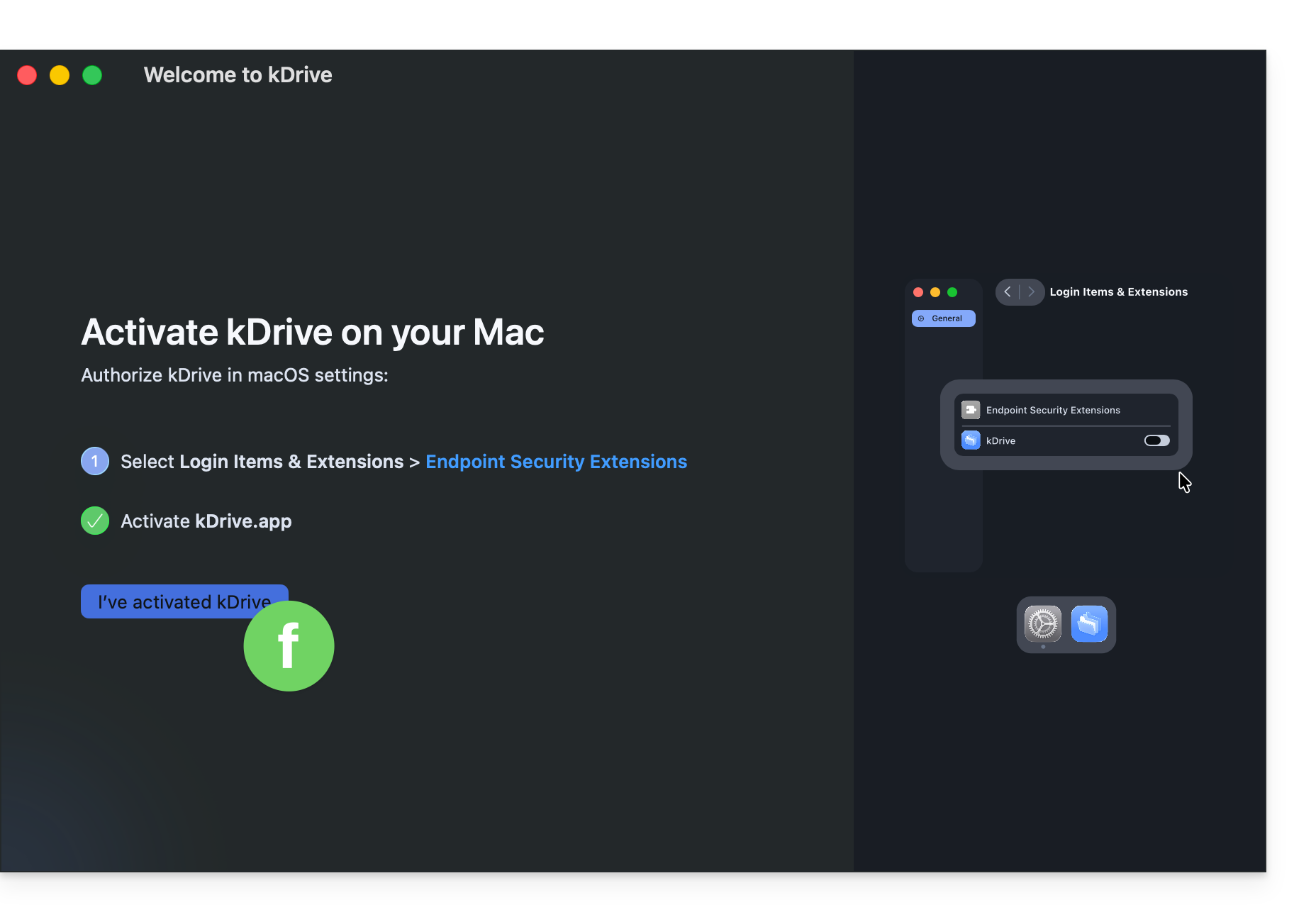
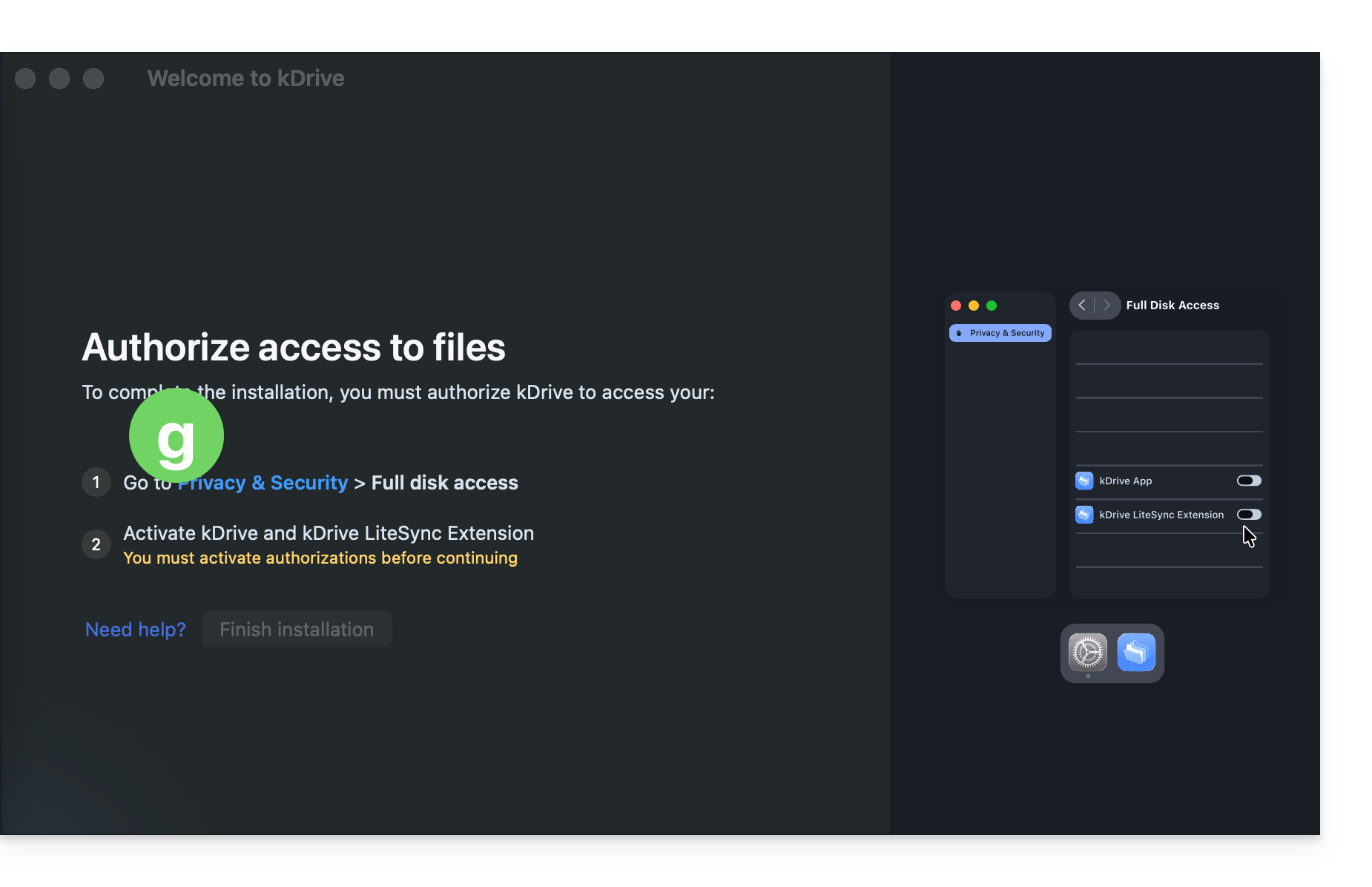
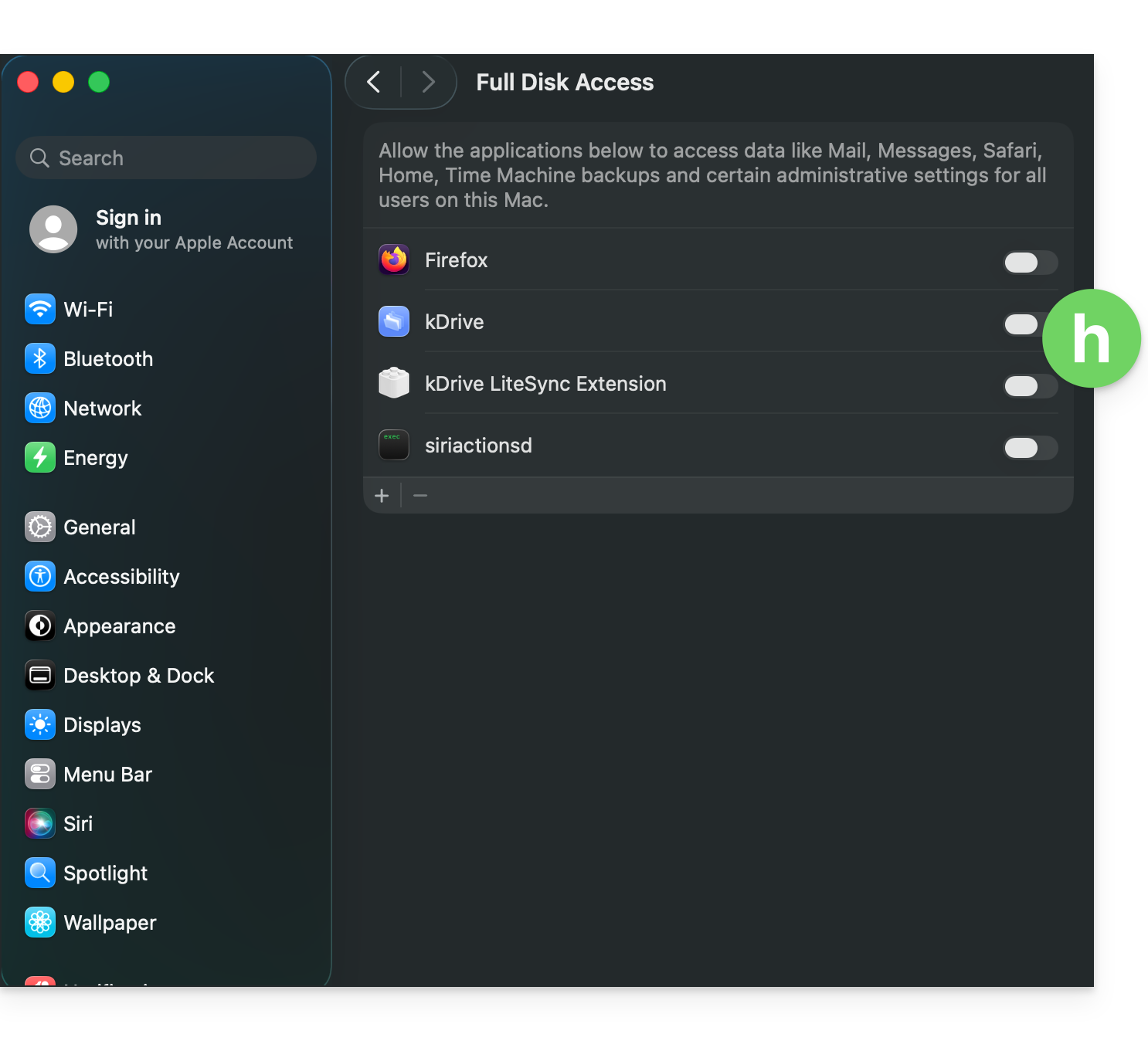
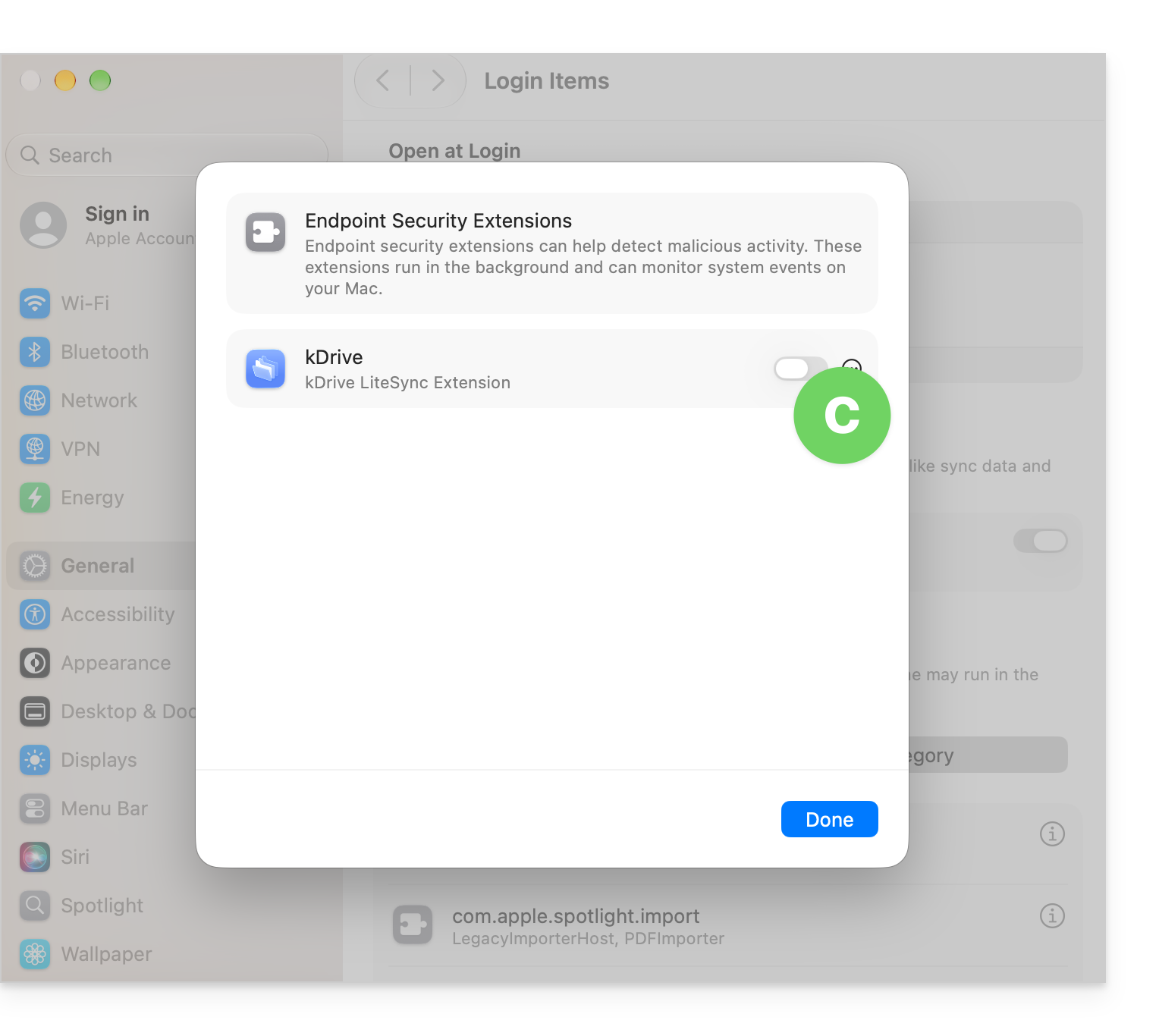
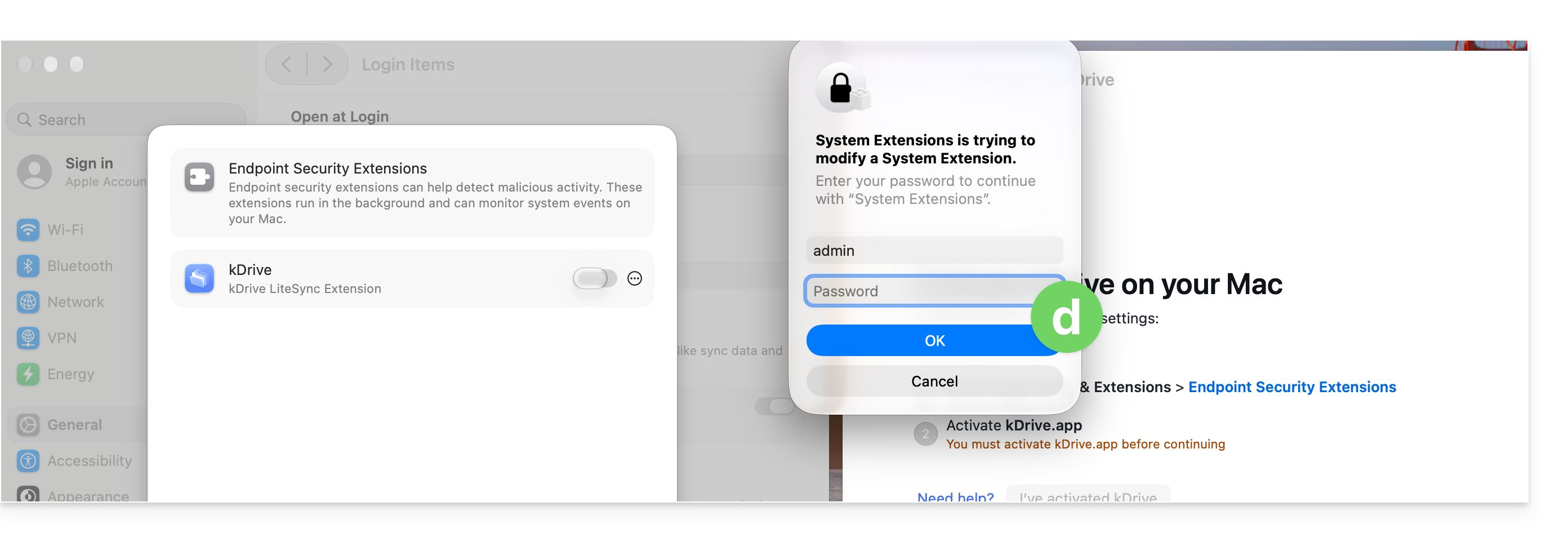
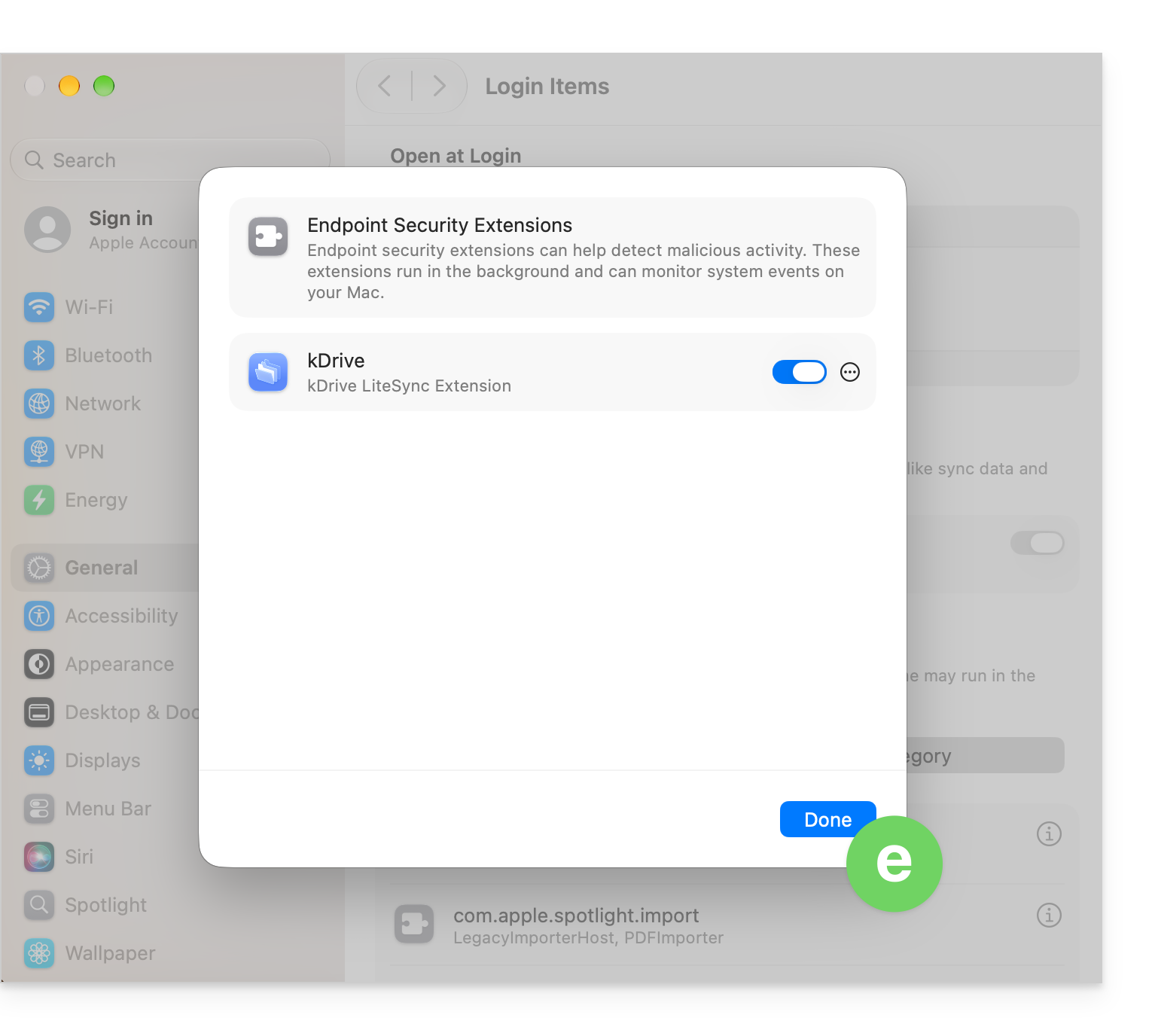
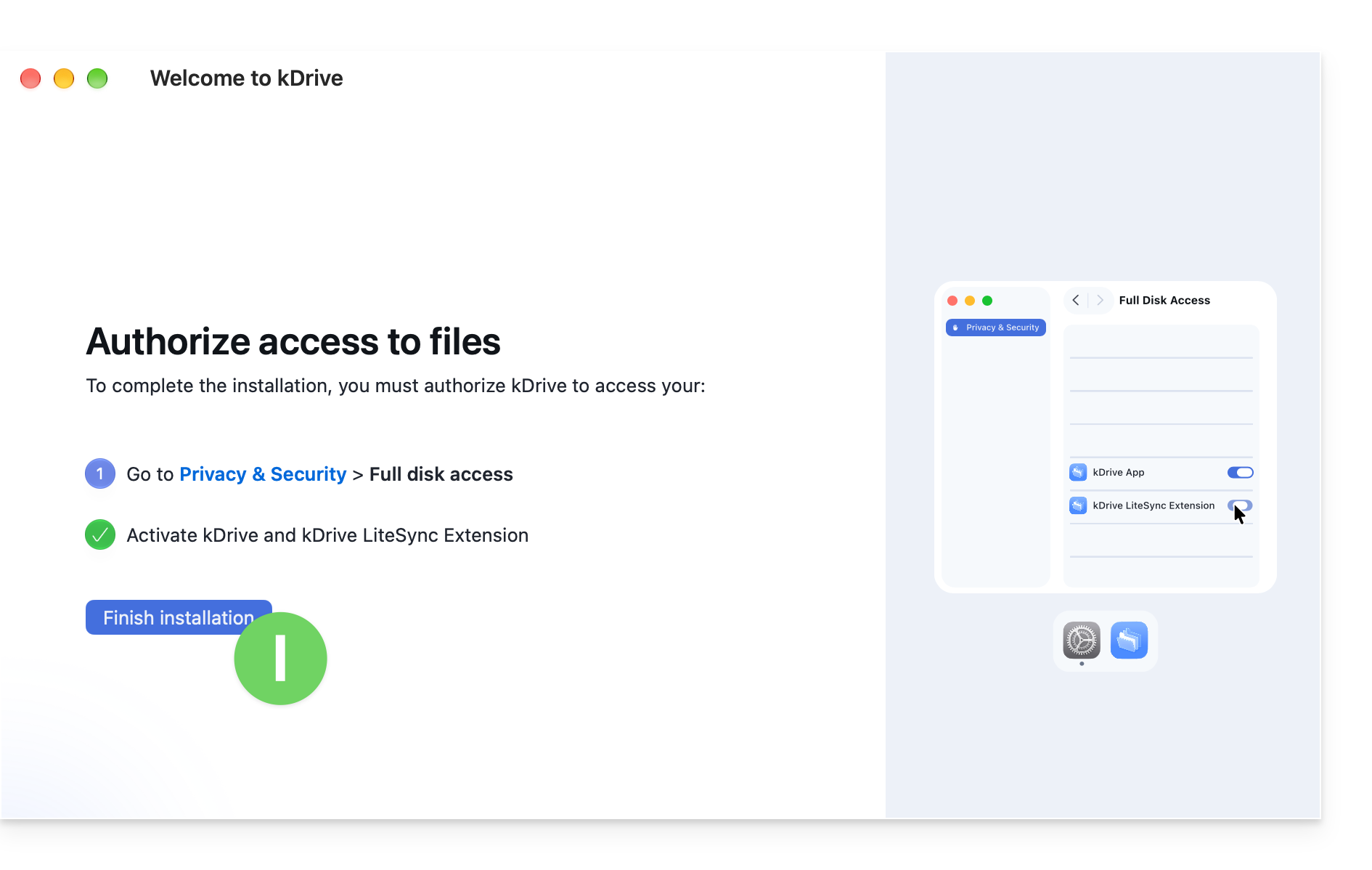
- It is essential to complete the requested authorization process. To do this, simply click the button to open the system settings and then activate the toggle switch for kDrive LiteSync Extension:
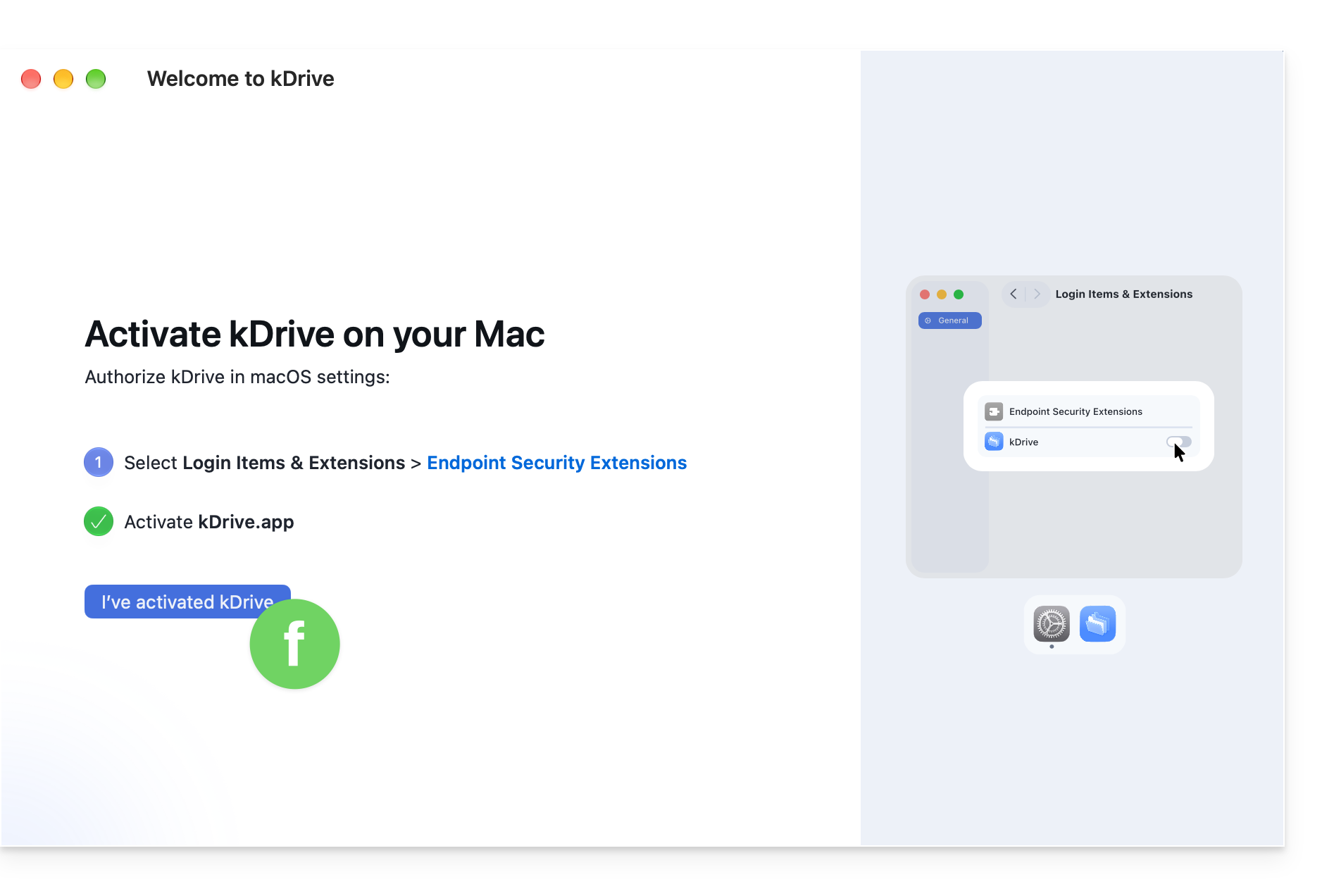
- Go back to the configuration window and click the button to confirm that you have made the requested change in the macOS system settings:
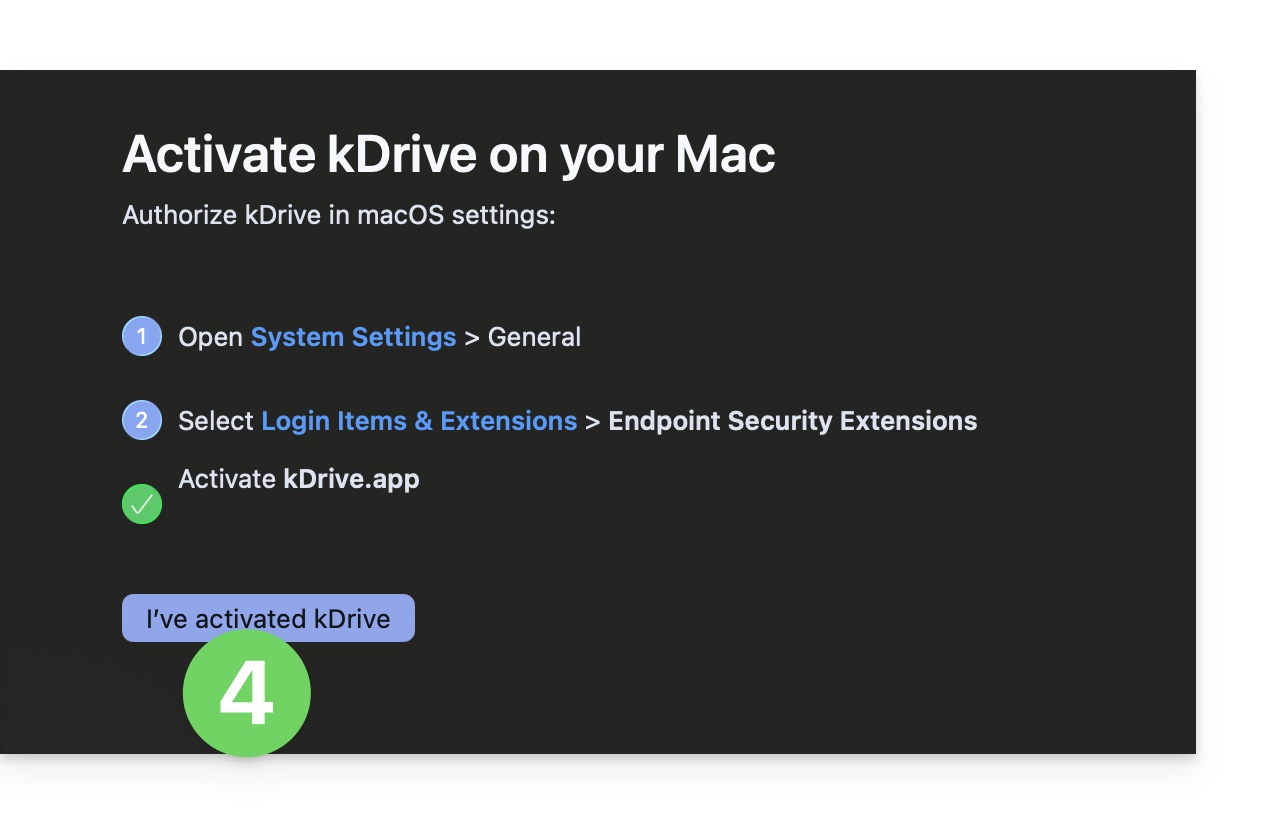
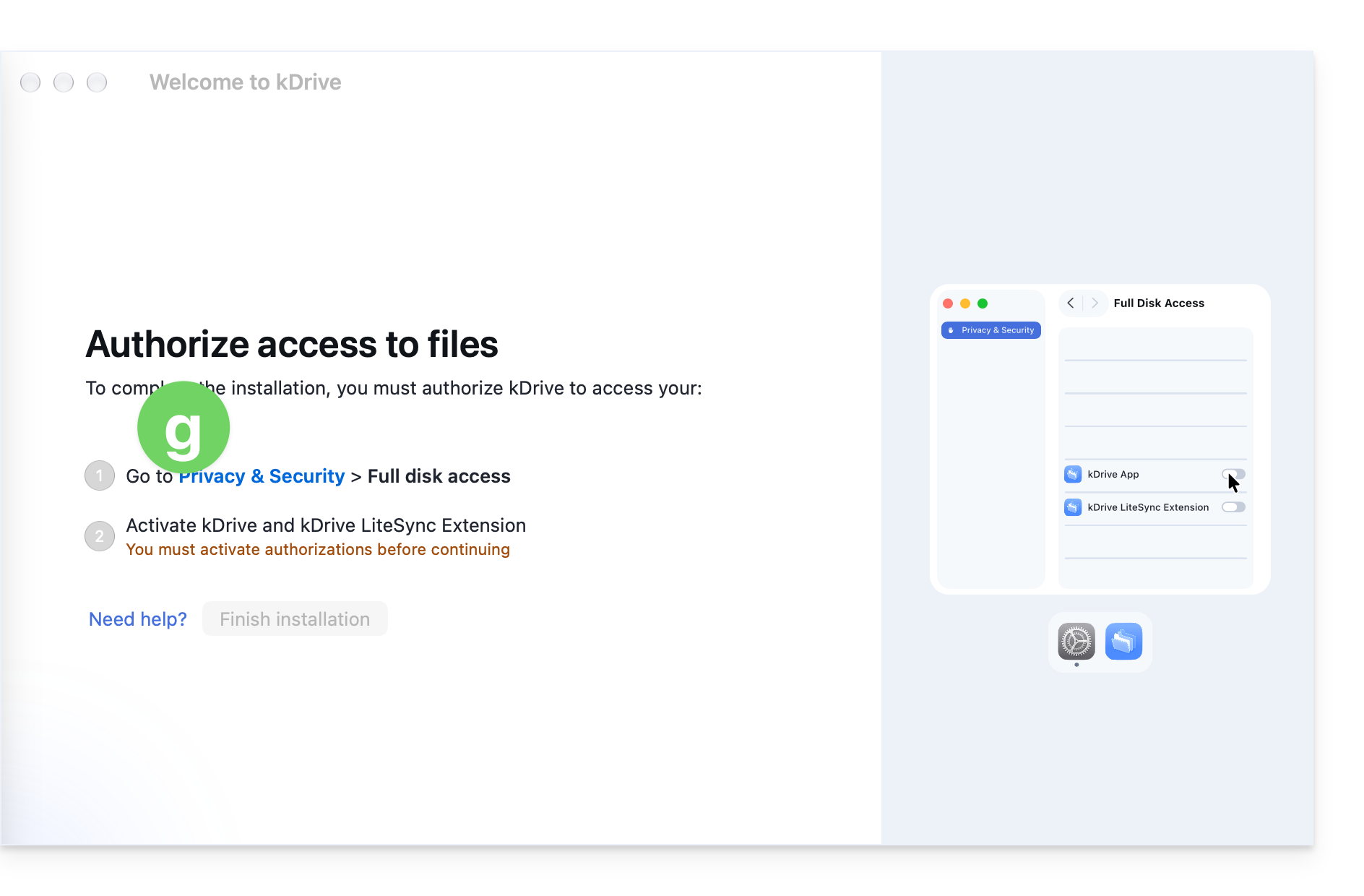
- If the button remains inactive, refer to the last chapter of the guide to compare your system configuration and ensure that you have enabled the correct settings.
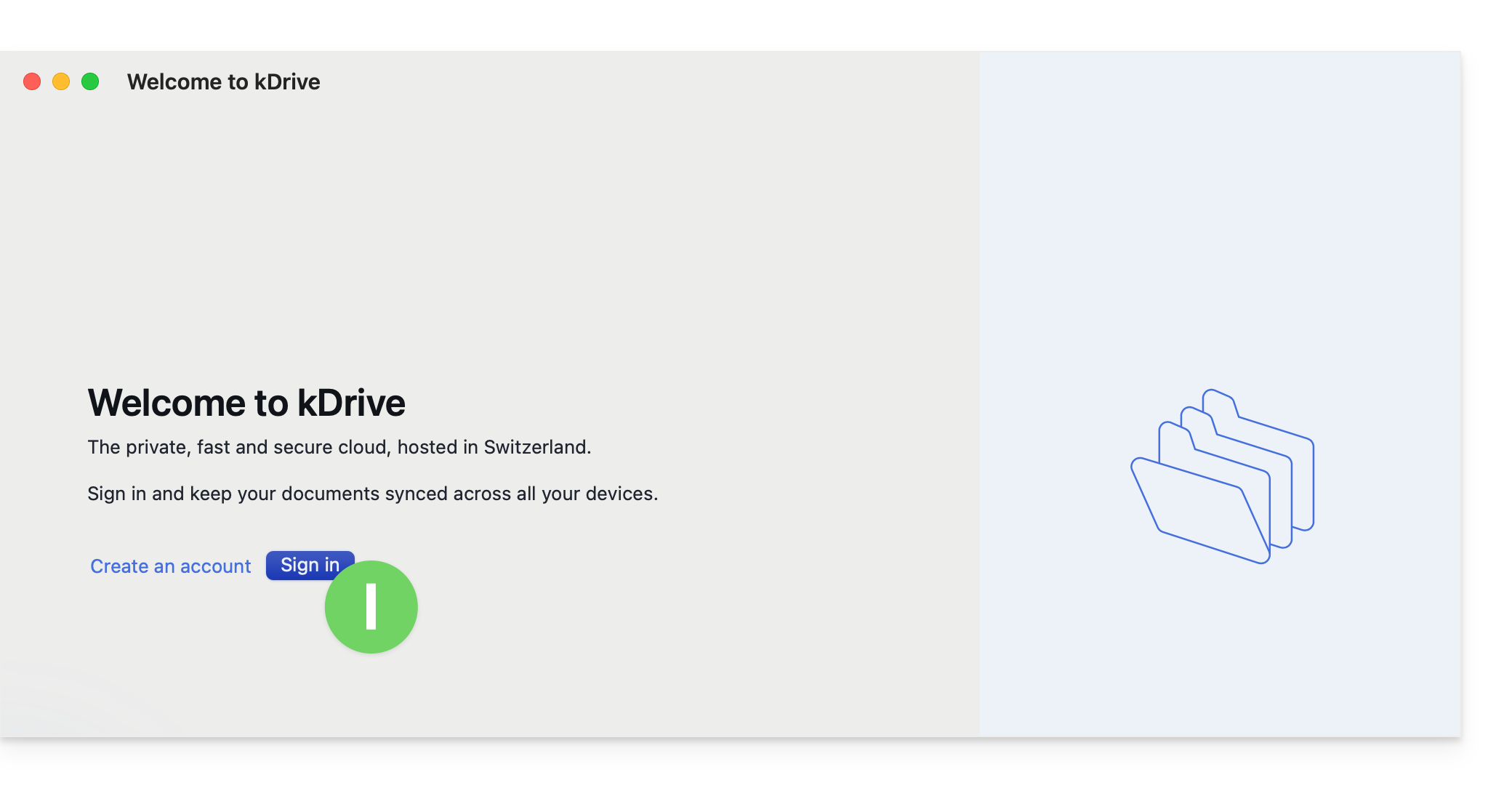
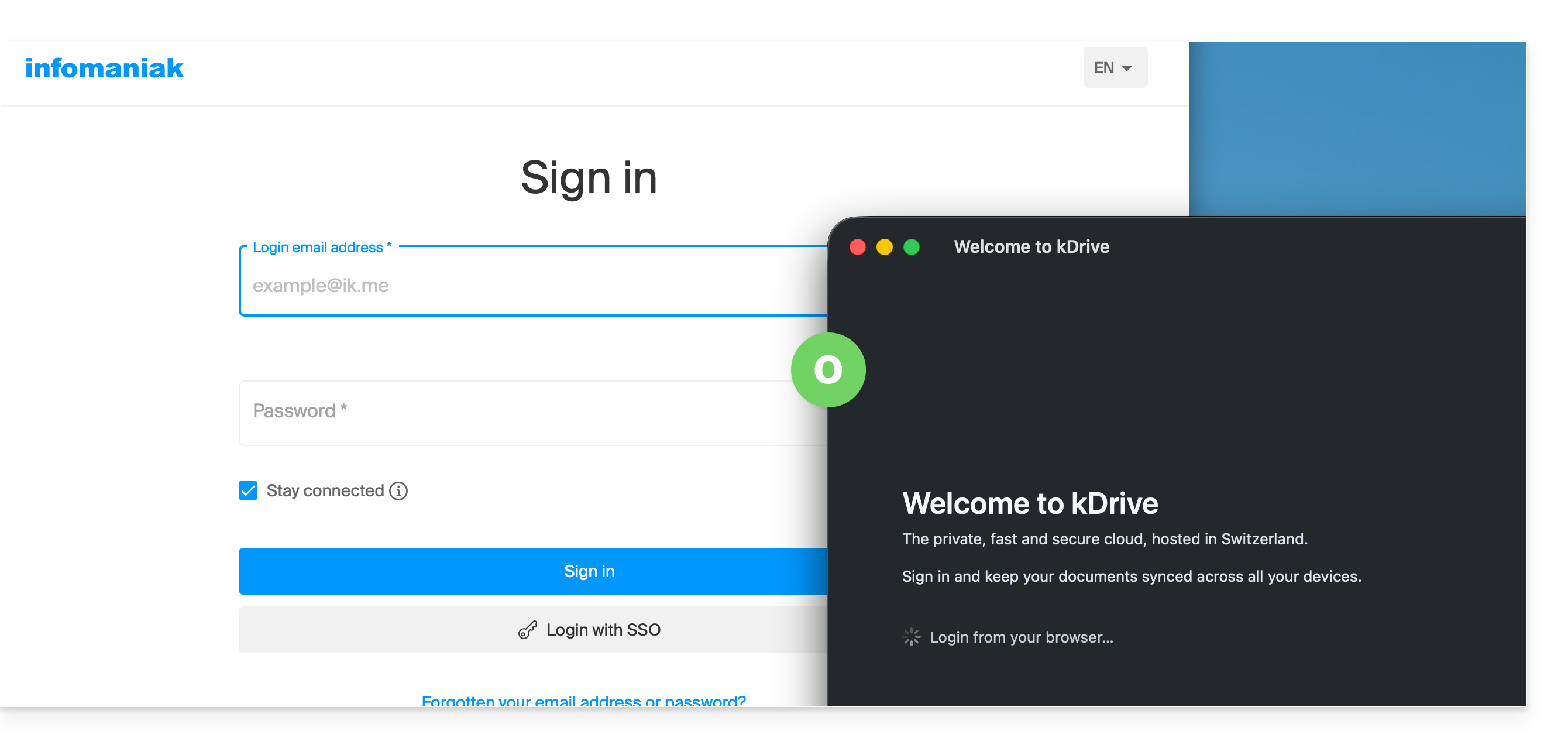
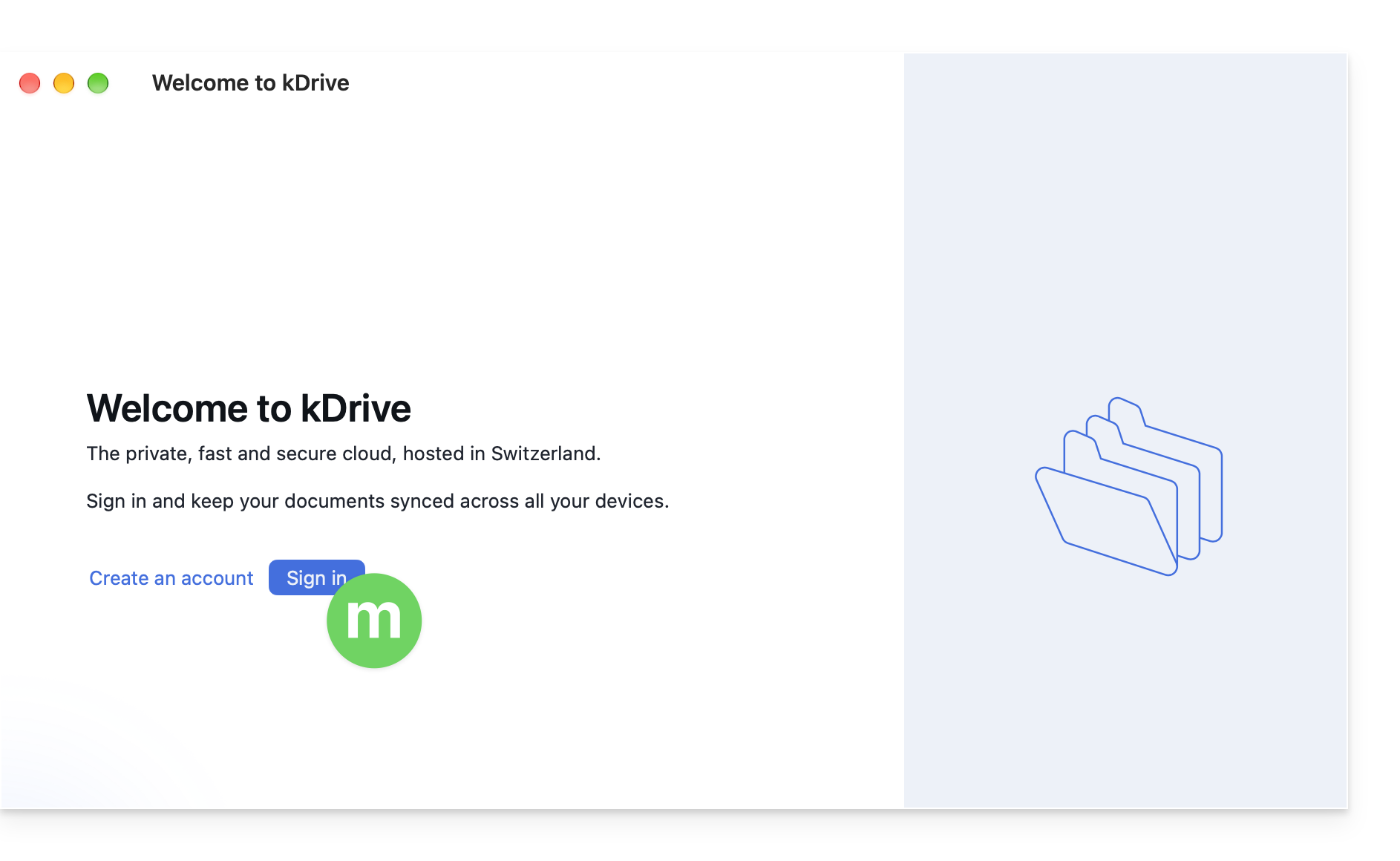
- Click the button to log in to your account:
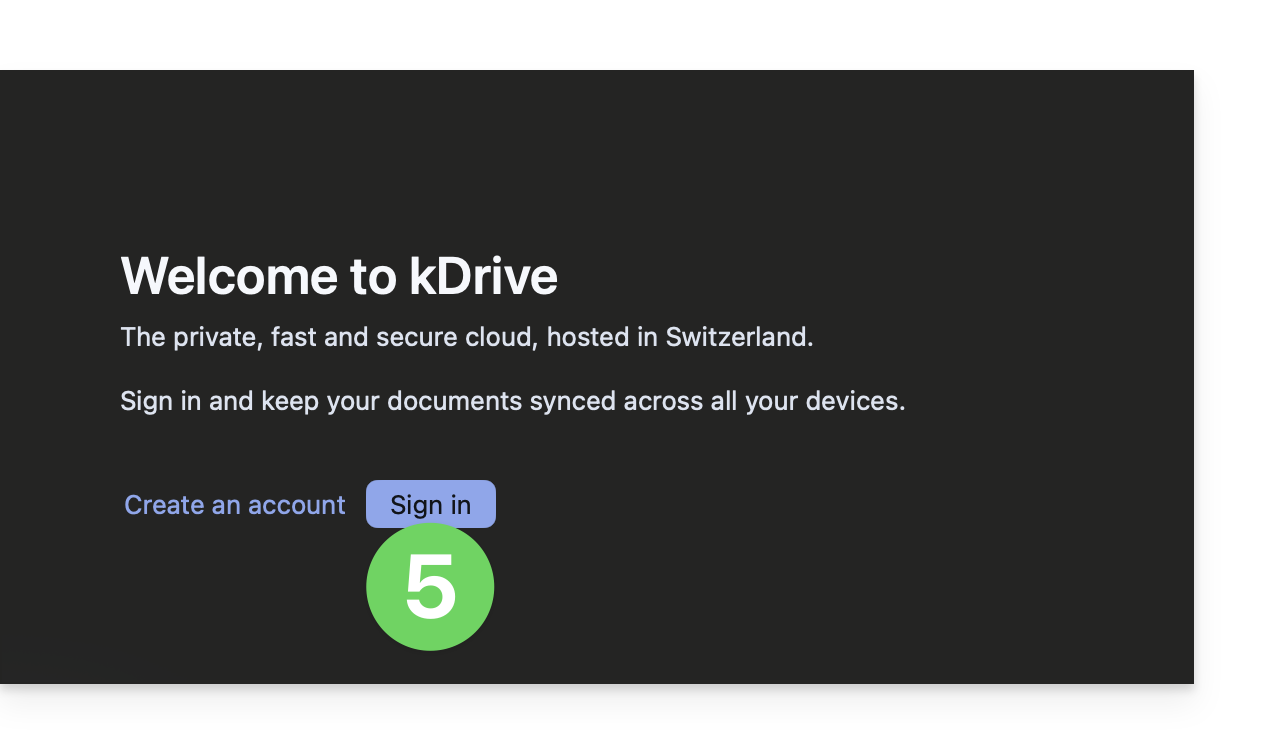
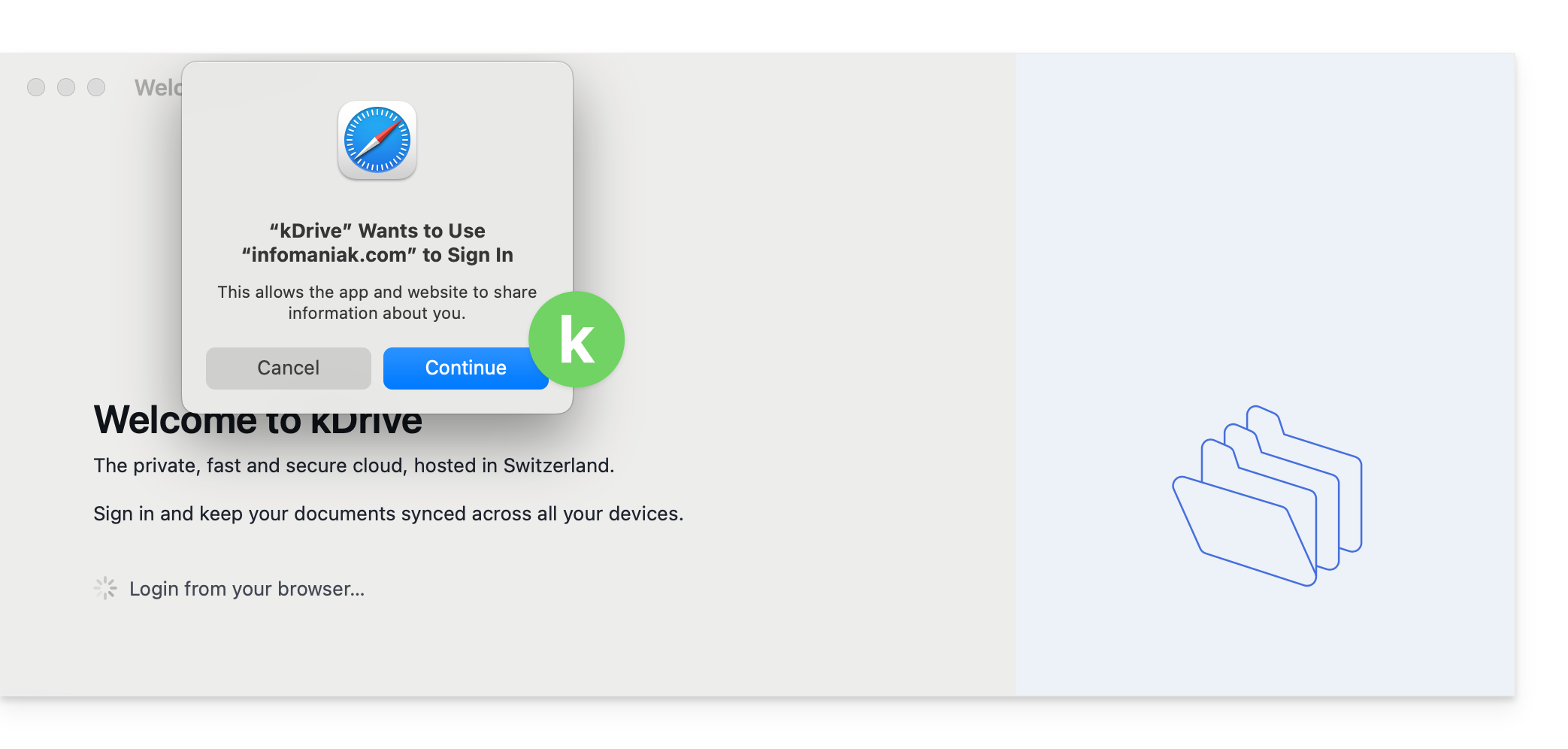
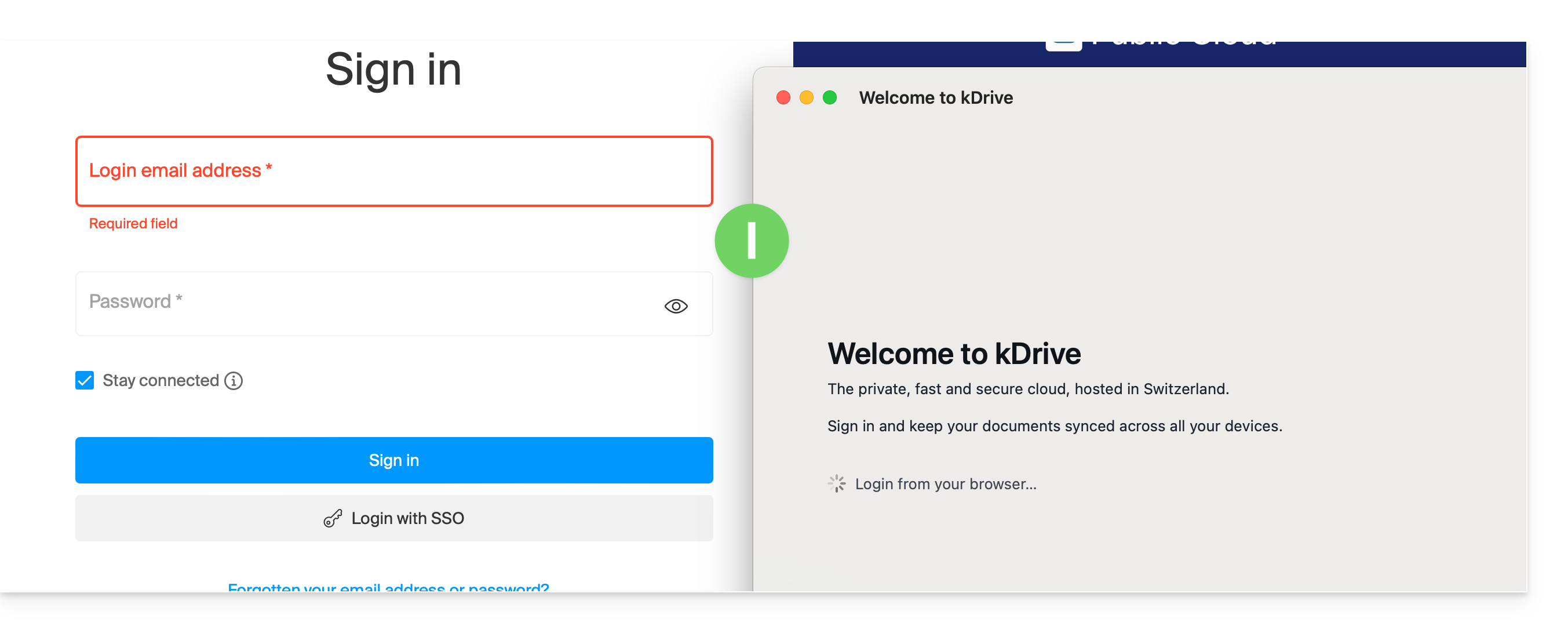
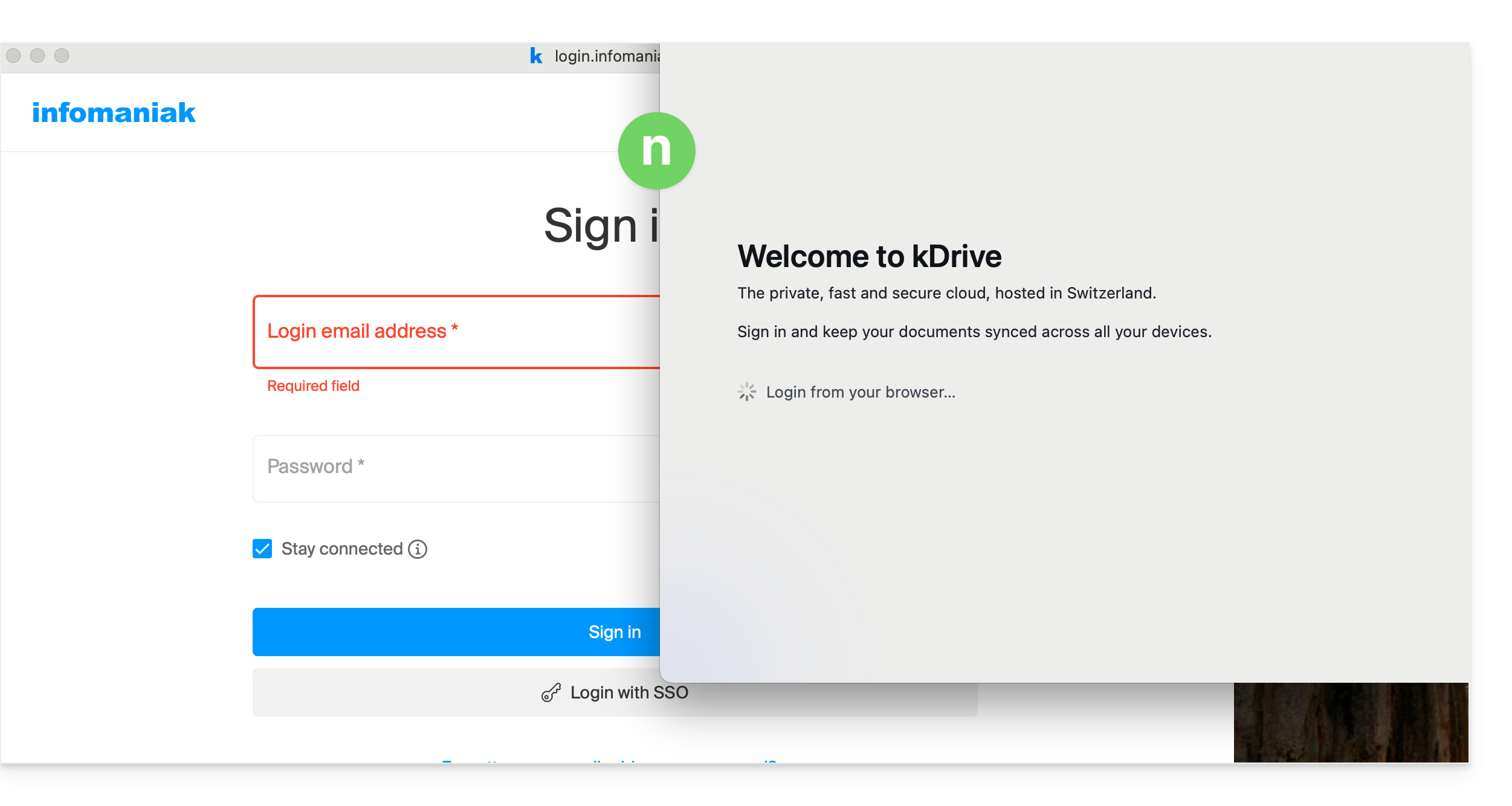
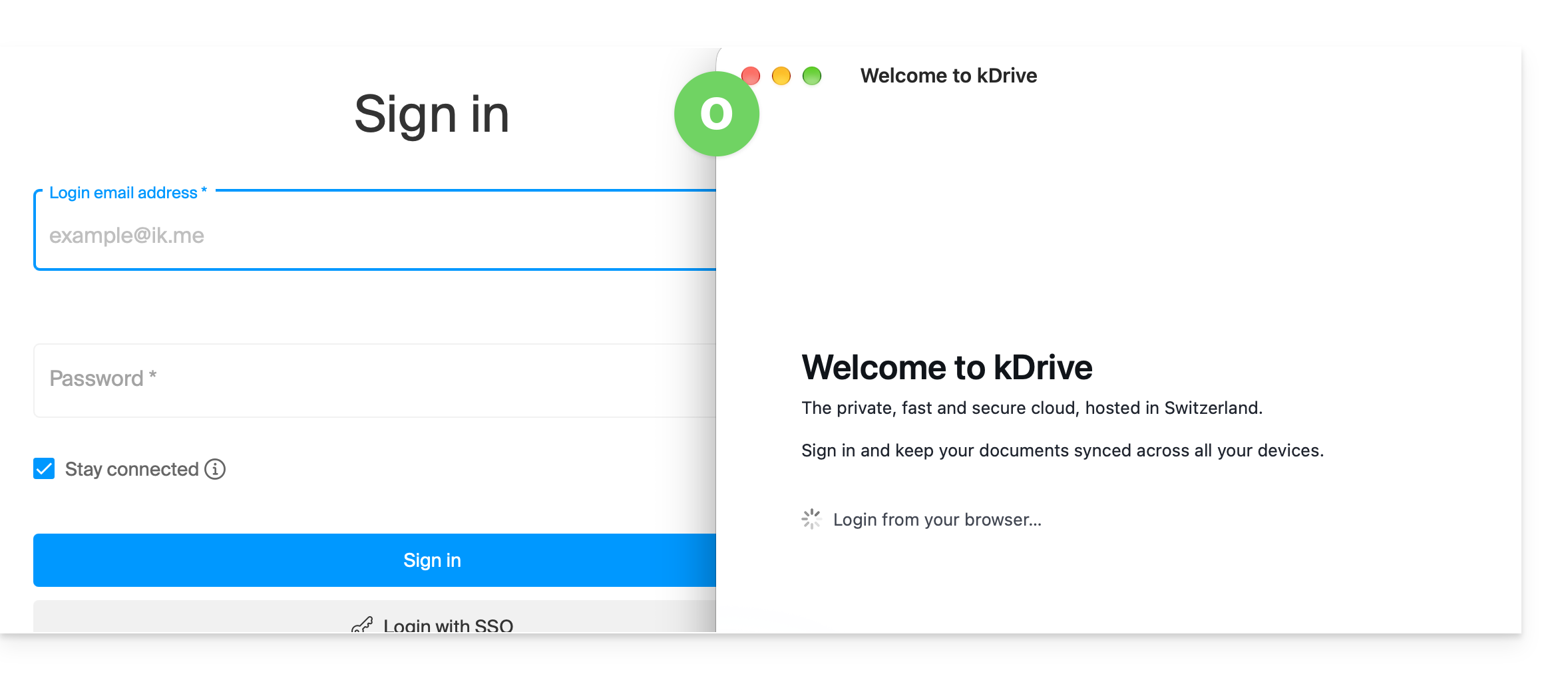
- The browser opens, allowing you to connect to your Infomaniak account, which will take you to the Organization(s) containing your kDrive.
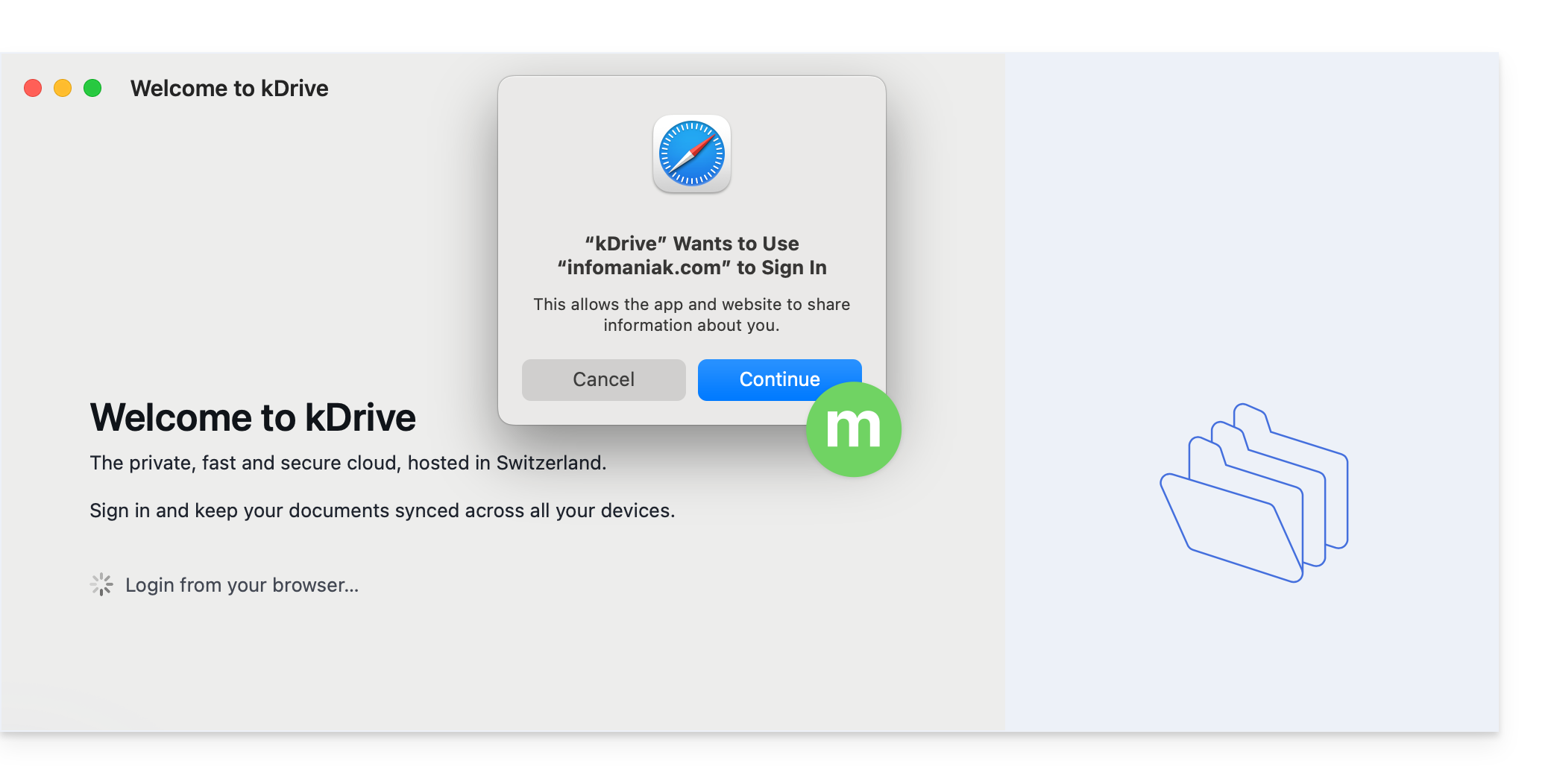
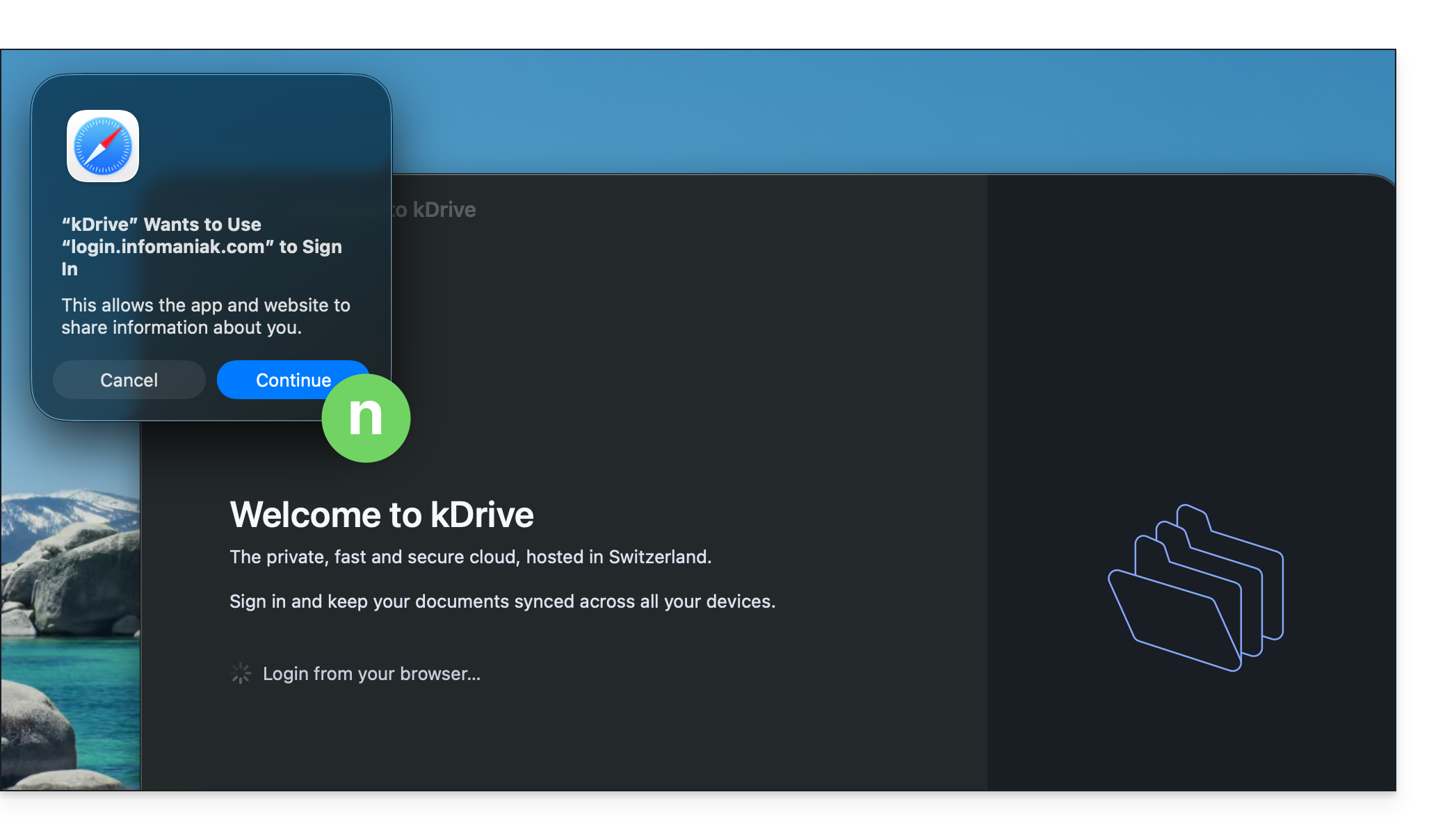
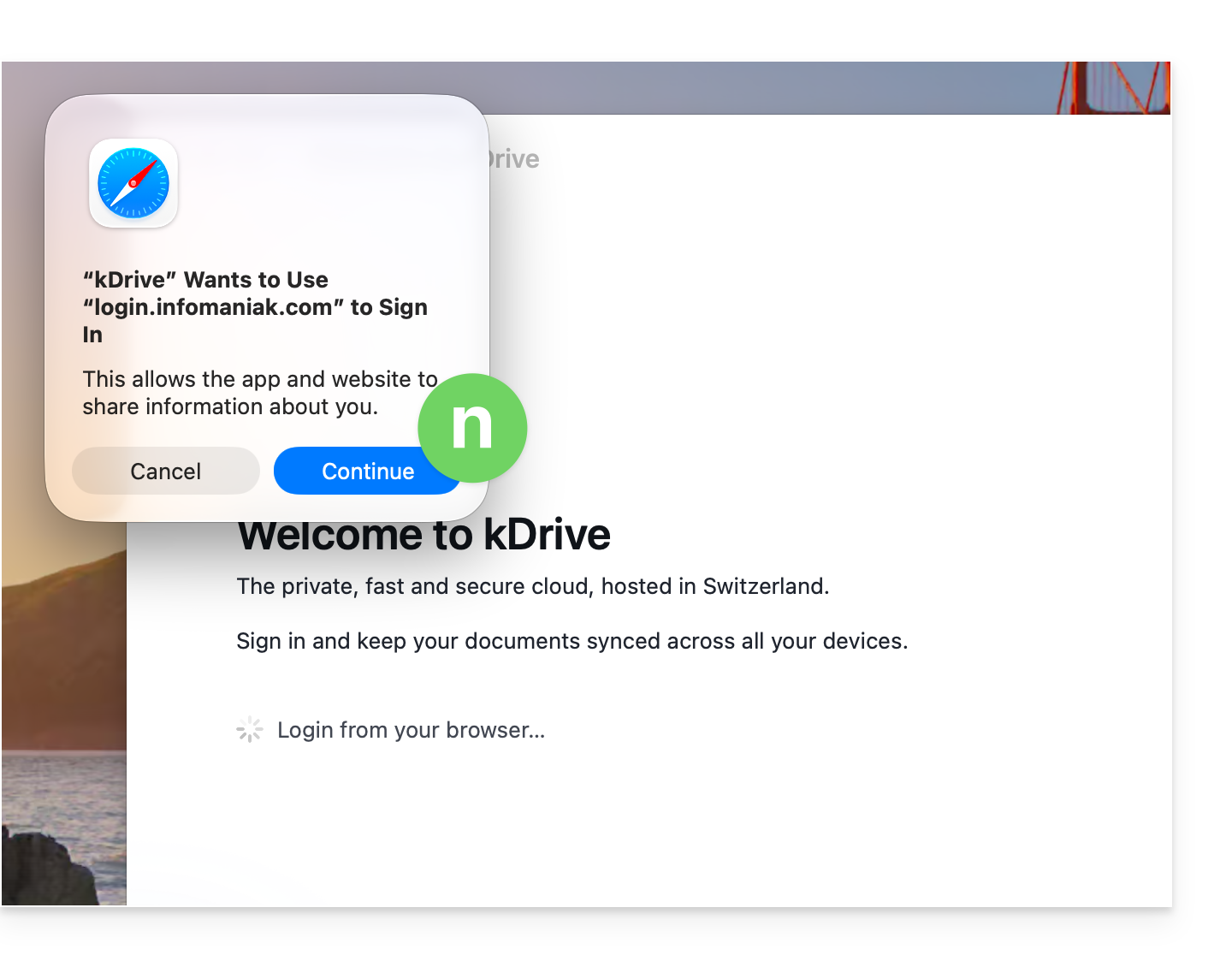
- The browser may ask for your permission to interact with the kDrive application to confirm the connection; click the Open button (if you cancel by mistake, click the link to request it again).
- You can close the browser; select the kDrive(s) that your user has access to and that you want to synchronize on this device, then click on Advanced Settings:
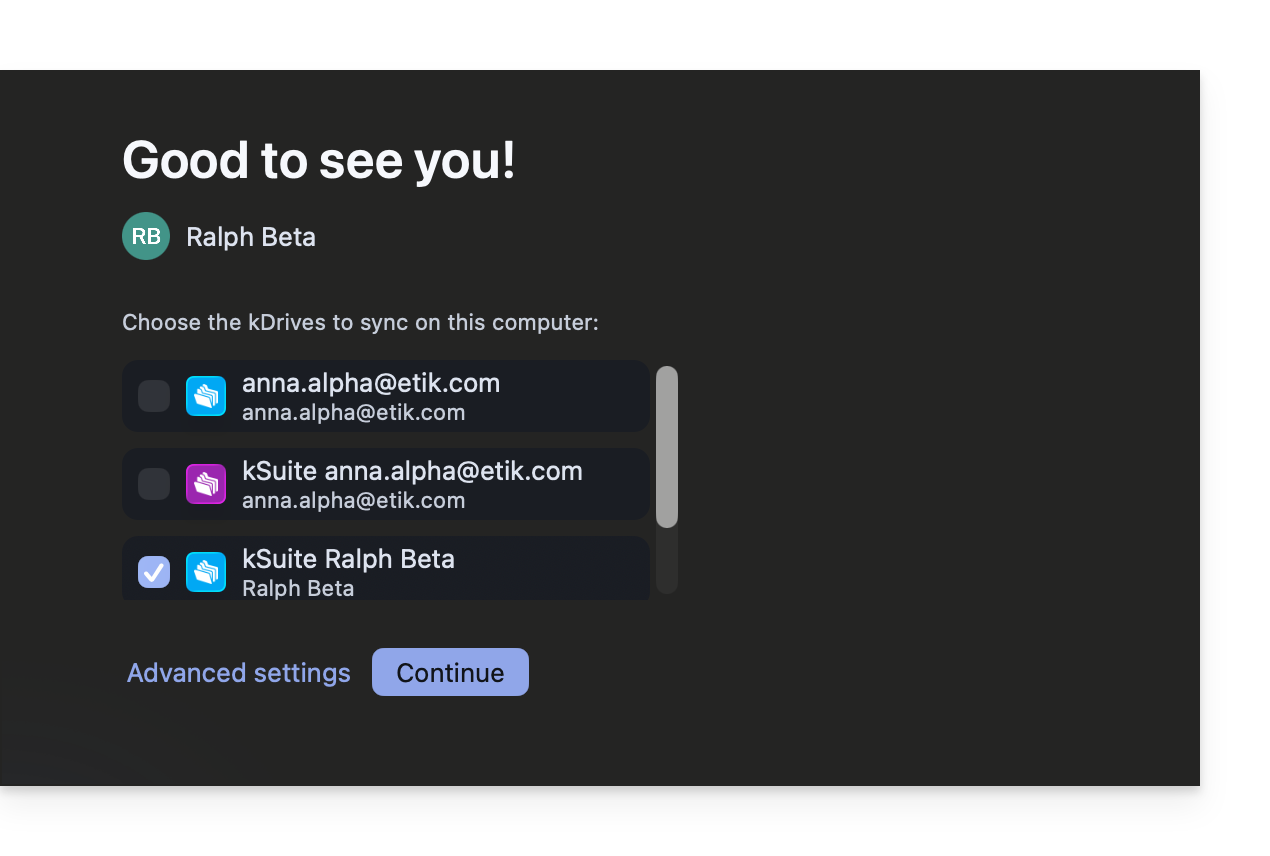
- The Advanced Settings allow you to choose:
- the location where the kDrive data will be stored (the folder must be empty),
- the existing folders on kDrive that should not be displayed on this device (❓: help),
- whether to store the kDrive files on the disk with their actual size, or whether they can be “virtually” listed while being stored on the remote servers (❓: help).
- Confirm at the top of the page:
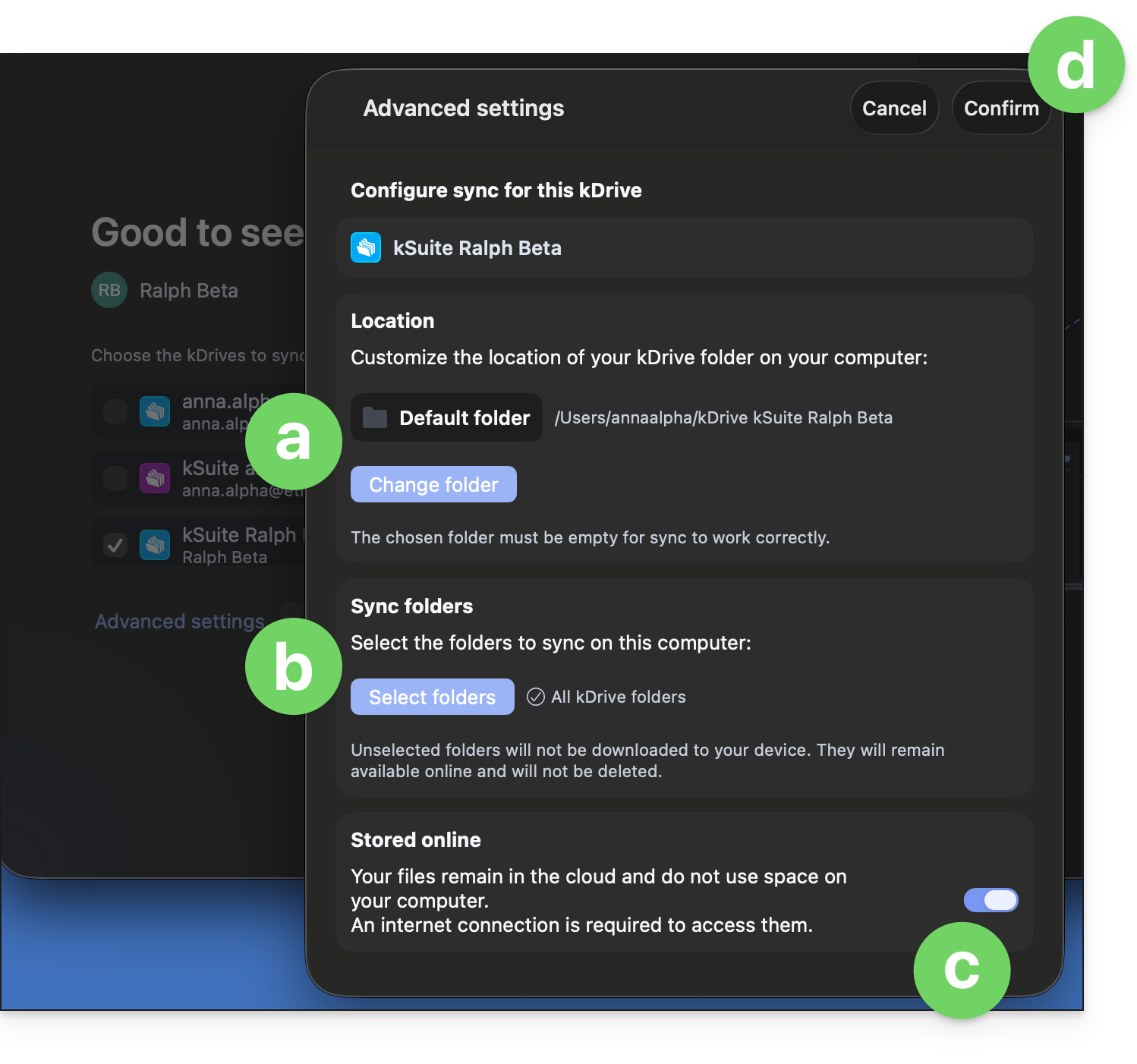
- Click the Continue button next to the advanced settings to complete the installation and open the interface. The app should run in the background, allowing for automatic synchronization. You should always see its icon (❓: help):
- Consult the other guides to continue exploring the kDrive application.
Uninstall kDrive on macOS
To do this:
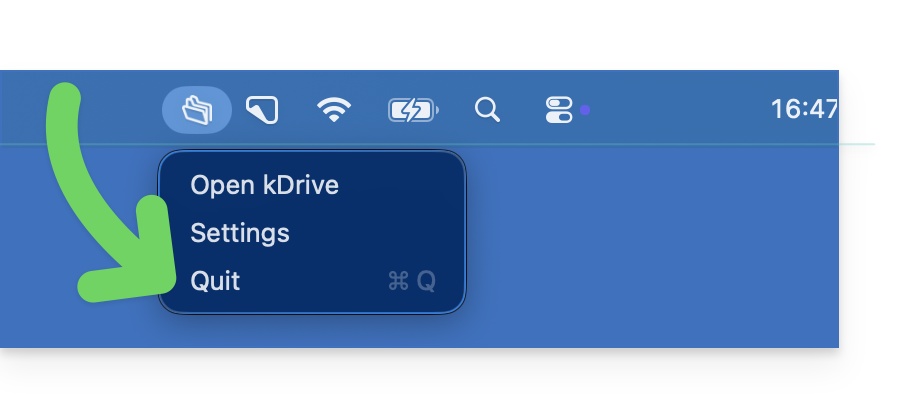
- Right-click on the icon and choose Quit if the app is still running in the background in the taskbar at the top right:
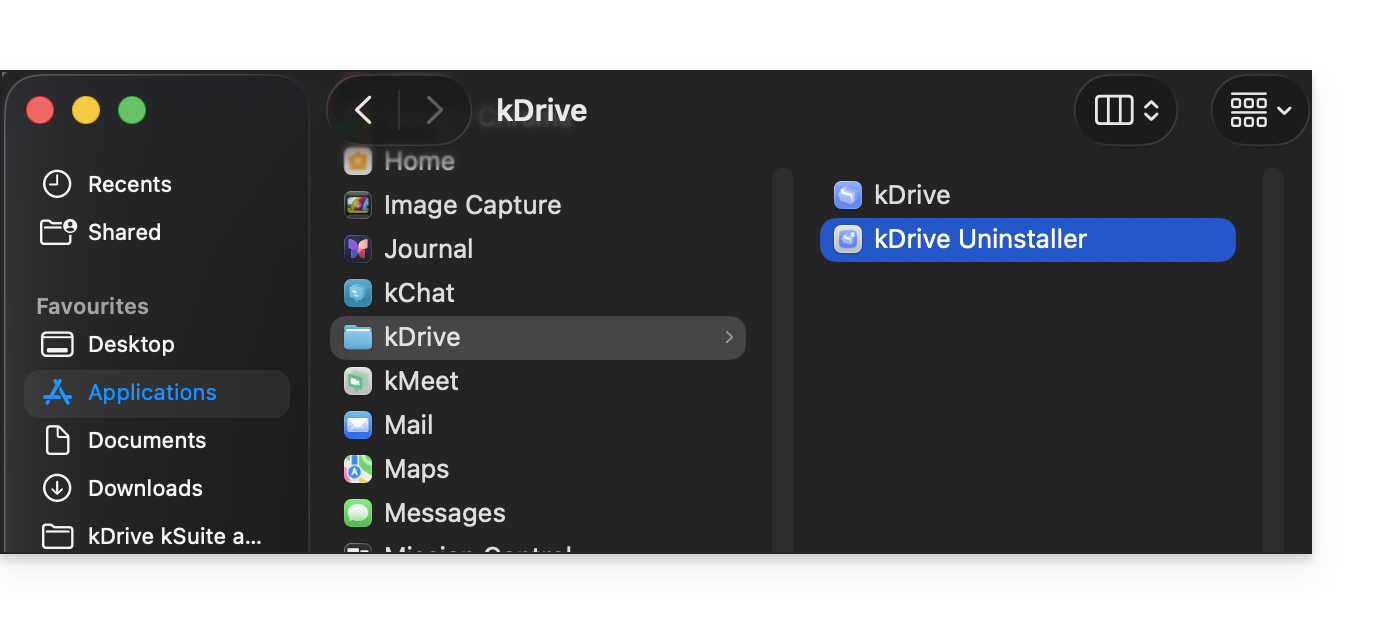
- Then, open the kDrive Uninstaller application from the kDrive folder in your macOS applications and confirm the deletion:
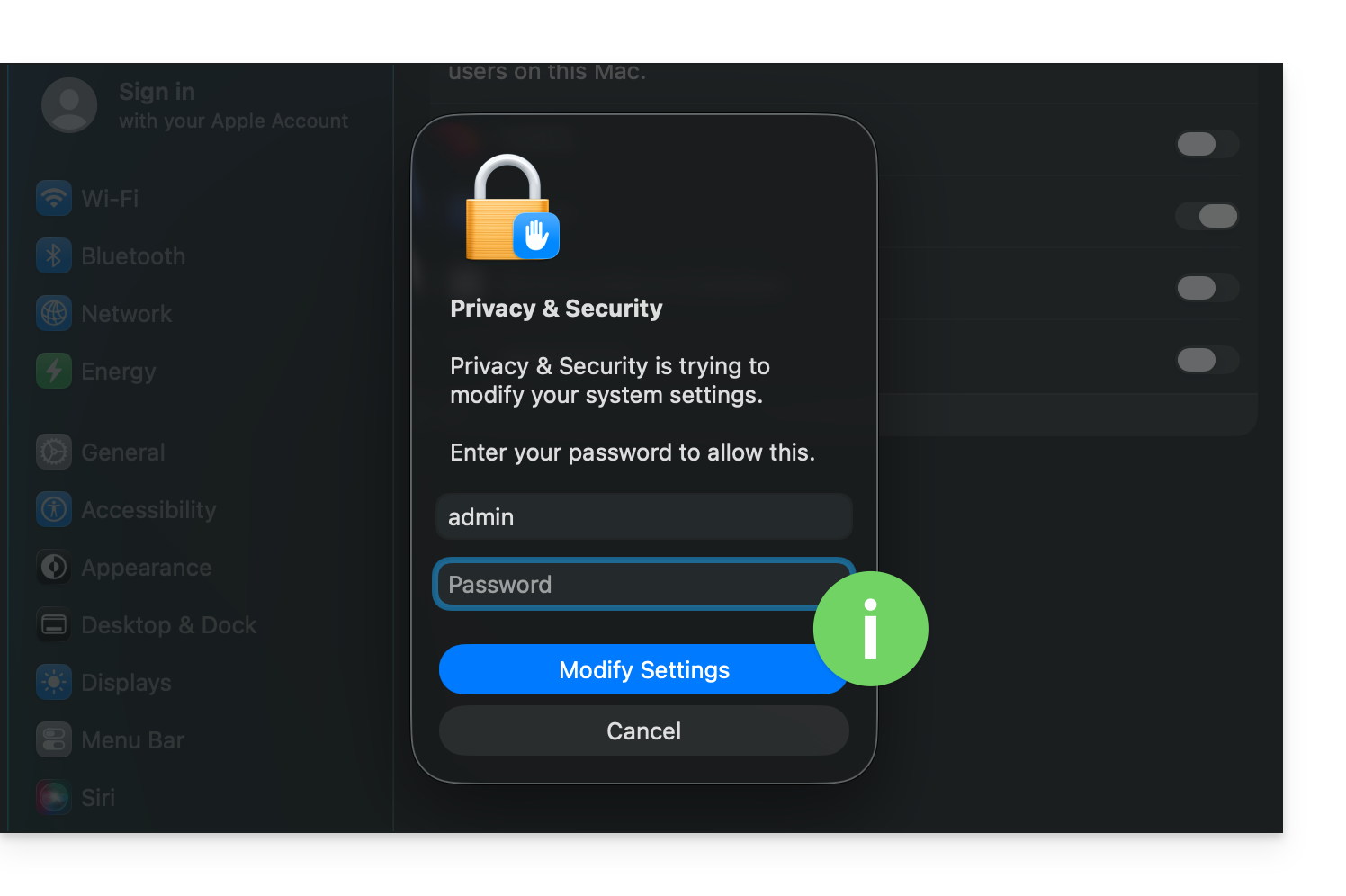
- You may need to enter your login credentials.
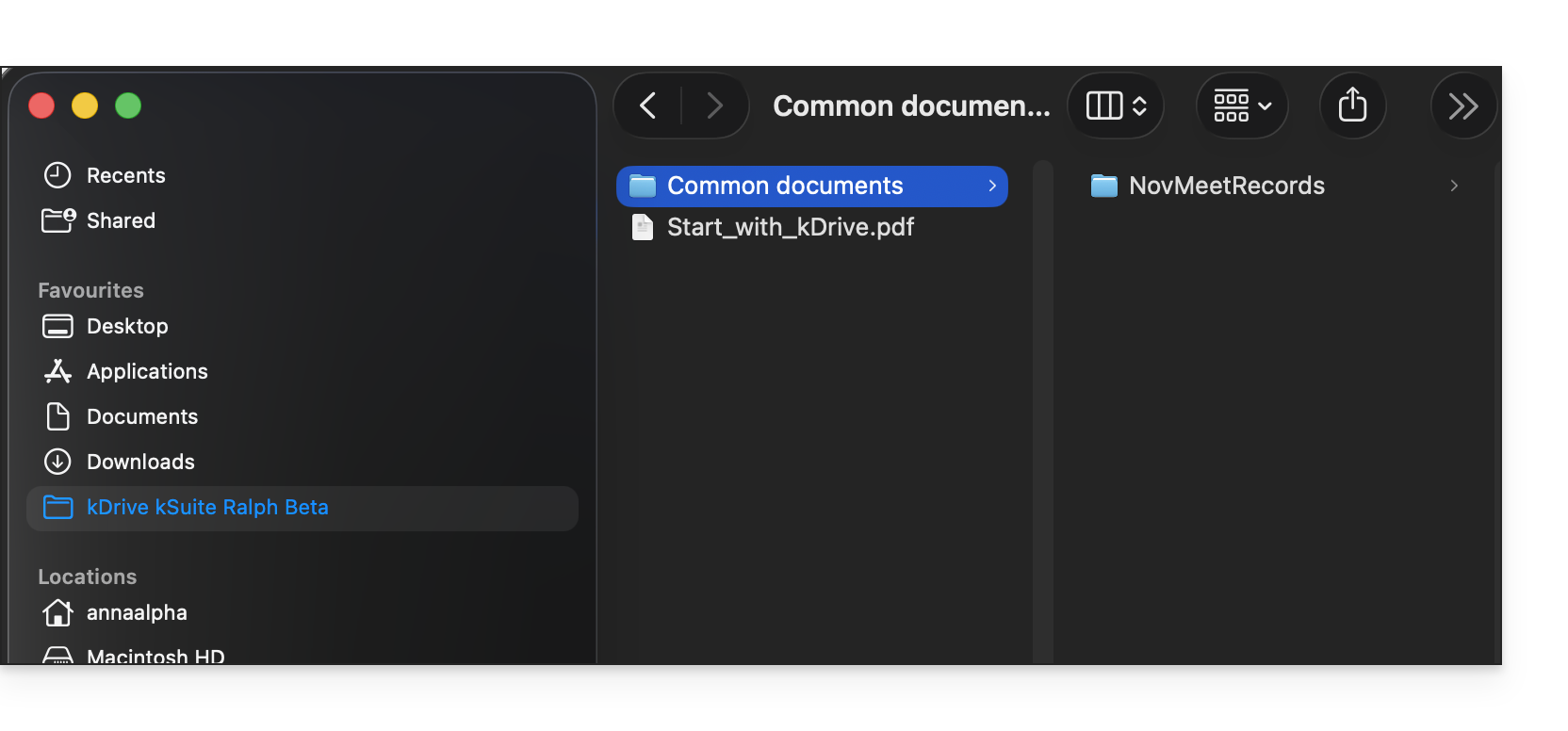
- Once the application has been deleted, you can delete the storage folder containing your files on your computer if necessary:
kDrive permissions for older versions of macOS
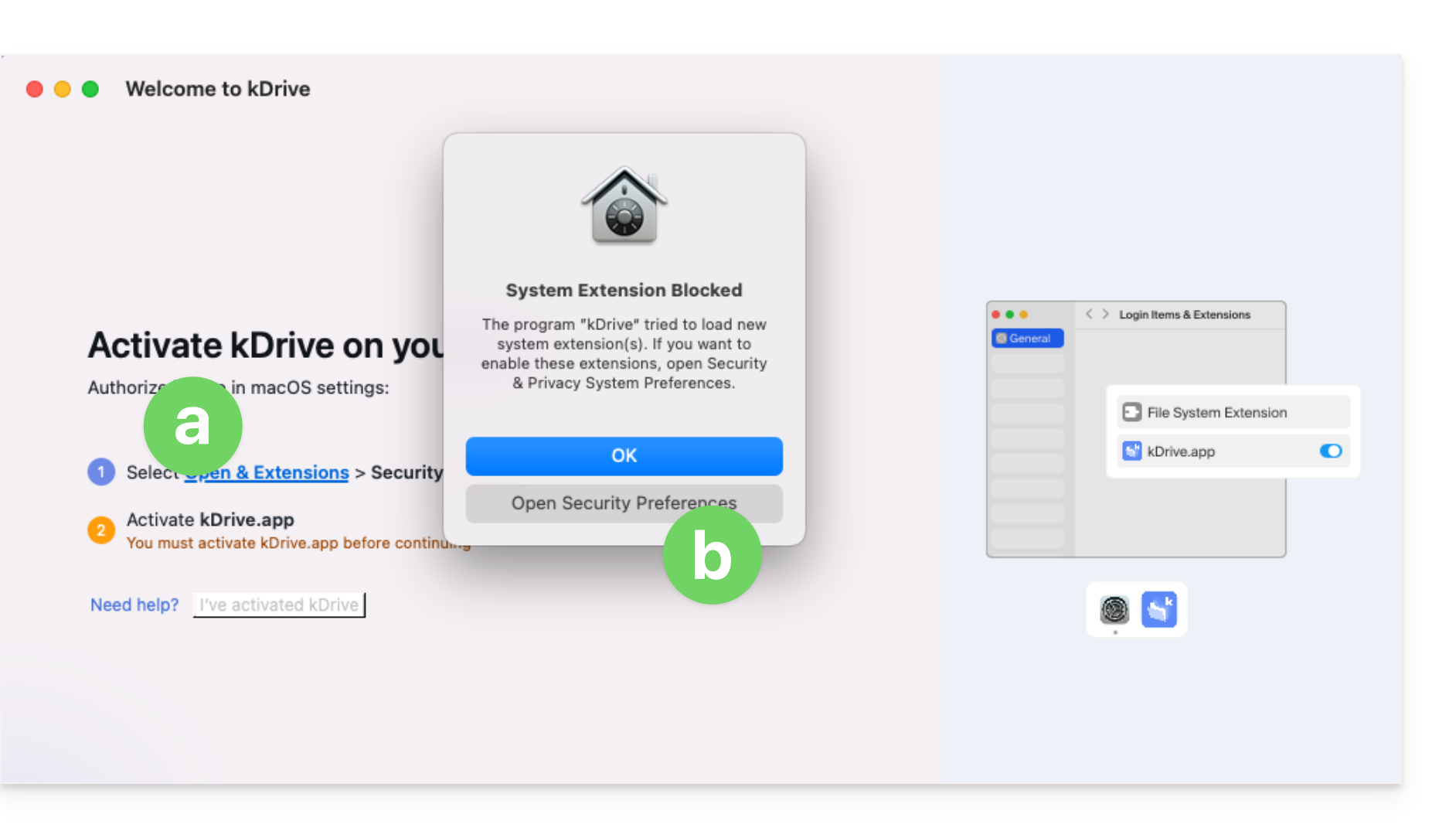
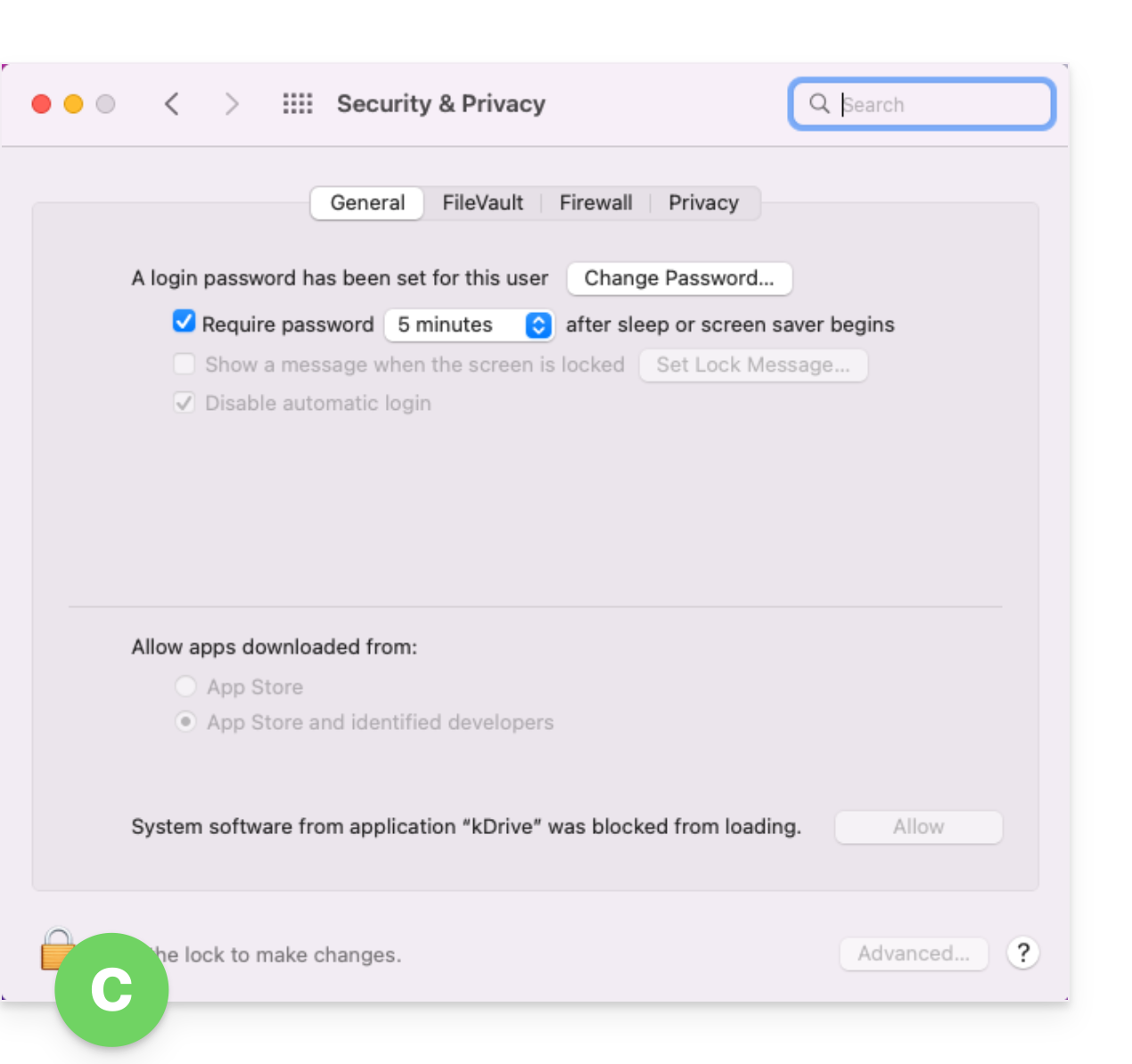
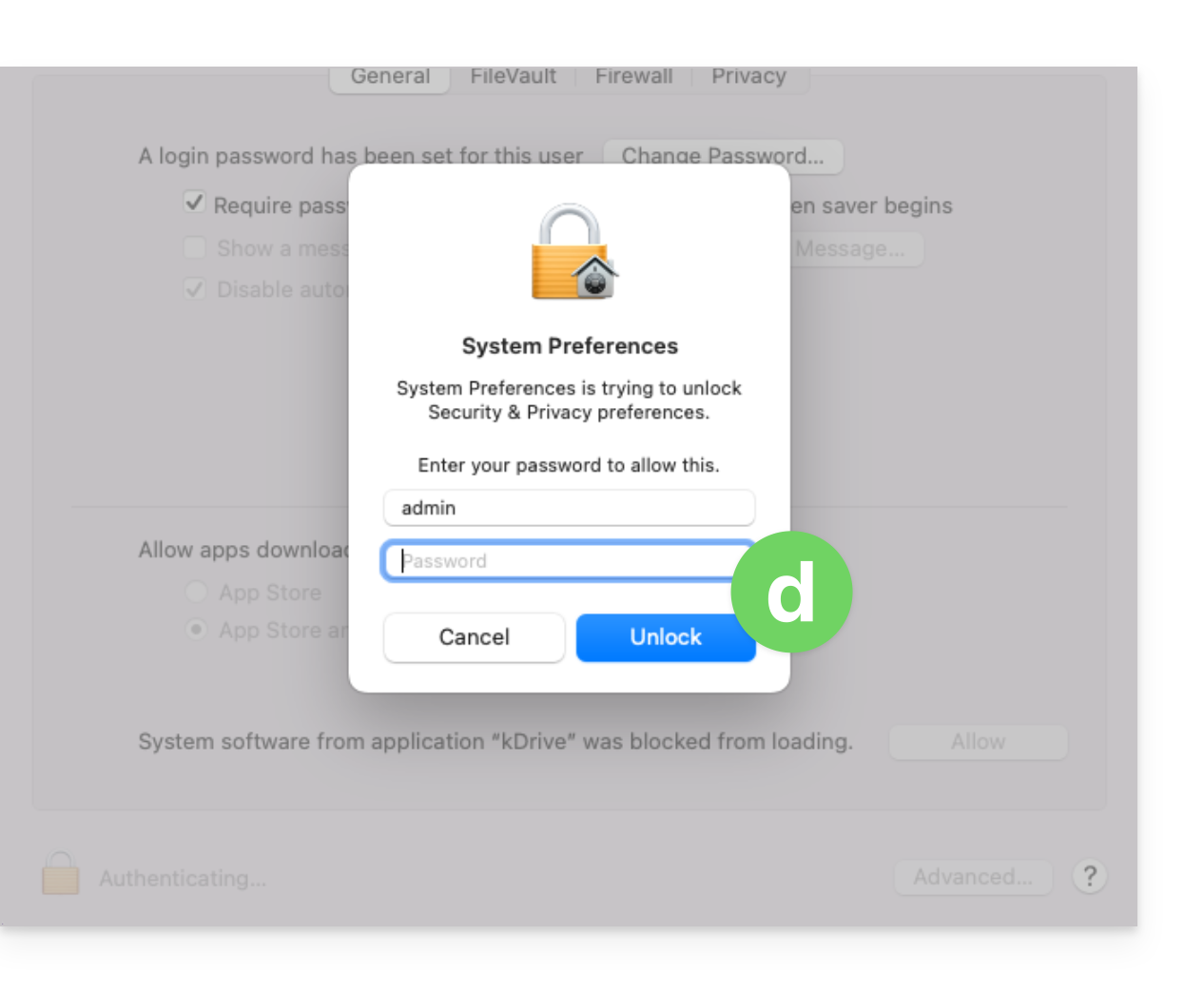
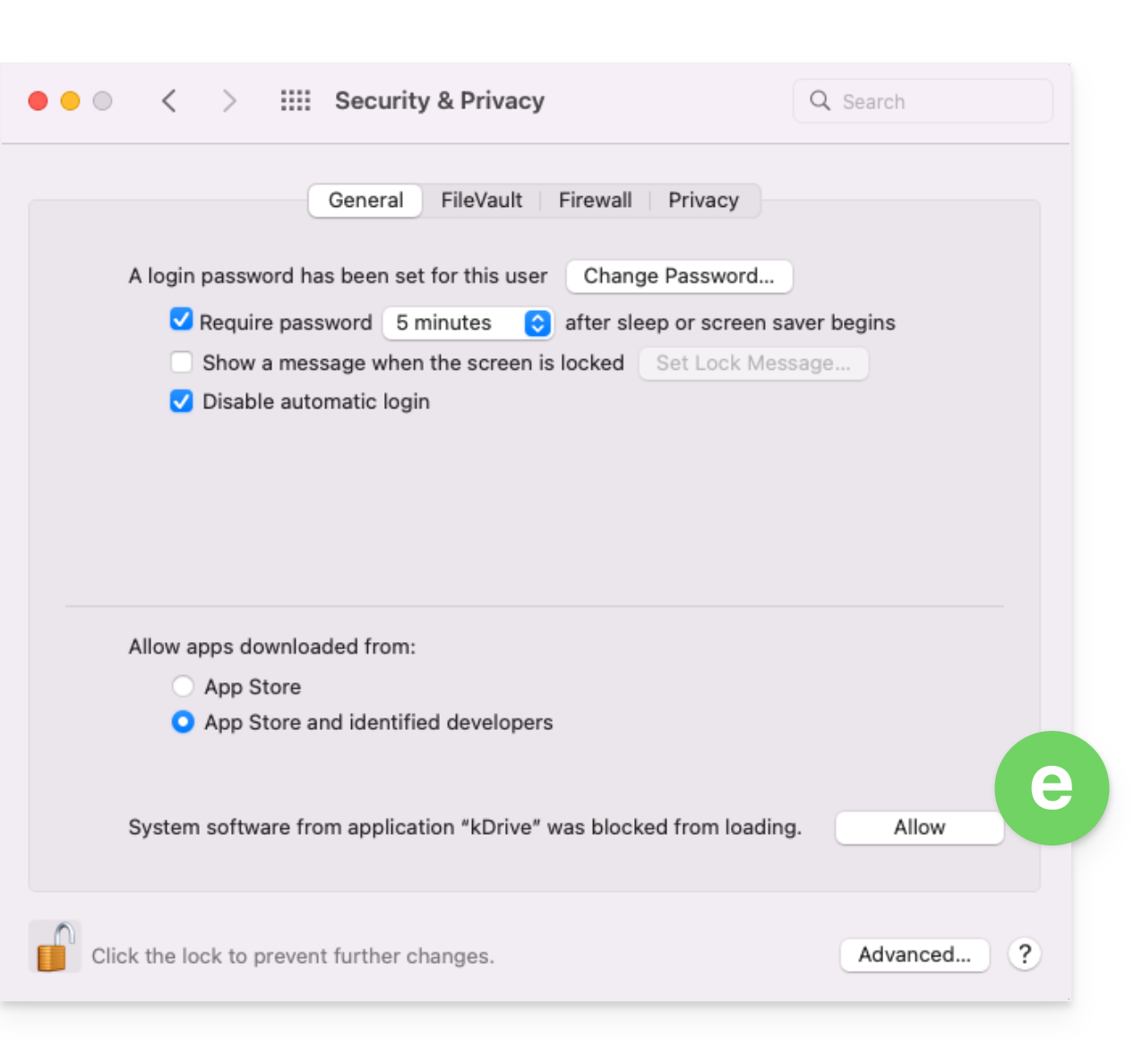
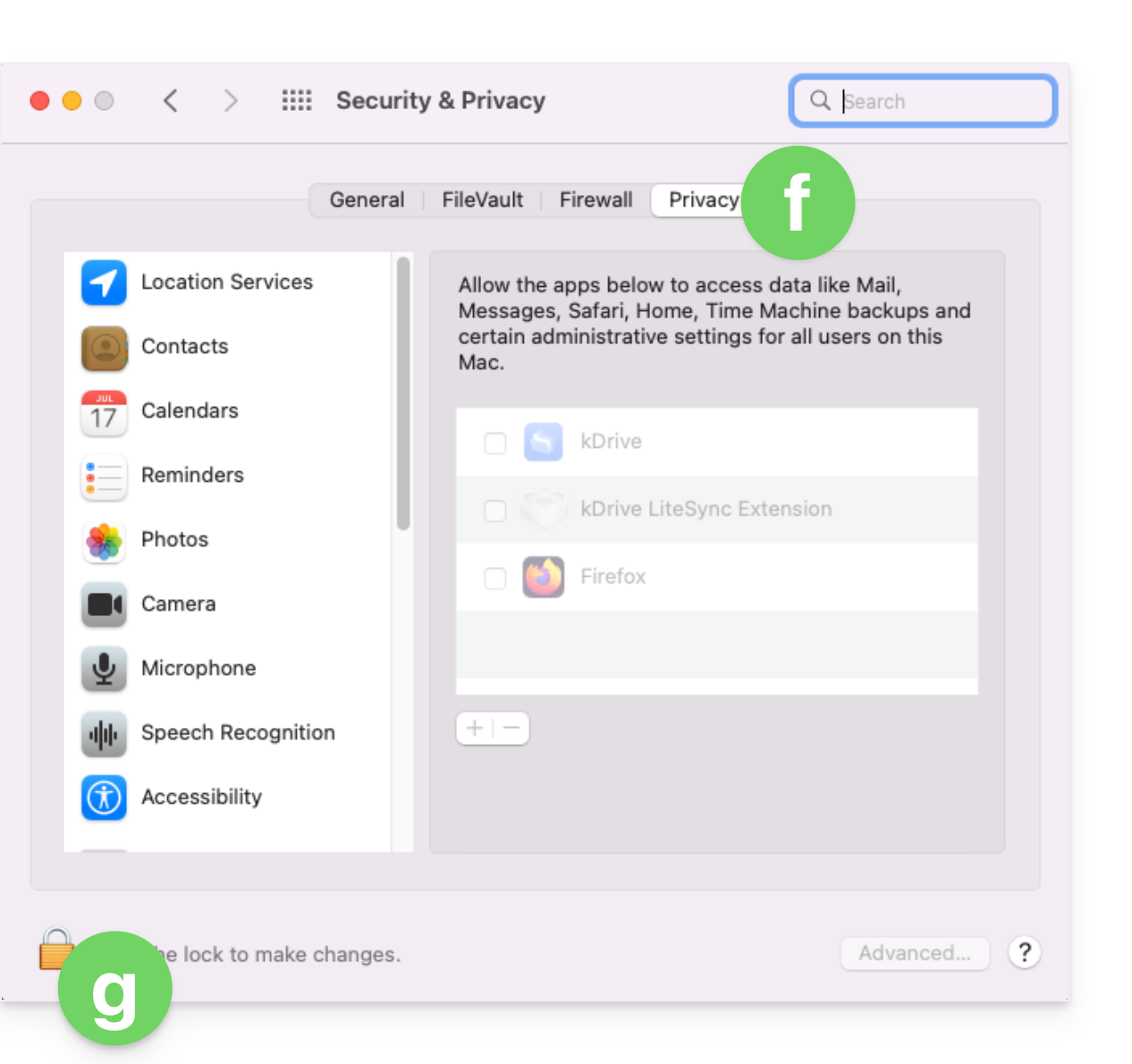
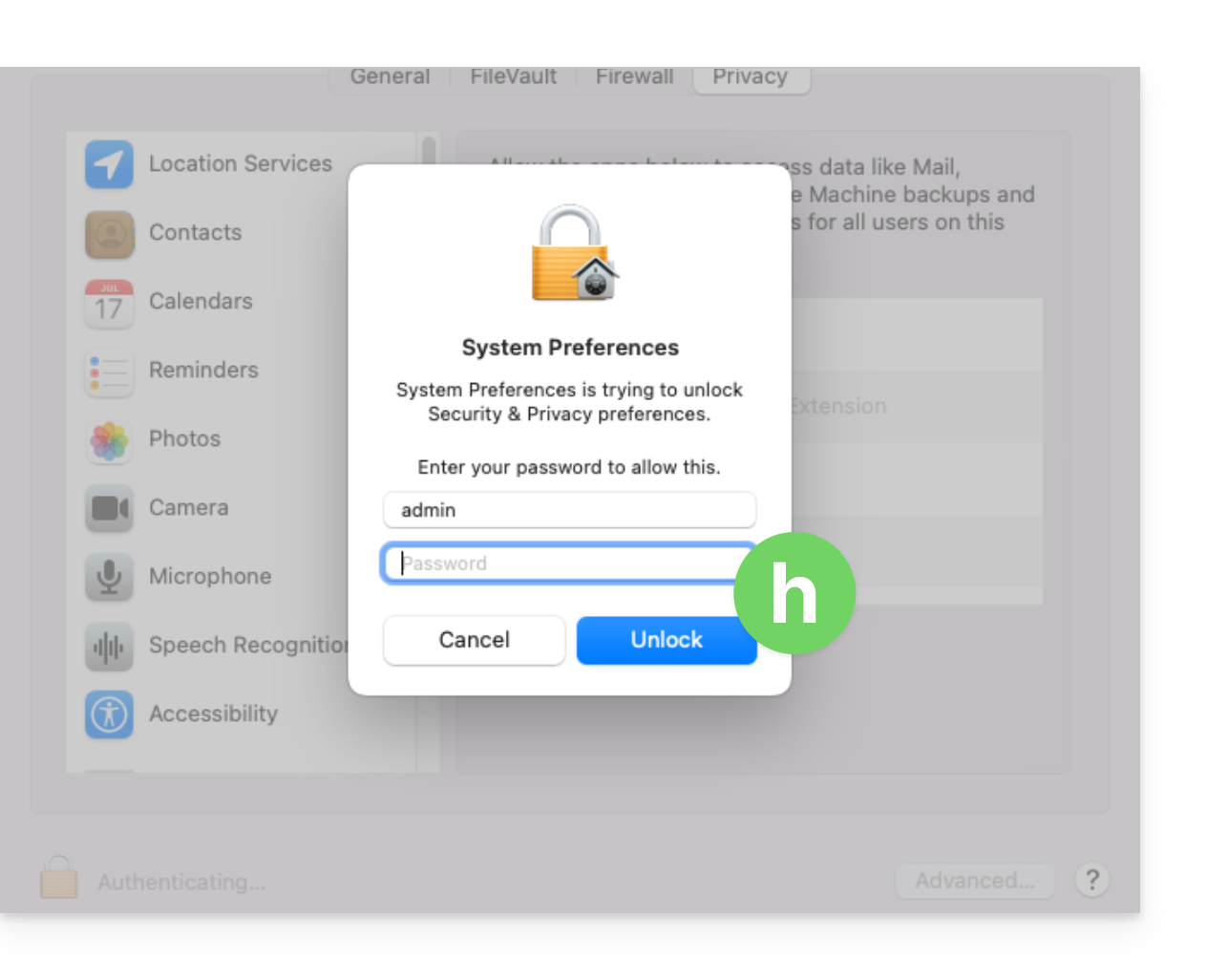
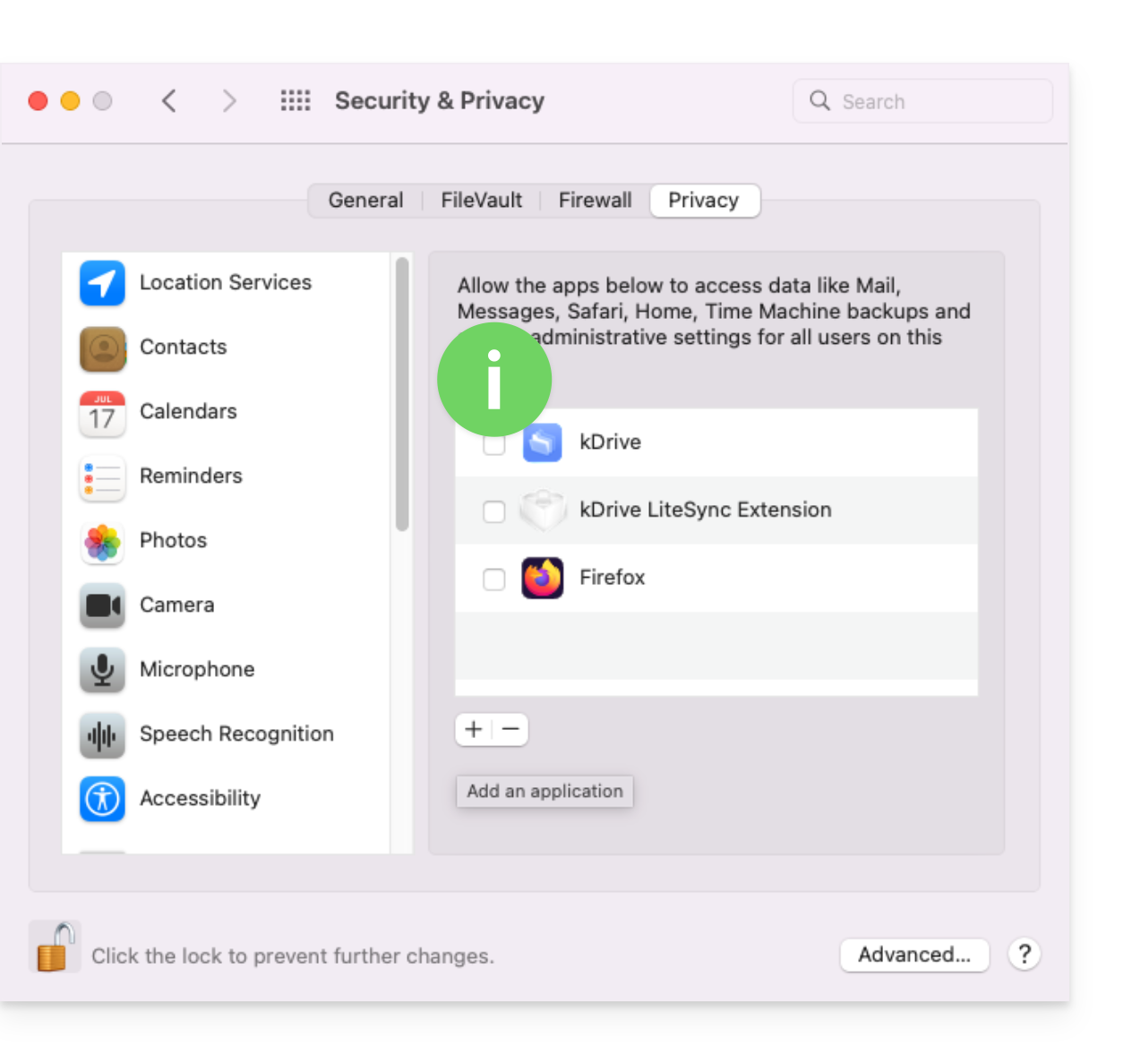
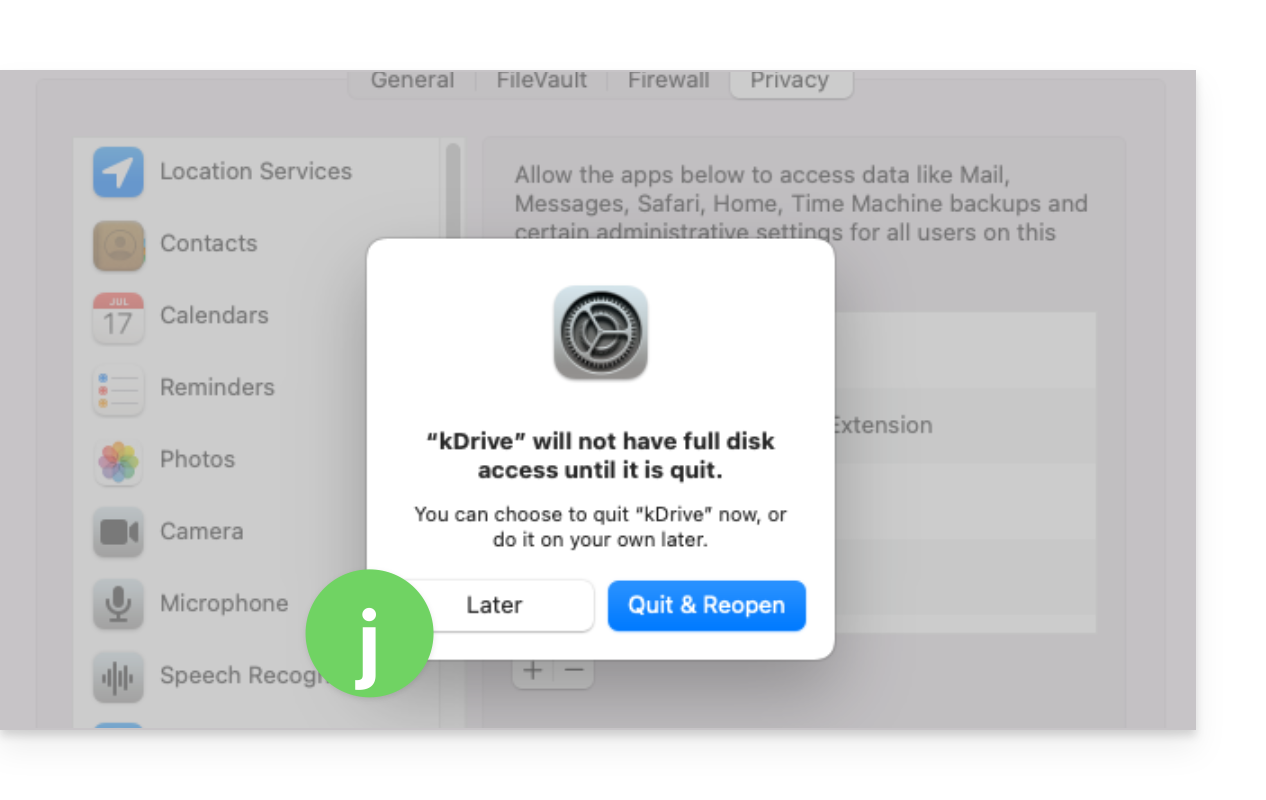
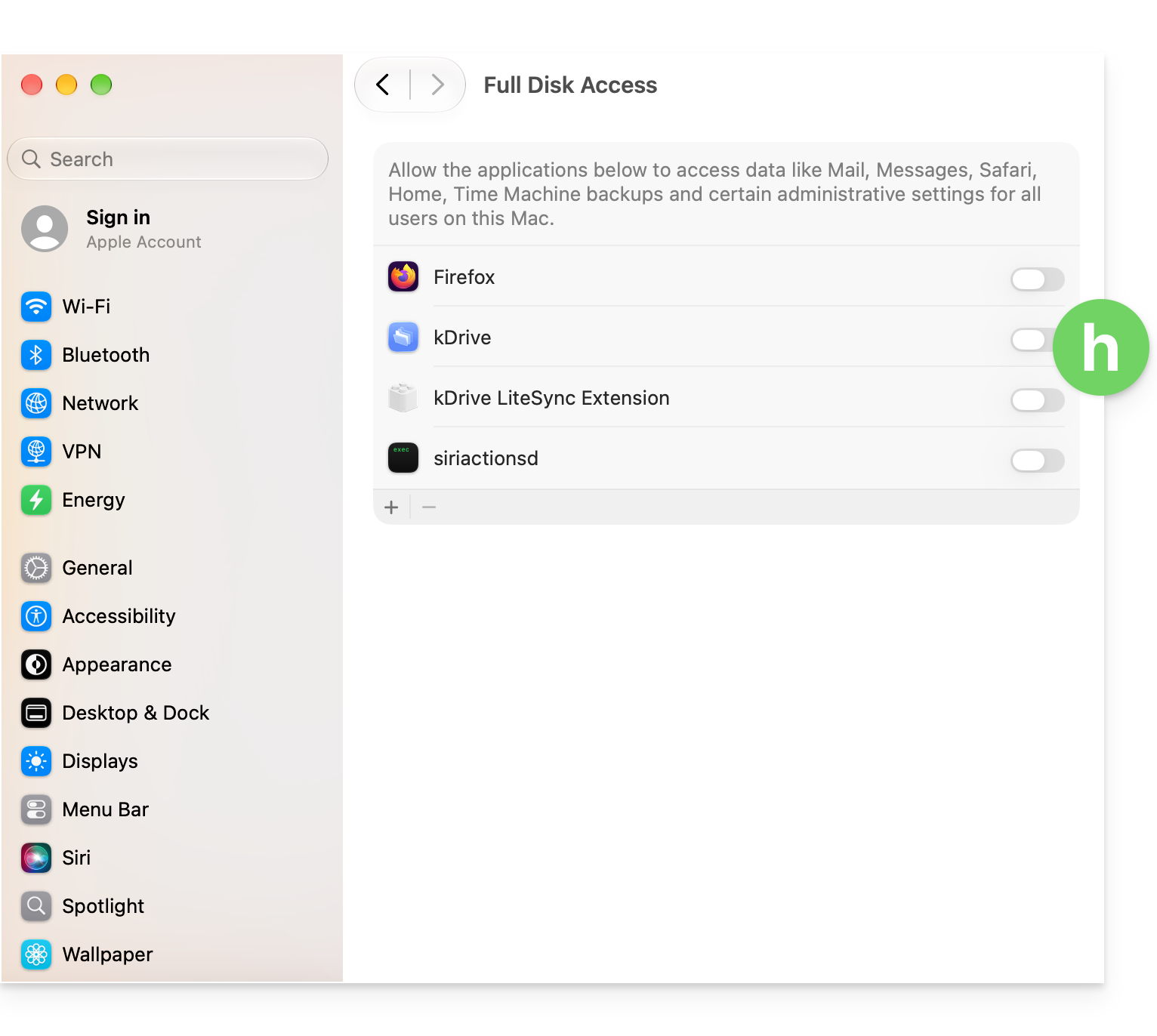
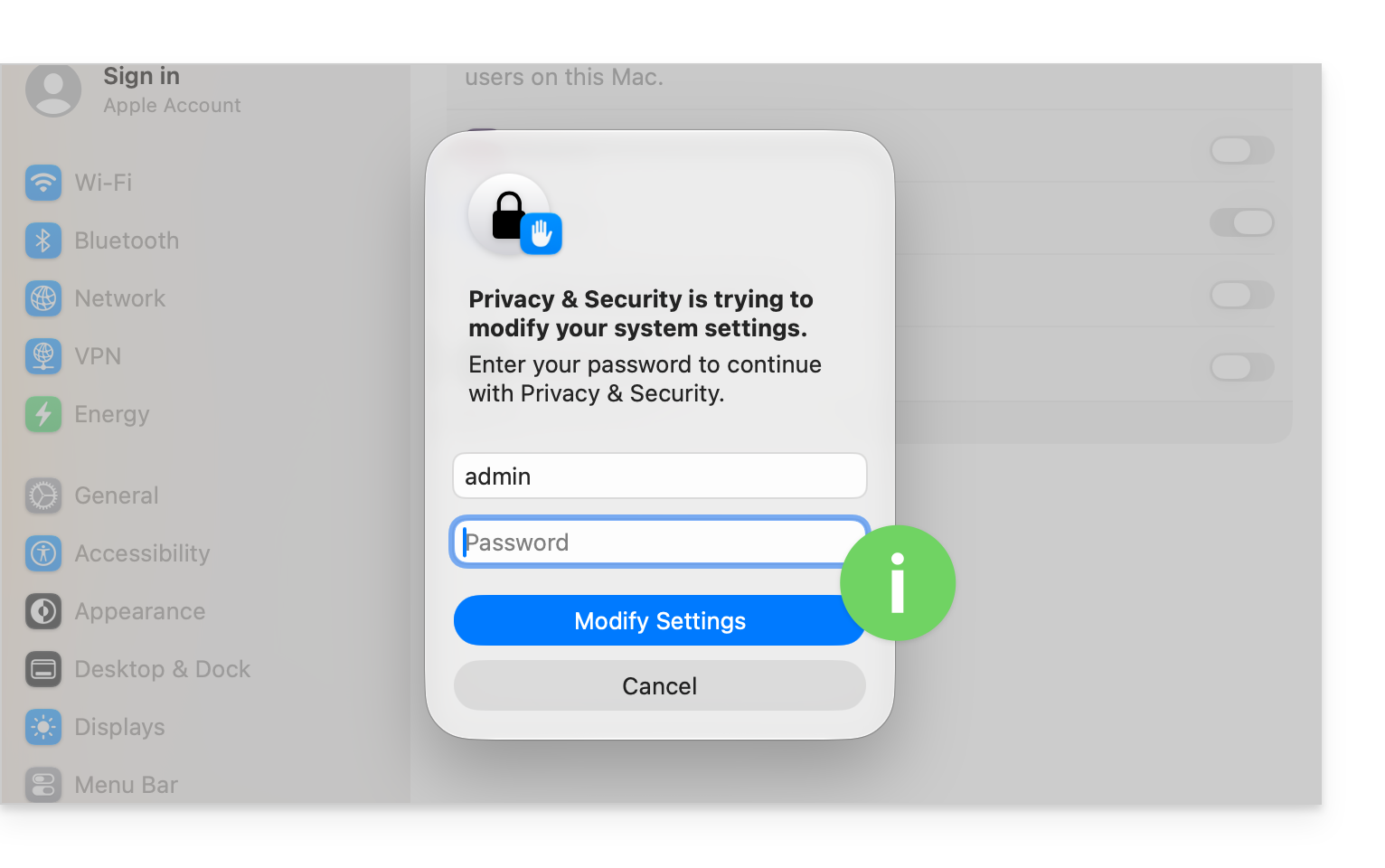
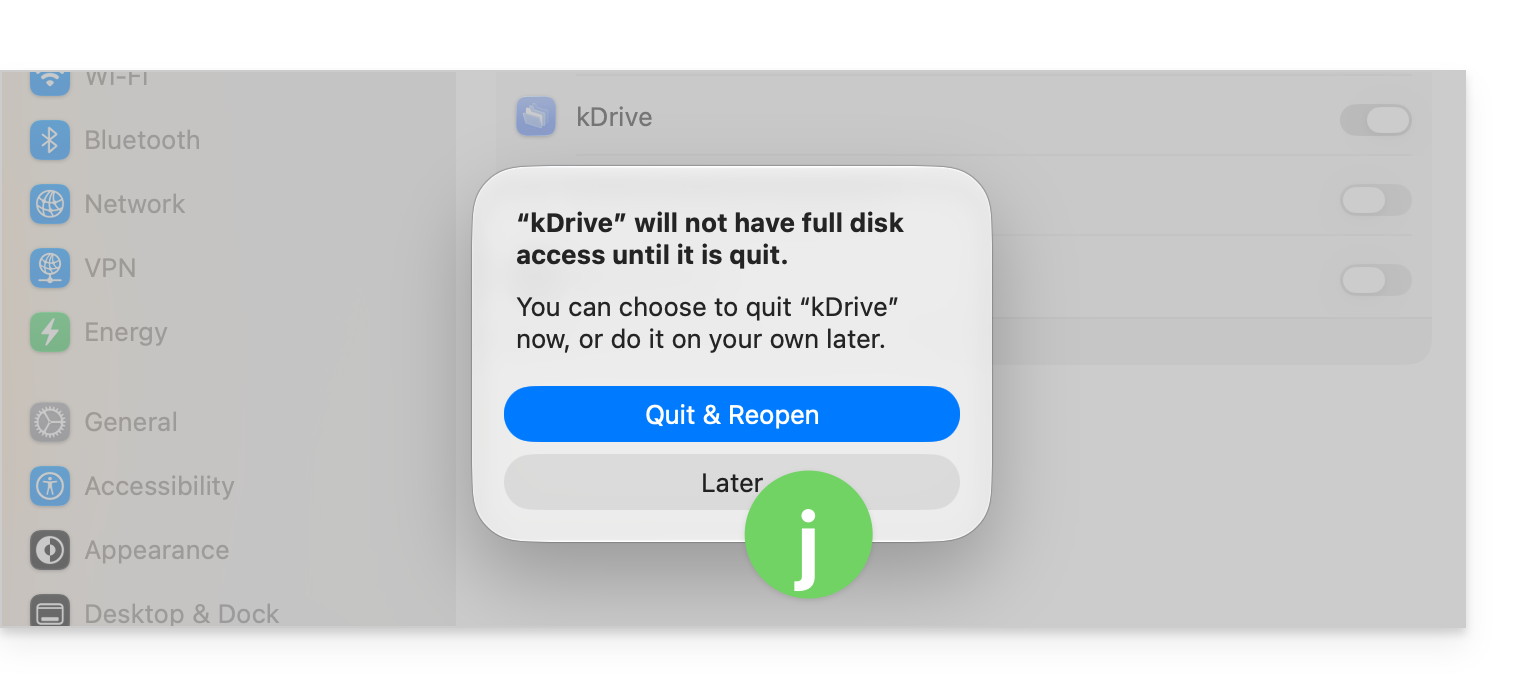
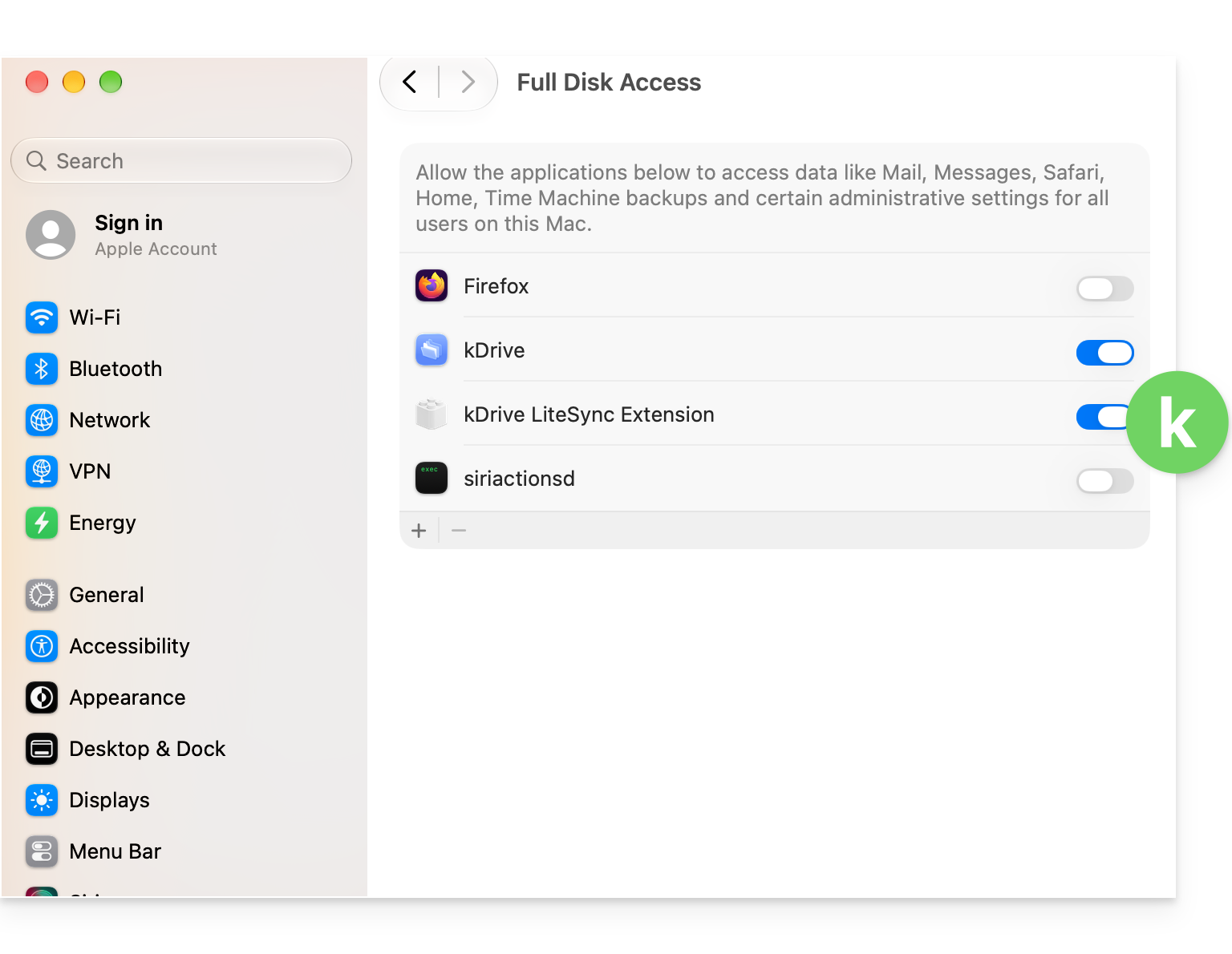
To allow the kDrive v4.x components to properly access your computer, follow the instructions shown in the screenshots corresponding to your version of macOS: 12 Monterey; 13 Ventura; 14 Sonoma; 15 Sequoia; 26 Tahoe; 27 Golden Gate
macOS 12
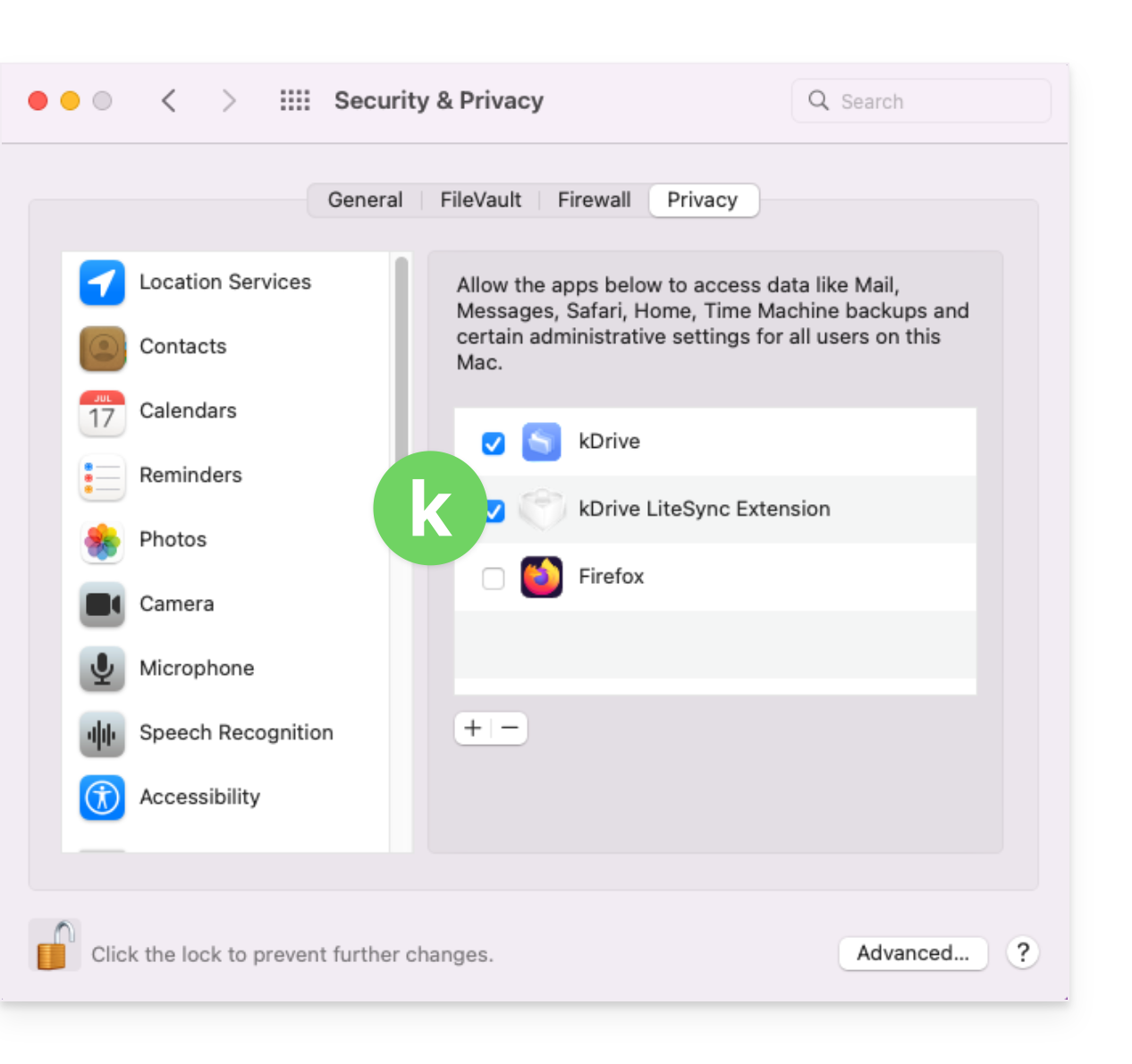
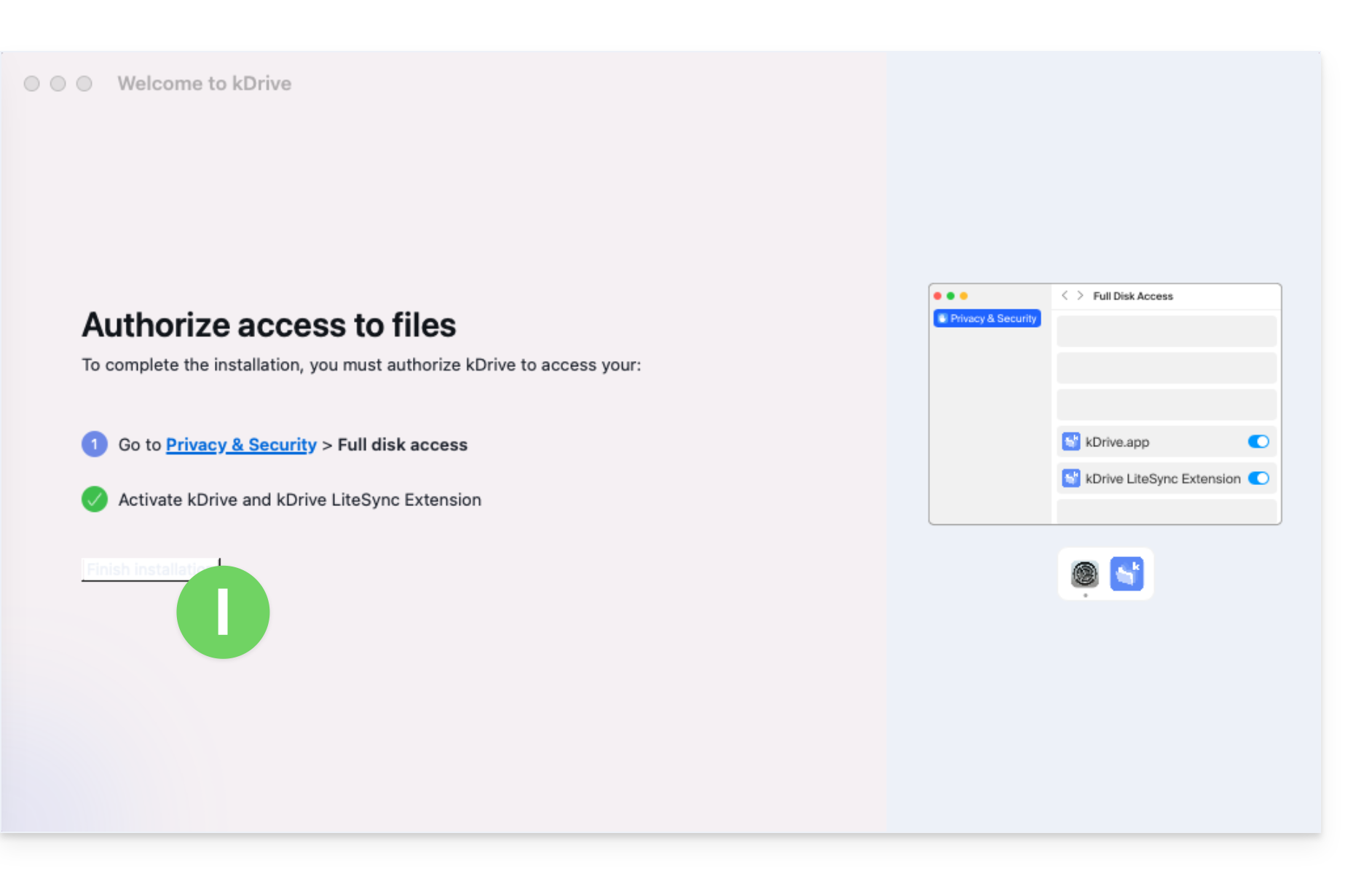
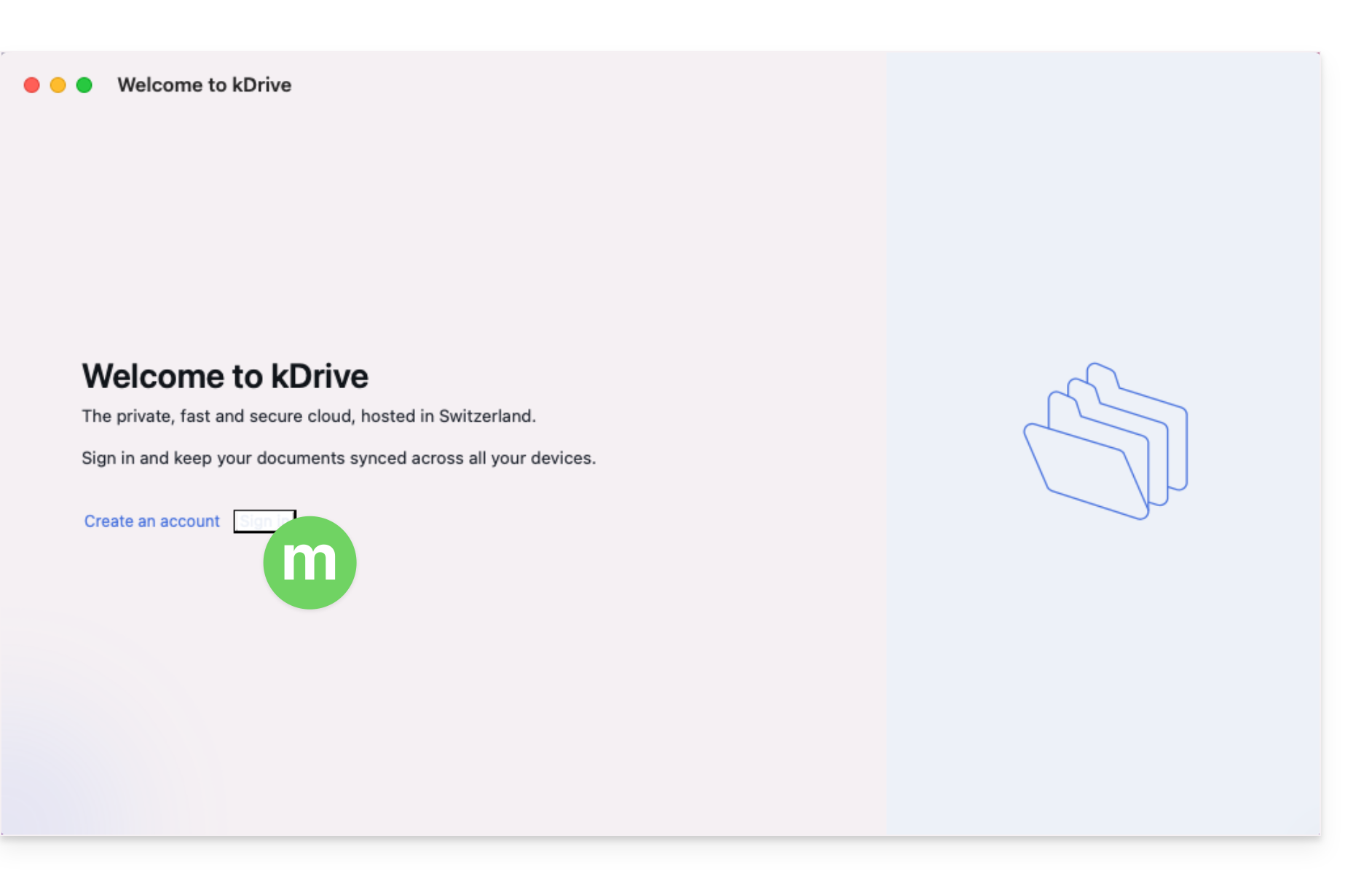
macOS 13
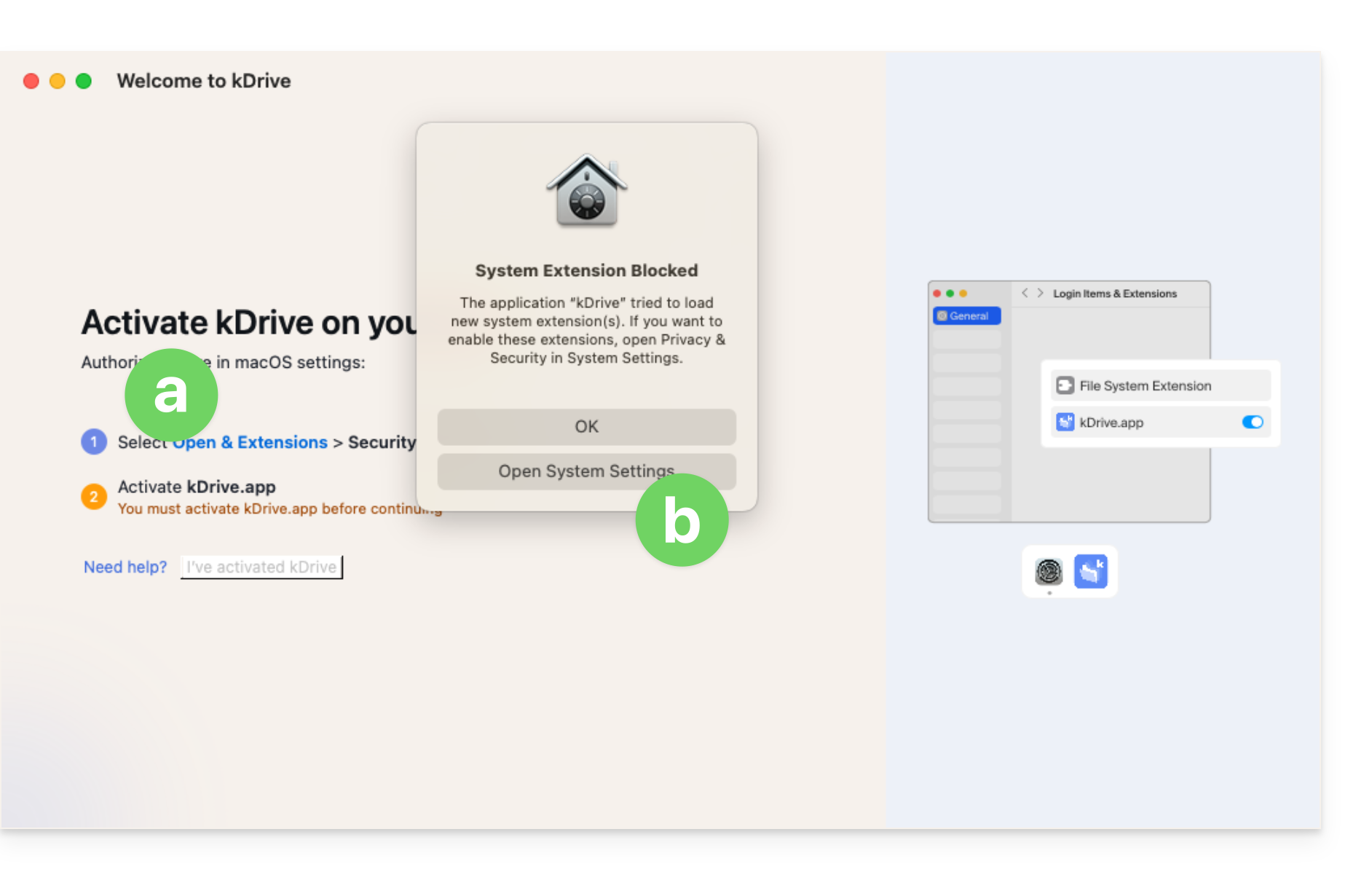
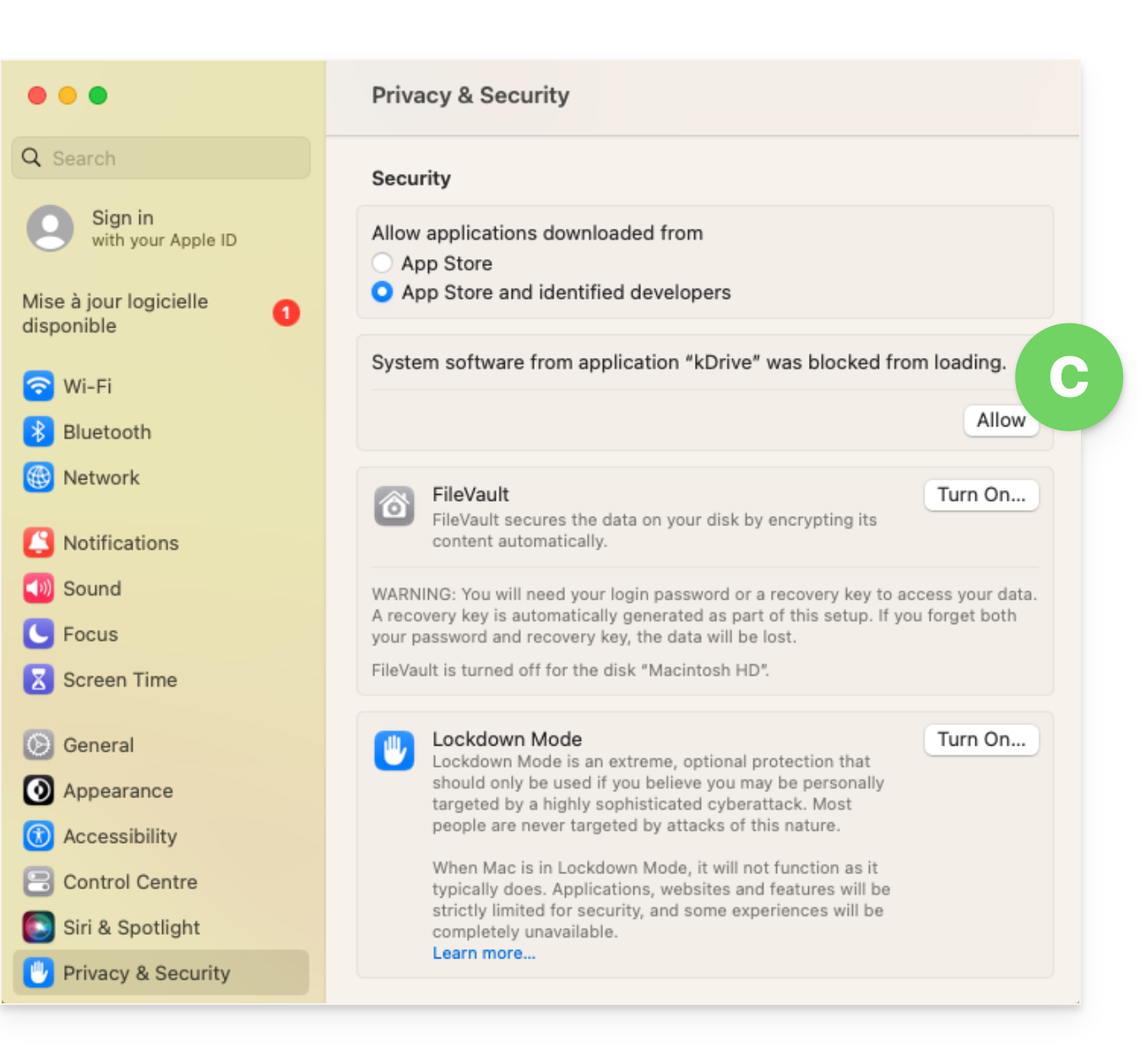
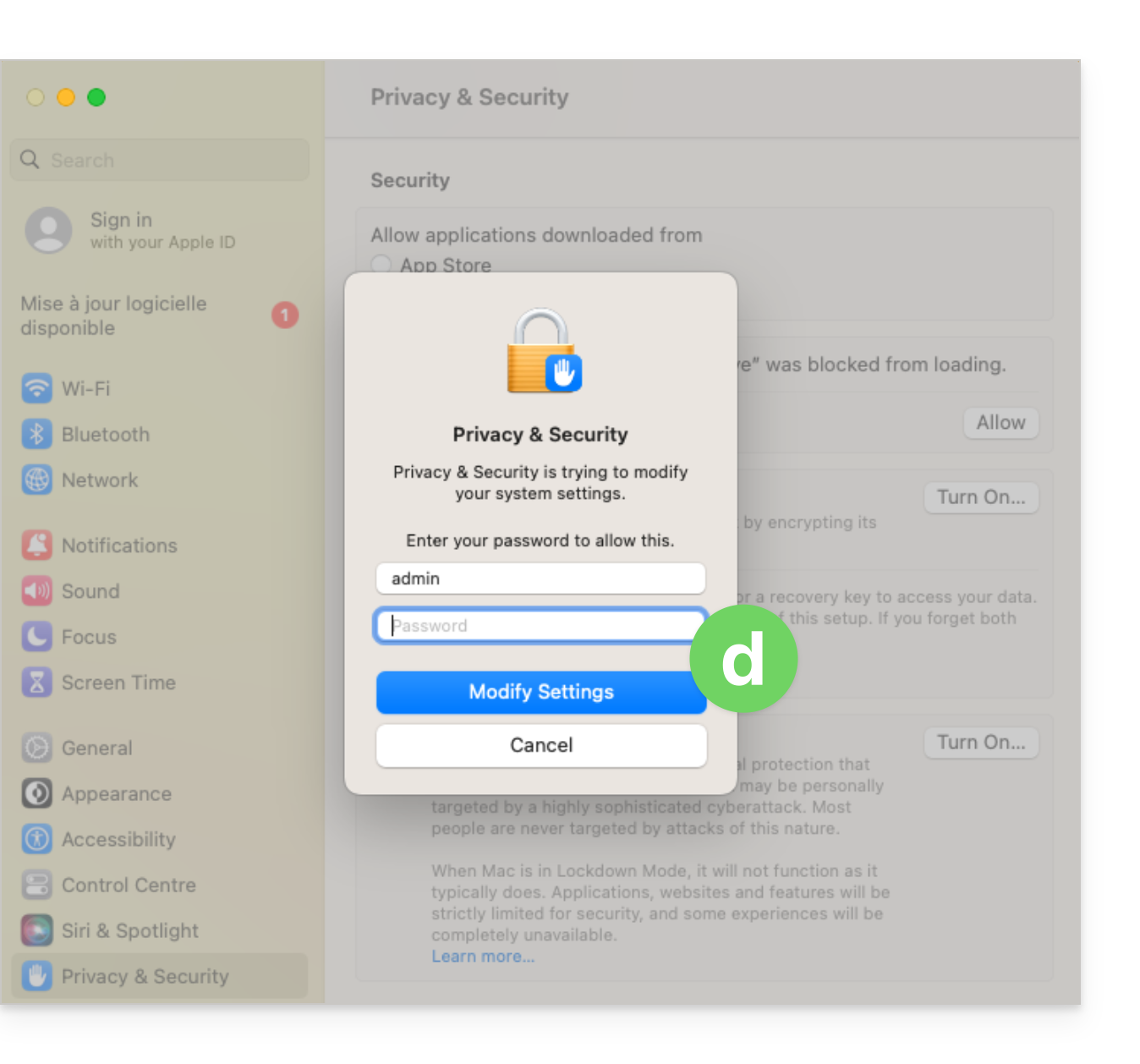
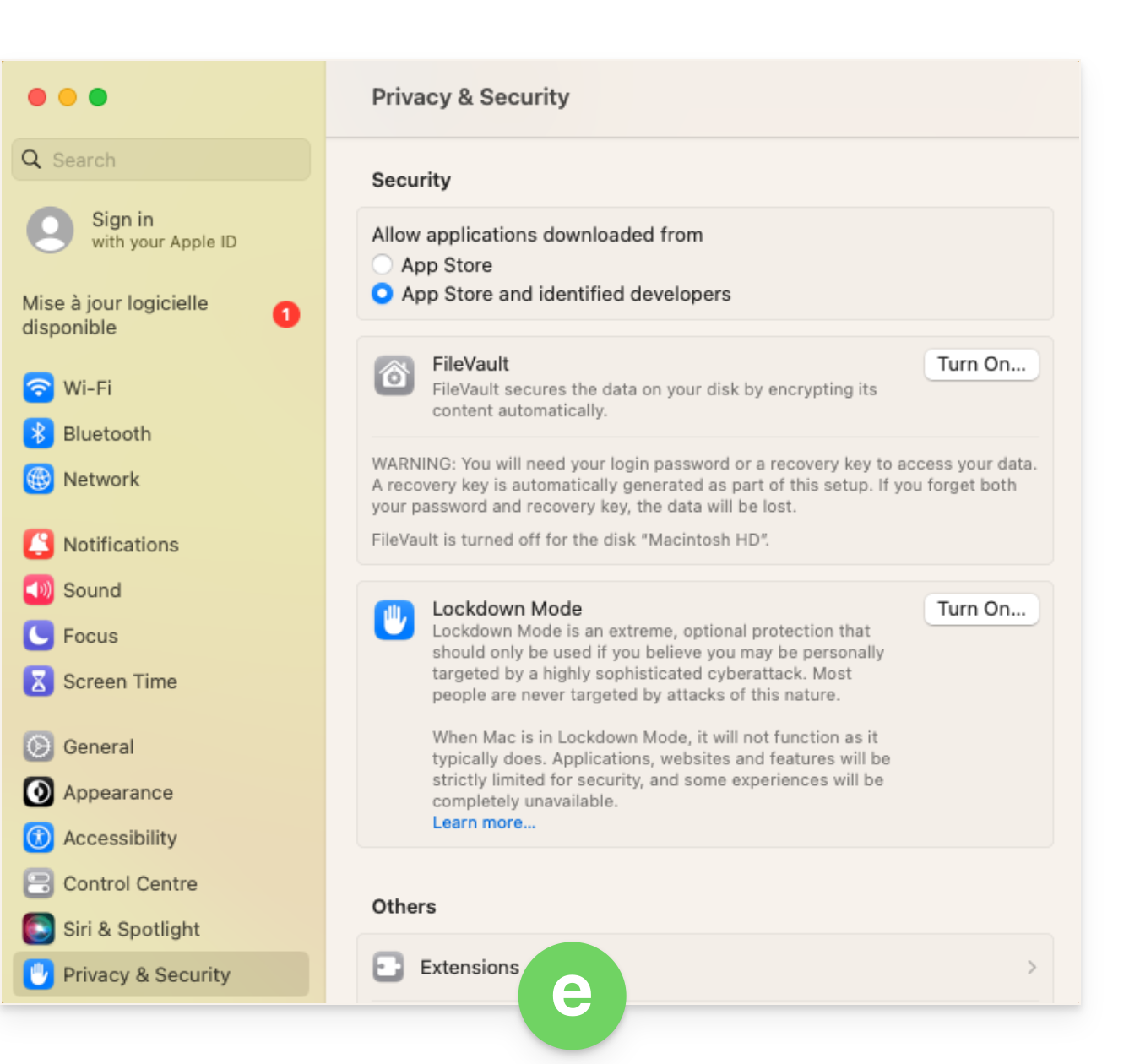
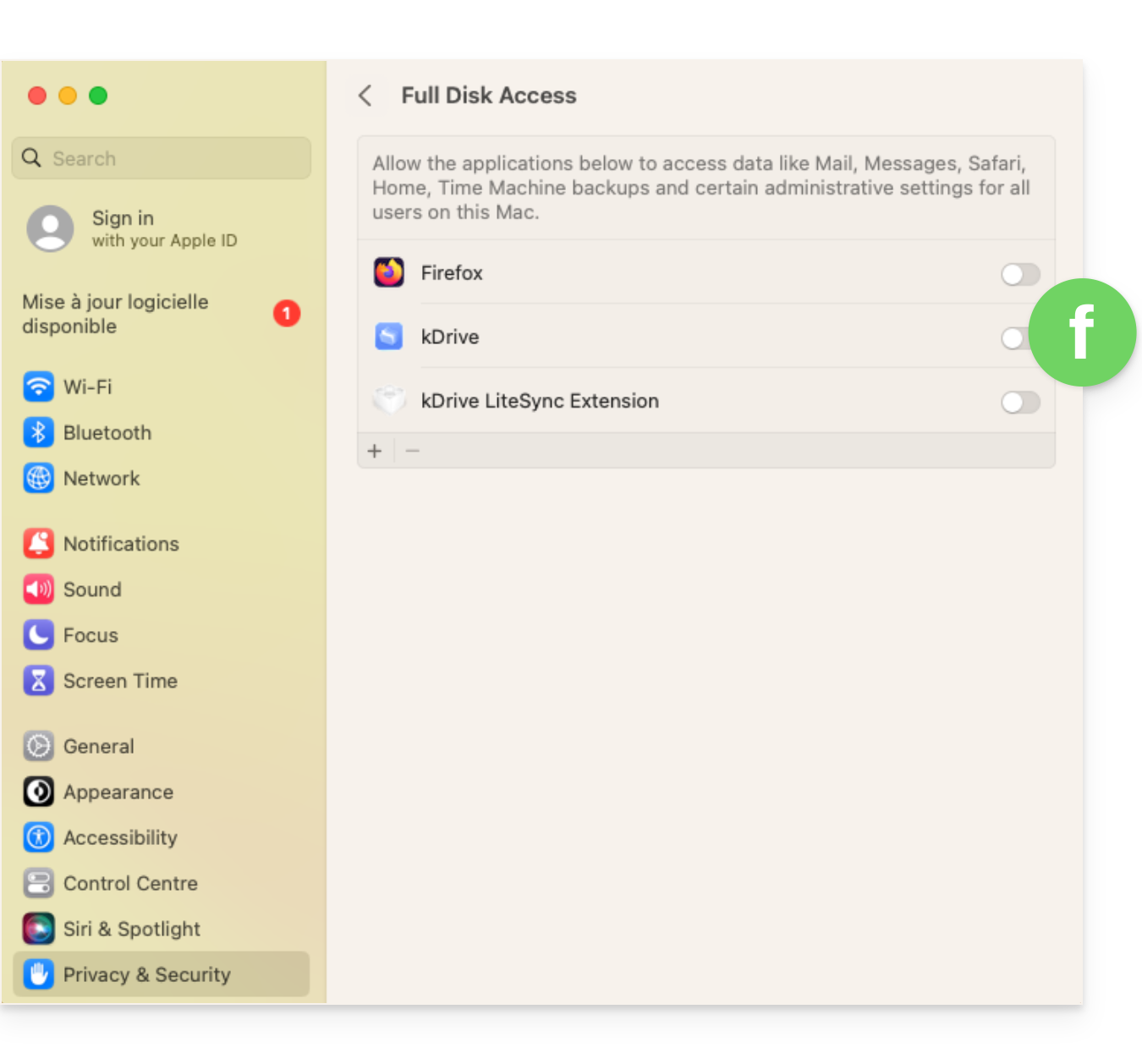
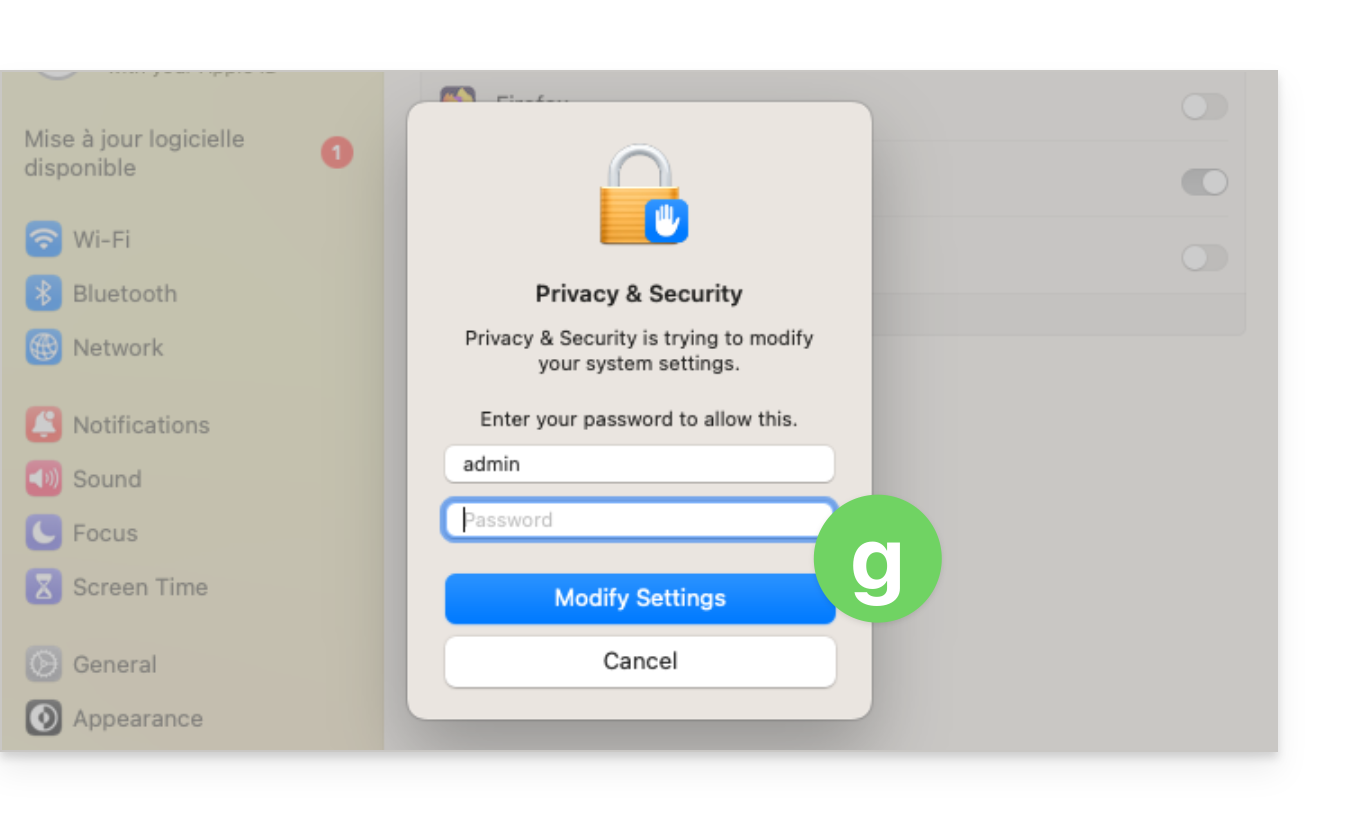
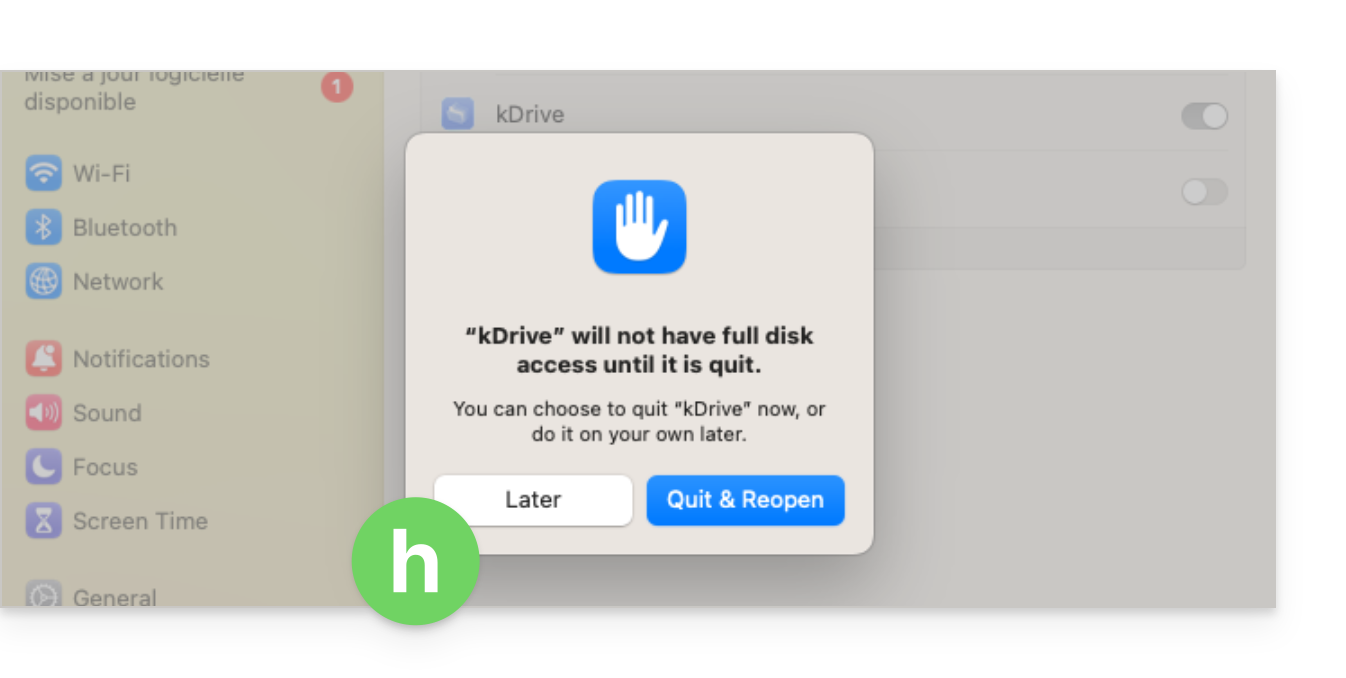
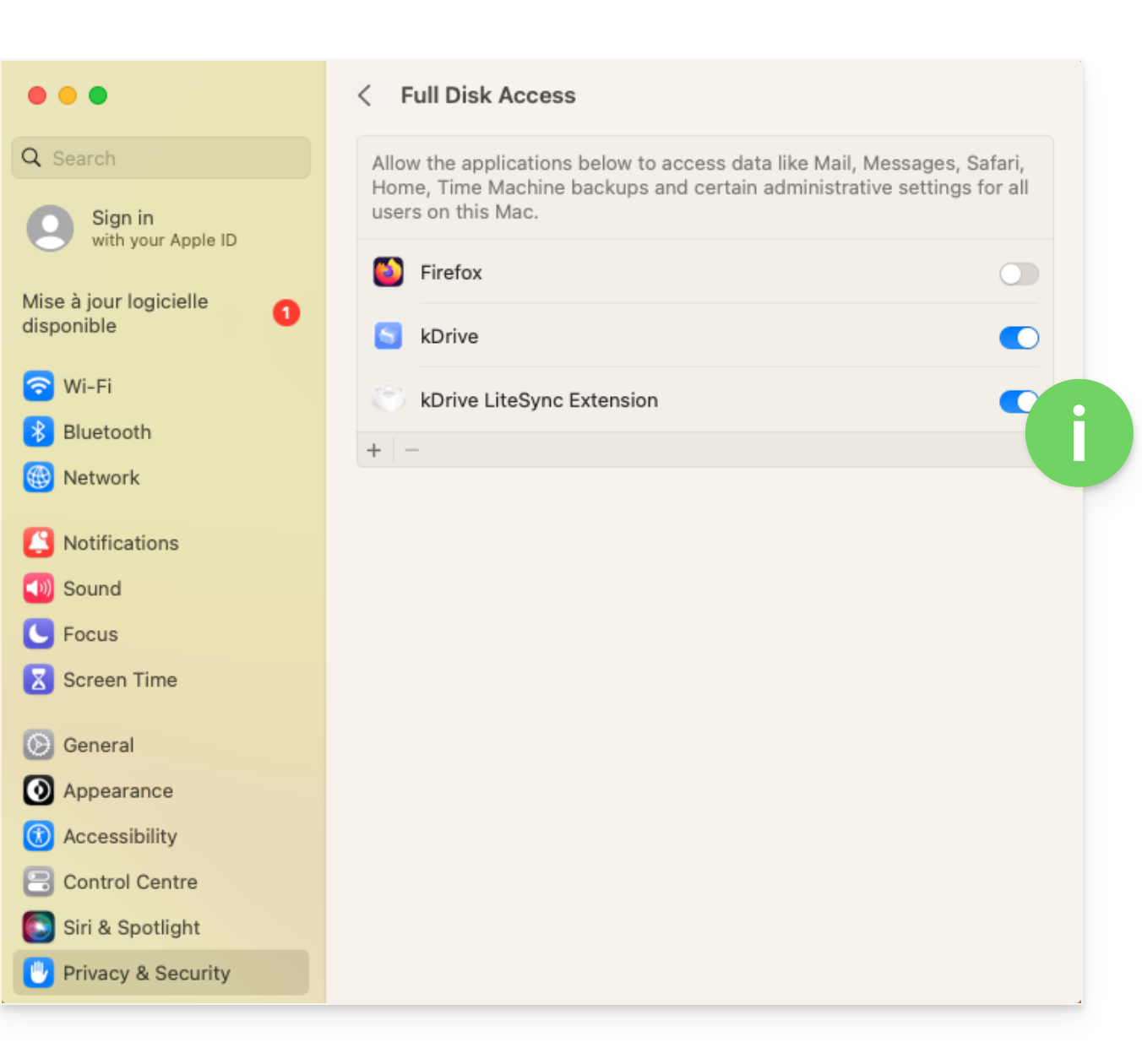
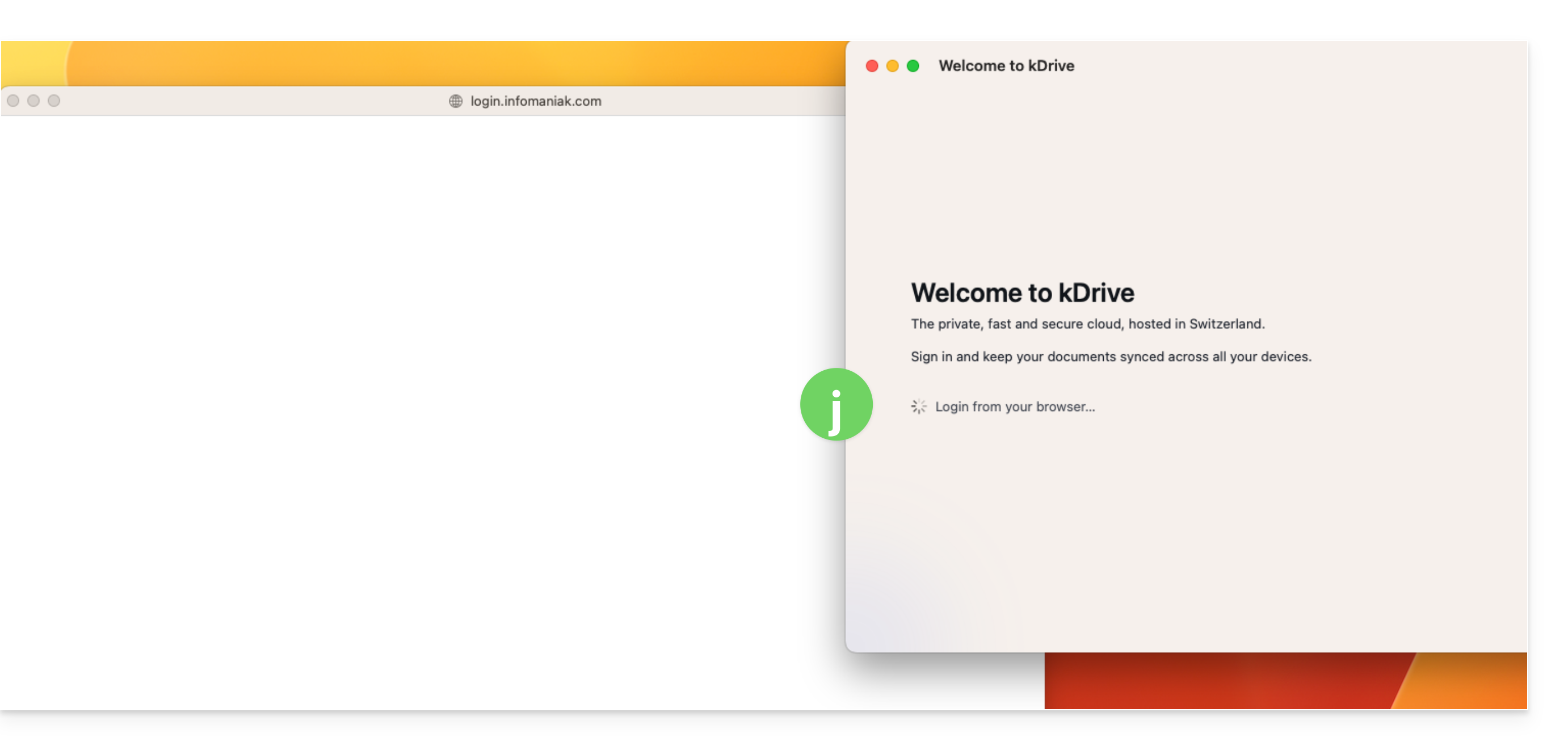
macOS 14
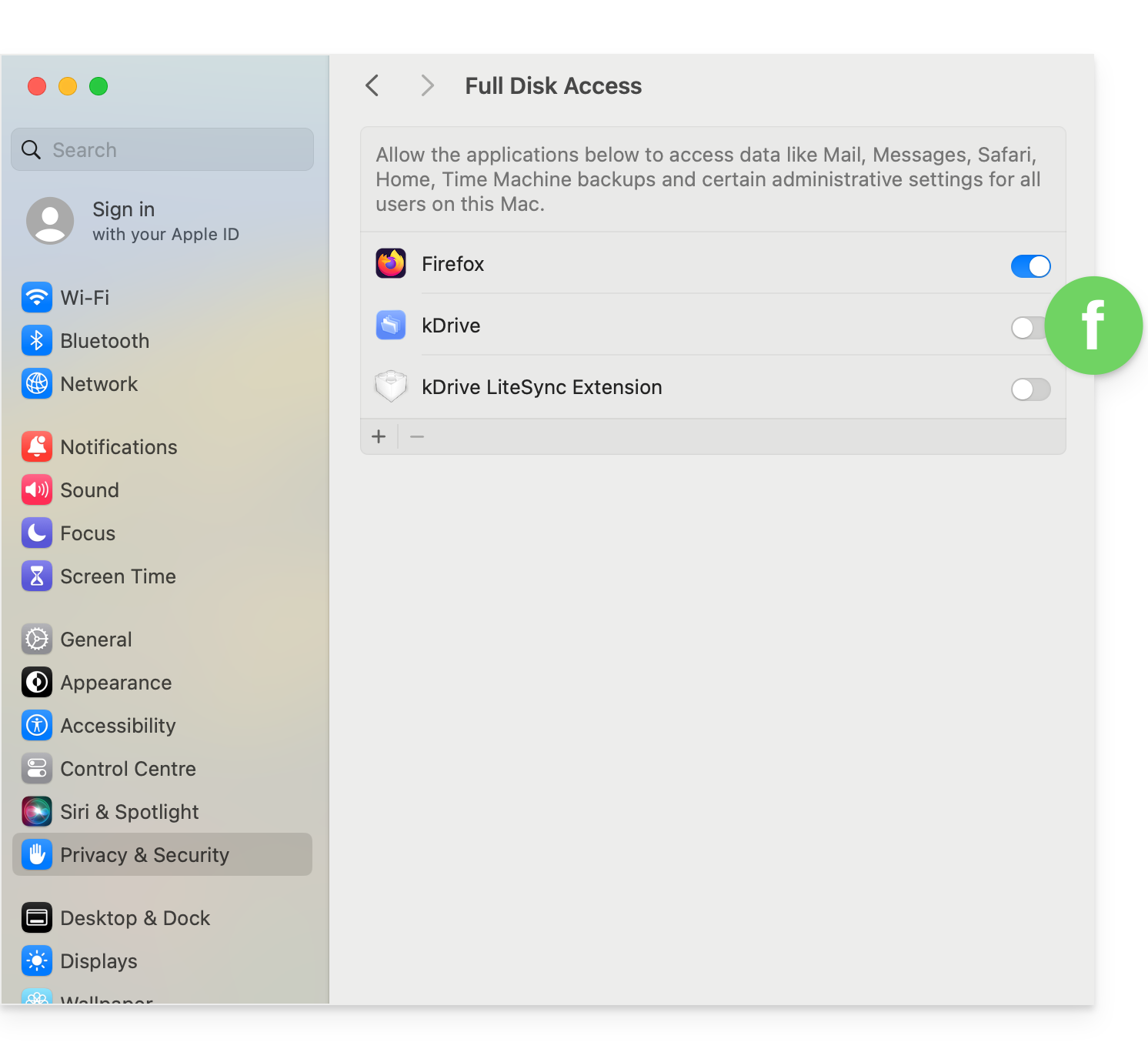
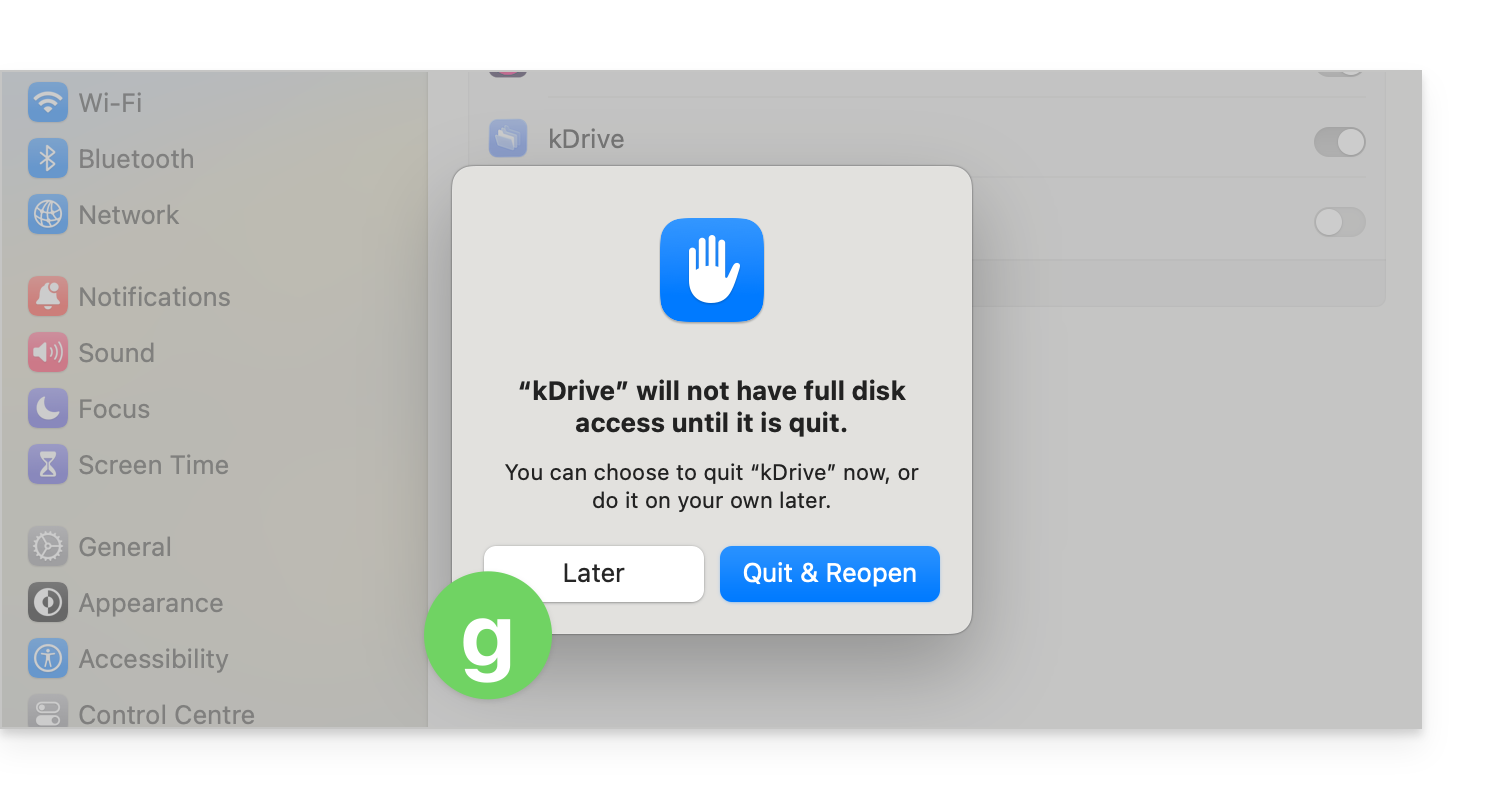
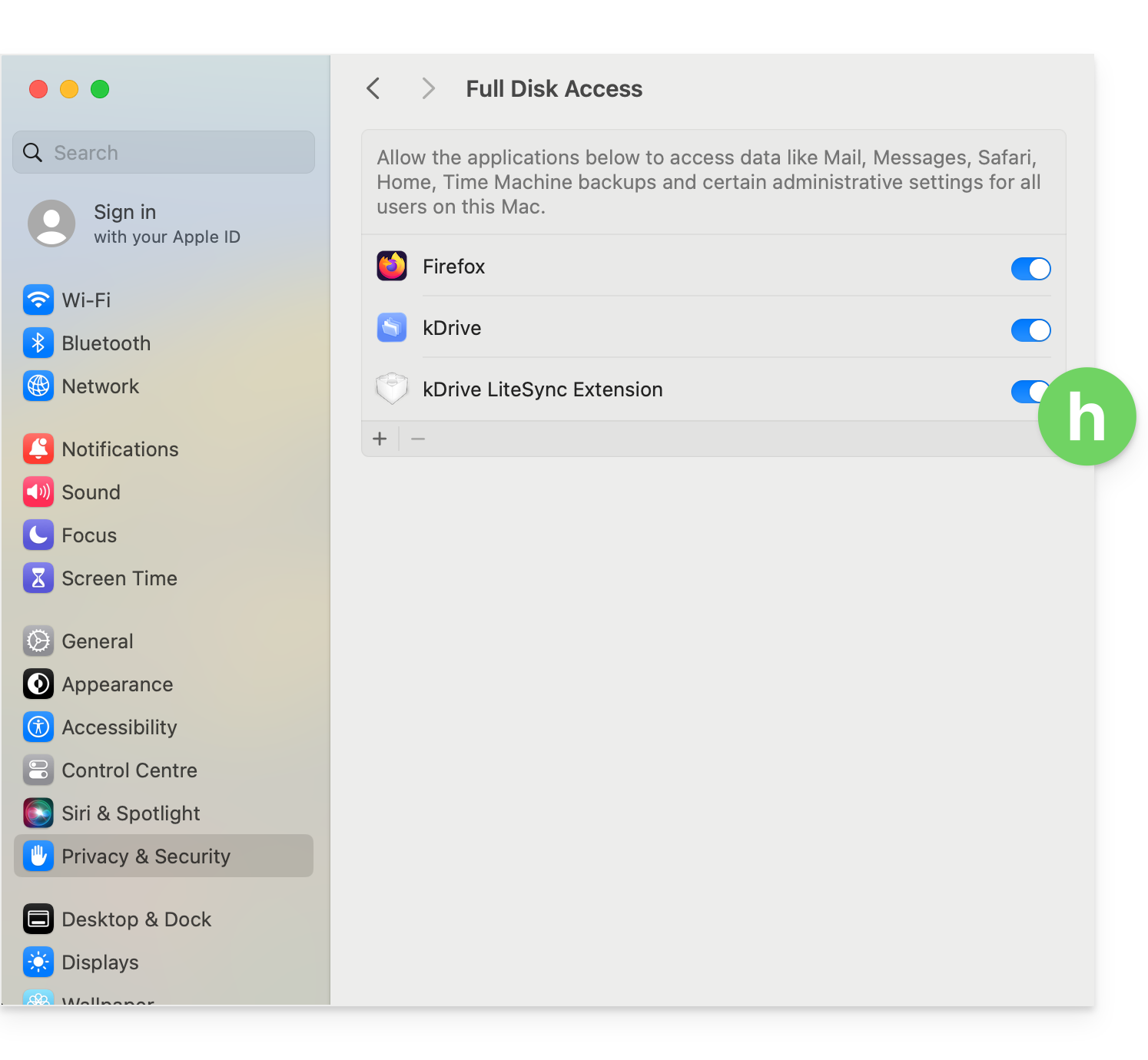
macOS 15
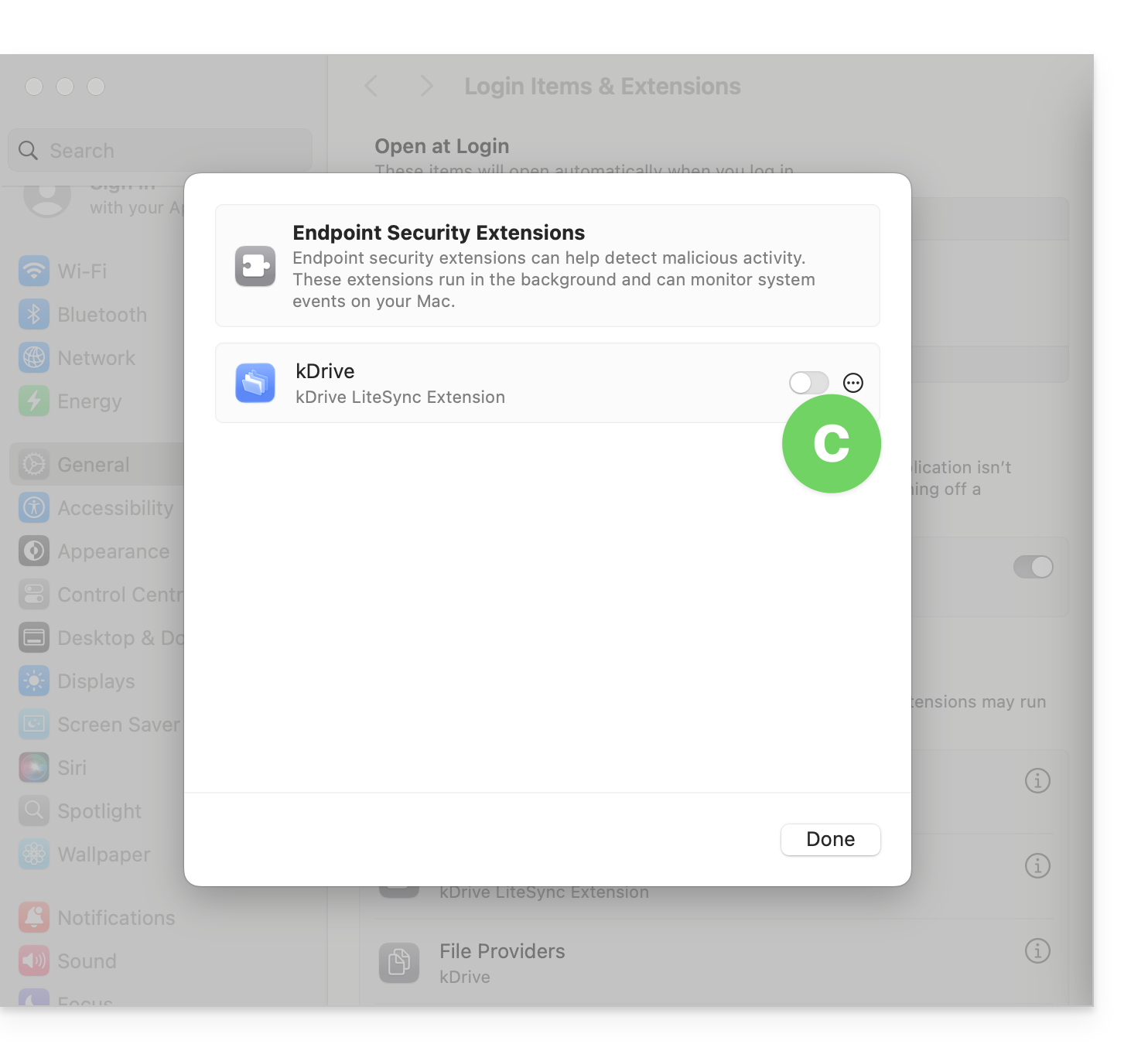
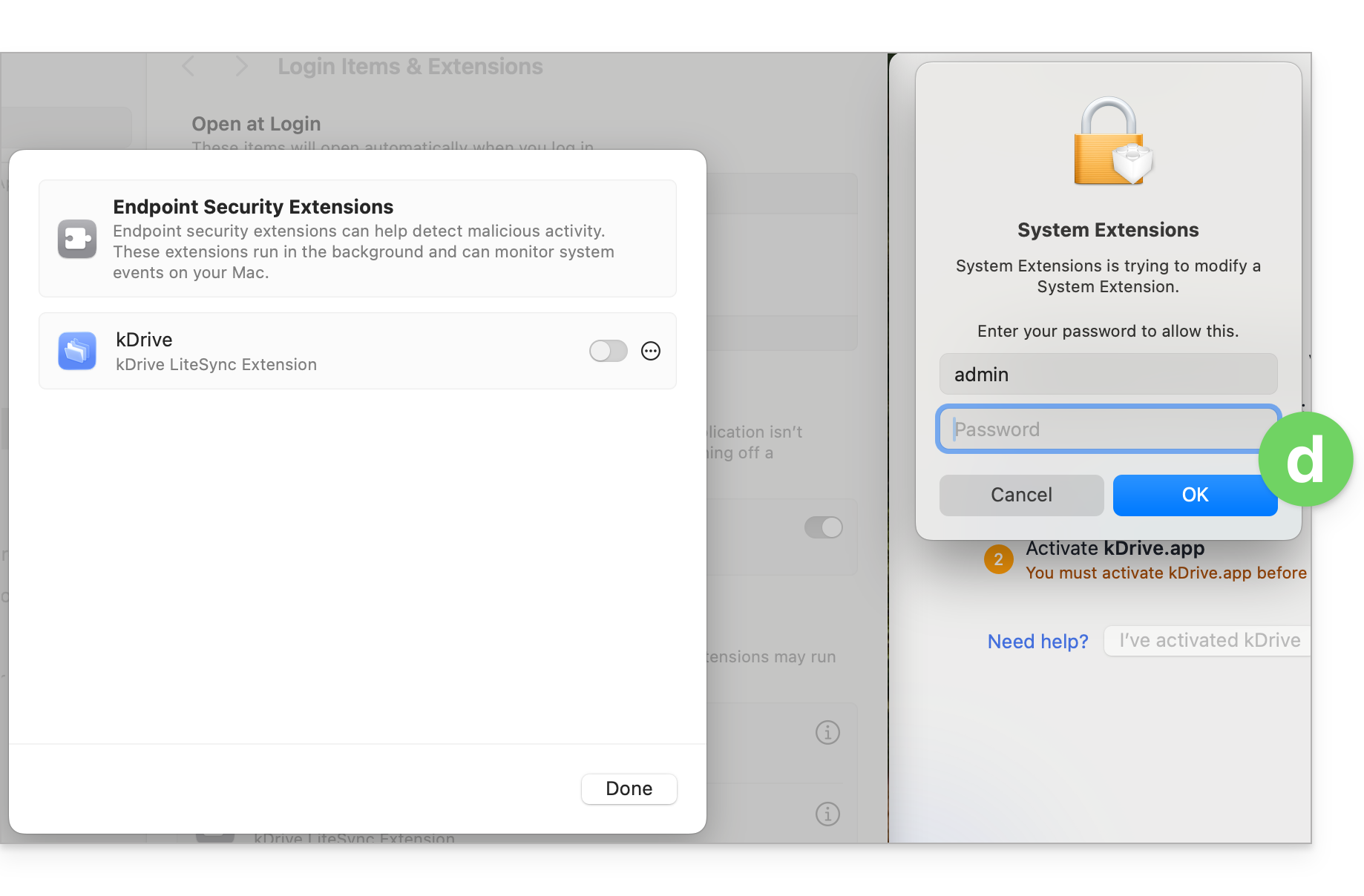
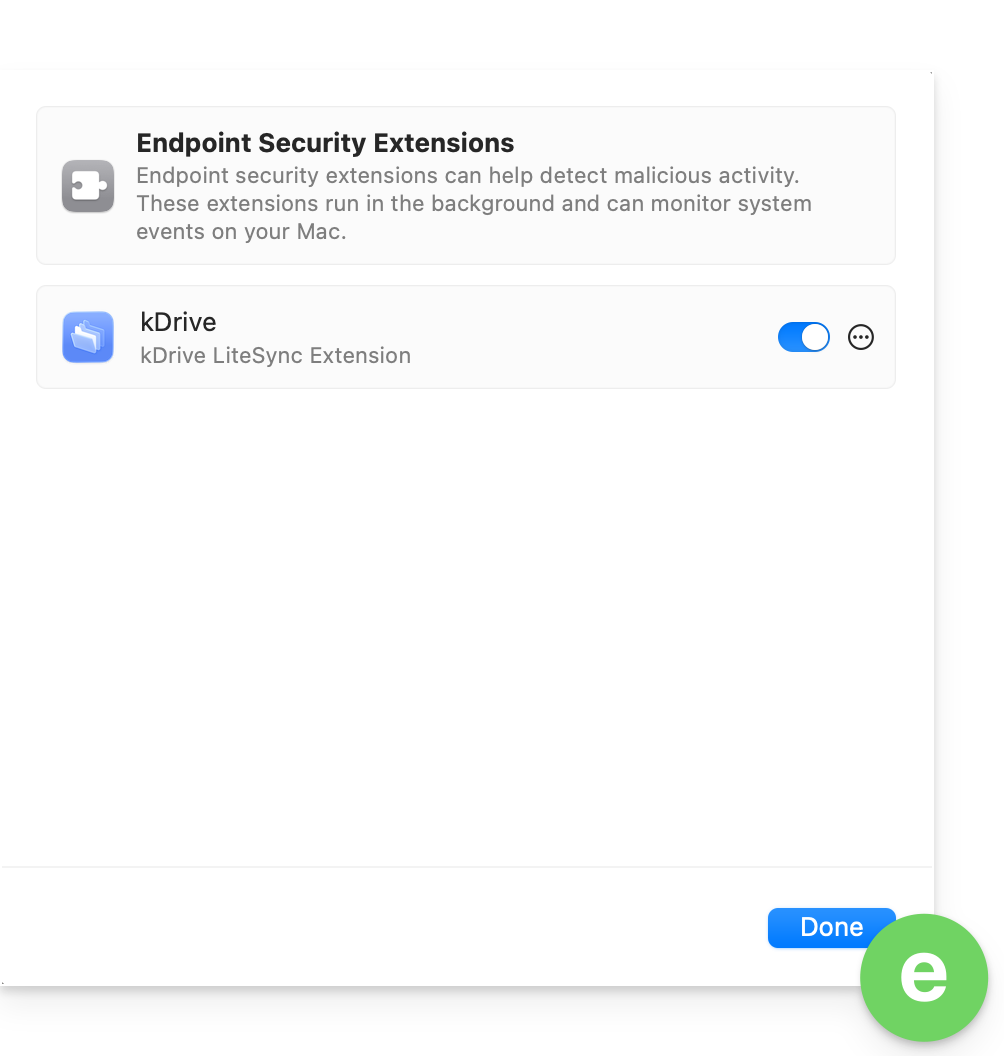
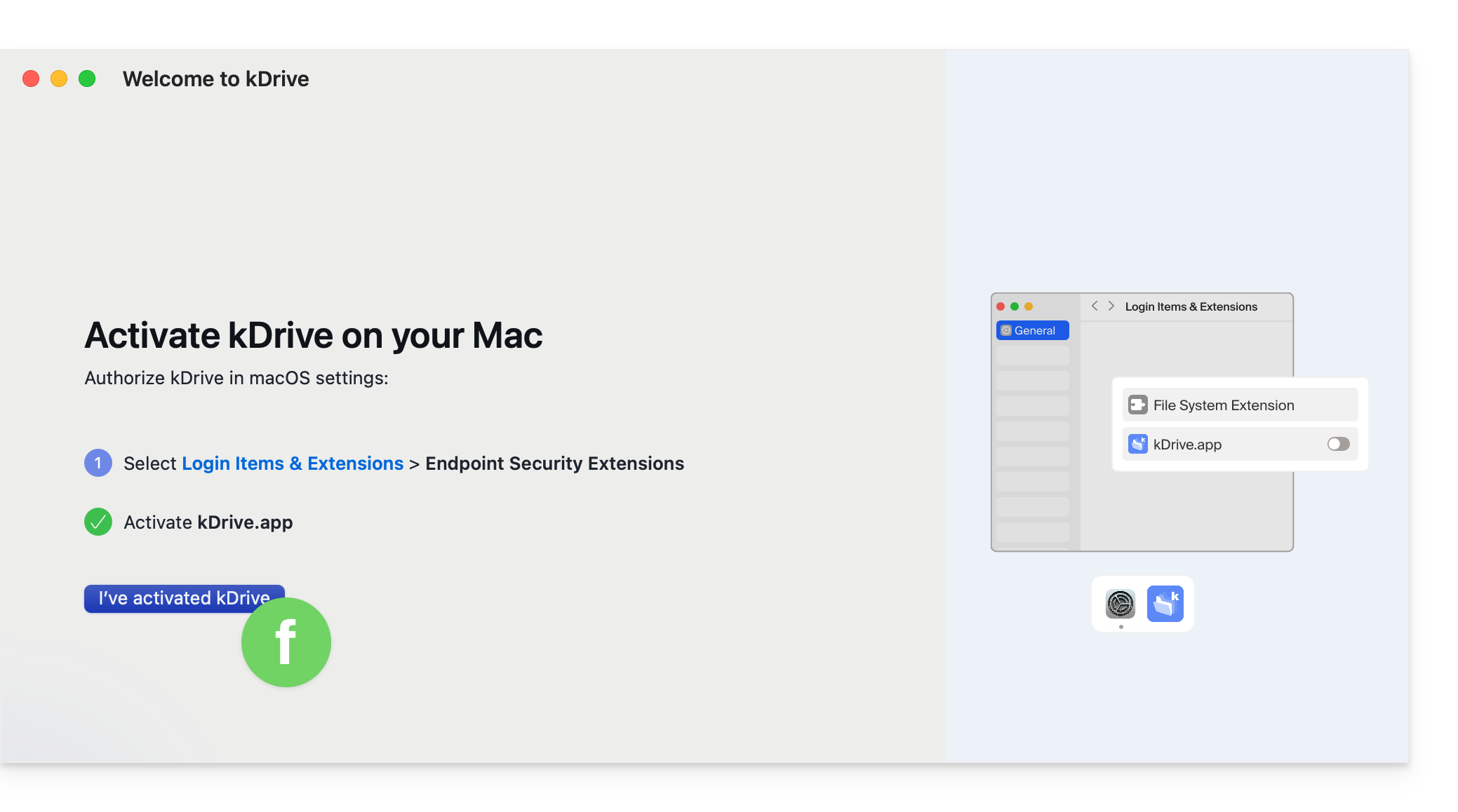
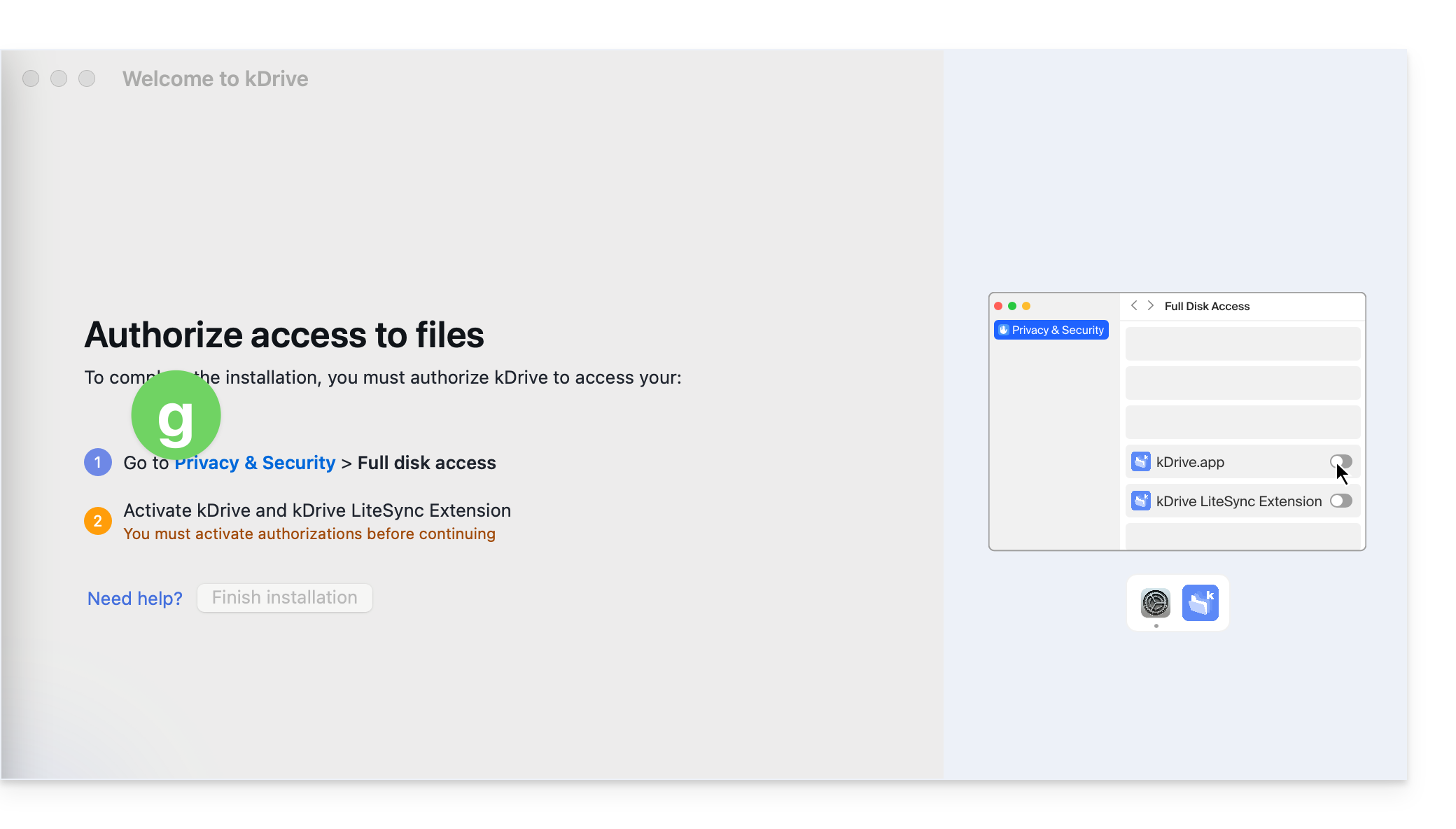
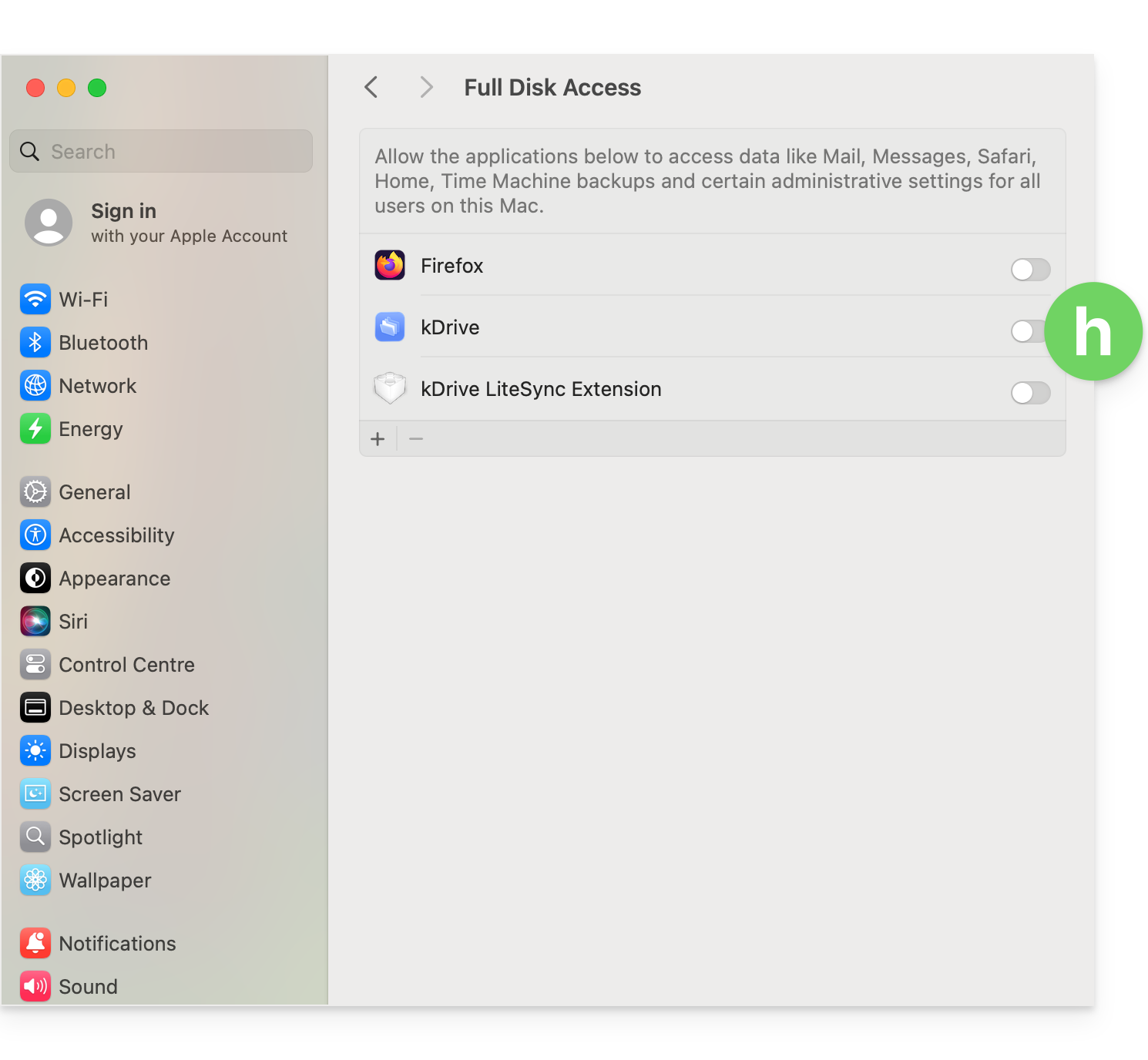
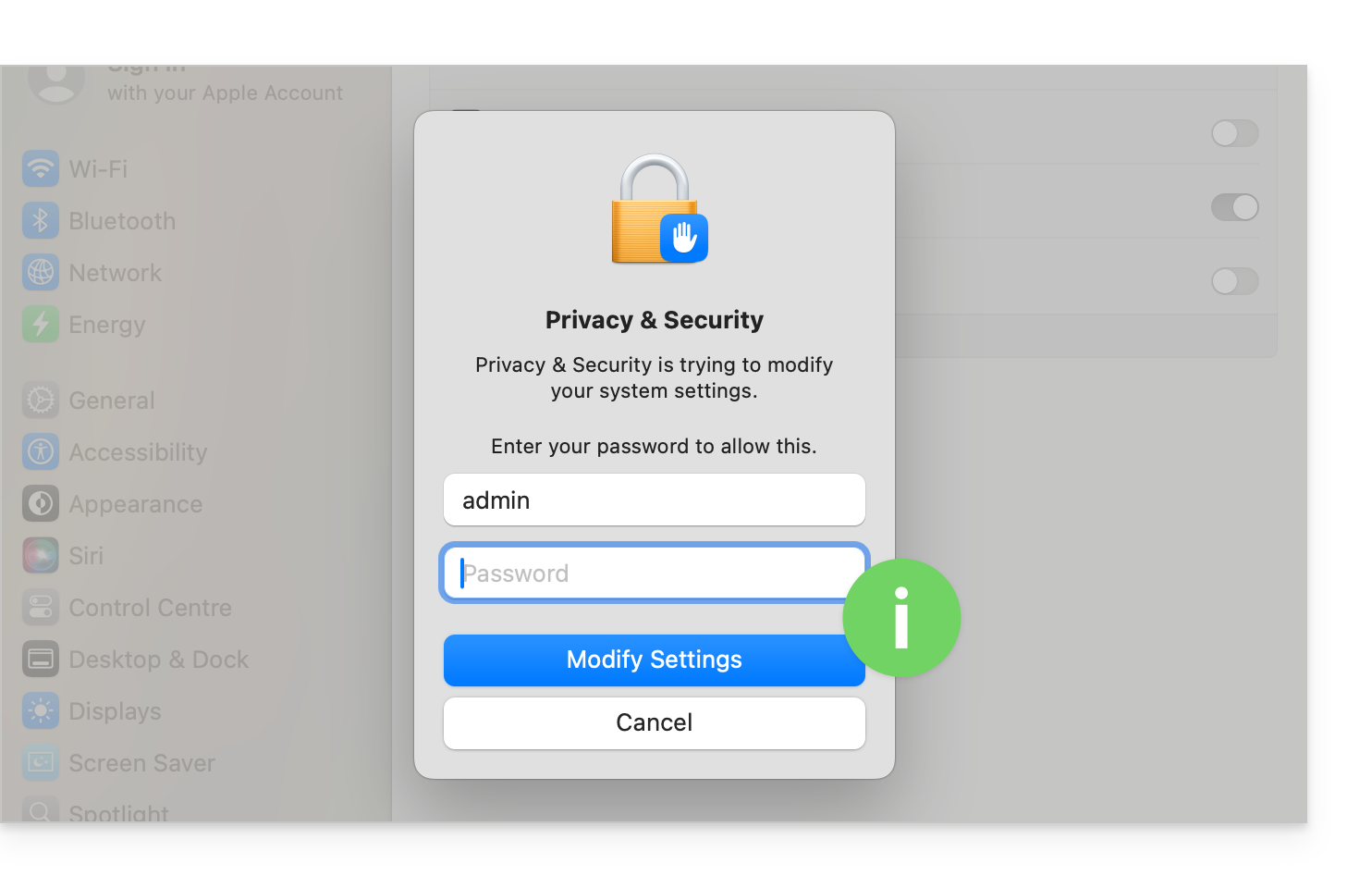
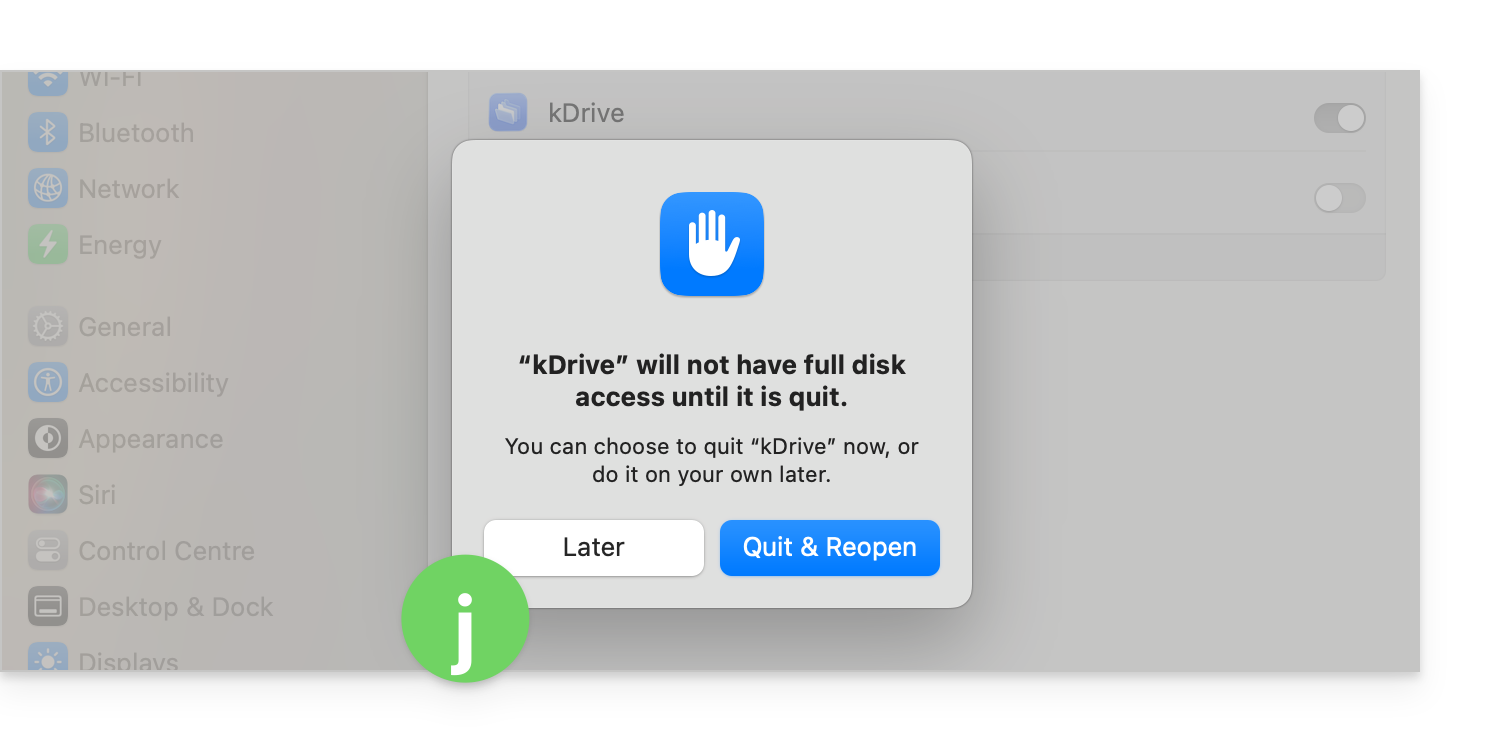
macOS 26
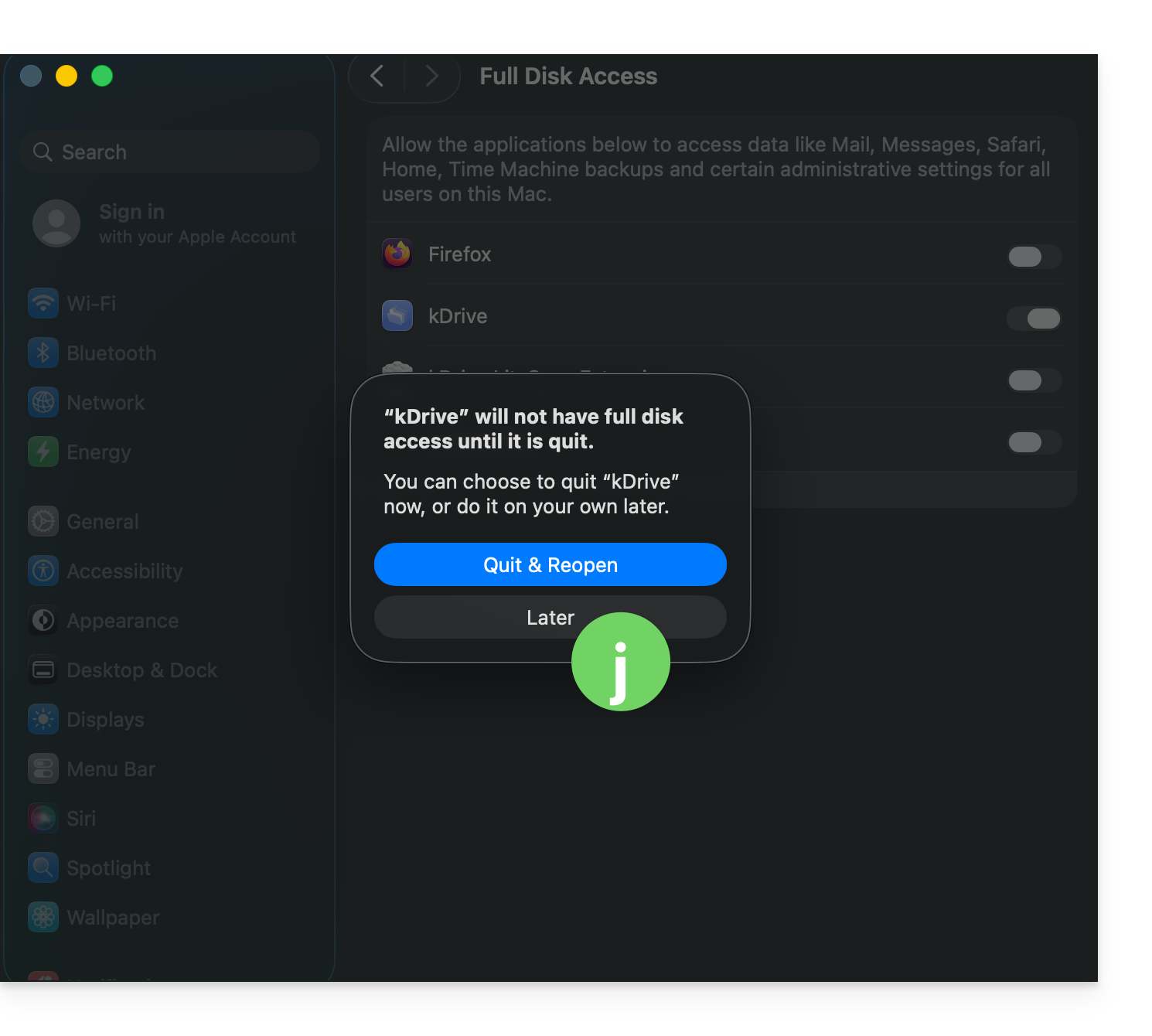
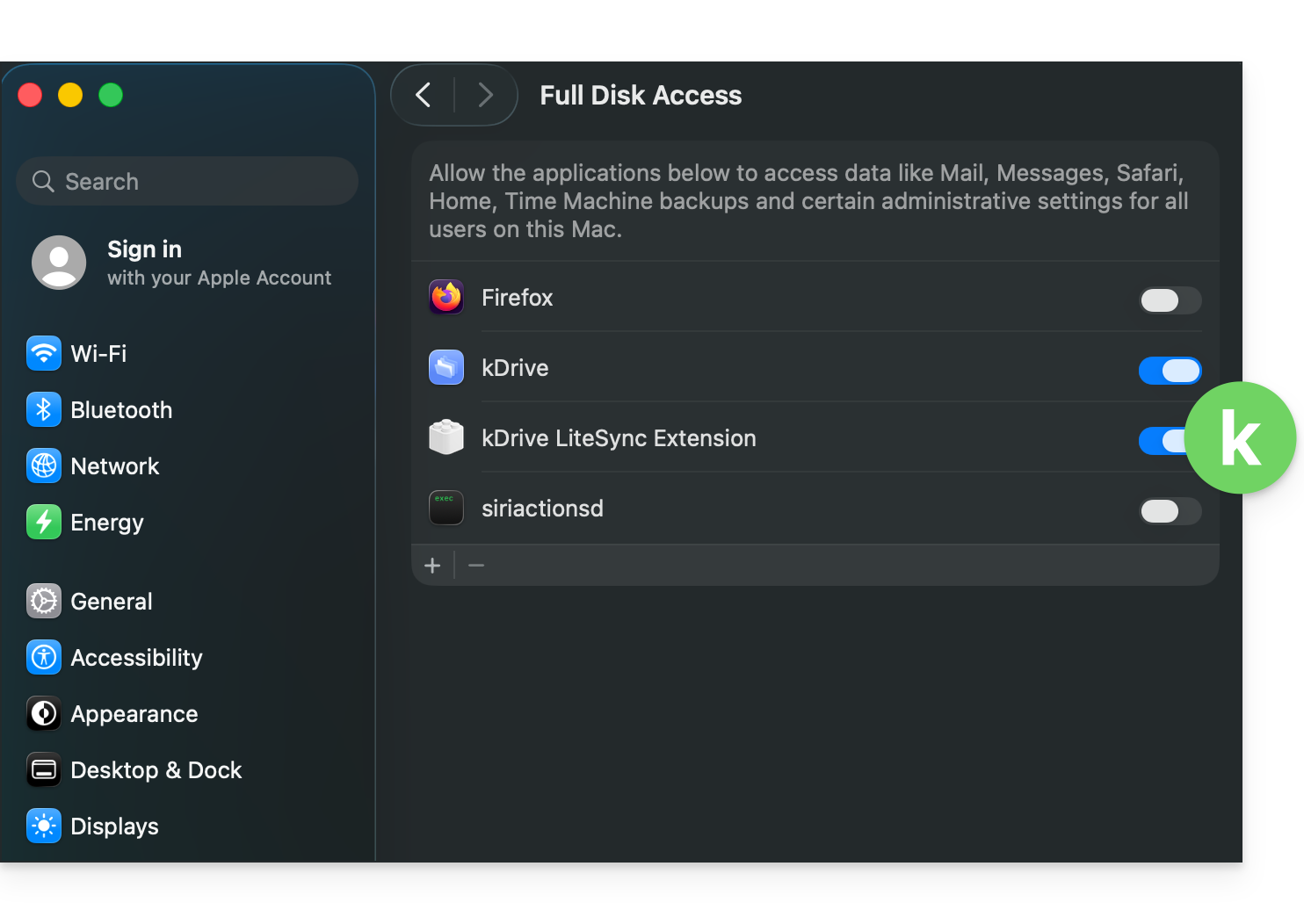
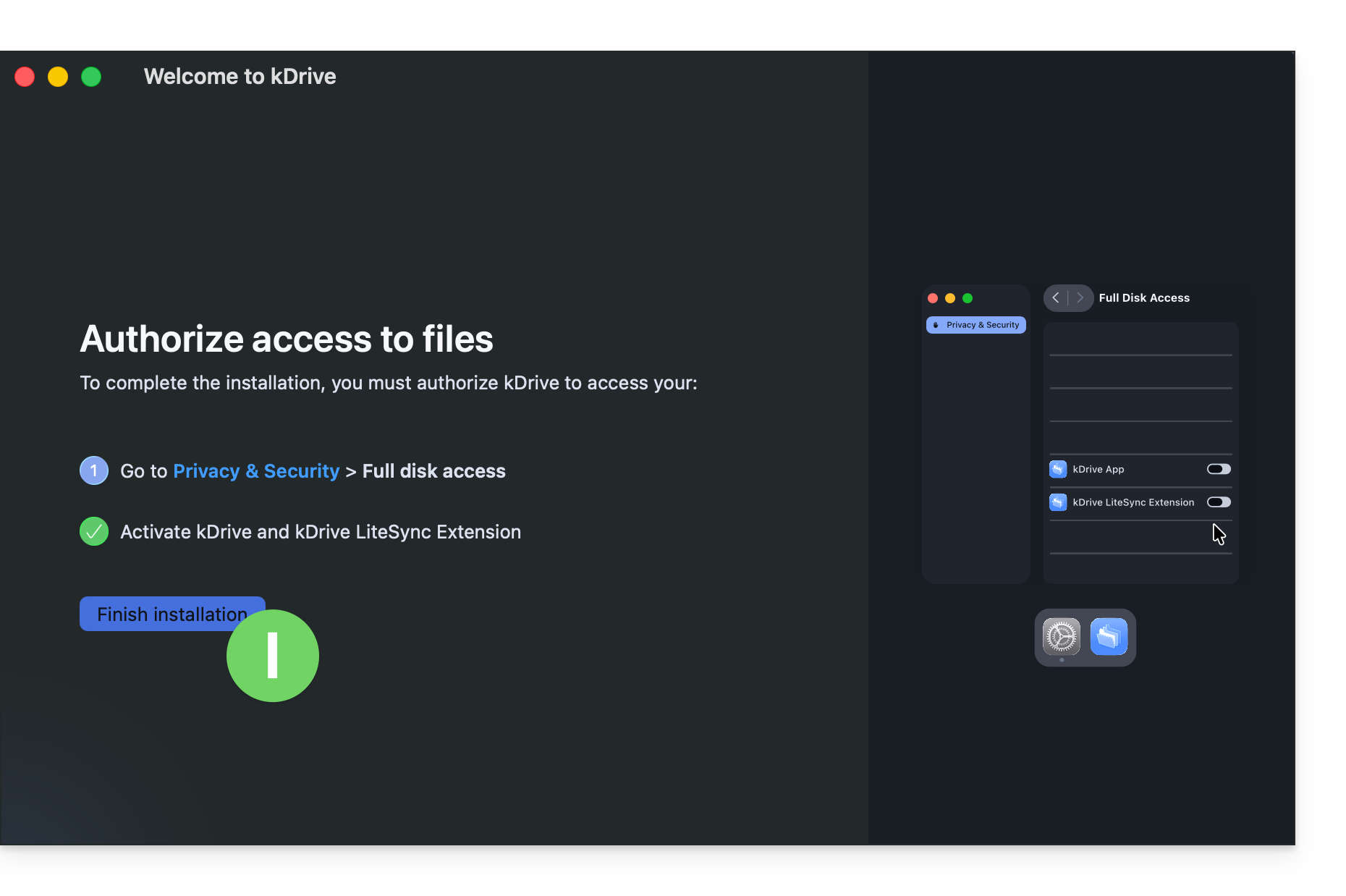
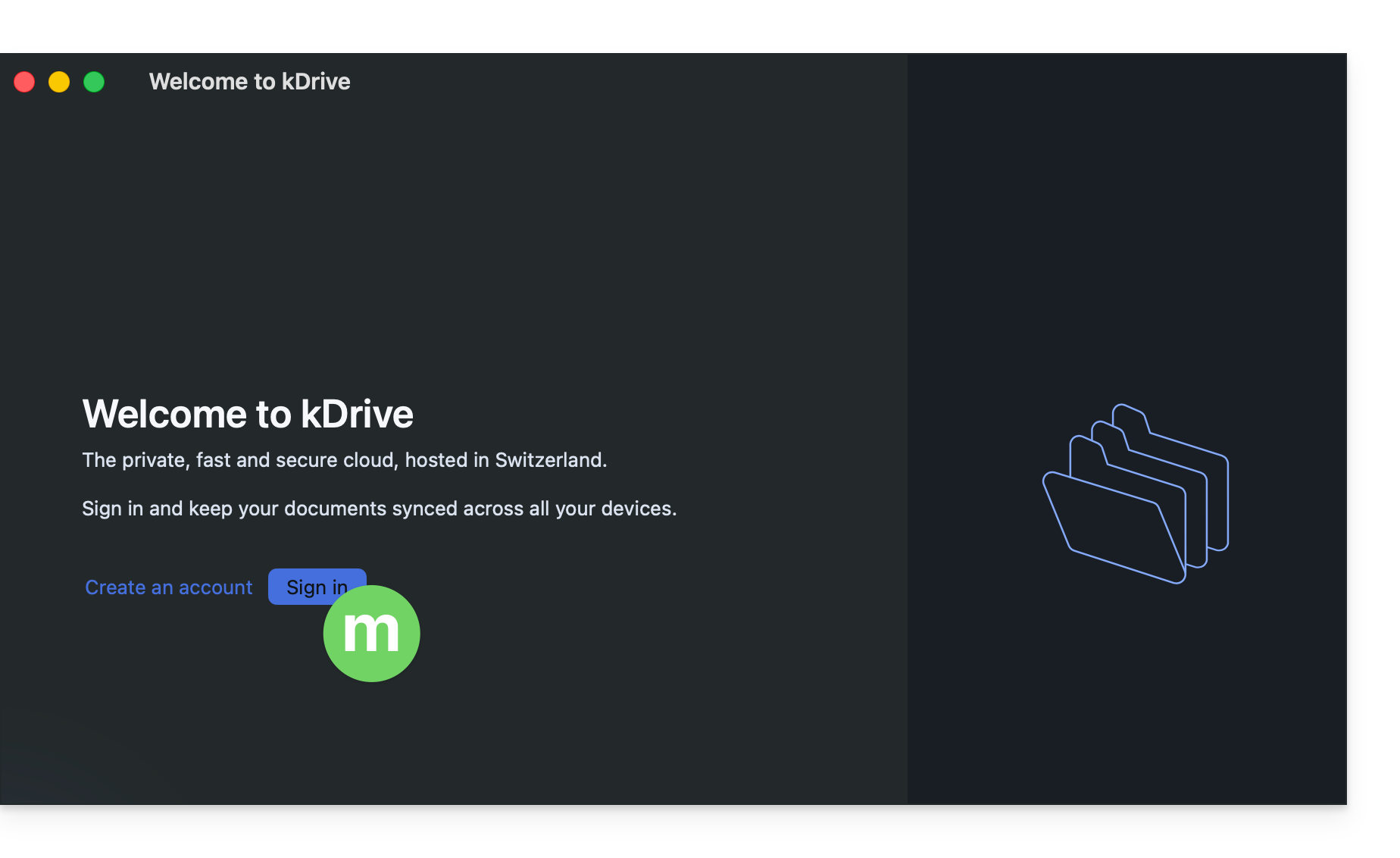
macOS 27
Link to this FAQ: https://faq.infomaniak.com/2935
Has this FAQ been helpful?