Knowledge base
1000 FAQs, 500 tutorials and instructional videos. Here, there are only solutions!
Import data to kDrive using the desktop app v4.x
This guide explains how to import new data into kDrive from a computer using the kDrive v4.x application, and how to proceed if the synchronized data becomes too large for your devices.
Prerequisites
- For synchronization between your devices to work when your data is updated on kDrive (new file, edited document, etc.), it is obviously necessary that:
Import files to kDrive v4.x
If you want to add files currently on your hard drive to your kDrive:
- Launch kDrive on your device: the app icon should be visible in the top right corner on macOS / Linux, and in the bottom right corner on Windows (❓: help).
- Then, in Windows Explorer or macOS Finder, open the folder defined as the kDrive data storage location; by default, when the application is installed, this folder is named after your kDrive.
- At the root level, you will find the files belonging to your personal folder, “My folder”.
- The
Common documentsfolder corresponds to the Organization's folders and is, by default, shared with other users of this kDrive: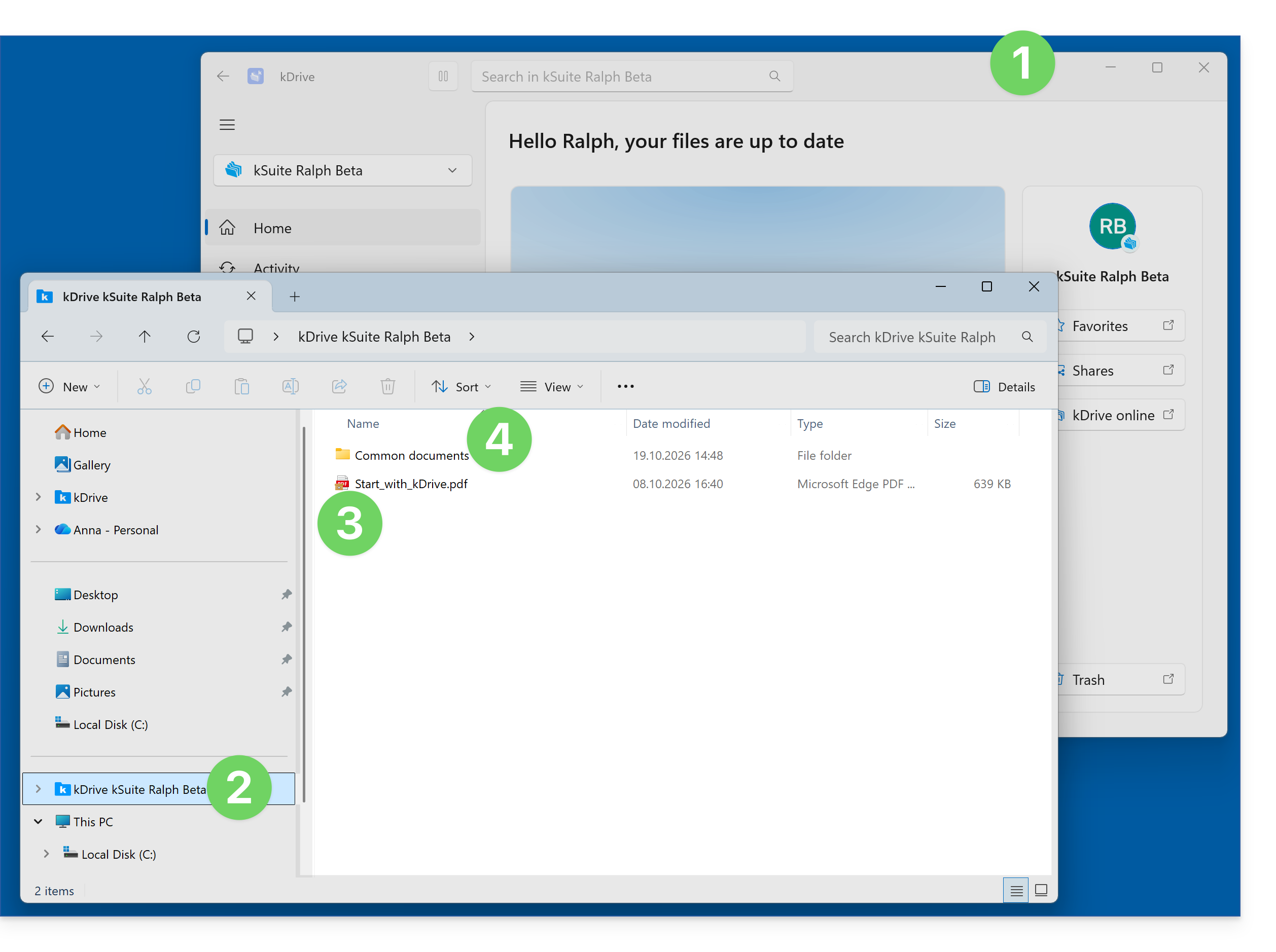
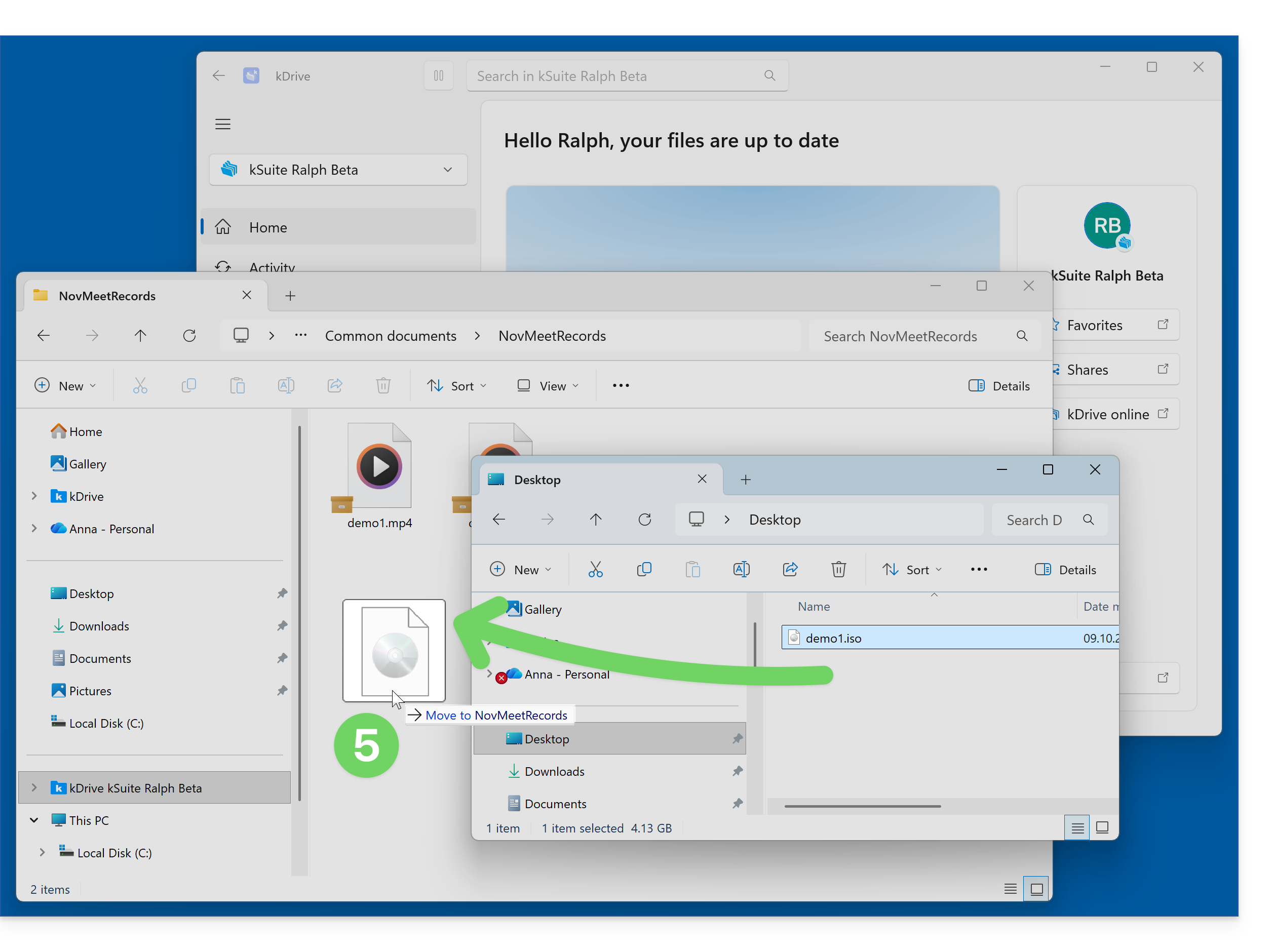
- Add your file to the desired location within your kDrive by copying or dragging it to move it:
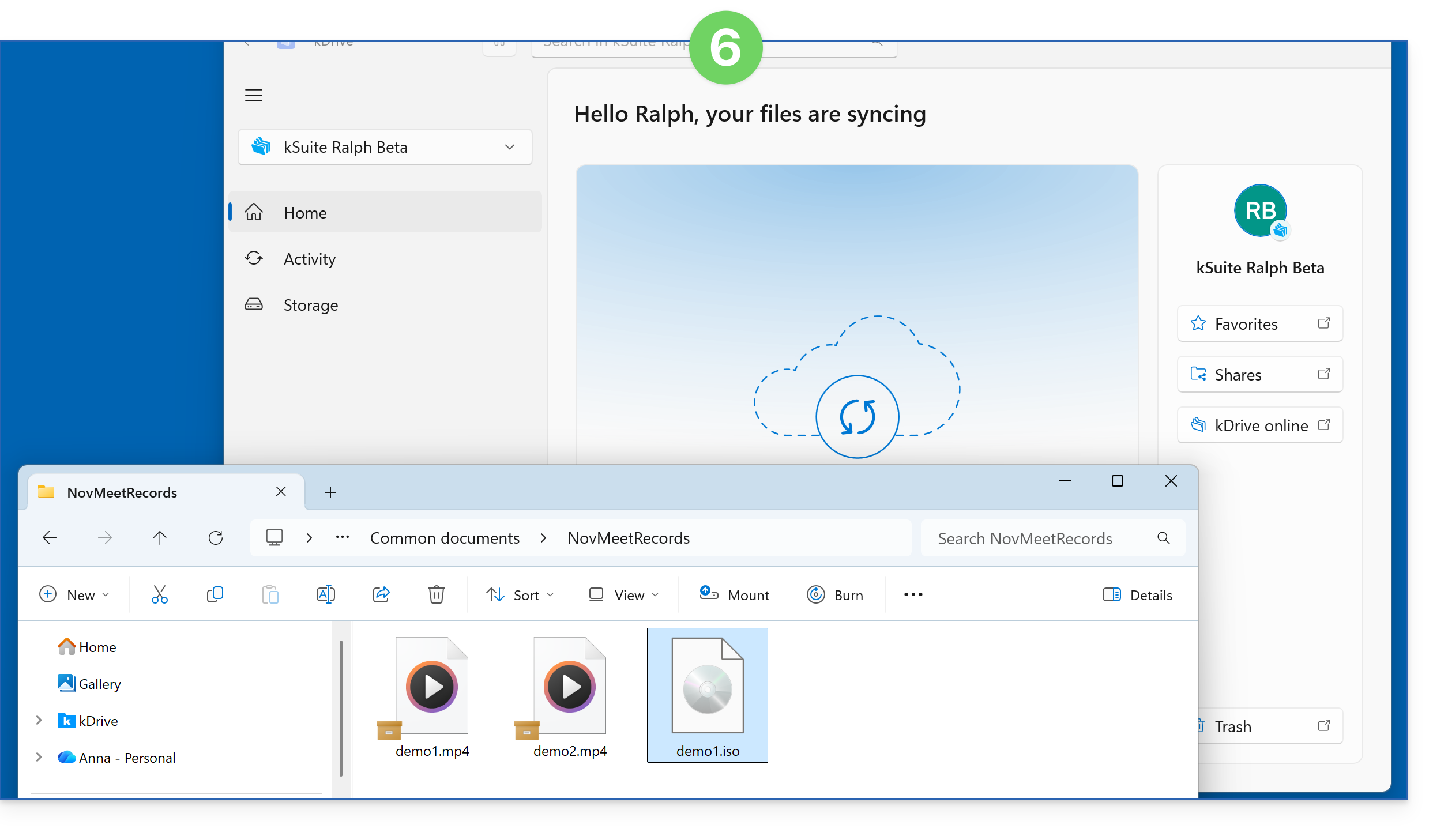
- kDrive then indicates that a synchronization is in progress; the kDrive icon on your taskbar also indicates this, and at this stage, the file is still only present on your computer:
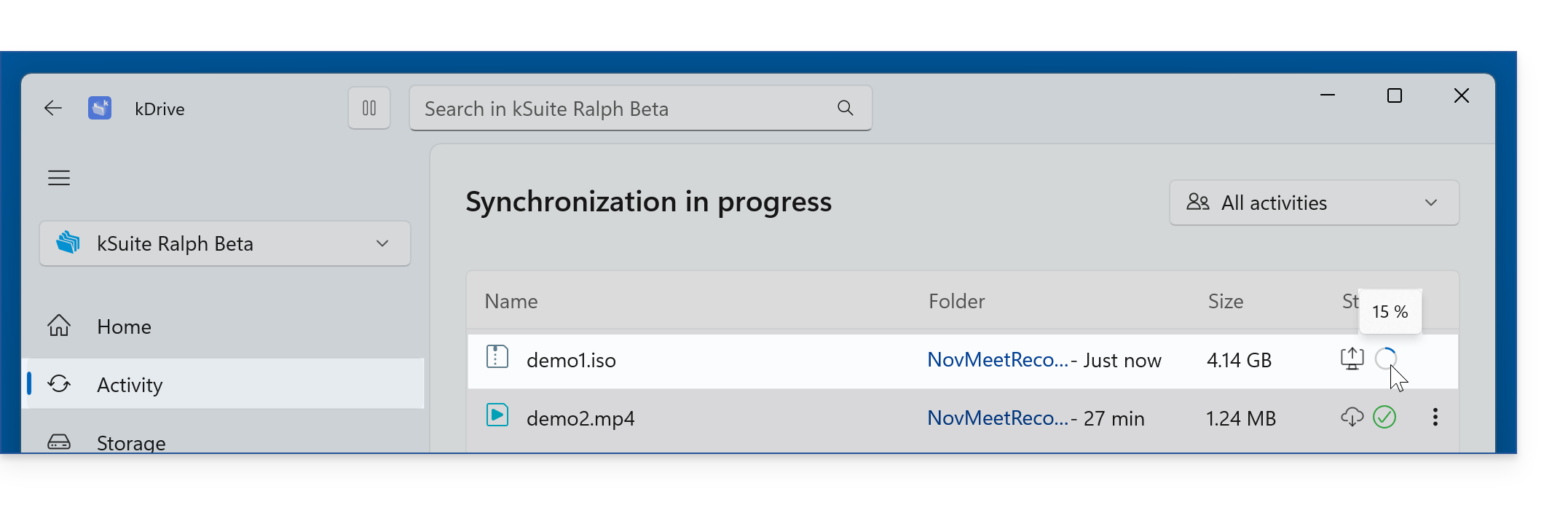
- Under Activities, you can see the percentage of data already sent by hovering your mouse over it:
- As long as the synchronization is not complete (and this may take a long time, depending in particular on the speed of your Internet connection – as long as the device is active; otherwise, the file sending will continue at the next startup), the kDrive space on the Internet will not yet display your incomplete data:
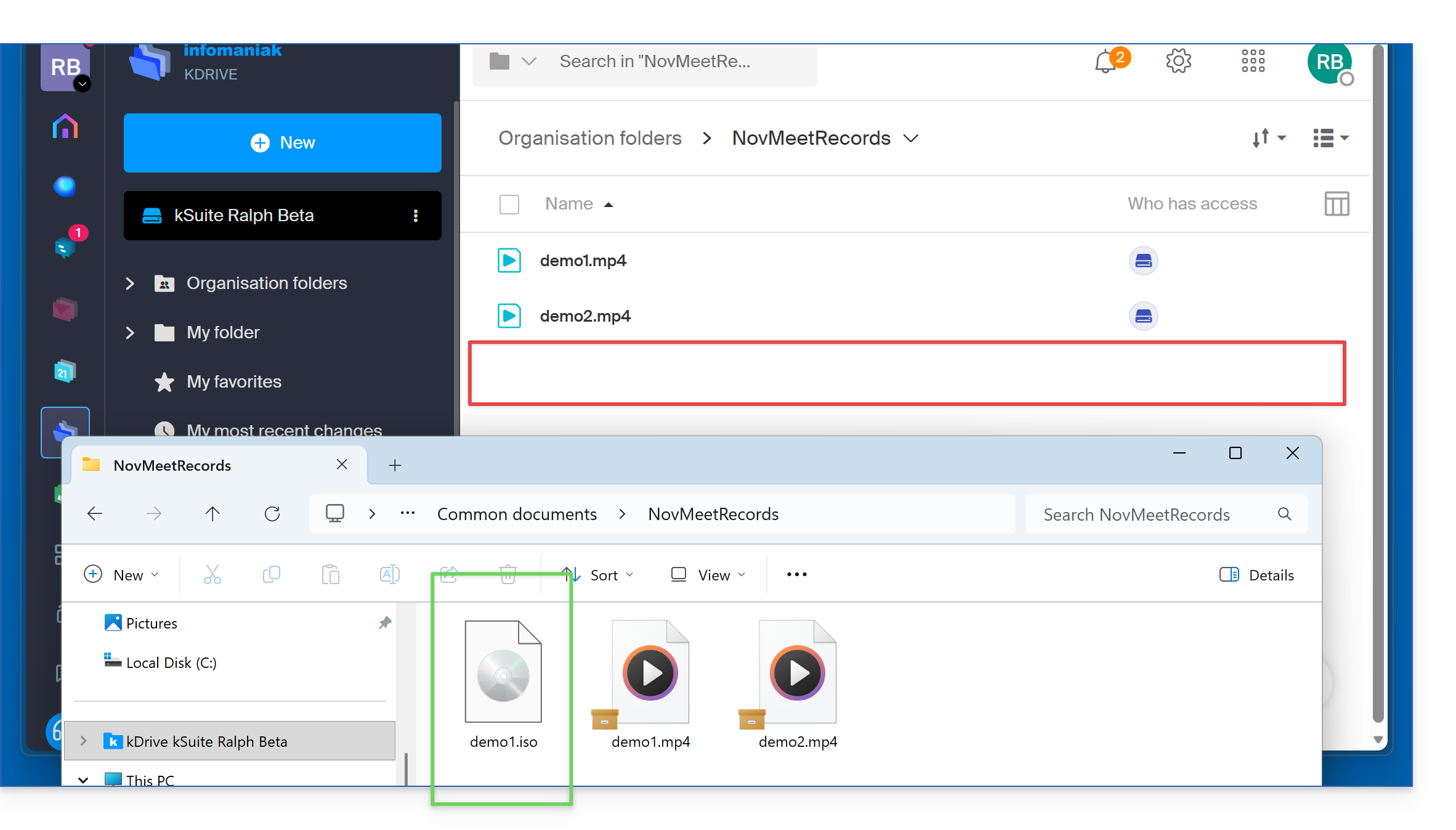
- Under Activities, you can see the percentage of data already sent by hovering your mouse over it:
When the sending is complete and the file is fully stored on the kDrive server as well as on your hard drive, the download of this data begins for other users of kDrive who have the application open on their device. Otherwise, this download/synchronization will take place the next time the application is opened.
Large kDrive, full hard drive
The previous chapter illustrates the sending of a file of approximately 4 GB. If other files are also sent by users, kDrive may then represent a larger volume than the kDrive folder on the users' hard drives can accommodate. What solutions should be adopted in this case?
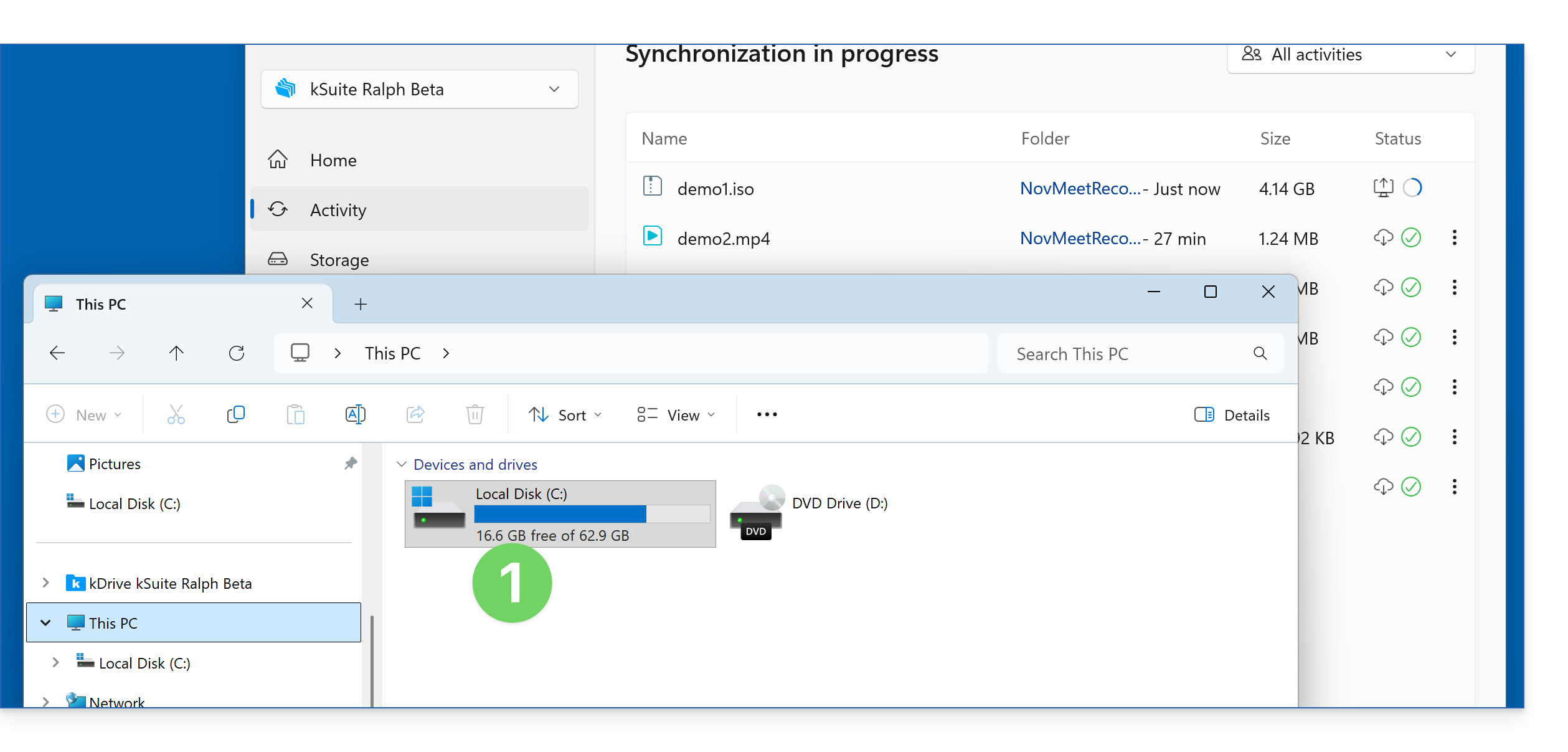
- Here, the hard drive of this computer will not be able to accommodate more than 16 GB of new data:
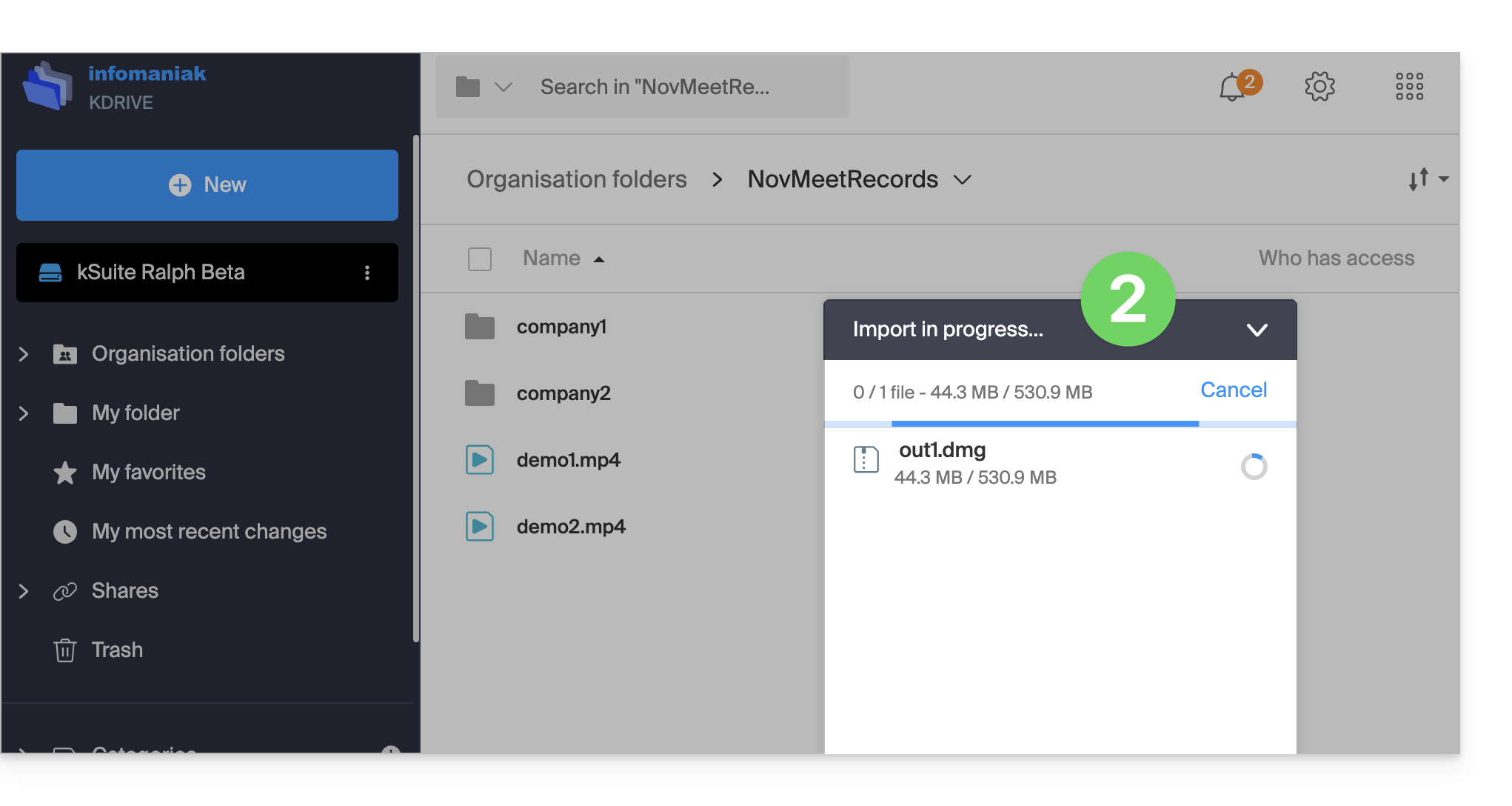
- It will become saturated because large files are being uploaded to the shared kDrive using other methods:
To reduce storage space on your computer, you can make each file “virtual”: only a representation of the file is visible on your computer, while its content is stored remotely on the kDrive servers. You can enable this feature on Windows (❓: help) and macOS (❓: help):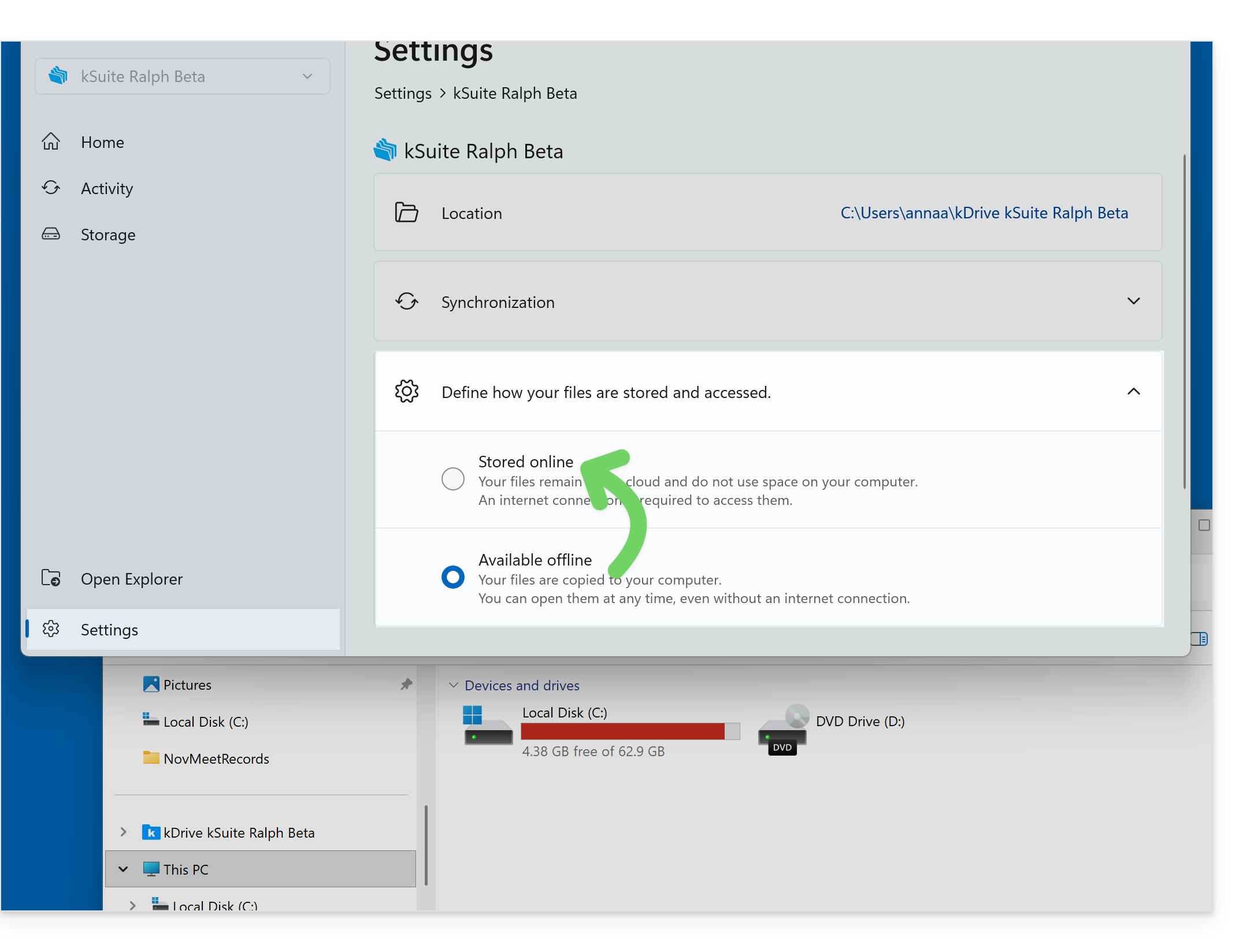
Another solution would be to not synchronize certain parts of kDrive, so that you only keep the folders that you use frequently on your computer locally (❓: help), while the rest is stored securely on the kDrive servers and is visible on other computers and/or to other collaborators who have more disk space.
Link to this FAQ: https://faq.infomaniak.com/2934
Has this FAQ been helpful?