Knowledge base
1000 FAQs, 500 tutorials and instructional videos. Here, there are only solutions!
Understanding SwissTransfer Data Limits
This guide details the data storage limits for SwissTransfer.
Retention period
SwissTransfer accepts files up to 50 GB in size, which is particularly useful for large files that cannot be sent as email attachments or by other traditional means.
You can choose to make them available for a maximum of:
- 1 day
- 3 days
- 7 days
- 15 days
- 30 days*
- 60 days (after subscribing to the Enterprise plan)
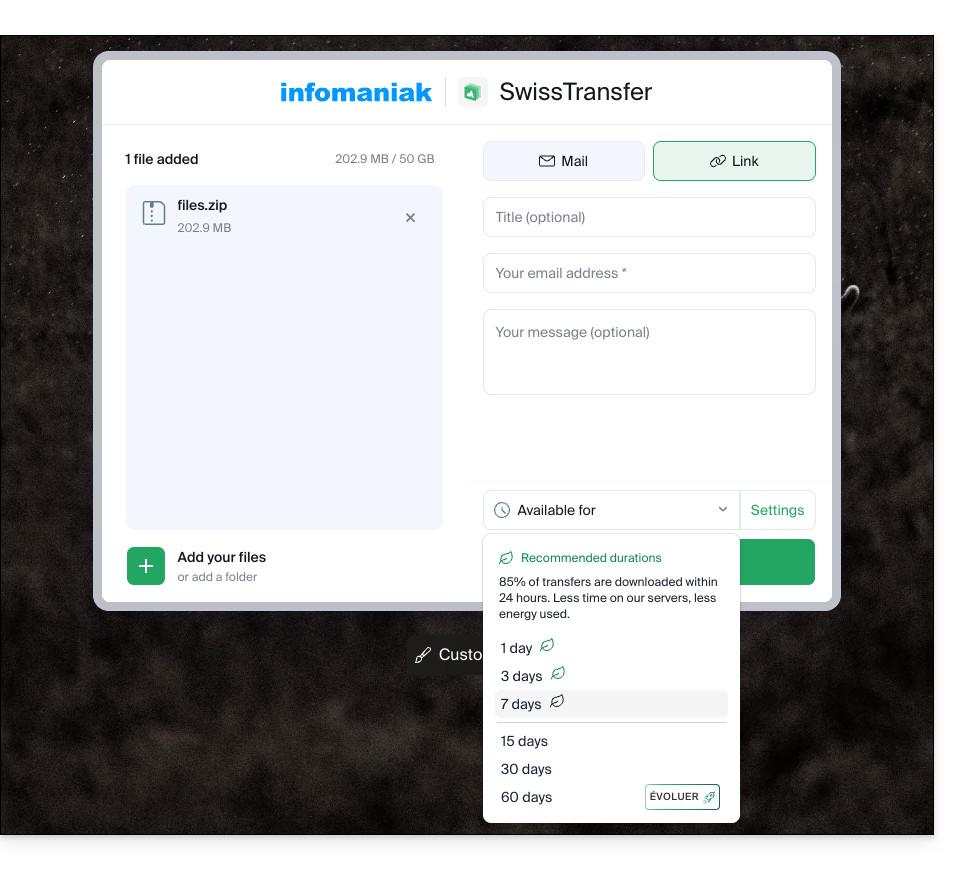
* When choosing 30 days, files are automatically deleted after 15 days, but an extension is offered by email to the sender on the 12th day, and remains available for 3 days, in order to extend the availability up to the desired 30 days.
With a SwissTransfer Pro / kSuite Pro account, the choice of the maximum number of days is final:
- kSuite Free = 30
- kSuite Standard = 30
- kSuite Business = 30
- kSuite Enterprise = 60
- my kSuite = 30
- my kSuite+ = 30
Files are automatically deleted after the chosen period. There is no need to contact Infomaniak Support: once expired, a link can unfortunately no longer be reactivated or extended.
Downloading data
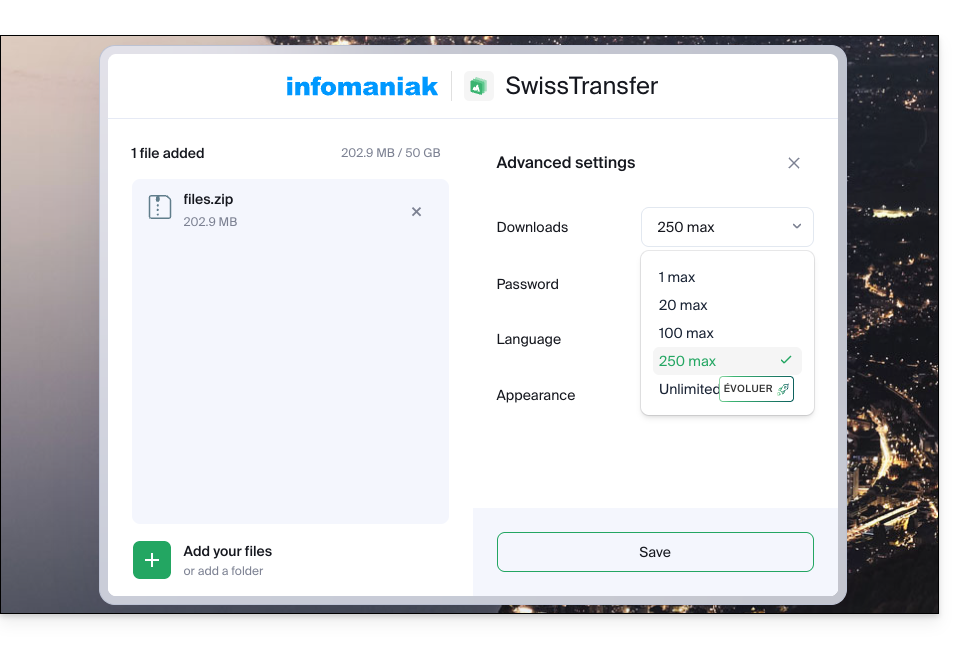
When creating your SwissTransfer, you can limit the number of times recipients can download it:
- 1
- 20
- 100
- 250
- unlimited (after subscribing to a paid plan)
They can be downloaded by the user…
- …either one by one…
- … either by using the "Download All" button, which will create a
.ziparchive to download:- If the archive exceeds 10 GB, you will need to download the data files one by one.
- Therefore, if you need to send several large files, it is best to group them together beforehand into a zip/rar/etc. archive (see below).
Compress files
With SwissTransfer, you can transfer multiple files by selecting them on your device, even if the data to be sent includes folders.
- To facilitate sending, it is not mandatory, but it is easy to compress your files into a format such as ZIP.
- These operations will create a new compressed
.zipfolder that can be sent more quickly with SwissTransfer because the total size will generally be reduced.
macOS and Linux
- From your computer, select the folder(s) you want to send.
- Right-click on the folder(s) you want to archive.
- Choose the “Compress” option:
Windows
- From your computer, select the folder(s) to send.
- Right-click on the folder(s) to archive.
- Choose the "Send to" option.
- Click on the "Compressed folder" option.
Send the compressed files
All you have to do is drag your compressed file(s) to SwissTransfer:
Link to this FAQ: https://faq.infomaniak.com/2929
Has this FAQ been helpful?