Knowledge base
1000 FAQs, 500 tutorials and instructional videos. Here, there are only solutions!
Create a meeting proposal on Infomaniak Calendar
This guide explains how to suggest dates and times for meetings to multiple people using the Infomaniak Calendar web app (online service ksuite.infomaniak.com/calendar). Guests can then indicate their availability by voting for the time slots proposed by the organizer.
Introduction
- The functionality is similar to Doodle, but with a key difference: the organizer defines the guests precisely in advance (or as they go), and only these invited people can participate, unlike a poll that is accessible to anyone with the link.
- You can also access the feature while reading an email.
- To schedule a meeting based on the available times of each invitee, please refer to this other guide.
Suggest a meeting
To suggest a new joint event using a meeting request:
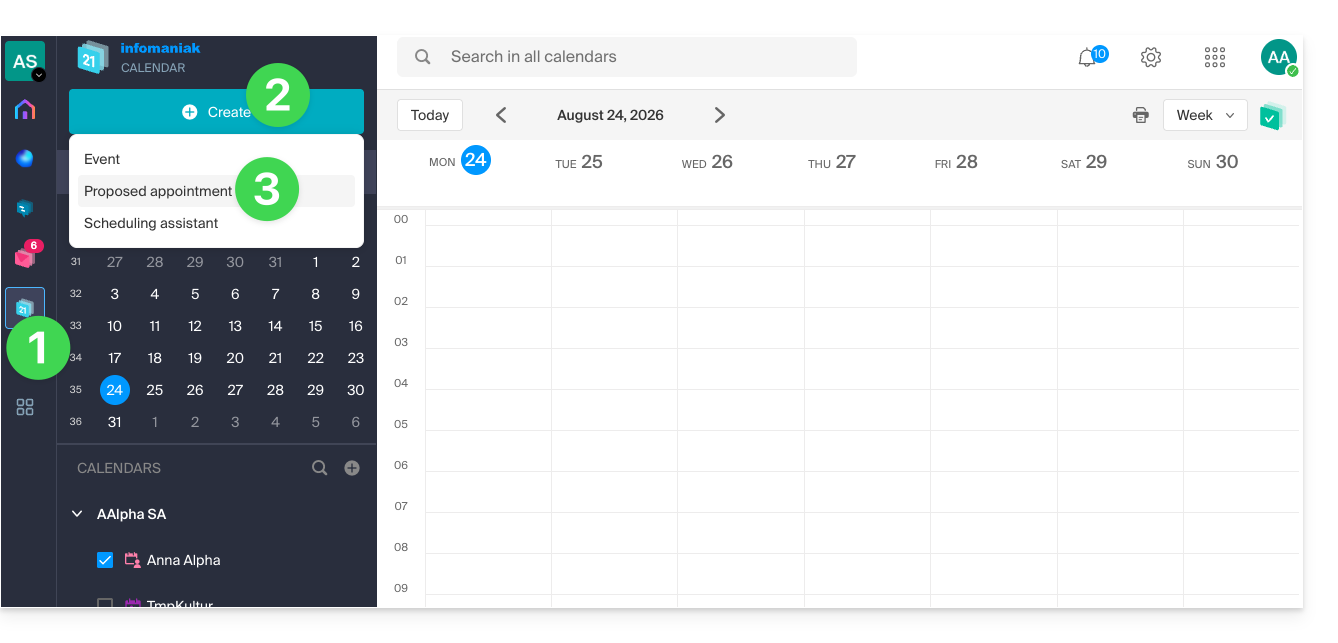
- Click here to access the Infomaniak Calendar web app (online service ksuite.infomaniak.com/calendar).
- Click on the Create button in the upper left corner.
- Click on Suggest a meeting:
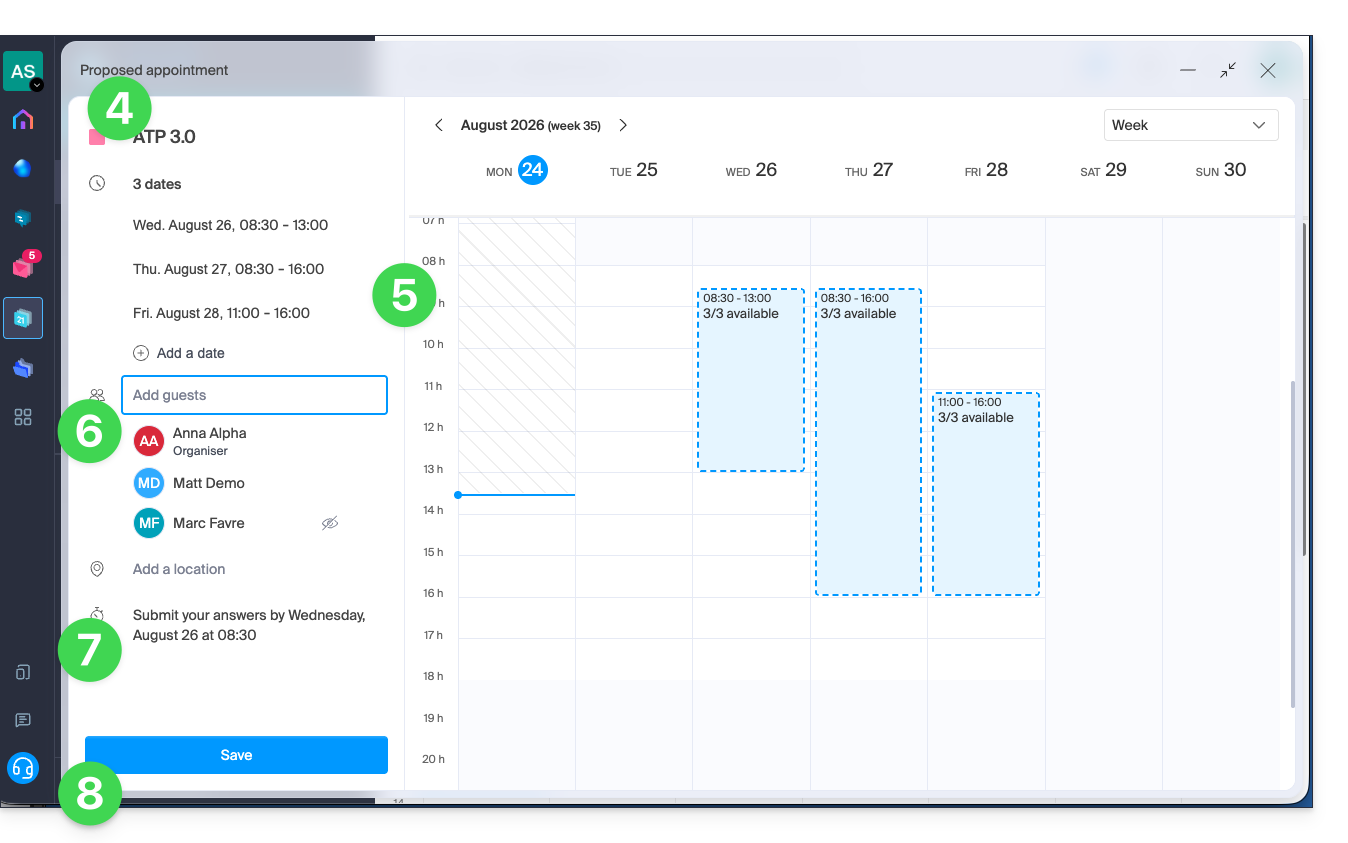
- Indicate the color and title (subject) of the event; the event location can be defined below.
- Enter the proposed dates/times manually or by clicking on the calendar displayed on the right.
- Enter the guests, using their email address if the guest is not a user of the Organization.
- Enter the deadline date/time after which it will no longer be possible to respond.
- Save the preferences using the button at the bottom of the page to create the invitation and date suggestions, for which guests will be able to vote:
Vote for one or more of the proposals
The invited user receives an email containing the organizer's various proposals; they can then indicate whether they are available during one or more of the proposed time slots.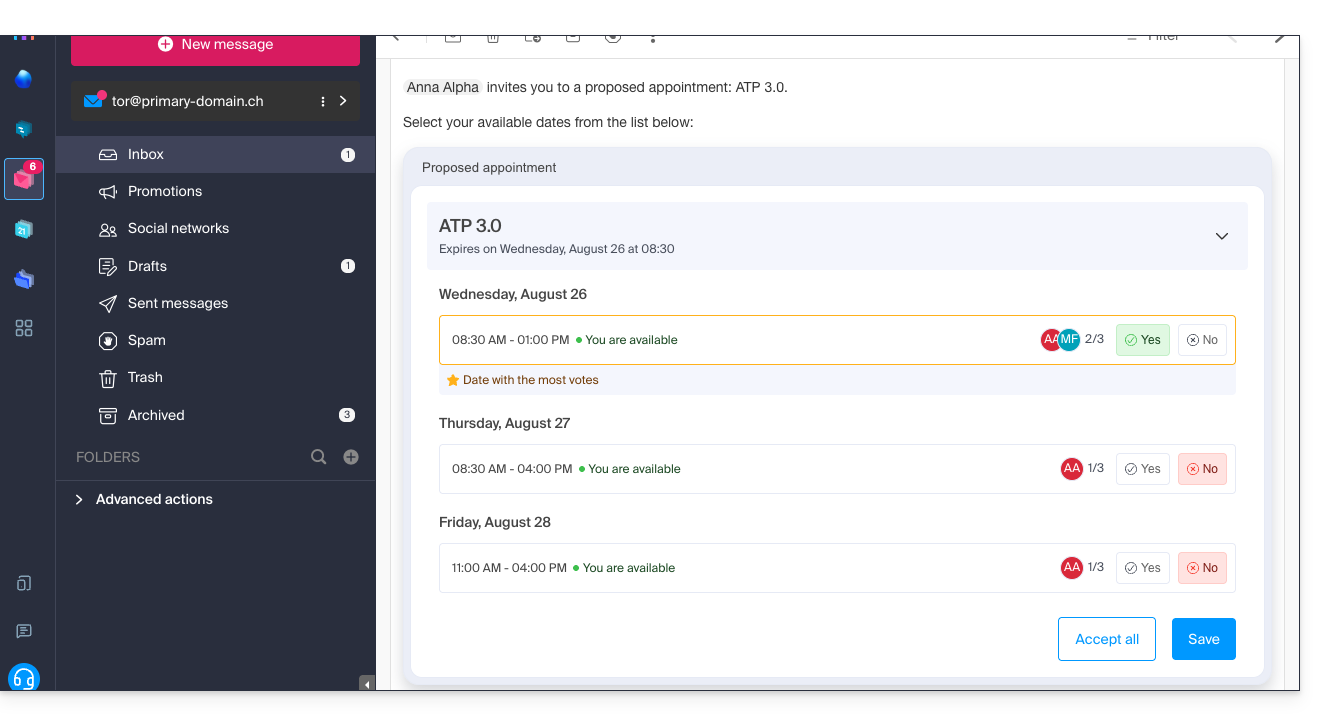
If the user is external to Infomaniak, or if they access their email via an email client such as Outlook, then managing their participation takes place in two steps: the email contains information and a link that leads to a simplified and neutral interface, allowing them to register their vote: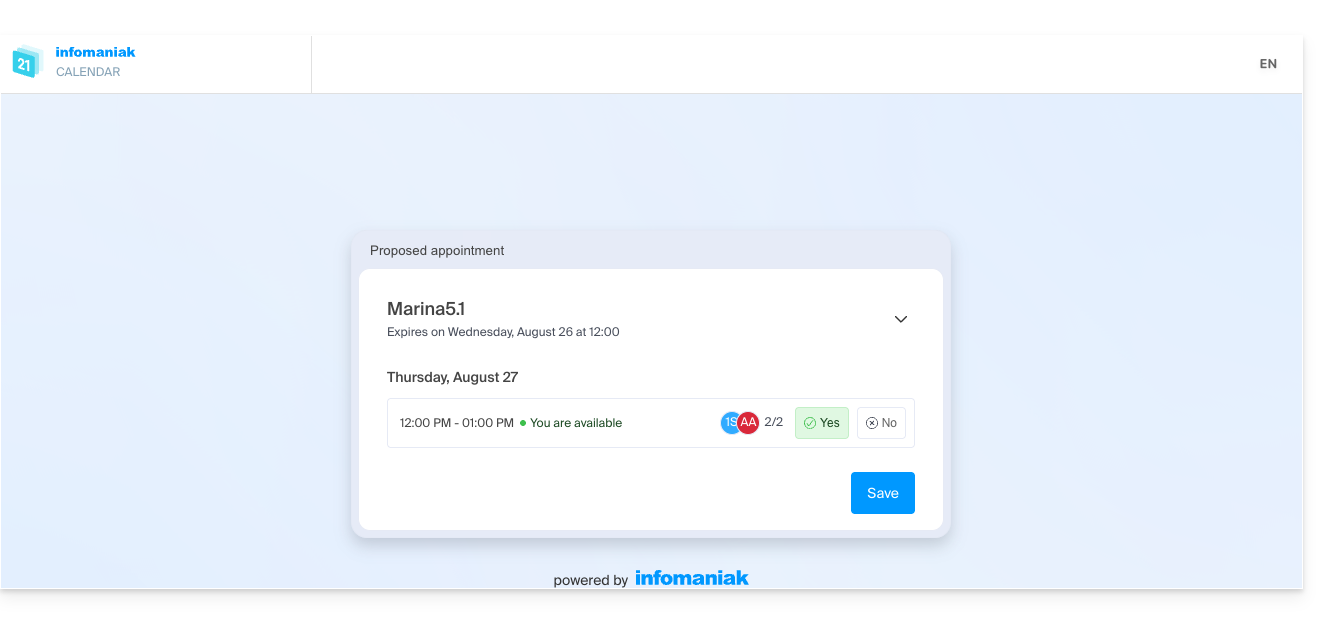
Decide on the date of the event based on the responses
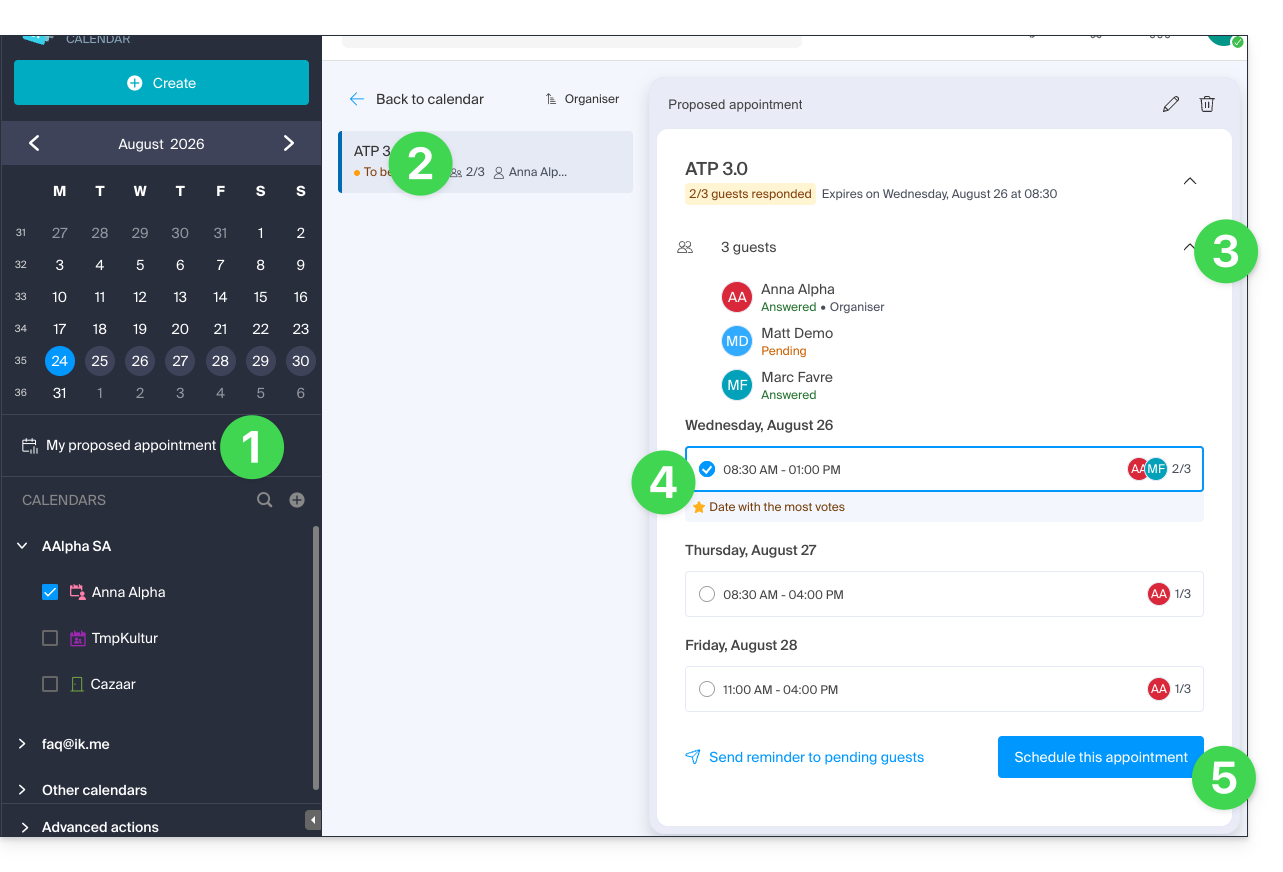
The organizer can access the proposed meeting times and select one of the proposals as the final one:
- Click on the left-hand side menu “My meeting proposals”.
- Click on the relevant suggestion.
- Click on the chevron to see the details of the guests who voted or did not vote.
- Click the radio button to select one option over another.
- Confirm the appointment by clicking the button in the bottom right corner:
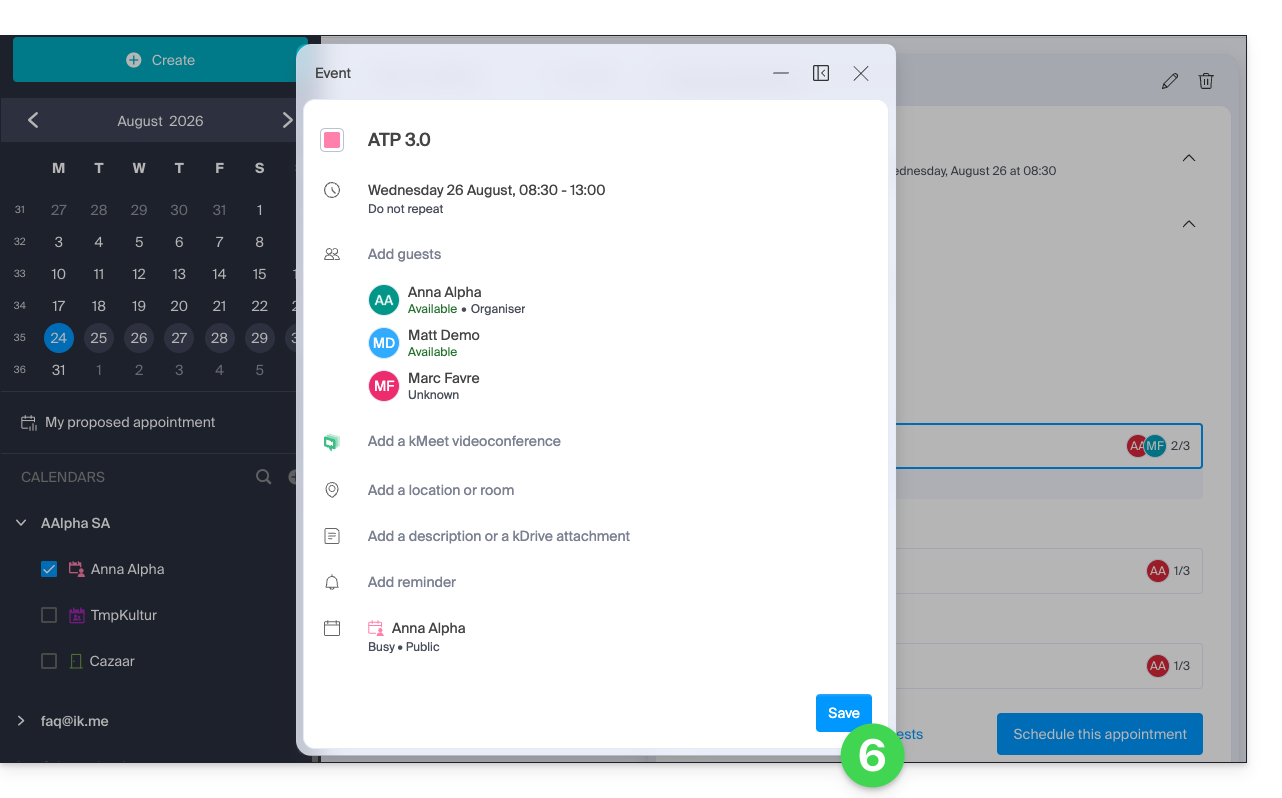
- All that remains is to complete and validate the event creation, including its associated invitations:
- In the same location, the meeting proposal is now defined as Scheduled.
- It is still possible to perform certain actions on the event later, including deleting it:
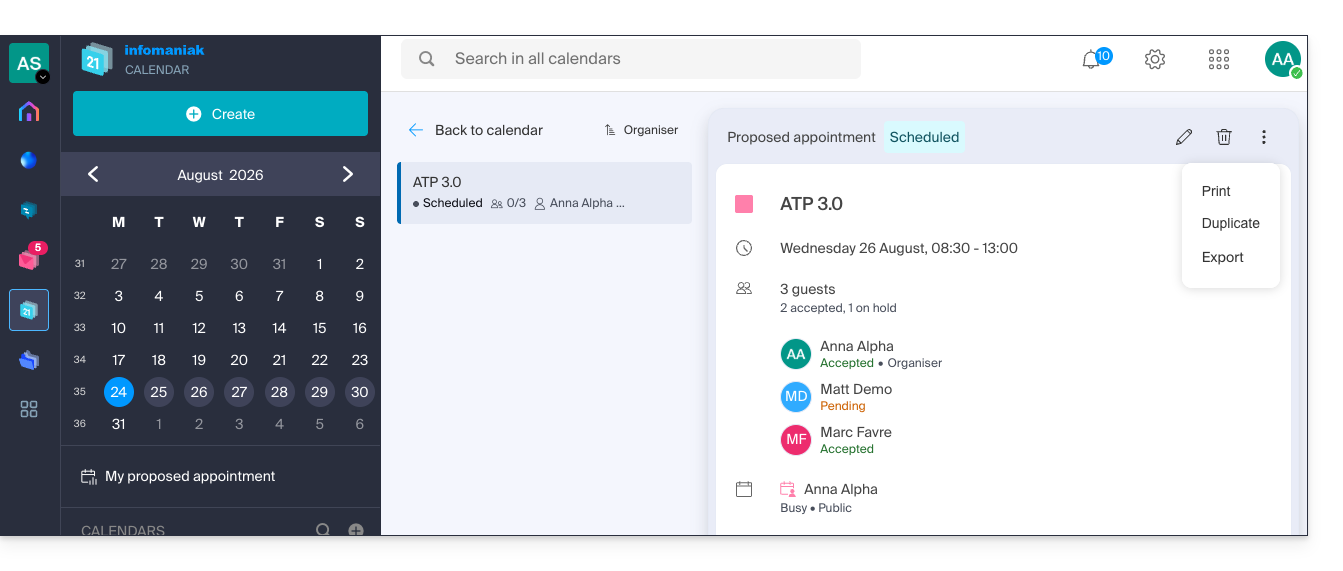
- Note: deleting a meeting proposal removes it from the dedicated menu, but will not automatically delete any associated event that may have been created in the meantime.
Link to this FAQ: https://faq.infomaniak.com/2928
Has this FAQ been helpful?