Knowledge base
1000 FAQs, 500 tutorials and instructional videos. Here, there are only solutions!
Add a user to an email address from Mail Infomaniak
This guide explains how, from the Infomaniak Mail web app (online service ksuite.infomaniak.com/mail), to allow a person to access a mail address within the Infomaniak ecosystem, i.e., by using only the Mail web app and/or the Infomaniak Mail mobile app, without creating a specific password for the address.
Other access and management options are presented in the main guide.
Prerequisites
- You must already be a user of the email address in question, or add yourself beforehand (❓: help).
- Have permission to delegate access to the email address in question: it is possible that the Mail Service administrator has removed this permission from their admin account
help
To allow a user who is already active in the Organization to access the email address you want to share:
- Click here to access your emails on your Infomaniak kSuite (❓: help).
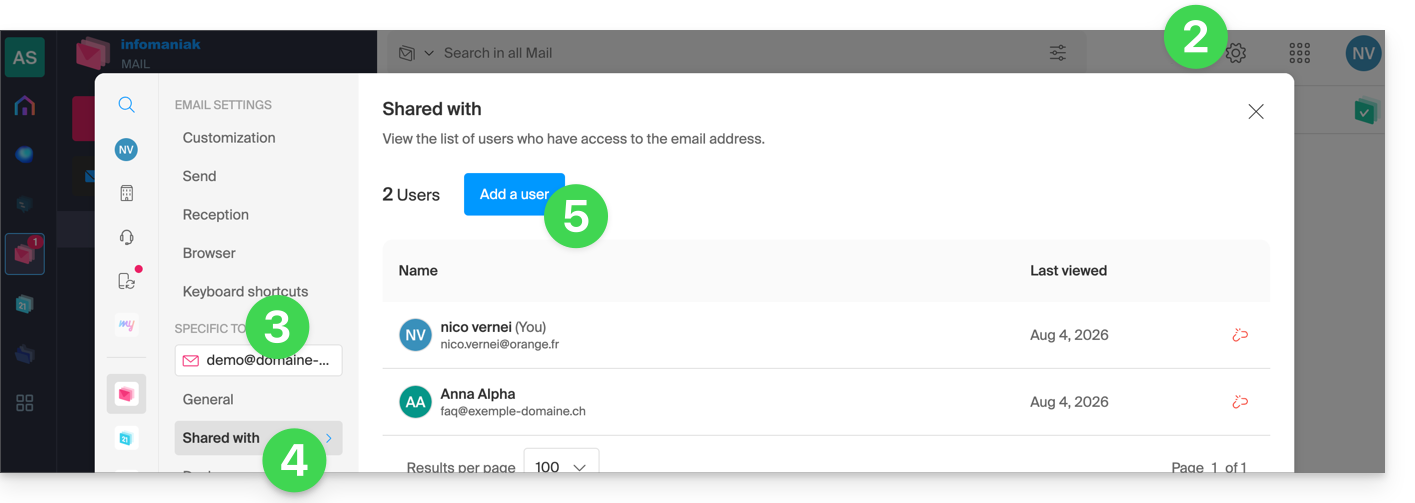
- Click on Settings in the top right corner.
- Check or select the relevant email address from the dropdown menu in the left-hand menu.
- Click on Shared with.
- Click on Add a user above the table of users who currently have access to the address in Mail:
- Enter the password to log in to your Infomaniak account if prompted.
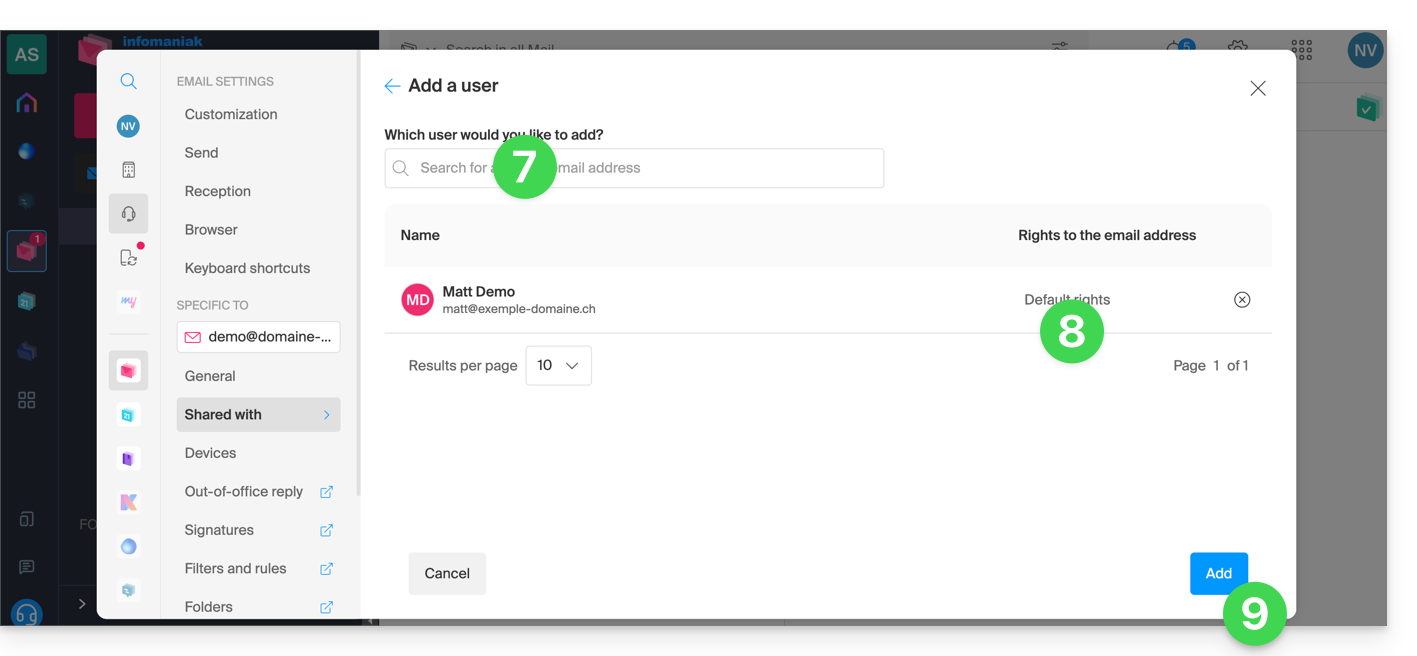
- Choose one of the existing users within your Organization.
- Added to the table, you can click to view their current permissions and determine if they can also delegate access to someone else in the Organization.
- Finish by clicking the Add button:
Result for the guest user
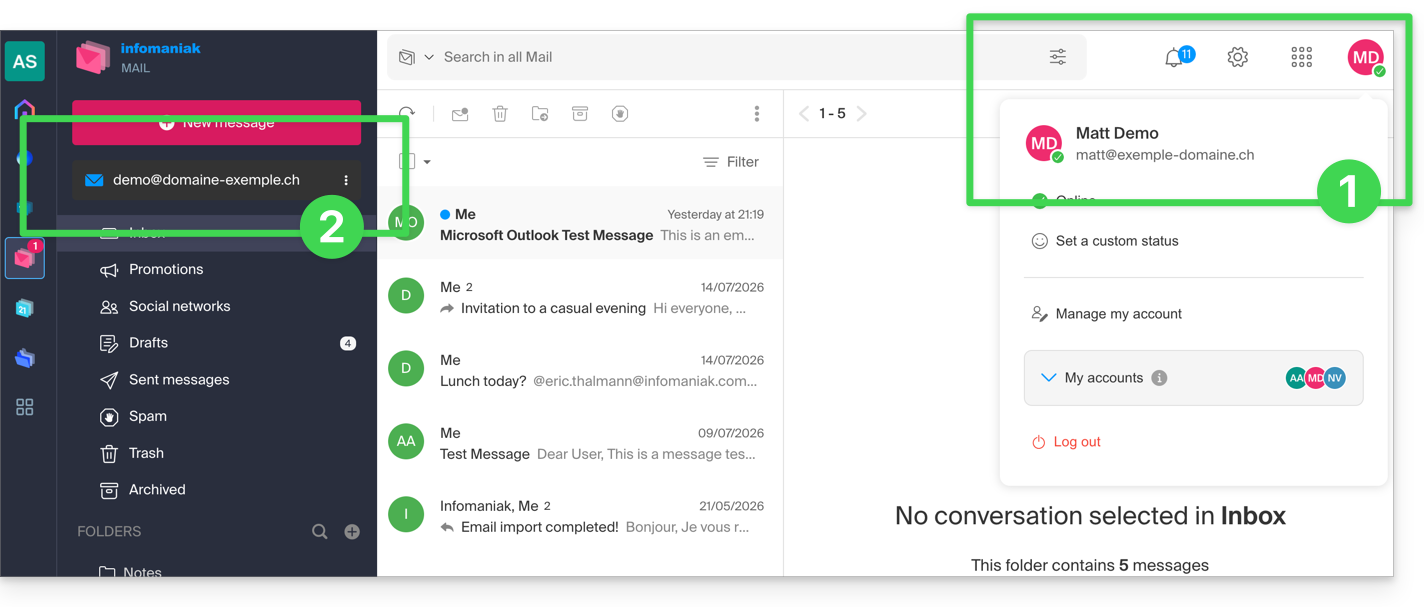
- The invited person logs in to their Infomaniak email…
- The email address in question will automatically be visible and accessible to the user:
If the user is unable to access the address, they can switch between their addresses at any time via the chevron located in the upper left corner of the screen: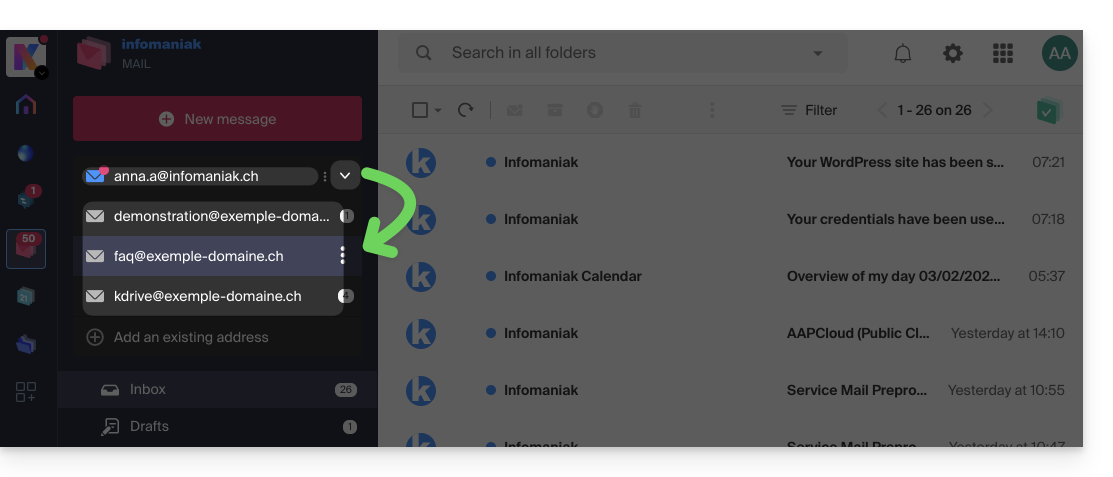
To do this, you may first need to select a different Organization (at the top left of the interface) from the ones you belong to.
If the address associated with the invitation still does not appear, try refreshing the browser page (Command ⌘ + R on macOS and Ctrl + F5 on Windows).
If the third party is not yet part of the Organization…
If you want to grant access to a user who is not yet part of the Organization, please refer to this other guide.
Link to this FAQ: https://faq.infomaniak.com/2925
Has this FAQ been helpful?